View 5.2 – Moving Persistent Disks To Another Pool

During a recent Horizon View proof of concept, a customer wanted to use Persistent Disks so they had the ability to take desktops offline and keep all the relevant user settings.

The proof of concept went well, however the users wanted to keep all of their settings but the pool needed to be destroyed as it didn’t meet certain criteria for the internal IT team such as the naming convention.

So in this scenario we had a requirement to delete the pool, but keep the users persistent disk and add it to another pool.  VMware have a KB called ‘Moving a persistent data disk to another View desktop‘ however the internal IT team wanted something which could be performed without using ESXCLI.

We thought about using Persona Management but we hadn’t installed it on the template. So what did we do? Well after a few tests, we came up with a workable scenario.

Scenario

We have two desktop Pools:

A – Pool A is where the persistent disks currently reside and contain all the users data

B- Pool B is the pool target for Pool A’s persistent disks

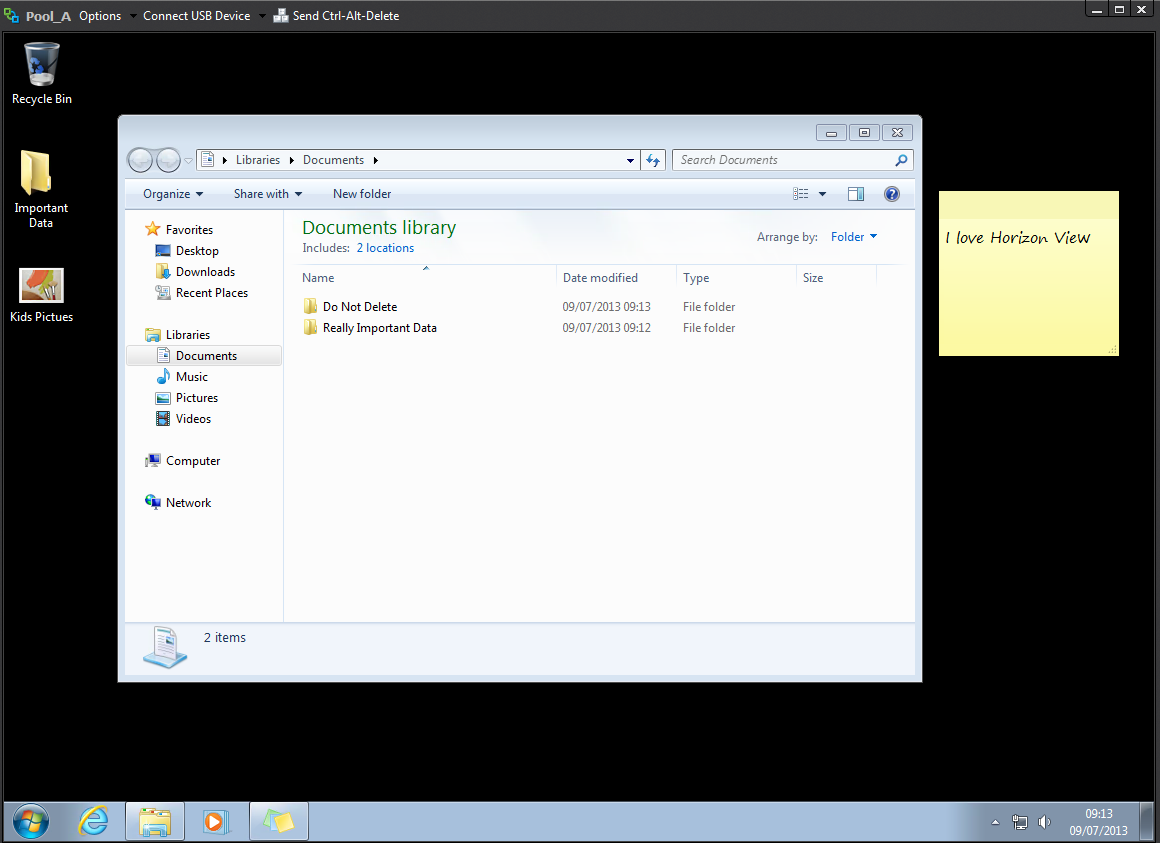
Pool A and Pool B have the same AD Security Group allowed to access both desktops which is Sales.  The user Sales01 has been accessing desktop VMF-PA01 and has various desktop icons and data in his My Documents.

Pool A

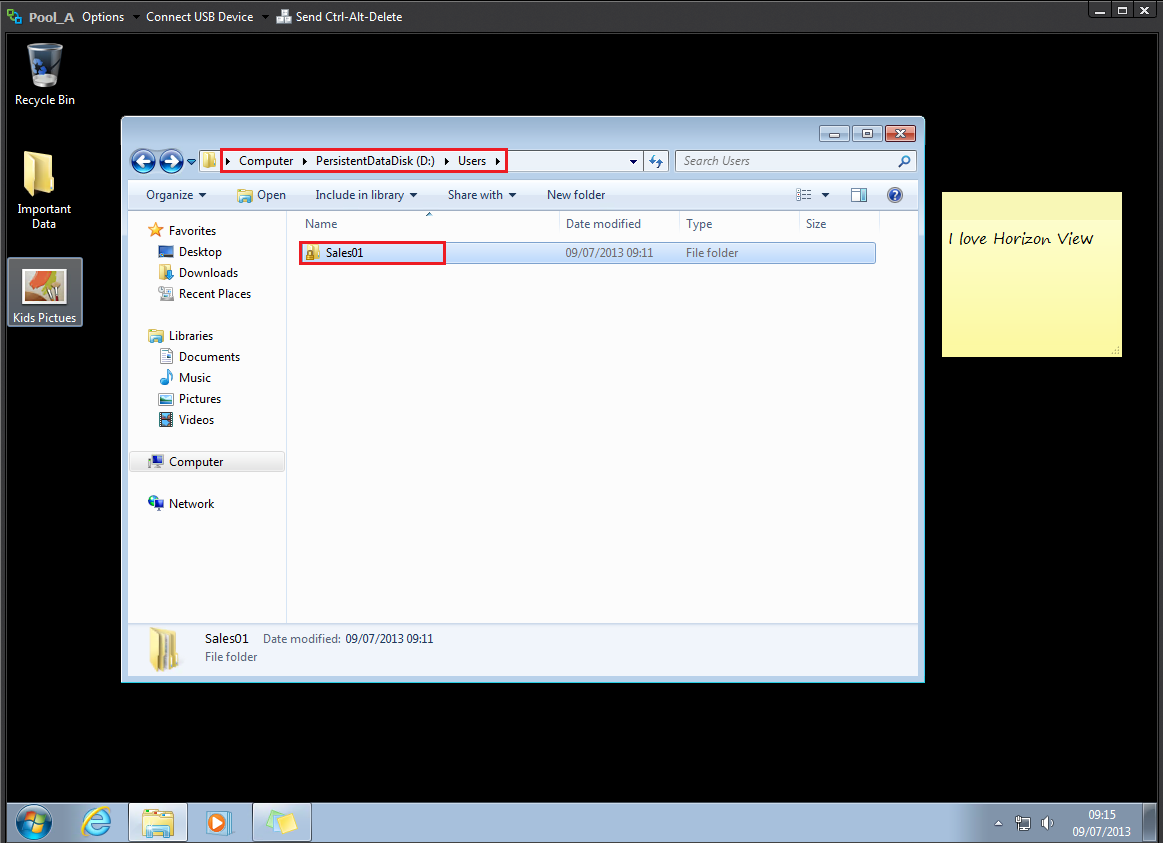
A quick check to make sure everything is tickety boo, let’s examine the Persistent Disk which is Drive D and we should see a Sales01 under the Users Folder

Pool A 1

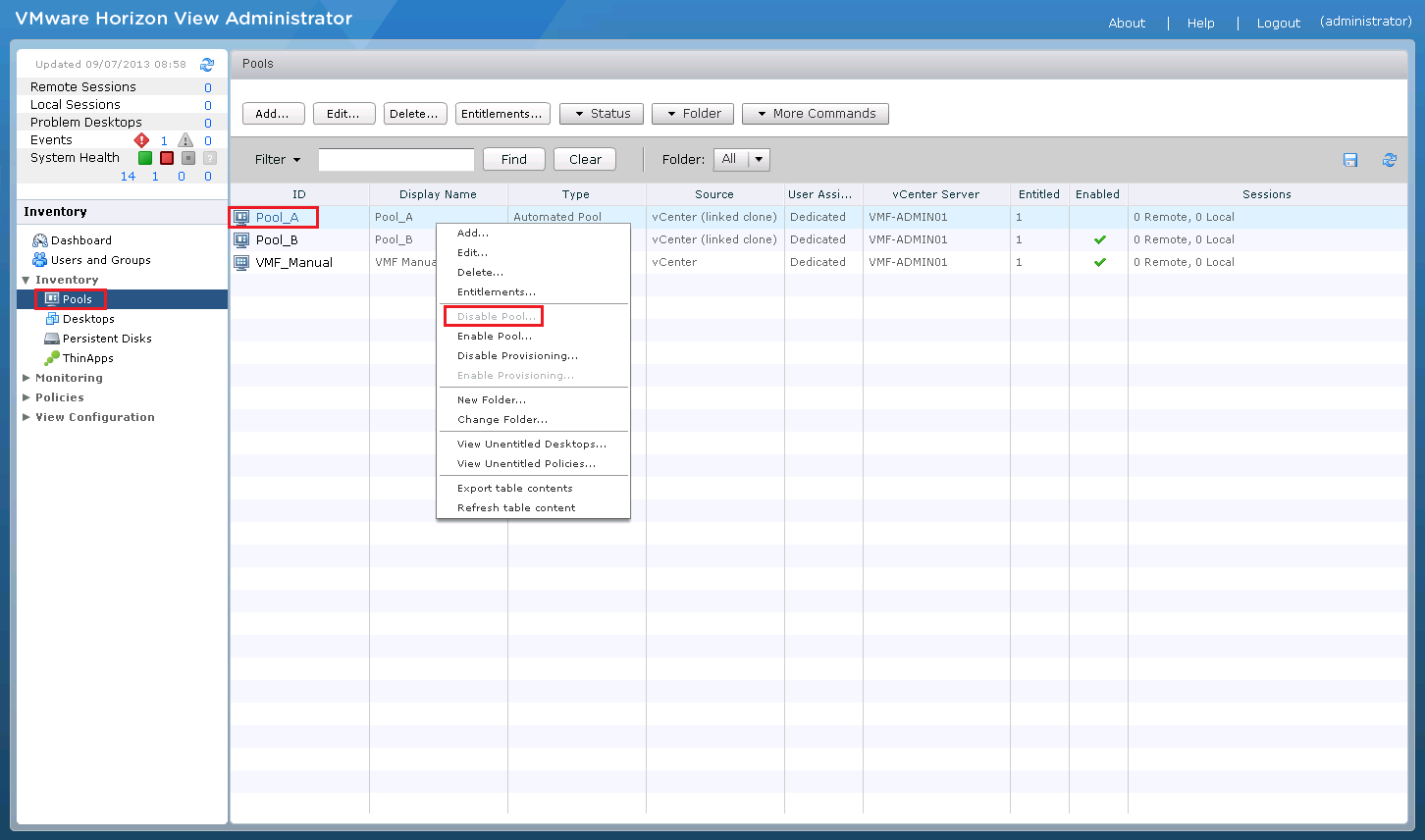
Next, I’m going to disable Pool A as I don’t want any access or data changing.

Disable Desktop

Step 1

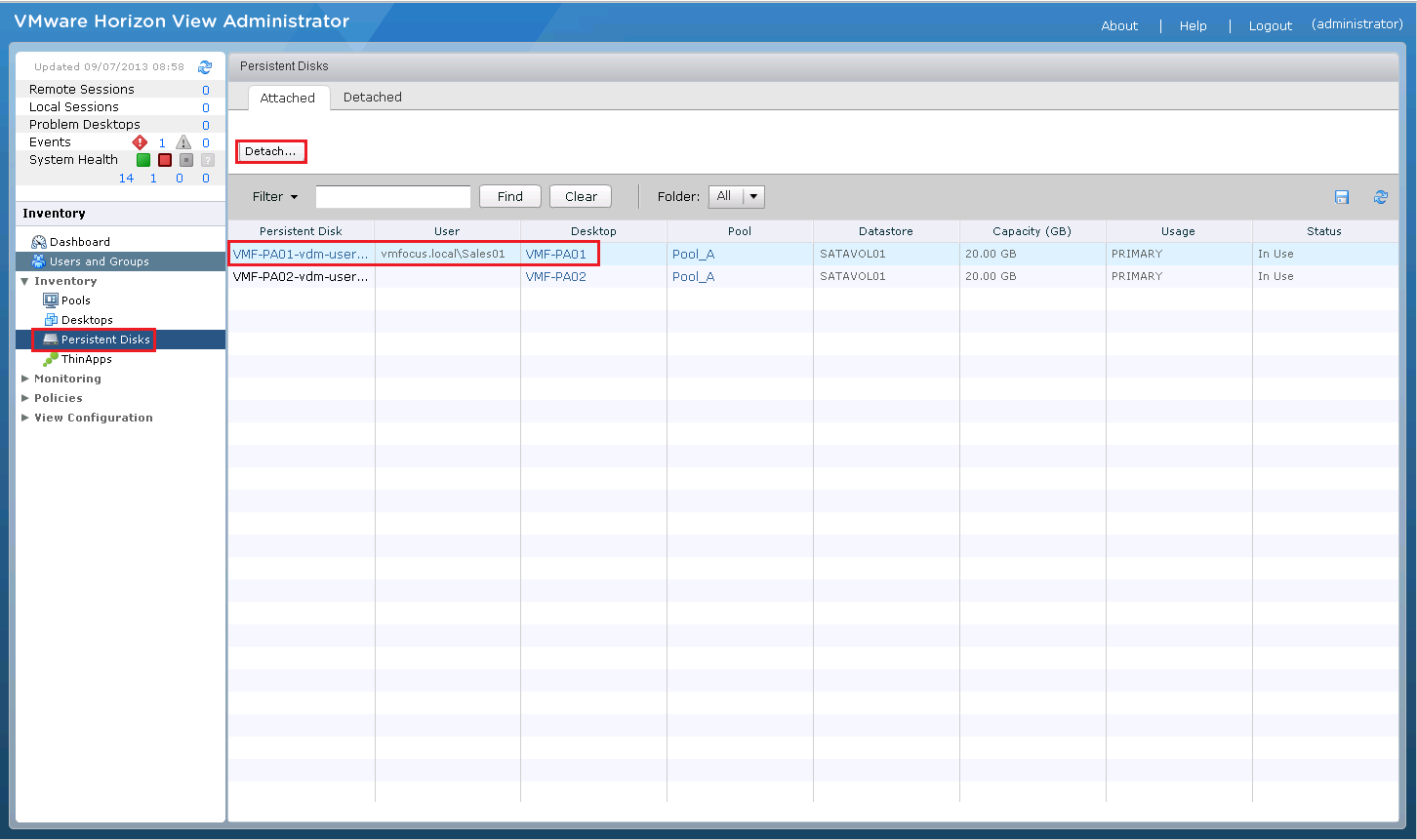
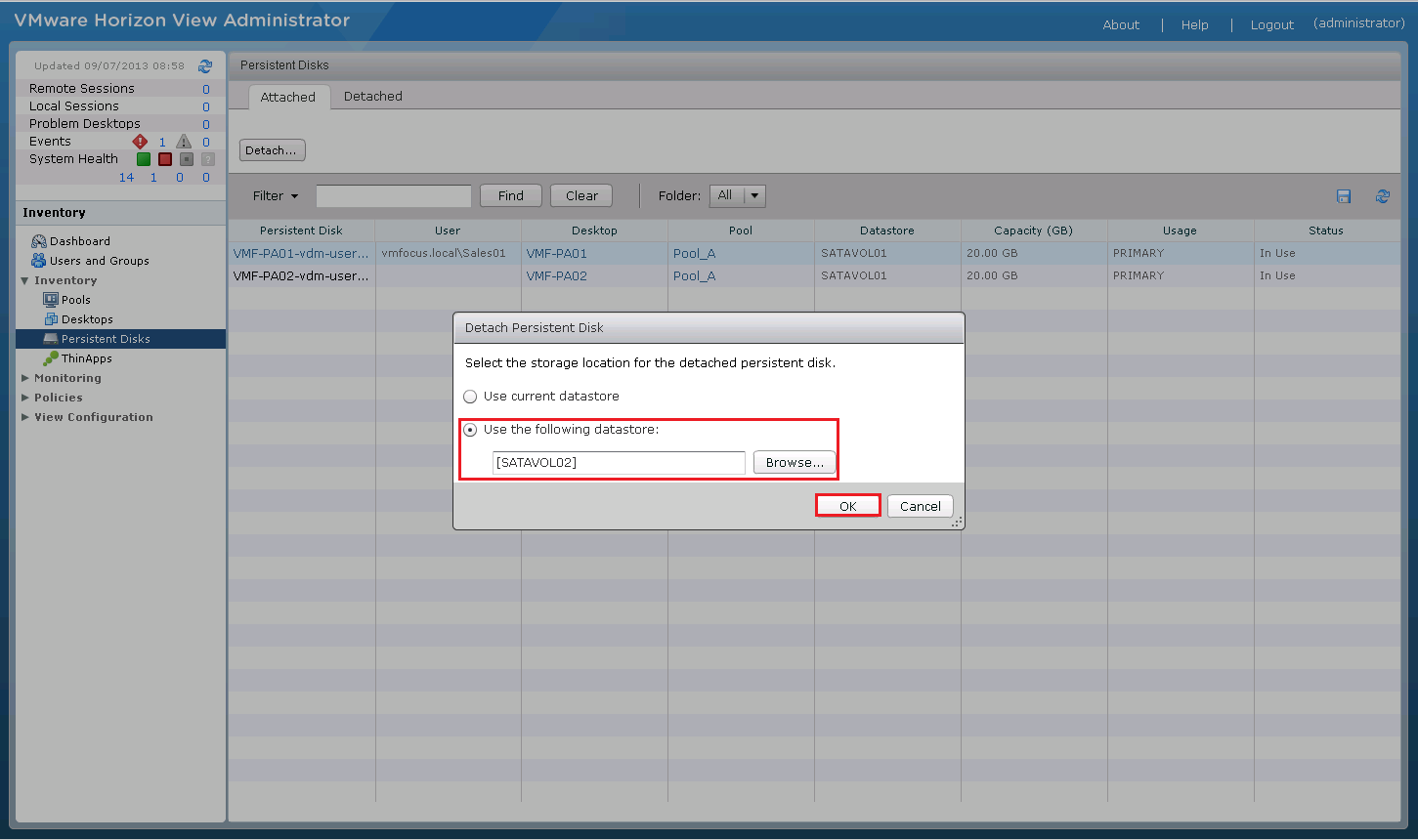
The first step is to Detach the Persistent Disk from the desktop VMF-PA01.  This can be found under Persistent Disk > VMF-PA01 and then select Detach

Persistent Disk 01

Choose where you want to store the Persistent Disk, I’m rolling with a different Datastore as Pool B resides in SATAVOL02

Persistent Disk 02

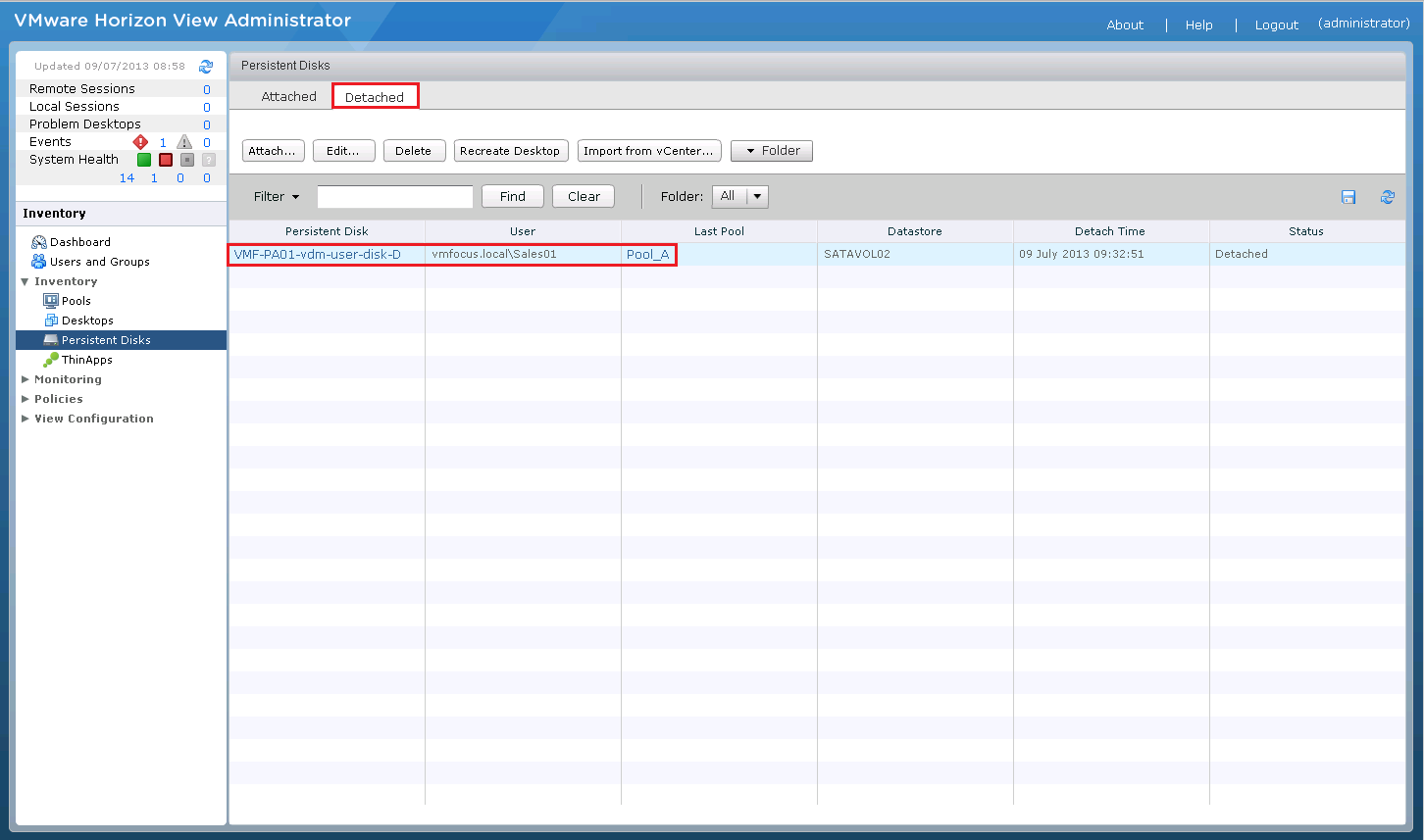
After a few minutes you should see the Persistent Disk under the Detached Tab

Persistent Disk 03

Note that the Persistent Disk Last Pool is A

Step 2

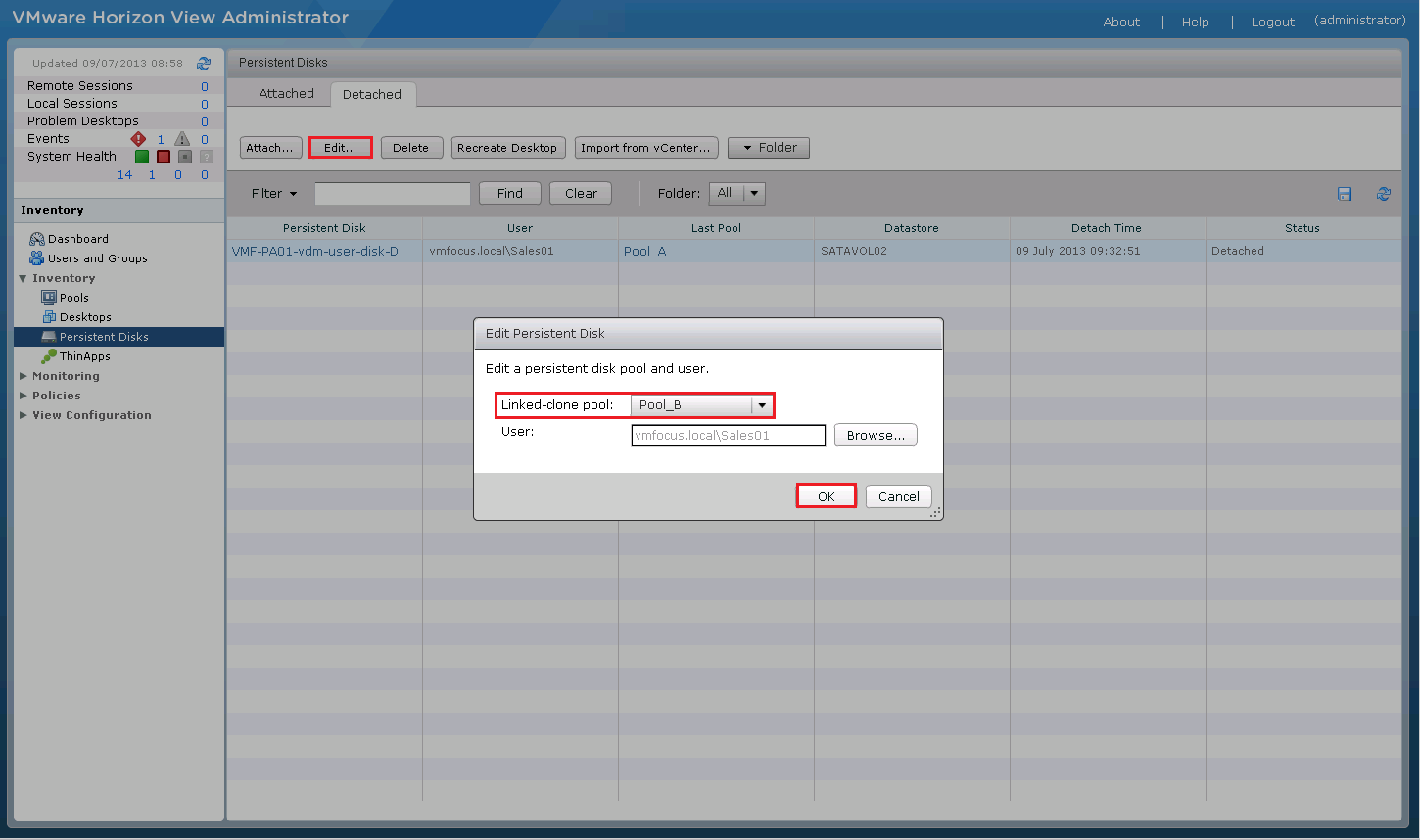
Edit the Detached Disk and change the Pool to B (our target)

Persistent Disk 04

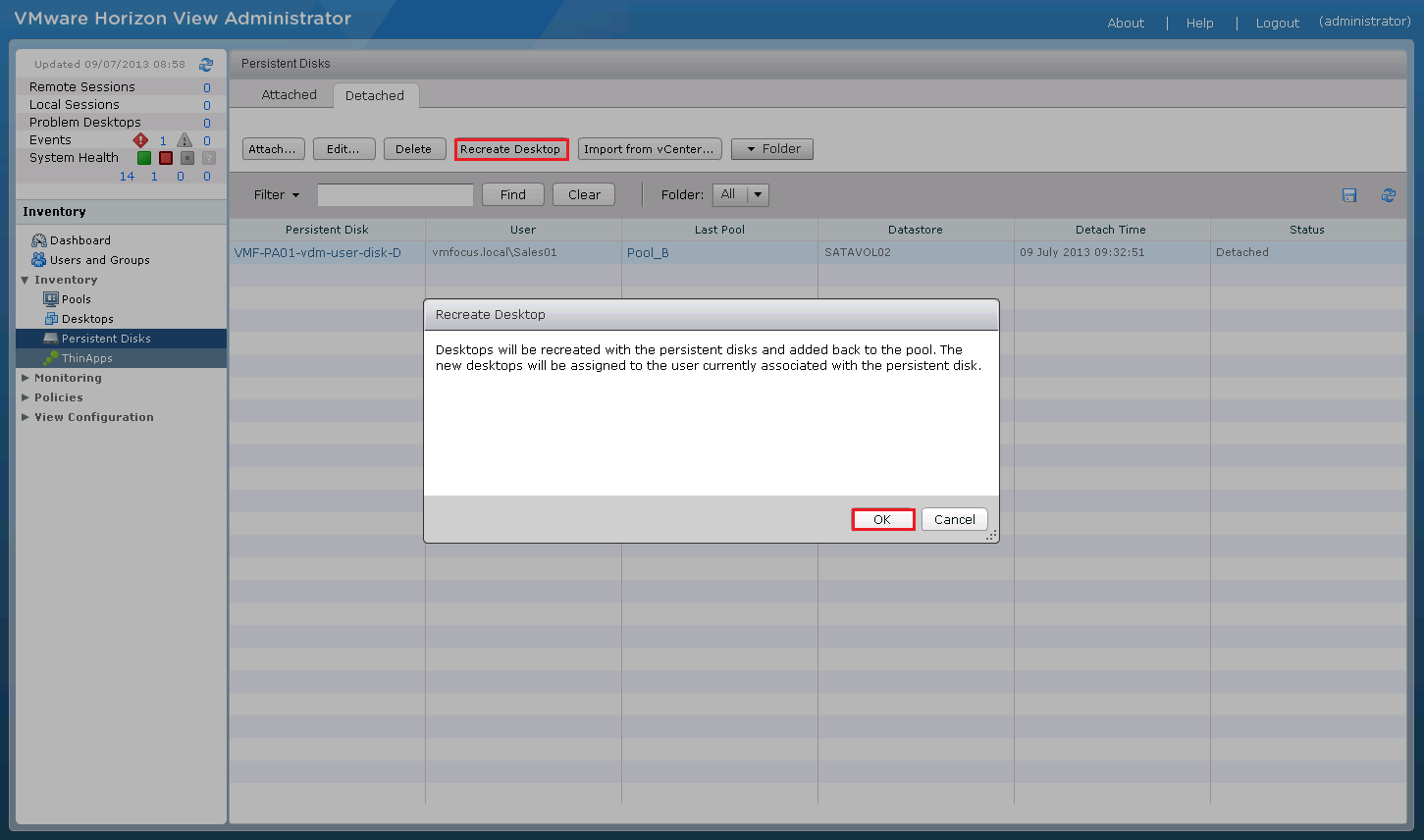
Next we need to Recreate Desktop

Persistent Disk 05

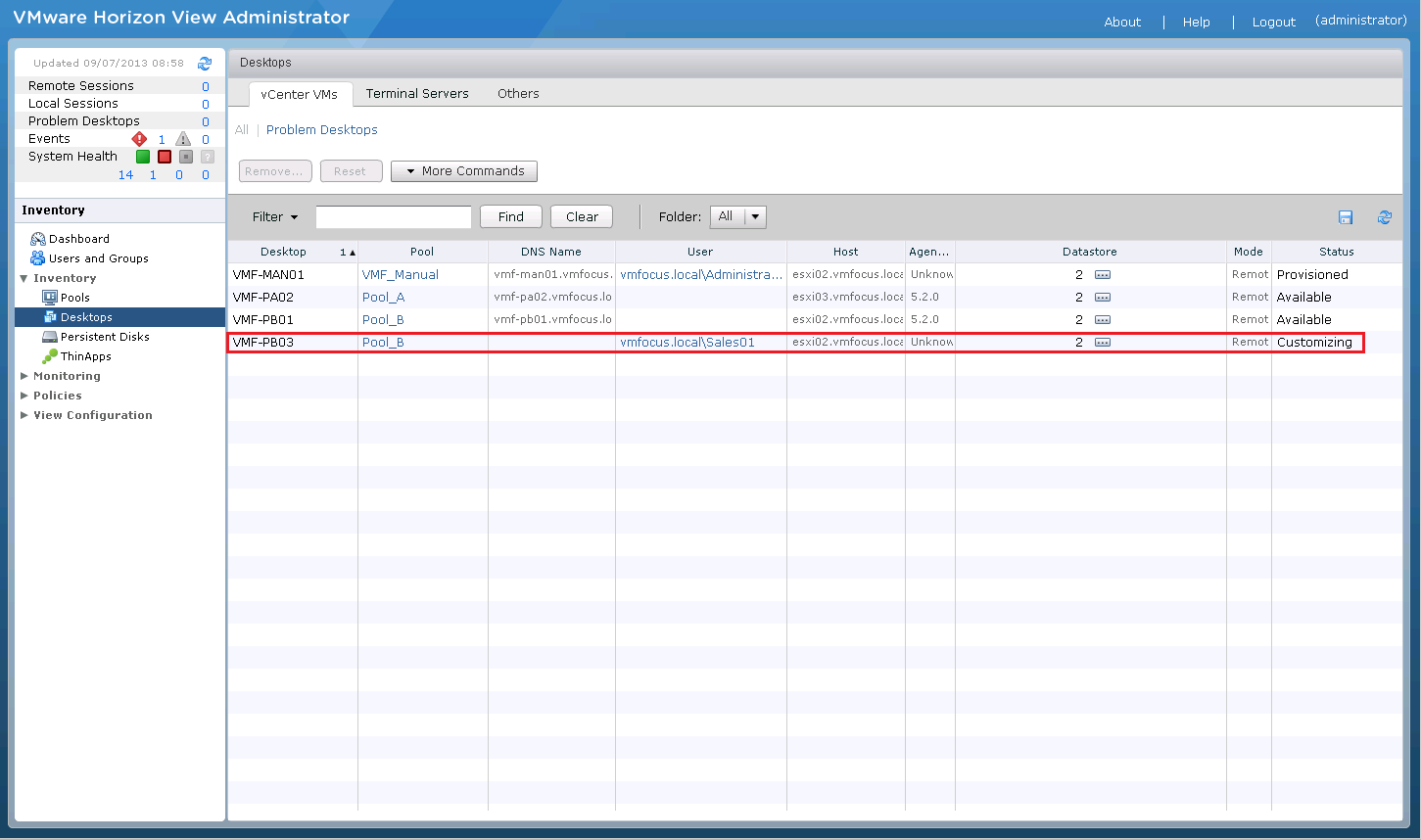
If all is working as expected you should see a new Desktop being provisioned in Pool B with the user Sales01 attached to it

Persistent Disk 06

The Result

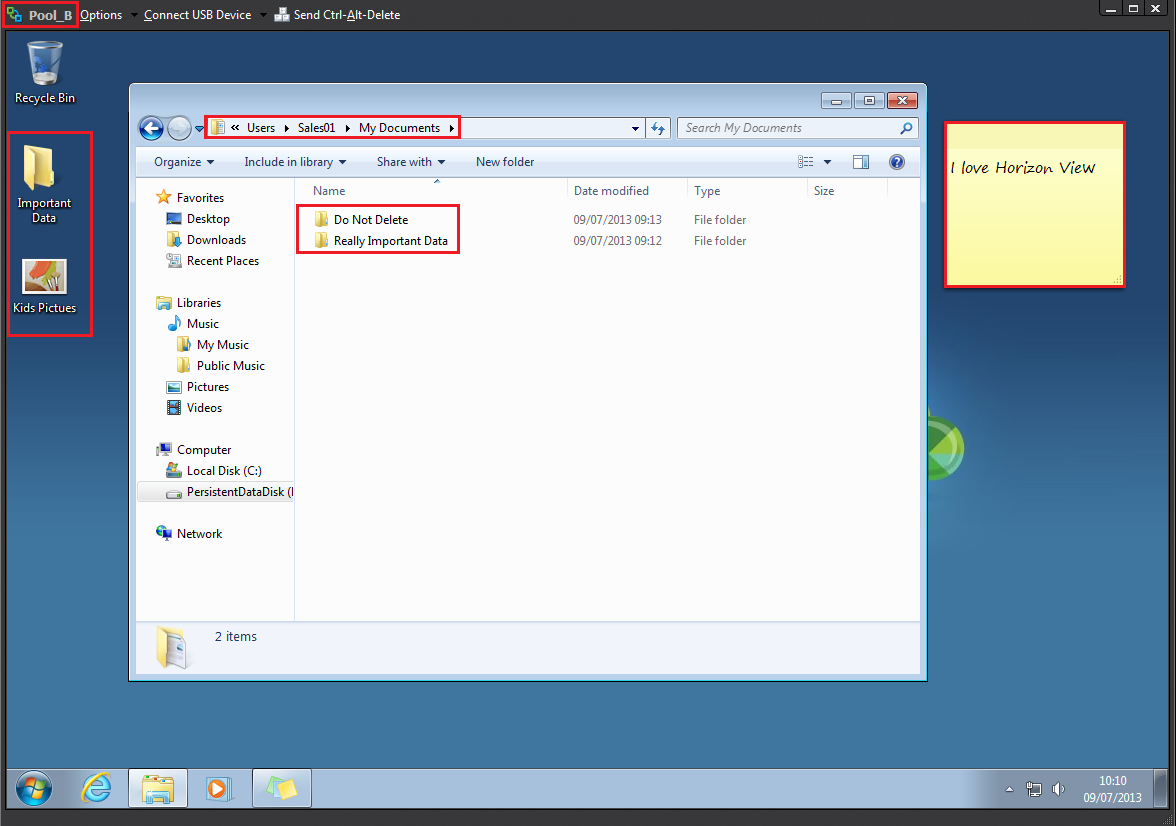
Once your desktop in Pool B has been composed, log back in as the user, in my case Sales01 check out your desktop which has all the relevant settings.

Pool B

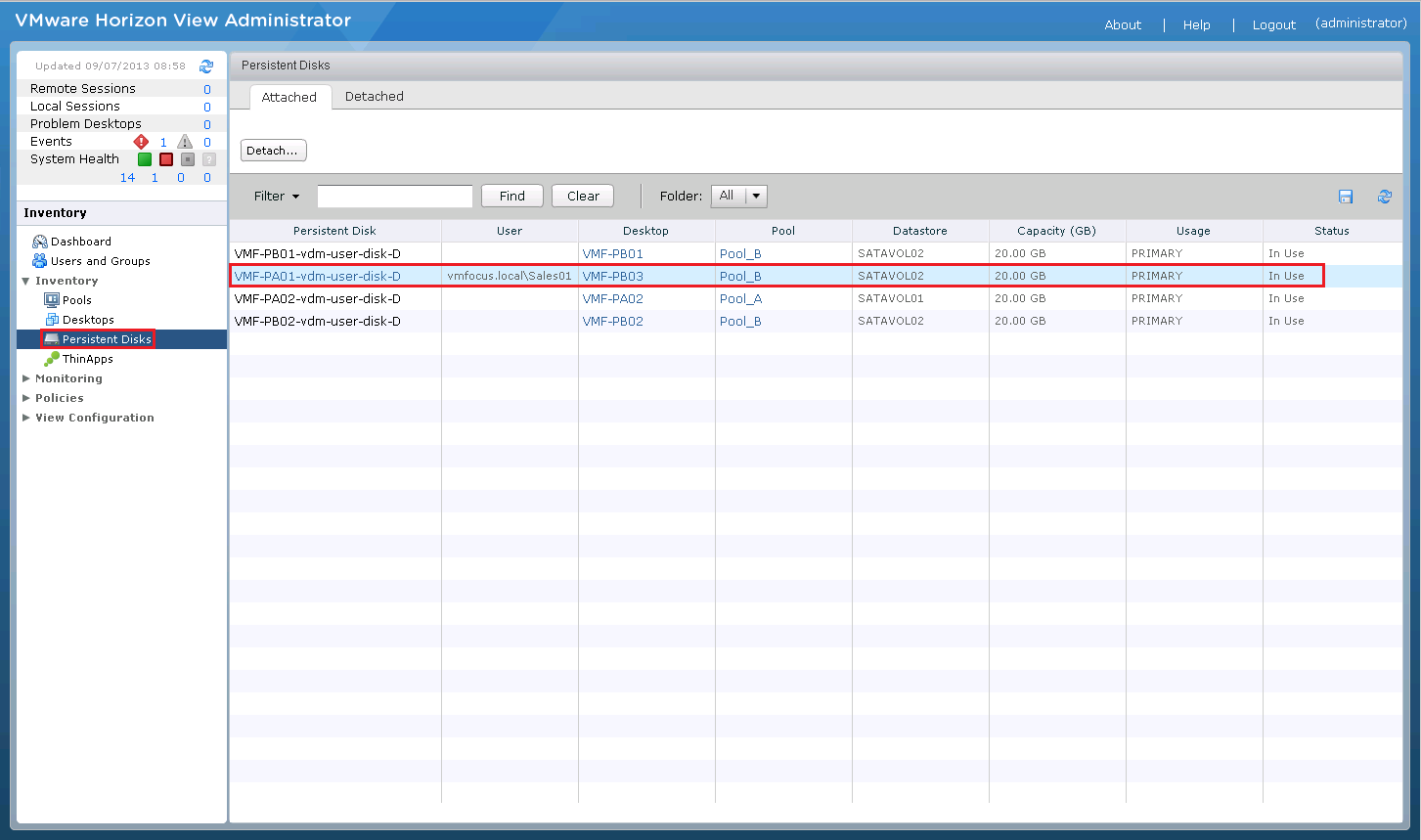
If we check the Persistent Disks you will see that VMF-PA01-vdm-user-disk-D is now associated with Pool_B and Desktop VMF-PB03.

Persistent Disk 07

10 Virtualisation Mistakes That Can Put You At Risk

Good news Veeam have teamed up with Kaspersky and are hosting a webinar on the top security challenges facing IT today.

The webinar is hosted by James Smith Senior Systems Engineer UK&I at Veeam Software and Dave Messett European Product Marketing Manager at Kaspersky.

  • How virtualisation changes the security and protection requirements
  • About the current threat landscape and its impact on your business
  • Practical advice on what to avoid for data protection and security in virtual environments
  • How a modern approach will prevent real disasters in virtual environments

To get involved on 11th July at 10:00am click me

London VMUG 04/07/2013 – Get Involved

The next London VMUG is happening this Thursday 4th July 2013, so if you haven’t registered for the event yet, I urge you to get involved

If you are a techie, why would you attend one of these events? Well apart from being free (which is awesome) it allows you to learn from your peers, this may be about a project you are working on and you want to know some of potential pitfalls.

Great line up as always, I’m looking forward to hearing from:

Frank Denneman – Pernix Data Keynote

Seb Hakiel – 4000 Seat VDI Lessons

Julian Wood VDI Roundtable

VMUG 04072013

Registration begins at 08:30 and doors close at 17:15.

Take a moment and pop the address in your mobile phone, so you don’t get lost on your way there!

London Chamber of Commerce and Industry
33 Queen Street
London EC4R 1AP

Horizon View 5.2 Local Mode – How It Works & Best Practices

I wanted to put together this blog post as there doesn’t seem to be a huge amount of information out on Horizon View Local Mode, on how to configure it and how you should expect to see it working.

I’m going to assume that you have built your Horizon View environment correctly, if you need some pointers, then I did a series of blog posts on the VCP5-DT exam objectives.

View Local Mode Best Practices

  • The first thing we need to remember is that Persona Management does not work with Local Mode, why’s that you ask? Well if you think about it if I’m working offline how do I synchronize my ‘user data’ with a UNC path?
  • It’s all about the ‘Persistent Disk’ this needs to be  large enough to accommodate AppData/Contacts/Desktop/Documents/Downloads/Favorites/Links/Music/Pictures/Saved Games/Searches/Start Menu/Videos one of the key things is always the users Outlook OST file if this is 10GB in size you need to start with at least a 20GB Persistent Disk and expand as needed.
  • When the user goes offline with the desktop, in my experience it is best for them to stay offline rather than check in and out as the time taken to do this can negate the all important end user experience.  The downside to this, is that  they can only access there desktop on the device which the desktop has been downloaded to.  Consider giving them access to a ‘floating’ desktop as well for use with HTML5 access.
  • Create a separate pool for Local Mode users as if you perform a recompose, they are going to have to download another full desktop over a WAN link, ouch!
  • Consider turning off, Compress and De Duplication as this put’s more strain on the offline desktop host and also on the View Transfer Server.  Yes you will get more data and bandwidth used, but happier end users as they see a performance impact on their desktop experience.
  • Make sure that the initial ‘Check Out’ of the Local Mode desktop is done on a LAN environment.
  • Depending on how many Local Mode Clients you have, stick to less than 20 per View Transfer Server.
  • Only replicate Persistent Disks, your OS Disk should be considered disposable.
  • Set a maximum time without server contact, I know this contrary to item 2.  However, the user should have to login to the View Client on a regular basis to force server contact.  As without this, you as a View Administrator have no control on what happens to their desktop.
  • Check that your user laptops will support the hardware reqiurements to work in Local Mode

How Local Mode Replication Works

Let’s say your Target Replication Frequency is once per day for ease.

  • On Monday your replication completes.
  • On Tuesday your replication starts but you go offline.
  • On Wednesday, Tuesday replication will continue until it completes and then Wednesday replication will start.

What To Expect In Horizon View Administrator/vCenter

When I first started using Local Mode, I couldn’t really find any information on what to expect, so below is the chain of events that I consider takes place.

Note, this is all my own research that has not been ratified by VMware.

Term Clarification

‘Online’ Local Mode Desktop is the VM held on vCenter

‘Offline’ Local Mode Desktop is the VM held on the users laptop

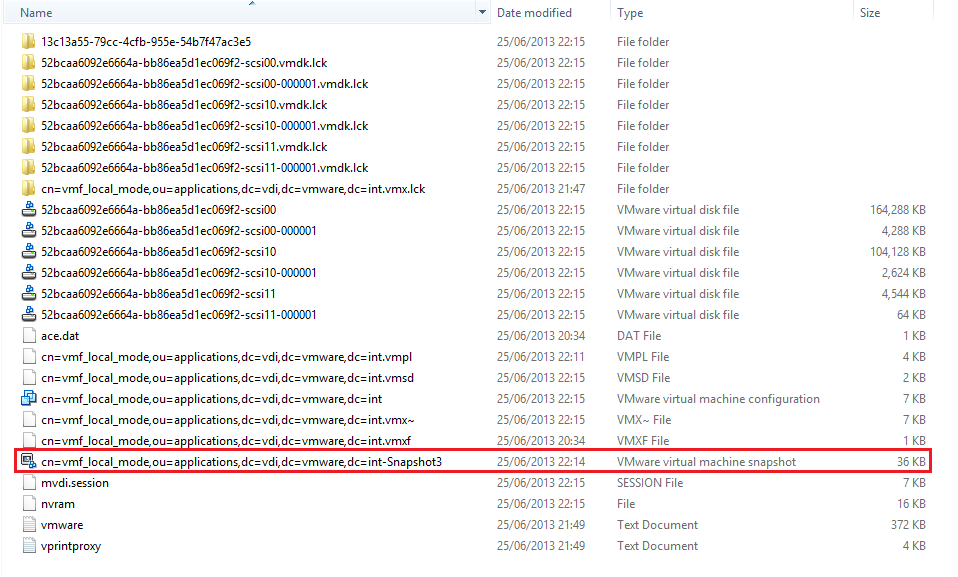
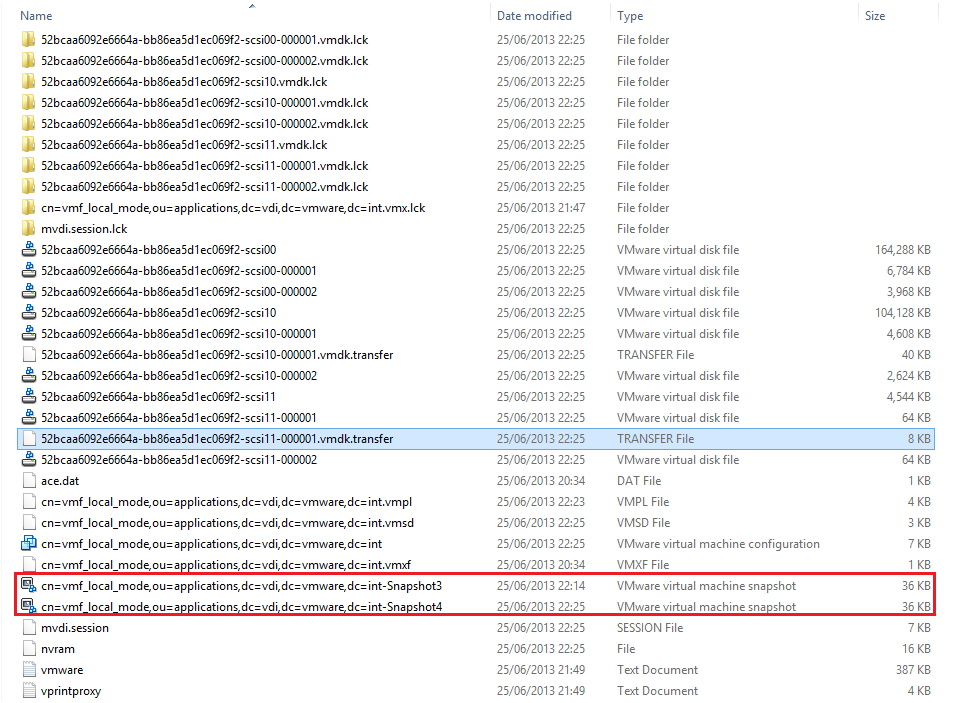
If you monitor the location of your ‘Offline’ Local Mode Desktop, the default location is C:UsersUser NameAppDataLocalVMwareVDMLocal Desktops you will notice a Virtual Machine Snapshot File

This is the last known good snapshot which has taken place, which has been committed to the ‘Online’ Local Mode Desktop

Snapshot3

At the next Target Replication Frequency interval, another snapshot is taken, in this case we have Snapshot3 and Snapshot4 in situ.

Snapshot4

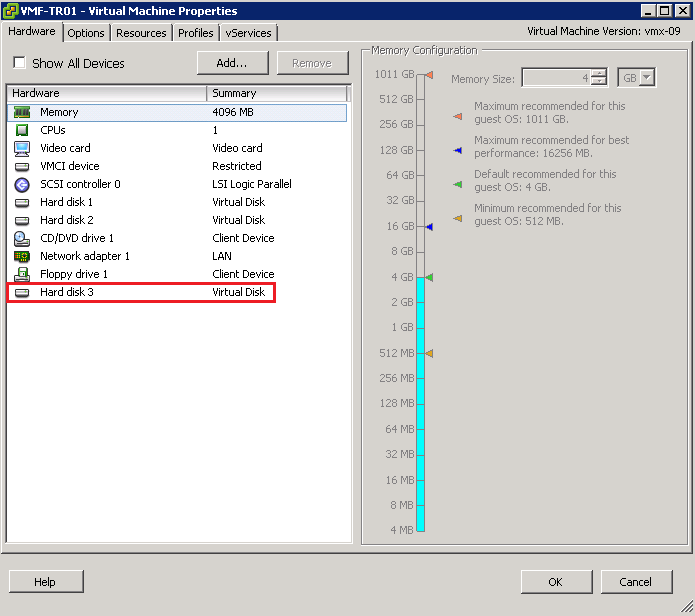
The snapshot delta is uploaded to the View Transfer Server which ‘adds’ the snapshot Virtual Disk from the ‘Offline’ Local Mode Desktop to itself

VMF-TR01

You will see this Recent Task appear in vCenter

Snapshot Overview01

View Transfer Server then processes the changes from the last delta and releases the Virtual Disk and goes back into it’s normal state.

Snapshot Overview

An acknowledgement is sent from the View Transfer Server to the ‘Offline’ Local Mode Desktop releases the oldest snapshot as this has been committed to the View Transfer Server and you are left with the last known good snapshot.  In this case it would be snapshot4.

Next your ‘Online’ Local Mode Desktop in my case VMF-LM01 creates a snapshot from the View Transfer Server process to commit the changes to the ‘Online’ Local Mode Dekstop (VMF-LM01)

Snapshot Overview04

This can be verified by checking the Snapshot Manager for VMF-LM01.
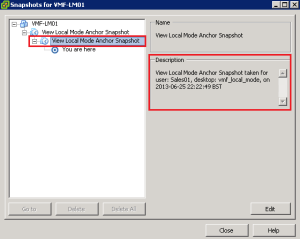
VMF-LM01

This snapshot is then committed and removed to ensure that both the ‘Offline’ and ‘Online’ Local Mode Desktops VMF-LM01 are kept in sync.

Snapshot Overview03

For those of you paying attention, some of the timelines aren’t 100% in synch, this is due to my inability to keep up with the transfer process.  However the chain of events are correct!

If anyone is able to add anymore information to this post, it will be welcomed.

Blog Business Cards Yay or Nay?

A little while ago I met Michael Poore (blog vSpecialist.co.uk) at a London VMUG and was impressed that he had produced some vSpecialist business cards.

I wasn’t 100% sure whether having work and personal business cards was a good idea, however in certain circumstances your work business cards aren’t appropriate e.g. fellow bloggers.

With this in mind, I thought I would give it a whirl and engaged a colleague of mine Adam kirby (twitter @adamkirby_mk).  Adam has  excellent design skills and I think he has done an awesome job of the VMFocus.com business cards.

Business Card Front

Business Card Back

So what do you think are blog business cards worthwhile? Cast your vote!