

Knowledge
- Identify minimum hardware and software requirements for installation
- Identify required firewall rules
- Identify security server pairing password
- Navigate the View Connection Server installation wizard
Hardware Requirements
Processor Pentium IV 2.0GHz or higher. Recommended 4 CPU
Networking One or more 10/100Mpbs NIC’s. Recommended 1Gbps NIC
Memory 4GB RAM. Recommended 10GB RAM for 50 or more desktops
Operating System – Software Requirements
Windows Server 2008 R2 64 Bit Standard or Enterprise
Windows Server 2003 R2 32 Bit Standard or Enterprise
Note, to use PCoIP Secure Gateway component, the OS must be Windows Server 2008 R2 64 Bit.
Virtualization – Software Requirements
The following version of vSphere are supported:
vSphere 4.0 Update 3 or higher
vSphere 4.1 Update 1 or higher
vSphere 5.0 or higher
Note, both ESX and ESXi hosts are supported.
Firewall Rules
The Security Server acts as a ‘secure gateway’ to the View Connection Server and as such should be placed in a DMZ (a logical zone between the internet and LAN). As the Security Server is internet facing it will require the following Ports to be opened:
TCP 443 Inbound
PCoIP View Client to Security Server
TCP 4172 View Client to Security Server
UDP 4172 View Client to Security Server
UDP 4172 Security Server to View Client
PCoIP Security Server to Virtual Desktop
TCP 4172 Security Server to Virtual Desktop
UDP 4172 Security Server to Virtual Desktop
UDP 4172 Virtual Desktop to Security Server
Security Server Installation
As with previous posts, it’s a good idea to recap on what the Security Server does. Essentially, the Security Server bypasses the need for a third party VPN device such as PPTP, L2TP IPSEC.
An SSL connection is made directly to the Security Server. The link to a View Connection Server is a one to one relationship. Therefore, if you have two View Connection Servers then you would need two Security Servers.
If you decide that two Security Servers are required then a third party load balancing device will need to be obtained as View doesn’t have this ability natively.
How does it work? Well two SSL tunnels are created, the first to the Security Server when the user authenticates, a secondary SSL tunnel is then created when the user accesses the View Desktop.
As mentioned previously, the Security Server should sit within a DMZ and therefore should not be part of your Active Directory domain.
Taking the above into account, I have created a VM called VMF-SS01 with the following specifications:
1 x vCPU
4 GB RAM
1 x vNIC
We use the same installer as the VMware View Connection Server which can be downloaded from here. As at the time of this blog post, the most recent version is VMware-viewconnectionserver-x86_64-5.1.2-928164.exe
Launch the installer and click Next
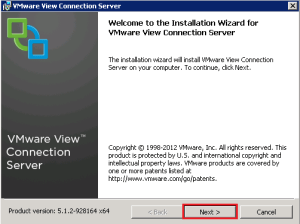
Accept the EULA and click Next

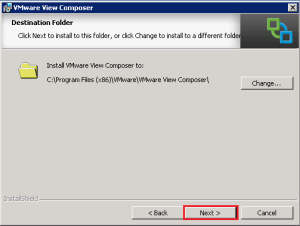
Choose the installation location, in most setups I tend to leave this as the default.
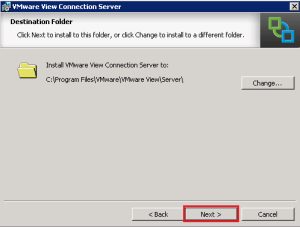
Select View Security Server and click Next

Now we have to pair the Security Server with a View Connection Server. This relies on DNS, with this in mind, you can choose to do a number of things:
- Create a host entry for your View Connection Server
- On the Security Server use a LAN DNS server and open up UDP and TCP Port 53 to the LAN
In my configuration, I’m going to opt for option 2. As it means the Security Server can resolve all my LAN servers, you probably wouldn’t do this in production!
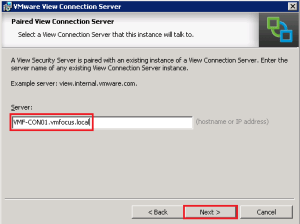
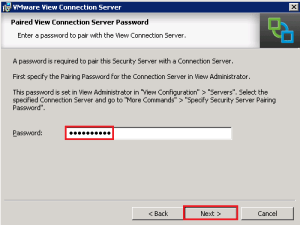
This is where things start to get interesting, we need to enter a ‘pairing password’ on both the Security Server and View Connection Server. You need to enter the password on the Connection Server first. Jump onto your View Connection Server and go to View Configuration > Servers > Connection Servers > More Commands > Specify Security Server Pairing Password

We now have to enter our one time password to enable authentication between the Security Server and View Connection Server. A couple of things to note before we do this.
1. Windows Firewall doesn’t need to be turned on, even though it mentions it does.
2. The password is one time only to validate each server.
With this in mind, enter your passwords and hit OK.

Jump back onto the Security Server in my case VMF-SS01 and enter the same password and click Next
Next we need to enter in our external URL, I’m going to roll with view.vmfocus.com and we also need to enter our external IP Address.
Note, the external IP Address has to be static, using DNS with dynamic records such as no-ip.org do not work.
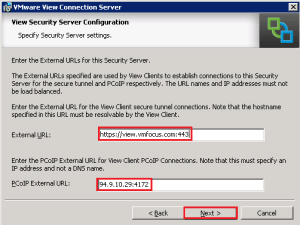
We will allow Security Server to configure the Windows Firewall automatically

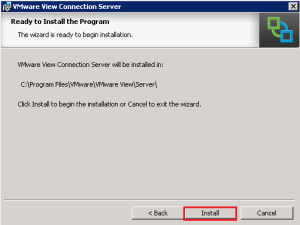
We are cooking on gas now! Click Install
Voila all Finished
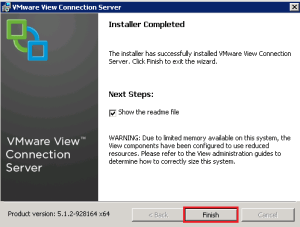
Now the strange thing is that even though we have installed the Security Server, the PCoIP Gateway is not enabled! This is covered in Objective 2.4.




 VMFocus