Microsoft Azure Concepts – Media Services

When I think about Media Services, automatically the complexity of delivering content springs to mind.  How do I get the footage from my location to a website securely? How do I then deliver the footage so that it can be consumed?  How do I make the footage available offline? How do I make sure the footage is only available for a set period of time?

Well if you are famous then you probably have a team of people who worry about this for you.  For us common folk, we have to rely upon a third party service.  This is where Azure Media Services can help.

What Is Azure Media Services

According to Microsoft, Azure Media Services enables developers to create a scalable media management and delivery platform.  What this really means is it allows you to provide live streaming or on demand access to audio and/or video content in a secure manner.

What Makes Up Azure Media Services?

The first thing you need is an ‘asset’.  Think of an ‘asset’ as a container that holds all of the files that make up your movie.  The ‘asset’ is then mapped to a blob container.  Each ‘asset’ must contain a unique version of the media content.  For example if you have Star Wars IV and Star Wars IV Remastered these need to be in separate ‘assets’.

Next we have an ‘asset file’ which is a digital media file stored on the blob container which is associated with you ‘asset’.  Each ‘asset’ can be encrypted using one of the following options:

Option Encryption
None No Encryption
Storage Encrypted Encrypted locally using AES 256. Stored in Azure on encrypted storage
Common Encryption Protected Encrypt content with Common Encryption or PlayReady DRM
Envelope Encryption Protected Encrypt HTTP live streaming (HLS) with Advanced Encryption Standard (AES)

An asset policy is then applied to the ‘asset’ to determine permissions to the resources and the duration of the access, for example you might want to allow everyone to view a live stream of an event.  But then you might want people to register to download the event for offline viewing.

It’s important to note that the blob storage container is the boundary for access to the ‘asset’.  To access the media content, locators are used which are essentially entry points.  These can be either on demand for streaming or SAS (shared access signature) URL based.

  • Bandwidth is purchased in 200Mbps increments
  • Default of two streaming endpoints per Media Service account

Before media content is stored in Azure, you might want to encode it.  This process is known as a ‘job’, each ‘job’ contains a number of tasks which are performed.  For example, you might want to to encode a video so that it is compatible with common web players and mobile devices.

Last of all we have channels, the best way to think of these are like channels on TV.  Each Media Service account comes with five channels.  Within each channel is a program.  Think of these are a timed even on a channel.  You can have three concurrent programs running on your five channels at any given point in time.

Probably a bit easier to explain the above in a diagram, so here it is.
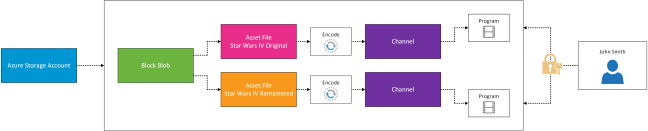
Azure Media Services

Microsoft Azure Concepts – Content Delivery Network

Everyone wants a good experience accessing a websites content from any where at any time.  Whether we like it or not location comes into play, if I’m trying to stream content from Australia and I’m located in the United Kingdom, you can expect to receive circa 250ms latency, which means a poor user experience.

Microsoft have the answer which is Content Delivery Networks (CDN).  Essentially this is a global caching solutions that delivers the website content from a point of presence closest to the users.

Caching Content

When CDN is enabled you will create an endpoint.  An endpoint is the URL used to access your cached resources for example http://endpoint.azureedge.net.  Each CDN supports up to ten endpoints, which holds one of three types of cached content.

Blob Storage – If your Blob Storage is publicly available then it can be made accessible via CDN

App Services – If you are running App Services then you can again make these available via CDN

Cloud Services – If you are running Cloud Services then you can again make these available via CDN

What Locations Are Used

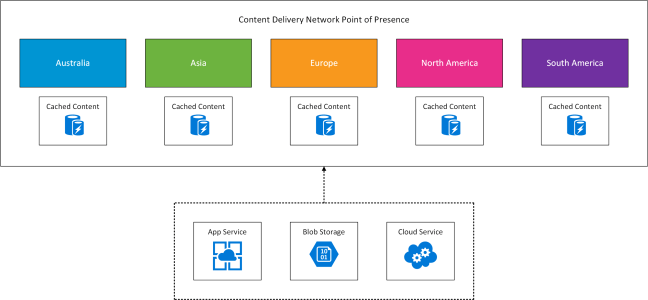
CDN has a point of presence (POP) in the following locations.

Australia Asia Europe North America South America
Melbourne

Sydney

Batam

Hong Kong

Jakarta

Kaohsiung

Osaka

Seoul

Singapore

Tokyo

Bangalore

Chennai

Delhi

Mumbai

Amsterdam

Copenhagen

Frankfurt

Helsinki

London

Madrid

Milan

Paris

Stockholm

Vienna

Warsaw

Atlanta

Chicago

Dallas

Philadelphia

Los Angeles

Miami

New York

San Jose

Seattle

Washington DC

Boston

São Paulo

Quito


This is shown in the conceptual diagram below.

Azure CDN

vSphere Replication – Consider These Points Before Using It

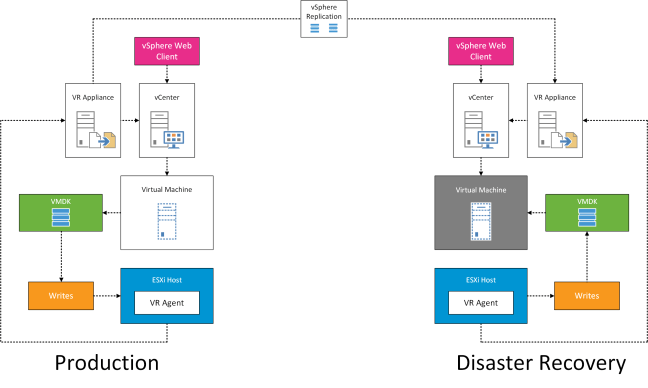
vSphere Replication has been embedded in the ESXi kernel for quite sometime now.  When a virtual machine performs a storage ‘write’ this is mirrored by the vSCSI filter at the ESXi Host level before it is committed to disk.  The vSCSI filter sends its mirrored ‘write’ to the vSphere Replication Appliance which is responsible for transmitting the ‘writes’ to it’s target. normally in a DR site.

The process is shown at a high level in the diagram below.

vSphere Replication v0.1

I’m often asked by customer if they shoud consider using it given the benefits which it provides, which include:

  • Simplified management using hypervisor based replication
  • Multi-point in time retention policies to store more than one instance of a protected virtual desktop
  • Application consistency using Microsoft Windows Operation System with VMware Tools installed
  • VM’s can be replicated from and to any storage
  • An initial seed can be performed

As a impartial adviser, I have to provide the areas in which vSphere Replication isn’t as strong.  These are the points, I suggested are considered as part of any design:

  • vSphere Replication relies on the vRA, if this is offline or unavailable then replication stops for all virtual machines.
  • vSphere Replication requires the virtual machine to be powered on for replication to occour
  • vSphere Replication is not usually as efficient as array based replication which often have compression and intelligence built into the replication process.  If you have limited bandwidth you may violate restore point objectives
  • vSphere Replication will reduce the bandwidth available to other services/functions if you are using logically separated networks over 10GbE
    • Note that Network IO Control can be used to prioritise access to bandwidth in times of contention, but required Enterprise Plus licenses
  • vSphere Replication requires manual routing to send traffic across a replication VLAN which increases the complexity of the environment
  • vSphere Replication is limited to 200 virtual machines per Replication Appliance and 2000 virtual machines overall as detailed in VMware KB2102453
  • After an unplanned failover and reprotect, vSphere Replication uses an algorithm to perform a checksum, this can result in a full sync depending on length of separation and amount of data being changed.
  • vSphere Replication only provides replication for powered on virtual machines
  • In a HA event on an ESXi Host at the Production site will trigger a full synchronisation of the virtual machines that resided on the failed host. See vSphere Replication FAQ’s

The last point which for me is a deal breaker.  Let’s consider that last point again, if we have an ESXi Host that has a PSOD then all of the VM’s will require a full synchronisation.

What’s The Impact?

If we have an inter-site link of 100Mbps which has an overhead of 10%, this gives us an effect throughput of 90Mbps.

We have an average sized VMware environment with a couple of VM’s which hold 2TB of data each which are being replicated across a 100Mbps inter-site link then you are looking at over 4 days to perform a full synchronisation.

We also need to consider the impact on the rest of your VM’s who will have their restore point objective violated as the bandwidth is being consumed by the 2 x 2TB VM’s.  Not exactly where you want to be!

The Maths Per 2TB VM

8Mb equals 1MB

2TB equals = 16,777,216 Mbps

16,777,216 Mbps / 90 Mbps = 186,414 Seconds

186,414 seconds / 60 seconds = 3,107 Minutes

3,107 minutes / 60 hours = 51 Hours 47 Minutes

Microsoft Azure Concepts – Clusters

Following on from the post Microsoft Azure Concepts – Failures, I thought it would be worthwhile creating a quick post on Azure Clusters.

  • Each Azure Cluster is made up of 20 racks
  • Within each rack is between 40 and 50 servers
  • Each server within the Azure Cluster contains the same processor generation
  • Virtual Machines within an ‘Affinity Group’ are held within the same Azure Cluster to minimise latency

Fabric Controller

  • Each rack is a fault domain
    • Each rack has a ‘top of rack’ (ToR) switch which is a single point of failure
    • Each ToR connects to the aggregation layer switch which connects all the of racks in the Azure Cluster
    • Each rack has a power distribution unit which again is a single point of failure

Microsoft Azure Concepts – Networks

The purpose of this post is to explain the different networking options with Azure, it is meant to be an overview and not a deep dive into each area.

Endpoints

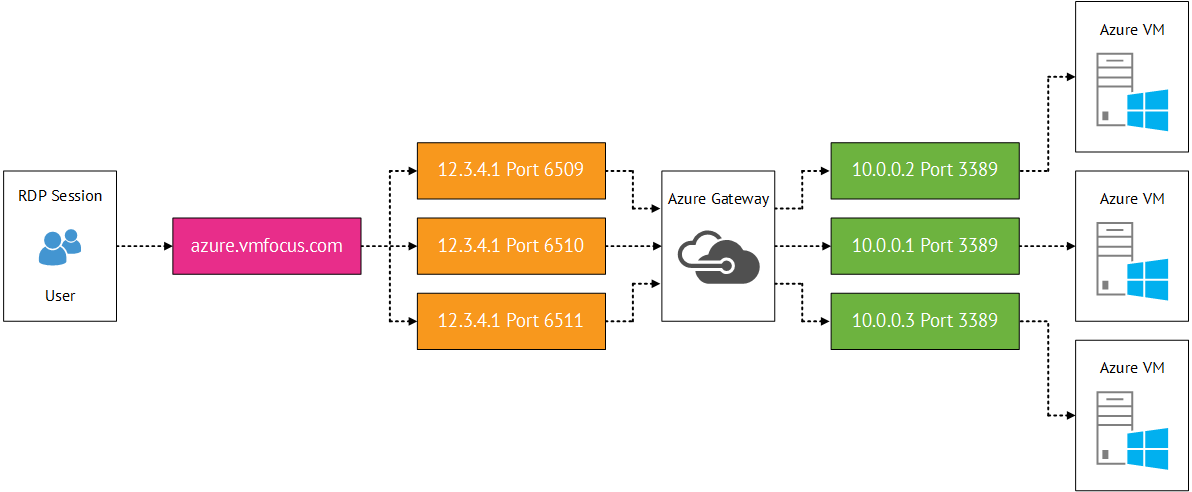
Endpoints are the most basic configuration offering when it comes to Azure networking.  Each virtual machine is externally accessible over the internet using RDP and Remote PowerShell. Port forwarding is used to access the VM.  For example 12.3.4.1:6510 resolves to azure.vmfocus.com which is then port forwarded to an internal VM on 10.0.0.1:3389

Azure Input Endpoints

  • Public IP Address (VIP) is mapped to the Cloud Service Name e.g. azure.vmfocus.com
  • The port forward can be changed if required and additional services can be opened or the defaults of RDP and Remote PowerShell can be closed
  • It is important to note that the public IP is completely open and the only security offered is password authentication into the virtual machine
  • Each virtual machine has to have an exclusive port mapped see diagram below

Azure Input Endpoints Multiple VM

Endpoint Access Control Lists

To provide some mitigation to having virtual machines completely exposed to the internet, you can define an basic access control list (ACL).  The ACL is based on source public IP Address with a permit or deny to a virtual machine.

  • Maximum of 50 rules per virtual machine
  • Processing order is from top down
  • Inbound traffic only
  • Suggested configuration would be to white list on-premises external public IP address

Network Security Groups

Network Security Groups (NSG) are essentially traffic filters.  They can be applied to ingress path, before the traffic enters a VM or subnet or the egress path, when the traffic leaves a VM or subnet.

  • All traffic is denied by default
  • Source and destination port ranges
  • UDP or TCP protocol can be defined
  • Maximum of 1 NSG per VM or Subnet
  • Maximum of 100 NSG per Azure Subsription
  • Maximum of 200 rules per NSG

Note: You can only have an ACL or NSG applied to a VM, not both.

Load Balancing

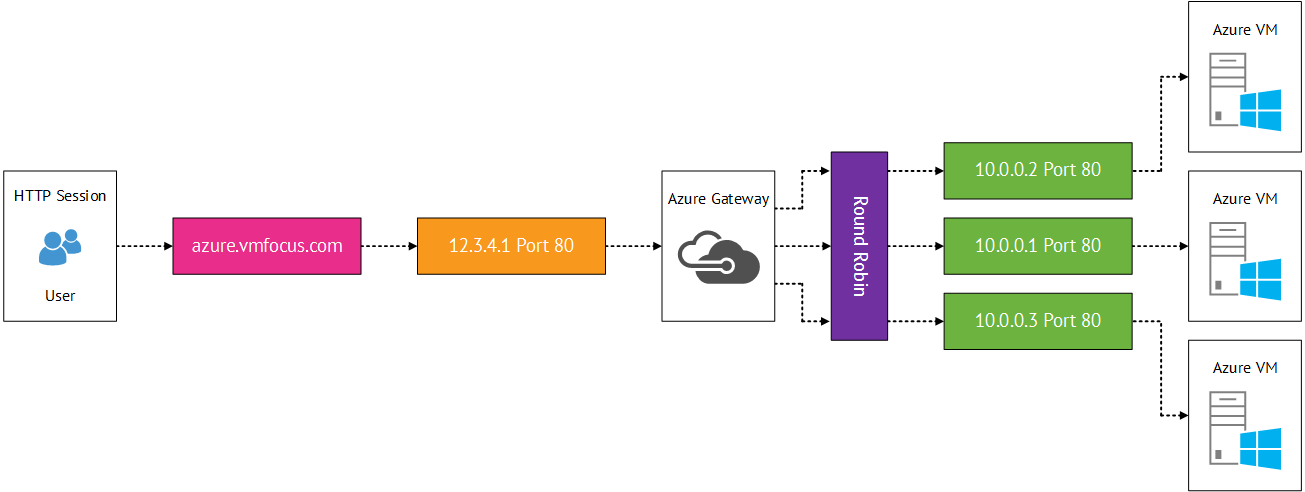
Multiple virtual machines are given the same public port for example 80.  Azure load balancing then distributes traffic using round robin.

  • Health probes can be used every 15 seconds on a private internal port to ensure the service is running.
  • The health probe uses TCP ACK for TCP queries
  • The health probe can use HTTP 200 responses for UDP queries
  • If either probe fails twice the traffic to the virtual machine stops.  However the probe continues to ‘beacon’ the virtual machine and once a response is received it is re-entered into round robin load balancing

Azure Load Balancing

Virtual Networks

Virtual networks (VNET) enable you to create secure isolated networks within Azure to maintain persistent IP addresses.  Used for virtual machines which require static IP Addresses.

  • Enables you to extend your trust boundary to federate services whether this is Active Directory Replication using AD Connect or Hybrid Cloud connections
  • Can perform internal load balancing using internal virtual networks using the same principle as load balancing endpoints.
  • VLAN’s do not exist in Azure, only VNETs

Hybrid Options

This is probably the most interesting part for me, as this provides the connectivity from your on-premises infrastructure to Azure.

Point to Site

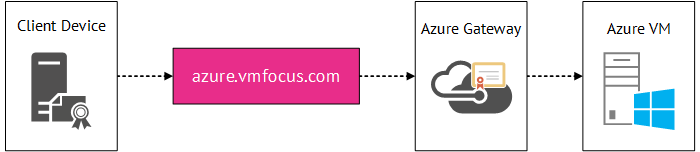
Point to site uses certificate based authentication to create a VPN tunnel from a client machine to Azure.

  • Maximum of 128 client machines per Azure Gateway
  • Maximum bandwidth of 80 Mbps
  • Data is sent over an encrypted tunnel via certificate authentication on each individual client machine
  • No performance commitment from Microsoft (makes sense as they don’t control the internet)
  • Once created certificates could be deployed to domain joined client devices using group policy
  • Machine authentication not user authentication

Azure Point to Site

Site to Site

Site to site sends data over an encrypted IPSec tunnel.

  • Requires public IP Address as the source tunnel endpoint and a physical or virtual device that supports IPSec with the following:
    • IKE v1 v2
    • AES 128 256
    • SHA1 SHA2
  • Microsoft keep a known compatible device list located here
  • Requires manual addition of new virtual networks and on-premises networks
  • Again no performance commitment from Microsoft
  • Maximum bandwidth of 80 Mpbs
  • The gateway roles in Azure have two instances active/passive for redundancy and an SLA of 99.9%
  • Can use RRAS if you feel that way inclined to create the IPSec tunnel
  • Certain devices have automatic configuration scripts generated in Azure based

Azure Site to Site

Express Route

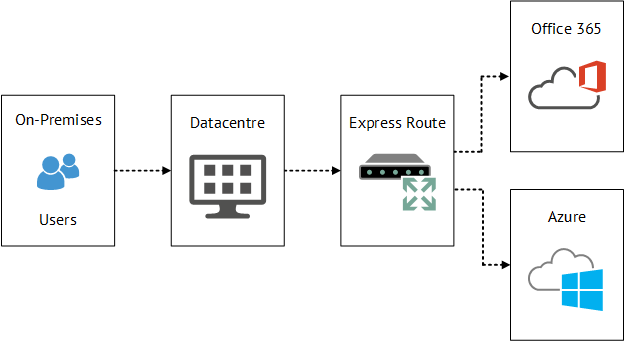
A dedicated route is created either via an exchange provider or a network service provider using a private dedicated network.

  • Bandwidth options range from 10 Mbps to 10 Gbps
  • Committed bandwidth and SLA of 99.99%
  • Predictable network performance
  • BGP is the routing protocol used with ‘private peering’
  • Not limited to VM traffic also Azure Public Services can be sent across Express Route
  • Exchange Providers
    • Provide datacenters in which they connect your rack to Azure
    • Provide unlimited inbound data transfer as part of the exchange provider package
    • Outbound data transfer is included in the monthly exchange provider package but will be limited
  • Network Service Provider
    • Customers who use MPLS providers such as BT & AT&T can add Azure as another ‘site’ on their MPLS circuit
    • Unlimited data transfer in and out of Azure

Azure Express Route

Traffic Manager

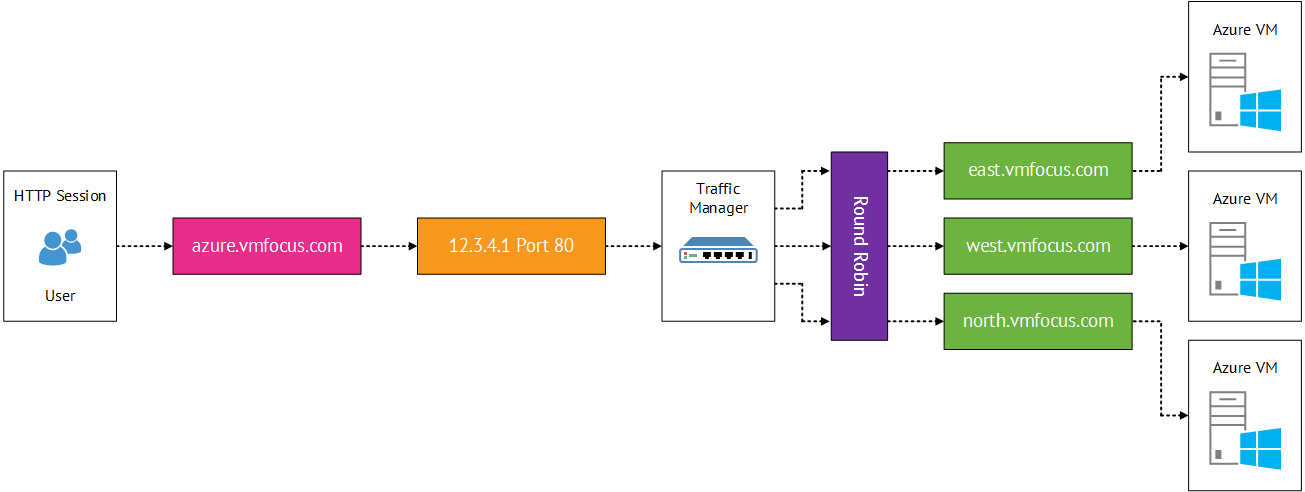
Traffic Manager is a DNS based load balancer that offer three load balancing algorithms

  • Performance
    • Traffic Manager makes the decision on the best route for the client to the service it is trying to access based on hops and latency
  • Round Robin
    • Alternates between a number of different locations
  • Failover
    • Traffic always hits your chosen datacentre unless there is a failover scenario

Traffic Manager relies on mapping your DNS domain to x.trafficmanager.net with a CNAME e.g. vmfocus.com to vmfocustm.trafficmanager.net. Then Cloud Service URL’s are mapped to global datacentres to the Traffic Manager Profile e.g. east.vmfocus.com west.vmfocus.com north.vmfocus.com Azure Traffic Manager