What’s In A Job Title?

Job TitleWhilst at VMworld Barcelona I had lots of conversations with colleagues, peers and strangers.  One item that cropped up was ‘pre-sales’ versus ‘post-sales’ and who was better.  Quite an interesting topic, which I want to discuss on an upcoming blog post.  Before that happens I wanted to cover job titles in IT, and what they generically mean that a person does.

In this context I’m focusing on the personnel involved with winning and delivering a project, not IT support and ‘business as usual’ operations.

Before anyone gets a bit upset about what they do specifically, this is meant to be a broad stroke blog post.  You will always find some businesses that call a job by another name.  Let me know if you don’t agree with my interpretation and I will update the post accordingly.

Pre Sales Job Titles

Bid Manager – Bring together a group of subject matter experts to write a tender response.  Play ‘tetris’ with words and make sure the tender response is coherent and flows.

Enterprise Architect – Works with clients to formulate a technical business strategy.  Often deeply engaged in business process and understands the internal politics of a customer.

Systems Engineers – Assist Sales people across a broad range of products and help guide clients up to a degree before handing in depth questions to subject matter experts

Senior System Engineers – Sames as System Engineers but normally focus on the ‘key client accounts’

Solutions Architect – Assist Sales people across a broad range of products and are subject matter experts in a particular field.  They help translate business needs into technical solutions.  Commonly Solutions Architect guide the customer to use a particular piece of software or technology to meet the business requirement.  Some Solutions Architects can Lead Architect a project if required.

Note Solutions Architects is fairly new in the infrastructure world, commonly used with computer programming.

Technical Account Manager – Typically a technical person who has become less technical (through choice) but has the ability to create a proposal for a customer which will form a sound basis for further discussion.

Post Sales Job Titles

Project Manager – Focused on deliverables and governance.  Ensuring customers are kept abreast of issues and risks that could affect the project outcomes.

Programme Manager – Are used on larger projects that have inter dependencies between workstreams and involve business transformation projects such as Enterprise Resource Planing solutions.  Responsible for ensuring that the business benefits of the programme are realised.

Technical Architect – Are focused in a particular discipline and are often the subject matter experts in this area.  These are the people who are engaged to create the ‘low level designs’ in there area of expertise, such as networking, storage, Exchange, Active Directory, System Center, Windows Desktop, vSphere, View etc.

Lead Architect – Are used on larger projects that use a wide number of Technical Architects.  Understand how everything ‘fits together’ and use this knowledge to ensure that design documentation is consistent from Technical Architects.  Plus they are responsible for guiding the Technical Architects for the duration of the project.


VCDX Conceptual Diagrams

For those people who follow me, they know that I failed the VCDX.  Reasons are covered in this blog post for those that are interested.

Part of the VCDX design is the movement from Conceptual to Logical to Physical models.

I’m a firm believer in giving back to the VMware Community, so when Byron Schaller @byronshcaller put out this tweet, I was happy to help out

Looking for a couple solid examples of conceptual designs #VCDX

So with this in mind, I thought it would benefit the wider community to share the same Conceptual Diagrams on a blog post.

Site Recovery Manager

SRM Conceptual Diagram

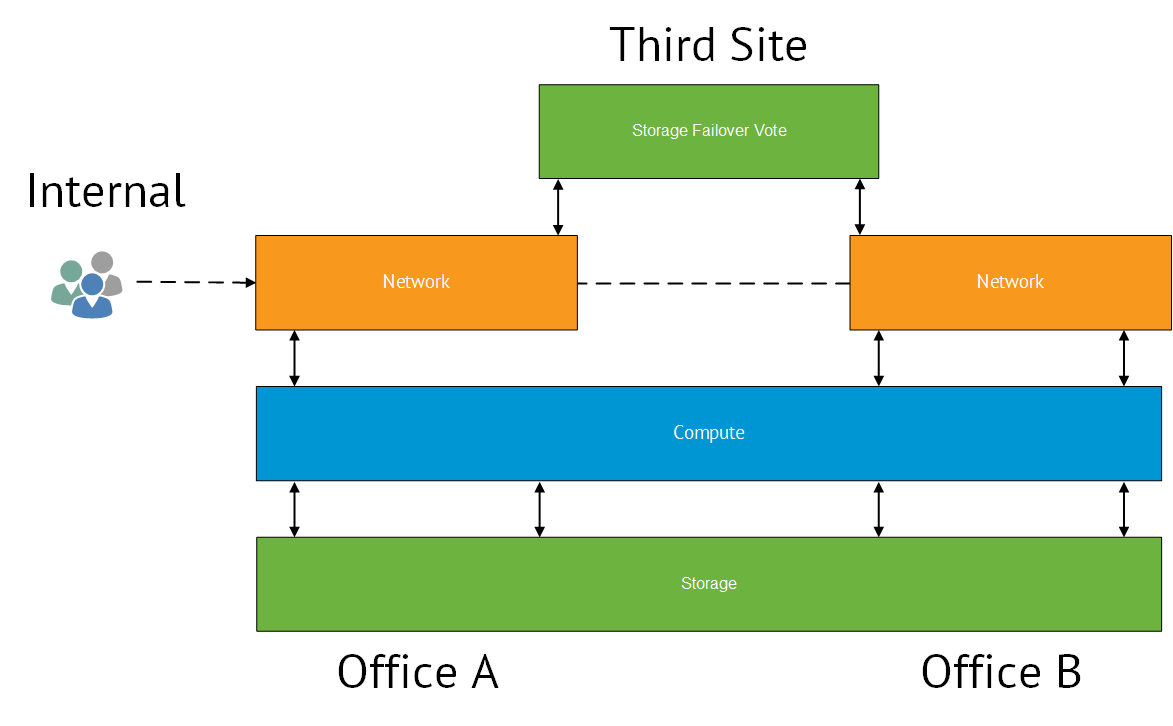
vSphere Metro Storage Cluster

vMSC Conceptual Overview

How To: HP 3PAR StoreServ 7200 VASA Integration vSphere 5.5 U2

The purpose behind this blog post is to provide guidance on HP 3PAR StoreServ 7200 VASA integration with vSphere 5.5 U2.

VASA stands for vSphere Storage API’s for Storage Awareness, essentially it passes the characteristics of the underlying LUN so that the vSphere Administrator has awareness of it’s underlying features such as RAID set, deduplication and replication.

Pre-Requisites

I’m going to assume the following:

  1. You have already downloaded and installed HP OneView for VMware vCenter Storage Administrator and that credentials have been configured to access your HP 3PAR StoreServ Array
  2. Launching the Storage Administrator Portal from vCenter works and you are automatically logged into the HP OneView for VMware vCenter Storage Administrator Portal

Insight Control Storage Administrator Portal for vCenter

3PAR VASA

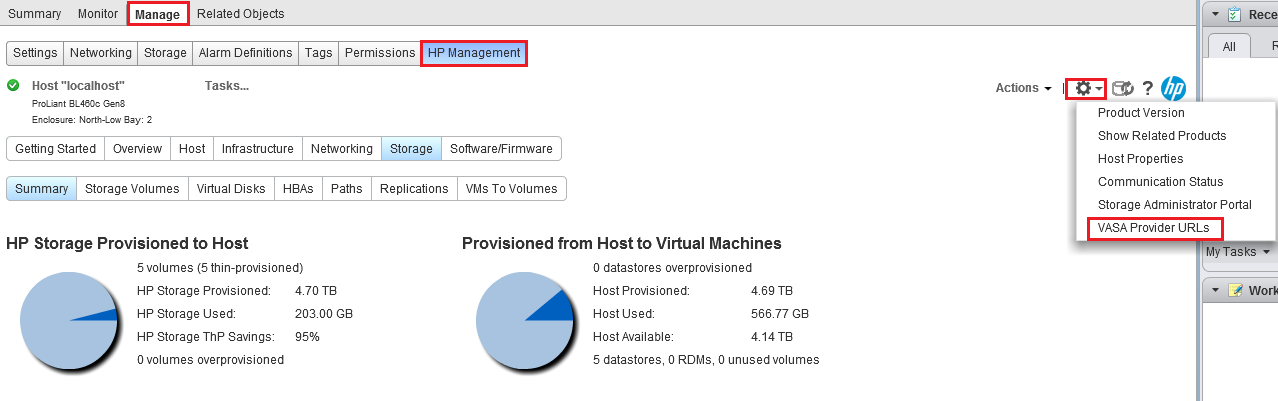
The first step is to select Hosts & Clusters View then Manage > HP Management in here you will need to select VASA Provide URLS from the ‘Cog’ in the top right hand corner

VASA Provider URLs

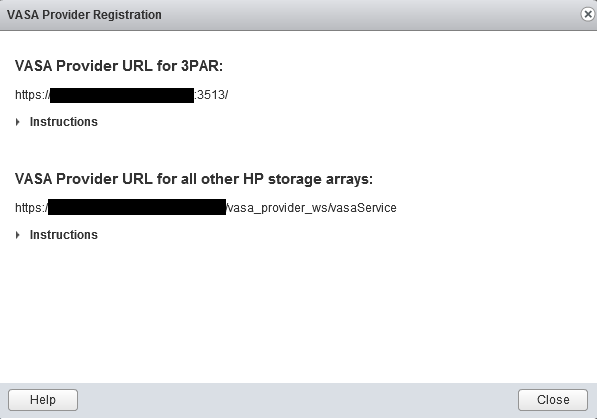
Select the VASA Provide URL for 3PAR URL and copy this link

VASA Provider URLs for 3PAR

Before installing the URL, we need our HP OneView for VMware vCenter Storage Administrator virtual machine to trust vCenter.   To do this we need to install the SSL certificate.

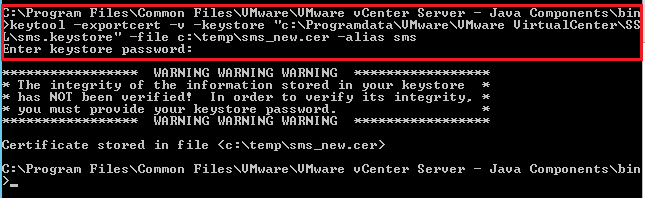
Jump onto your vCenter Server and drop into CMD and go to the following directory C:Program FilesCommon FilesVMwareVMware vCenter Server – Java Componentsbin

Then run the command ‘keytool -exportcert -v -keystore “C:ProgramDataVMwareVMware VirtualCenterSSLsms.keystore” -file C:tempsms_new.cer -alias sms

Press Enter when the password is requested

Keytool

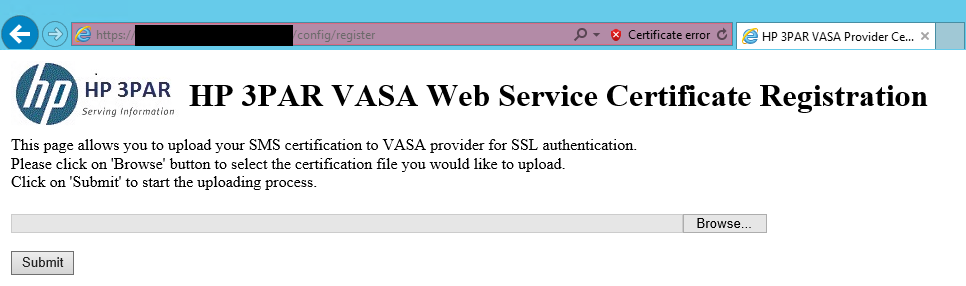
Browse to your VASA Provider URL and add ‘config/register’ to the end of the link

VASA URL Config

Then upload your certificate which was exported in the earlier step

If successful you should see the following screenshot

VASA URL Config Success

Finally, restart the HP 3PAR VASA Provider for VMware vSphere Web Service

3PAR VASA Service

vSphere Web Client VASA

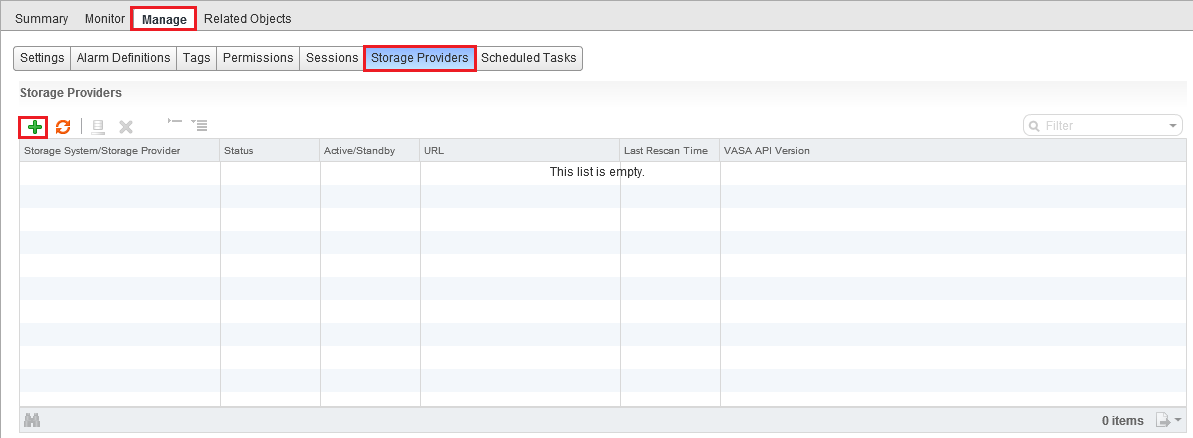
Last of all we need to add our Storage Provider VASA URL to vCenter.

Select Storage > Manage > Storage Providers > Plus Sign

Storage Providers

Enter the details as shown in the screenshot below (your VASA Provider URL will be different)

VASA Provider URLs for 3PAR

Note, the User name and password are the credentials used to login to your HP OneView for VMware vCenter Storage Administrator Portal

Verification Test

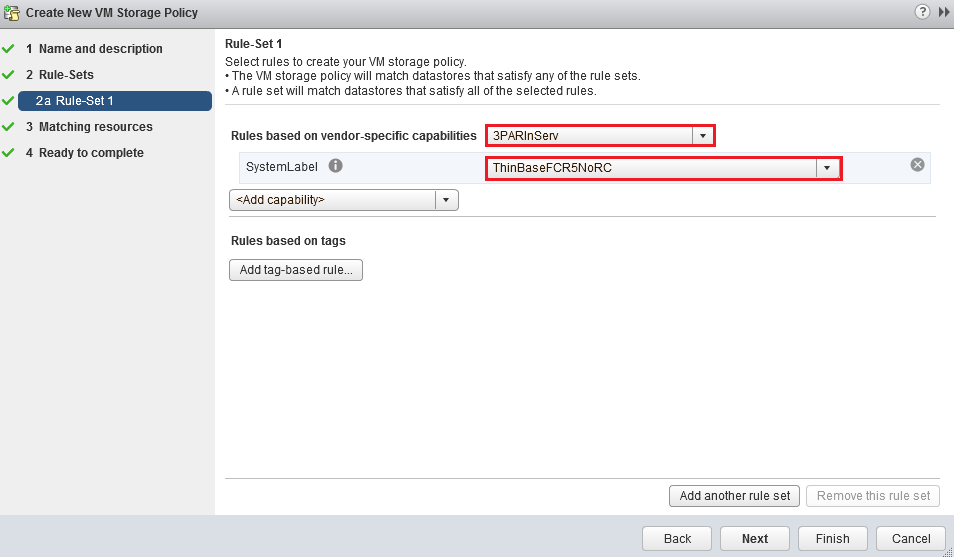
To verify that the VASA integration is working correctly, go to Home > VM Storage Policies > Create New Policy

Storage Policy Rule Set1

Enter any details to take you across to the Rule-Set 1 area and then you will have 3PARInServ and the capabilities listed under System Label.  In this instance I have chosen ThinBaseFCR5NoRC

Verify that you have some datastores that meet the system capability of ThinBaseFCR5NoRC which means Thin Provisioned, Fibre Channel, RAID 5, No Remote Copy

Storage Policy Rule Set1 Verify

If you see some datastores do then you have successfully installed VASA for HP 3PAR StoreServ on vSphere 5.5 U2

You should also see the storage provider integration information shown as per the below screenshot.

Storage Providers Completed

vCloud Air DRaaS – The Good, Bad & Ugly

I was recently given the task of looking into the vCloud Air DRaaS offering from VMware to understand how this could meet customers requirements to provide a disaster recovery platform for their production virtual machines.

This blog contains my understanding of the components, fit together, the good, the bad and the downright ugly parts of the vCloud Air DRaaS offering.

vCloud Air Key Benefits

The key benefits of the vCloud Air Disaster Recovery service are:

  • Restore point objective settings per virtual machine of 60 minutes or less
  • Subscription based ‘Recovery as a Service’ reducing capital outlay
  • Simple and secure asynchronous replication for virtual machines
  • Self-service disaster recovery testing of virtual machine
  • Guaranteed resource availability
  • On premise monitoring and management with the vSphere Web Client
  • Support for initial data seeding using vCloud Connector Offline Data Transfer
  • Supports the same guest operating systems and applications as vSphere
  • Application consistency for virtual machines running a Microsoft Guest Operating System
  • Integrates with your existing vSphere environment

vCloud Air Overview

vCloud Air Disaster Recovery is based on the following technologies:

  • Local VMware vSphere
  • Local and remote VMware vSphere Replication
  • Local and remote vCloud Connector
  • Remote VMware vCloud Air Disaster Recovery

A logical overview is shown below.

Logical Overview

vCloud Air Disaster Recovery is comprised of a number of components which enable the management, replication and access to virtual machines.

  • vSphere Replication – Provides asynchronous replication to copy virtual machines to an alternate location. Making the Makes the virtual machine copy available for recovery
  • vCloud Connector – Provides support for initial data seeding and failback of virtual machines to source site using Offline Data Transfer
  • vCloud Air – Infrastructure as a Service cloud owned and operated by VMware

vSphere Replication Appliance

A special version of vSphere Replication is used to copy virtual machines between location, and make that copy available for restoration using the vSphere Web Client.

  • vSphere Replication protects the virtual machine on an ongoing basis, replicating only changes that are made
  • Integrates with Microsoft Volume Shadow Copy Services (VSS) ensure that applications such as SQL Server databases are quiescent and consistent when replica data is being generated
  • Application consistency is achieved using Microsoft Windows Operation System with VMware Tools installed
  • vCloud Tunnelling Agent in the vSphere Replication appliance creates a tunnel to secure the transfer of replication data to vCloud Air Disaster Recovery service

vCloud Connector

vCloud Connector provides a single user interface for viewing private and public clouds and transferring content between them, as shown in the diagram below.

vCloud Connector

  • Connectivity between on premises and vCloud Air Disaster Recovery is achieved using SSL
  • Offline Data Transfer enables transfer of large volumes of data to the vCloud Air infrastructure
    • Data is securely encrypted onto a storage device supplied by VMware
  • vCloud Connector facilities failback of virtual machines

Test Recovery

vCloud Air Disaster Recovery service provides the ability to perform two test recoveries per twelve month period.

  • Testing a recovery does not affect production virtual machine workloads
  • Virtual machines in the test environment can be powered on for up to 7 days
  • While a test recovery runs, vSphere Replication continues to replicate data from the virtual machines at your source site
  • Test invoked at the source site have the ability to synchronise recent changes
  • Test recovery is per virtual machine

The diagram on the next page shows a logical overview of a test recovery.

Test Recovery

Failover

When you recover a virtual machine from your source site to vCloud Air, the production state of the virtual machine represents a point in time before the outage. Data accumulated after the last replication to vCloud Air and before the recovery is not available.

  • Recovering a virtual machine to vCloud Air stops replication from the source site
  • Virtual machines can be ran for up to 30 days in a failover scenario without additional cost.
    • If the source site is unavailable for a prolonged period, virtual machines can be transitioned to vCloud Air Private or Dedicated Cloud
  • Service Level Agreement of 4 hours or less of dedicated compute in a failover event, powered on and remotely accessible
  • Failover is per virtual machine

Failback

Failback of virtual machines that have been recovered in vCloud Air is performed using vCloud Connector.

  • Virtual machines are copied back to the source site using vCloud Connector using SSL
    • Default SSL Certificates are required to be replaced with an internal certificate authority
  • Failback should be within a planned outage windows as virtual machines are required to be powered off before being copied back to the source site

Consideration should be given to the amount of data to be transferred back in relation to the bandwidth available during failback

The Ugly

Having read this blog post you will have seen that a number of items would have jumped out at you.  The key considerations are shown below:

  • Failover to vCloud Air Disaster Recovery is per virtual machine.
    • Orchestration is possible, however this is currently at API level
  • DHCP is the default port group network setting. On failover each virtual machine receives an APIPA address.  Manual selection of the correct port group along with verification of network settings for each VM is required.
    • Note this is likely to change as vCloud Air Disaster Recovery Service is updated
  • vCloud Air Disaster Recovery does not include backup of virtual machines. Operational consideration should be given to the impact this may have to the recoverability of in guest data or failure of a VM
  • Failback from vCloud Air Disaster Recovery to on premises requires the virtual machines to be shutdown and copied back via vCloud Connector

Final Word

vCloud Air Disaster Recovery is a relatively new service introduced by VMware to UK datacentres in April 2014.  Even though vCloud Air Disaster Recovery is built on the proven technologies vCloud Director and vSphere Replication, a number of considerations exist,  Make sure that you make sure the service meets your requirements!

Top 3 Horizon View Flings

viewclientWhat Is A VMware Fling?

A fling is an application that addresses a specific need which isn’t found within a core VMware product such as Horizon View.  It has been created by a VMware employee to resolve or help with an issue.

VMware Flings are not supported so run at your own risk!

Top 3 Horizon View Flings

1. First place goes to Horizon View Event Notifier , when I was implementing a couple of small Horizon View environments, they didn’t have syslog facilities and this came to the rescue.

This tool connects to one or more existing Horizon View Event Database(s) and allows the user to customize which types of alerts to be notified on. It can be run from any Windows based system and it collects and sends the alerts via email (SMTP) to users that are specified during the configuration process. It allows aggregation of alerts across multiple Horizon View Pods and for near real-time alerting of Horizon View alerts that are otherwise very difficult to be notified on.

2. Second place goes to ViewDbChk, if you have used View, then I can almost guarantee you have had some type of provisioning error!  This fling scans for these errors and allows you to choose whether to remove them from the View Database.

The ViewDbChk tool allows administrators to scan for, and fix provisioning errors that can not be addressed using View Administrator. Provisioning errors occur when there are inconsistencies between the LDAP, vCenter and View Composer databases. These can be caused by: direct editing of the vCenter inventory, restoring a backup, or a long term network problem.

3. Third place goes to XenApp2Horizon, not used this yet, but what a useful tool to save the manual migration of apps from XenApp to Horizon!

The XenApp2Horizon Fling helps you migrate published applications and desktops from XenApp to Horizon View. One XenApp farm is migrated to one or more Horizon View farm(s).

The GUI wizard-based tool helps you:

Validate the View agent status on RDS hosts (from View connection server, and XenApp server)

Create farm

Validate application availability on RDS host

Migrate application/desktop to one or multiple farms (new or existing)

Migrate entitlements to new or existing applications/desktops. Combination of application entitlements are supported

Check environment

Identify incompatible features and configuration

Final Word

These flings take time and effort to create, most of which I would guess are done in the VMware Engineers own personal time.  Therefore, i would like to thank the following people for their efforts:

Keep the good work up chaps!