Upgrading To Horizon View 5.2 – Transfer Server

We are on a roll, this is the fourth post in the upgrading to Horizon View 5.2.  To upgrade the Transfer Server we use the Connection Server installer from here and at the time of writing the latest release is VMware-viewconnectionserver-x86_64-5.2.0-987719.exe

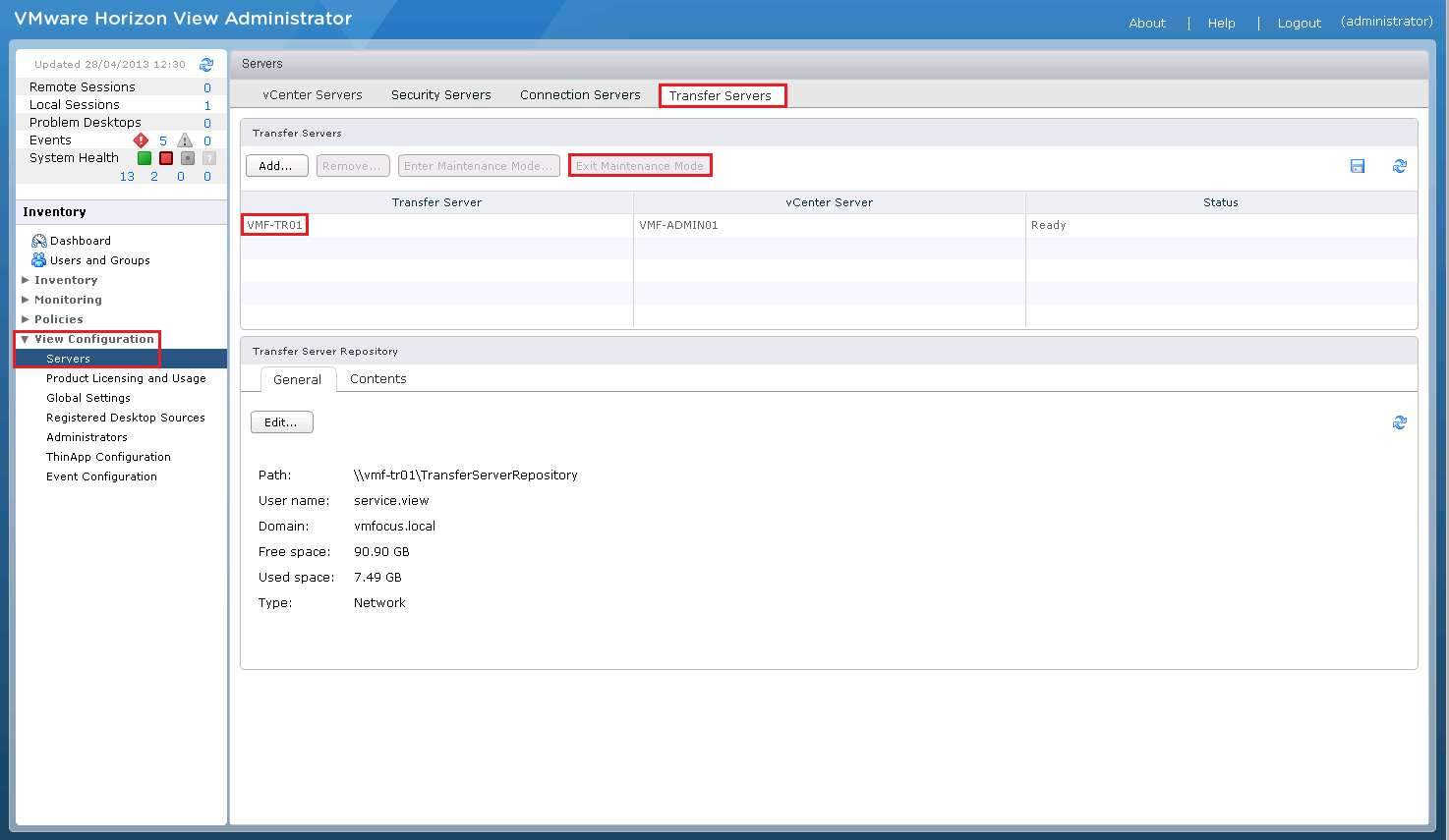
Before we start the upgrade process, it’s a good idea to place the Transfer Server into Maintenance Mode, to do this, login to View Administrator and go to View Configuration > Servers > Transfer Servers > Enter Maintenance Mode

Security Server Upgrade 1

Now that’s done, lets crack on and launch the installer

Connection Server Upgrade 1

Click Next

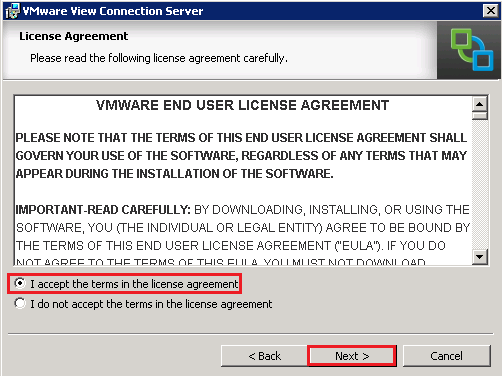
Connection Server Upgrade 2

As always, accept the EULA

Connection Server Upgrade 3

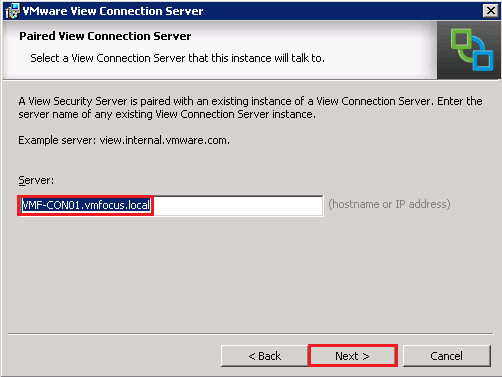
Double check your domain details, transfer server FQDN and your administrators email address and click Next

Security Server Upgrade 2

Select ‘Configure Windows Firewall automatically’ and hit Next

View Security Server 7

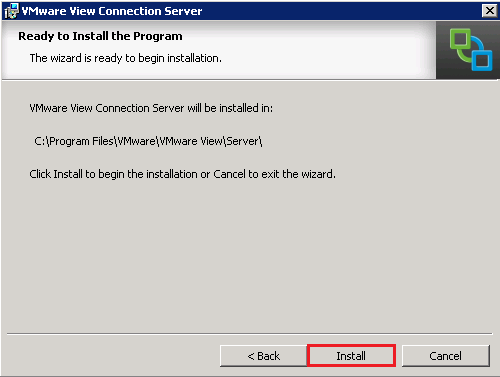
Then click Install

View Security Server 8

This is going to take a few minutes, so time for  a quick brew.

View Security Server 9

Let’s double check Programs & Features to make sure we are on the correct Horizon View version.

View Security Server 10

At this point, I suggest you reboot your Transfer Server just to make sure everything is ‘tickety boo’.

Now it’s back online let’s go into View Administrator and go to View Configuration > Servers > Transfer Servers > Exit Maintenance Mode

Security Server Upgrade 3

Upgrading To Horizon View 5.2 – Security Server

The good news is that to upgrade the Security Server we use the Connection Server installer from here and at the time of writing the latest release is VMware-viewconnectionserver-x86_64-5.2.0-987719.exe

Launch the installer

View Security Server 1

Click Next

View Security Server 2

Accept the EULA

View Composer Upgrade 3

Verify that your Connection Server FQDN is correct

View Security Server 3

Next we need to jump into the View Administrator and go to View Configuration > Servers > Connection Servers > More Commands > Specify Security Server Pairing Password

View Security Server 4

Cool, once you have done this, enter the same password on the Security Server installation and click Next

View Security Server 5

Verify your URL’s for your Security Server and click Next

View Security Server 6

Choose ‘Configure Windows Firewall Automatically’

View Security Server 7

Now let’s click Install

View Security Server 8

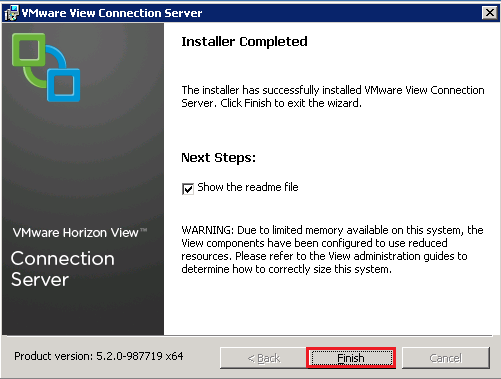
Quite a quick installation, hopefully you should have the Finish button available.

View Security Server 9

As always, we are going to give the server a reboot and check Programs & Features to make sure we are running the correct version.

View Security Server 10

Upgrading To Horizon View 5.2 – Connection Server

In the last blog post we upgraded our Composer Server which was straight forward (great job VMware).  Next we need to upgrade the Connection Server.

The upgrade process is in two parts, first of all we need to upgrade the Connection Server and then install HTML Access.

Connection Server

The first thing we are going to need is the right installer.  These can be found from here and at the time of writing the latest release is VMware-viewconnectionserver-x86_64-5.2.0-987719.exe

Launch the installer

Connection Server Upgrade 1

Click Next

Connection Server Upgrade 2

Accept the EULA

Connection Server Upgrade 3

We are now ready to install.  Hit the button!

Connection Server Upgrade 4

This is going to take a little while, so I suggest you make a quick brew.

Connection Server Upgrade 5

All done, now you don’t have to reboot, I just prefer to do this to make sure everything is correct.

Just to verify, let’s check Programs & Features to make sure View Connection Server is on the right release.

Connection Server Upgrade 6

Horizon View 5.2 HTML Access

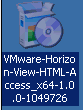
Right then, let’s crack on with the Horizon View HTML Access.  This can be found from here and at the time of writing the latest release is VMware-Horizon-View-HTML-Access_x64-1.0.0-1049726.exe

Launch the installer

Connection Server Upgrade 7

Click Next

Connection Server Upgrade 8

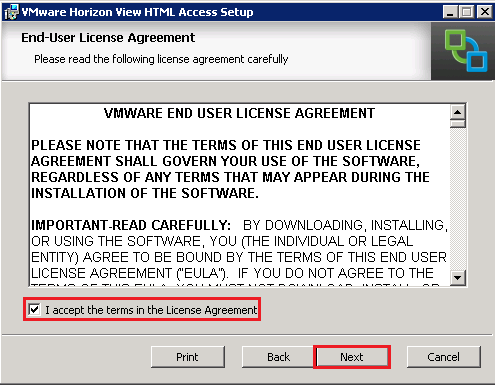
As always, we need to Accept the EULA

Connection Server Upgrade 9

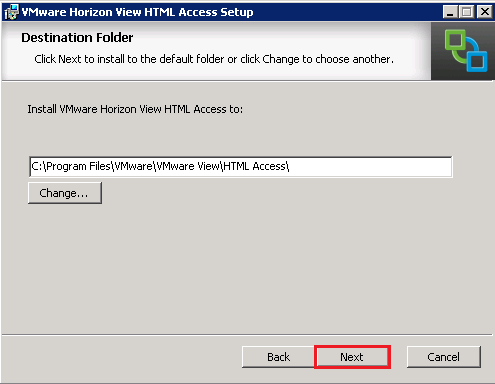
Choose your installation folder, as always stick to the defaults unless you have a good reason not too.

Connection Server Upgrade 10

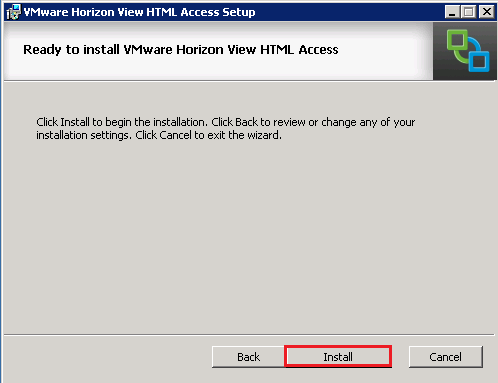
Voila, let’s click the Install button

Connection Server Upgrade 11

The install is really quick, hopefully you should see Finish.

Connection Server Upgrade 12

All done, now you don’t have to reboot, I just prefer to do this to make sure everything is correct.

Just to verify, let’s check Programs & Features to make View Horizon HTML Access is installed.

Connection Server Upgrade 13

Upgrading To Horizon View 5.2 – Composer Server

Horizon View 5.2, brings with it a host of new features.  The one which I’m most excited about is being able to access your desktop from any HTML5 browser without the need for the View Client.  A list of enhancements is shown below (source VMware View 5.2 release notes)

What’s New with End User Experience

  • Support for Windows 8 based desktops1
  • Hardware Accelerated 3D Graphics1
  • Improved video and VOIP communications with Microsoft Lync 2013 support4
  • Streamlined access to View Desktops from Horizon2
  • Easily connect to desktops from any device with HTML Access3
  • Enhanced productivity from mobile devices with new ‘Unity Touch’ functionality3 and 4

What’s New with Ease of Management

  • Large pool creation with elimination of 8 host limits, and multiple vLAN support
  • View Administrator performance improvements with large numbers of desktops
  • Accelerated provisioning and recompose operations.
  • Tech Preview of a new Integrated Service Console in the vSphere Web Client1
  • Support for vCenter Server Virtual Appliance based deployments

What’s New with Total Cost of Ownership

  • Substantial storage capacity savings for persistent desktops with space-efficient (SE sparse) disk technology1

1 Requires use of vSphere 5.1 and subsequent patches
2 Requires use of VMware Horizon Suite
3 Requires use of additional VMware Horizon View 5.2 Feature Pack
4 Requires use of latest VMware Horizon View Clients

Upgrade Process

Before we embark on this upgrade process, the number one rule is to get a good backup.  Once you have this, then the number two rule is to follow the official documentation which can be found here.

The order in which I’m going to tackle the upgrade is as follows:

  1. View Composer
  2. View Connection Server including Horizon View Feature Pack 1
  3. View Security Server
  4. View Transfer Server
  5. View Agent
  6. View Client

View Composer

In my home lab, View Composer is sitting on my vCenter Server, so the first thing we are going to do is download the correct installer.  These can be found from here and at the time of writing the latest release is VMware-viewcomposer-5.2.0-983460.exe

Launch the installer

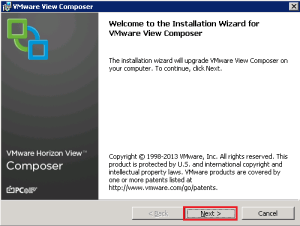
View Composer Upgrade 1

Click Next

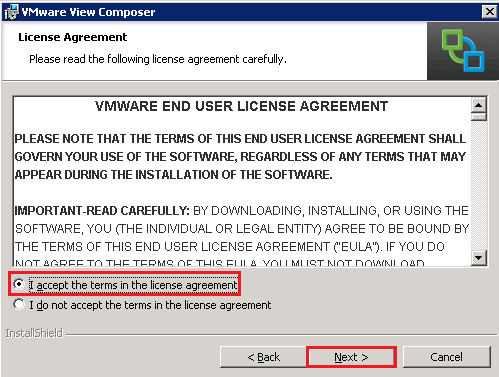
View Composer Upgrade 2

As always we need to accept the EULA

View Composer Upgrade 3

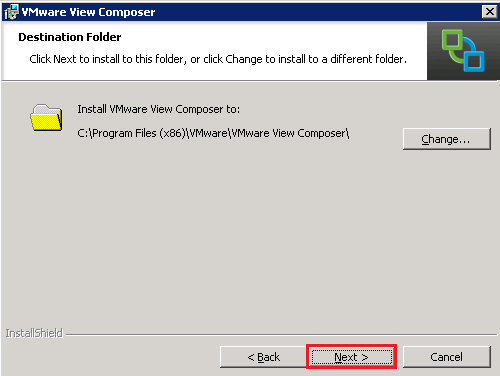
Select the install location, I advise leaving this as the default unless you have a good reason not to.

View Composer Upgrade 4

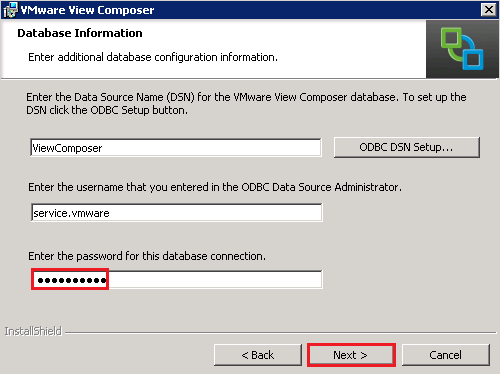
The next bit could be tricky, if you have forgotten your passwords as View needs to upgrade the database.  Enter your credentials and click Next
View Composer Upgrade 5

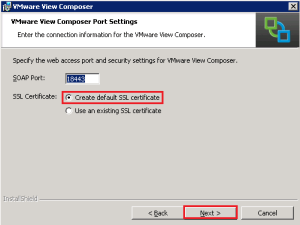
We are gong to create a new default SSL certificate and click Next
View Composer Upgrade 6

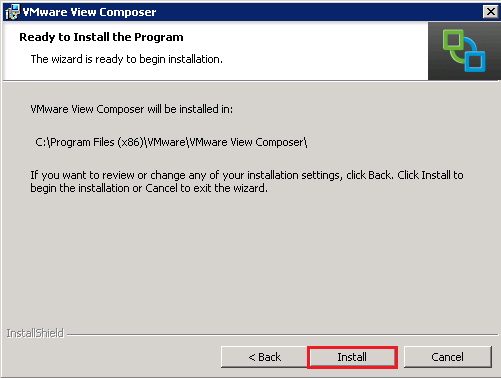
If everything is golden, you should see the Install button.  Give it a Click.

View Composer Upgrade 7

The install takes a few minutes so you might want to get yourself a cup of tea.
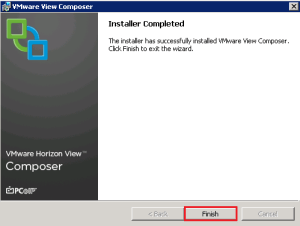
View Composer Upgrade 8

After hitting finish, we need to give our vCenter Server a reboot.  Click Yes and I will see you on the other side.
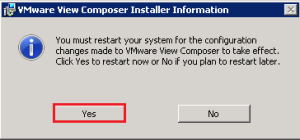
View Composer Upgrade 9

To make sure everything is ‘tickety boo’ if you check Programs & Features to verify your install package.

View Composer Upgrade 10

Veeam On Tour

Thought I would let you know that Veeam are on tour, putting together some roadshows in the UK.

They have three events over the next few days (bit of a sporting theme)

  • Twickenham Rugby Stadium – London on April 23rd
  • Manchester United Stadium – Manchester on April 24th
  • Murrayfield Rugby Stadium – Edinburgh on April 25th

The events are focused on the latest updates about the Veeam product features, so expect lots of V7 goodness.  Also you will have an opportunity to learn best practices for implementing Veeam solutions.

A typical agenda is shown below.  To register click me

14:30 – 15:00 Registration
15:00 – 15:30 Introduction to Modern Data Protection: Powerful, Easy–to–Use, Affordable!
15:30 – 16:00 Customer Success Story – What were the challenges Veeam customer faced before implementing Veeam and what are the results after the implementation
16:00 – 16:45 Live demo
16:45 – 17:00 What’s next at Veeam
17:00 – 17:15 Interactive Q&A session
17:15 – 18:30 Buffet and networking with Veeam

If you aren’t able to make it in person and want to be their in a virtual capacity, then Veeam have put together a Webcast, to register click me

14:00 – 14:30 Introduction to Modern Data Protection: Powerful, Easy–to–Use, Affordable!
14:30 – 15:00 Customer Success Story – What were the challenges Veeam customer faced before implementing Veeam and what are the results after the implementation
15:00 – 15:45 Live demo
15:45 – 16:00 What’s next at Veeam