vExpert 2013 Applications Open

John Troyer, Social Media Evangelist for VMware (twitter handle @jtroyer)   has announced that the vExpert 2013 applications are open.

To become a vExpert you have three paths to choose from.

Evangelist Path

The Evangelist Path includes book authors, bloggers, tool builders, public speakers, VMTN contributors, and other IT professionals who share their knowledge and passion with others with the leverage of a personal public platform to reach many people. Employees of VMware can also apply via the Evangelist path. A VMware employee reference is recommended if your activities weren’t all in public or were in a language other than English.

Customer Path

The Customer Path is for leaders from VMware customer organizations. They have been internal champions in their organizations, or worked with VMware to build success stories, act as customer references, given public interviews, spoken at conferences, or were VMUG leaders. A VMware employee reference is recommended if your activities weren’t all in public.

VMware Partner Network Parh

The VPN Path is for employees of our partner companies who lead with passion and by example, who are committed to continuous learning through accreditations and certifications and to making their technical knowledge and expertise available to many. This can take shape of event participation, video, IP generation, as well as public speaking engagements. A VMware employee reference is required for VPN Path candidates.

To apply to become a vExpert, click me

3PAR StoreServ 7000 Hardware – Part 4

Let’s say that we have had our StoreServ in and running for a few months and everything has been ‘tickety boo’ until we have an error or as I prefer to call it a ‘man down’ scenario.

What are the issues we are going to encounter? Well these can be broken down into three areas.

1. Configuration Errors

Err we the awesome StoreServ administrator has configured the 3PAR in an unsupported manner.

2. Component Failure

Not so bad, as it wasn’t caused by us! We have a component failure e.g. DIMM, Drive etc

3. Data Path

We have an interconnect failure or perhaps even faulty e.g. SAS cable

In the following section we are going to cover these in a little more detail.

Configuration Errors

These would mostly come from incorrect cabling, adding more cages than is supported and adding a cage to the wrong enclosure.  The good news is that configuration errors are detected by the StoreServ and you will receive an alert.

Let’s say that you have cabled incorrectly, most likely if you loose a cage, then you will loose connectivity to all the other cages downstream.  The correct cabling diagram is shown below.

3PAR Disk Shelf Cabling

Fixing an issue where you have to many Disk Enclosures above the supported maximum e.g. six enclosure on a StoreServ 7200 two node, this is pretty simple, unplug it!

It’s pretty obvious really, but make sure that all your devices are supported, two which aren’t are:

  1. SAS-1
  2. SAS connected SATA drives

Component Failure

I think the first thing to remember is that connectivity issues can be caused by component failures.

Components can be broken down into two areas Cage and Data Path.  The good news is that if everything is cabled correctly we have dual paths.  The only exception to this is the back plane.

Any failure of a Cage component e.g. Power Supply, Fan, Battery, Interface Card, will result in an alarm and an Amber LED being displayed until the component can be replaced.

Right so what happens then if we have a back plane failure? Well if it’s the original StoreServe 7000 enclosure you want to shut the system down and phone HP!

If you a Disk Enclosure back plan failure then your choices are as follows:

  1. If you have enough space on existing disks, then the disks can be vacated and the back plane replaced.
  2. If you don’t have enough space on existing disks, but another Disk Enclosure can be added.  Then add another Disk Enclosure, vacate the disks and then remove the failed Disk Enclosure.
  3. If you have no space and you cannot add another Disk Enclosure, then err work quickly!

Data Path Faults

The data path is essentially the SAS interconnects.  It is comprised of:

  • SAS Controller or HBA
  • SAS Port
  • SAS Expander (Drive Enclosures)
  • SAS Drives
  • SAS Cables

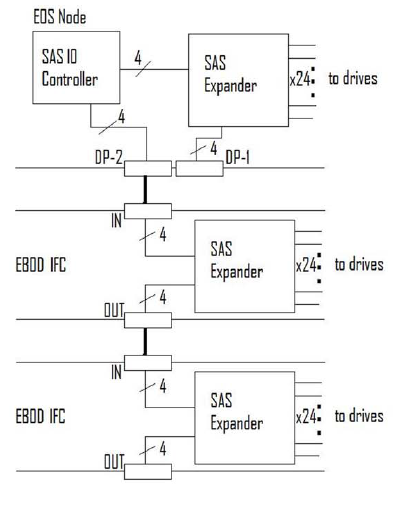
W e have two types of ‘phy’ ports, narrow and wide.  Narrow consists of a single physical interconnect and wide consists of two physical interconnects.  I prefer working in pictures as they make more sense to me.

Data Path

We can see the SAS Controller and Disk Enclosures are connected via 4 x Wide Physical Ports (Phys).  Whereas the individual Disk Drives are connected to SAS Expander (Drive Enclosure) the  by a 1 x Narrow Physical Port (phys).

In exactly the same way as we can have ethernet alignment mismatches when negotiating e.g. 2 x 1 Gb links, one negotiates at 100 Mb Half Duplex the same occurrence can happen with SAS. eg. 4 x Wide Ports into 4 x Wide Ports and one port doesn’t negotiate correctly.

If you do receive a mismatch then this will result in poorer performance, CRC errors or device resets.

Perhaps one of the hardest issues to resolve are intermittent errors which only become apparent when the StoreServ is under load.  In the above scenario where we have 4 x Wide Ports connected to another 4 x Wide Ports but one port hasn’t negotiated correctly then it’s won’t be until we need to utilize 75% or more of the link that we experience the problem.  The good news is that these issues can be detected  in the ‘phy error log’.

To view the link connection speeds issue the command showport -c

Naturally the link speeds should represent your fabric interconnects.

showport

3PAR StoreServ 7000 Hardware – Part 3

This is where things start to pick up a bit as we venture onto adding the StoreServ 7000 into the Virtual Service Processor.

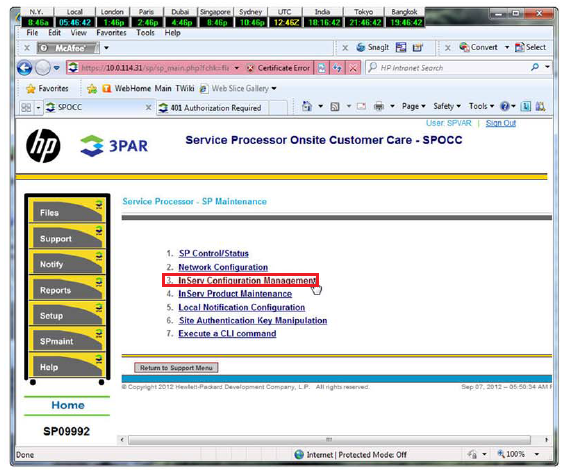
Browse to your VSP using the IP Address you configured in 3PAR StoreServ 7000 Hardware – Part 2 and login with your credentials.  A quick side note you may here the term SPOCC banded around quite a bit it stands for ‘Sevice Processor Onstie Customer Care’.  Any how, click on SPMaint

SP 1

Select Inserv Configuration Management

SP 2

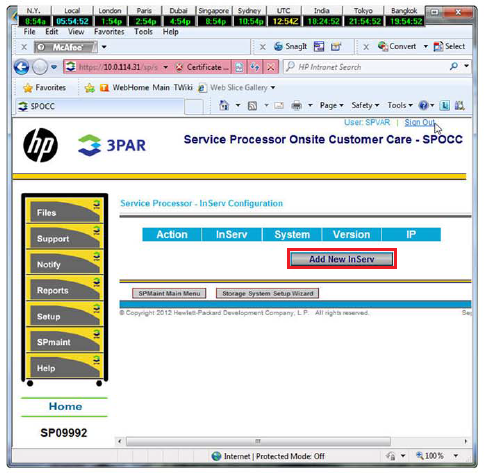
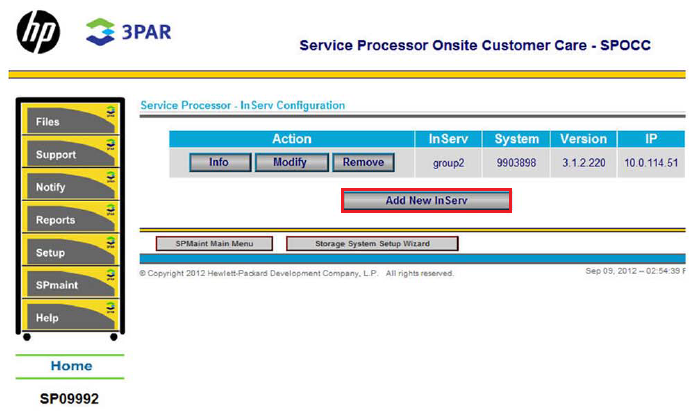
Guess what we need to Add A New InServ

SP 3

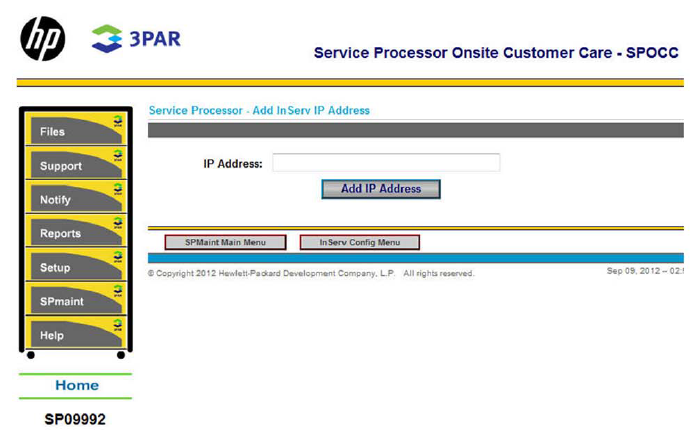
Enter the IP Address of your StoreServ 7000

SP 4

Verify the details and click ‘Add New InServ’

SP 5

Man Down – Replacing a Failed Hard Drive

A slightly over exaggerated title, but I’m sure it grabbed your attention.

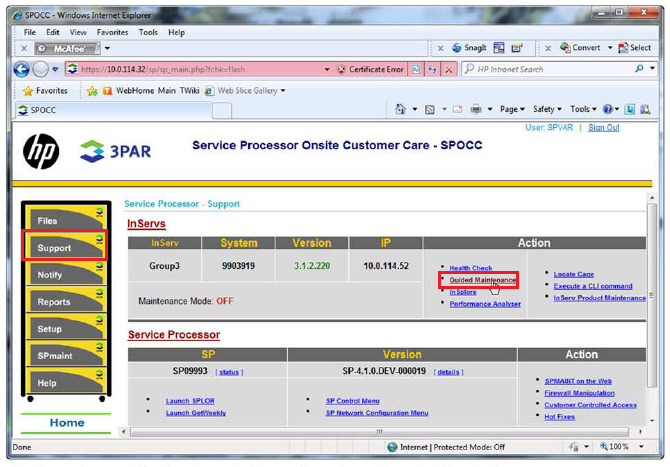
The StoreServ has a feature called ‘Guided Maintenance’ this essentially shows you how to perform a number of tasks e.g. replace a DIMM, Fiber Channel Adapter.  This can be found under Support > Guided Maintenance

SP 6

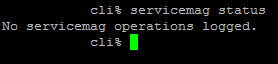
Perhaps the most common failure you will encounter is replacing a fauly disk.  This can be done via the CLI by SSH onto your StoreServ or via the VSP by going to SPMaint > Execute a CLI Command and entering ‘servicemag status’.

servicemag

As I don’t have a failed disk it shows ‘No servicemag operations logged’

If you did have a failed disk, you will be told which Cage and Magazine has a failure and that the Magazine has been taken offline to allow you to replace the faulty HDD.  Once you have replaced the disk, give it 15 minutes and re issue the servicemag status command and when complete you will see ‘No Servicemag operations logged’.

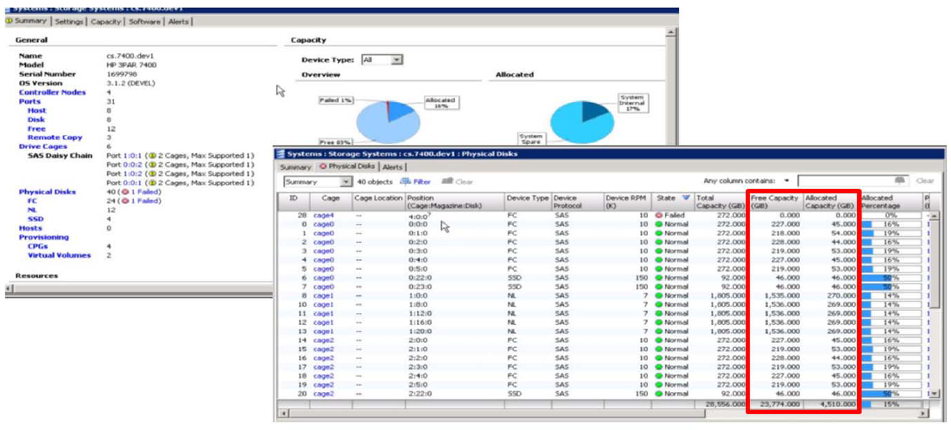
You can also check via the GUI in the 3pAR Inform Management Console by going to ‘System’ > Physical Disks > and then looking down the cages.

Failed Disk

Double check the HDD if Failed and that Free Capacity and Allocated Capacity is displayed as all zeroes.  If this is the case, then pop the badboy out and pop a new one in.

Man Down – Servicing a Power & Cooling Module (PCM)

This is only available via SSH onto your StoreServ or via the VSP by going to SPMaint > Execute a CLI Command

To confirm if the PCM is down issue the command shownode -ps

As you can see mine are OK, however, if you had a failure then replace the SPM and run the command again until you see both PCM are OK.  Note this can be done live without any downtime.

ShowNode PS

Man Down – Replacing and Power & Cooling Module (PCM) Battery

The Power and Cooling Module Battery is again only available via SSH onto your StoreServ or via the VSP by going to SPMaint > Execute a CLI Command.

The battery is located at the top of the  PCM.

To verify your battery status issue the command showbattery

showbattery

Again if it was failed replace the part and re issue the showbattery command to verify it’s healthy.

Drive Enclosure Expansion

The StoreServ 7200 is limited to five extra drive enclosures.  Two can be connected via DP1 and three can be connected via DP2.

The StoreServ 7400 with two nodes is limited to nine extra drive enclosures.  Four can be connected via DP1 and five can be connected via DP2.  Note these figures double to a four node StoreServ 7400.

You might be thinking why does DP2 have more connections? Well the answer if that DP1 is also responsible for the internal connections, which evens things out.

The procedure to add an additional drive enclosure is:

  1. Rack the Drive Enclosure
  2. Install Power & Cooling Modules
  3. Power On
  4. Install Hard Drives
  5. Run command ‘servicecage startfc’ this will move all I/O to Node 1 (remember Node 0 is the first Node)
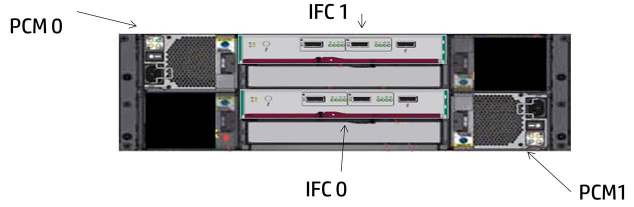
  6. Connect the SAS cable, the first connection should be out IFC 0 and in IFC0 on the new Drive Enclosure
  7. Run command ‘servicecage endfc’ and this will restore I/O to Node 0.
  8. Repeat for same procedure for Node 1.
  9. Connect the Drive Enclosure to the Controller Nodes

One of the slightly tricky parts is the disk shelf cabling.  Some rules to follow:

  • Event Nodes go to Even Controllers
  • Odd Nodes go to Odd Controllers
  • Odd Nodes connect to the highest Disk Shelf first
  • Even Nodes connect to the lowest Disk Shelf first

3PAR Disk Shelf Cabling

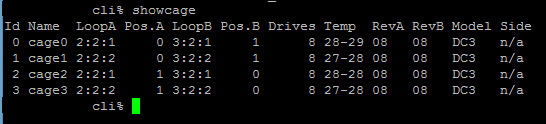
Run the showcage command to verify you new Disk Enclosure is recognised.

showcage

Disk Upgrade Rules

These are the golden rules which need to be followed.

  1. You need to add the same number of disk drives to the Drive Enclosure as are in the Node Enclosure e.g. if you are using 24 disks in your Node Enclosure you will need to add 24 disks to your rive Enclosure.
  2. When adding disks to a StoreServ 7200 without a Disk Enclosure they should be done in pairs and placed in the lowest slots.  On a 2.5″ Disk Enclosure this is left to right.  On a 3.5″ Disk Enclosure this is per column left to right and top to bottom within the column.
  3. For a StoreServ 74000 without a Disk Enclosure four node system the same rules apply except you have to add four disks at a time.
  4. If you have a StoreServ 7200 with a Disk Enclosure.  You would need to add a minimum of four disks.  Two to the Node Enclosure and two to the Drive Enclosure.

3PAR StoreServ 7000 Hardware – Part 2

In the first blog post we covered an overview of the StoreServ 7000 hardware the next stage is looking at ‘what we do next’.

Setup A StoreServ VSP

The Virtual Service Processor comes as an Virtual Appliance in the OVF format, this can only be installed on ESXi 4.1, 5 or 5.1.  From a design perspective it’s not a good idea to have the VSP on the StoreServ.  Why’s this you ask?

Well, the VSP is responsible for reporting back any issues to 3PAR Central that the StoreServ has.  If the VSP is on the Virtual Volumes provided by the StoreServ then how can it report back ? The answer is it can’t.  Recommended practice is to place the VSP on a RAID protected local HDD of an ESXi host.

I’m not able to walk through deploying the OVF VSP as it doesn’t appear to have been released for download and therefore it’s likely to only come with a DVD media kit when ordering the product.  From the installation guide, the only thing to note is that it’s recommended to use Thin Provisioning.

After launching the OVF you need to login to the VSP, my understanding this will be via SSH like the F400’s.

U: root

P: hp3par

Once logged in, the VSP would have obtained an IP Address from DHCP, run the command

ifconfig -a

Which will return the IP Address to enable the HP SmartStart software to connect to allow configuration of the VSP.

SmartStart

SmartStart requires Windows Server 2008.  It is the software used to configure your StoreServ 7000.

A couple of items to note:

  1. You require Administrator access on the Windows Server 2008.
  2. VSP and the StoreServ 7000 much be on the same subnet as the Windows Server 2008 running are running SmartStart on.

The screen shots below are taking from the HP training, hopefully the process makes sense without me actually having an actual StoreServ to configure!

Initial SmartStart Welcome Screen

SmartStart Welcome Screen

Prepare to Configure

SmartStart Prepare To Configure

This is the part where you now want to ‘click’ on Setup Service Processor and enter the IP Address you received from running the ifconfig -a command and login using root hp3par

SmartStart Setup Systems

The SP Setup Wizard will then launch on a Web Page.

SP Setup

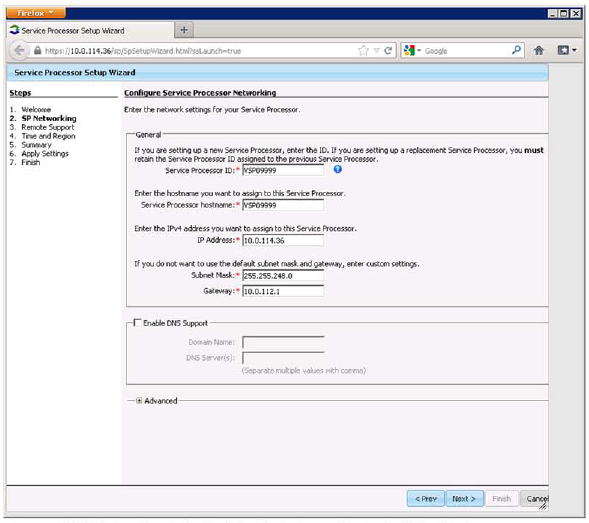
Next you will enter some basic networking details which are:

  • Service Processor ID, I believe this is obtained from HP
  • Service Processor Hostname e.g. StoreServ-VSP001
  • IP Address
  • Subnet Mask
  • Default Gateway
  • Domain Name
  • DNS Server(s)

SP Networking

Next you need to configure the support package.  You have three choices:

  • Active – this allows HP to remotely perform maintenance tasks on the Virtual Service Processor and StoreServ.  Log files are automatically sent to HP.
  • Passive – this sends log files only
  • No Support – you need to send log files manually

SP Remote Suppport

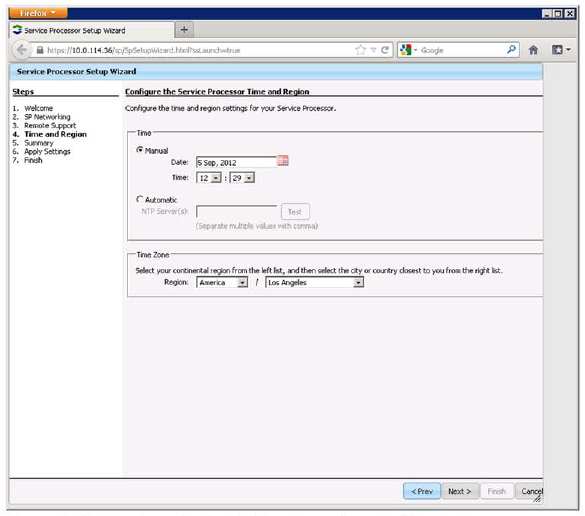
Next enter your Time Zone and enter a NTP server.  My recommendation is to use an internal DC as your NTP server to avoid time skew.

SP NTP

Lastly, you confirm your settings and apply them.  Naturally, your IP address will change so remember that you will need to reconnect to this to make any further changes.

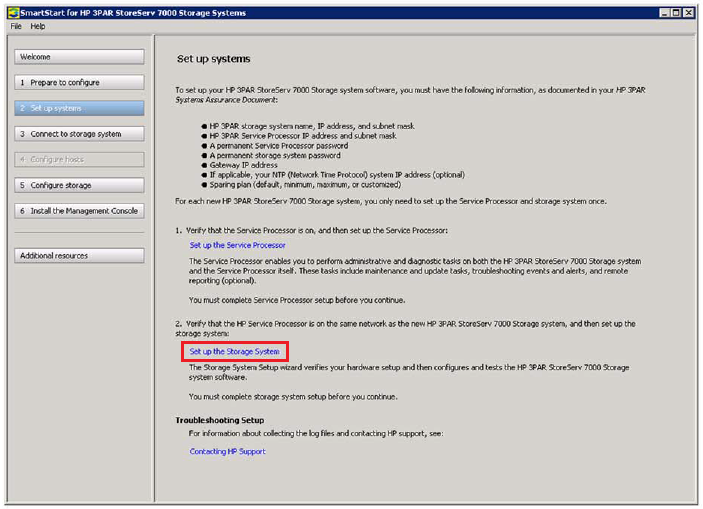
Setup StoreServ 7000

Back to the SmartStart and the next thing we want to do is select ‘Set up the Storage System’.

Setup StoreServ

This takes you back to the Virtual Service Processor, so you need to login with U: root P: hp3par

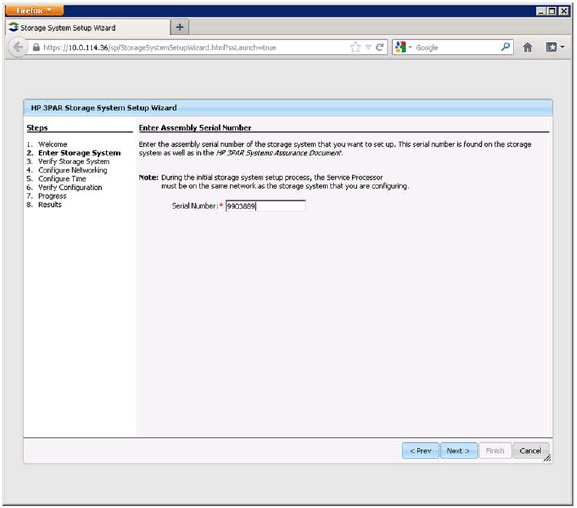
Click next a couple of times and then at this point you will need to enter the ‘assembly serial number’ which is on the StoreServ or your HP 3PAR System Assurance Document.  To be clear this is the serial number for the complete StoreServ not an individual component.

StoreServe Serial Number

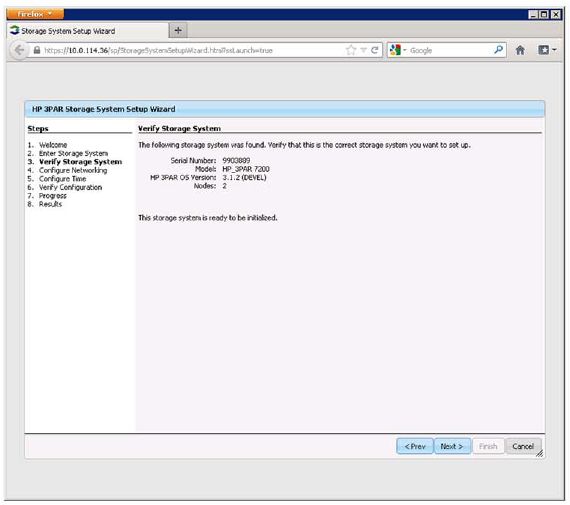
The StoreServ is then verified with the model, 3PAR OS version and the number of Nodes, hits next.

Verify StoreServ

Enter networking information for:

  • Hostname e.g. StoreServ-001
  • IP Address
  • Subnet Mask
  • Default Gateway

StoreServ Networking

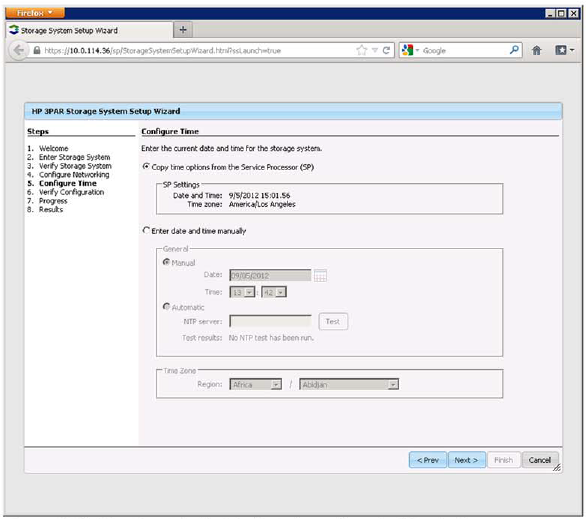
Next we configure the time, it is recommended to get the time from the Virtual Service Processor

StoreServ NTP

Lastly, click Next and verify the installation.

3PAR StoreServ 7000 Hardware – Part 1

This is the first in a series of blog posts as I work towards the HP ASE – Storage Solutions Architect

One of the issues I have had when learning the new range of HP products is the naming convention, so below is my ‘dummies guide’.   If I have gotten any of these wrong, please let me know.

Old 3PAR New StoreServ

Old LeftHand New StoreVirtual

Old ‘X’ NAS Range New StoreEasy

Old P2000 New StoreSure

Old Storage Networking New StoreFabric

Old Tape Drives New StoreEver

Old IBRIX New StoreAll

Old DataProtector New StoreOnce

StoreServ 7000

Essentially this is a replacement for the F200 and F400, it is meant to be customer installable, but as you can see from the issues that Justin Vashisht had when installing a StoreServ 7200, I think this is a work in progress whilst HP get to grips with the ‘SmartStart’.

The StoreServ 7000 comes with a Virtual Appliance (OVF) aptly named the ‘Virtual Service Processor’ which runs on ESXi5 or above.  It is recommended not to install the Service Processor on the StoreServ rather on either local drives.  Note you can obtain a Physical Service Processor if required.  The Service Processor used to come as a 1U server and is used to send remote error detection and reporting to ‘HP 3PAR Central’

The StoreServ 7000 can use SAS and SATA drives in both SFF and LFF.  For both hard drive type SSD are available.  Note that no Fiber Channel drives are available.
3PAR Controller

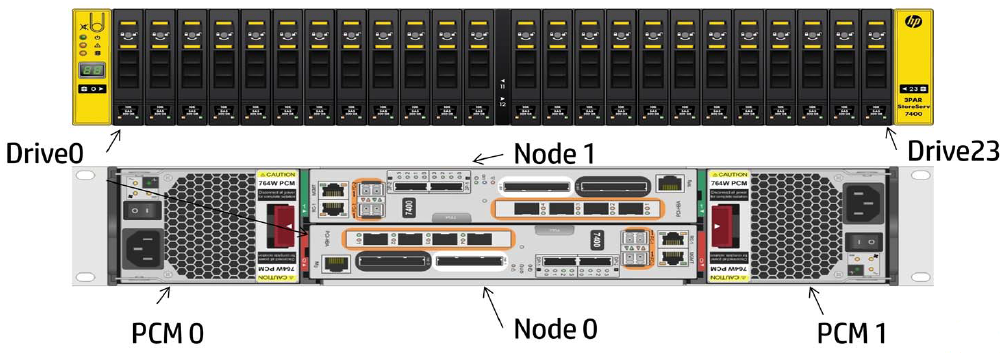
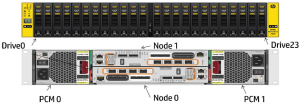
StoreServ likes to use ‘0’ alot, so you need to remember that Nodes start with 0 same with Drive Bays!

The StoreServ 7000 comes in two flavors:

7200 – Two Node Chassis

The base enclosure comes with:

  • 2 Nodes
  • 4 FC Ports
  • 24 SFF Slots
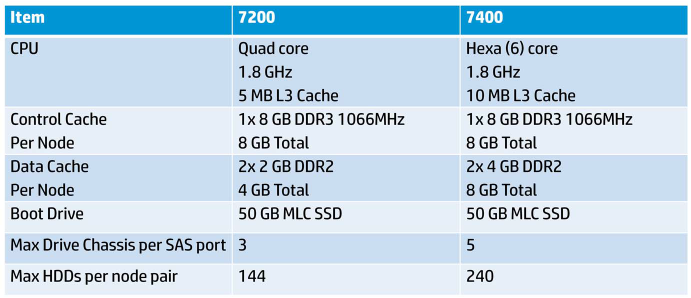
  • 24GB Cache (8GB Control Cache & 4GB Data Cache Per Node)
  • 1.8 GHz Quad Core CPU
  • 2 x 1 Gb ports for Management & Remote Copy

For extra storage capacity upto five additional disk cages can be added either SFF or LFF giving a total of 144 drives.

7400 – Two Node Chassis

The base enclosure comes with:

  • 2 Nodes
  • 4 FC Ports
  • 24 SFF Slots
  • 32GB Cache (8GB Control Cache & 8GB Data Cache Per Node)
  • 1.8 GHz Hexa Core CPU
  • 2 x 1 Gb ports for Management & Remote Copy

For extra storage capacity upto nine additional disk cages can be added either SFF or LFF giving a total of 240 drives.

Can be upgraded to four node configuration.

For HBA’s you can add an optional:

  • 4 Port 8 Gb/s FC which can be used for SAN connectivity or Remote Copy.
  • 2 Port 10 Gb/s iSCSI/FCoE, note that FCoE isn’t yet supported.
3PAR Comparison

Sometimes a picture speaks a thousand words, the picture below shows the connectivity at the back of each StoreServ node
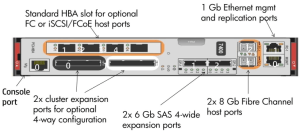
3PAR Connectivity

7400 4 Node Interconnect

When deploying a 7400 4 Node we need to follow the correct cabling schema.  HP have been quite smart and introduced a ‘black to white’ and ‘white to black’ chema, however it’s not clearly labelled, so for the avoidance of doubt.

Controller A, Node 0, Interconnect 0 >> Controller B, Node 2, Interconnect 1

Controller A, Node 0, Interconnect 1 >> Controller B, Node 3, Interconnect 0

Controller A, Node 1, Interconnect 0 >> Controller B, Node 3, Interconnect 1

Controller A, Node 1, Interconnect 1 >> Controller B, Node 2, Interconnect 0
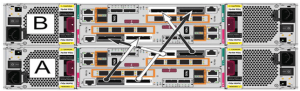
3PAR Interconnect

Disk Shelves

Disk Shelves comes in two flavors:

H6710 which is a  2U 24 Bay SFF Drive Chassis.

Drives should be installed left to right with a minimum of two drive increments.

3PAR H6710

H6720 which is a 4U 24 Bay LFF Drive Chassis

Drives should be installed bottom to top with a minimum of two drive increments.  Note that all columns should contain the same drive type e.g. 600GB 15K SAS

3PAR H6720

On both disk shelves, DP-1 is IN and connects to the original Nodes.  DP-2 is OUT and connects to additional disk shelves.

One of the slightly tricky parts is the disk shelf cabling.  Some rules to follow:

  • Event Nodes go to Even Controllers
  • Odd Nodes go to Odd Controllers
  • Odd Nodes connect to the highest Disk Shelf first
  • Even Nodes connect to the lowest Disk Shelf first
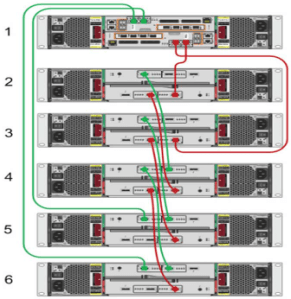
3PAR Disk Shelf Cabling