This is an excellent guide which has been written by Gareth Hogarth who has recently implemented a 3PAR StoreServ and was concerned about the lack of information from HP in relation to zoning. Being a ‘stand up guy’ Gareth decided to perform a lot of research and has put together the ‘3PAR StoreServ Zoning Best Practice Guide’ below.
This article focuses on zoning best practices for the StoreServ 7400 (4 node array), but can also be applied to all StoreServ models including the StoreServ 10800 8-node monster.
3PAR StoreServ Zoning Best Practice Guide
Having worked on a few of these, I found that a single document on StoreServ zoning BP doesn’t really exist. There also appears to be conflicting arguments on whether to use Single Initiator – Multiple Target zoning or Single Initiator – Single Target zoning. The information herein can be used as a guideline for all 3PAR supported host presentation types (VMware, Windows, HPUX, Oracle Linux, Solaris etc…).
Disclaimer: Please note that this is based on my investigation, engaging with HP Storage Architects and Implementation Engineers. Several support cases were opened in order to gain a better understanding of what is & isn’t supported. HP recommendations change all the time, therefore it’s always best to speak with HP or your fabric vendor to ensure you are following latest guidelines or if you need further clarification.
Right, let’s start off with Fabric Connectivity
In terms of host connectivity options the StoreServ 7000 (specifically the 7400) provides us with the following:
- 4x built-in 8 Gb/s Fibre Channel ports per node pair.
- Optional 8 Gb/s Quad Port Fibre Channel HBA (Host Bus Adapter) per node (we will be focusing on this configuration option).
- Optional 10 Gb/s Dual Port FCOE (Fibre Channel over Ethernet) converged network adapter per node.
StoreServ target ports are identified in the following manner Node:Slot:Port.
StoreServ target ports located on the on-board HBA’s will always assume the slot identity of 1, respectively StoreServ targets ports located on the optional expansion slot will always assume the identity of slot 2.
StoreServ nodes are grouped in pairs, it’s important to pay particular attention to this when zoning host initiators (server HBA ports) to the StoreServ Target ports.

Recommendations
- Each HP 3PAR StoreServ node should be connected to two fabric switches.
- Ports of the same pair of nodes with the same ID (value) should be connected to the same fabric.
- General rule – odd ports should be connect to fabric 1 and even ports should be connected to fabric 2.
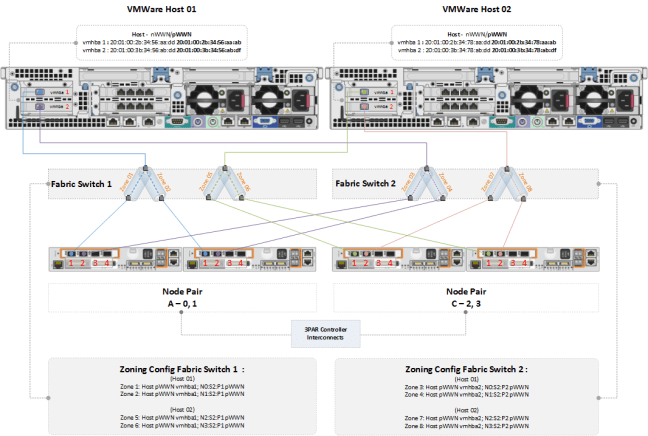
Figure 1a below identifies physical cabling techniques, mitigating against single points of failure using a minimum of two fabric switches, which are separated from each other.
The example below illustrates StoreServ nodes with supplementary quad port HBA’s:

Moving on to Port Persistence
As already covered by Craig in this blog post, a host port would be connected and zoned on the fabric switch via one initiator (host HBA port) to one HP 3PAR StoreServ target port (one-to-one zoning). The pre-designated HP 3PAR StoreServ backup port must be connected to the same fabric as its partner node port.
It is best practice that a given host port sees a single I/O path to HP 3PAR StoreServ. As an option, a backup port can be zoned to the same host port as the primary port, which would result in the host port seeing two I/O paths to the HP 3PAR StoreServ system. This would also result in the configuration where a HP 3PAR StoreServ port can serve as the primary port for a given host port(s) and backup port for host port(s) connected to its partner node port.
Persistent ports leverage SAN fabric NPIV functionality (N_Port ID Virtualization) for transparent migration of a host’s connection, to a predefined partner port on the HP 3PAR StoreServ array during software upgrades or node failure.
One of the ways this is accomplished is by having a predefined host facing port on the 3PAR StoreServ array, so that in the event of upgrade (node shutdown) or node down status the partner port will assume the identity of its partner port. The whole process is transparent to the host. When the node returns to normal I/O is failed back to the original target port.
Although unconfirmed I have heard that in in future releases of Inform OS we will get this level of protection at the port level.
Essentially for this to work Port Persistence requires that corresponding ‘native’ and ‘guest’ StoreServ ports on a node pair, be connected to the same fibre channel fabric.
Requirements for 3PAR Port Persistence:
- The same host ports on the host facing HBA’s in the nodes in a node pair must be connected to the same fabric switch.
- The host facing ports must be set to target mode.
- The host facing ports must be configured for point-to-point connections.
- The Fibre Channel fabric must support NPIV and have NPIV enabled on the switch ports.
Checking and enabling NPIV
Brocade Fabric OS (ensure you have the appropriate license which enables NPIV)
admin> portcfgshow ‘port#’
If the NPIV capability is enabled, the results of the portcfgshow command will identify this, i.e NPIV capability ON.
If the NPIV capability is not enabled, you can turn it on with the following command:
admin> portCfgNPIVPort ‘port#’ 1 (1 = on, 0 = off)
Cisco MDS Series Switches
fabSwitch # conf t
fabSwitch(config) # feature npiv (Enables NPIV for all VSANs on the switch)
QLogic SANbox 3800, 5000 and 9000 Switches
Don’t require a license, it’s enabled by default (just ensure you are using firmware version 6.8.0.0.3 or above).
Now let’s cover Switch Zoning (Fibre Channel)
SAN zoning is used to logically group hosts and storage devices together in a physical SAN, so that authorised devices can only communicate with each other if they are in the same SAN zone.
The function of zoning is to:
- Restrict access so that hosts can only see the data they are authorised to see.
- Prevent RSCN (Registered State Change Notification) broadcasts.
What are ‘RSCNs’ ? RSCNs are a feature of fabric switches. It’s a service of the fabric that notifies devices of changes on the state of other attached devices. For example if a device is reset, removed or otherwise undergoes a significant change in status.
These broadcasts are made to all members in the configured SAN zone. As hosts and storage targets can be grouped in a zone its best practice to reduce the impact of these types of broadcasts (Note: an argument against RSCN’s causing issues in zoning tables is that newer HBA’s do a good job limiting the impact of these types of broadcasts). Nevertheless, I prefer limiting the number of initiators and targets in a fabric zone to a minimum.
Zoning Types
- Domain, Port zoning uses switch domain id’s and port numbers to define zones.
- Port World Wide Name or pWWN zoning uses port World Wide Names to define zones. Every port on a HBA has a unique pWWN. (A host HBA comprises of a – nWWN & a pWWN, the nWWN refers to the whole device whereas the pWWN refers to the individual port.
The preferred zoning unit for the 3PAR StoreServ is pWWN. If you are currently using Domain, Port migrating to pWWN is very easy. Simply create new zones based on the pWWN of the host and the pWWN of the storage target, add these new zones to your fabric switches, zoning-out the references to Domain, Port for that respective HBA port. Some fabric vendor’s support mixing both Domain, Port and pWWN in the same zone. I prefer using one or the other explicitly.
The following command outputs the StoreServ ports and partner ports, which can be used to identify the node pWWN’s for zoning.
3PAR01 cli% showport
HP 3PAR StoreServ supports the following zoning configurations:
- Single initiator – Single Target per zone (recommended)
- Single initiator – Multiple Targets per zone
Use Single Initiator – Single Target per zone over Single Initiator Multiple Targets per zone to reduce RSCN’s as previously discussed.
At the time of writing, HP 3PAR OS implementation documentation references Single Initiator Multiple Targets as the recommended zoning type. However, when I queried this I was directed to use Single Initiator – Single Target Zoning. HP support pointed me in the direction of this document which identifies Single Initiator – Single Target zoning as best practice: http://www8.hp.com/h20195/v2/GetDocument.aspx?docname=4AA4-4545ENW
HP will support Single Initiator – Multiple Target, but you should not have a single host initiator attached to more than two StoreServ target ports!
Host port WWN’s should be zoned in partner pairs. For example if a host is zoned to node port 0:2:1, then it should be zoned to node port 1:2:1 (I’m speculating here, but I guess this is because controller nodes mirror cache I/O, so that in the event of node failure write operations in cache are not lost – hence we zone in node pairs and not across nodes from different pairs).
After you have zoned the host pWWN to the StoreServ node pWWN, you can use the 3PAR CLI showhost command to ensure that each host initiator is zoned to the correct StoreServ target ports (ensuring initiators go to different targets over different fabrics).
Figure 1b represents a staggered approach where you would have odd numbered VMware hosts connecting to nodes 0 & 1, and even numbered hosts connecting to nodes 2 & 3 (Note: currently the StoreServ is designed to tolerate a single node failure only, this includes the 8-node StoreServ 10800 array).
The example depicts Single Initiator – Single Target zoning, so a host with two HBA ports connecting over two fabrics will have a total of four zones (two per fabric). In case you were wondering the maximum allowed is eight (also known as fan-in limitation which is four per fabric).
Here are some additional points to be aware of
Fan-in/Fan-out ratios:
- Fan-in refers to a host server port connected to several HP 3PAR storage ports via Fibre Channel switch.
- Fan-out refers to the HP 3PAR StoreServ storage port that is connected to more than one host HBA port via Fibre Channel switch.
Note: Fan-in over subscription represents the flow of data in terms of client initiator to StoreServ target ports. HP/3PAR documentation states that a maximum of four HP 3PAR storage system ports can fan-in to a single host server port (if you are thinking great, I’ll connect my VMware host to 8 ports [four per fabric] think again. Using this approach when you have hundreds of hosts can quickly reach the maximum StoreServ port connection limitation which is 64!) it’s just not necessary.
StoreServ Target Port Maximums (As per 3PAR InForm OS 3.1.1 please observe the following):
- Maximum of 16 hosts initiators per 2Gb HP 3PAR StoreServ Storage Port
- Maximum of 32 hosts initiators per 4Gb HP 3PAR StoreServ Storage Port
- Maximum of 32 hosts initiators per 8Gb HP 3PAR StoreServ Storage Port
- Maximum total of 1,024 host initiators per HP 3PAR StoreServ Storage System
HP documentation states that these recommendations are guidelines, adding more than the recommended hosts should only be attempted, when the total expected workload is calculated and shown not to overrun either the queue depth or throughput of the StoreServ node port.
Note: StoreServ storage ports irrespective of speed, will negotiate at the lowest speed of the supporting fabric switch (keep this in mind when calculating the number of host connections).
The following focuses on changing the target port queue depth on a VMware ESX environment.
The default setting for target port queue depth on the ESX host can be modified to ensure that the total workload of all servers will not overrun the total queue depth of the target HP StoreServ system port. The method endorsed by HP is to limit the queue depth on a per-target basis. This recommendation comes from limiting the number of outstanding commands on a target (HP 3PAR StoreServ system port), per ESX host.
The following values can be set on the HBA running VMware vSphere. These values limit the total number of outstanding commands the operating system routes to one target port:
- For Emulex HBA target throttle = tgt_queue_depth
- For Qlogic HBA target throttle = ql2xmaxqdepth
- For Brocade HBA target throttle =
bfa_lun_queue_depth
(Note: for instructions on how to change these values follow VMware KB1267, these values are also adjustable on Linux Redhat & Solaris).
The Formula used to calculate these values is as follows:
(3PAR port queue depth [see below]) / (total number of ESX severs attached) = recommended value
The I/O queue depth for each HP 3PAR StoreServ storage system HBA mode is shown below:
Note: The I/O queues are shared among the connected host server HBA ports on a first come first serve basis.
| HP 3PAR StoreServ Storage HBA |
I/O queue depth values |
| Qlogic 2Gb |
497 |
| LSI 2Gb |
510 |
| Emulex 4Gb |
959 |
| HP 3PAR HBA 4Gb |
1638 |
| HP 3PAR HBA 8Gb |
3276 |
Well, hopefully you found the above information useful. Here is a high level summary of what we have discussed:
- Identify and enable NPIV on your fabric switches (Fibre Channel only feature – NPIV-Port Persistence is not present in iSCSI environments)
- Use Single Initiator -> Single Target zoning (HP will support Single Initiator – Multiple Target, but you should not have a single host initiator attached to more than two StoreServ target ports).
- A maximum of four HP 3PAR Storage System ports can fan-in to a single host server port.
- Zoning should be done using pWWN. You should not use switch port/Domain ID or nWWN.
- A host (non-hypervisors) should be zoned with a minimum of two ports from the two nodes of the same pair. In addition, the ports from a host zoning should be mirrored across nodes.
- Hosts need to be zoned to node pairs. For example, zoned to nodes 0 and 1 or to nodes 2 and 3. Hosts should NOT be zoned to non-mirrored nodes such as 0 and 3.
- When using hypervisors, avoid connecting more than 16 initiators per 4 Gb/s port or more than 32 initiators per 8 Gb/s port.
- Each HP 3PAR StoreServ system has a maximum number of initiators supported, that depends on the model and configuration.
- A single HBA zoned with two FC ports will be counted as two initiators. A host with two HBA’s, each zoned with two ports, will count as four initiators.
- In order to keep the number of initiators below the maximum supported value, use the following recommendations:
- Hypervisors: four paths maximum.
- Other hosts (non-hypervisors): two paths to two different nodes of the same port pairs.
- Hypervisors can be zoned to four different nodes but the hypervisor HBAs must be zoned to the same Host Port on HBAs in the nodes for each Node Pair.
Reference Documents
HP SAN Design Reference Zoning Recommendations
HP 3PAR InForm® OS 3.1.1 Concepts Guide
The HP 3PAR Architecture
HP UX 3PAR Implementation Guide
HP 3PAR Red Hat Enterprise Linux and Oracle Linux Implementation Guide
HP 3PAR VMware ESX Implementation Guide
HP 3PAR StoreServ Storage and VMware vSphere 5 best practices
HP 3PAR Windows Server 2012, Server 2008 Implementation Guide
HP Brocade Secure Zoning Best Practises
HP 3PAR Peer Persistence Whitepaper
An introduction to HP 3PAR StoreServ for the EVA Administrator
Building SANs with Brocade Fabric Switches by Syngress








 VMFocus