Microsoft Azure Concepts – Backups

Backups are really important when it comes to returning service after an issue or for meeting compliance or regulatory requirements.  The inability to recover from loss of data can make a business bankrupt in a short space of time.

You might say that having your data in the cloud which is highly available makes backups someone else’s problem.  Well that isn’t correct, what happens if you have data corruption or failure of an service or application after an update or perhaps a virus?  Having two copies of the data just means you have two corrupted copies!

We need to be able to go back in time to recover from an unplanned event.  This is where Microsoft Azure Backup steps into the ring!

What Is Azure Backup?

In a nutshell Azure Backup enables you to backup on-premises or Azure virtual machines using your Azure subscription.  This may sound a bit bizarre but until recently there was no supported way to backup Azure virtual machines.

When you initially create your Azure Backup Vault you are able to decide if you want your backups to be locally or geo redundant.

Azure Backup v0,1

Backing Up Azure Virtual Machines

Backing up Azure virtual machines is fairly straight forward, it’s a three step process which is intuitive in the Azure Backup blade.

  1. Discover the virtual machines you want to backup
  2. Apply a backup policy to the virtual machines
  3. Backup the virtual machines

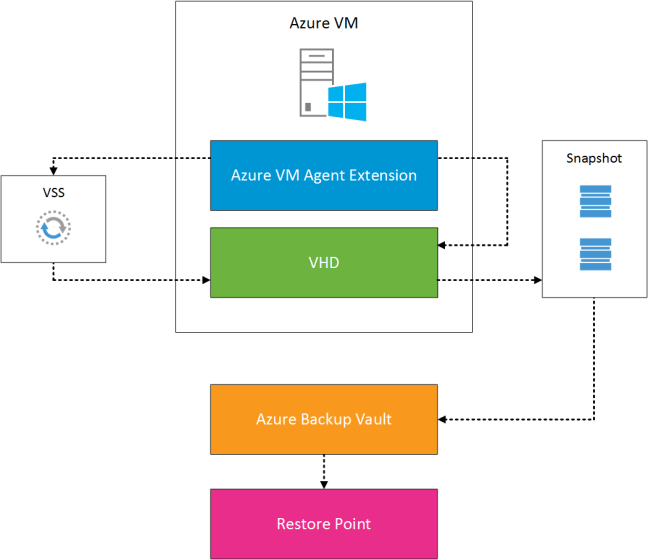
Each VM that you want to protect uses the Azure VM agent to co-ordinate backup tasks.  The best way to think of the Azure VM agent is an extension within the virtual machine.  When a backup is triggered the Azure VM agent leverages VSS to take a point in time snapshot of the VM.  This data is then transferred to the Azure Backup Vault.
Azure VM Backup


Few things I should call out which are limitations of the current version of Azure Backup, these are:

  • Backing up V2 Azure Virtual Machines is not supported (created by Resource Manager)
  • Unable to backup VM’s with Premium storage
  • On restore you have to delete the original VM and then restore it
  • Restoring VM’s with multiple NICs or that perform Domain Controller roles is only available via PowerShell

Backing Up On-Premises Virtual Machines

When Microsoft do things, they don’t like to mess about.  What do I mean? Well they are giving you an enterprise backup solution for the cost of an Azure Storage Account!

They don’t even stop at that, they enable you to back up your on-premises virtual machines to a disk first and then if you want backup to your Azure Vault after this.

Essentially, it’s Data Protection Manager, but with some of the functionality removed.  After creating an Azure Backup Vault you are entitled to download and install the Azure Backup Server software too an on-premises server.  To push out the DPM Agent to virtual machines you need to enter an account that has local administrators rights over these VM’s.

So what functionality is missing?

  • Azure Backup Server supports 50 on-premises virtual machines, so a new Azure Backup Vault is required with new vault credentials.  This intern means an on-premises Azure backup Server
  • Azure Backup Server does not support tape, instead it uses Azure Backup Vault for archiving
  • Azure Backup Server does not allow you to manage multiple Azure Backup Servers from a single console (think 200 VM’s being backed up you would have to login to at four consoles)

The supported operating systems are shown in the table below.  Note that you can only backup to disk with the client OS as these are unsupported in Azure.

Operating System Platform SKU
Windows 8 and latest SPs 64 bit Enterprise, Pro
Windows 7 and latest SPs 64 bit Ultimate, Enterprise, Professional, Home Premium, Home Basic, Starter
Windows 8.1 and latest SPs 64 bit Enterprise, Pro
Windows 10 64 bit Enterprise, Pro, Home
Windows Server 2012 R2 and latest SPs 64 bit Standard, Datacenter, Foundation
Windows Server 2012 and latest SPs 64 bit Datacenter, Foundation, Standard
Windows Storage Server 2012 R2 and latest SPs 64 bit Standard, Workgroup
Windows Storage Server 2012 and latest SPs 64 bit Standard, Workgroup
Windows Server 2012 R2 and latest SPs 64 bit Essential
Windows Server 2008 R2 SP1 64 bit Standard, Enterprise, Datacenter, Foundation
Windows Server 2008 SP2 64 bit Standard, Enterprise, Datacenter, Foundation

Final Thoughts

So why are Microsoft doing this?  My thoughts are they want customers to start using Azure storage to replace on-premises tapes.  For those who are used to DPM, this could be a natural extension to your existing backup policy.

Microsoft Azure Concepts – Virtual Machines

Virtualisation has been around for a number of years, with companies such as VMware being formed in 1998.  We are used to the abstraction of compute resources from the underlying hardware to provide logical isolation of virtual machines driving greater consolidation on providing a better return on investment.

Microsoft have taken the concept of a virtual machines and broken it down further to enable the consumption of Azure resources to be easier depending on the purpose of the virtual machine.  To explain this further lets delve into the three types of Azure Virtual Machines.

App Service

The purpose of the App Service is to allow the developer to create and manage websites and applications without needing to worry about managing and maintaining the underlying operating system.

Depending on the App Service Plan chosen, will entitle you to a number of features for your website which are:

  • Amount of disk space
  • SLA
  • Auto Scale
  • Geo Distributed Deployment
  • Custom Domain
  • Staging Environment

Most businesses would choose the Standard Tier as this provides an SLA of 99.95% along with Auto-Scale.  More information on the types of App Service plans can be found here.

Cloud Services

Azure Cloud Services are the middle ground between an App Service and a traditional virtual machines.

Cloud Service virtual machines provide two options which are:

  • Web Role which runs Windows Server and IIS
  • Work Role which runs Windows Server without IIS

When you create a Cloud Service you specify how many of each type you require and the underlying virtual machine, configuration and patching is performed by Microsoft.  You do however get the ability to RDP onto the virtual machine and install services.

It is important to note that Cloud Service virtual machines do not provide persistent storage, so this needs to be handled in the application architecture.  They do however support load balancing, and fault tolerance via in built availability sets.

Cloud Servies virtual machines use the same categories of pricing and specification as tradtional virtual machines which I will cover later in this blog post.

Virtual Machines

Azure Virtual Machines provide the most control.  You are responsbile for deployment, patching, load balancing and availability of the operating system and in-guest application.  Pretty much the same as when you run virtual machines on premises.

Each virtual machines comes with a persistent operating system disk and a non-peristent temporary drive which can be used to store data or perform storage related tasks whilst the VM is powered on.

The diagram below shows the complexity of management per Azure virtual machine type.

Azure VM Management v0.1

Great stuff, now we understand the types of virtual machines, what about virtual machines sizes, performance and capacity?

Virtual Machine Sizes

When a number of virtual machines are accessing the same underlying physical hardware, there has to be winners and loosers when resources become contended.  Depending on the type of virtual machine you purchase, will result in the performance characteristics available.

In Azure, Microsoft break down virtual machines into three categories which are A, D and G series.

A Series virtual machines are designed to run your standard everyday workload. They provide upto 500 IOPS per disk and can support up to the following specifications:

  • 56GB RAM
  • 8 CPU Cores
  • 4 NICs
  • 16 Data Disks at 500 IOPS each

Microsoft offer a subset of subset of the A Series called Compute Intensive which provide up to the following specifications:

  • 112GB RAM
  • 16 CPU Cores
  • 4 NICs
  • 16 Data Disks at 500 IOPS each

D Series virtual machines are designed to run more intensive workloads with the key difference being that the temporary disk is backed by SSD.  They provide upto 500 IOPS per disk and can support up to the following specifications:

  • 112GB RAM
  • 16 CPU Cores
  • 8 NICs
  • 32 Data Disks at 500 IOPS each
  • 800GB Temporary SSD

Microsoft offer the Dv2 Series virtual machine which provides a slightly better specification CPU.  The more interesting subset of the D Series is the DS.  This category provides shared SSD for the operating system disk.  Specifications are up to the follwing:

  • 112GB RAM
  • 16 CPU Cores
  • 8 NICs
  • 32 Data Disks at 224GB and 50,000 IOPS each with 512MB bandwidth

G Series virtual machines are massive and provide a huge amount of compute power, with specifications as follows:

  • 448GB RAM
  • 32 CPU Cores
  • 8 NICs
  • 64 Data Disks at 500 IOPS each
  • 6,144GB Temporary SSD

Again we have a subset of the D Series which is the DS Series.  This provides the same specification with shared storage the operating system disk.

The diagram below shows different virtual machines sizes.

Azure Virtual Machines Sizes v0.1

More information on Azure Virtual Machine sizes can be found here.


Final Thoughts

It is clear that Microsoft have given alot of thought to Azure Virtual Machines with different catergories catering for different levels of ownership and performance.  It is worthwhile reviewing the Azure Subscription Limits, Quotas and Constraints documentation to ensure that your virtual machines aren’t constrained by an unknown factor.

Microsoft Azure Concepts – Storage

When I think about storage, I normally visualize hard drives in client devices, some type of enterprise shared storage or a hyper-converged appliance that supports a single person or business towards meeting it’s requirements for storage capacity, performance, integrity and recoverability.

To talk about Azure Storage, I need to shift my perspective slightly.  Azure Storage is truly a web scale storage solution currently supporting over 50 Trillion or 50,000,000,000,000,000,000 objects which is alot!

To understand Azure Storage we need to understand how it all fits together.  When you have cloud multi-tenancy you need a way to ensure that only you have access to your own data (unless of course you choose to share it).  This is the fundamental underpin of Azure Storage which is your Azure Storage Account.

Azure Storage Account

An Azure Storage Account is the gateway to accessing storage in Azure.  When created you receive a unique namespace which is linked to the type of storage your are going to use for example http://storagevmfocus.blob.core.windows.net.  This then in turn links to your storage billing which is based around four factors:

  1. Storage usage
  2. Replication of data
  3. Read and write operations
  4. Data transferred out to other Azure regions

Azure Storage Types

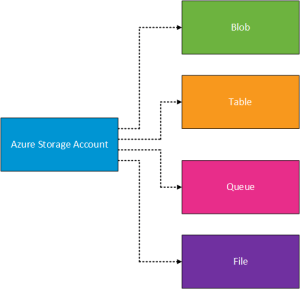
Now that we know that the starting point is an Azure Storage Account, what types of storage can Azure offer?  These are broken down into four areas (I’m beginning to think Microsoft link the number four) which are Blob, Table, Queue and File.

Azure Storage Account

Blob Storage

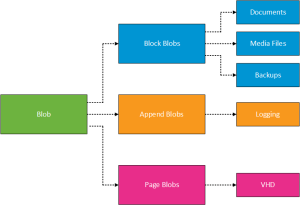
Blobs is the name given to Microsoft’s cost effective cloud storage.  It is used to store large amounts of unstructured data for example:

  • Azure VM Hard Drives
  • Documents
  • Media Files
  • Backup Files

Blobs are further broken down into different categories this is to ensure that the storage is optimized for it’s intended workloads.

Azure Blob Storage

Table Storage

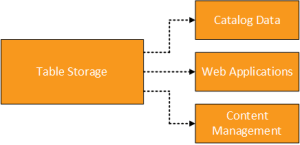
Table storage is provided by Microsoft’s NoSQL which is a distributed scale out store. Essentially its a repository for metadata that is captured and then needs to be accessed quickly. Example use cases for Table Storage is shown in the diagram below.

Azure Table Storage

Queue Storage

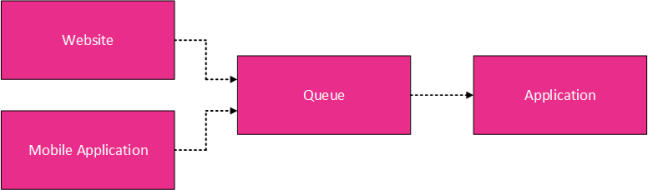
Queue storage is essentially a reliable messaging solution that passes information between different tiers of an application.

Azure Queue Storage

When held in the ‘queue’ data is kept until it is passed ‘a synchronously’ to the application.  Example use cases for Queue Storage are:

  • Communication between Websites and Applications
  • Hybrid communications between on-premises and Azure applications

File Storage

File storage is your traditional SMB 2.1 or 3.0 file share that we are used to accessing on a daily basis for example \vmfocuscustomer_files.  Access to the file share can be granted from on-premises using the net use command with the storage key for example

net use z: \vmfocusprodstorage.file.core.windows.netvmfocusfileshare /u:vmfocusprodstorage  m1G1Xatnb9NgzEjCrx1gBtQ/xpyFR4N71i6imkt38VvKCWB2bK9X==

This can then be added to a group policy login script for users.

An application would access the file share from an on-premises location using the REST API.

My understanding is that SMB 3.0 file shares provide encryption and persistency they do not provide Role Based Access Control (RBAC) via Active Directory Users & Groups.

Storage Redundancy

Great you say, I have moved some of my on-premises storage to Azure, but how do I make sure that data is available?  Well Azure offers the concept of Storage Redundancy which is broken down into, yes you guessed it four areas, these are:

  • Locally redundant storage (LRS)
  • Zone redundant storage (ZRS)
  • Geo redundant storage (GRS)
  • Read access geo redundant storage (RA_GRS)

Locally Redundant Storage (LRS)

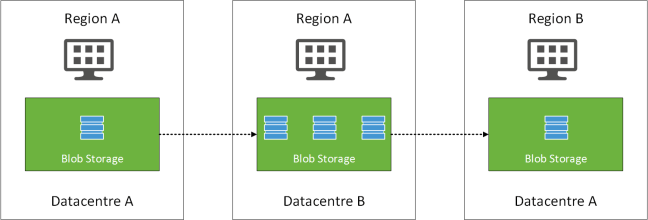
Data is held within the same datacentre, however it is replicated three times.  Each replica sits inside a separate fault and update domains.  This uses the same concept as Availability Sets, but for storage.

Use cases, include:

  • Protection from hardware failures
  • Provide redundancy inside a local datacentre to meet compliance or regulatory requirements

Zone Redundant Storage (ZRS)

Data is held across two or three datacentres either in the same region or across regions.

  • Protection from hardware failures
  • Provides a higher level of fault tolerance above LRS

Geo Redundant Storage (GRS)

Data is replicated to a second region.  Data is replicated three times in the primary region like ZRS then replicated to a secondary region ‘a synchronously’.  The purpose behind this is to ensure continued storage performance.  Waiting for an acknowledgement from a replicated region would slow storage responses down.

Geo Replicated Storage v0.1

Read Access Geo Redundant Storage (RA_GRS)

Works in the same was as GRS.  However you have read access to the data at the secondary location.  This can be useful for data mining operations where you don’t want to run against the primary set of data.


Final Thoughts

Azure storage is huge and needs to be thought about very carefully to ensure that no single part of the chain becomes the bottleneck for example you might have sufficient disk I/O but the limiting factor is the network throughput from source to target.

This leads us onto the next topic of discussion which is Virtual Machines.

Microsoft Azure Concepts – Availability Sets

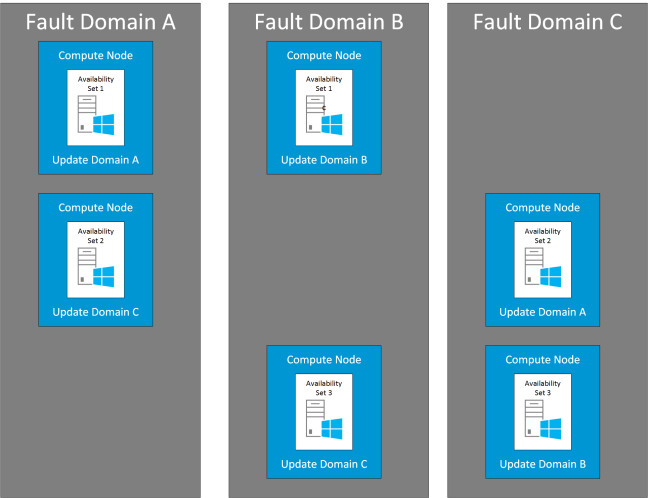
Availability Sets are used within Microsoft Azure to ensure that virtual machines are deployed into different Update Domains and different Fault Domains. This allows Microsoft Azure to provide an SLA of 99.95% for the service provided by the virtual machines within the availability set.

  • Updates are planned events. For example when the underlying Azure fabric is patched it may require the restart of your guest VM’s.  This is defined as an Update Domain (UD).
  • Failures are unexpected events such as hardware failure whether this is physical or logical that impacts the availability of your Guest VM. This is defined as an Fault Domain (FD)

As a minimum two virtual machines are required to be in an Availability Set for Microsoft to provide the 99.95% SLA.

  • An Availability Set can be created with a single virtual machine, however Microsoft will not provide an uptime SLA
  • Virtual machines within an Availability Set must reside in the same Cloud Service
  • A maximum of 100 virtual machines can reside in an Availability Set
  • Five update domains are available per Availability Set

Azure Availability Sets v0.1

That’s all very well and good, but this now means that our application needs to be able to cope with being restarted when a failure or update occurs.  This point for me needs careful consideration when you are trying to meet your business SLA’s within the framework that Microsoft provides in Azure.

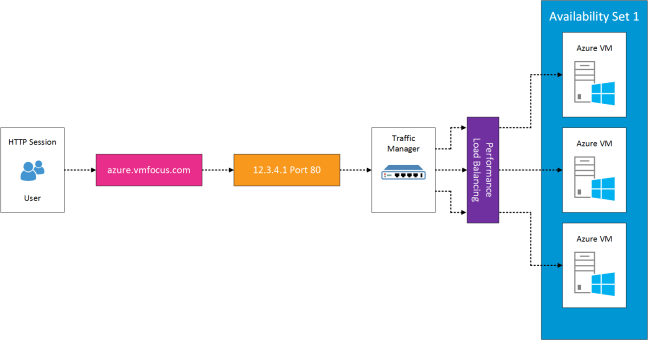
We also need to consider how traffic is directed to each of the Guest VM’s within an Availability Set.  This is where a load balancer comes in to direct traffic to the most appropriate Guest VM within the availability set.

You might think that you could put a single VM into an Availability Set to meet SLA requirements.  However this is where Microsoft have a get out of jail free card, a single VM does not receive the 99.95% SLA.  I guess this is because Microsoft don’t know how long it will take that Guest VM to become available in another update or fault domain.

Azure Availability Sets Load Balancer v0.1

Final Thoughts

Availability Sets require consideration around the design of the application layer to ensure that not only the Guest VM is available but also access to shared data services between them.  It’s also worth noting that application or service failures are not included within the 99.95% SLA.


Microsoft Azure Concepts – Identity & Access

When we talk about Identity and Access what do we really mean?  For me, it boils down to who you are and what you are entitled to access.

Simple statement, but it does start to get rather complicated when you think about Identity Management.  If you think about your own organisation what directory service does it use? Probably Active Directory Domain Services (AD DS).  Think about how many years it has it been fine tuned with integration with third party solutions such as:

  • Remote access via RADIUS servers
  • Two factor authentication
  • Single sign on into applications
  • Synchronization of user accounts and groups into hosted web services for web filtering
  • Integration with software that provides corporate wide email signatures
  • Integration with software that provides automated provisioning and de-provisioning of users

The list does truly go on and on.  Most organisations will treat their on-premises Active Directory Domain Services (AD DS) as the one source of all truth for users, groups, permissions and passwords.

So that’s the on-premises bit, what’s this Azure Active Directory all about?

What is Azure Active Directory

According to Microsoft Azure ‘What is Azure Active Directory‘ homepage it is Microsoft’s multi-tenant cloud based directory and identity management service.  Great you say but what does that really mean?

The key is in the multi-tenant part, its a directory service built for Microsoft. It isn’t architected in the same way as AD DS, most of us are used to the terms Kerberos, NLTM and LDAP, well these aren’t available in Azure AD.  Instead Azure AD uses web centric language such as SAML 2.0, WS-Federation and OAuth2.0  More details on Azure AD Authentication Protocols can be found here.

For those among us who like facts and figures Azure AD Basic and Premium has an SLA of 99.95% and operates out of twenty eight of Microsoft datacentres.   With the object and metadata being held across two or more locations.

Noticeably Azure AD, doesn’t provide the same features set that we are used to with AD DS, for example group policy isn’t available.  Azure AD Join is out for Windows 10 devices which provides some enrollment and integration features into areas such as email, but again it doesn’t provide the rich feature set you would expect from your on-premises AD DS.

Microsoft are adding features continuously to Azure AD, so I’m sure things will progress and update in the near future.  This then leaves us with three choices when it comes to accessing cloud based solutions:

  • Separate
  • Synchronized
  • Federated

Separate

This is where you have a separate identify and access for your on-premises AD DS and Azure AD.

A user ‘John Smith’ has to manage his credentials for both on-premises access to applications via AD DS and different set of credentials for access to applications in Azure AD.

Azure AD Seperate v0.1

Synchronized

These are identities that exist on-premises in AD DS and in Azure AD.  Typically Azure AD Connect would be used to manage the password synchronization using hashing algorithms.  It uses a SQL Server database to store identity data, with the Express version enabling you to manage 100,000 objects.

Using AD Connect you will gain the on-premises password will authenticate both AD DS and Azure AD. Users will have single sign-on for an extensive set of pre-integrated SaaS applications.  At the moment 2,577 applications are pre-configured for Azure AD integration.

Azure AD Connect v0.1

Federated

Federated enables your on-premises AD DS to be the source of authentication into Azure AD and other cloud based resources or partner organizations.  Essentially it supports advanced scenarios that cannot be achieved using the synchronized deployment method for example your security policy prohibits password hashes being synchronized to the cloud.

It should be noted that it is higher maintenance, requires additional servers and extensive setup and redundancy to ensure users can authenticate.

Azure AD FS v0.1

Azure AD Free, Basic and Premium

Just to make things slightly more complicated, Microsoft have three versions of Azure AD, these are Free, Basic and Premium.

  • Free – This is the entry level option that doesn’t provide an SLA or company branding.  It does however give you the following:
    • Up to 500,000 objects
    • You have access to SSO applications using the 2,577 Azure AD pre-integrated SaaS applications
    • Ability to extend on-premises AD DS into Azure AD
    • Self Service Password Changes for Azure AD users
  • Basic – This is the first paid for option which extends the free features by including:
    • No object limit
    • 99.9% SLA
    • Company branding for login pages and access panel
    • Self Service Password Resets for Azure AD users
  • Premium – This is the top option, which extends the Basic features by including:
    • Self service group management
    • Self Service Password Resets with on-premises writeback
    • Multi-Factor Authentication
    • Self service Bitlocker recovery

Final Thoughts

Azure AD is a web scale directory that provides SSO and integration with SaaS and on-premises directory structures and applications.  It is maturing all time with the inclusion of new features on a regular basis.

In the next article I will look at Availability Set concepts, see you in the next installment.