Adding HP & Dell VIB to VUM

Depending on your vSphere environment, you will have probably installed your ESXi hosts using a custom ISO from your hardware manufacturer.

Then after this, usually the standard vSphere Update Manager sources are used.

VUM Download

VUM will update your ESXi Host with patches from VMware, however it won’t update perform driver updates to your components e.g. NIC

This is where the vSphere Infrastructure Bundles come into play.  A great explanation of VIBs can be found over here by Kyle Gleed

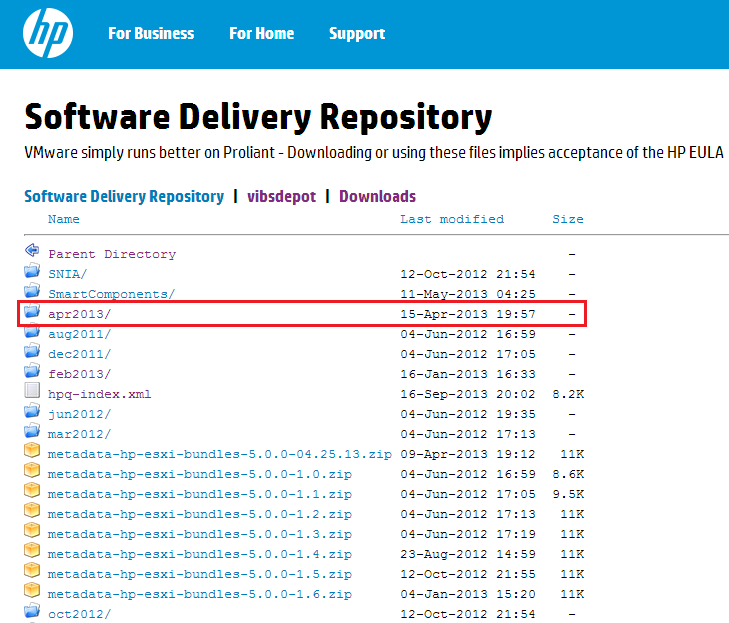
First of all browse to the HP Software Delivery Repository and locate the most recent month (this is a manual check I’m afraid).  In this case it is Apr2013

HP VIB 01

Double click Apr2013 and then locate index.xml and double click on this.   What you want is the URL from your browser, in this case it is

http://vibsdepot.hp.com/hpq/apr2013/index.xml

Go into vSphere Update Manager > Administration View > Configuration > Download Settings and Select Add Download Source

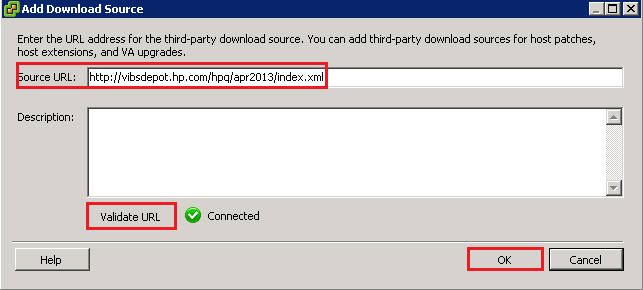
HP VIB 02

Add in http://vibsdepot.hp.com/hpq/apr2013/index.xml and Validate URL. If successful a Green Tick should appear.

HP VIB 03

The VIB won’t be live for use by VUM until you click Apply

HP VIB 04

Then click ‘Download Now’

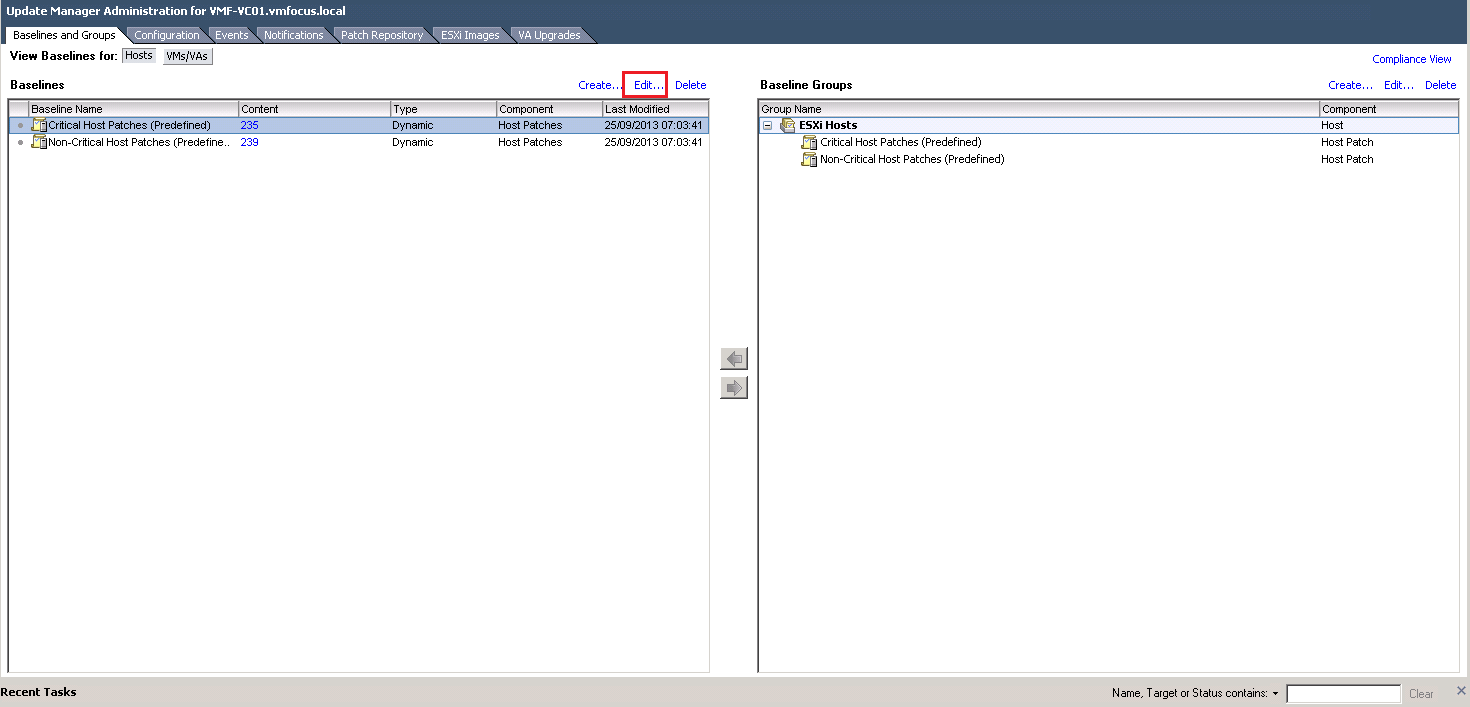
We now need to make sure that our Baseline Groups are going to use the HP VIBs as a validation source for VUM Scans

To do this go to Baselines & Groups > Edit

VUM Scans

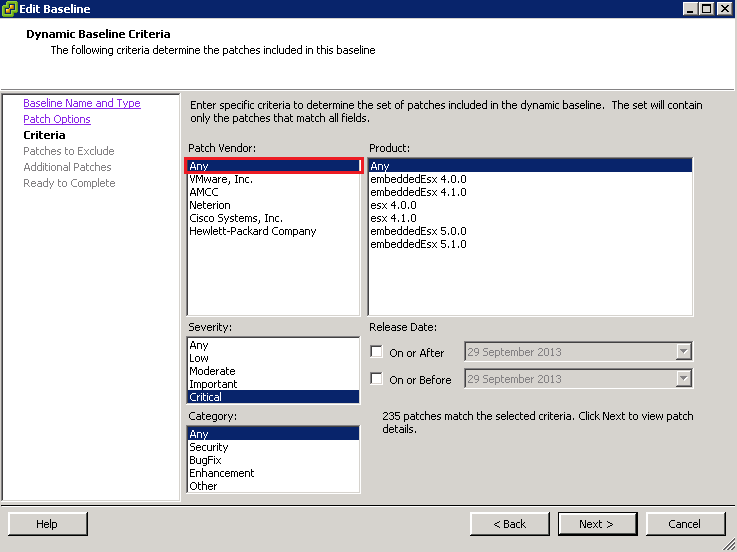
Click Next until you get to Criteria and make sure that Patch Vendor equals Any

VUM Scans 02

Click Next until you get through to Finish.

Hope that helps you manage and maintain your vSphere environment.

##########

Update

Barrie Seed (@vStorage) bought to my attention via Twitter that Dell also have a VIB repository which can be linked to VUM.

The URL is http://vmwaredepot.dell.com/index.xml which validates correctly.

Dell VIB

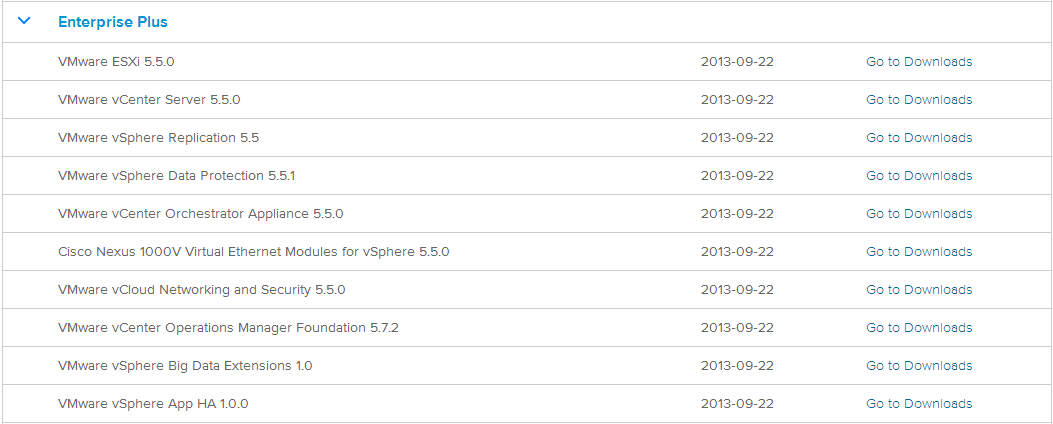
Get Involved: vSphere 5.5 Available

Unless you have been sleeping in the outer herbrides with no access to the internet, then you would have known that vSphere 5.5 was announced at VMworld.

It has been a few weeks since San Francisco and anticipation on the general availability on vSphere 5.5 has been high.  However the good news is the wait is over, it is here.

To obtain vSphere 5.5 login here and enjoy the next release of the worlds most popular hypervisor.

vSphere 5.5

vSphere Sizing Formula – Storage & Datastores

This blog post continues on from my previous blog post on vSphere Sizing Formula – CPU & RAM, this is again for me to share with you my methodology when it comes to sizing the requirements for a storage design.

I’m not going to go into specific storage protocols as this can be influenced by a multitude of design decisions.

Step 1 – Datastore Size

The answer to this isn’t a one size fits all, but let me give you my considerations.

Restore Time Objective

Your RTO objective should help determine define your VM size.  Let me explain what I mean, by walking over an example.

Your RTO time is an hour.  You have VM’s which are 2TB in size because they have multiple disk partitions in the guest operating system.  You currently backup using LTO-4 tapes which produce a restore rate of 120/MB’s.

Restore Rate x 60 Seconds x 60 minutes = Restore Amount

120 x 60 x 60 = 432,000 MB

Restore Amount = Resore Time Objective? Yes/No

432,000 MB (422GB) = No Restore Time Objective has been violated

Knowing this we would then dictate the VM would be changed to at least 5 x VM’s to meet the required RTO.

So this then determines our maximum VM size to be 422GB to meet RTO.

VM Size

Now we know our RTO and maximum VM size of 422GB, we then move onto the required space for our VM.

Maximum VM Size – Swap File = Actual Maximum VM Size

422GB – 8GB = 414GB

Buffer Space

Buffer space is the amount of space we need on the datastore for items such as:

  • Log Files
  • Snapshots
  • Storage vMotion (temporary move space)

Rule of thumb on this is 25%.

Queue Depth

Jason Boche (@jasonboche) wrote an excellent article which can affect performance called  VAAI and the Unlimited VM’s per Datastore Urban Myth

Queue Depth for HBA’s is defaulted at 32, please check with your vendor if this should be altered for a vSphere environment.

Queue Depth for Software iSCSI Adapter is defaulted at 128, again check with you vendor is this should be altered in a vSphere.

Active IO Per VM x Number Of VM’s = Overall Active IO

9 x 500 = 4500

Overall Active IO / Number Of Hosts = Average Active IO Per Host

4500 / 12 = 375

Average Active IO Per Host / Queue Depth – Growth (Spike) % =  VM’s Per Datastore

375 / 32 – 50% = 6

Datastore Size

VM’s Per Datastore x Actual Maximum VM Size + Buffer Size = Datastore Size

6 x 414GB + 25% = 3TB

Step 2 – Performance Data Collection

I tend to look at performance first then capacity second, I have discounted capacity for this blog post as this should be straight forward to work out based around the RAID type you have chosen to use.

For the basis of the data collection we are going to make the following assumptions.

Disk IOPS
7.2K SATA/NearLine SAS 75
10K SAS 125
15K SAS 150
SSD 2,500

Table To Show RAID Penalty

RAID Type Write Penalty
0 1
1 2
5 4
6 6
10 2

Read/Write Collection

This is obtaining the key metrics from your physical systems, application owners, current storage array network, or perhaps its from perfmon or VMware Capacity Planner.

Read MB/Sec + Write MB/Sec = Overall MB/Sec

83 MB/Sec + 12 MB/Sec = 95 MB/sec

Read MB/Sec / Overall MB/Sec = Read Percentage

83 MB/Sec / 95 MB/Sec = 87%

Write MB/Sec / Overall MB/Sec = Write Percentage

12 MB/Sec / 95 MB/Sec = 13%

Front End IOPS Collection

Front End IOPS are the I/O transfers per second that your collection tool will see.  In this case we will use 1,231 IOPS.

Back End IOPS Collection

Back End IOPS is the performance that your SAN/NAS needs to accommodate taking into account RAID write penalty.

Read % + (RAID Penalty x Write %) = RAID Penalty Percentage

RAID 1: 87% + (2 x 13%) = 113%

RAID 5: 87% + (4 x 13%) = 139%

RAID 6: 87% + (6 x 13%) = 165%

RAID 10: 87% + (2 x 13%) = 113%

RAID Penalty Percentage x Front End IOPS = Back End IOPS

RAID 1: 113% x 1,231  = 1,391 IOPS

RAID 5: 139% x 1,231  = 1,711 IOPS

RAID 6: 165% x 1,231  = 2,031 IOPS

RAID 10: 113% x 1,231  = 1,391 IOPS

Step 3 – Target Disk Requirements

This is the process of determining which disk types meet your performance requirements.

Back End IOPS / Disk IOPS = Number Required Hard Drives

Table To Show Hard Drives Per RAID Type


RAID Type

Back End IOPS

Disk IOPS

Number Required Hard Drives
10 1,391 75 IOPS (7.2K SATA) 19
10 1,391 125 IOPS (10K SAS) 12
10 1,391 150 IOPS (15K SAS) 10
1 1,391 2,500 IOPS (SSD) 2 (to meet RAID 1 disk requirements)
5 1,711 75 IOPS (7.2K SATA) 23
5 1,711 125 IOPS (10K SAS) 14
5 1,711 150 IOPS (15K SAS) 12
5 1,711 2,500 IOPS (SSD) 3 (to meet RAID 5 disk requirements)
6 2,031 75 IOPS (7.2K SATA) 28
6 2,031 125 IOPS (10K SAS) 17
6 2,031 150 IOPS (15K SAS) 14
6 2,031 2,500 IOPS (SSD) 4 (to meet RAID 6 disk requirements)

Note: RAID 1 hasn’t been included apart from for SSD due to IOPS performance.

Step 4 – Growth Requirements

This is the amount of performance or capacity increase that is required to meet business or application objectives, in this case we will use 50%.


RAID Type

Back End IOPS
 Growth %  Required IOPS
Disk IOPS

Number Required Hard Drives
10 1,391 50% 2,087 75 IOPS (7.2K SATA) 28
10 1,391 50% 2,087 125 IOPS (10K SAS) 17
10 1,391 50% 2,087 150 IOPS (15K SAS) 14
1 1,391 50% 2,087 2,500 IOPS (SSD) 2 (to meet RAID 1 disk requirements)
5 1,711 50% 2,567 75 IOPS (7.2K SATA) 35
5 1,711 50% 2,567 125 IOPS (10K SAS) 21
5 1,711 50% 2,567 150 IOPS (15K SAS) 18
5 1,711 50% 2,567 2,500 IOPS (SSD) 3 (to meet RAID 5 disk requirements)
6 2,031 50% 3,047 75 IOPS (7.2K SATA) 41
6 2,031 50% 3,047 125 IOPS (10K SAS) 25
6 2,031 50% 3,047 150 IOPS (15K SAS) 21
6 2,031 50% 3,047 2,500 IOPS (SSD) 4 (to meet RAID 6  disk requirements)

Considerations

Most storage vendors will have some kind of caching, you can use this to decrease the number of disks required or you can use it as an added performance bonus.

Latency hasn’t been taken into account, the rule for this is the less hops/distance travelled should equal less latency e.g. DAS is faster than SAN.

vSphere Sizing Formula – CPU & RAM

This is a blog post I have been meaning to do for a while, essentially the purpose behind it is for me to share the methodology I use for sizing the requirements for a physical ESXi host design.
I’m sure you know the information in this post isn’t exactly new, it is based from my own experiences and reading of a number of materials which includes:

VMware vSphere Design
 – Forbes Guthrie & Scott Lowe
Managing & Optimizing VMware vSphere Deployments – Sean Crookston & Harley Stagner
Designing VMware Infrastructure – Scott Lowe

Step 1 – Data Collection
This is obtaining the key metrics from your physical systems.  You might get this data manually using perfmon or using tools such as VMware Capacity Planner.
 
One thing to be wary of, is if you have a system with 100% utilization then you don’t always know what extra resources might be required.  For RAM it isn’t so bad as you can take into account paging, however with CPU, you have to make a judgement call.
 
CPU Data Collection
 
Average CPU per physical (MHz) x Average CPU Count = Average CPU per physical system
 
2,000MHz x 4 = 8,000MHz
 
Average CPU per physical system x Average peak CPU utilization (percentage) = Average peak CPU utilization (MHz)
 
8,000MHz x 12% = 960Mhz
 
Average peak CPU utilization (MHz) x Number of concurrent VM’s = Total peak CPU utilization (MHz)
 
960MHz x 50 = 48,000MHz
 
RAM Data Collection
 
Average RAM per physical (MB) x Average Peak RAM utilization (percentage) = Average peak RAM utilization (MB)
 
4,000MB x 52% = 2080MB
 
Average peak RAM utilization (MB) x Number of concurrent VM’s = Total peak RAM utilization (MB)
 
2080MB x 50 = 104,000MB
 
Step 2 – Target Host Specification
These are your target systems, remember to think about items such as server build limitations e.g. 2 Sockets with 6 Cores with Blades, DIMM slots and other factors such as license requirements or physical space which is available.
I also try and factor in maximum capacity at this point, some people like to call this head room or growth.
 
Host CPU Specification
 
CPU sockets per host x Cores per socket = Cores per host
 
2 x 6 =12
 
Cores per host x MHz per core = MHz per host
 
12 x 2,000MHz = 24,000MHz
 
MHz per host x Maximum CPU utilization per host (percentage) = CPU available per host
 
24,000MHz x 80% = 19,200MHz
 
Host RAM Specification
 
RAM per host x Maximum RAM utilization per host (percentage) = RAM available per host
 
80,000MB x 70% = 56,000MB
 
Step 3 – Number of Hosts
Based around the above details, we can now work out the number of hosts required to meet our needs for CPU, RAM and redundancy.

Hosts Per CPU Specification

Total peak CPU utilization (MHz) / CPU (MHz) per host = Number of hosts required for CPU
 
48,000MHz / 19,200MHz = 2.5 (round up) 3 Hosts
 
Number of hosts required for CPU + redundancy = Number of hosts for N+?
 
3 + 1 = 4
 
Hosts Per RAM Specification
 
Total peak RAM utilization (MB) / RAM (MB) per host = Number of hosts required for RAM
 
104,000MB / 56,000MB = 1.8 (round up) 2 Hosts
 
Number of hosts required for RAM + redundancy = Number of hosts for N+?
 
2 + 1 = 3
 
Tables
Depending on how you prefer to present or calculate out your solutions, you might prefer to work with tables.
 
Table to Show CPU & RAM Requirements 

Performance Metric

Recorded Value
Average number of CPU per physical system 4
Average CPU MHz 2,000 MHz
Average CPU Utilization per physical system 12% (960MHz)
Number of concurrent virtual machines 50

Total CPU resources for all virtual machines at peak

48,000MHz
Average amount of RAM per physical system 4,000MB
Average peak memory utilization per physical system 52% (2,080MB)
Number of concurrent virtual machines 50

Total RAM resrouces for all virtual machines at peak

104,000MB
  
Table to Show Host CPU & RAM Specification 

Attribute

Specification
CPUs sockets per host 2
Cores per CPU 6
MHz per CPU core 2,000MHz

Total CPU MHz per host

24,000MHz
Maximum CPU utilization per host (growth) 80%

CPU available per host

19,2000MHz
RAM per host 80,000MB
Maximum RAM utilization per host (growth) 70%

RAM available per host

56,000MB
 
Table to Show Hosts Per CPU & RAM Specification 

Attribute

Specification
Total peak CPU utilization 48,000MHz
CPU available per host 19,200MHz
Hosts required for CPU (round up) 3
Redundancy 1

Number of hosts for CPU & redundancy

4
Total peak RAM utilization 104,000MB
RAM available per host 56,000MB
Hosts required for RAM (round up) 2
Redundancy 1

Number of hosts for RAM & redundancy

3

Note: I haven’t included TPS savings as these will negate memory overhead for CPU.

vSphere 5.5 – My Take On What’s New/Key Features

vSphere 5.5With the release of vSphere 5.5, it’s been tough keeping up with all the tweets and information from VMworld 2013 San Francisco.

Having this plethora of data, I thought it would be handy to blog about the key features that will have the biggest impact on my everyday life, in bite size chunks!

Like you I have a great deal of reading to do, to get myself up to speed, understanding when a feature should be used and it’s limitations.

Virtual Machine Enhancements

vGPU – With vSphere 5.5 the list had been extended so we aren’t limited to NVidia cards now.  Also we have the ability to vMotion to hosts with different GPU’s inside of them without any downtime.

62TB VMDK – Yes, no  more working within the 2TB minus 512 bytes limitation.  What’s even better is that snapshots can be used so your backup software will work.

Low Latency Applications – These are applications which must have minimal network latency and want fast response times.   Four settings are available Low, Normal, Medium and High.

vCenter Server Enhancements

vCenter Server Appliance – Has been given a turbo boost and now supports up to 5,000 VM’s and 500 ESXi Hosts making it a viable option to a Windows based vCenter.

vSphere App HA – This is the ability to monitor Application Services and then restart them or trigger an alert when a given event happens.  This is achieved by deploying two virtual appliances, vSphere App HA which stores and managed Application HA policies and vFabric Hyperic which monitors applications and enforces HA policies.

At the moment, a limited number of applications are supported, the one that rings out is MSSQL 2005, 2008, 2008 R2 and 2012.

vSphere Replication – We now have the ability to fail back to multiple point on time snapshots.  This is a good enhancement, but having a string of snapshots over in your DR site, worries me.

SSO – I know the bane of your life, but VMware has listened and redesigned it.  In fact I think they must have been talking to Microsoft as it now used the ‘multi master model’ found in Active Directory.  Perhaps more importantly VMware are soon to release vCenter Server Design Recommendations.

Storage Enhancements

VAAI Unmap – It’s gotten simpler, rather than having to specifiy a percentage we can now just type ‘esxcli storage vmfs unmap’

vSphere Flash Read Cache – Write I/O’s are received by the vSphere Flash Read Cache to enhance VM storage performance. Flash devices installed on the ESXi Hosts are pooled.

VSAN – (Yes that is meant to be a big V and the product is still in beta).  The aggregation of local storage making it persistent using RAIN (Redundant Array Independent Nodes).  Read’s and writes are sent to the SSD cache to improve VM storage performance.  The hard limitation is 8 ESXi Hosts at the moment in a VSAN.

Networking Enhancements

LACP – We now have 64 Link Aggregation Groups (LAG’s) per host and per vDS.

Traffic Filtering – Essentially Access Control Lists have come to town.

QoS – Not wanting to be left out, QoS has joined the party with Differentiated Service Code Point (DSCP).

Licensing

This is the only downsides, it appears that all the ‘cool’ new stuff is only available in Enterprise Plus, see the vSphere Edition Comparison.

Questions I Have

VUM – Will VMware Update Manager be fully integrated with the vSphere Web Client?

VSAN – When will this be out of beta?

vSphere App HA – When will support for applications such as Exchange 2007/2010/2013 be released?

vSphere Web Client – Will the response times for this be improved? As my general feeling is that it plays second fiddle to the vSphere Client.