The purpose of this post is to explain my understanding of the different networking options with Azure, it is meant to be an overview and not a deep dive into each area. If you notice any areas which are incorrect, feel free to make a comment and I will update this post.
Endpoints
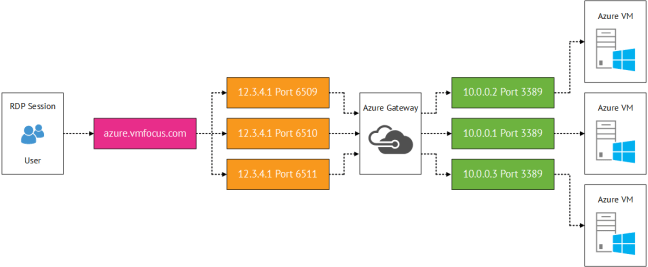
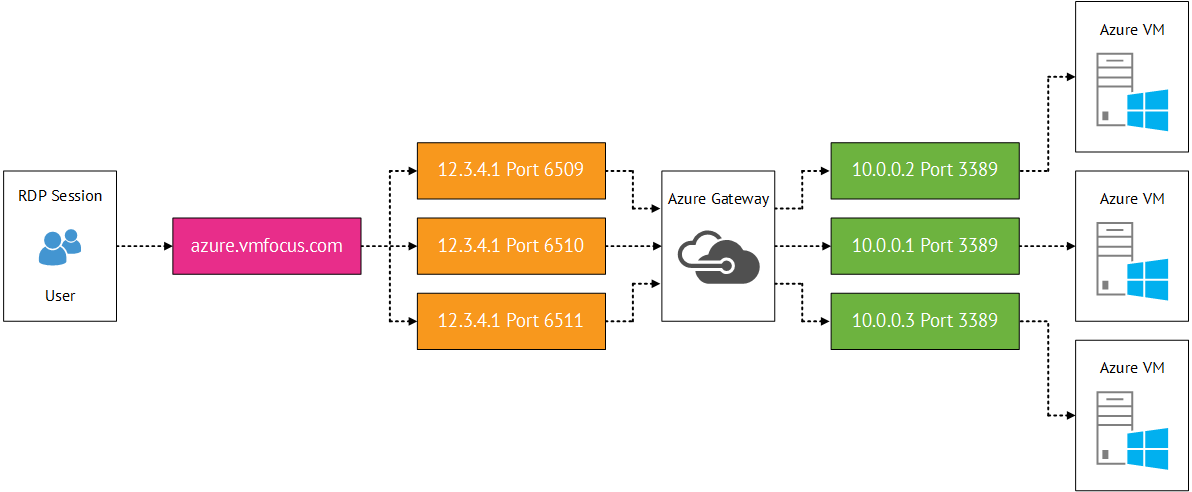
Endpoints are the most basic configuration offering when it comes to Azure networking. Each virtual machine is externally accessible over the internet using RDP and Remote PowerShell. Port forwarding is used to access the VM. For example 12.3.4.1:6510 resolves to azure.vmfocus.com which is then port forwarded to an internal VM on 10.0.0.1:3389 
- Public IP Address (VIP) is mapped to the Cloud Service Name e.g. azure.vmfocus.com
- The port forward can be changed if required and additional services can be opened or the defaults of RDP and Remote PowerShell can be closed
- It is important to note that the public IP is completely open and the only security offered is password authentication into the virtual machine
- Each virtual machine has to have an exclusive port mapped see diagram below
Endpoint Access Control Lists
To provide some mitigation to having virtual machines completely exposed to the internet, you can define an basic access control list (ACL). The ACL is based on source public IP Address with a permit or deny to a virtual machine.
- Maximum of 50 rules per virtual machine
- Processing order is from top down
- Suggested configuration would be to white list on-premises external public IP address
Load Balancing
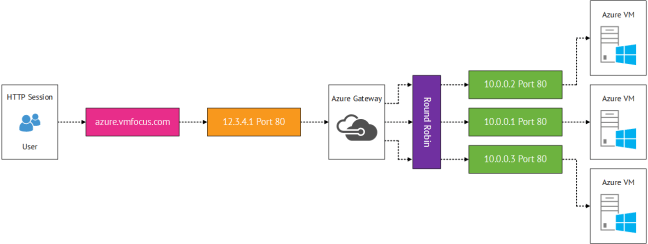
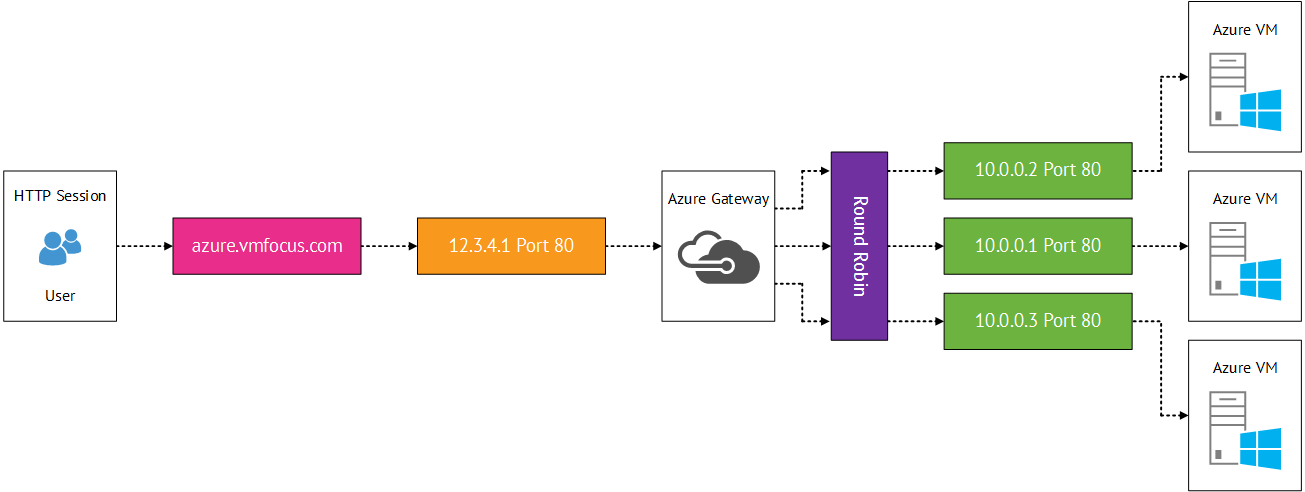
Multiple virtual machines are given the same public port for example 80. Azure load balancing then distributes traffic using round robin.
- Health probes can be used every 15 seconds on a private internal port to ensure the service is running.
- The health probe uses TCP ACK for TCP queries
- The health probe can use HTTP 200 responses for UDP queries
- If either probe fails twice the traffic to the virtual machine stops. However the probe continues to ‘beacon’ the virtual machine and once a response is received it is re-entered into round robin load balancing
Virtual Networks
Virtual networks enable you to create secure isolated networks within Azure to maintain persistent IP addresses. Used for virtual machines which require static IP Addresses.
- Enables you to extend your trust boundary to federate services whether this is Active Directory Replication using AD Connect or Hybrid Cloud connections
- Can perform internal load balancing using internal virtual networks using the same principle as load balancing endpoints.
Hybrid Options
This is probably the most interesting part for me, as this provides the connectivity from your on-premises infrastructure to Azure.
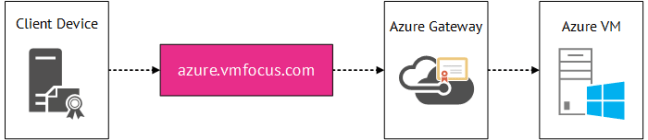
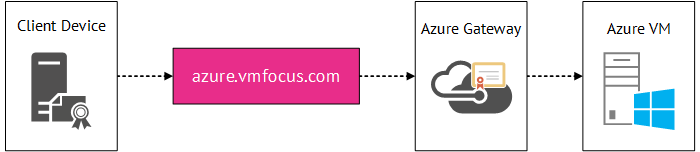
Point to Site Point to site uses certificate based authentication to create a VPN tunnel from a client machine to Azure.
- Maximum of 128 client machines per Azure Gateway
- Maximum bandwidth of 80 Mbps
- Data is sent over an encrypted tunnel via certificate authentication on each individual client machine
- No performance commitment from Microsoft (makes sense as they don’t control the internet)
- Once created certificates could be deployed to domain joined client devices using group policy
- Machine authentication not user authentication
 Site to Site Site to site sends data over an encrypted IPSec tunnel.
- Requires public IP Address as the source tunnel endpoint and a physical or virtual device that supports IPSec with the following:
- IKE v1 v2
- AES 128 256
- SHA1 SHA2
- Microsoft keep a known compatible device list located here
- Requires manual addition of new virtual networks and on-premises networks
- Again no performance commitment from Microsoft
- Maximum bandwidth of 80 Mpbs
- The gateway roles in Azure have two instances active/passive for redundancy and an SLA of 99.9%
- Can use RRAS if you feel that way inclined to create the IPSec tunnel
- Certain devices have automatic configuration scripts generated in Azure based
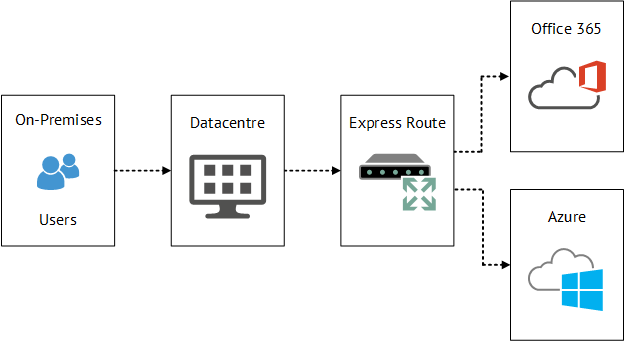
 Express Route A dedicated route is created either via an exchange provider or a network service provider using a private dedicated network.
- Bandwidth options range from 10 Mbps to 10 Gbps
- Committed bandwidth and SLA of 99.99%
- Predictable network performance
- BGP is the routing protocol used with ‘private peering’
- Not limited to VM traffic also Azure Public Services can be sent across Express Route
- Exchange Providers
- Provide datacenters in which they connect your rack to Azure
- Provide unlimited inbound data transfer as part of the exchange provider package
- Outbound data transfer is included in the monthly exchange provider package but will be limited
- Network Service Provider
- Customers who use MPLS providers such as BT & AT&T can add Azure as another ‘site’ on their MPLS circuit
- Unlimited data transfer in and out of Azure
Traffic Manager
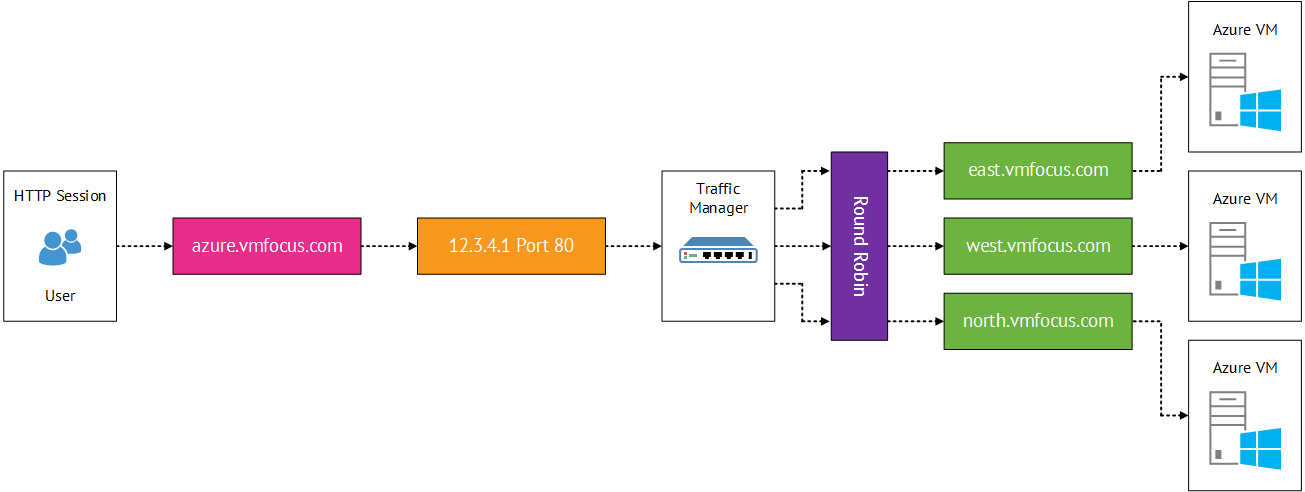
Traffic Manager is a DNS based load balancer that offer three load balancing algorithms
- Performance
- Traffic Manager makes the decision on the best route for the client to the service it is trying to access based on hops and latency
- Round Robin
- Alternates between a number of different locations
- Failover
- Traffic always hits your chosen datacentre unless there is a failover scenario
Traffic Manager relies on mapping your DNS domain to x.trafficmanager.net with a CNAME e.g. vmfocus.com to vmfocustm.trafficmanager.net. Then Cloud Service URL’s are mapped to global datacentres to the Traffic Manager Profile e.g. east.vmfocus.com west.vmfocus.com north.vmfocus.com 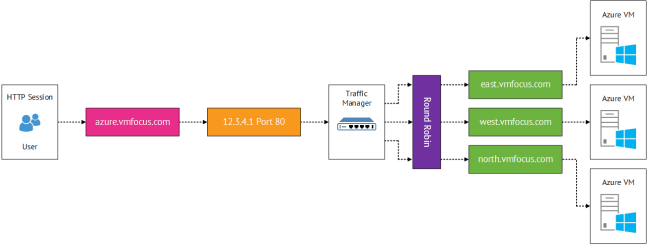




 VMFocus