Veeam On Tour Special Edition

Earlier on in the year Veeam had a UK Tour which I blogged about.  This time they have upped the anti and have created the ‘Veeam On Tour Special Edition‘.

They have three events planned:

The events are focused on peer feedback, which I prefer as you get to hear about both success and failure stories.

It’s a half day event with the following agenda:

Time Item
09:30am Registration
10:00am Welcome
10:15am Veeam: the perfect fit for the modern data centre
11:15am Coffee break
11:30am Speaking Session by HP
12:00pm Customer case study
12:30pm Q&A, Close and Lunch


Horizon View 5.2: Resize PCoIP Desktop Black Screen

Today, I had a small issue with a Manual Dedicated Horizon View 5.2 PCoIP Desktop Pool for access to a Management Windows 7 VM and I was scratching my head for a while trying to figure this one out.

Essentially, I could connect without any issues via the View Client to the Windows 7 desktop but only if I can the desktop in Windows -Large or Windows – Small.

If I expanded the desktop beyond a certain size or made it full screen, I had a black background (the pictures below look the same size, but i’m sure you get what I mean).

Large Desktop – Black

Black

Small Desktop

Small Desktop

Troubleshooting Steps – (That Didn’t Work)

  1. Logged into the Windows 7 VM via RDP and rebooted.
  2. Logged into the Windows 7 VM and changed the screen resolution to 1920 x 1080
  3. Uninstalled View Agent & re-installed
  4. Uninstalled the vSGA Driver from Device Manager and the manually installed the driver from C:Program FilesCommon FilesVMwareDriversvideo_wddm

Troubleshooting Steps – (That Worked)

I found KB1018158 Configure PCoIP for use with View Manager which had most of the symptoms.  I knew I had installed the VMTools then View Agent (correct order), and then I read further down the KB and discovered this:

Note: Do not reboot by clicking Shutdown > Restart in the virtual machine. PCoIP is dependent upon the appropriate amount of video memory being allocated to the virtual machine. Because this is a virtual hardware setting (that must be in place before the virtual machine starts up), it is applied as a change in the .vmx file. If the virtual machine has already been started, it is essential that this virtual machine be restarted so that the .vmx file is re-read and the changes are used. Using the Shutdown > Restart option inside the virtual machine does not force the .vmx to be re-read, as this does not cold boot the machine (from the VirtualCenter perspective) to refresh the virtual hardware. Using the Shutdown > Restart option from either VirtualCenter or View Manager (which issues the command via VirtualCenter) is the best way to make sure this file gets read properly.

I quickly ‘Reset’ the Manual Dedicated Windows 7 Desktop using View Administrator and what do you know everything worked!

View Administrator

Lessons Learnt

When creating a manual dedicated desktop, ensure that you reset the desktop using View Administrator otherwise the correct PCoIP settings are not maintained within the .vmx configuration file.

UK VMUG – 21/11/2013

If you happened to miss VMworld this year, then I strongly recommend you register and come along to the UK VMUG which is being held on Thursday 21st November 2013 at

National Motorcycle Museaum

Coventry Road

Bickenhill

Solihull

West Midlands

B92 0EJ

They really have pulled out the stops this year, not only do we have Joe Baguley, VMware CTO EMEA @JoeBaguley (arguably one of the best presenters in the business) giving the keynote we have a monster amount of leaders in the industry presenting at the UK VMUG.

  • Jason Langone VCDX #54 @langonej
  • Cormac Hogan, Storage vRockStar @VMwareStorage
  • Duncan Epping VCDX #7 @DuncanYB
  • Ray Heffer VCDX #122 @RayHeffer
  • Scott Loew VCDX #39 @Scott_Lowe
  • Mike Laverick, VMware Guru @Mike_Laverick

As well as the ‘well known’ names I also urge you to consider sessions by the following chaps, who all know their ‘VMware onions’

  • Darren Woollard @dawoo – 10:00 – 10:45 vSphere Design Whiteboard Session
  • Sam McGeown @sammcgeown – 10:00 – 10:45 Securing VMware Virtual Environments
  • Seb Hakiel @SebHakiel – 15:15 – 16:00 VDI Whiteboarding

Full Schedule

  TIME                                                   EVENT        LOCATION
                                                           Wednesday, November 20,2013
7:00 -9:00 pm Pre-Reception vCurry – Veeam Bracebridge Suite
                                                            Thursday, November 21, 2013
8:00 – 8:30 am Registration | Breakfast | Mingle with Sponsors Trafalgar Foyer
8:30 – 9:00 am VMUG Welcome | Alaric Davies Britannia Suite
9:00 – 9:45 am VMware Keynote | Joe Baguley, VMware CTO EMEA Britannia Suite
9:45  10:00 Mingle with Sponsors Imperial Suite
10:00 – 10:45 am Breakout Block #1 | Education Sessions
50% Faster VMs on the Hardware You Have!, Condusiv Bracebridge Suite
Convergence and Scalability in Your Datacenter.  Bringing Google like Infrastructure to the Enterprise, Nutanix – Jason Langone Ballacraine Suite
Splunk Waterloo Suite
Tales From the Field: Don’t Let This Happen to Your VMs, Veeam Britannia Suite
Community Session | Securing VMware Virtual Environments, Sam McGeown Kirkmichael Suite
10:45 – 11:15 am Break | Mingle with Sponsors Imperial Suite
11:15 – 12:00 pm Breakout Block #2 | Education Sessions
VMware Virtual SAN – All You Wanted to Know, VMware – Cormac Hogan Bracebridge Suite
vCHS, VMware –  Massimo Re Ferre Ballacraine Suite
Knowledge Exchange by Duncan Epping, VMware. This session is all about exchanging knowledge and experience amongst each other, bringing the User Group back in VMUG. No death by Powerpoint, instead Duncan will coin buzzwords ranging from Flash to SSO to start the discussion. Waterloo Suite
Management Automation, VMware – Matthew Steiner Britannia Suite
Community Session | 0 Day Installation, Maish Saidel-Keesing Kirkmichael Suite
12:00 – 1:00 pm Lunch / Mingle with Sponsors Imperial Suite
1:00pm – 1:45 pm Breakout Block #3 | Education Sessions
Software Defined Storage – From Desktops to Servers and Beyond, Atlantis Computing – Dan Senior Bracebridge Suite
Integrated Data Protection for your vSphere:  Powered by EMC Backup and Recovery Solutions, EMC Ballacraine Suite
Evolve Your Virtual Data Center with Nimble Storage Waterloo Suite
Over-provisioning Is For Amateurs: How To Get 20-40% More Utilization Out Of Your Virtual Infrastructure, VMTurbo – Andrew Mallaband Britannia Suite
Community Session | Introduction to Overlay Networking, Greg Ferro Kirkmichael Suite
1:45 – 2:15 pm Break | Mingle with Sponsors Imperial Suite
2:15 – 3:00 pm Breakout Block #4 | Education Sessions
VMware Horizon Workspace 1.5 – Implementation and Troubleshooting, VMware – Ray Heffer Bracebridge Suite
NSX Technical, VMware – Scott Lowe Ballacraine Suite
EUC Vision, VMware – Brian Gammage Waterloo Suite
Data In; Data Out – vCHS, VMware – Mike Laverick Britannia Suite
Community Session | PowerCLI Automation in the Enterprise: Breaking the Magician’s Code – Jonathan Medd Kirkmichael Suite
3:00 – 3:15 pm Break | Mingle with Sponsors Imperial Suite
3:15 – 4:00 pm Breakout Block #5 | Education Sessions
Software-Defined Storage: Cloud Architectures Drive Fundamental Shifts in Storage Design, Coraid Bracebridge Suite
Dell, VMware and NVIDIA Working Together to Solve Your 3D Graphics Requirements, Dell Ballacraine Suite
Deliver Virtual Desktops That Match the Performance of SSD Laptops, Fusion-io – Adrian Booth Waterloo Suite
Discover Hybrid Storage, Tegile Software Britannia Suite
Community Session | Developing vSphere/vCloud .Net Apps for Beginners, Ricky el Qasem Kirkmichael Suite
4:00 – 4:15 pm Break | Mingle with Sponsors Imperial Suite
4:15 – 4:45 pm Closing Keynote by Greg Ferro Britannia Suite
4:45 – 5:00 pm Prize Draws and Close Britannia Suite

Veeam: Storage Snapshots Is It Worth It?

Veeam introduced the ability to use Storage Snapshots in v6.5.  The first storage product to be supported was the HP StoreVirtual which was closely followed by HP 3PAR StoreServ.

So the question is, it it worthwhile spending the extra 60% per socket on Veeam Backup & Replication Enterprise Plus licensing to be able to use the Backup from Storage Snapshots feature?
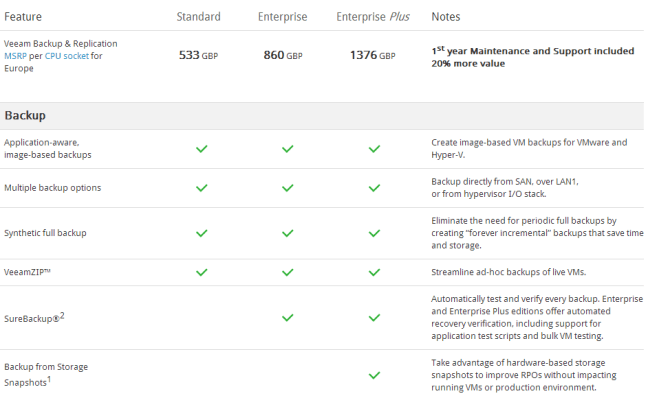
Veeam Licensing Cost

Setup

During this test we need to make sure that everything is equal.  The vmfocus.com lab has the following VM’s in place for the test:

1 x Domain Controller

1 x SQL Server

1 x vCenter

3 x Blank Windows 2008 R2 servers

All of these servers reside on a single HP StoreVirtual VSA volume provided by  two 7.2K 2.5″ HDD in RAID 1.

No workload will be placed on any VM’s between backups.

The target for the backups will be a 5,400 RPM consumer grade 2.5″ SATA HDD in RAID 0 (this is on a different physical host).

The Veeam Server is a Windows 2012 VM which has connectivity into the LAN and iSCSI network

Veeam Network Adapters

The Veeam Server connects directly to vCenter and is configured to run 4 x jobs in parallel.  From a resource perspective it has 4vCPU’s and 8GB RAM.

Veeam Hot Add

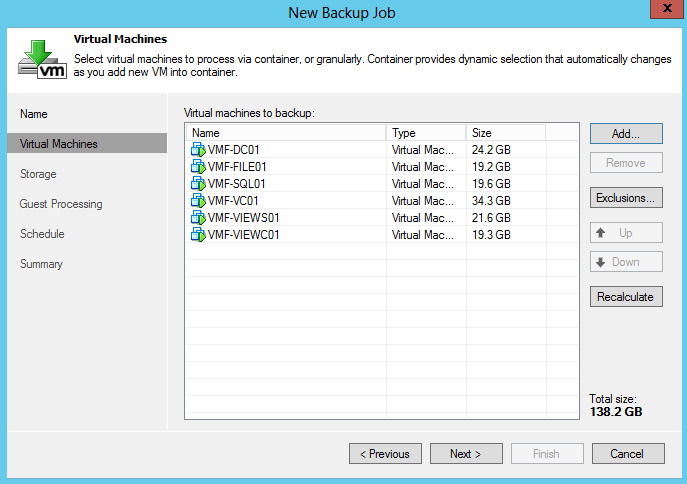
OK let’s crack on.  For this test I have disabled the iSCSI NIC on the Veeam Server to ensure that the ‘Automatic Proxy Setting’ is left at default for Hot Add.  I then  created a single backup job called ‘Veeam Hot Add’ which houses 6 x VM’s totaling 138.2 GB in size.

Veeam Hot Add

The backup proxy is set to automatic and I have deselected Storage Integration from the Advanced Settings tab.

Both ‘enable application-aware image processing’ and ‘enable guest file indexing’ are NOT selected.

All other settings are left at default.

Hot Add

Veeam Direct SAN Access

Before the test, I rebooted the Veeam Server to make sure all things are equal.

For this test, I created a new backup job called ‘Veeam Direct SAN Access’ and enabled the iSCSI NIC so that Veeam would use Direct SAN Access mode.

Storage Integration from the Advanced Settings tab continues to be deselected.
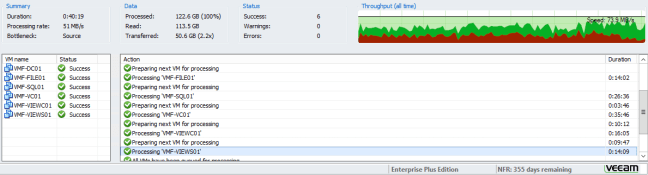
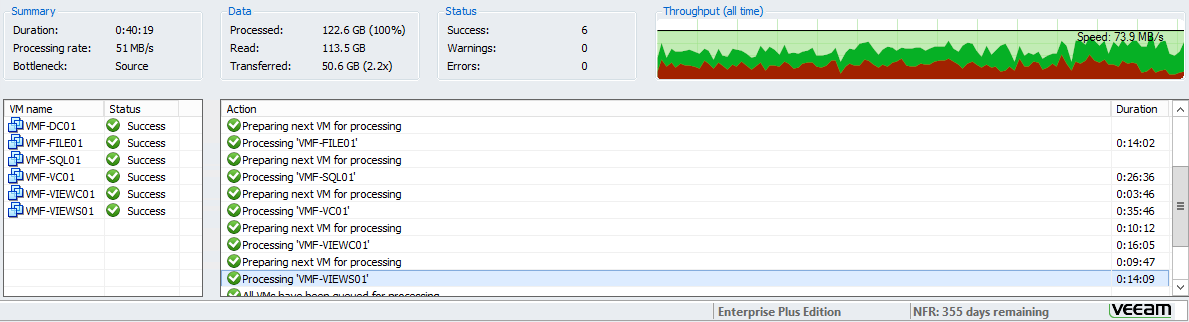
Direct SAN

Veeam Storage Snapshots

Again, before the test, I rebooted the Veeam Server to make sure all things are equal.

For this test I have created a new backup job called ‘Veeam Storage Snapshot’.  I have enabled the iSCSI NIC on the Veeam Server and also selected Storage Integration from the Advanced Settings tab.

Every other setting is exactly the same and no data has changed between backups to ensure a true comparison.
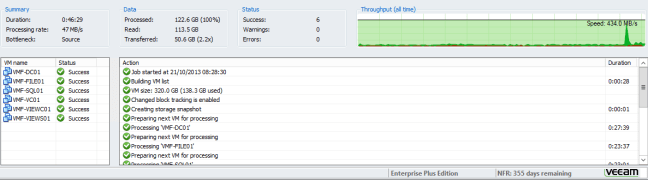
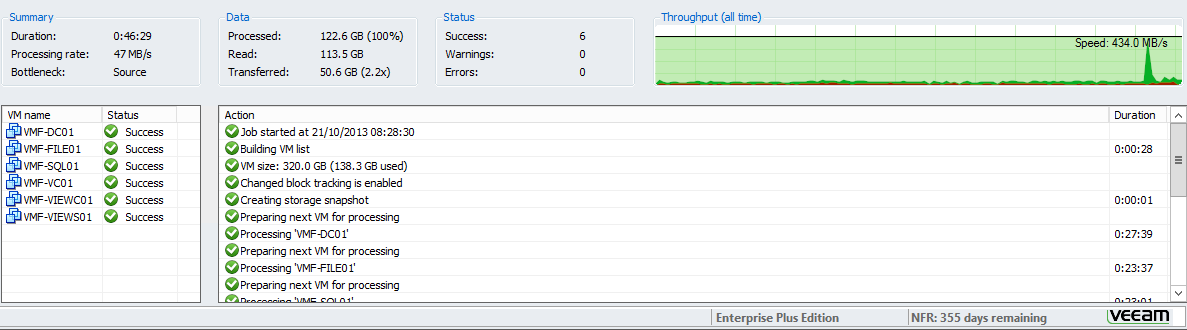
Storage Snapshots

Initial Results (Stagnant Data)

I think the results show that all three different methodologies produce fairly similar results in terms of backup performance.  With HotAdd being followed by Direct SAN and then Storage Snapshot. However this is with stagnant data e.g. no changes to deltas during backups which doesn’t really happen in most production environments.

Item Hot Add Direct SAN Access Storage Snapshot
VMF-DC01 0:26:58 0:28:25 0:27:39
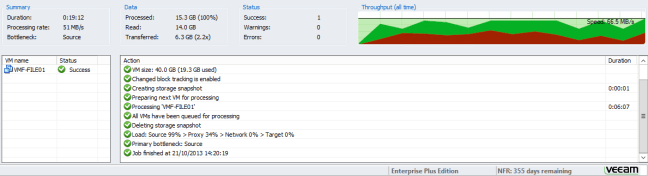
VMF-FILE01 0:24:11 0:14:02 0:23:37
VMF-SQL01 0:29:27 0:26:36 0:23:01
VMF-VC01 0:38:24 0:35:46 0:36:25
VMF-VIEWC01 0:17:36 0:16:05 0:17:08
VMF-VIEWS01 0:15:33 0:14:09 0:16:23
Overall Processing Rate 52 MB/s 51 MB/s 47 MB/s
Overall Duration 0:40:26 0:40:19 0:46:29
Bottleneck Source Source Source

Initial Results (Changing Data)

Like me you are probably thinking, the above ‘Initial Test (Stagnant Data)’ wasn’t really a test as data changes.  So to try and simulate a production workload we are going to introduce IOMeter on VMF-FILE01 with the following criteria:

  • 8K Block Size
  • 100 Random
  • 65% Read
  • 35% Write

Veeam backup starts and then 1 minute later IOMeter starts for a duration of 5 minutes.

Veeam Hot Add

HA IOPS

Veeam Direct SAN

Direct IOPS

Veeam Storage Snapshots

SV IOPS

Initial Results (Changing Data)

Item Hot Add Direct SAN Access Storage Snapshot
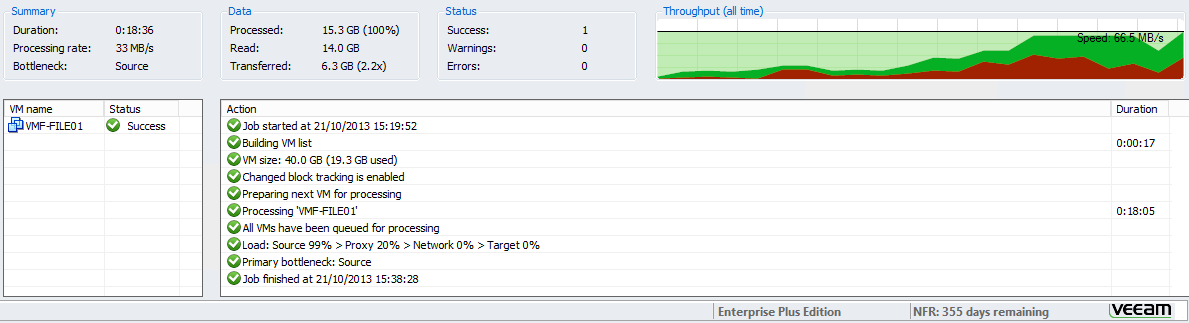
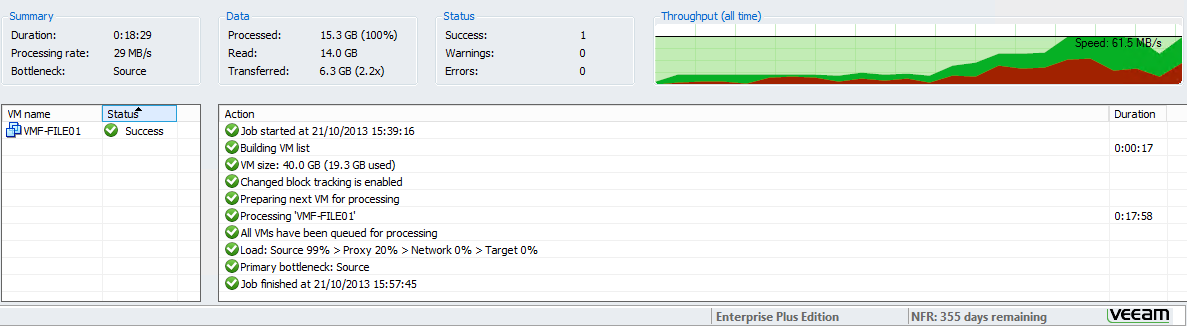
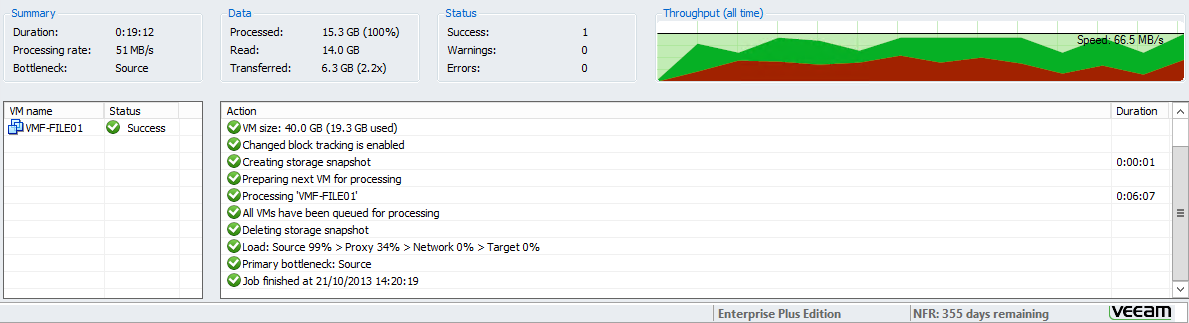
Processing Rate 33 MB/s 29 MB/s 27 MB/s
Duration 0:18:36 0:18:29 0:10:54
Bottleneck Source Source Source

My Thoughts

In a production environment you are likely to have a mixture of virtual machines, some which are hardly touched and others which are accessed all the time during day and night.

Storage Snapshots are the least intrusive to your production environment and perform better with changing data reducing your backup window by up to 64%.  Whereas Hot Add performs best when data is stagnant.

For me, it makes sense to recommend using Veeam Backup & Replication Enterprise Plus for customers who have either a HP StoreVirtual or HP 3PAR StoreServ as they have the ability to choose how they want their backups to work.

Disclaimer

Even though these tests are produced in the vmfocus.com lab, I wouldn’t use the results for a business environment for production workloads.

I would recommend testing Veeam Backup & Replication using the 30 day free trial in your own environment and testing each backup mechanism to understand which one works best for your environment.

VMworld Attendees – 86% Off VCP Course

VMware have pulled another one out of the hat when it comes to certification, they are offering 86% off the On Demand VCP course.

How Does It Work?

  1. Go see Julie in VMware Education & Certification lounge with your credit/debit card details.
  2. Pay $499 which is about £310
  3. Start the VMware vSphere: Install, Configure & Manage online course before the end of year.

The kicker is with this course, you have 90 days to complete it, which means you can do it at your own pace without committing the usual five days (annual leave or convincing your employers to fund the time).

Enjoy!