Strange SRM Use Case

Today we had rather a strange request, which was resolved by ‘thinking outside of the box’ using Site Recovery Manager.

Scenario

Client required an exact copy of an 8TB VM to be available in an alternate location over 50km away.  I’m not exactly sure why, but we had been explicitly told that the VM could not be logged into, so this ruled out using any items inside the VM such as robocopy.  Another constraint was that the original VM had to stay in it’s same location and it needed to be accessed by the in house IT team in the alternate location!

The engineer working on the ticket, originally used Veeam to restore the VM from backup which was fine, but we couldn’t alter the original backup files, therefore a restore to an alternate device at the same location seemed the next logical step.  The only downside was we only had the spare capacity to bring the VM up on the NAS it was backed up to, which meant two things:

  1. It was thrashing the disks as it was reading the backup files, and then writing the restore, plus it then had to deal with the normal Veeam backup duties.
  2. The VMDK’s still needed to be copied from the NAS onto removable media, taken to the alternate location and copied onto the target device and then booted up as a new VM.

With the above in mind, the engineer gave me a call and asked if we could do something with SRM!

Solution

We know the VM could not be accessed and that trying to restore from backup wouldn’t meet the clients time requirements, so we discussed using SRM.

The VM in question was protected by SRM and is replicated on a 15 minute basis.  So the plan was to

  1. Run a Test Failover creating a Read/Write snapshot of the Read Only copy in the target location in an isolated environment.
  2. Shutdown the Read/Write copy and copy the VMDK’s to another datastore.
  3. Create a new VM and attached VMDK’s

The first step worked like a dream, however we received an error when trying to copy the VMDK’s to another datastore ‘the specified key, name, or identifies already exists’.  We thought about removing the VM from inventory and re-adding it back again, but didn’t know the risks in terms of SRM cleanup.  We knew we could force a cleanup, but knowing the sensitive case of the request we couldn’t afford any unknown errors.

Instead we decided to ‘clone the VM’, once completed we disabled the NIC, changed the server name and IP address.

It worked, everyone was happy in the ‘ranch’ and we used SRM for a different purpose than intended.  Understanding how something work’s makes the difference to putting forward solution to resolve a time sensitive problem.
Veeam 7 – Get Involved!

Veeam 7 is just around the corner and as always the ‘green team’ is putting on a serious of webinars to educate us on the latest offerings.
Some pretty cool new features, but to be fair, I wouldn’t expect anything less:

  • Search and restore for SharePoint
  • Archive disk backups to tape (yes tape support!)
  • Backup and recovery for vCloud Director
  • Sure Backup for replicas

To get registered click me

Upgrading To vCenter 5.1 U1

It’s time to update the VMFocus.com lab to vCenter 5.1 U1, before you do this, there are some known issues with Single Sign On and customers with multiple domain based identity sources and large number of groups who have access to vCenter.  See VMware Alert Issue

The good news is my lab doesn’t have any of these issues, so we are good to go.

Before upgrading, I have ensured that I have followed KB 2037630 which gives you the supported upgrade sequence.  I have already upgraded View Composer and View Connection Server, so that’s another tick in the box.

Next I have made sure that I have a good working backup (thank you Veeam) and I will be upgrading my Windows 2008 R2 vCenter Server named VMF-ADMIN01 in the following order:

  1. vCenter Single Sign-On
  2. Inventory Service
  3. vCenter Server
  4. vSphere Web Client
  5. vSphere Update Manager
  6. ESXi Hosts

TOP TIP: Make Sure You Have Your Single Sign-On Administrator Password

You can choose to update in a number of ways, if you have the vCenter Server Appliance, then it’s as easy as clicking update.  You could choose to build a new vCenter Server and add your hosts to this.  But you will then need to reconfigure all your settings and you will loose historical performance metrics.

Anyhow, we are going to upgrade directly on our vCenter Server VMF-ADMIN01 by running the installation media which at the time of writing this blog post is obtained from here for reference the build number is 5.1.0-1065152

vCenter Single Sign On

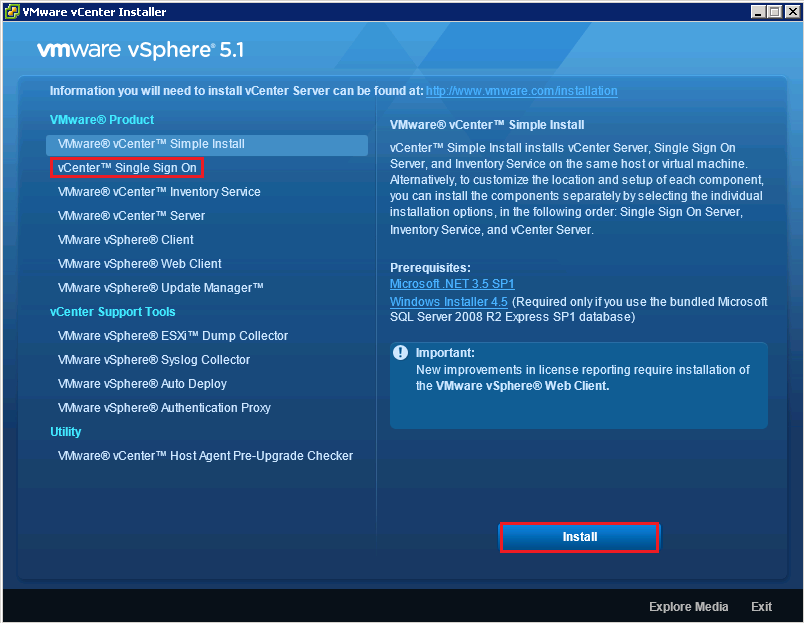
Launch your vCenter Server 5.1 U1 ISO and select vCenter Single Sign-On

SSO 1

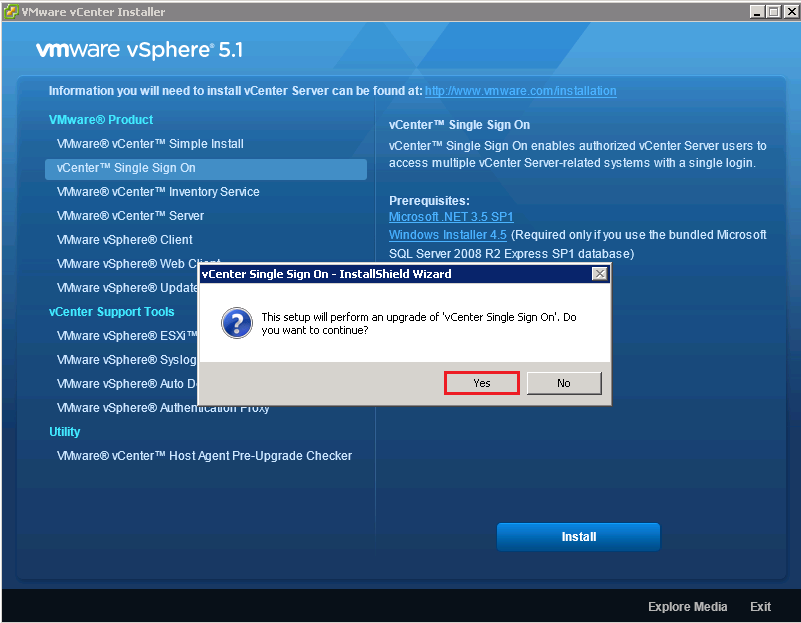
Select Yes to the upgrade to ‘vCenter Single Sign-On’.

SSO 2

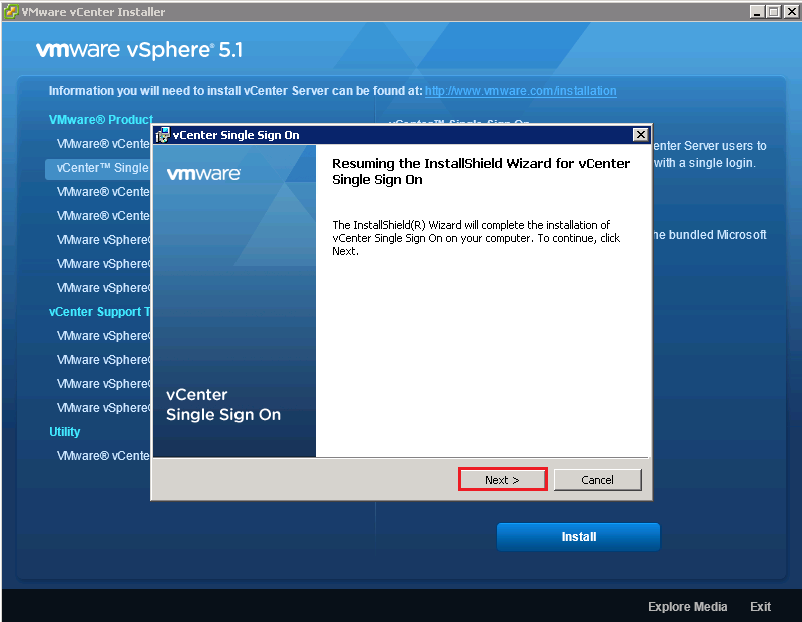
Click Next

SSO 3

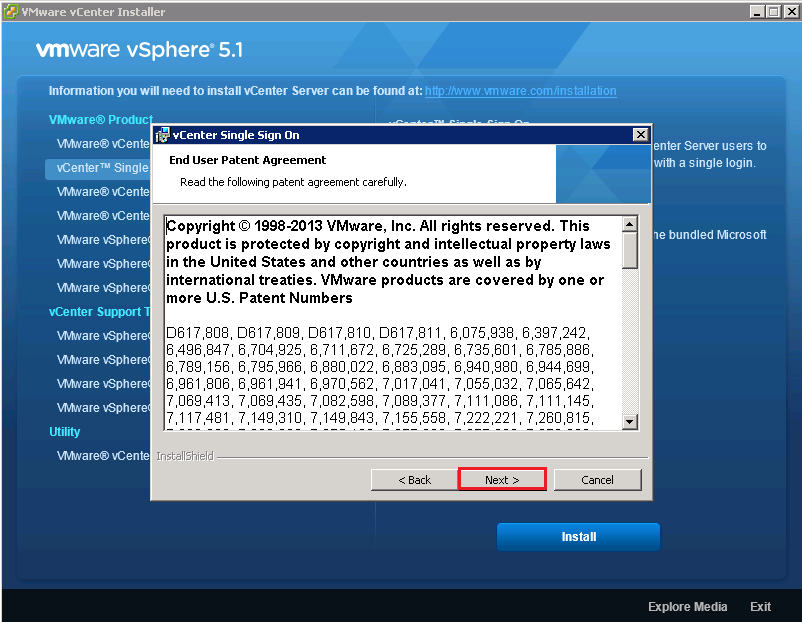
Err, Click Next again

SSO 4

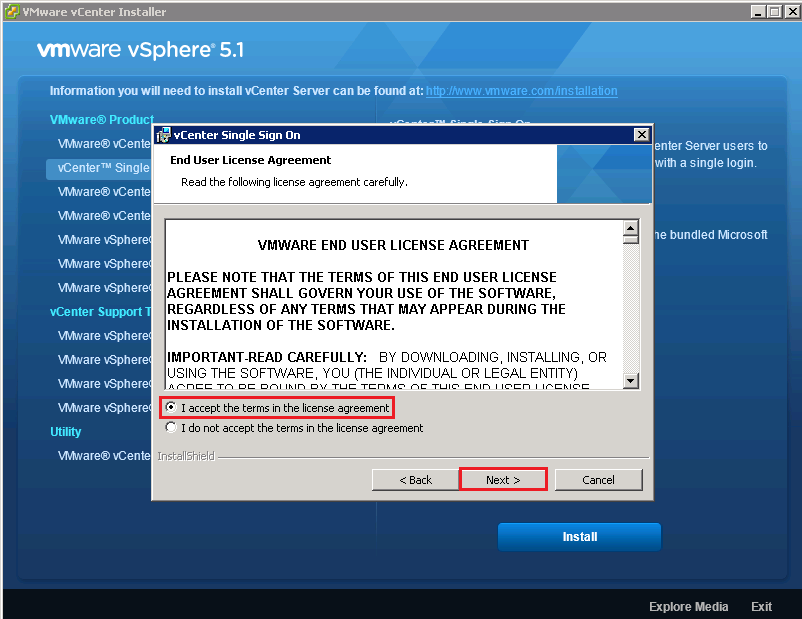
Accept the EULA and Click Next

SSO 5

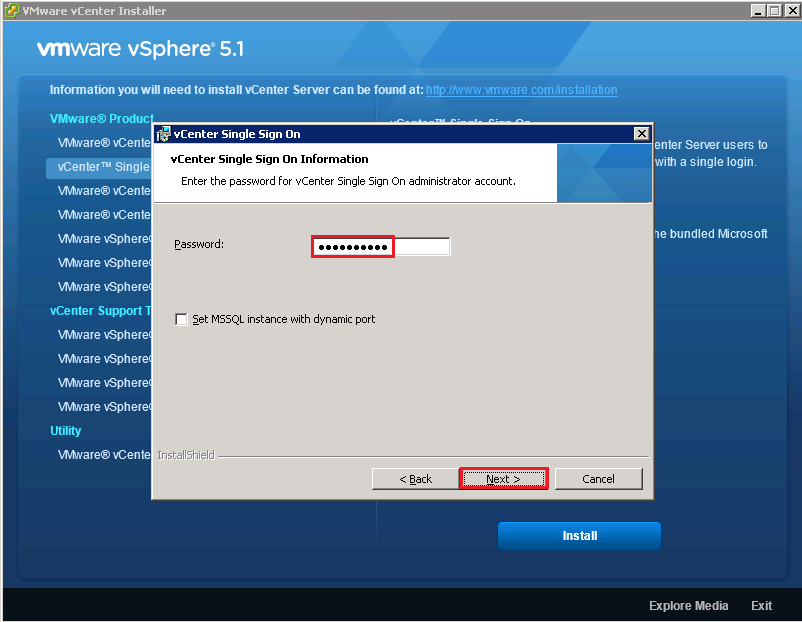
Enter your Single Sign-On Password from your original vCenter 5.1 install

SSO 6

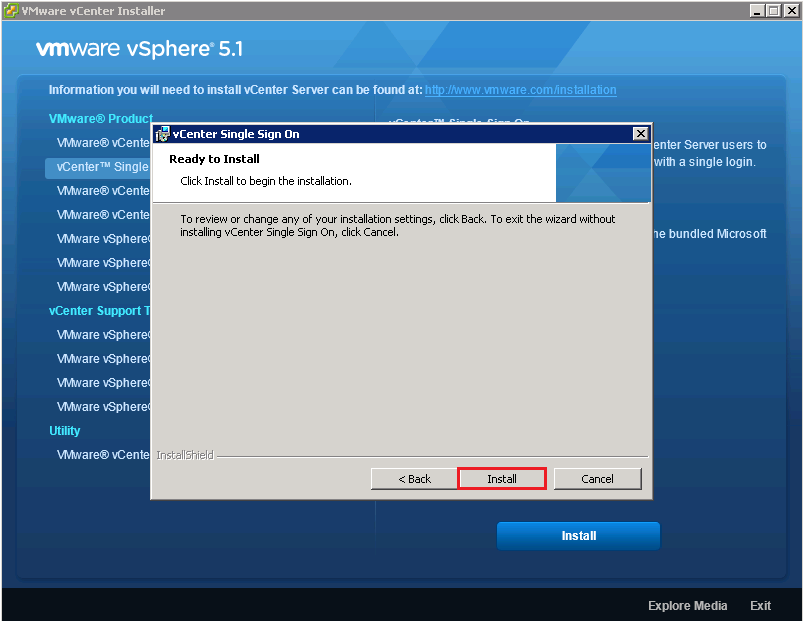
Fingers crossed you remembered it! Once ready Click Install

SSO 7

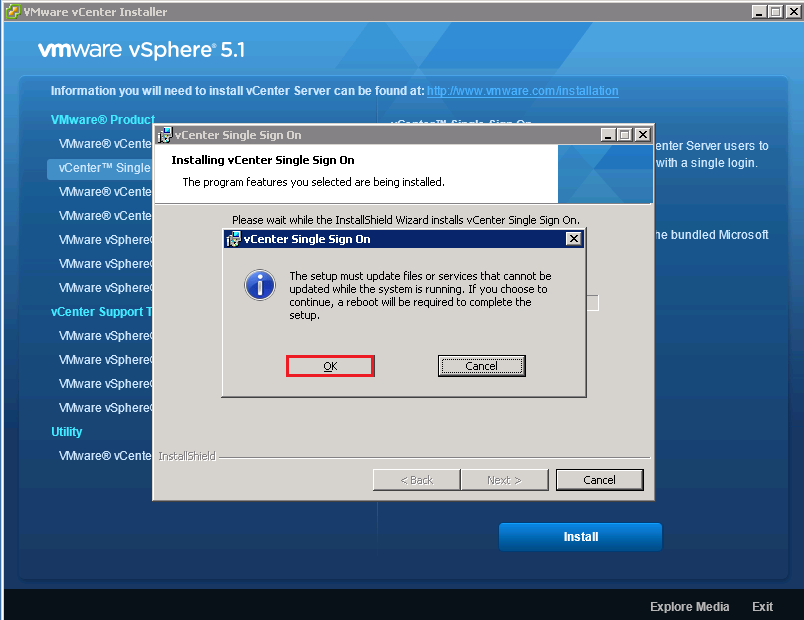
You will get a warning saying the system will need a reboot, Click OK

SSO 8

I’m a believer in drinking tea, now would be a good time to go grab a cup!

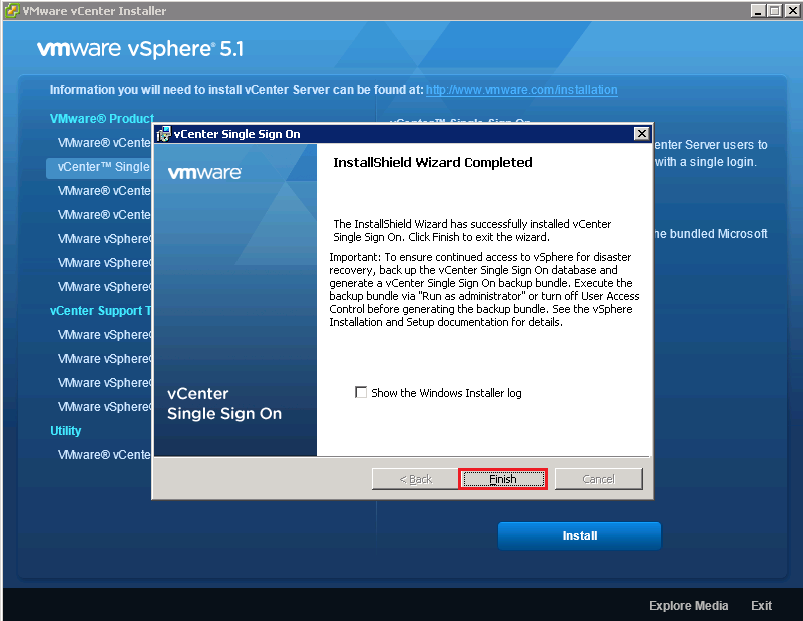
Awesome all done, Click Finish

SSO 9

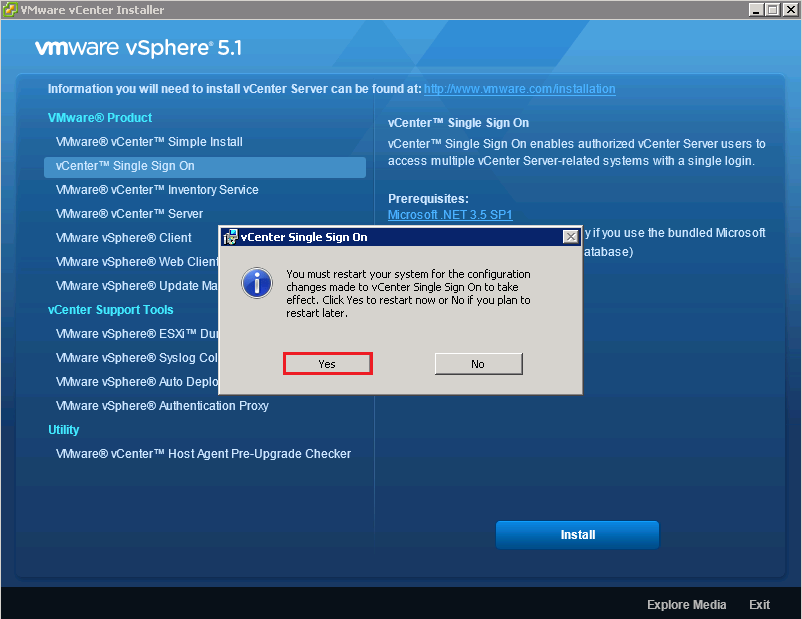
Ah, forgot about the Reboot Click Yes

SSO 10

Inventory Service

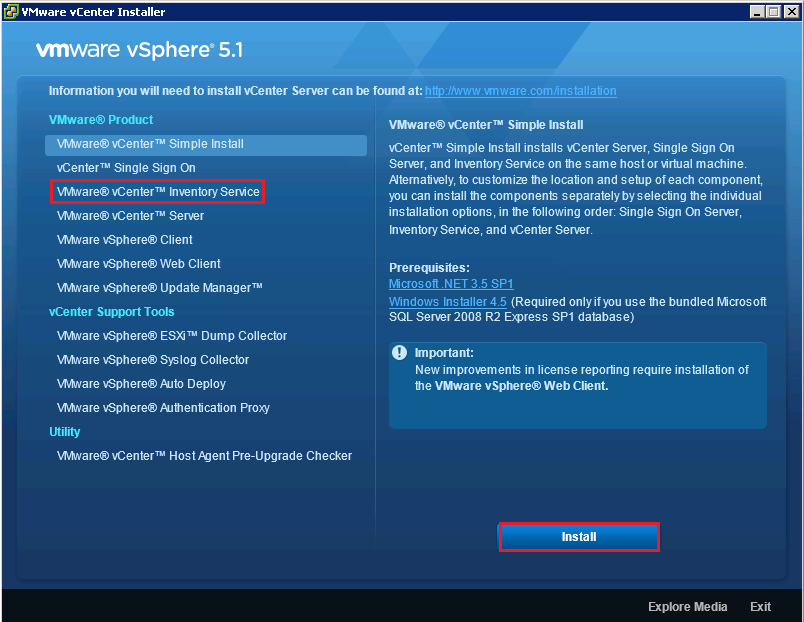
Back to the installer, this time we are going to select Inventory Server and Install

IS 1

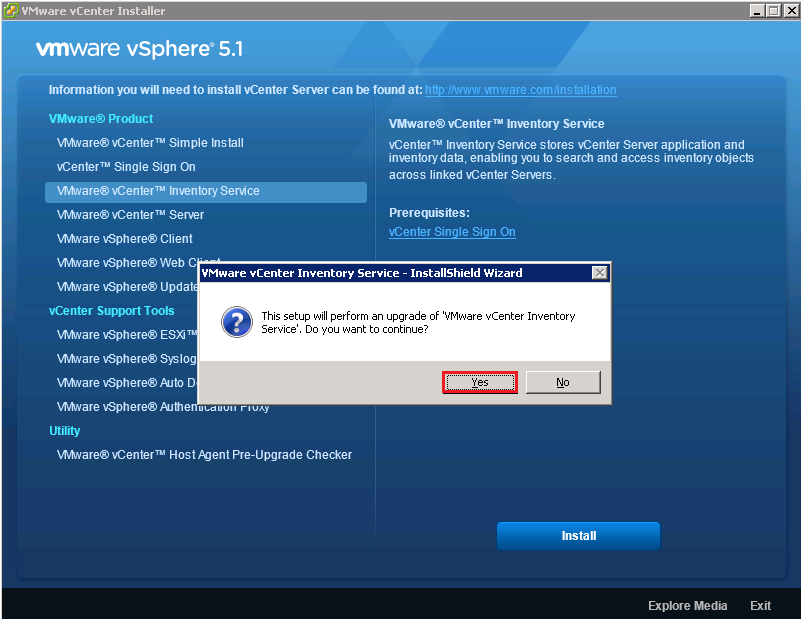
Click Yes to perform the upgrade of the Inventory Service

IS 2

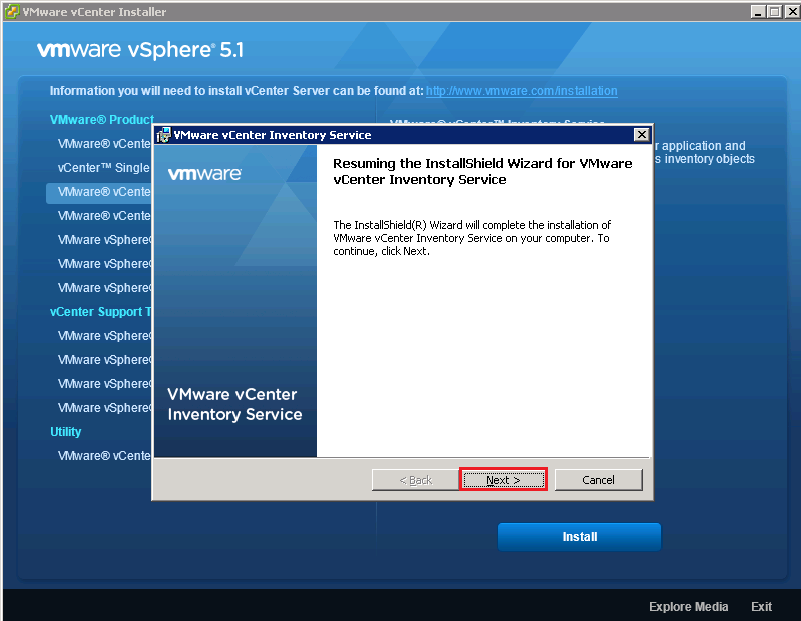
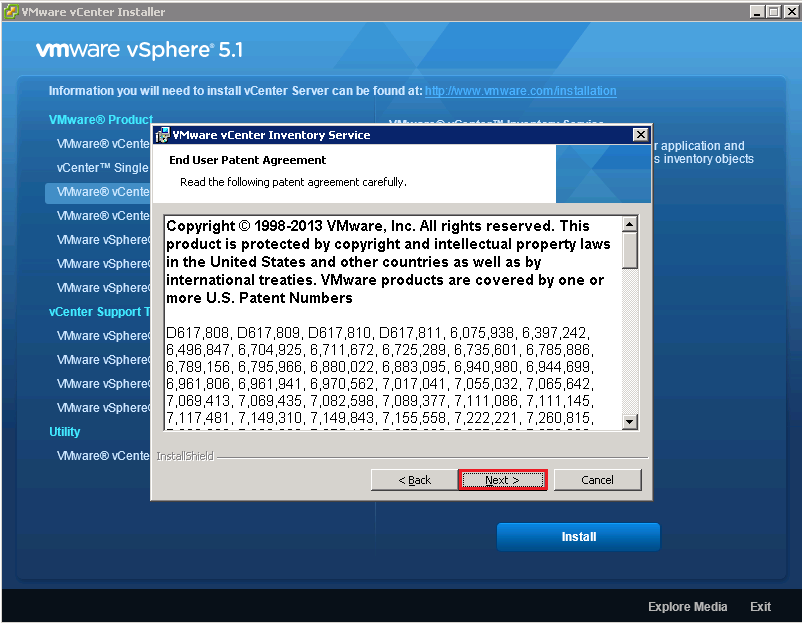
Click Next

IS 3

Hit Next again

IS 4

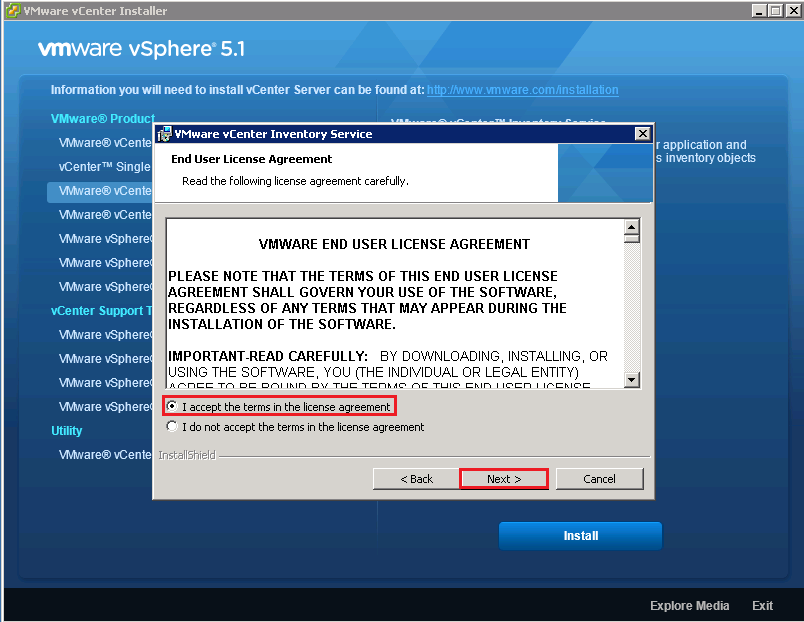
Accept our friend the EULA

IS 5

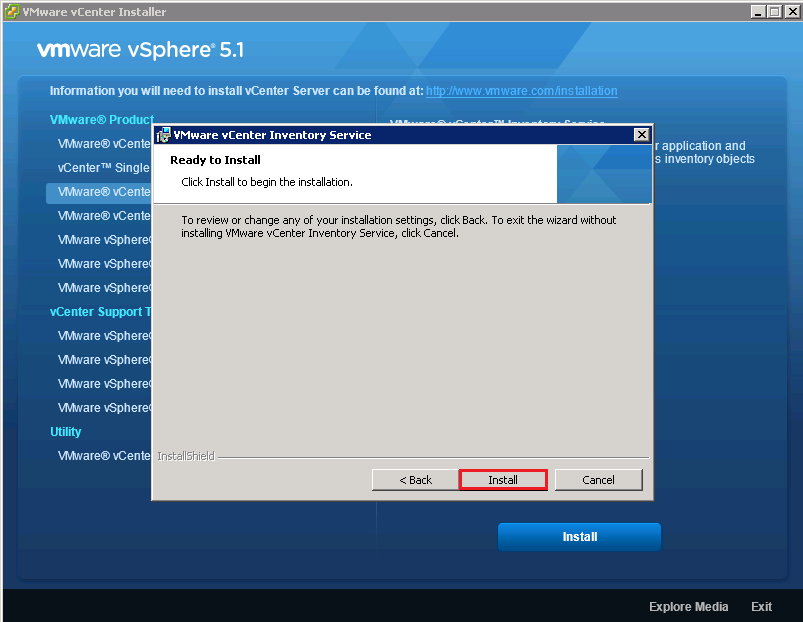
Click Install

IS 6

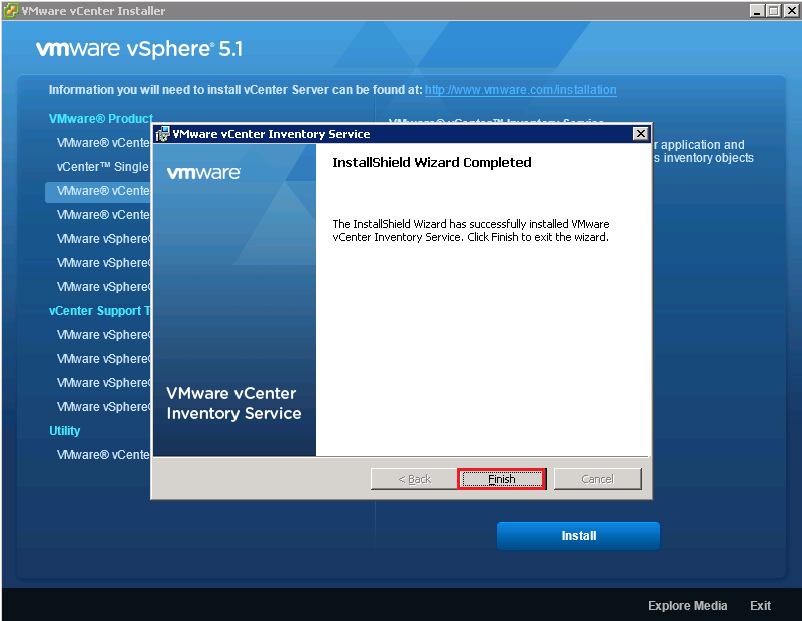
Voila, click Finish

IS 7

vCenter Server

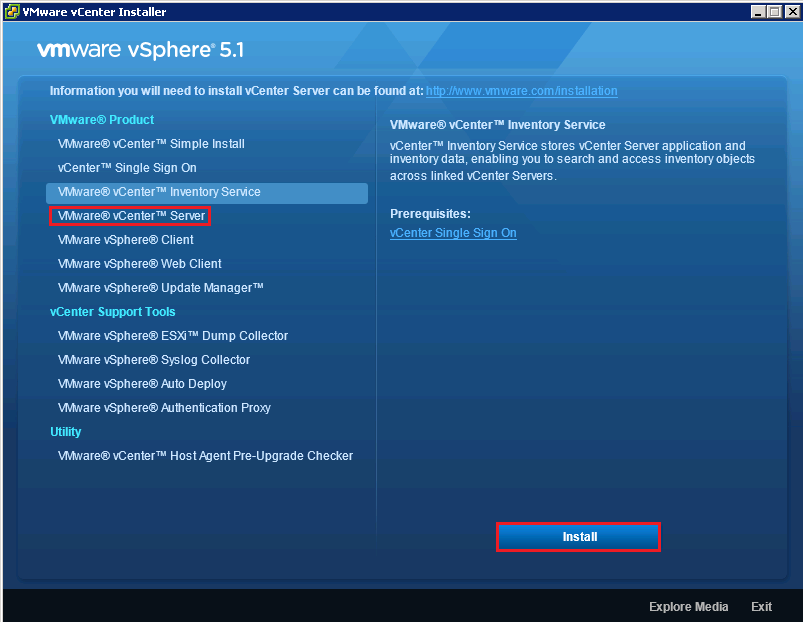
You know the drill, Select vCenter Server and then Install

VS 1

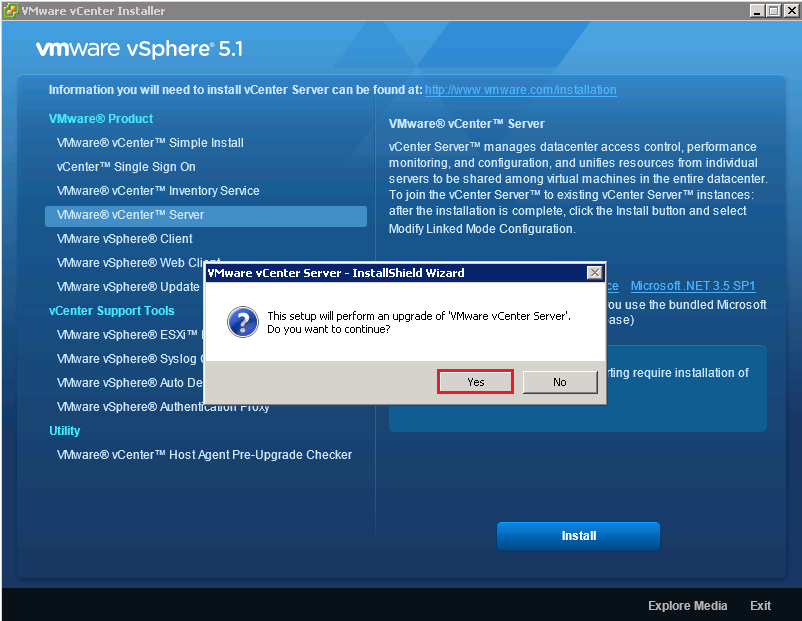
Select Yes to perform an upgrade of vCenter Server

VS 2

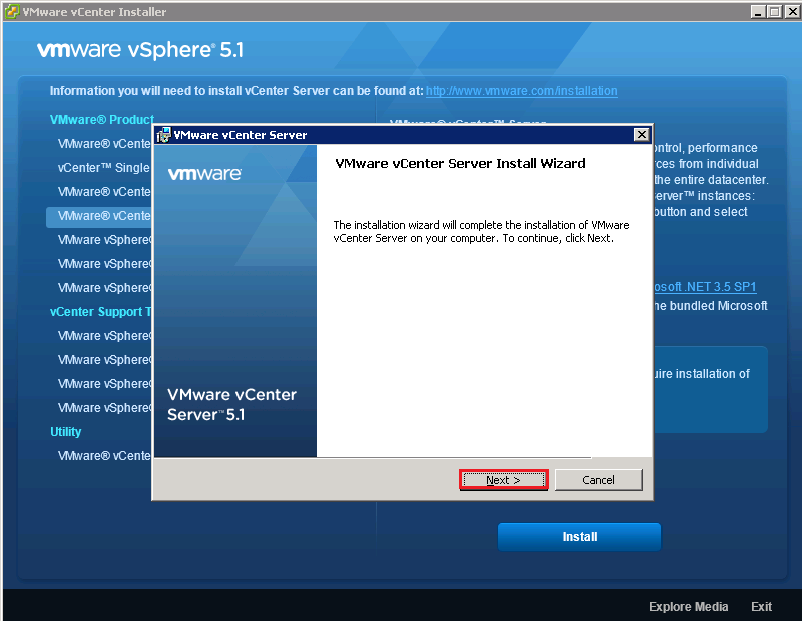
Hit Next

VS 3

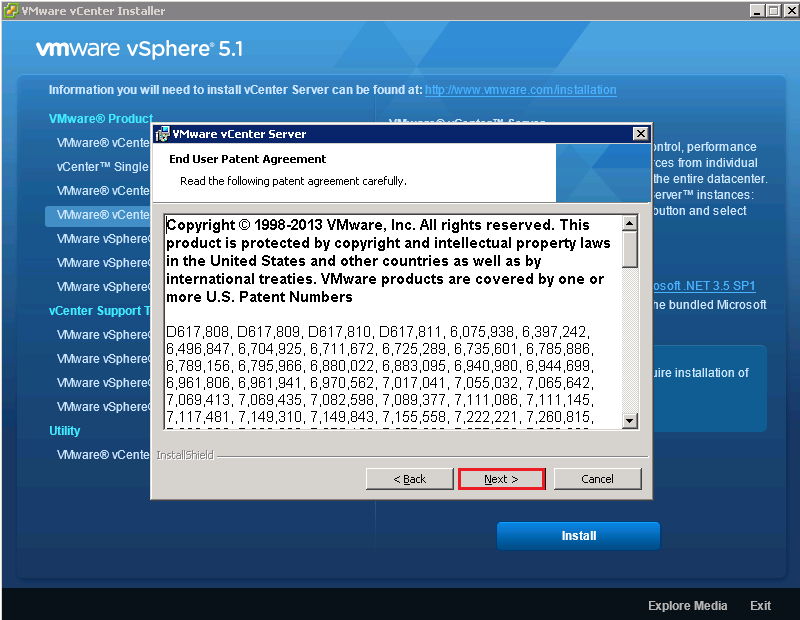
Err, Next again

VS 4

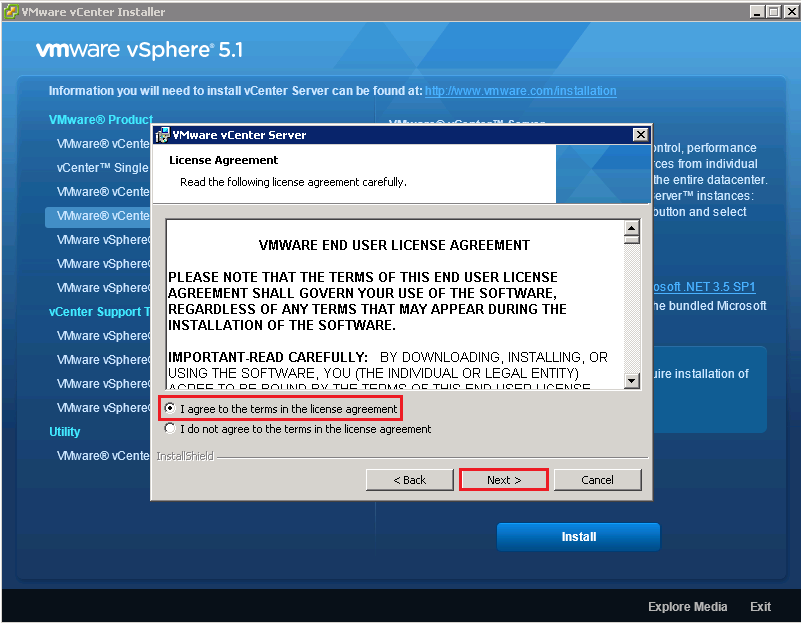
Accept the EULA

VS 5

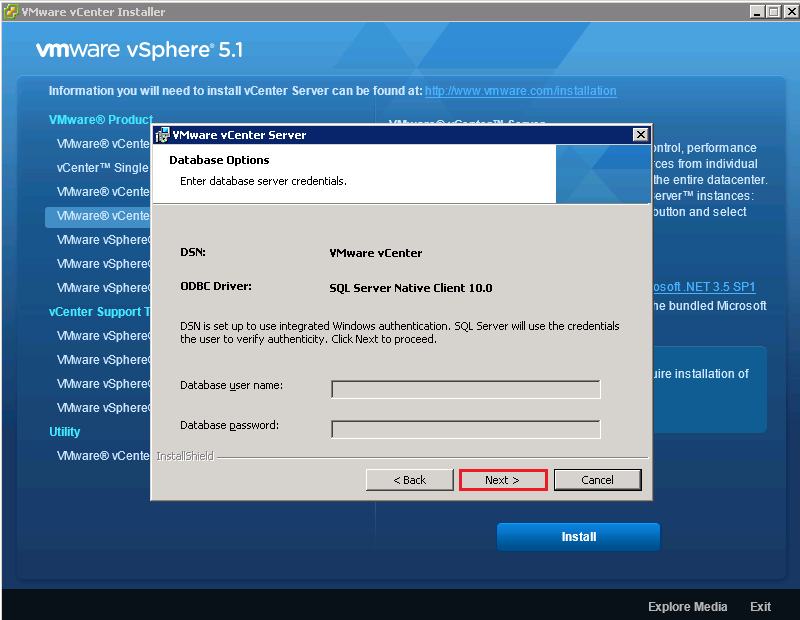
Click Next so that vCenter can authorize itself against your vCenter Database

VS 6

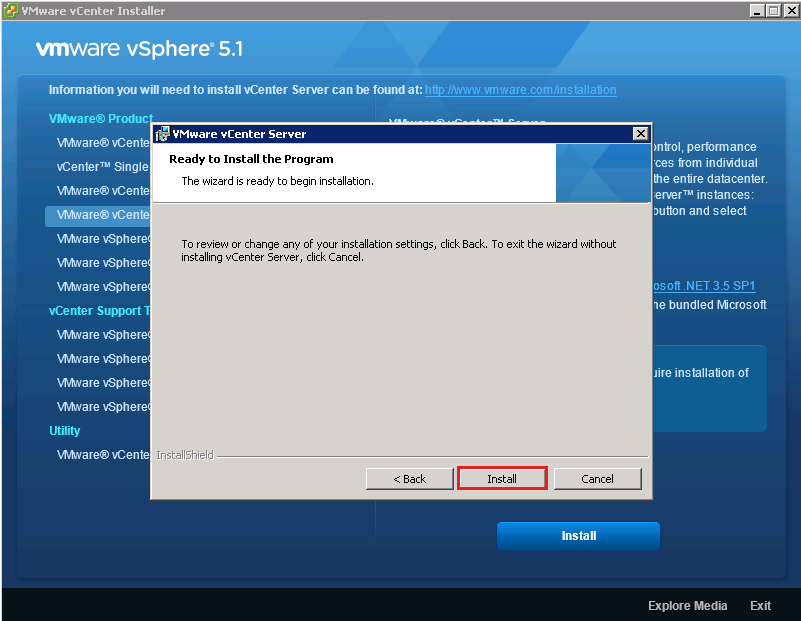
Click Install

VS 7

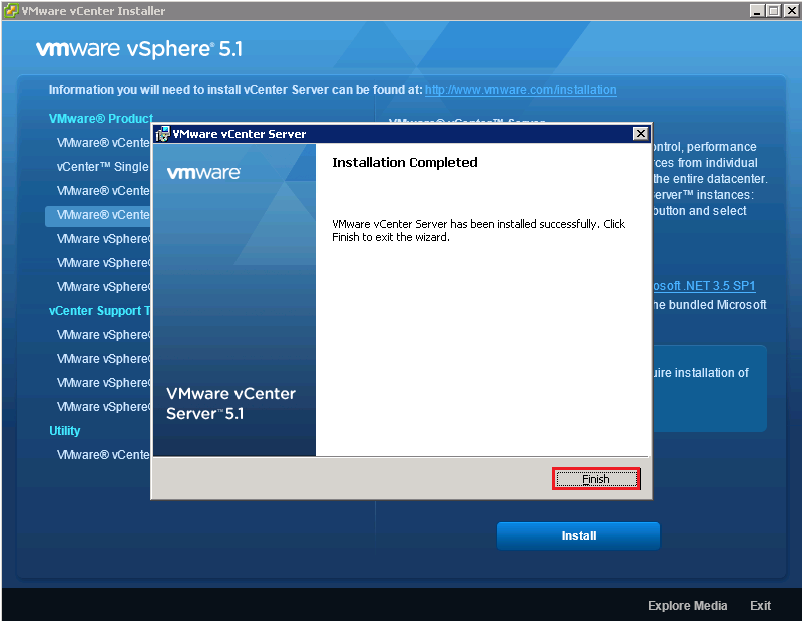
Cool, that took a bit of time, installing Orchestrator, but we are there now!

VS 8

I recommend you login to vCenter to make sure everything is gravy, which I’m sure it will be.

VS 9

Peripheral Application Installation

Now that the main parts of the vCenter Server 5.1 U1 are done, I’m going to upgrade the following applications:

  • vSphere Web Client
  • vSphere Update Manager

Both of these have a simple Next, Next, Install, so it didn’t seem worthwhile adding screenshots for this.

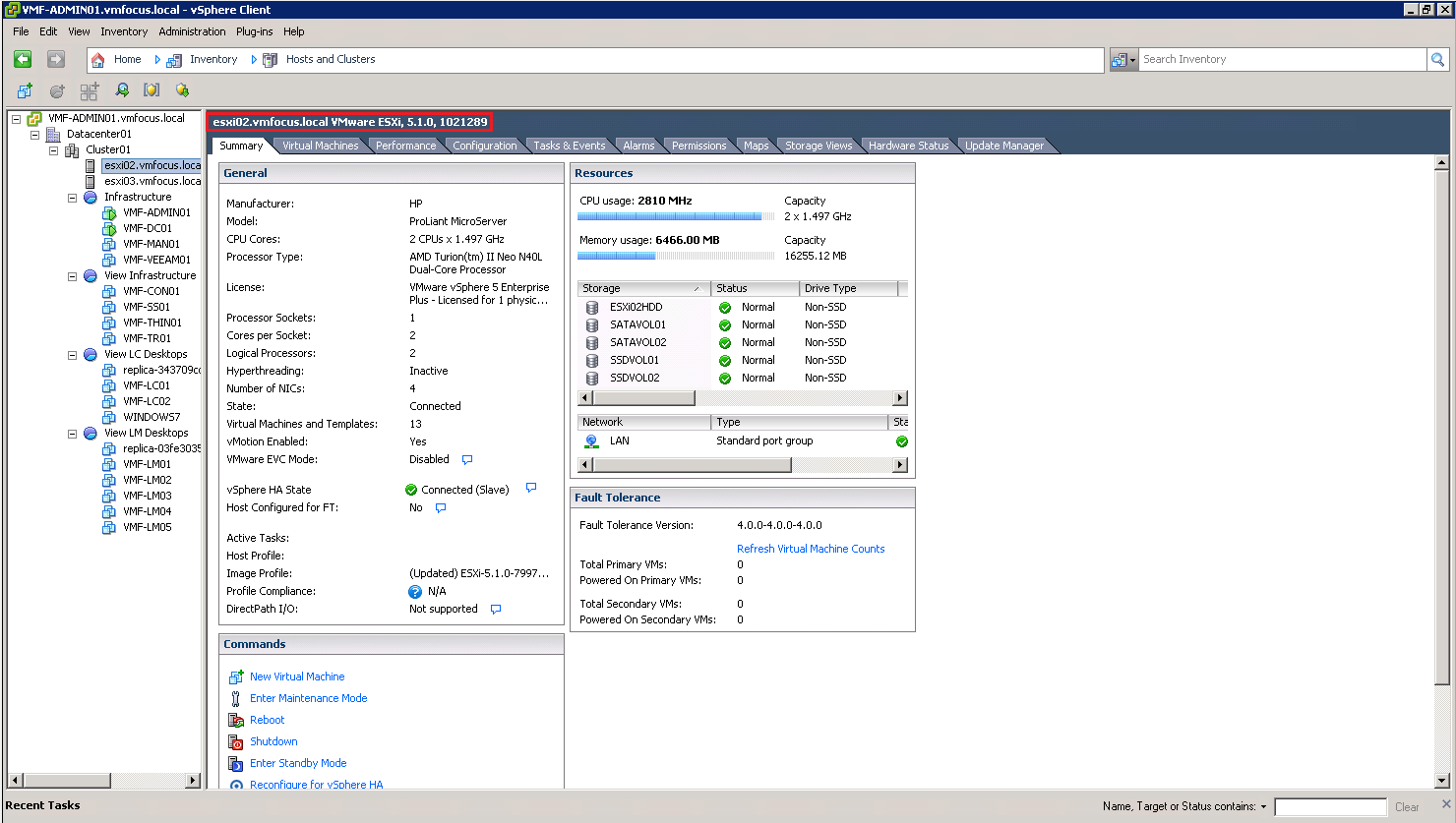
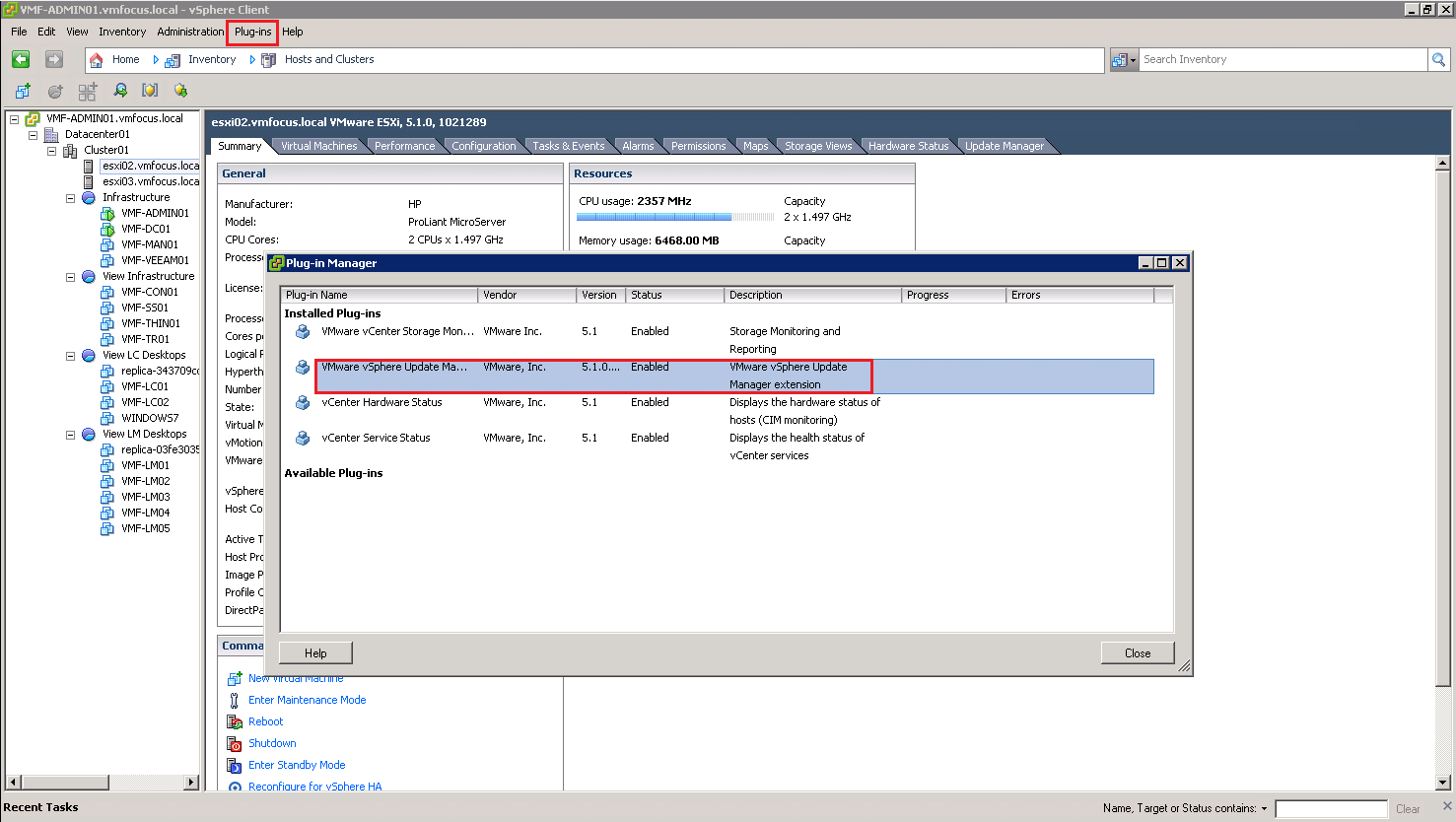
The only thing to add, is that you will need to re Enable the vSphere Update Manager plug in vCenter again after it has been installed.

VUM 1

ESXi Hosts

To update my ESXi Hosts, I’m going to use the HP Custom Image for ESXi 5.1.0 U1 which can be found here

A bit like Blue Peter, here’s a blog post I created earlier called called ‘How To See Local RAID In ESXi 5.1‘ which shows you howto upgrade using a custom image.

Horizon View 5.2 Common HTML5 Access Issues

I run into a number of minor issues when I was configuring Horizon View 5.2 HTML access, so thought it would be a good idea to get my frustrations, I mean fixes down in a blog post.

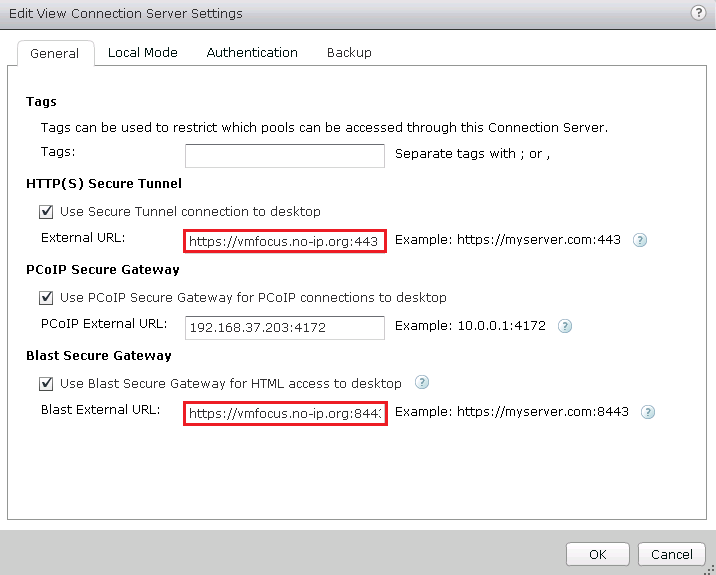
1. Connection Server

Check your Connection Server settings, as URL’s are reset after the upgrade.  In specific make sure that

HTML5 Issues 1

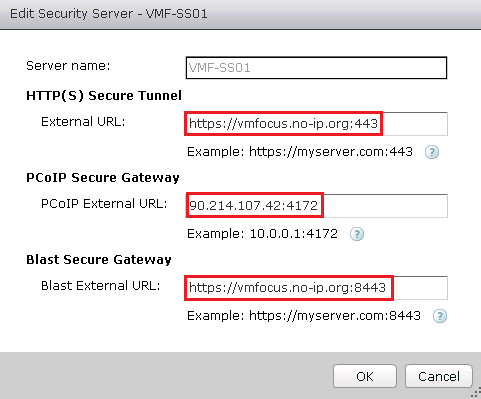
2. Security Server

Check your Connection Server settings, as URL’s are reset after the upgrade.  In specific make sure that

HTML5 Issues 2

3. View Desktop

When connecting to the View Desktop if you receive error message ‘the display protocol for this desktop is currently not available.  Please contact your system administrator’.

HTML5 Issues 5

Double check to make sure the VMware Blast service is running on your target View Desktop and that you can telnet to the View Desktop on port 22443 as this is the  port that it listens for connections on.

HTML5 Issues 3

If you close your Horizon View HTML5 session without logging out and then try to reconnect again you might see the error message ‘All available desktop sources for this desktop are currently busy. Please try connecting to this desktop again later, contact your system administrator.

HTML5 Issues 4

To rectify this, log out and then log back in again.

4. Firewall

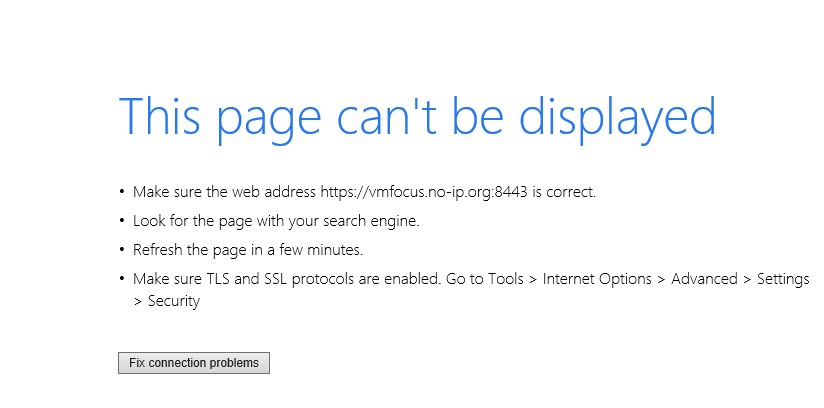
You can authenticate correctly to your View Connection/Security Server however when you go to launch your desktop, it sits on sending request and times out.

HTML5 Issues 6

Check your NAT rules on your Firewall to make sure that Port 8443 is NAT’d to your Horizon View Security Server.  To double check this telnet to your external IP address on Port 8443.

Upgrading To Horizon View 5.2 – View Agent

In the previous four posts we upgraded all the servers in our Horizon View environment.

  1. Upgrading To Horizon View 5.2 – Composer Server
  2. Upgrading To Horizon View 5.2 – Connection Server
  3. Upgrading To Horizon View 5.2 – Security Server
  4. Upgrading To Horizon View 5.2 – Transfer Server

Now it’s time to update our View Desktop sources with the Horizon View 5.2 Feature Pack.  It’s fair to say that I’m a little excited by this as it means I can demo the Horizon View awesomeness over HTML5.

Horizon View Agent

Before we can install the Horizon View 5.2 Feature Pack, we need to upgrade the View Agent.  The View Agent can be found here. At the time of this blog post, the most recent version is VMware-viewagent-x86_64-5.2.0-987719.exe

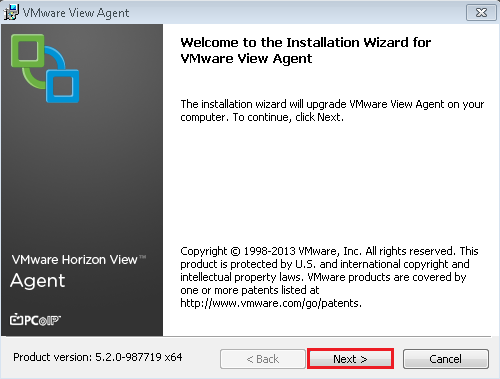
Launch the installer

View Agent 1

Click Next

View Agent 2

We have another EULA to Accept

View Agent 3

The default settings normally suffice, the only thing you might want to change is if you are using SmartCard authentication.  Hit Next

View Agent 4

Ready to hit the Install button

View Agent 5

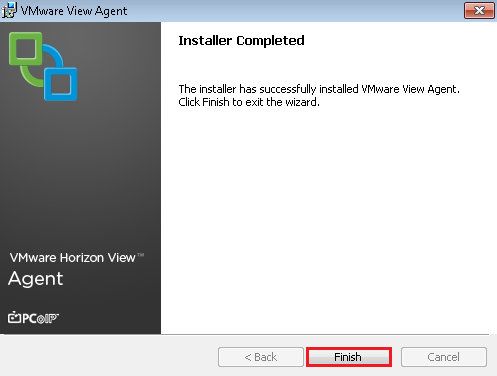
This is going to take some time.  Hooray it’s finished.

View Agent 6

Time for  a quick reboot before we move onto installing the Horizon View 5.2 Feature Pack

View Agent 7

Horizon View Feature Pack

Now we have updated the Horizon View Agent, next on the agenda is downloading the Horizon View 5.2 Feature Pack which comes in two flavors  a 64 Bit and 32Bit version, both of which can be found here.

At the time of writing this blog post, the most recent version is VMware-Horizon-View-5.2-Remote-Experience-Agent-x64-1.0-1046150

Launch the installer

View FP 1

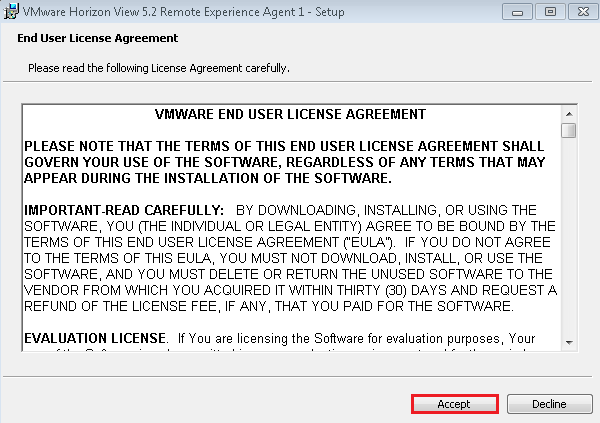
Crikey, straight onto accepting the EULA

View FP 2

We are going to install both HTML Access and Unity Touch, so click on Install.  Note that the Windows Firewall service must be running.

View FP 4

You don’t have to restart your View Desktop source, but I’m going to as I like to make sure everything is working.

The next step is to take a snapshot and then a recompose on our desktop pool to use this.

View FP 5

On your Desktop Pool, you need to enable HTML Access which is under Pool Settings

View FP 6

I would strongly recommend Disabling the Pool before you change the images.

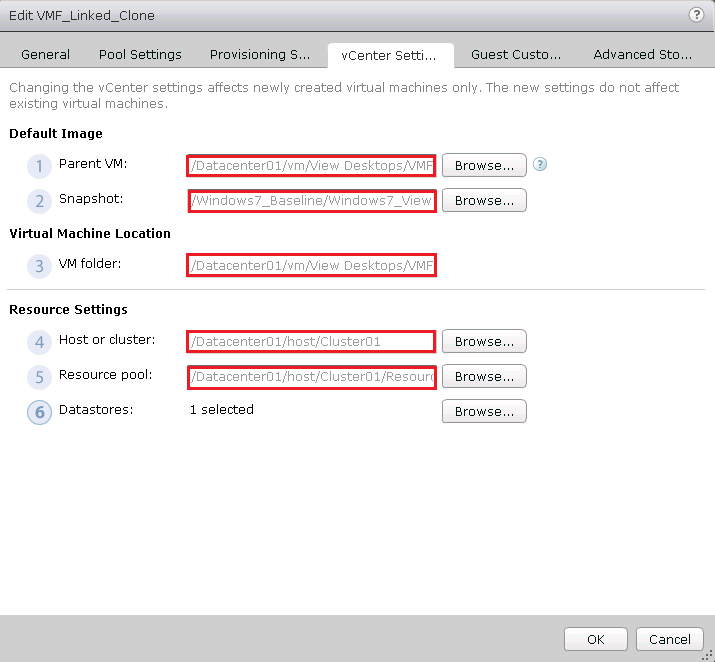
Just so you know that I’m using the correct image, here is a screenshot of my vCenter Settings after the recompose.

View FP 7

This seems to be a good place to leave this blog post, I will do a separate post on a few things to check to make sure Horizon View 5.2 HTML Access works.