Microsoft Azure Concepts – Content Delivery Network

Everyone wants a good experience accessing a websites content from any where at any time.  Whether we like it or not location comes into play, if I’m trying to stream content from Australia and I’m located in the United Kingdom, you can expect to receive circa 250ms latency, which means a poor user experience.

Microsoft have the answer which is Content Delivery Networks (CDN).  Essentially this is a global caching solutions that delivers the website content from a point of presence closest to the users.

Caching Content

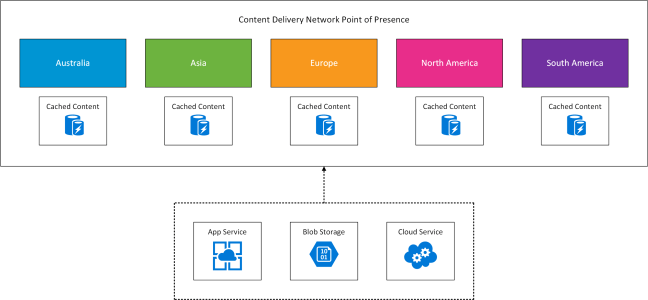
When CDN is enabled you will create an endpoint.  An endpoint is the URL used to access your cached resources for example http://endpoint.azureedge.net.  Each CDN supports up to ten endpoints, which holds one of three types of cached content.

Blob Storage – If your Blob Storage is publicly available then it can be made accessible via CDN

App Services – If you are running App Services then you can again make these available via CDN

Cloud Services – If you are running Cloud Services then you can again make these available via CDN

What Locations Are Used

CDN has a point of presence (POP) in the following locations.

Australia Asia Europe North America South America
Melbourne

Sydney

Batam

Hong Kong

Jakarta

Kaohsiung

Osaka

Seoul

Singapore

Tokyo

Bangalore

Chennai

Delhi

Mumbai

Amsterdam

Copenhagen

Frankfurt

Helsinki

London

Madrid

Milan

Paris

Stockholm

Vienna

Warsaw

Atlanta

Chicago

Dallas

Philadelphia

Los Angeles

Miami

New York

San Jose

Seattle

Washington DC

Boston

São Paulo

Quito


This is shown in the conceptual diagram below.

Azure CDN

Microsoft Azure Concepts – Clusters

Following on from the post Microsoft Azure Concepts – Failures, I thought it would be worthwhile creating a quick post on Azure Clusters.

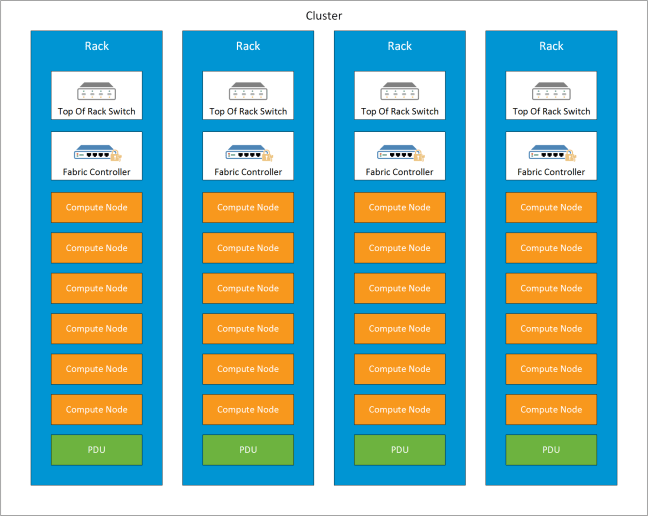
  • Each Azure Cluster is made up of 20 racks
  • Within each rack is between 40 and 50 servers
  • Each server within the Azure Cluster contains the same processor generation
  • Virtual Machines within an ‘Affinity Group’ are held within the same Azure Cluster to minimise latency

Fabric Controller

  • Each rack is a fault domain
    • Each rack has a ‘top of rack’ (ToR) switch which is a single point of failure
    • Each ToR connects to the aggregation layer switch which connects all the of racks in the Azure Cluster
    • Each rack has a power distribution unit which again is a single point of failure

Microsoft Azure Concepts – Networks

The purpose of this post is to explain the different networking options with Azure, it is meant to be an overview and not a deep dive into each area.

Endpoints

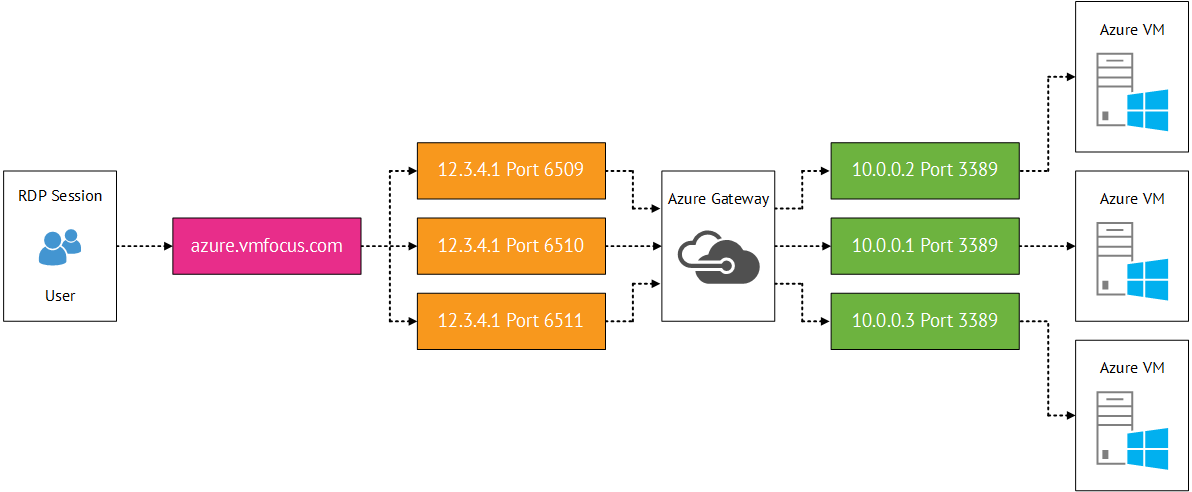
Endpoints are the most basic configuration offering when it comes to Azure networking.  Each virtual machine is externally accessible over the internet using RDP and Remote PowerShell. Port forwarding is used to access the VM.  For example 12.3.4.1:6510 resolves to azure.vmfocus.com which is then port forwarded to an internal VM on 10.0.0.1:3389

Azure Input Endpoints

  • Public IP Address (VIP) is mapped to the Cloud Service Name e.g. azure.vmfocus.com
  • The port forward can be changed if required and additional services can be opened or the defaults of RDP and Remote PowerShell can be closed
  • It is important to note that the public IP is completely open and the only security offered is password authentication into the virtual machine
  • Each virtual machine has to have an exclusive port mapped see diagram below

Azure Input Endpoints Multiple VM

Endpoint Access Control Lists

To provide some mitigation to having virtual machines completely exposed to the internet, you can define an basic access control list (ACL).  The ACL is based on source public IP Address with a permit or deny to a virtual machine.

  • Maximum of 50 rules per virtual machine
  • Processing order is from top down
  • Inbound traffic only
  • Suggested configuration would be to white list on-premises external public IP address

Network Security Groups

Network Security Groups (NSG) are essentially traffic filters.  They can be applied to ingress path, before the traffic enters a VM or subnet or the egress path, when the traffic leaves a VM or subnet.

  • All traffic is denied by default
  • Source and destination port ranges
  • UDP or TCP protocol can be defined
  • Maximum of 1 NSG per VM or Subnet
  • Maximum of 100 NSG per Azure Subsription
  • Maximum of 200 rules per NSG

Note: You can only have an ACL or NSG applied to a VM, not both.

Load Balancing

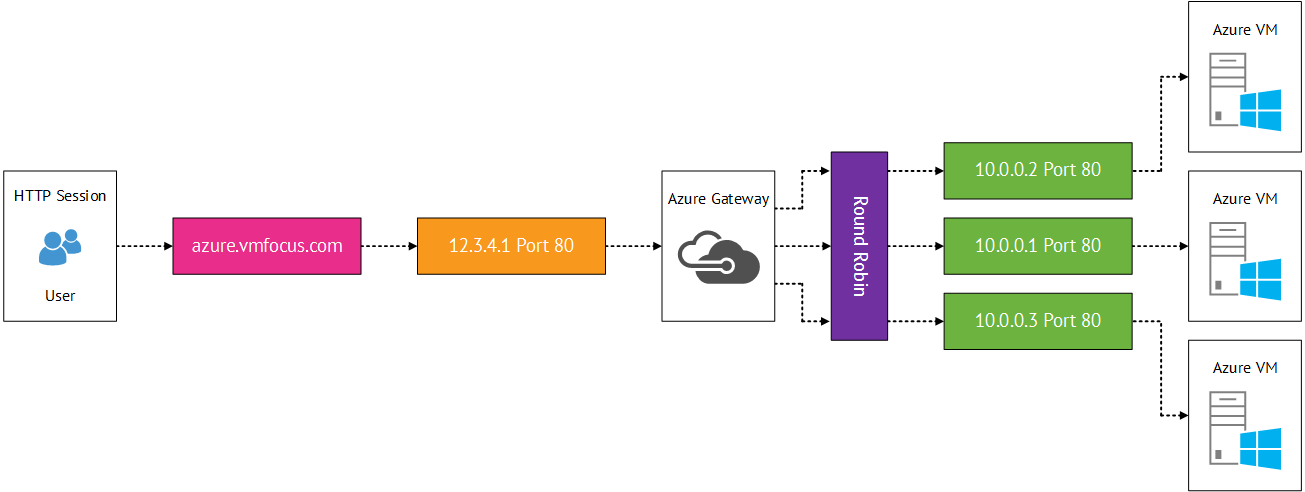
Multiple virtual machines are given the same public port for example 80.  Azure load balancing then distributes traffic using round robin.

  • Health probes can be used every 15 seconds on a private internal port to ensure the service is running.
  • The health probe uses TCP ACK for TCP queries
  • The health probe can use HTTP 200 responses for UDP queries
  • If either probe fails twice the traffic to the virtual machine stops.  However the probe continues to ‘beacon’ the virtual machine and once a response is received it is re-entered into round robin load balancing

Azure Load Balancing

Virtual Networks

Virtual networks (VNET) enable you to create secure isolated networks within Azure to maintain persistent IP addresses.  Used for virtual machines which require static IP Addresses.

  • Enables you to extend your trust boundary to federate services whether this is Active Directory Replication using AD Connect or Hybrid Cloud connections
  • Can perform internal load balancing using internal virtual networks using the same principle as load balancing endpoints.
  • VLAN’s do not exist in Azure, only VNETs

Hybrid Options

This is probably the most interesting part for me, as this provides the connectivity from your on-premises infrastructure to Azure.

Point to Site

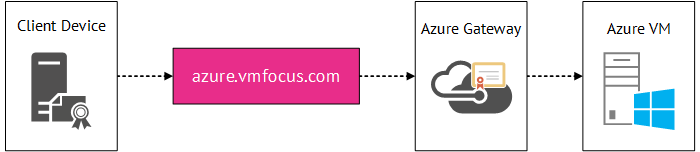
Point to site uses certificate based authentication to create a VPN tunnel from a client machine to Azure.

  • Maximum of 128 client machines per Azure Gateway
  • Maximum bandwidth of 80 Mbps
  • Data is sent over an encrypted tunnel via certificate authentication on each individual client machine
  • No performance commitment from Microsoft (makes sense as they don’t control the internet)
  • Once created certificates could be deployed to domain joined client devices using group policy
  • Machine authentication not user authentication

Azure Point to Site

Site to Site

Site to site sends data over an encrypted IPSec tunnel.

  • Requires public IP Address as the source tunnel endpoint and a physical or virtual device that supports IPSec with the following:
    • IKE v1 v2
    • AES 128 256
    • SHA1 SHA2
  • Microsoft keep a known compatible device list located here
  • Requires manual addition of new virtual networks and on-premises networks
  • Again no performance commitment from Microsoft
  • Maximum bandwidth of 80 Mpbs
  • The gateway roles in Azure have two instances active/passive for redundancy and an SLA of 99.9%
  • Can use RRAS if you feel that way inclined to create the IPSec tunnel
  • Certain devices have automatic configuration scripts generated in Azure based

Azure Site to Site

Express Route

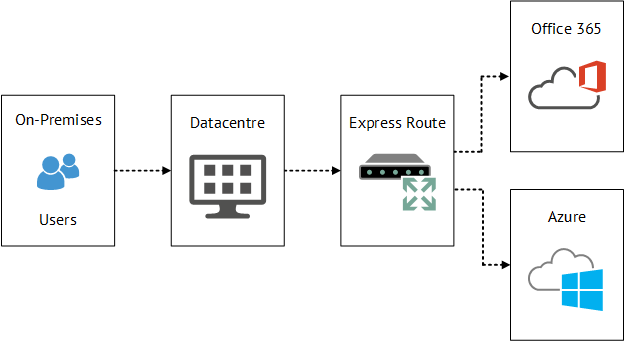
A dedicated route is created either via an exchange provider or a network service provider using a private dedicated network.

  • Bandwidth options range from 10 Mbps to 10 Gbps
  • Committed bandwidth and SLA of 99.99%
  • Predictable network performance
  • BGP is the routing protocol used with ‘private peering’
  • Not limited to VM traffic also Azure Public Services can be sent across Express Route
  • Exchange Providers
    • Provide datacenters in which they connect your rack to Azure
    • Provide unlimited inbound data transfer as part of the exchange provider package
    • Outbound data transfer is included in the monthly exchange provider package but will be limited
  • Network Service Provider
    • Customers who use MPLS providers such as BT & AT&T can add Azure as another ‘site’ on their MPLS circuit
    • Unlimited data transfer in and out of Azure

Azure Express Route

Traffic Manager

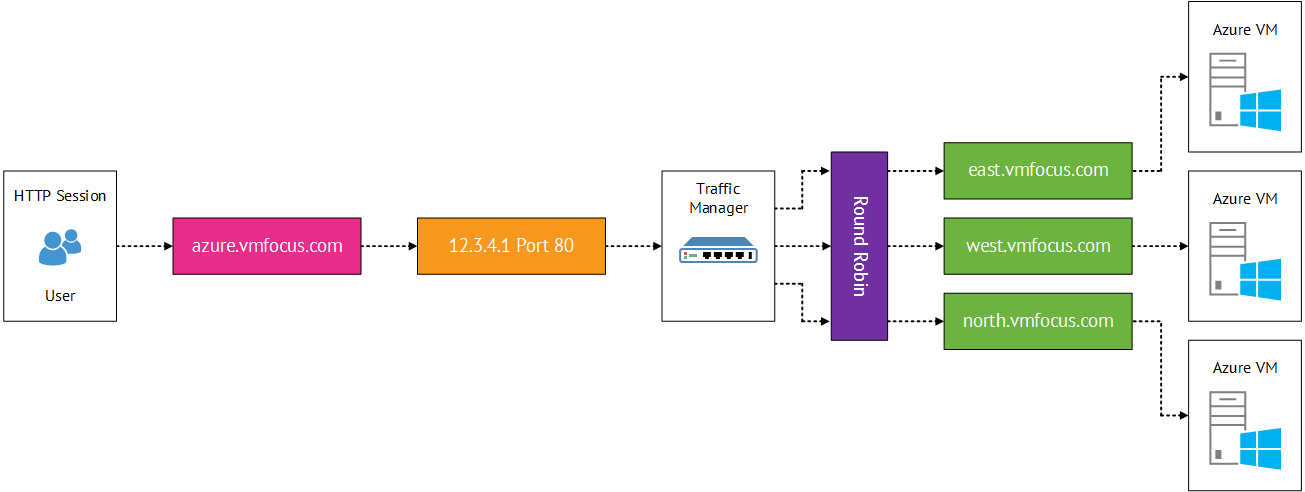
Traffic Manager is a DNS based load balancer that offer three load balancing algorithms

  • Performance
    • Traffic Manager makes the decision on the best route for the client to the service it is trying to access based on hops and latency
  • Round Robin
    • Alternates between a number of different locations
  • Failover
    • Traffic always hits your chosen datacentre unless there is a failover scenario

Traffic Manager relies on mapping your DNS domain to x.trafficmanager.net with a CNAME e.g. vmfocus.com to vmfocustm.trafficmanager.net. Then Cloud Service URL’s are mapped to global datacentres to the Traffic Manager Profile e.g. east.vmfocus.com west.vmfocus.com north.vmfocus.com Azure Traffic Manager

Microsoft Azure Concepts – Failures

One of the key concern areas for clients who are considering migrating workloads into Microsoft Azure is failures.  Why would this be a concern, isn’t that the responsibility of Microsoft to ensure that they meet the 99.9% or greater SLA?  Well the answer is no.

It is up to you to ensure that your applications are ‘cloud ready’ and can be split between fault and update domains to achieve the stated 99.95% SLA.

This means the onus is on you to ensure that your application is split across geographic locations with multiple instances.  Ensuring that global site load balancing is in place along with data integrity and zero data loss if you loose an instance member.  Of course all of your on-premises applications have been designed to be cloud ready, erm yeah right!

So knowing that most of our on-premises applications aren’t designed to be ‘cloud ready’ what is the impact and expected behaviour outside of Microsoft’s mandated SLA with availability sets?

Fabric Controller

This is where we need to introduce the Azure Fabric Controller.  Each Microsoft Azure datacentre is split into clusters which are a grouping of racks.  These provide compute and storage resources. Each cluster is managed by a Fabric Controller which is a distributed stateful application running across servers spread across racks.  The purpose of the Fabric Controller is to perform the following operations:

  • Co-ordinates infrastructure updates across update domains
  • Manages the health of the compute services
  • Maintains services availability by monitoring the software and hardware health
  • Co-ordinates placement of VM’s in Availability Sets
  • Orchestrates deployment across nodes within a cluster

Fabric Controller

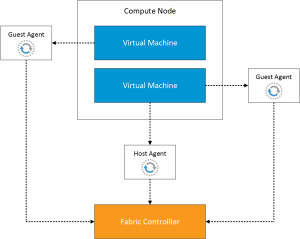
The Fabric Controller receives heartbeats from the physical host and also the guest virtual machines running on the host.

Fabric Controller Agents

Now that we understand the architecture, let’s cover a couple of failure scenarios.

Guest VM Unresponsive

If the Fabric Controller fails to receive a number of heartbeats from the Guest VM, then it is restarted on the same physical host.

Physical Host Failure

In the event of a physical host failure, the virtual machine is powered on a different physical host.  To do this your virtual machine must be protected by Locally Redundant Storage (LRS maintains three copies of synchronous data within the same datacentre).

The Fabric Controller determines which compute node has the same level of storage that your original VM was on and then powers on the read only VHD and changes it to read/write.

Final Thought

To achieve the 99.95% SLA you need applications which are ‘cloud ready’.  However you are still protected against Guest VM and Physical Host failures in the same way that you use on-premises vSphere or Hyper-V HA.  However as mentioned in this post, Microsoft does not provide an SLA against this.

Interestingly Microsoft does not provide an SLA against a datacentre failure.  It is only when Microsoft declares a datacentre lost that the geo-replicated copies of your storage become available.  Due to this it is important that you understand that you have zero control over the datacentre failover process.

Microsoft Azure Concepts – Backups

Backups are really important when it comes to returning service after an issue or for meeting compliance or regulatory requirements.  The inability to recover from loss of data can make a business bankrupt in a short space of time.

You might say that having your data in the cloud which is highly available makes backups someone else’s problem.  Well that isn’t correct, what happens if you have data corruption or failure of an service or application after an update or perhaps a virus?  Having two copies of the data just means you have two corrupted copies!

We need to be able to go back in time to recover from an unplanned event.  This is where Microsoft Azure Backup steps into the ring!

What Is Azure Backup?

In a nutshell Azure Backup enables you to backup on-premises or Azure virtual machines using your Azure subscription.  This may sound a bit bizarre but until recently there was no supported way to backup Azure virtual machines.

When you initially create your Azure Backup Vault you are able to decide if you want your backups to be locally or geo redundant.

Azure Backup v0,1

Backing Up Azure Virtual Machines

Backing up Azure virtual machines is fairly straight forward, it’s a three step process which is intuitive in the Azure Backup blade.

  1. Discover the virtual machines you want to backup
  2. Apply a backup policy to the virtual machines
  3. Backup the virtual machines

Each VM that you want to protect uses the Azure VM agent to co-ordinate backup tasks.  The best way to think of the Azure VM agent is an extension within the virtual machine.  When a backup is triggered the Azure VM agent leverages VSS to take a point in time snapshot of the VM.  This data is then transferred to the Azure Backup Vault.
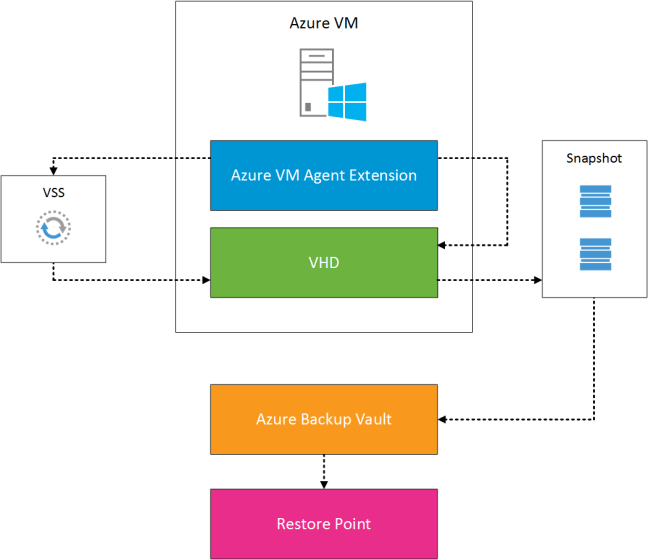
Azure VM Backup


Few things I should call out which are limitations of the current version of Azure Backup, these are:

  • Backing up V2 Azure Virtual Machines is not supported (created by Resource Manager)
  • Unable to backup VM’s with Premium storage
  • On restore you have to delete the original VM and then restore it
  • Restoring VM’s with multiple NICs or that perform Domain Controller roles is only available via PowerShell

Backing Up On-Premises Virtual Machines

When Microsoft do things, they don’t like to mess about.  What do I mean? Well they are giving you an enterprise backup solution for the cost of an Azure Storage Account!

They don’t even stop at that, they enable you to back up your on-premises virtual machines to a disk first and then if you want backup to your Azure Vault after this.

Essentially, it’s Data Protection Manager, but with some of the functionality removed.  After creating an Azure Backup Vault you are entitled to download and install the Azure Backup Server software too an on-premises server.  To push out the DPM Agent to virtual machines you need to enter an account that has local administrators rights over these VM’s.

So what functionality is missing?

  • Azure Backup Server supports 50 on-premises virtual machines, so a new Azure Backup Vault is required with new vault credentials.  This intern means an on-premises Azure backup Server
  • Azure Backup Server does not support tape, instead it uses Azure Backup Vault for archiving
  • Azure Backup Server does not allow you to manage multiple Azure Backup Servers from a single console (think 200 VM’s being backed up you would have to login to at four consoles)

The supported operating systems are shown in the table below.  Note that you can only backup to disk with the client OS as these are unsupported in Azure.

Operating System Platform SKU
Windows 8 and latest SPs 64 bit Enterprise, Pro
Windows 7 and latest SPs 64 bit Ultimate, Enterprise, Professional, Home Premium, Home Basic, Starter
Windows 8.1 and latest SPs 64 bit Enterprise, Pro
Windows 10 64 bit Enterprise, Pro, Home
Windows Server 2012 R2 and latest SPs 64 bit Standard, Datacenter, Foundation
Windows Server 2012 and latest SPs 64 bit Datacenter, Foundation, Standard
Windows Storage Server 2012 R2 and latest SPs 64 bit Standard, Workgroup
Windows Storage Server 2012 and latest SPs 64 bit Standard, Workgroup
Windows Server 2012 R2 and latest SPs 64 bit Essential
Windows Server 2008 R2 SP1 64 bit Standard, Enterprise, Datacenter, Foundation
Windows Server 2008 SP2 64 bit Standard, Enterprise, Datacenter, Foundation

Final Thoughts

So why are Microsoft doing this?  My thoughts are they want customers to start using Azure storage to replace on-premises tapes.  For those who are used to DPM, this could be a natural extension to your existing backup policy.