Upgrading To Horizon View 5.3 – Step 1 – Composer Server

Horizon View 5.3, brings with it a host of new features.  The one which I’m most excited about is being able to use Windows Server 2008 R2 as a desktop operating system.  A list of enhancements is shown below (source VMware Horizon View 5.3 release notes)

What’s New?

  • Windows Server 2008 R2 Desktop Operating System Support
  • Windows 8.1 Desktop Operating System Support
  • VMware Horizon Mirage Support
  • VMware Virtual SAN Support
  • vDGA Support
  • VMware Horizon View Agent Direct-Connection

TOP TIP: Horizon View does not support Windows 2012 Active Directory

Upgrade Process

Before we embark on this upgrade process, the number one rule is to get a good backup.  Plus I recommend you check that everything is in good working order in your Horizon View 5.2 environment.

View Upgrade 01

Twist

To make things a little more interesting, I’m going to do the upgrade whilst using a Horizon View 5.2 dedicated desktop to see if any part of the upgrade effects my experience or the ability to work.

Upgrade Order

The order in which I’m going to tackle the upgrade is as follows:

  1. View Composer
  2. View Connection Server including HTML Access
  3. View Security Server
  4. View Transfer Server (I don’t have one of these in my environment)
  5. View Agent including Remote Experience Agent
  6. View Client

View Composer

In my lab, View Composer is on a seperate Windows 2008 R2 Server called VMF-VCOM01.

The first thing we are going to do is download the correct installation which is at the time of writing is VMware-viewcomposer-5.3.0-1427647

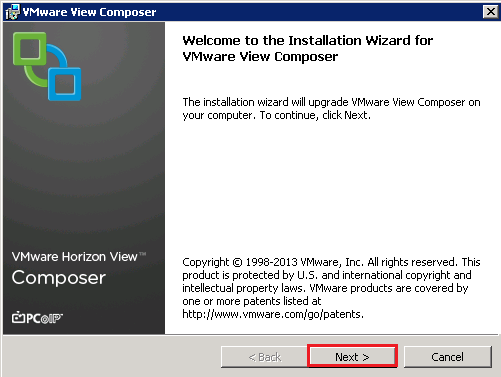
Launch the installer and hit ‘Next’

View Upgrade 02

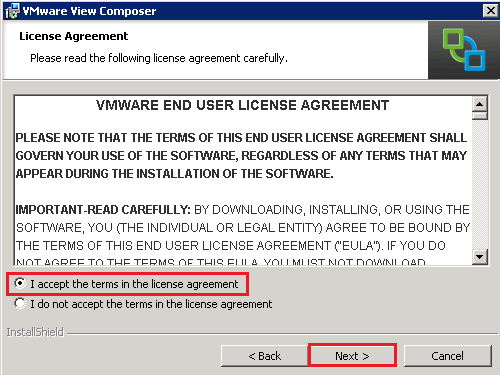
Accept the EULA and hit ‘Next’

View Upgrade 03

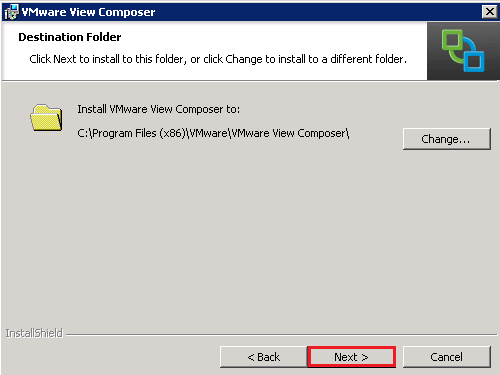
Select install location and hit ‘next’

View Upgrade 04

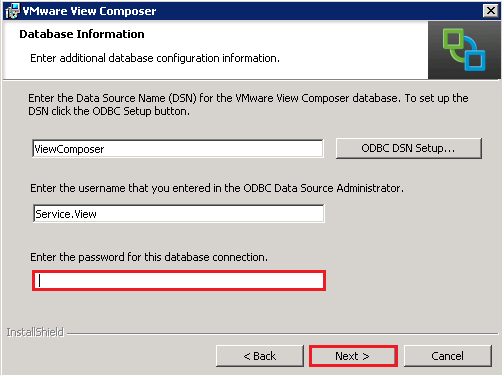
Enter your ODBC Password

View Upgrade 05

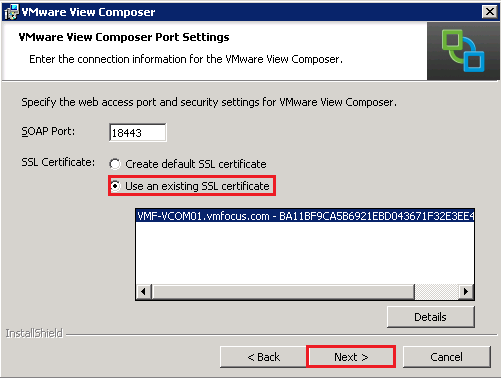
In my environment, I’m using an existing SSL certificate.

View Upgrade 06

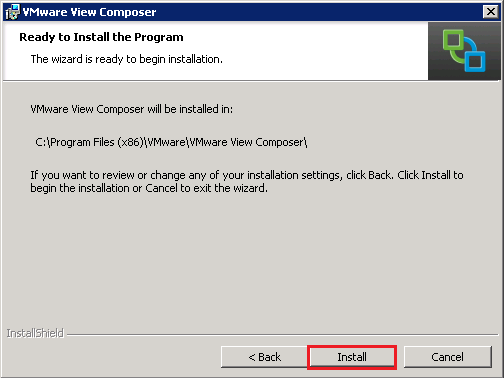
Hit Install

View Upgrade 07

Once finished a reboot is required.

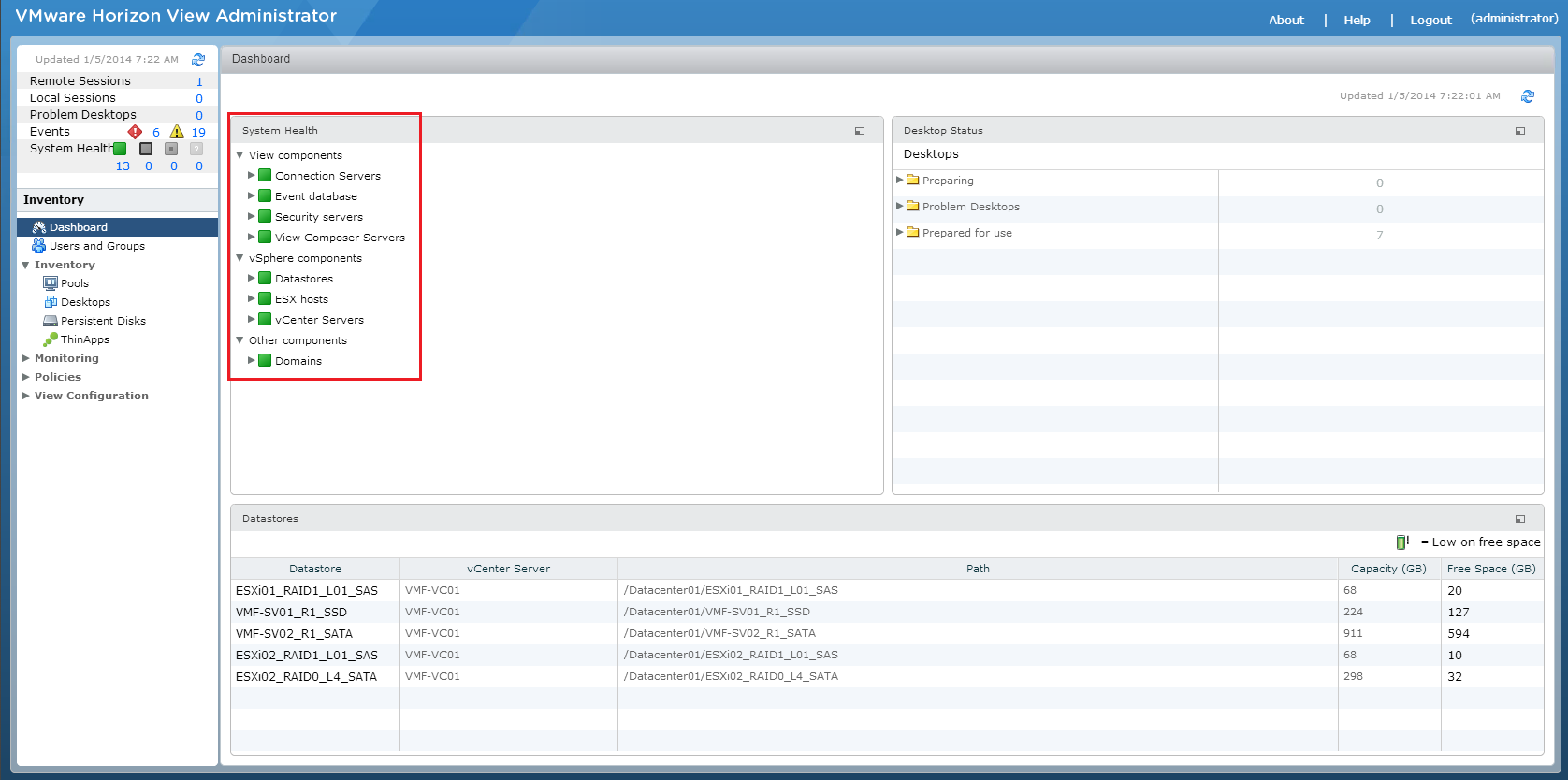
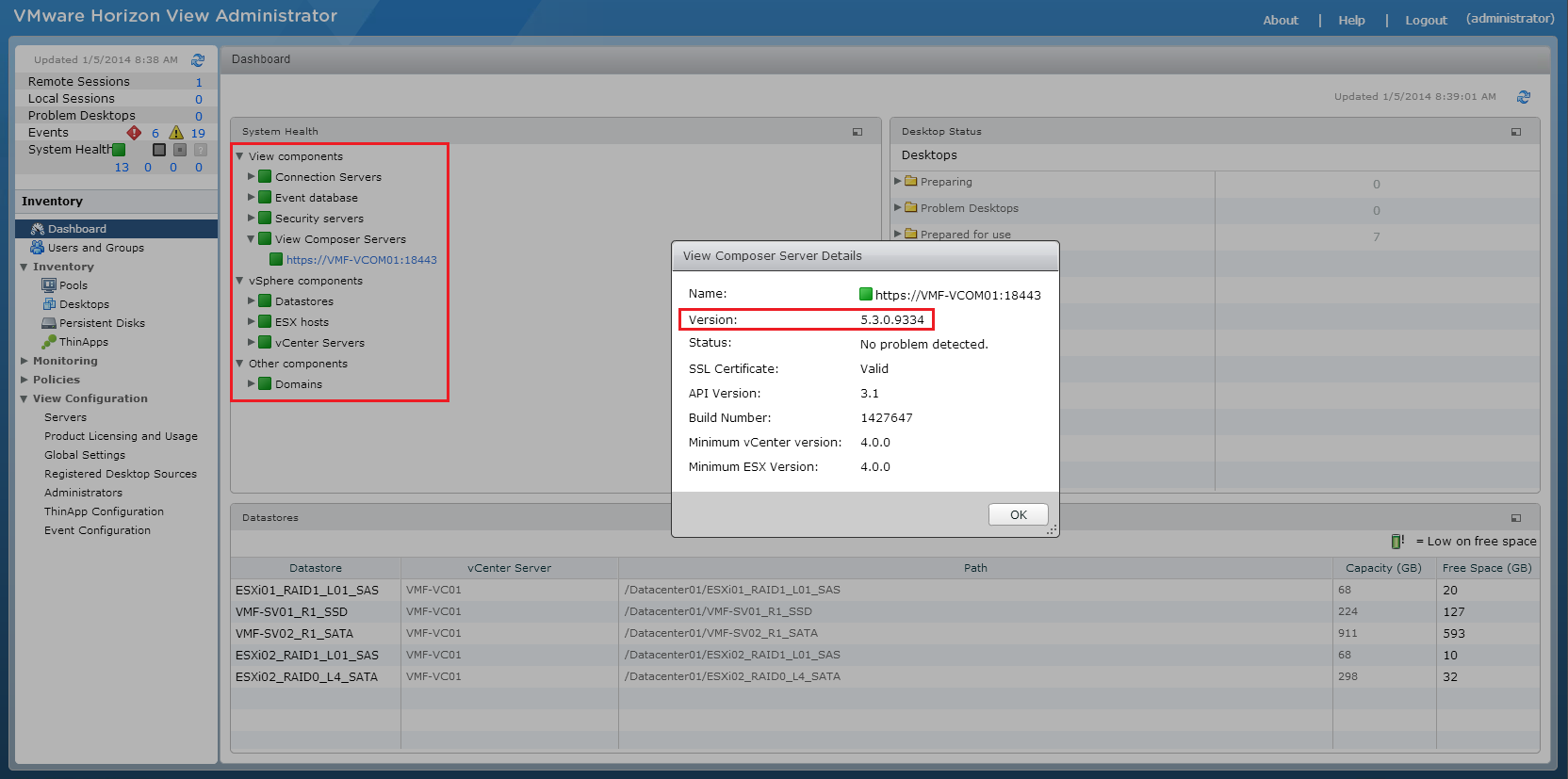
A quick check of the vmfocus.com Horizon View environment and we can see everything is ‘tickety boo’.

View Upgrade 08

Twist Test

Question Answer
Did the installation cause any disruption to existing Horizon View 5.2 desktop connections? No
Able to connect to existing composed desktops after installation? Yes
Recompose tasks work on Horizon View 5.2 desktops? Yes
Did the View Composer Server require a reboot? No
HTML 5.2 Access via Blast working after installation? Yes

How To: Replace Horizon View Connection & Security Server Certificates

In this post we are going to walk threw the process of replacing  our Horizon View Connection Server and Security Server Certificates, we are assuming that the prerequisites in How To: Replace vCenter 5 & VUM Certificates are in place.

Step 1 – Certificate Request

Make sure your Horizon View Connection Server has rights to request and enroll a certificate from your Internal CA and that on the Certificate Template the private key is able to be exported.

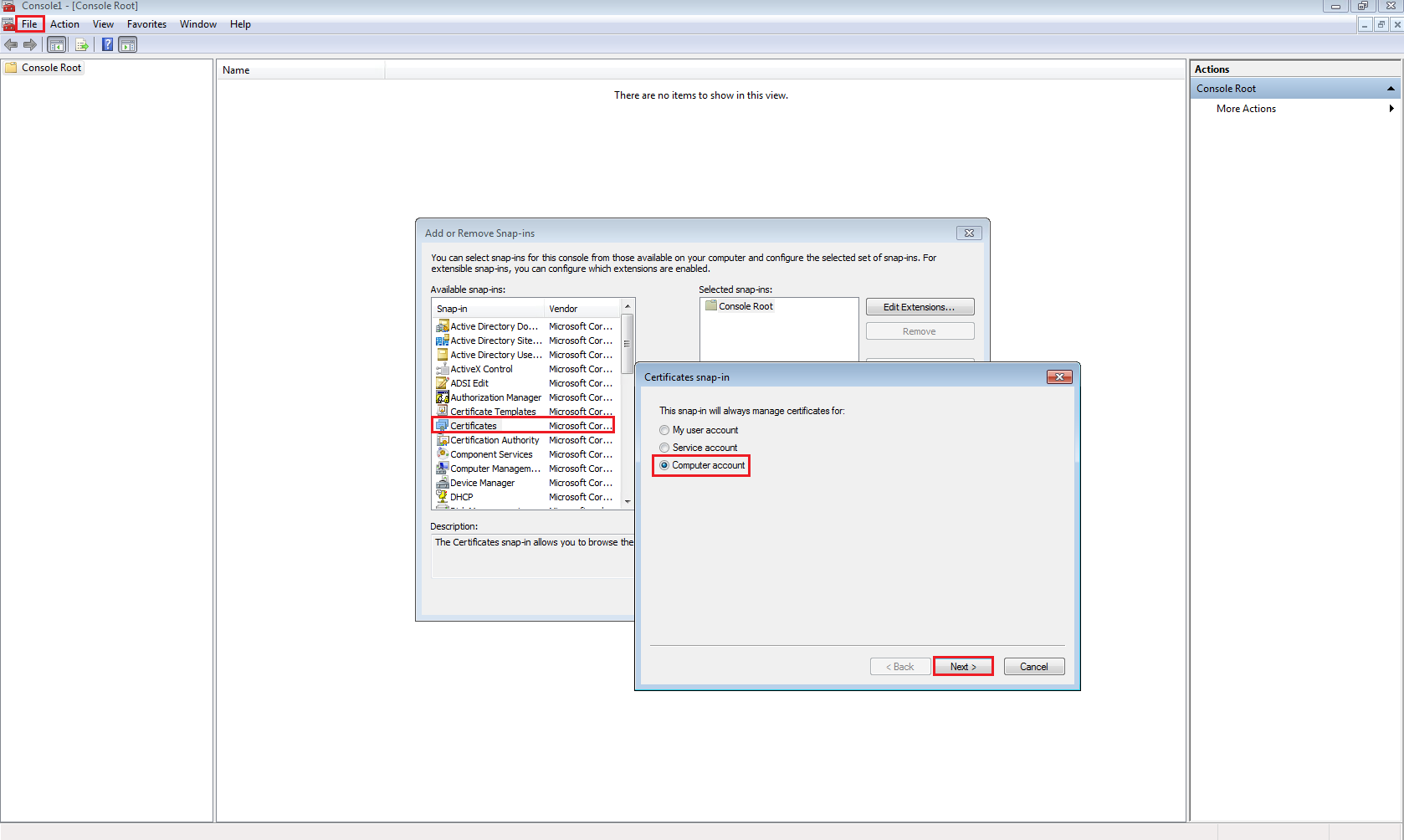
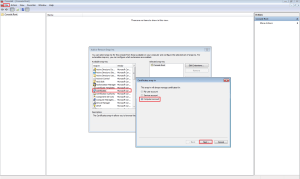
Click Start > Run > MMC > File > Add/Remove Snap-in

Select Certificates > Add > Computer Account > Next
vCOPS01

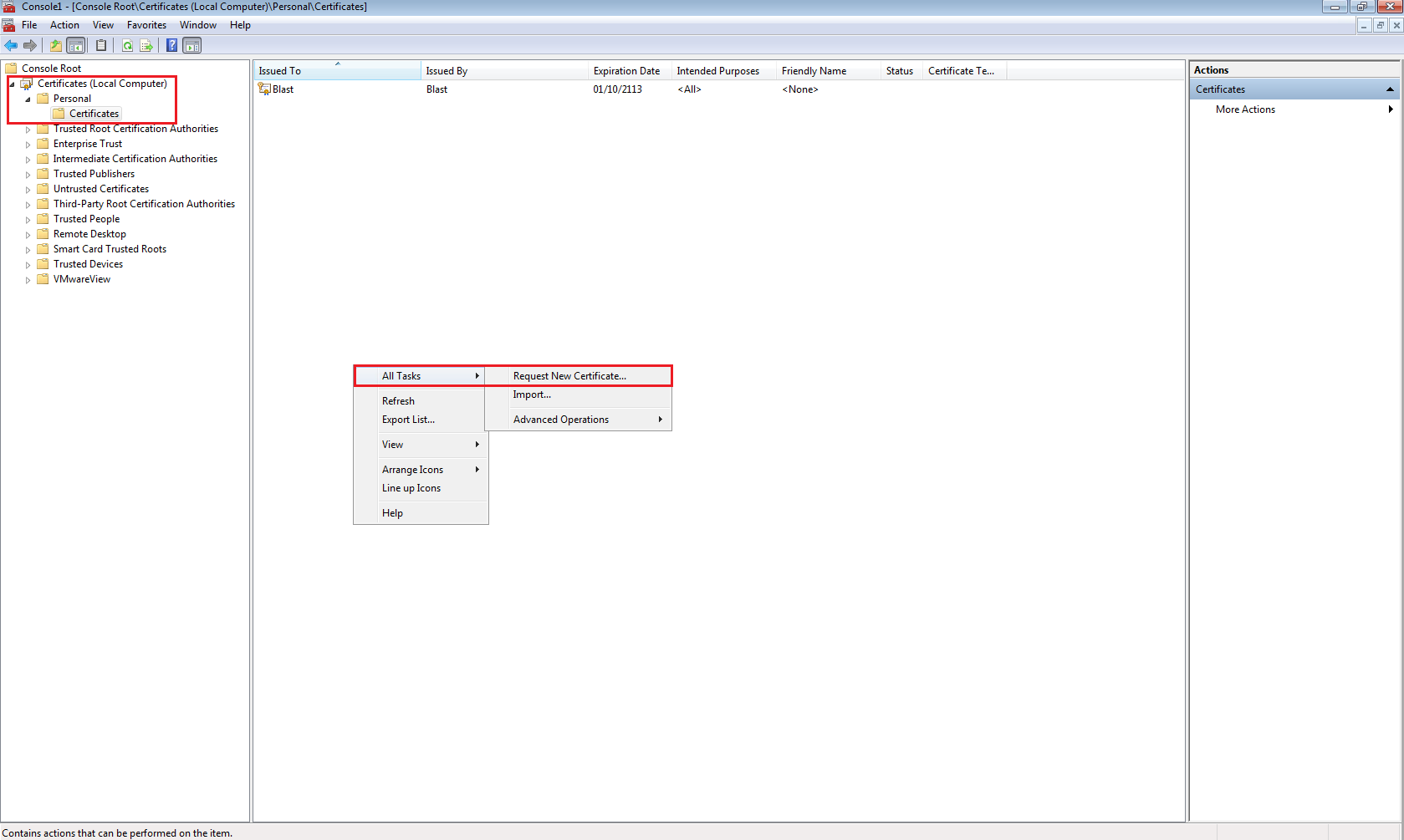
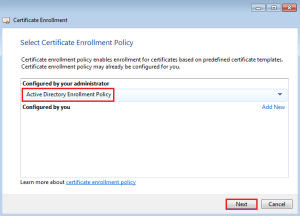
Expand Personal > Certificates > Right Click > All Tasks > Request New Certificate

vCOPS02Click Next > Select Active Directory Enrollment Policy
vCOPS03

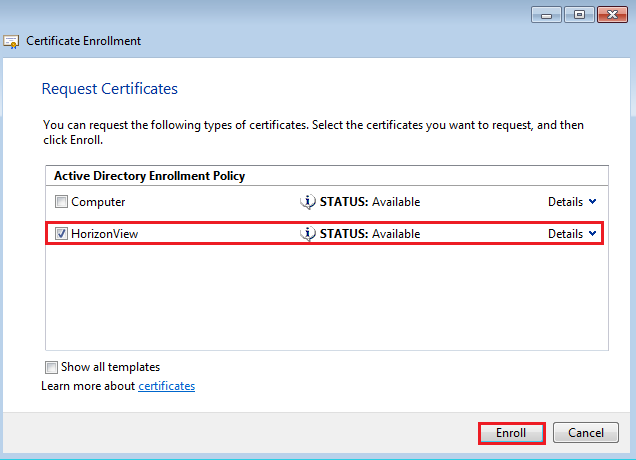
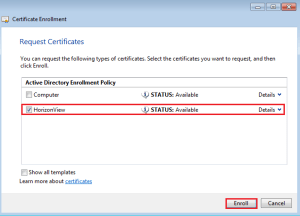
Select your Certificate Template (mines called HorizonView) then click on ‘More information is required to enroll for this certificate.  Click here to configure settings’.

vCOPS04

Change Subject Name to Common Value and enter the Fully Qualified Domain Name of your Horizon View Connection Server.  In my case it is VMF-VCON01.vmfocus.com and Add this to the certificate request.

Next change the Alternative Name to DNS and enter the NetBIOS name

NetBIOS VMF-VCON01

Fully Qualified Domain Name VMF-VCON01.vmfocus.com

Next add in the Alternative Name to DNS for your Horizon View Security Server

NetBIOS VMF-VSEC01

Fully Qualified Domain Name VMF-VSEC01.vmfocus.com

Public DNS Record view.vmfocus.com

ViewCert01

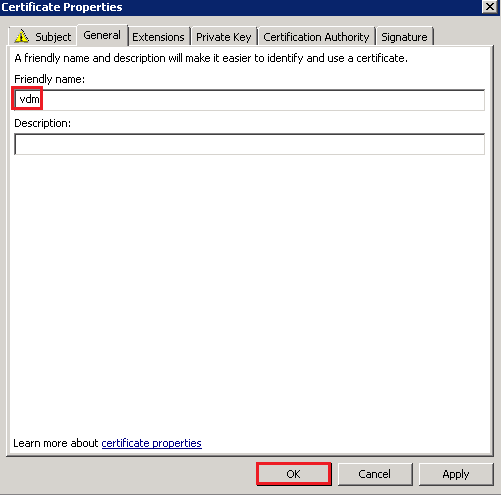
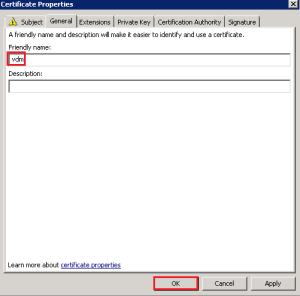
Next Select General Tab and enter ‘vdm’ under the friendly name
ViewCert02

By putting in the DNS names of the Horizon View Security Server we can use one certificate to cover both servers.  Note, in a production environment you may have to request two separate certificates to ensure that internal DNS names are not visible on the internet.

Click OK and Enroll the certificate
vCOPS21

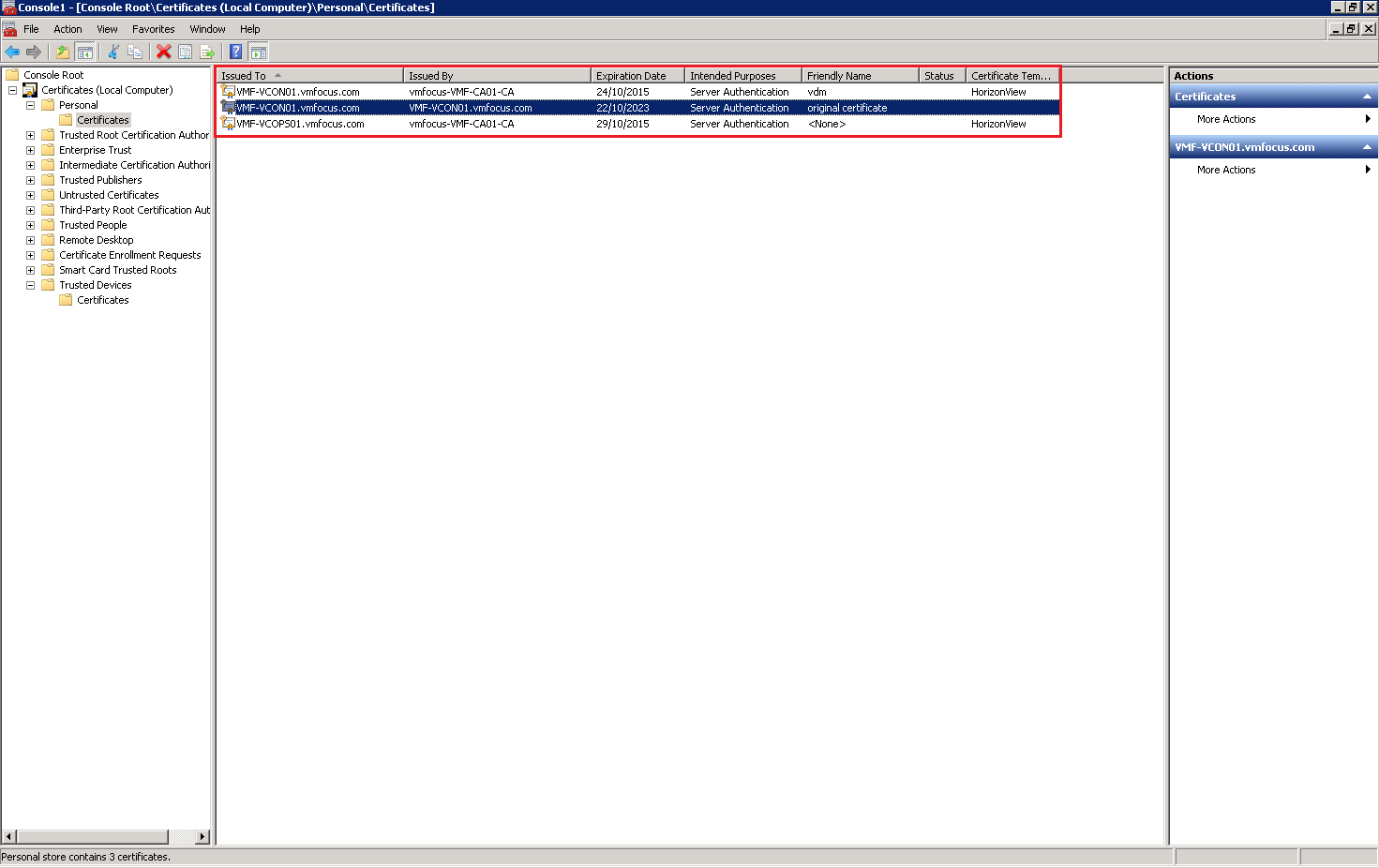
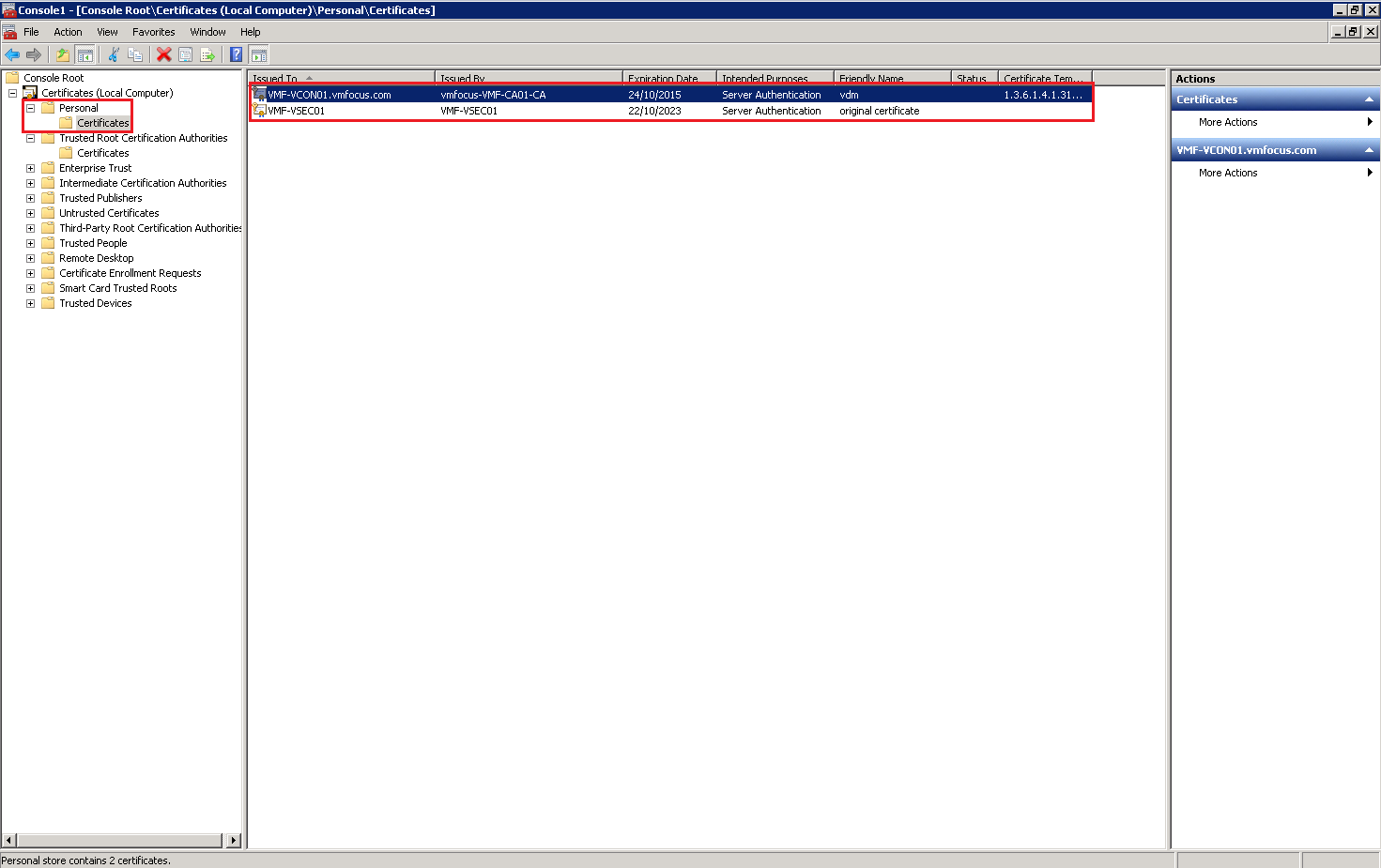
Once enrolled you will see the new certificate is in your Personal folder
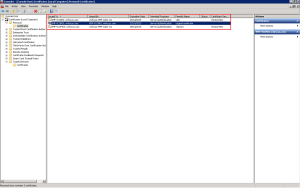
ViewCert03

Horizon View uses the vdm tag to identify which certificates it should use.  As you can see I have renamed my original certificate.  To do this, double click the certificate select Details tab > Edit Properties > General Tab
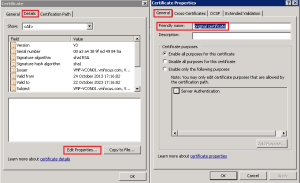
ViewCert04

To start using the new certificate restart the VMware View Security Gateway Component on your Horizon View Security Server

ViewCert05

To test that it’s in situ, browse to your Horizon View Connection Server URL and you should see a Trusted Certificate.
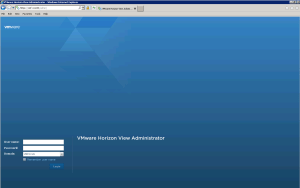
ViewCert06

Step 2 – Security Server Certificate Replacement – Trusted Public CA

In a production environment you would put a request into a Trusted Public CA such as GeoTrust SAN SSL Certificate from your Horizon View Security Server.

To do this Click Start > Run > MMC > File > Add/Remove Snap-in > Select Certificates > Add > Computer Account > Next > Finish

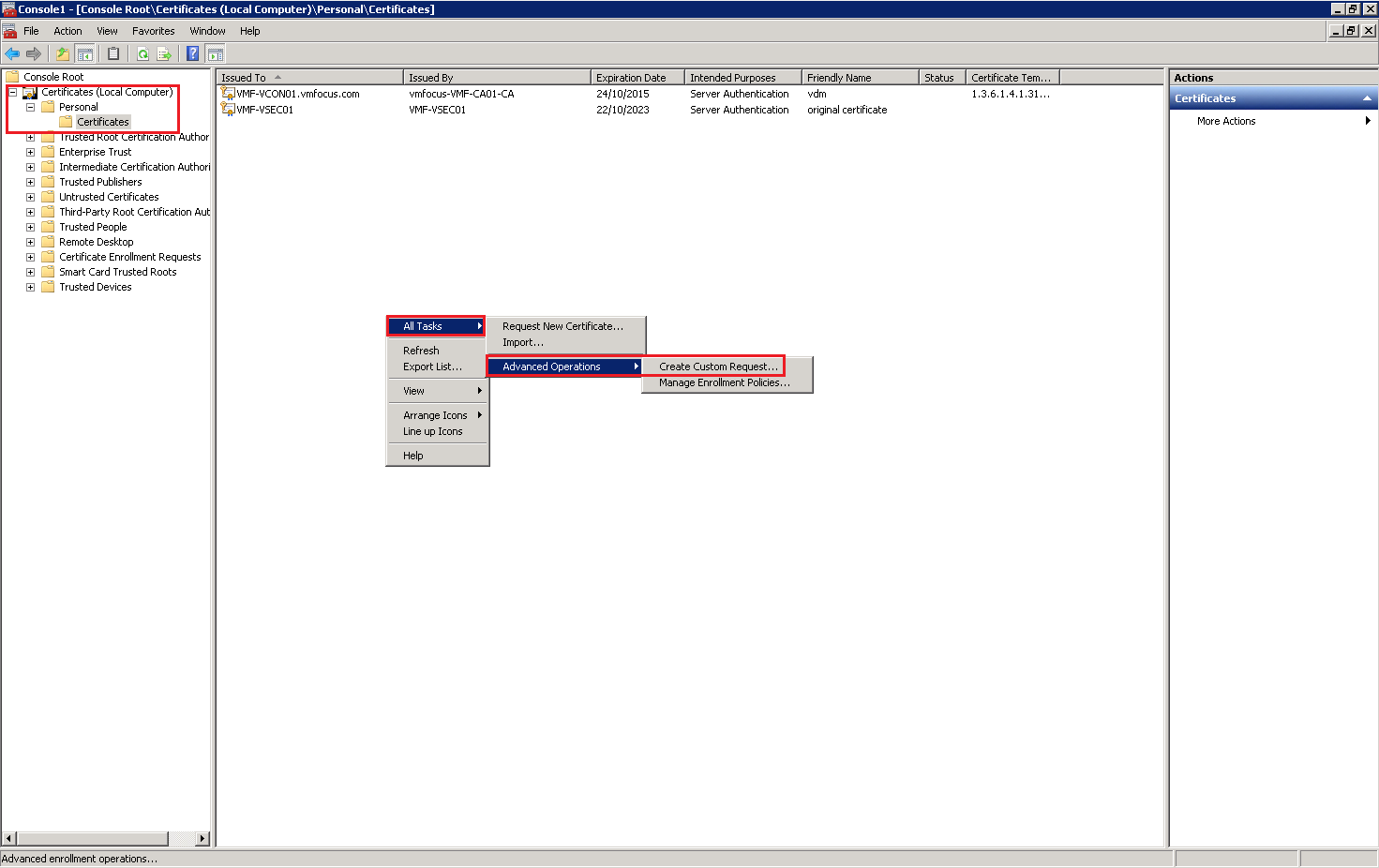
Expand Personal > Certificates > Right Click > All Tasks > Request New Certificate

ViewCert07

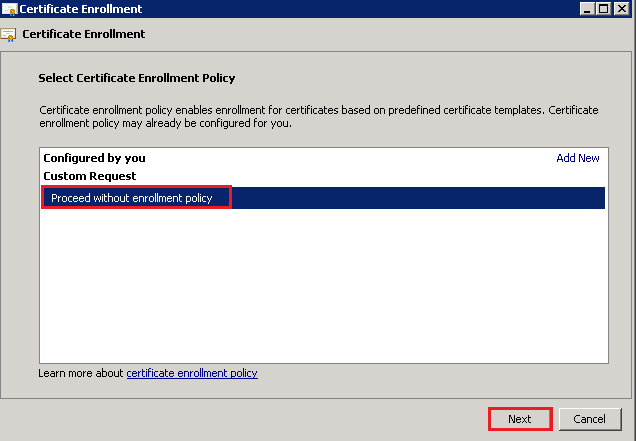
Click Next > Select Proceed without enrollment policy > Next
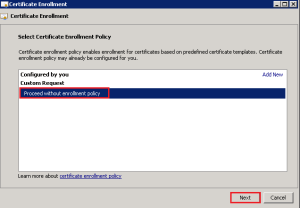
ViewCert08

Click Next > Details > Properties

ViewCert09

As per our Horizon View Connection Server, enter ‘vdm’ as the friendly name

ViewCert02

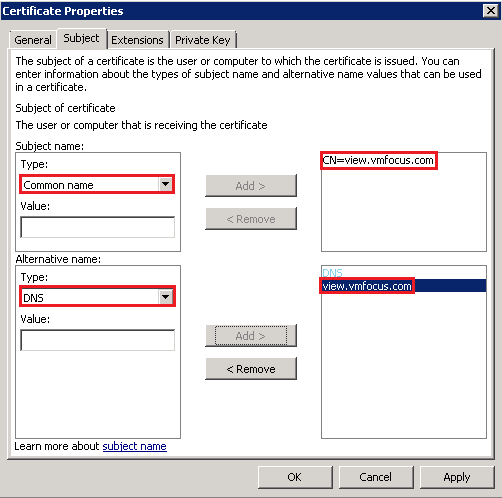
Change Subject Name to Common Value and enter the Fully Qualified Domain Name of your public resolvable DNS record to access your Horizon View Security Server.  In my case it is view.vmfocus.com and Add this to the certificate request.

Next change the Alternative Name to DNS and re-enter the public resolvable Fully Qualified Domain Name

ViewCert10

Onto the Private Key Tab > Key Options > Change the Key size to 2048 and tick ‘Make private key exportable’

ViewCert11

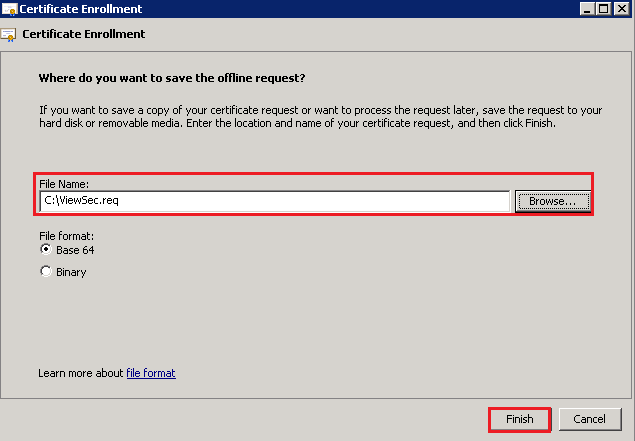
Click OK > Click Next and then select a destination and name for your Certificate Request.

ViewCert12

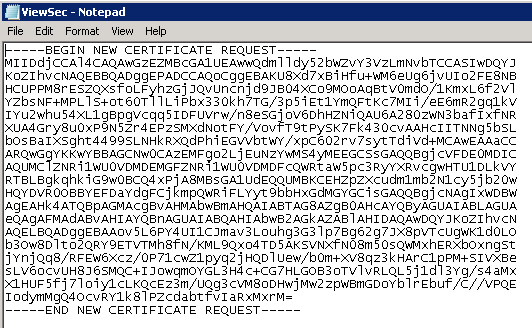
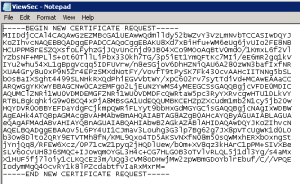
Open the Certificate Request file with Notepad and copy the contents and paste them into the CSR for your Trusted Public CA Provider.
ViewCert13

After passing the validation checks you will receive your SAN SSL Certificate, ready to install into your Horizon View Security Server.  The details on how to do this can be followed below as they are the same as installed certificates from an Internal CA.

Step 3 – Security Server Certificate Replacement – Internal CA

I don’t have this luxury in the VMFocus.com lab, therefore we are going to use our Internal CA.

Our Horizon View Security Server should be in a workgroup in the DMZ, which means that it won’t automatically trust our Internal CA as its not part of the Active Directory domain.

First of all we need to export our Internal CA Root Certificate.  This can be found on your Horizon View Connection Server under Trusted Root > Certification Authority > Certificates

ViewCert14

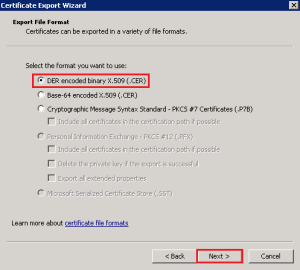
Right Click the Certificate > All Tasks > Export > Select ‘DER encoded binary X.509 (.CER)
viewcert15

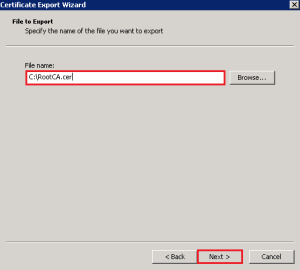
Hit Next and enter a destination and file name, then Next > Finish.
viewcert16

Copy this certificate to your Horizon View Security Server and Import it into the Trusted Root Certification Authorities > Certificates Folder.

This is achieved by Right Clicking > Import and following the wizard.  Once down it should look like this

viewcert17

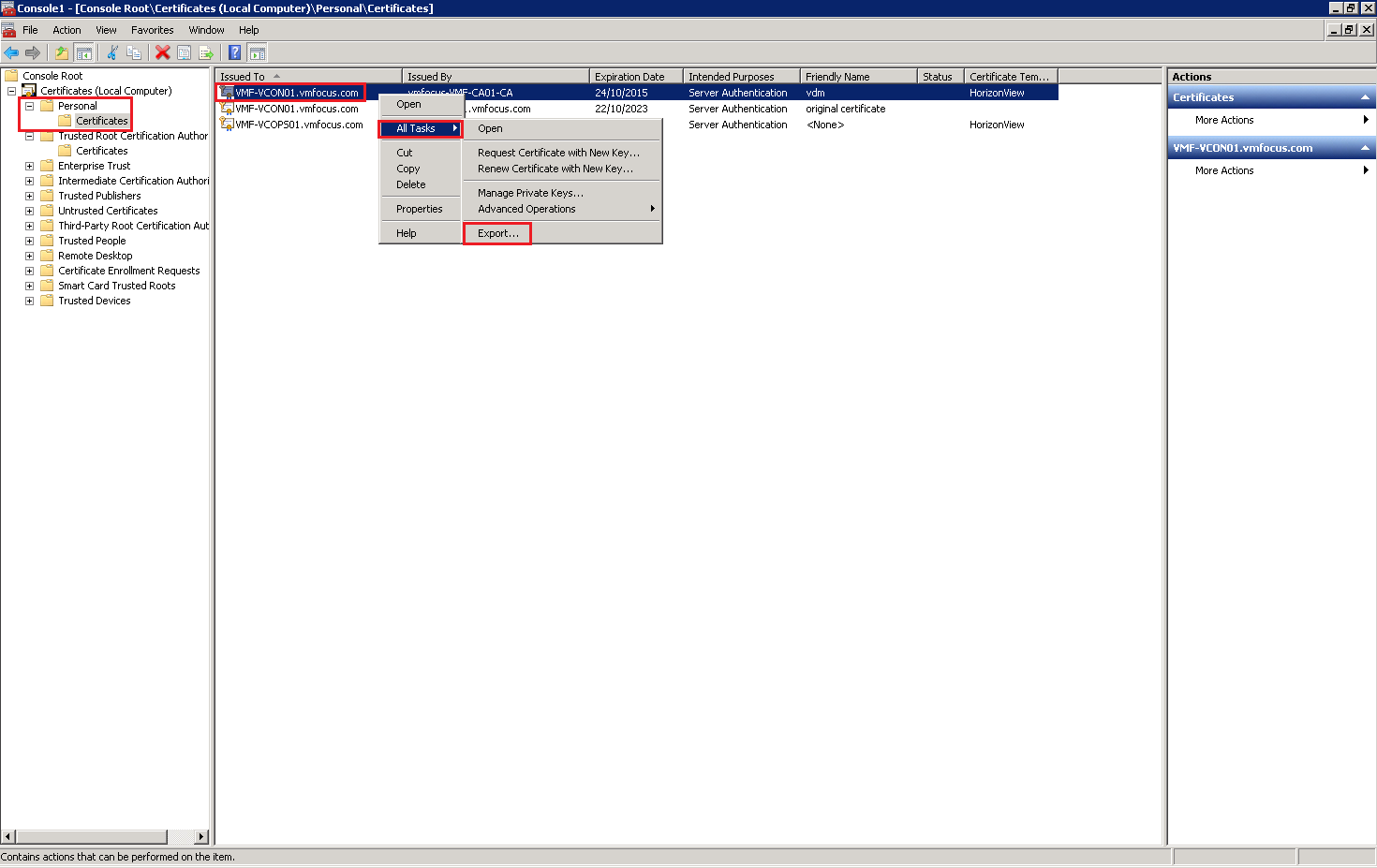
Now we need to export the Horizon View Connection Server Certificate which contained the DNS entries for our Security Server.  Jump back onto your Connection Server and Click Personal > Certificates > Right Click Certificate > All Tasks > Export

viewcert18

Click Next and ensure that you choose Yes, export the private key

viewcert19

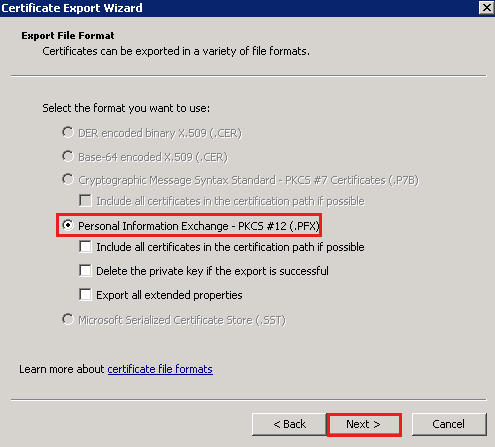
Select Personal Information Exchange – PKCS #12 (.PFX)

viewcert20

Enter a password and Click Next to Finish.

Copy the Certificate to your Horizon View Security Server and Import it under Personal Certificates and you should see the following

viewcert21

Rename the old Security Server certificate friendly name to something different like we did earlier with the old Connection Server certificate.

Last of all restart the service VMware View Security Gateway Component

viewcert22

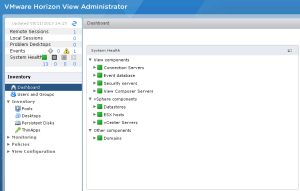
Then for the moment of truth, login to your Horizon View Administration Console and bask in your awesomeness!
viewcert23

Horizon View 5.2: Resize PCoIP Desktop Black Screen

Today, I had a small issue with a Manual Dedicated Horizon View 5.2 PCoIP Desktop Pool for access to a Management Windows 7 VM and I was scratching my head for a while trying to figure this one out.

Essentially, I could connect without any issues via the View Client to the Windows 7 desktop but only if I can the desktop in Windows -Large or Windows – Small.

If I expanded the desktop beyond a certain size or made it full screen, I had a black background (the pictures below look the same size, but i’m sure you get what I mean).

Large Desktop – Black

Black

Small Desktop

Small Desktop

Troubleshooting Steps – (That Didn’t Work)

  1. Logged into the Windows 7 VM via RDP and rebooted.
  2. Logged into the Windows 7 VM and changed the screen resolution to 1920 x 1080
  3. Uninstalled View Agent & re-installed
  4. Uninstalled the vSGA Driver from Device Manager and the manually installed the driver from C:Program FilesCommon FilesVMwareDriversvideo_wddm

Troubleshooting Steps – (That Worked)

I found KB1018158 Configure PCoIP for use with View Manager which had most of the symptoms.  I knew I had installed the VMTools then View Agent (correct order), and then I read further down the KB and discovered this:

Note: Do not reboot by clicking Shutdown > Restart in the virtual machine. PCoIP is dependent upon the appropriate amount of video memory being allocated to the virtual machine. Because this is a virtual hardware setting (that must be in place before the virtual machine starts up), it is applied as a change in the .vmx file. If the virtual machine has already been started, it is essential that this virtual machine be restarted so that the .vmx file is re-read and the changes are used. Using the Shutdown > Restart option inside the virtual machine does not force the .vmx to be re-read, as this does not cold boot the machine (from the VirtualCenter perspective) to refresh the virtual hardware. Using the Shutdown > Restart option from either VirtualCenter or View Manager (which issues the command via VirtualCenter) is the best way to make sure this file gets read properly.

I quickly ‘Reset’ the Manual Dedicated Windows 7 Desktop using View Administrator and what do you know everything worked!
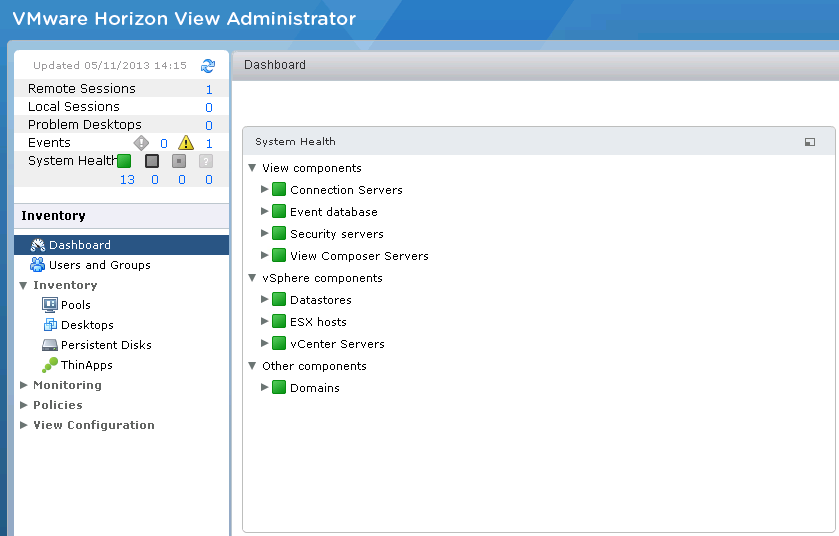
View Administrator

Lessons Learnt

When creating a manual dedicated desktop, ensure that you reset the desktop using View Administrator otherwise the correct PCoIP settings are not maintained within the .vmx configuration file.

Changes To VMware Certified Professional 5 Desktop (VCP5-DT)

VMware have made a change the VCP5-DT, it now has a pre-requisite, which is to attend a qualifying course before you gain the certification/qualification.

It’s not as straight forward as you might think, as there are two paths open, one if you hold the VMware Certified Professional 5 – Data Center Virtualization  (VCP5-DCV) or VCP-Cloud and one if your don’t.

If You DON’T Hold VCP5-DCV

If you don’t hold the VCP5-DCV then you need to attend one of the qualifying courses.

  • VMware View: Install, Configure, Manage v5.0
  • VMware View: Install, Configure, Manage v5.1
  • VMware View: Desktop Fast Track v5.0
  • VMware View: Desktop Fast Track v5.1
  • VMware Horizon View: Install, Configure, Manage v5.2

You are able to sit the exam and pass it without going on a qualifying course, you just won’t have the certification appear on your transcript.

If You DO Hold VCP5-DCV or VCP-Cloud

If you do hold he VCP5-DCV or VCP-Cloud then you can need to sit and pass the VMware View VCP510-DT Exam

VCP5-DT

It appears that VMware Education are trying to align the VCP qualifications so that attending a qualifying course is a pre-requisite.

What’s A Qualifying Course?

VMware have a list of training partners who adhere to the required standards.  Essentially these partners have the official rubber stamp to teach you the student the course material.

To find out who who in your Country/State/City is authorised, use the VMware Training Center search facility.

View 5.2 – Moving Persistent Disks To Another Pool

During a recent Horizon View proof of concept, a customer wanted to use Persistent Disks so they had the ability to take desktops offline and keep all the relevant user settings.

The proof of concept went well, however the users wanted to keep all of their settings but the pool needed to be destroyed as it didn’t meet certain criteria for the internal IT team such as the naming convention.

So in this scenario we had a requirement to delete the pool, but keep the users persistent disk and add it to another pool.  VMware have a KB called ‘Moving a persistent data disk to another View desktop‘ however the internal IT team wanted something which could be performed without using ESXCLI.

We thought about using Persona Management but we hadn’t installed it on the template. So what did we do? Well after a few tests, we came up with a workable scenario.

Scenario

We have two desktop Pools:

A – Pool A is where the persistent disks currently reside and contain all the users data

B- Pool B is the pool target for Pool A’s persistent disks

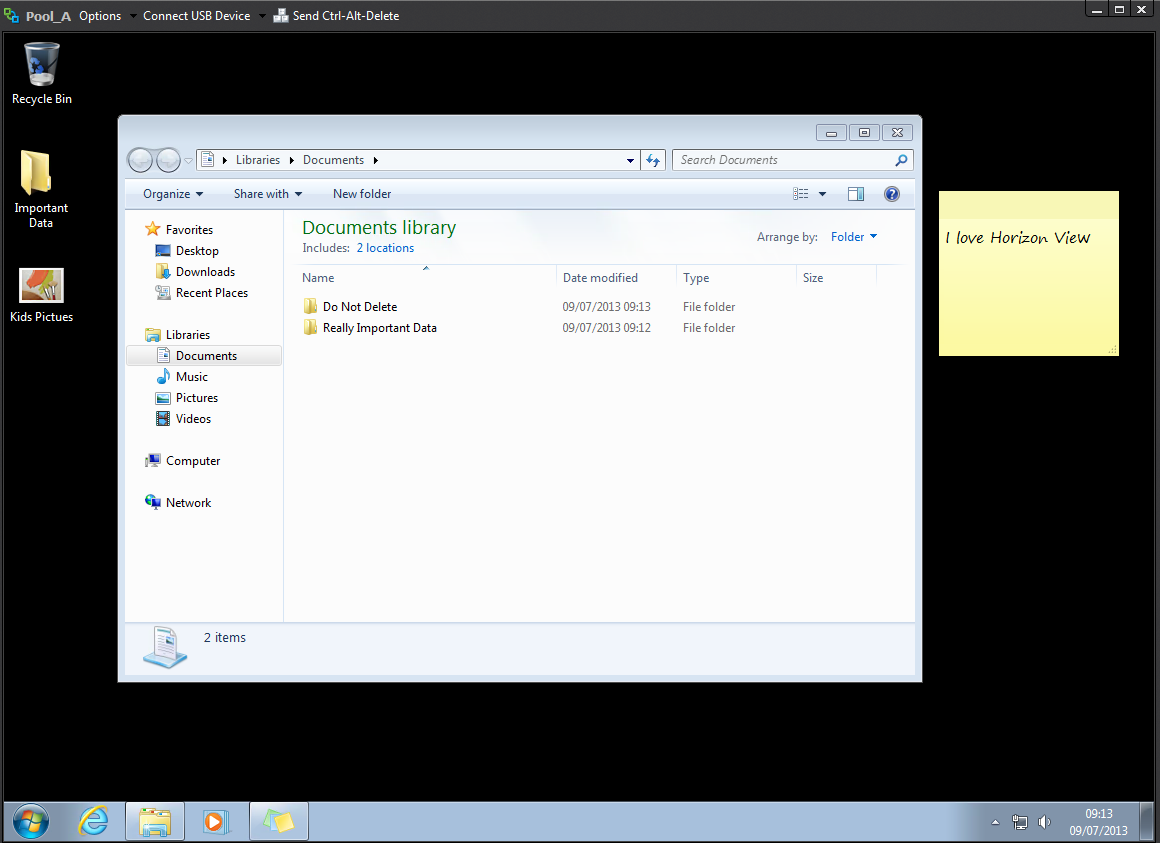
Pool A and Pool B have the same AD Security Group allowed to access both desktops which is Sales.  The user Sales01 has been accessing desktop VMF-PA01 and has various desktop icons and data in his My Documents.

Pool A

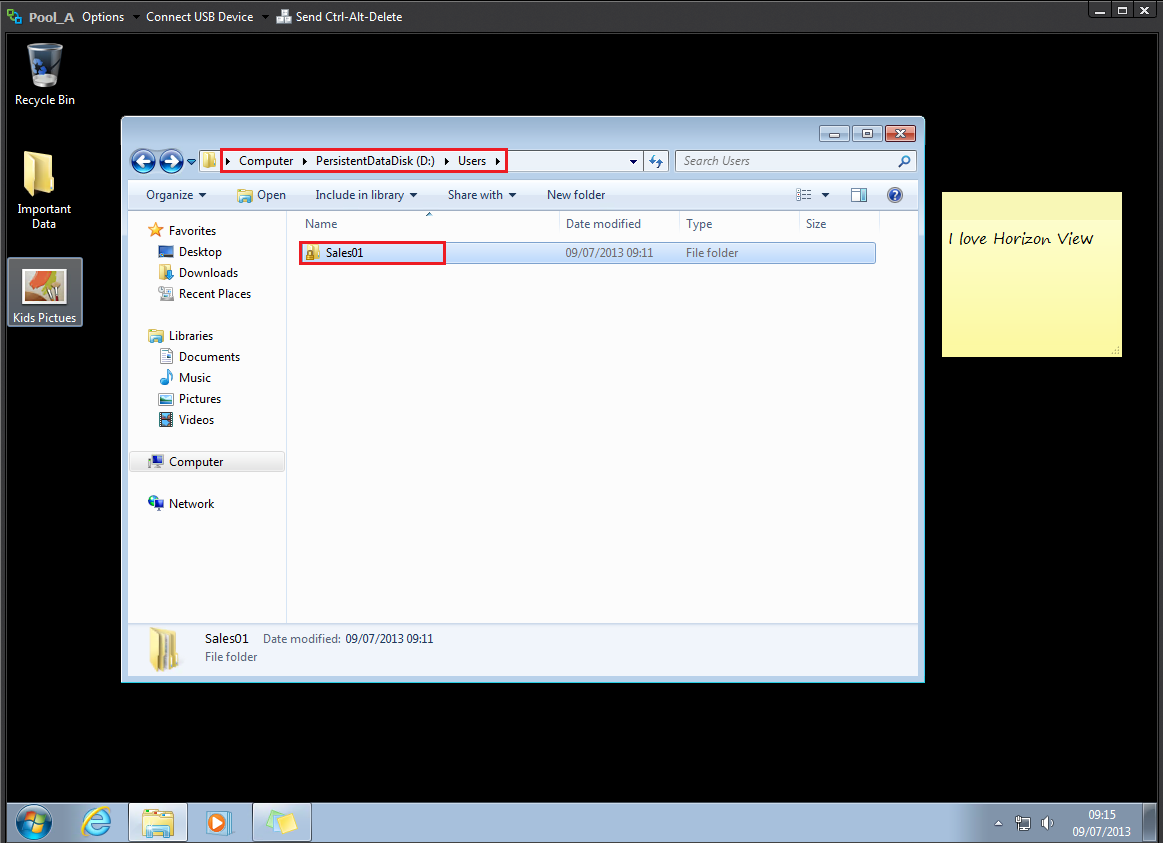
A quick check to make sure everything is tickety boo, let’s examine the Persistent Disk which is Drive D and we should see a Sales01 under the Users Folder

Pool A 1

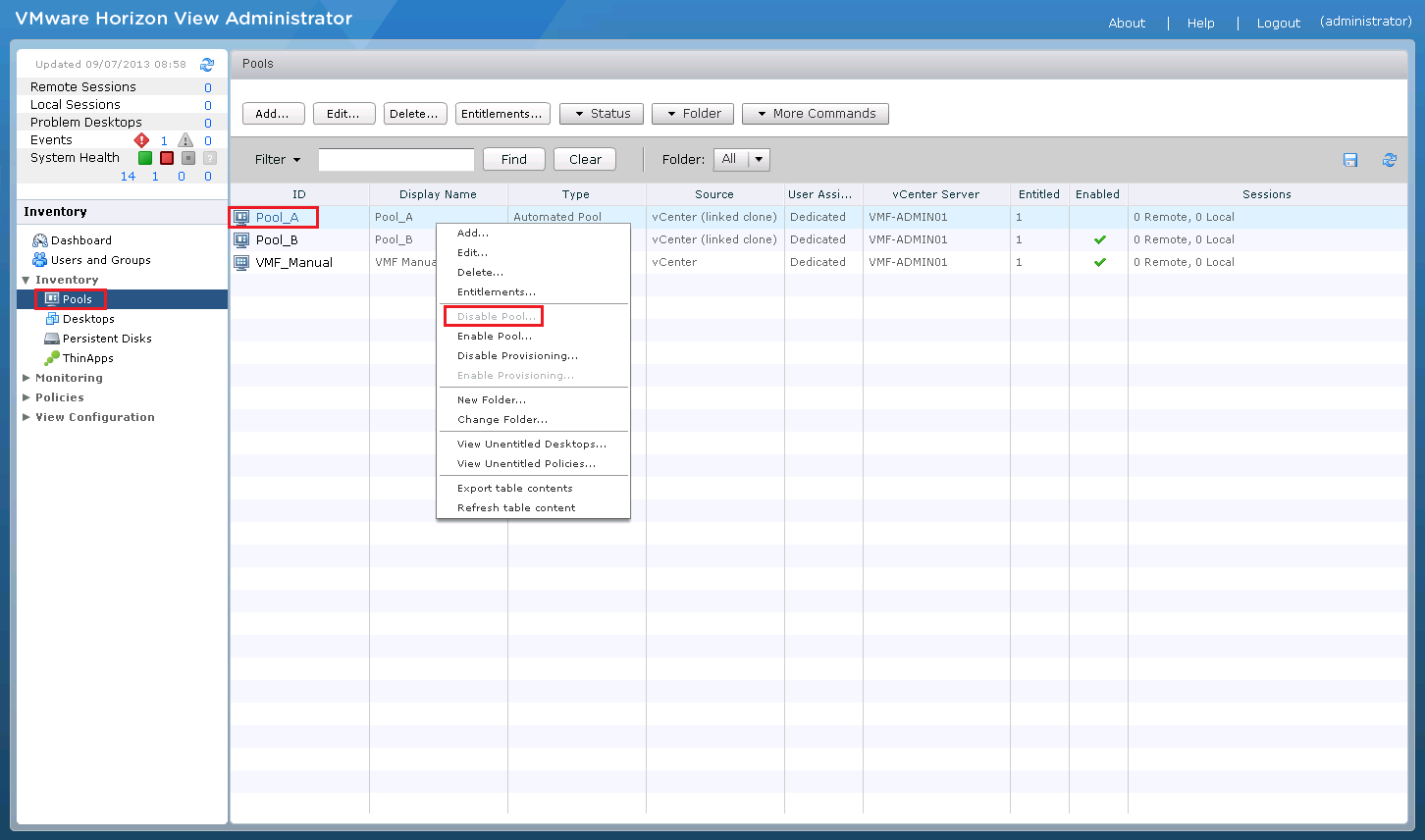
Next, I’m going to disable Pool A as I don’t want any access or data changing.

Disable Desktop

Step 1

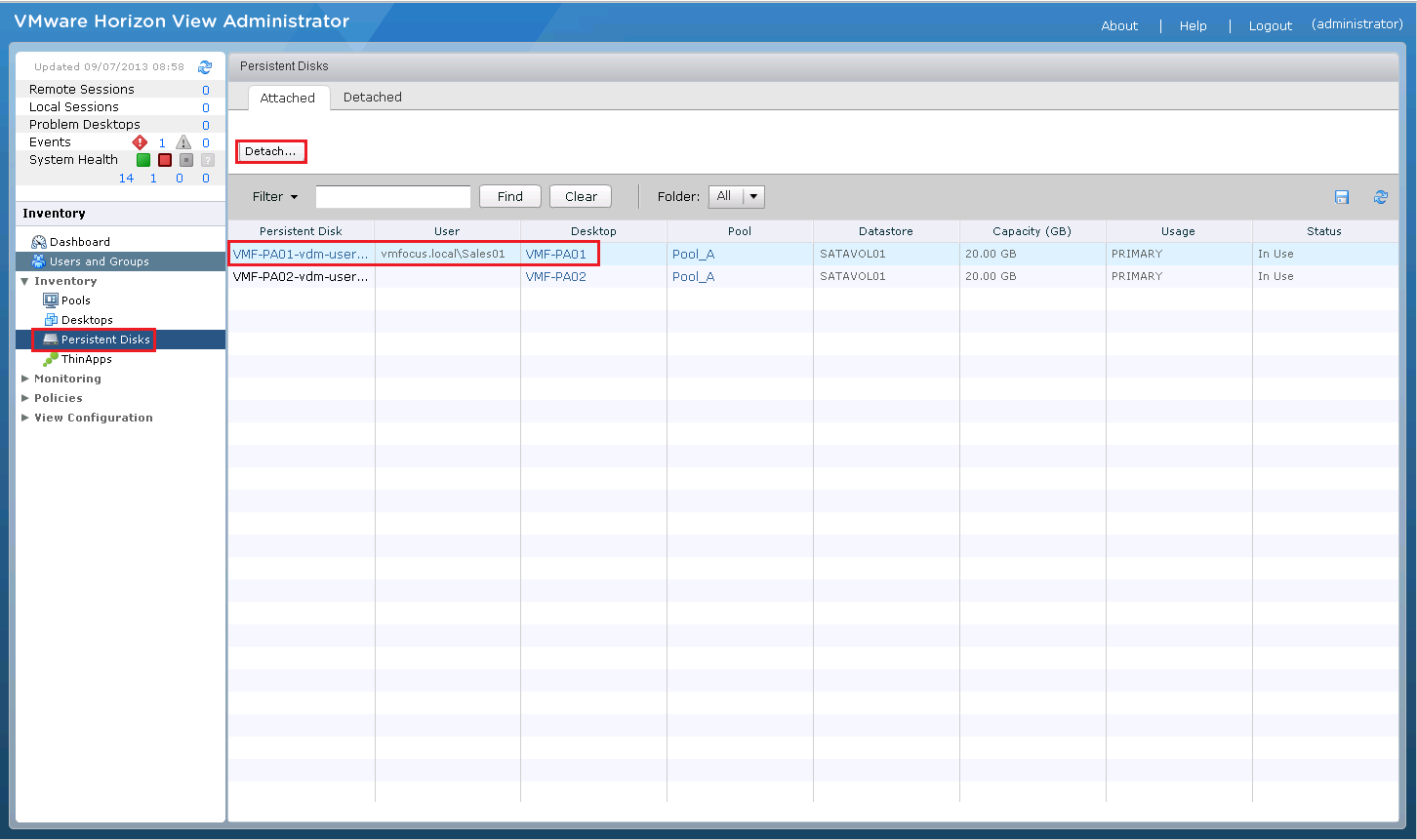
The first step is to Detach the Persistent Disk from the desktop VMF-PA01.  This can be found under Persistent Disk > VMF-PA01 and then select Detach

Persistent Disk 01

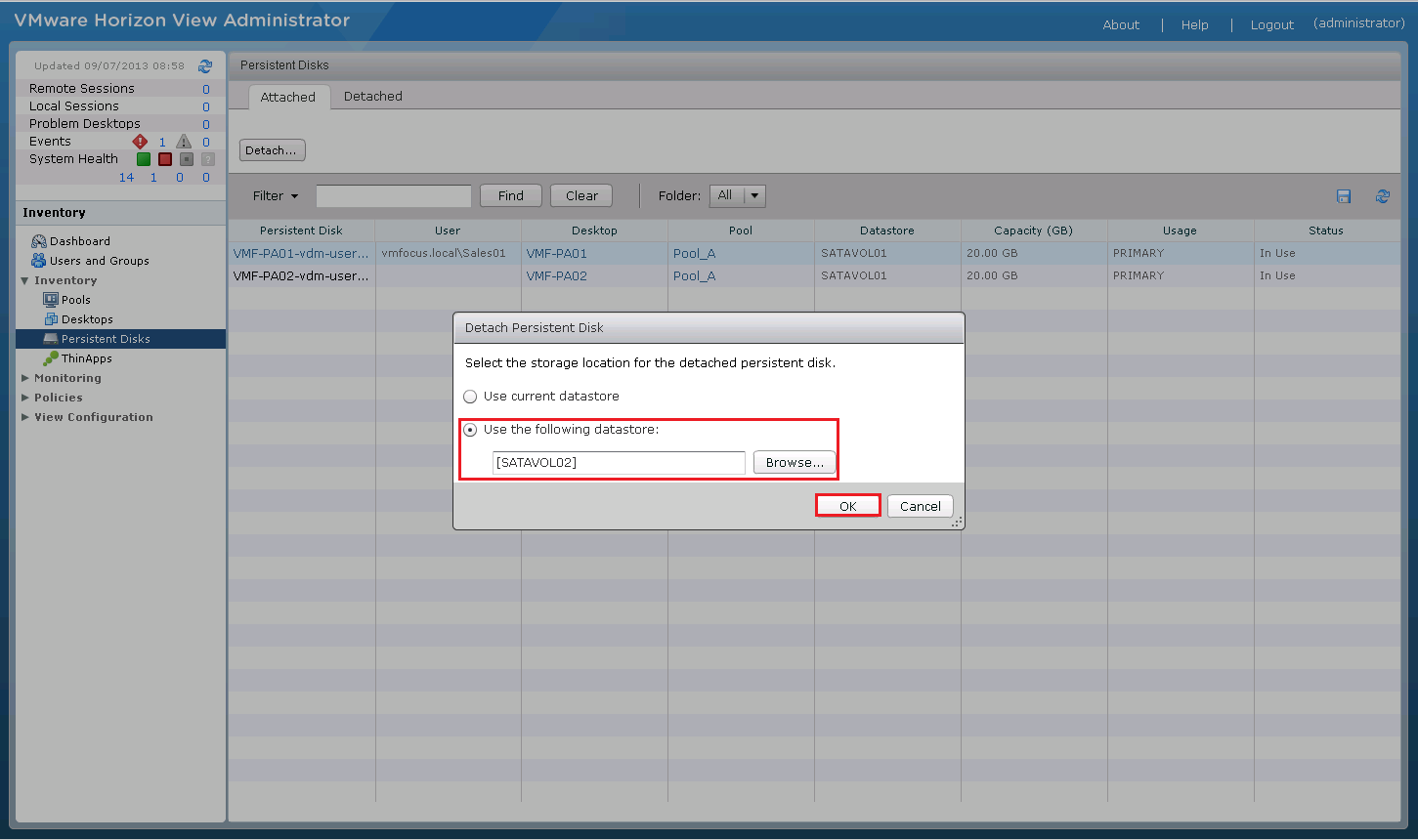
Choose where you want to store the Persistent Disk, I’m rolling with a different Datastore as Pool B resides in SATAVOL02

Persistent Disk 02

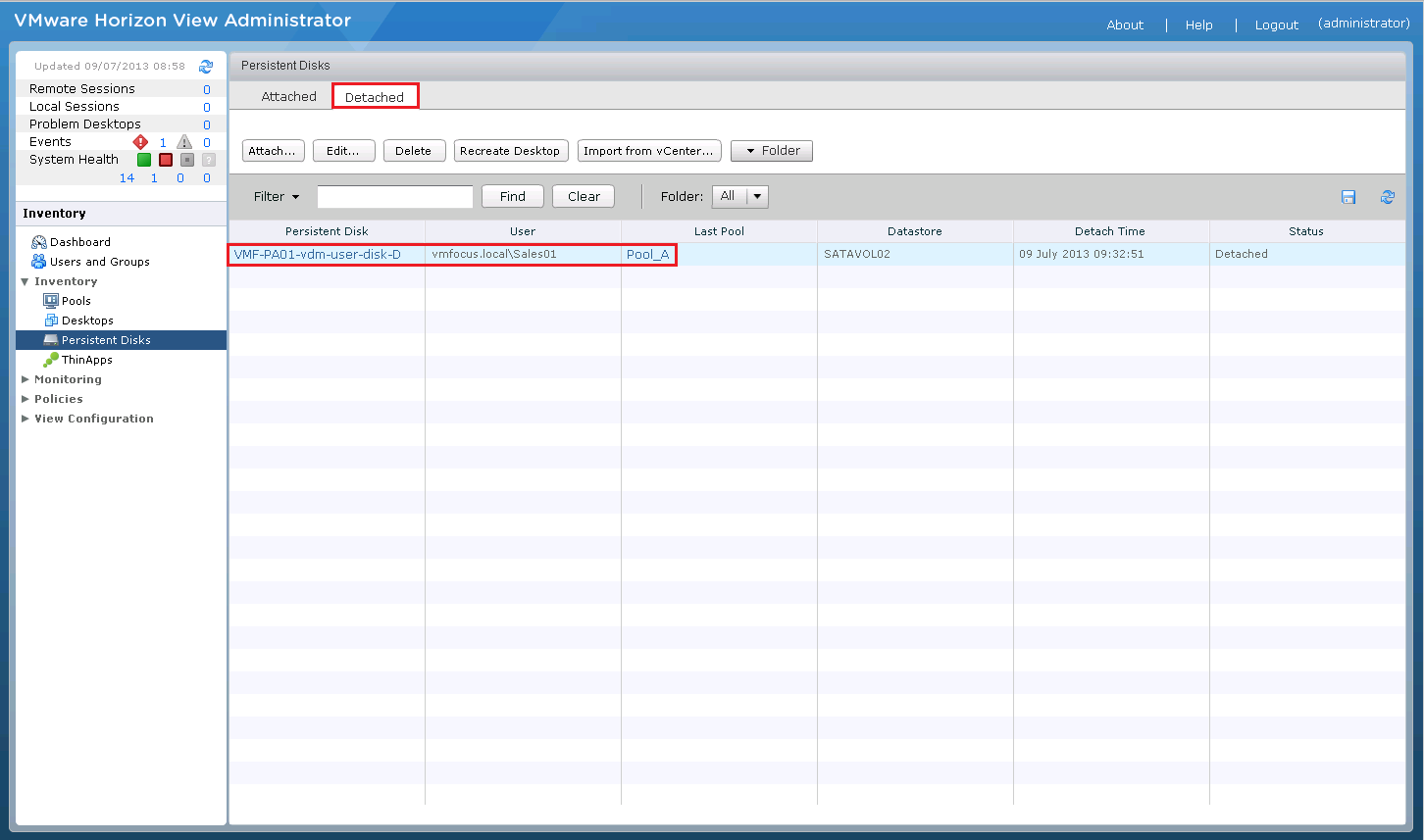
After a few minutes you should see the Persistent Disk under the Detached Tab

Persistent Disk 03

Note that the Persistent Disk Last Pool is A

Step 2

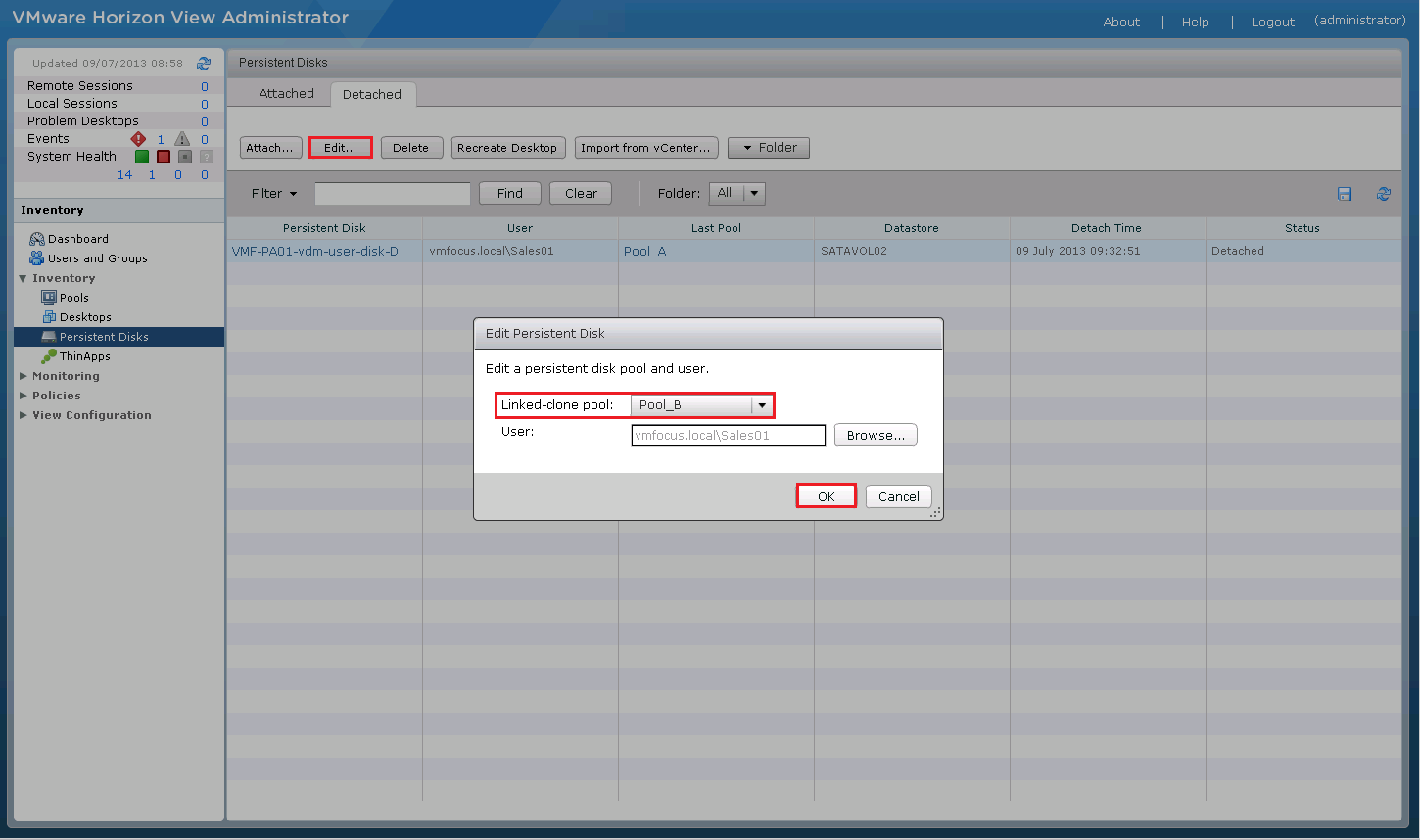
Edit the Detached Disk and change the Pool to B (our target)

Persistent Disk 04

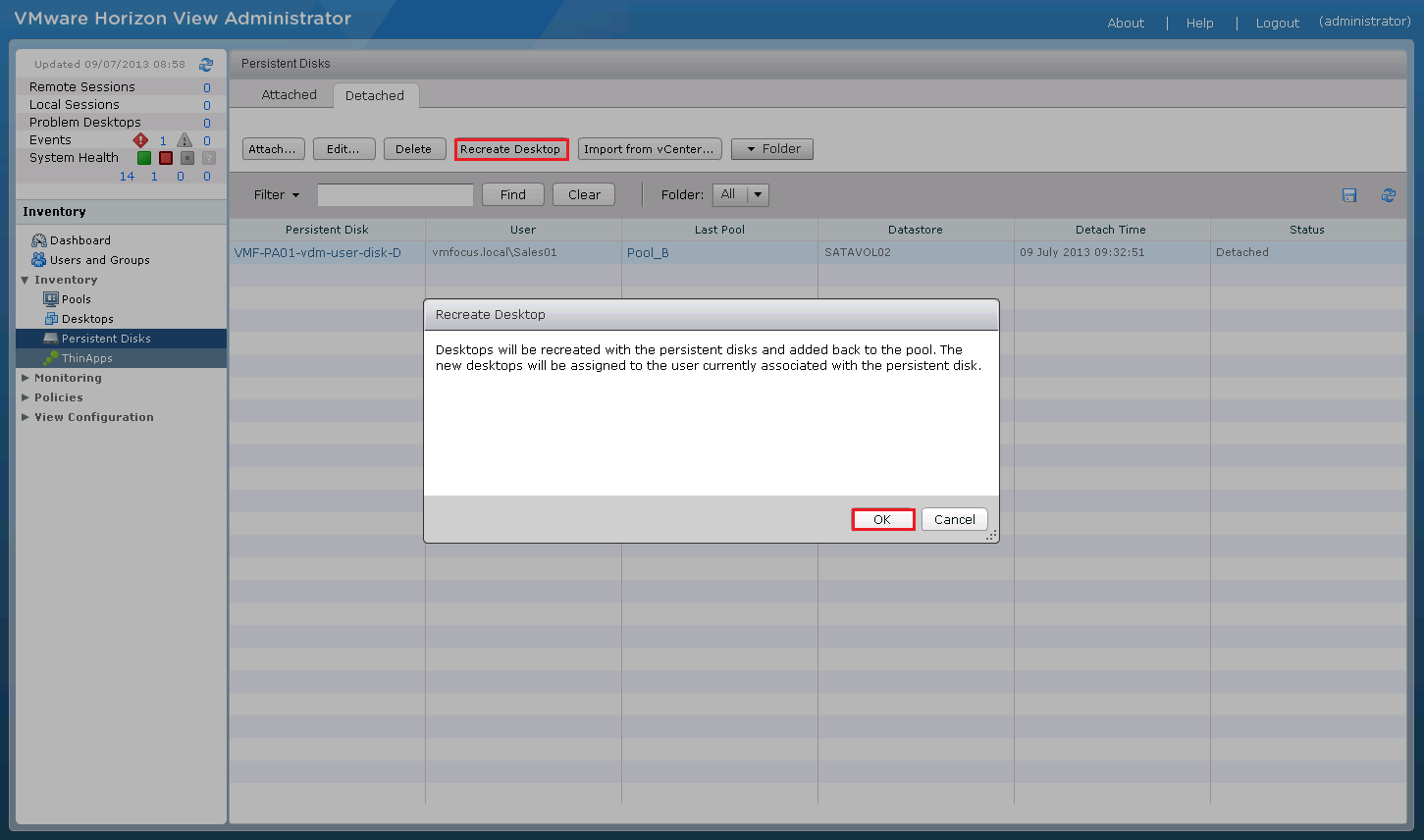
Next we need to Recreate Desktop

Persistent Disk 05

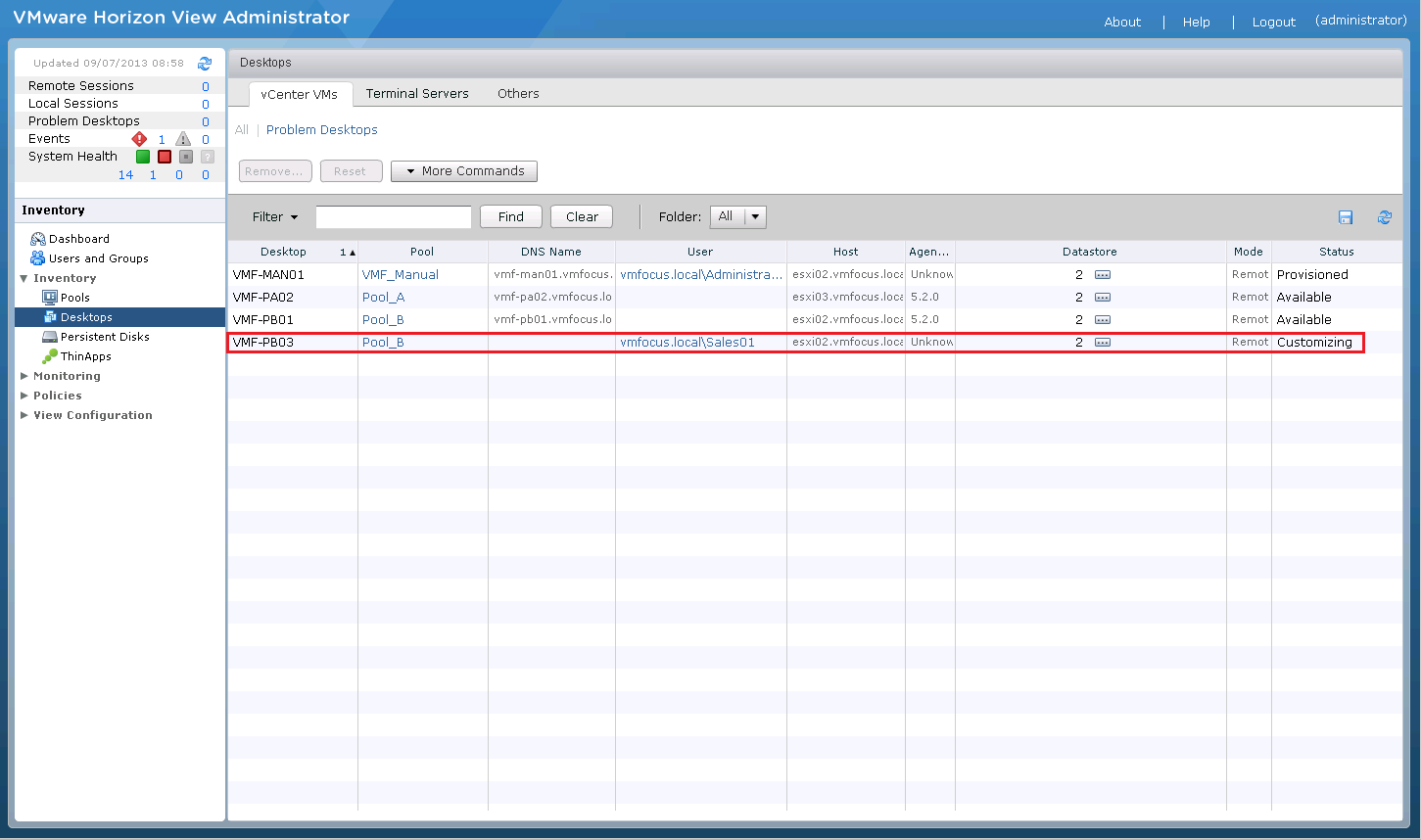
If all is working as expected you should see a new Desktop being provisioned in Pool B with the user Sales01 attached to it

Persistent Disk 06

The Result

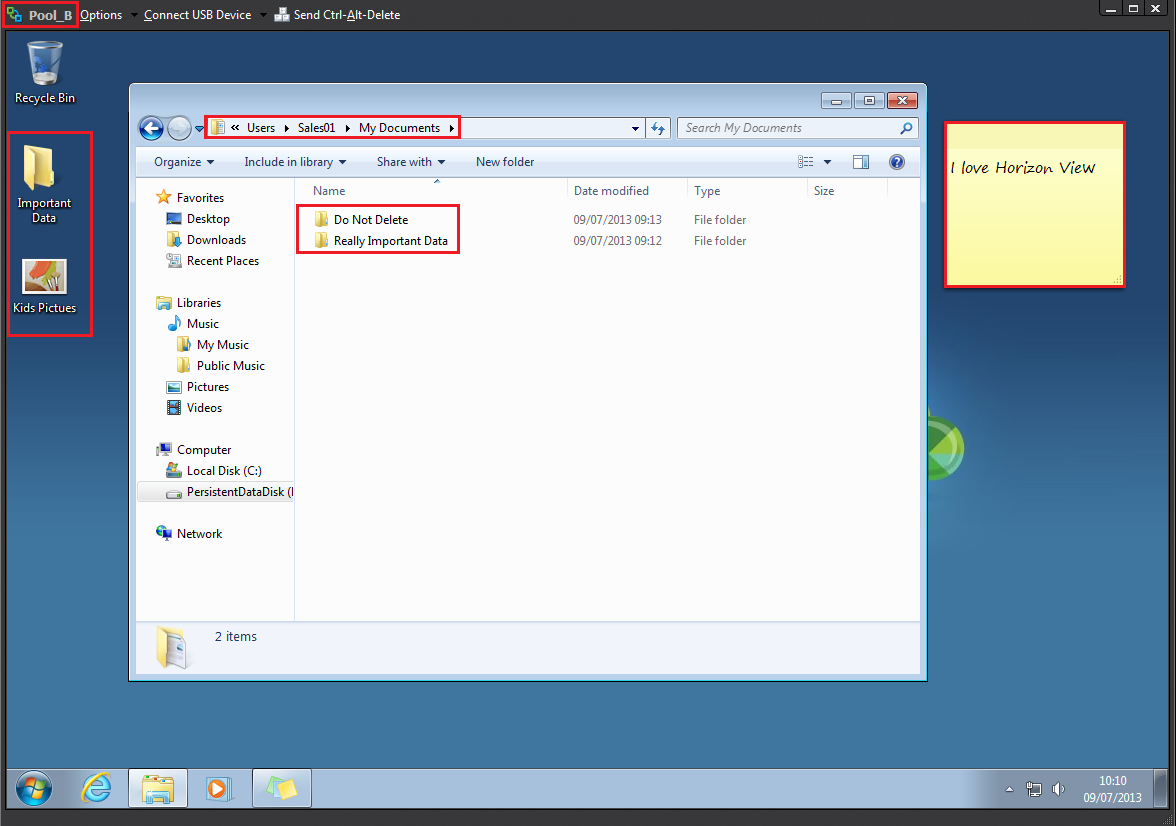
Once your desktop in Pool B has been composed, log back in as the user, in my case Sales01 check out your desktop which has all the relevant settings.

Pool B

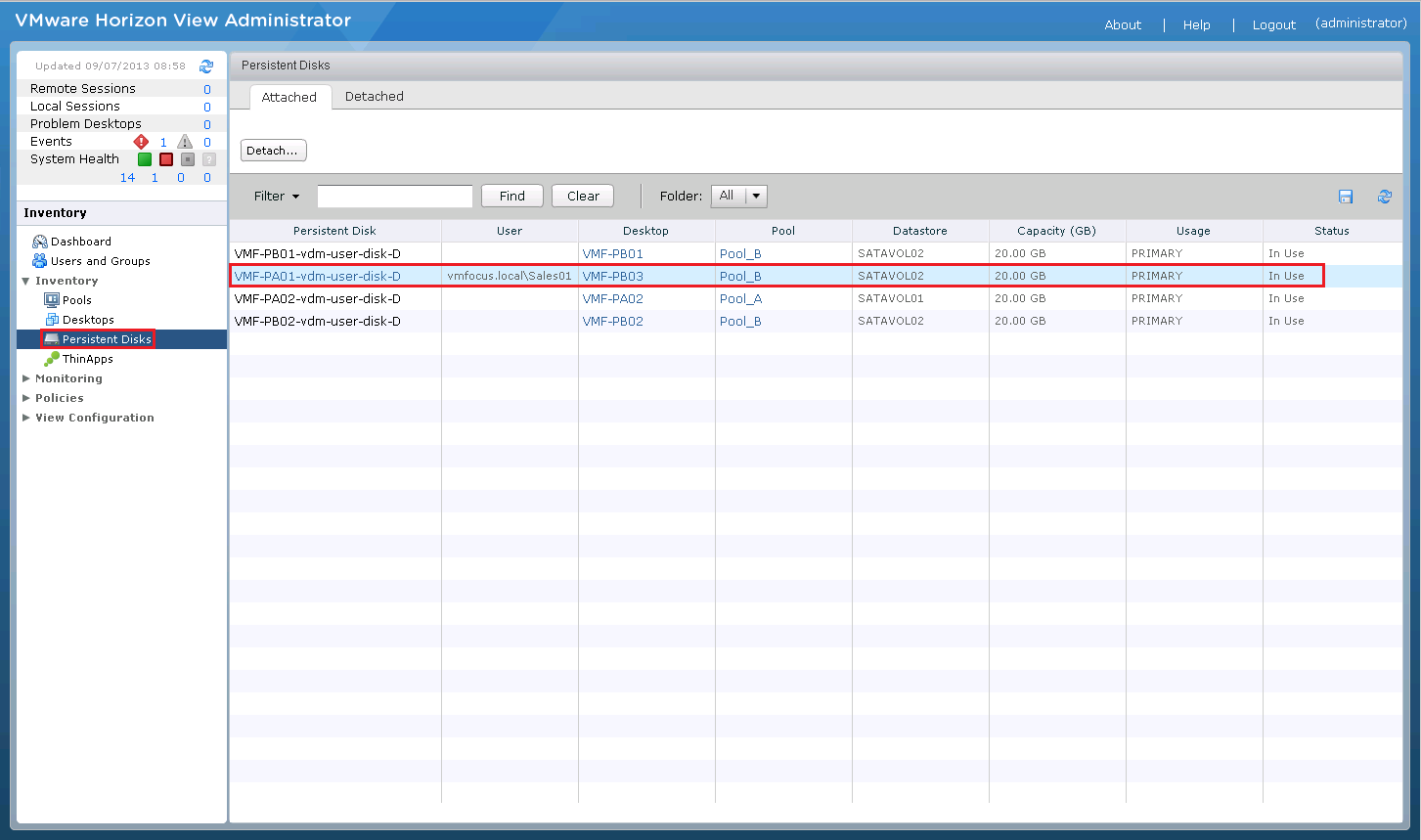
If we check the Persistent Disks you will see that VMF-PA01-vdm-user-disk-D is now associated with Pool_B and Desktop VMF-PB03.

Persistent Disk 07