Upgrading To Horizon View 5.2 – Connection Server

In the last blog post we upgraded our Composer Server which was straight forward (great job VMware).  Next we need to upgrade the Connection Server.

The upgrade process is in two parts, first of all we need to upgrade the Connection Server and then install HTML Access.

Connection Server

The first thing we are going to need is the right installer.  These can be found from here and at the time of writing the latest release is VMware-viewconnectionserver-x86_64-5.2.0-987719.exe

Launch the installer

Connection Server Upgrade 1

Click Next

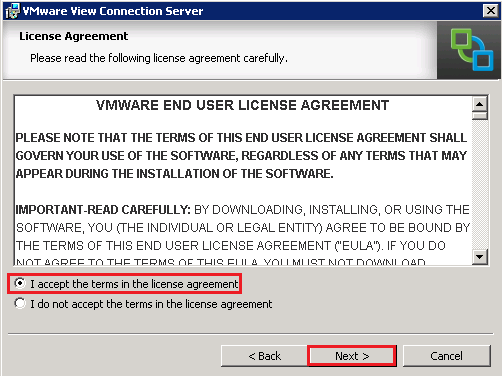
Connection Server Upgrade 2

Accept the EULA

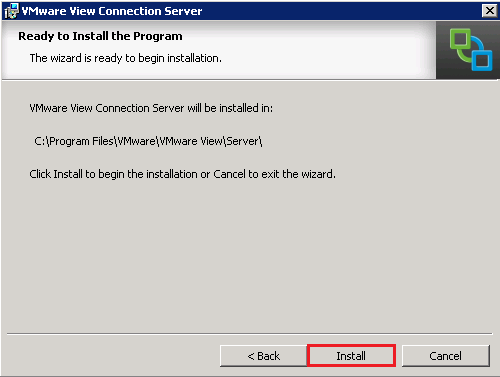
Connection Server Upgrade 3

We are now ready to install.  Hit the button!

Connection Server Upgrade 4

This is going to take a little while, so I suggest you make a quick brew.

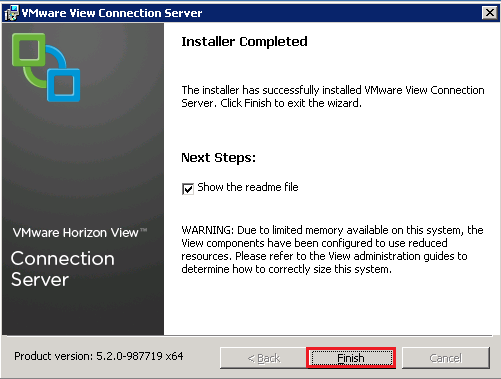
Connection Server Upgrade 5

All done, now you don’t have to reboot, I just prefer to do this to make sure everything is correct.

Just to verify, let’s check Programs & Features to make sure View Connection Server is on the right release.

Connection Server Upgrade 6

Horizon View 5.2 HTML Access

Right then, let’s crack on with the Horizon View HTML Access.  This can be found from here and at the time of writing the latest release is VMware-Horizon-View-HTML-Access_x64-1.0.0-1049726.exe

Launch the installer

Connection Server Upgrade 7

Click Next

Connection Server Upgrade 8

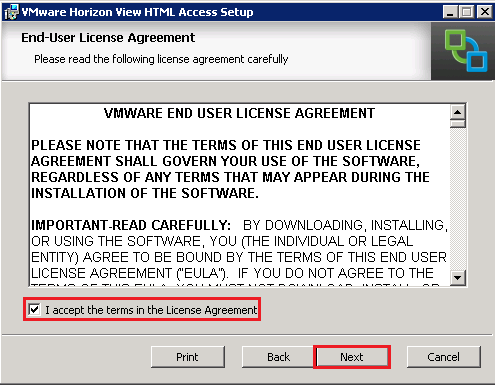
As always, we need to Accept the EULA

Connection Server Upgrade 9

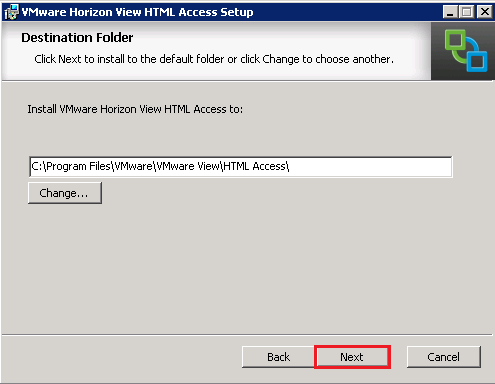
Choose your installation folder, as always stick to the defaults unless you have a good reason not too.

Connection Server Upgrade 10

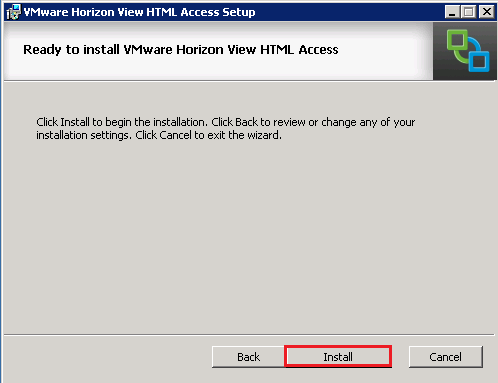
Voila, let’s click the Install button

Connection Server Upgrade 11

The install is really quick, hopefully you should see Finish.

Connection Server Upgrade 12

All done, now you don’t have to reboot, I just prefer to do this to make sure everything is correct.

Just to verify, let’s check Programs & Features to make View Horizon HTML Access is installed.

Connection Server Upgrade 13

Upgrading To Horizon View 5.2 – Composer Server

Horizon View 5.2, brings with it a host of new features.  The one which I’m most excited about is being able to access your desktop from any HTML5 browser without the need for the View Client.  A list of enhancements is shown below (source VMware View 5.2 release notes)

What’s New with End User Experience

  • Support for Windows 8 based desktops1
  • Hardware Accelerated 3D Graphics1
  • Improved video and VOIP communications with Microsoft Lync 2013 support4
  • Streamlined access to View Desktops from Horizon2
  • Easily connect to desktops from any device with HTML Access3
  • Enhanced productivity from mobile devices with new ‘Unity Touch’ functionality3 and 4

What’s New with Ease of Management

  • Large pool creation with elimination of 8 host limits, and multiple vLAN support
  • View Administrator performance improvements with large numbers of desktops
  • Accelerated provisioning and recompose operations.
  • Tech Preview of a new Integrated Service Console in the vSphere Web Client1
  • Support for vCenter Server Virtual Appliance based deployments

What’s New with Total Cost of Ownership

  • Substantial storage capacity savings for persistent desktops with space-efficient (SE sparse) disk technology1

1 Requires use of vSphere 5.1 and subsequent patches
2 Requires use of VMware Horizon Suite
3 Requires use of additional VMware Horizon View 5.2 Feature Pack
4 Requires use of latest VMware Horizon View Clients

Upgrade Process

Before we embark on this upgrade process, the number one rule is to get a good backup.  Once you have this, then the number two rule is to follow the official documentation which can be found here.

The order in which I’m going to tackle the upgrade is as follows:

  1. View Composer
  2. View Connection Server including Horizon View Feature Pack 1
  3. View Security Server
  4. View Transfer Server
  5. View Agent
  6. View Client

View Composer

In my home lab, View Composer is sitting on my vCenter Server, so the first thing we are going to do is download the correct installer.  These can be found from here and at the time of writing the latest release is VMware-viewcomposer-5.2.0-983460.exe

Launch the installer

View Composer Upgrade 1

Click Next

View Composer Upgrade 2

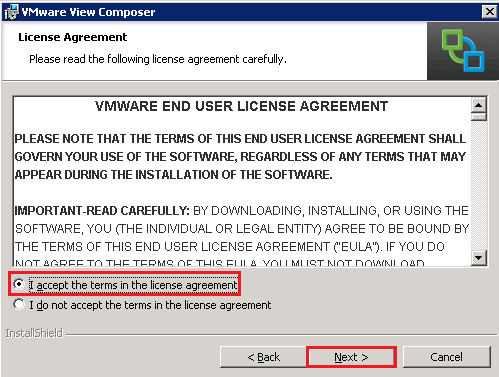
As always we need to accept the EULA

View Composer Upgrade 3

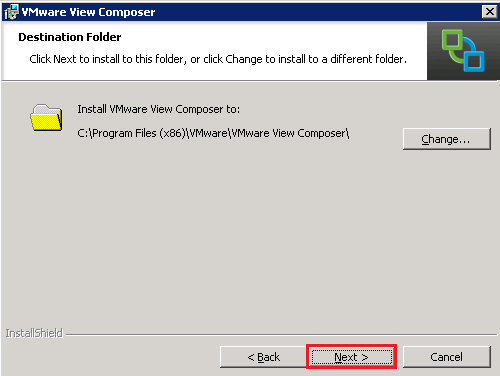
Select the install location, I advise leaving this as the default unless you have a good reason not to.

View Composer Upgrade 4

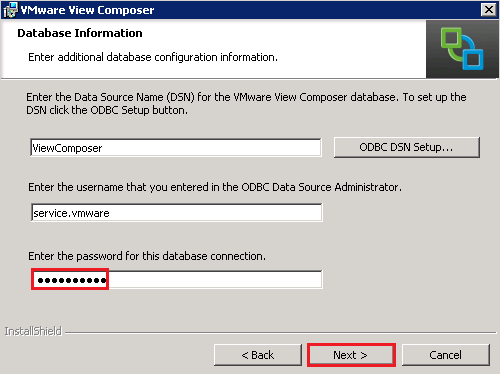
The next bit could be tricky, if you have forgotten your passwords as View needs to upgrade the database.  Enter your credentials and click Next

View Composer Upgrade 5

We are gong to create a new default SSL certificate and click Next

View Composer Upgrade 6

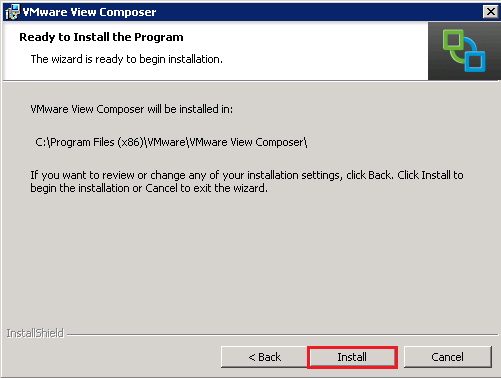
If everything is golden, you should see the Install button.  Give it a Click.

View Composer Upgrade 7

The install takes a few minutes so you might want to get yourself a cup of tea.

View Composer Upgrade 8

After hitting finish, we need to give our vCenter Server a reboot.  Click Yes and I will see you on the other side.

View Composer Upgrade 9

To make sure everything is ‘tickety boo’ if you check Programs & Features to verify your install package.

View Composer Upgrade 10

My VCP5-DT Exam Experience

Disclaimer

Before I start this entry, I would like to point out that this isn’t for anyone who wants to know the answers to the exam questions as I won’t be disclosing any information about the content except for pointing you towards the VCP5-DT exam blueprint.

Interesting Stuff

I gave myself a personal objective to learn, understand, deploy and troubleshoot a View environment on 19th December 2012, with a ‘View’ pardon the pun to pass the exam in February 2013.

View was completely new to me, as I explained in is blog post, however it was something that had been on my radar for quite a while.  When it comes to learning a new subject, I have to confess I think I have a small case of OCD.  When I get involved, I get involved with both feet much to the annoyance of my ever understanding wife.  This means I spend at least two hours every day reading, labbing, listening or blogging about View until I’m ready for the exam.

Everyone learns a subject differently, however I’m getting to an age now where I have a tried and tested formula which works for me:

  1. Read it (someone else’s material)
  2. Lab it (implement it)
  3. Blog it (write about it to reinforce learning)
  4. Watch it (computer based training)
  5. Build it (build it again but better than the first time round)

I think it’s a good idea I expand on this a little, with the resources that I used to take my View understanding from very little, to a little bit more.

Resources

I cannot speak more highly of this book, it takes you from zero to hero and explains how all the View ‘cogs’ fit together.

This is a great View basics course, so you can see how the components fit together.  I also listed to this whist driving to client meetings to reinforce any items I had been labbing or didn’t really get from Barry’s and Mike’s book.  The only downside I would say to this is that one of the presenters had either been working too hard or not sleeping enough, as they appeared to yawn quite a lot.

Great blog by Christoph Harding which I found that when I ‘googled’ View questions was a leading resource to either provide answers or point you in the right direction.  I would highly recommend following thatsmyview.net RSS Feed or on Twitter @cdommermuth

This is the numero uno site for anything View related (in my opinion) and goes into great technical detail.  Again if you are interested in View, follow myvirtualcloud.net RSS Feed or on Twitter @andreleibovic

Lab

Your lab is key for the VCP5-DT exam, you need to build it, break it, fix it and build it again.

The hardware in lab my can be found over here.  A picture of my vCenter probably will speak a thousand words, it’s pretty straight forward really.

Infrastructure holds vCenter, DC and Veeam

View Infrastructure holds Connection Server, Security Server, Transfer Server and ThinApp Windows 7.

View LC Desktops are for Linked Clones Desktops

View LM Desktops are for Local Mode Desktops

Oh, before anyone asks, I have shares set on my Resource Groups.

View Lab

You will find yourself spending a lot of time in Active Directory if you really want to test out GPO’s and get the configuration just right.  Below is my OU configuration, pretty straight forward but it met all the requirements I had.

AD

You might say I went to town, as I ended up with 28 GPO’s!

GPO

One of the items I found particularly difficult to test was the Security Server as I don’t have a static IP Address.  I ended up registering for the no-ip.org service.  Which if you have a compatible router will update your DNS record automatically to your public IP Address.  This then enabled me to VPN into my router and then alter the External IP Address in View Administrator.

Perhaps not the most elegant of solutions, but it worked!

VCP5-DT Exam

Once I have completed all of the study materials and feel that I know each exam objective, it’s time for the exam.  I’m a morning person and therefore always book my exams first thing.  For some reason my local exam centre stopped offering the VCP5-DT and I had to make a 40 mile trip, which isn’t always the most pleasant, but it does take your mind of the exam trying to work out where to park.

I always approach exams the same way, I get to the examination centre round 30 minutes early, so you can go over the sign in process and hand over your valuables.  I then make three signs on the plastic sheet you are given

Tick – these are for questions I know I have definitely know the answers too.

Question Mark – these are questions I’m 80% plus sure on

Cross – these are questions I’m making an educated guess or generally haven’t got a clue on!

I try to aim for 30 seconds per question to give myself enough time to review questions at the end.  If I find I have spent over a minute on a question, I will mark it for review and then come back to it.  At the end of the exam, I only review questions I have marked for review not all of them.

The exam consisted of 85 questions over 90 minutes, which is a fairly tough time frame, but I’m pleased to say that I passed with a respectable 454/500.

VMware View – Objective 3.4 Configure Local Mode Use

Knowledge

  • Given a customer environment and requirements, apply compatible Local Mode pool settings

Bit of a broad title, but we can run down some of the Local Mode settings to ensure they meet what Mr Customer wants!

Local Mode

Local Mode Virtual Desktop

Bit of an obvious one, but you are going to need to configure either an Automated Full Clone, Linked Clone or Manual Clone.

Whatever your choice, make sure that your that your Virtual Machine Hardware is 7.  I have heard that version 8 now works, but I haven’t tested it yet.

Transfer Server

This has to be configured with a LSI Logic Parallel SCSI Controller, otherwise Local Mode no worky!

View Administrator

Numero uno has to be to enable Local Mode, which is under Policies > Global Policies

Local Mode 2

We have a few other choices in here, they are:

User Initiated Rollback Can the user go back to the View Desktop version and discard any offline changes?

Max Time Without Server Contact How long is the desktop allowed to be offline? If it goes over this period you will get a warning stating you need to be like ET and call home.

Target Replication Frequency How often does the View Agent try and connect back to home

User Deferred Replication Can the user choose to put off replication?

Disks Replicated OS, Persistent or both?

User Initiated  Yay or nah

User Initiated Replication Yay or nah

All of these settings can be applied at Pool level as well for extra diversification.

Interestingly enough, you can actually state on a Pool settings that the desktop can only be used offline. By choosing the following settings:

Local Mode 3

Group Policy

We have a number of Group Policy settings which can be found in the View Client ADM under either

Computer Configuration > Administrative Templates > Classic Administrative Templates > VMware View Client Configuration

User Configuration > Administrative Templates > Classic Administrative Templates > VMware View Client Configuration

Default Exit Behavior For Local Mode Desktops Do we want them to Suspend or Shutdown

Delay The Start of Replications When Starting The View Client With Local Mode How much time in seconds after you login to View Client Local Mode before it tries to replicate

Redirect SmartCard Readers in Local Mode Can we use a Smart Card Reader in Local Mode

Client Device

Hopefully it should go without saying that if you want to bring a View Desktop ‘offline’ then your physical hardware needs to have more RAM than the View Desktop.  Also you need to make sure you have enough free disk space to hold the Local Mode desktop.

Last thing to note that Local Mode doesn’t work with dual monitors in the traditional sense.  Instead it stretched your desktop across two screens.

VMware View – Objective 3.3 Configure Manual Pools

Knowledge

  • Identify pool settings
  • Identify desktop sources

In blog post VMware View – Objective 3.1 Configure Automated Pools Using Linked Clones, we covered identify pool settings.  So in this blog post, we will look explicitly at ‘identify desktop sources’.

Back into View Administrator > Inventory > Pools > Add

View Manual Pool 1

Select Manual Pool

Manual Pool 1

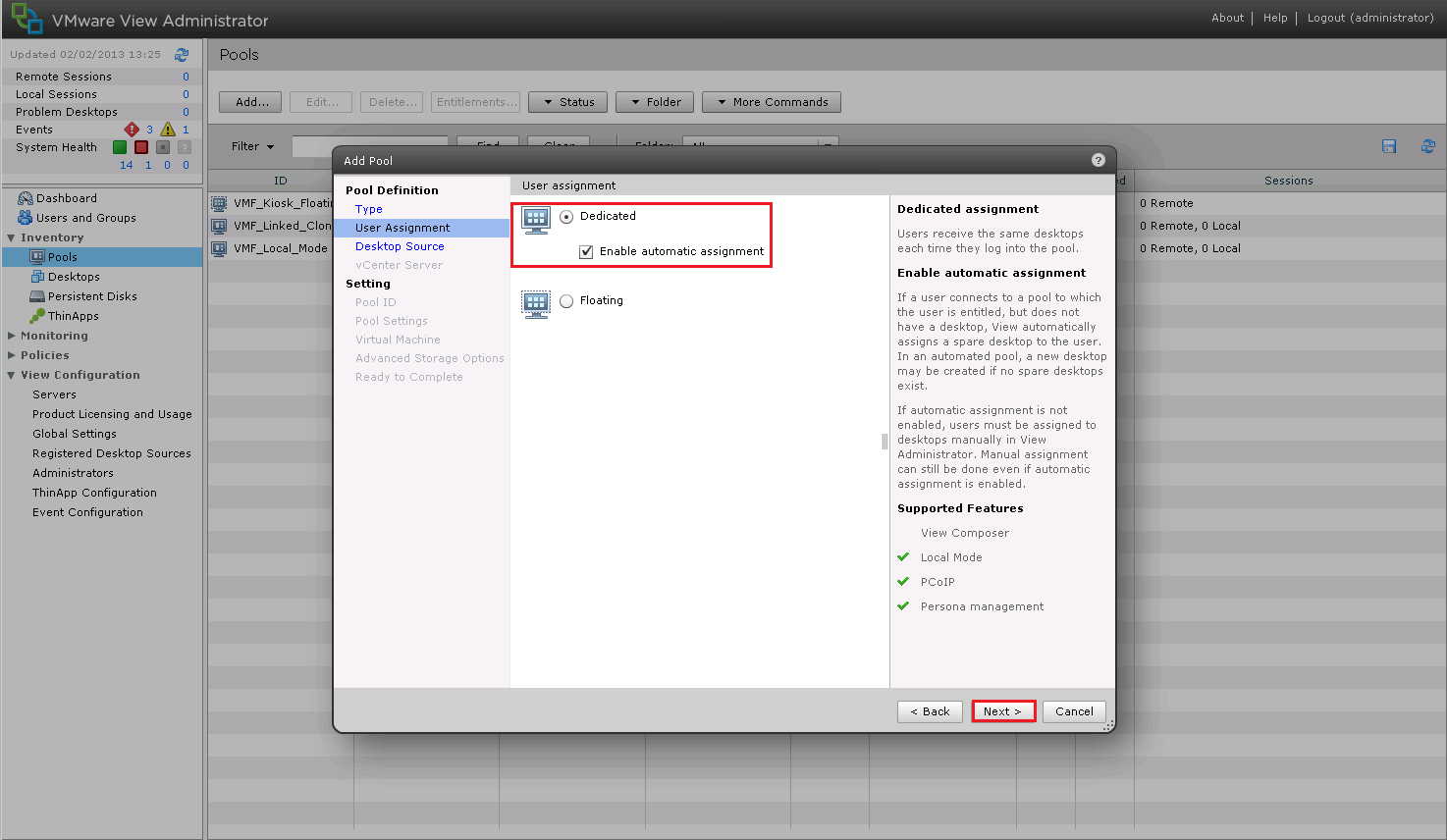
Select Dedicated as the User Assignment

Manual Pool 2

Ah ha, something different, we know how a choice of vCenter Virtual Machines, which is any VM you have created or it can be a Phsyical Computer you want to access remotely and let View Broker the connection to it.

I’m going to roll with vCenter Virtual Machines

Manual Pool 3

From this point forward, all the rest of the choices are exactly the same as with a Linked Clone or Full Automated Pool.  So thanks for reading!