The purpose behind this blog post is to provide guidance on HP 3PAR StoreServ 7200 VASA integration with vSphere 5.5 U2.
VASA stands for vSphere Storage API’s for Storage Awareness, essentially it passes the characteristics of the underlying LUN so that the vSphere Administrator has awareness of it’s underlying features such as RAID set, deduplication and replication.
Pre-Requisites
I’m going to assume the following:
- You have already downloaded and installed HP OneView for VMware vCenter Storage Administrator and that credentials have been configured to access your HP 3PAR StoreServ Array
- Launching the Storage Administrator Portal from vCenter works and you are automatically logged into the HP OneView for VMware vCenter Storage Administrator Portal

3PAR VASA
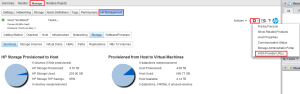
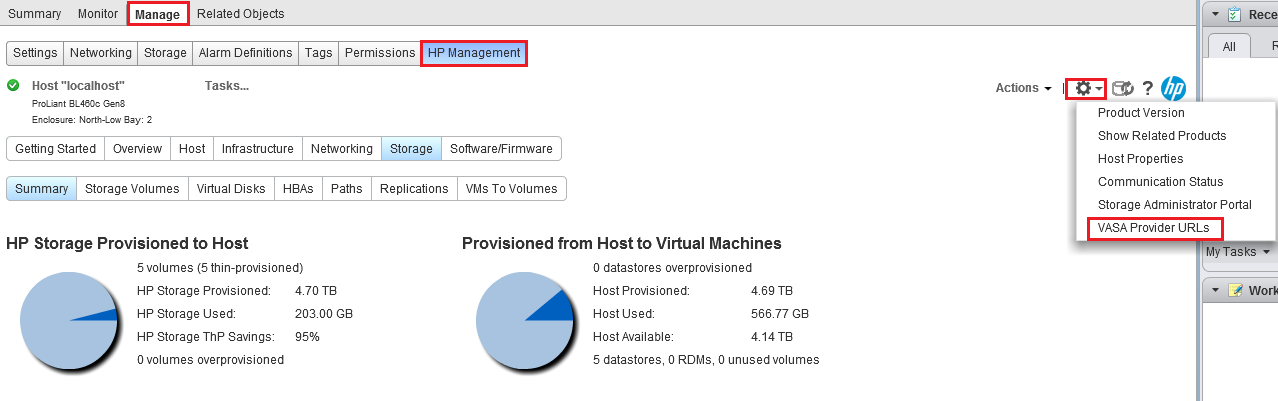
The first step is to select Hosts & Clusters View then Manage > HP Management in here you will need to select VASA Provide URLS from the ‘Cog’ in the top right hand corner
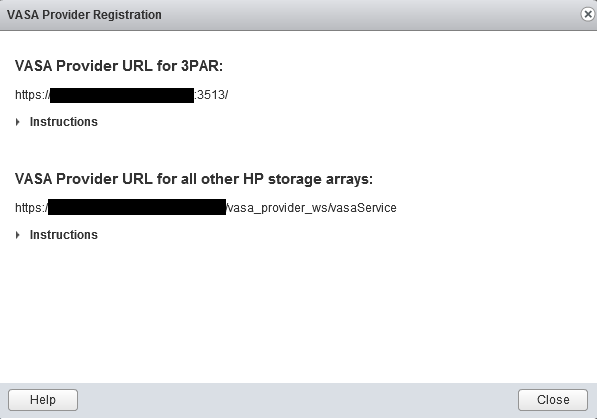
Select the VASA Provide URL for 3PAR URL and copy this link
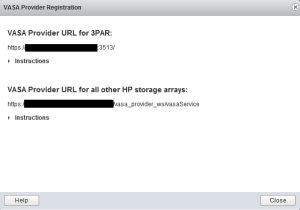
Before installing the URL, we need our HP OneView for VMware vCenter Storage Administrator virtual machine to trust vCenter. To do this we need to install the SSL certificate.
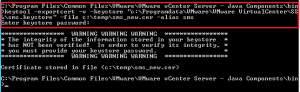
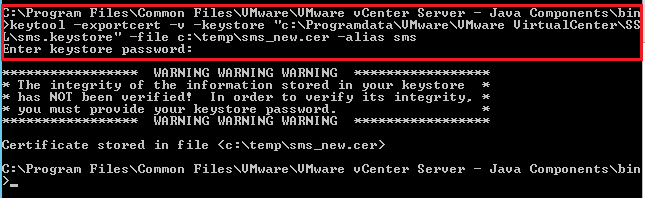
Jump onto your vCenter Server and drop into CMD and go to the following directory C:Program FilesCommon FilesVMwareVMware vCenter Server – Java Componentsbin
Then run the command ‘keytool -exportcert -v -keystore “C:ProgramDataVMwareVMware VirtualCenterSSLsms.keystore” -file C:tempsms_new.cer -alias sms
Press Enter when the password is requested
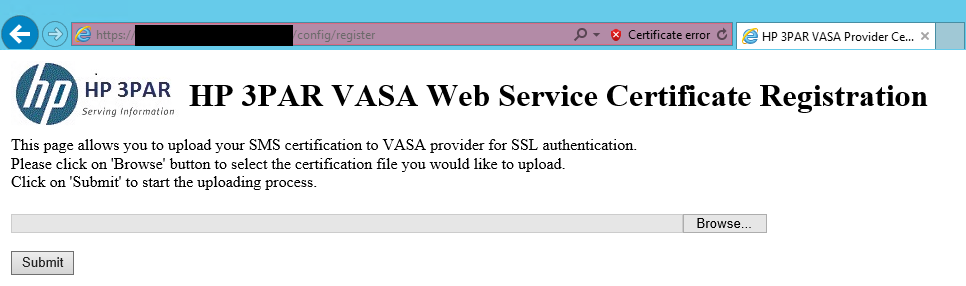
Browse to your VASA Provider URL and add ‘config/register’ to the end of the link

Then upload your certificate which was exported in the earlier step
If successful you should see the following screenshot

Finally, restart the HP 3PAR VASA Provider for VMware vSphere Web Service

vSphere Web Client VASA
Last of all we need to add our Storage Provider VASA URL to vCenter.
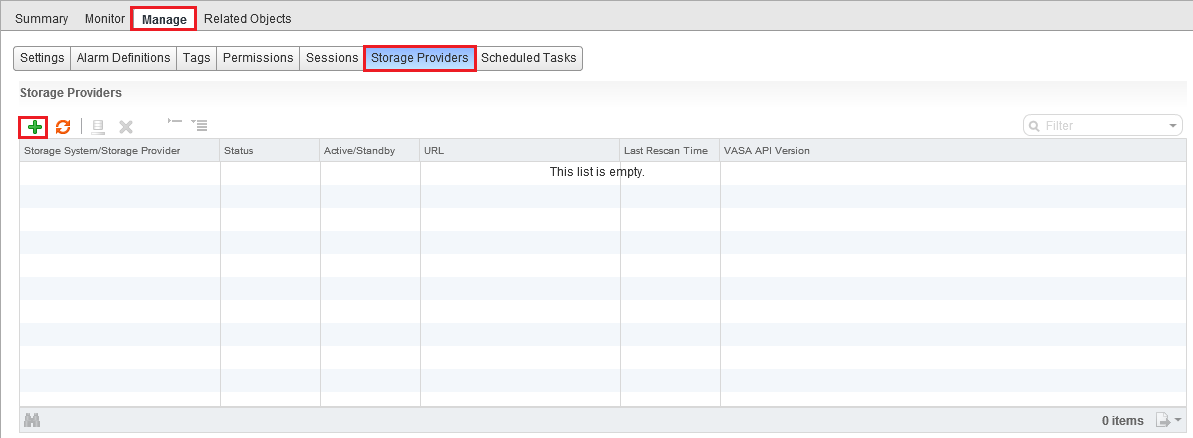
Select Storage > Manage > Storage Providers > Plus Sign

Enter the details as shown in the screenshot below (your VASA Provider URL will be different)
Note, the User name and password are the credentials used to login to your HP OneView for VMware vCenter Storage Administrator Portal
Verification Test
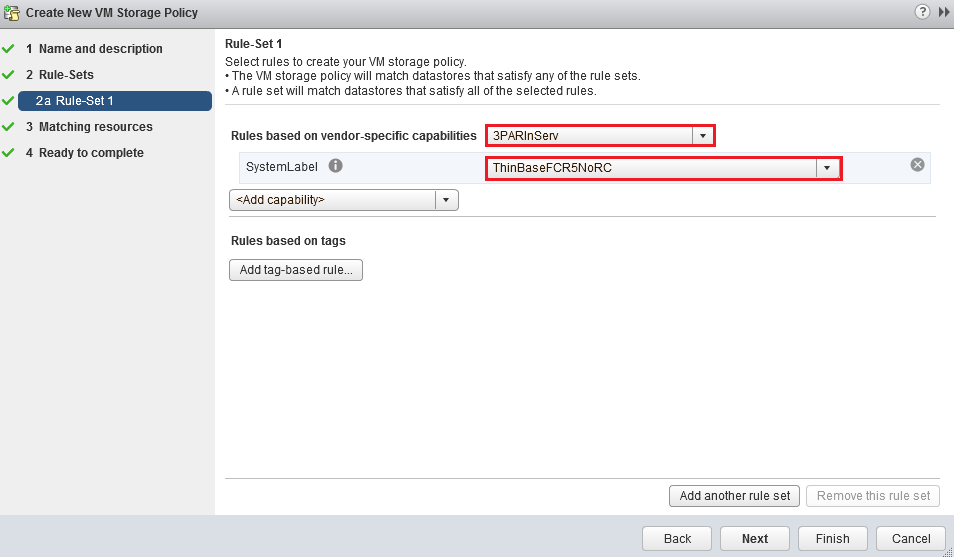
To verify that the VASA integration is working correctly, go to Home > VM Storage Policies > Create New Policy
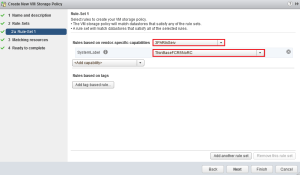
Enter any details to take you across to the Rule-Set 1 area and then you will have 3PARInServ and the capabilities listed under System Label. In this instance I have chosen ThinBaseFCR5NoRC
Verify that you have some datastores that meet the system capability of ThinBaseFCR5NoRC which means Thin Provisioned, Fibre Channel, RAID 5, No Remote Copy

If you see some datastores do then you have successfully installed VASA for HP 3PAR StoreServ on vSphere 5.5 U2
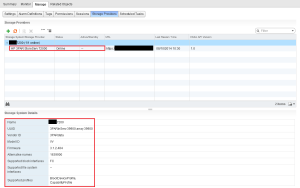
You should also see the storage provider integration information shown as per the below screenshot.







 VMFocus