PHD Virtual – Special Olympics

AD_Special-Olympics_for-blogger-sitesThought I would share this as the folks over at PHD Virtual are making donations to the Special Olympics if you download a Free Trial before 31st March 2014.

To take part, simply download any PHD or Unitrends free trial and PHD Virtual will donate $1.00 towards the Special Olympics:

  • PHD Virtual Backup and Replication for VMware, Hyper-V and Citrix
  • Unitrends Enterprise Backup for physical and virtual environments
  • PHD Virtual ReliableDR for automated failover, failback and testing
  • PHD Virtual Recovery Management Suite

*Donations will be matched to the number of trial downloads up to $5,000 total

To get involved and help but some cash towards a great sporting event follow this link

vSphere 5.1 – Unable To Deploy VM From Template

Problem Statement

After upgrading to vSphere 5.1 you experience the following error ‘the public key in specification does not match the vCenter public key.  You have to reenter the password in order to proceed’ when trying to deploy new virtual machines from templates.

Error

Issue

The administrators password used to create the virtual machine was encrypted using a different Certificate Authority to the one installed on vCenter.  This means that the password is no longer trusted.

Resolution

In vCenter go to Home > Customization Specification Manager

Customization Specification 01

Edit Specification > 5 Administrator Password > Re Enter Credentials > Save

Customization Specification 02

If your Customization Specification is domain joined you will need to enter your credentials again under 9 Workgroup or Domain

Customization Specification 03

You will now be able to deploy your VM from the template in question.

vCOPS for View Licensing

Having not deployed vCenter Operations Manager for View in the ‘wild’ I wasn’t sure of the licensing model.  After some research and help from the community I was able to answer my questions, so thought I would ‘pay it forward’ and put together a blog post.

vCOPS for View

Q. What monitoring does it include?

A.  The ability to monitor the number of Horizon View desktops that you have purchased.  Also included is monitoring of your Connection and Security Servers.

Q. Do I need to purchase vCOPS separately as a management portal?

A. No, this is included

Note The vCOPS portal is specific to View and does not give you the ability to monitor your vSphere environment except for Connection and Security Servers.

Q. I want to use my existing vCOPS to monitor View what version do I need?

A. At least Advanced edition.

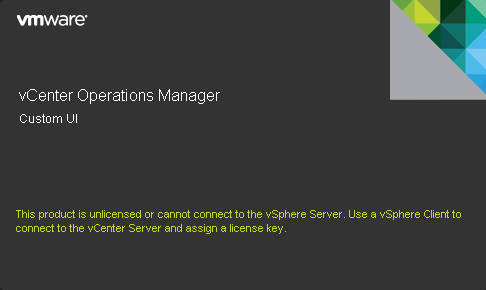
Note I changed my Standard vCOPS license to Enterprise on a free trial key and then added the View adapter.  I then reverted back to the Standard license to see what would happen,  Unfortunately, you receive the error message ‘this product is unlicensed or cannot connect to the vSphere Server.  Use a vSphere Client to connect to the vCenter Server and assign a license key’.

vCOPS Error

 Thanks to the following chaps from Twitter for their input:

  • Sunny Dua @Sunny_Dua
  • Michael Armstrong @m80arm
  • Hersey Cartwright @herseyc
  • Thomas Brown @thombrown

Load Balancing Horizon View – Failure Testing

In the last post Load Balancing Horizon View – Design we looked at the differences between DNS Round Robin, Windows Network Load Balancing and Load Balancers and the design concepts for internal and external use.

In this post we will focus on testing failure scenarios to understand the impact of various components failing within a design.

Lab Setup

The Horizon View environment is configured as follows:

  • 2 x NetScaler VPX-Express in High Availability
  • 2 x Horizon View Security Servers
  • 2 x Horizon View Connection Servers

For the NetScaler configuration I followed the excellent Load Balancing VMware View with NetScaler guide by Dale Scriven who runs the blog vhorizon.co.uk.  The only addition to this was an additional TCP Service group for 8443 (HTML5).

Service Groups

In the interests of sharing the configuration, below are extracts from each area.

Internal Logical Design

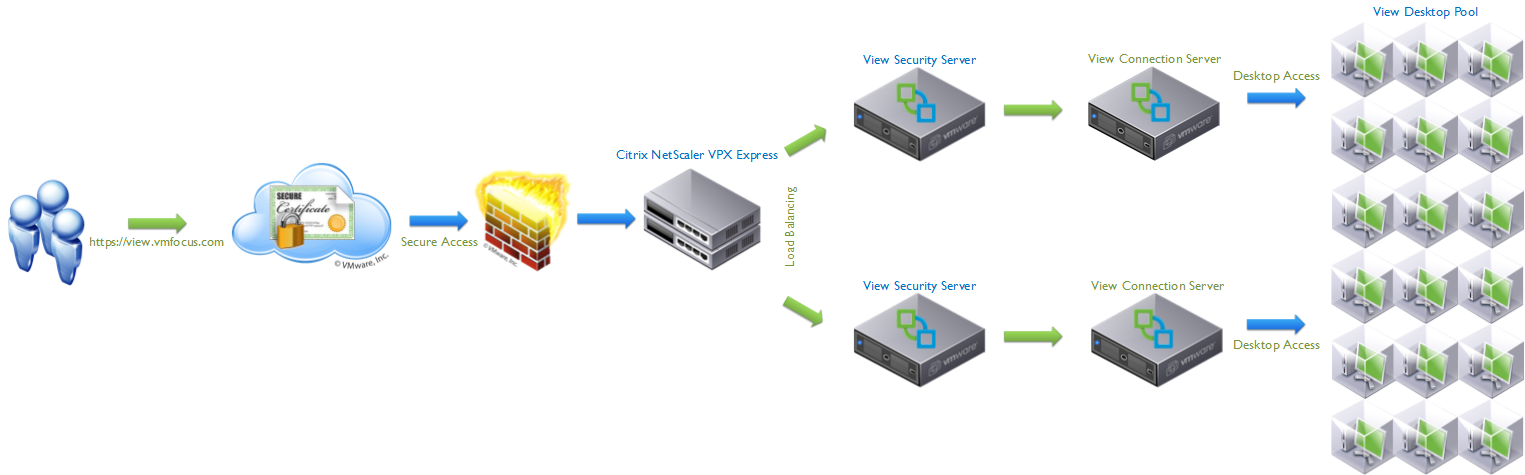
VMFocus View Internal Design HA v0.1

External Logical Design

VMFocus View Remote Access Design HA v0.1

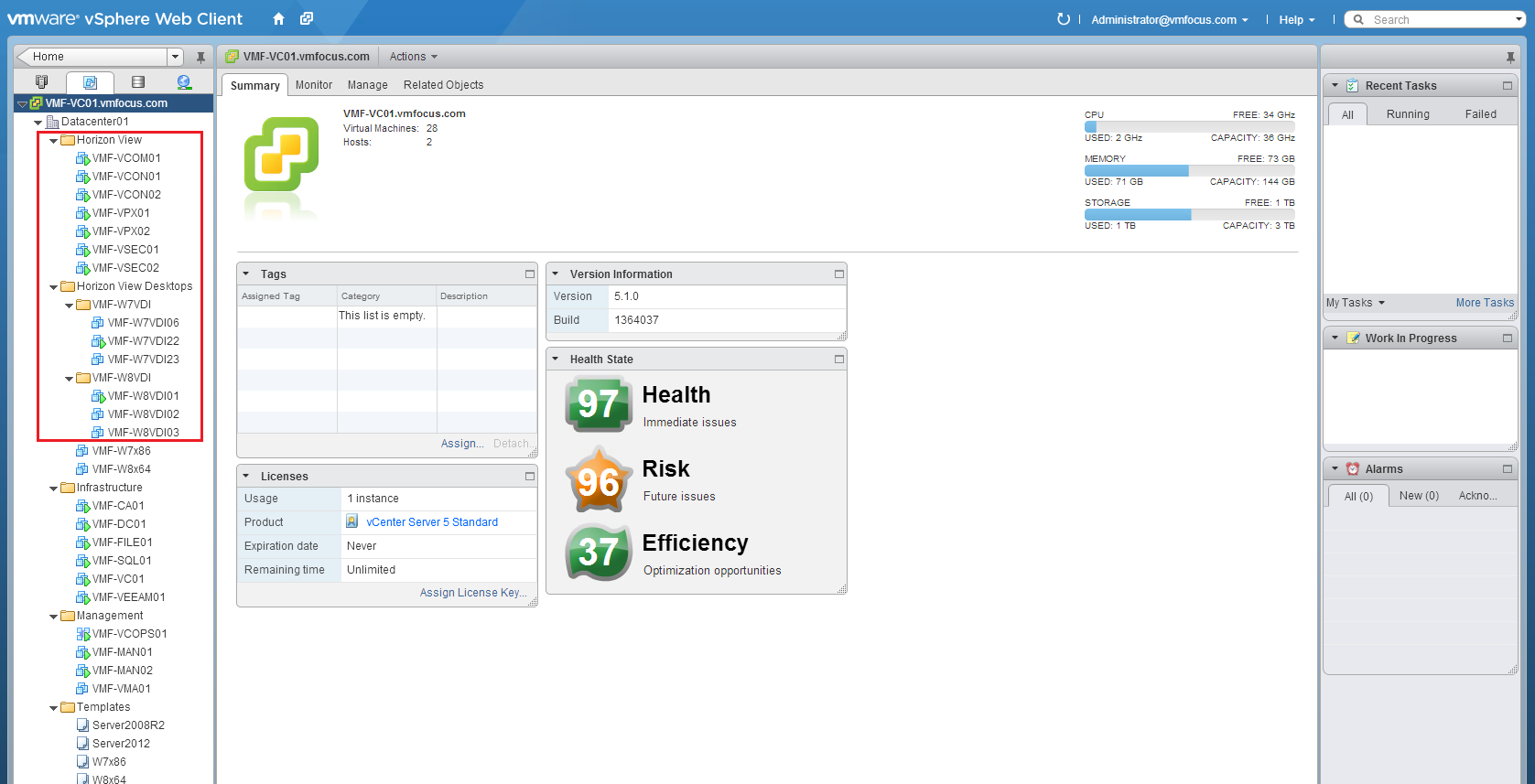
vSphere Web Client

vSphere Client View

Horizon View Administrator

View Client View

NetScaler VPX-Express Admin

NetScalerClient View

Internal Connection Server Failure Scenario – Secure Gateway/Connection Unticked

Connection Server Unticked

I will have a two connections to my Desktop Pool, both via View Client.

Table to Show Expected Results – Internal Connection Server Failure – Secure Gateway/Connection Unticked

Criteria Expected Result Recovery Time
Connection Server Power Off Desktop remains connected n/a
Connection Server Shut Down Desktop remains connected n/a
NetScaler VPX-Express Power Off Desktop remains connected n/a
NetScaler VPX-Express Shut Down Desktop remains connected n/a

Table to Show Actual Results – Internal Connection Server Failure – Secure Gateway/Connection Unticked

Criteria Actual Result Recovery Time
Connection Server Power Off Desktop remains connected n/a
Connection Server Shut Down Desktop remains connected n/a
NetScaler VPX-Express Power Off Desktop remains connected n/a
NetScaler VPX-Express Shut Down Desktop remains connected n/a

Not much to say really, everything performed as expected.

Internal Connection Server Failure Scenario – Secure Gateway/Connection Ticked

Connection Server Ticked

Again, I will have a two connections to my Desktop Pool, both via View Client.

Table to Show Expected Results – Internal Connection Server Failure – Secure Gateway/Connection Ticked

Criteria Expected Result Recovery Time
Connection Server Power Off Desktop session disconnect, then manual reconnect 20 seconds
Connection Server Shut Down Desktop session disconnect, then manual reconnect 25 seconds
NetScaler VPX-Express Power Off Desktop session disconnect, then manual reconnect 20 seconds
NetScaler VPX-Express Shut Down Desktop session disconnect, then manual reconnect 25 seconds

Table to Show Actual Results – Internal Connection Server Failure – Secure Gateway/Connection Ticked

Criteria Actual Result Recovery Time
Connection Server Power Off Desktop session disconnected after 2 seconds, manual reconnect 28 seconds to be logged back into desktop
Connection Server Shut Down Desktop session disconnected after 4 seconds, manual reconnect 35 seconds to be logged back into desktop
NetScaler VPX-Express Power Off Desktop session disconnected after 5 seconds, manual reconnect 33 seconds to be logged back into desktop
NetScaler VPX-Express Shut Down Desktop session disconnected after 9 seconds, manual reconnect 41 seconds to be logged back into desktop

The Citrix NetScaler VPX offer high availability for the sharing of configuration and virtual IP address. They do not provide no session loss between appliance failure.

External Failure Scenario Expected Results

I will have a three connections to my Desktop Pool, two via View Client, one via Blast (HTML5) and the last via View Client.  The Horizon View Administrator will be checked before each test to see which Security Server has the heaviest load and this one will form the test.

View Test

After each test Horizon View Administrator will be checked to find which Security Server has the heaviest load to perform the next test.

Criteria Expected Result Recovery Time
Security Server Power Off Desktop session disconnect, then manual reconnect 40 seconds
Security Server Shut Down Desktop session disconnect, then manual reconnect 40 seconds
Connection Server Power Off Desktop session disconnect, then manual reconnect 40 seconds
Connection Server Shut Down Desktop session disconnect, then manual reconnect 40 seconds
NetScaler VPX-Express Power Off Desktop session disconnect, then manual reconnect 60 seconds
NetScaler VPX-Express Shut Down Desktop session disconnect, then manual reconnect 60 seconds

External Failure Scenario Actual Results

Criteria Actual Result Recovery Time
Security Server Power Off Desktop session disconnected after 14 seconds, manual reconnect 52 seconds to be logged back into desktop
Security Server Shut Down Desktop session disconnected after 12 seconds, manual reconnect 55 seconds to be logged back into desktop
Connection Server Power Off Desktop session disconnected after 19 seconds, manual reconnect 109 seconds reconnected, black desktop background.  Timeout message 134 seconds.  Second reconnect, 252 seconds reconnected, black desktop background.  Timeout message 283 seconds. Loop via View Client.  Can connect via Blast (HTML5) to desktop.
Connection Server Shut Down Desktop session disconnected after 24 seconds, manual reconnect 118 seconds reconnected, black desktop background.  Timeout message 141 seconds.  Second manual reconnect, 276 seconds reconnected, black desktop background.  Timeout message 301 seconds. Loop via View Client.  Can connect via Blast (HTML5) to desktop.
NetScaler VPX-Express Power Off Desktop session disconnected after 4 seconds, manual reconnect 39 seconds to be logged back into desktop.
NetScaler VPX-Express Shut Down Desktop session disconnected after 19 seconds, manual reconnect 57 seconds to be logged back into desktop.

When a View Client connects externally, the NetScaler VPX passes traffic to the least loaded Security Server.  Remember a Security Server is bound to a single Connection Server and that ALL traffic is proxied via the Security Server.

When first Security Server fails you are disconnected (as expected). When the View Client is launched again the NetScaler VPX routes traffic via the secondary Security Server and the secondary Connection Server.

  1. Everything OK NetScaler > Security Server 01 > Connection Server 01 > Desktop
  2. Failed Security Server NetScaler > Security Server 01 > No Access To Connection Server 01
  3. Reconnect NetScaler > Security Server 02 > Connection Server 02 > Desktop

What I found most interesting was the Connection Server failures. In this scenario, the Security Servers are up and a Connection Server goes down.

Trying to reconnect to via the View Client, enables you to authenticate successfully, but you receive a ‘black desktop screen’ and then a connection time out.

Looking at the connection status of the NetScaler VPX-Express services, only the HTTPS SSL Bridge to 443 on Security Server 01 is down and the rest of the services are up.

Failure Connection Server Power Off 01

When the NetScaler VPX polls the Security Server on 443 HTTPS, 4172 TCP and 4172 UDP it sees that the PCoIP services on 4172 are up and tries to reconnect back to the original TCP session, due to the fact that our Persistency Group is Source IP and that we are connecting back over the same ports.

Connecting via Blast HTTPS 8443 works, I imagine this is due to a new TCP connection being established to Security Server02, which in turn connects via Connection Server 02 which is up.

Disconnecting from the Blast Desktop, I was able to reconnect to my desktop using View Client.

Final Word

Hopefully this post has gone someway to helping you understand the failure scenarios .  Knowing what to expect is key as it allows you to set expectations to both the business and users.

Load Balancing Horizon View – Design

Load balancing Horizon View Connection and Security Servers is key to any VDI design, the ability to provide connectivity to a desktop internally or externally is a must.  The bad news is that Horizon View doesn’t come with any inbuilt load balancing techniques.

As a Horizon View Architect, we have four options open to us:

  1. Don’t Load Balance
  2. Use DNS Round Robin
  3. Use Windows Network Load Balancing
  4. Use a Load Balancer

For the purpose of this blog post, I’m going to discount Option 1 as it’s self explanatory. To perform any type of load balancing you need to have two target Connection or Security Servers. Let’s explore the rest of the options.

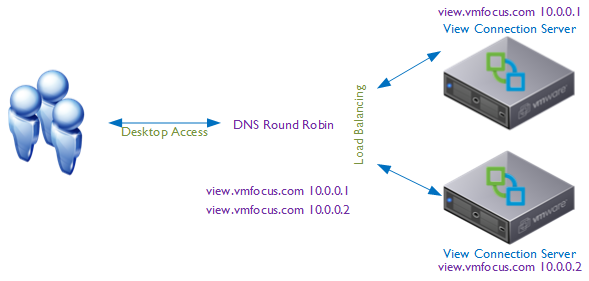
DNS Round Robin

This is the simplest form of load balancing.  Creation of two ‘A’ records pointing to different View Connection Servers.

DNS Load Balancing

When a client resolves view.vmfocus.com the DNS server will send both IP address’s to the client.  The client will always use the first one returned e.g.

view.vmfocus.com 10.0.0.1 10.0.0.2

The DNS server is intelligent, so that when the next client resolves view.vmfocus.com the DNS server again sends both IP Address’s.  However this time they are returned the other way round e.g.

view.vmfocus.com 10.0.0.2 10.0.0.1

DNS Round Robin Advantages

  • It’s simple and easy to configure

DNS Round Robin Disadvantages

  • Their is no monitoring of the Horizon View Connection Servers at any layer of the OSI model.  If a Horizon View Connection server has an issue or is powered off for maintence, DNS Round Robin will continue to send client connections.
  • After the initial connection to the ‘A’ record view.vmfocus.com the client (local PC) caches the IP address that view.vmfocus.com resolves to.  Only when the TTL expires will the client (local PC) go to the DNS server to request another record which may be the same as the first!

Windows Network Load Balancing

More intelligent than DNS Round Robin is Windows Network Load Balancing which operates at Layer 3 of the OSI model.  A special driver is installed on each Windows host and a ‘cluster IP address’ is created.
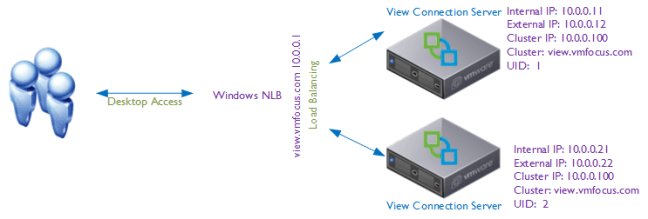
NLB Load Balancing

When a client resolves view.vmfocus.com the Cluster will distribute the incoming connection to the appropriate Horizon View Connection Server, this can be configured on a weighted basis e.g.

  1. View Connection Server 1 – 10
  2. View Connection Server 2 – 90

Which means that 90% of the traffic will be directed to View Connection Server 2.

The servers in the cluster are rather chatty, exchanging heartbeat messages, if a server isn’t reached within five seconds it is failed and any new connections are sent to other surviving servers.

Windows Network Load Balancing Advantages

  • Load can be distributed between the Horizon View Connection Server members using a weighted average.
  • Support for up to 32 servers in a cluster
  • Add/Remove servers into the cluster for expansion/patching
  • Detect server failure at network level
  • Included as part of Windows Server 2003/2008/2012

Windows Network Load Balancing Disadvantages

  • Fairly complicated to configure and maintain
  • Extensive network considerations such as separate Port Groups/VLANs to reduce network heartbeat chatter plus  MAC Address Changes and Forged Transmits have to enabled on your Port Groups that the NLB servers reside on
  • Is not Layer 4 or above (service awareness)

Load Balancer

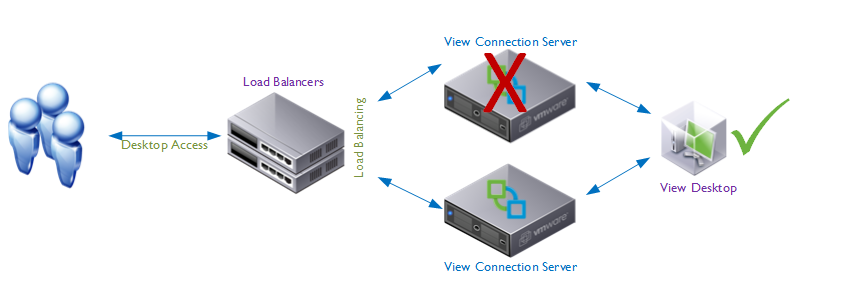
Load balancers are the ‘numero uno’ when it comes to load balancing Horizon View, offering features such as health checking where a probe is sent to the Horizon View Connection Server on a number of service connections e.g. TCP probe on 443 to ensure service availability. Perhaps the greatest reason for load balancer use is to stop new connections going to Connection/Security Server whose services are down.

Load Balancers No Failure

The user is disconnected from the desktop and then when they reconnect they go back to the same desktop.
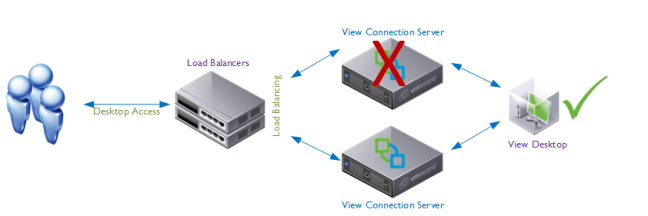
Load Balancers Failure

Load Balancer Advantages

  • Service awareness, actively ‘polls’ the Horizon View services (PCoIP 4172 UDP, TCP and HTTPS) to ensure they are available
  • Protect against failure at LAN or WAN depending on chosen model and features
  • No session loss with failed components
  • Weight load to Horizon View Connection Servers based on different factors
  • Offload SSL, which can become a major part of the demand for Horizon View Connection Servers
  • Can offer firewall features such as DDoS and IPS depending on chosen model and features
  • Can be used in Global Server Load Balancing configuration to protect from WAN failures (note that Desktop Pools should not spam more than one physical location due to Java Message Service requirements, see this excellent post by Simon Long)

Load Balance Disadvantages

  • Expensive!
  • Need to purchase at least two otherwise you have no high availability
  • Configuring can be complicated, if no ‘Horizon View’ templates are available

Horizon View Design

The purpose of this blog post was to consider the design for load balancing for Horizon View.  Now that we have covered the techniques that can be used, we need to consider the requirements:

  • Is redundancy required?
  • What network throughput is required?
  • Can users access their desktop remotely? If so by Blast and View Client?
  • Can users access their desktop internally by Blast?
  • How will routing maintenance be undertaken?
  • How will upgrades be undertaken?
  • Is Smart Card authentication required?
  • Is Two Factor authentication required?
  • Is a Secure Connection required to the desktop?

These are some off the questions that will influence your Horizon View design.  A common question is: ‘How do we govern who has access to their desktops internally and externally?’ This can only be achieved by having ‘Connection Server Tags’.  Connection Server Tags are a unique reference from a desktop pool to a Connection Server to allow manipulation of desktop pool variables. Let’s work over a scenario, different users require internal and external access.  To achieve this we would need at minimum:

  • One Security Server for remote access
  • One Connection Server for internal access tagged ‘internal’
  • One Connection Server for external access tagged ‘external’
  • One Desktop Pool for internal users with Connection Server restriction to ‘internal’
  • One Desktop Pool for external users Connection Server restriction to ‘internal and external

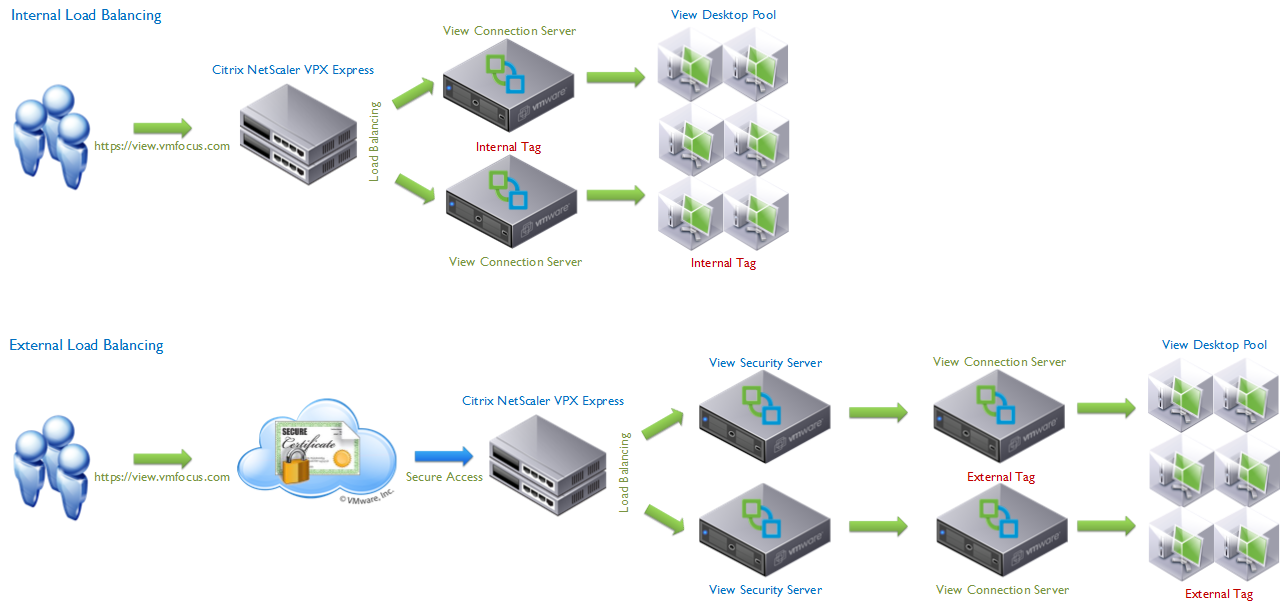
In reality you probably wouldn’t design for the above scenario due the single point of failures.  The design below is what I would expect to see as a minimum.
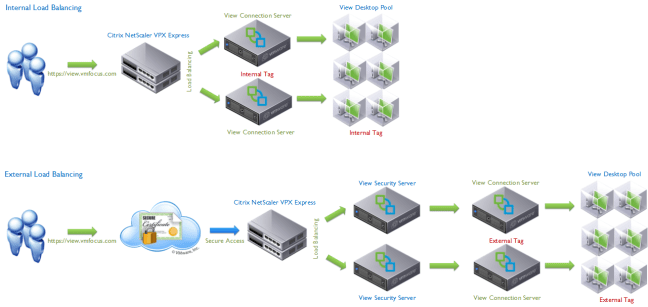
Example Internal External Load Balance Design

Note: You need 4 x Load Balancers in this design.

Key Concept

Secure Tunnel/Gateway connection to desktop for HTTP(S) and PCoIP are key to the expected results you will achieve on your load balancing design.

HTTP(S) Secure Tunnel, PCoIP Secure Gateway & Blast Secure Gateway unticked
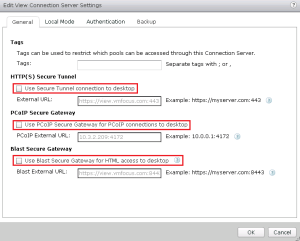
Connection Server Unticked

The connection from the View Client goes to the Connection Server, authentication is achieved and the desktop is loaded.  The connection from the View Client is then established DIRECTLY to the View Desktop bypassing the View Connection Server.

  • Step 1 (Login to Desktop) View Client > Connection Server > View Desktop
  • Step 2 (Logged into Dekstop) View Client > View Desktop

In this design your Connection Servers are only required for the login, after this they become redundant.  Considerations for this design:

  1. Communications are not secure between View Client and View Desktop
  2. Can only be used for LAN connections, Security Server requirement is to have Secure Connection/Gateway enabled (ticked).
  3. Consider using for a design when requirement is to have desktop ‘always on’ with no disconnect if a Connection Server fails.

HTTP(S) Secure Tunnel, PCoIP Secure Gateway & Blast Secure Gateway ticked

Connection Server Ticked

The connection from the View Client goes to the Connection Server, authentication is achieved and the desktop is loaded.  The connection from the View Client is then always PROXIED via the Connection Server to the View Desktop.

  • Step 1 (Login to Desktop) View Client > Connection Server > View Desktop
  • Step 2 (Logged into Dekstop) View Client > Connection Server > View Desktop

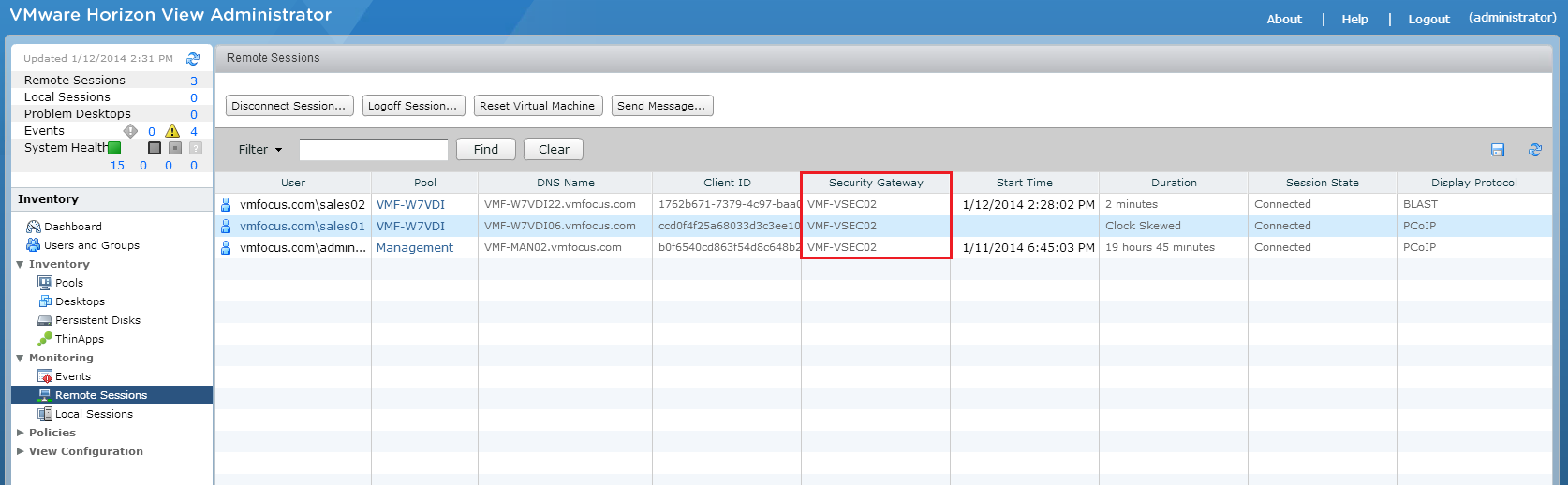
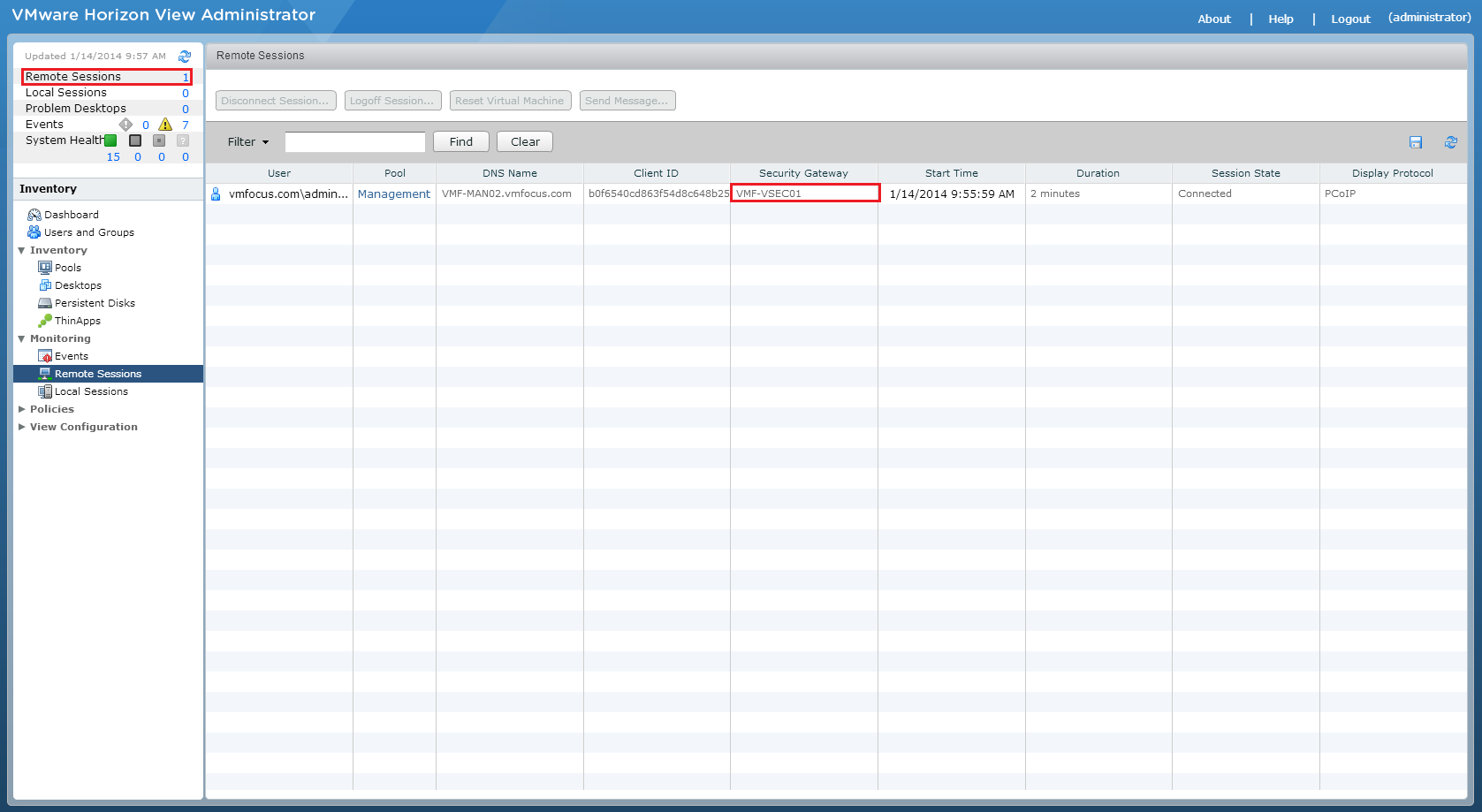
This can be confirmed in the View Administrator Portal be selecting Remote Sessions and you will see the Secure Gateway the desktop connection is using.
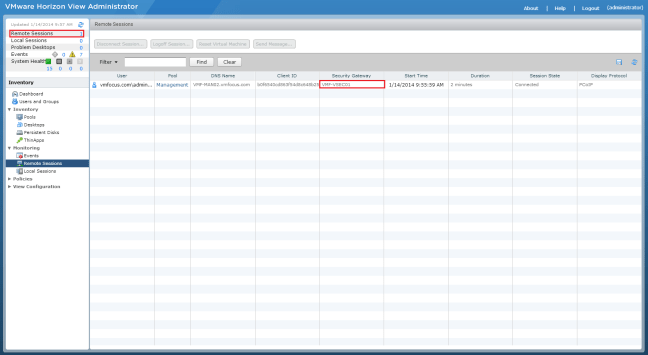
Secure Gateway

In this design your Connection Servers are always required.  Considerations for this design:

  1. Communications are secure between View Client and View Desktop
  2. Requirement to use Security Servers (your View Client will connect and authenticate successfully, however you will see a black desktop background then a disconnect).
  3. If you loose the Connection/Security Server, the user will be disconnected and will need to reconnect.

Basic Principles


The fundamentals of a Horizon View Load Balancing Design are driven by the requirements from the customer.  The basic principles that need to be followed are:

  • Security Server to Connection Server is a 1 – 1 relationship.
  • Two Factor & Smart Card Authentication are at Connection Server level
  • Internal and external access control is governed by Connection Server ‘Tags’
  • Differences between Pool Settings require different Desktop Pools (obvious eh?)
  • Desktop session will always get disconnected if using Secure Connection/Gateway

In the next blog post, I will look at Horizon View Load Balancing Failure Scenarios so that you know what results to expect.