In the last post Load Balancing Horizon View – Design we looked at the differences between DNS Round Robin, Windows Network Load Balancing and Load Balancers and the design concepts for internal and external use.
In this post we will focus on testing failure scenarios to understand the impact of various components failing within a design.
Lab Setup
The Horizon View environment is configured as follows:
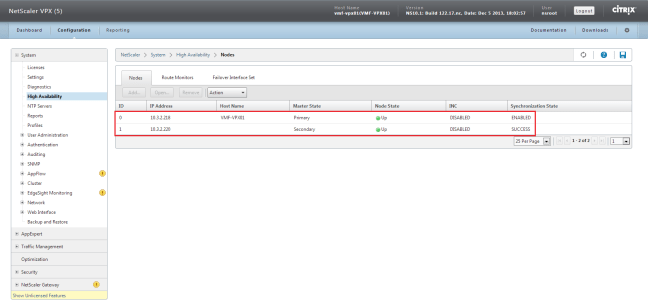
- 2 x NetScaler VPX-Express in High Availability
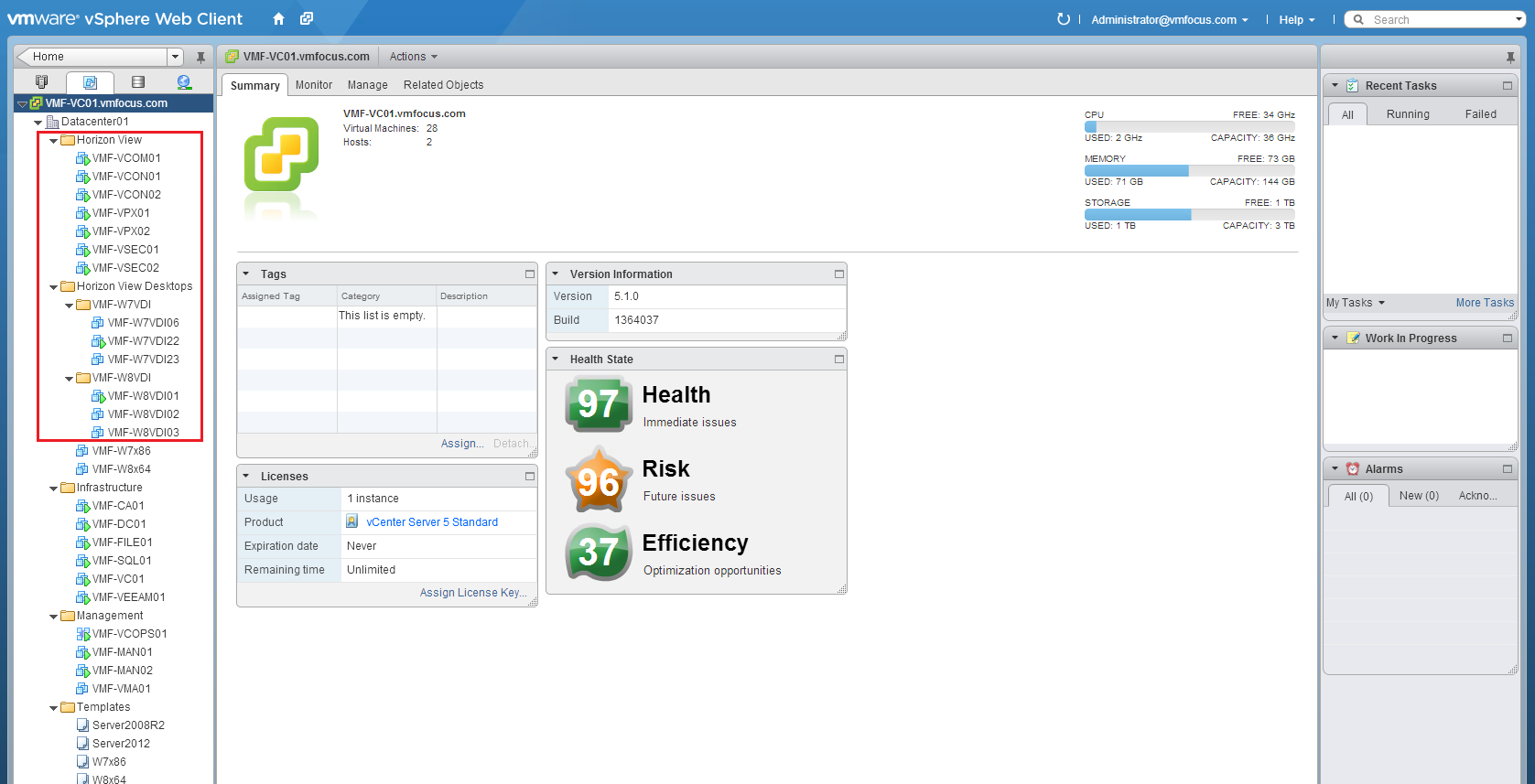
- 2 x Horizon View Security Servers
- 2 x Horizon View Connection Servers
For the NetScaler configuration I followed the excellent Load Balancing VMware View with NetScaler guide by Dale Scriven who runs the blog vhorizon.co.uk. The only addition to this was an additional TCP Service group for 8443 (HTML5).

In the interests of sharing the configuration, below are extracts from each area.
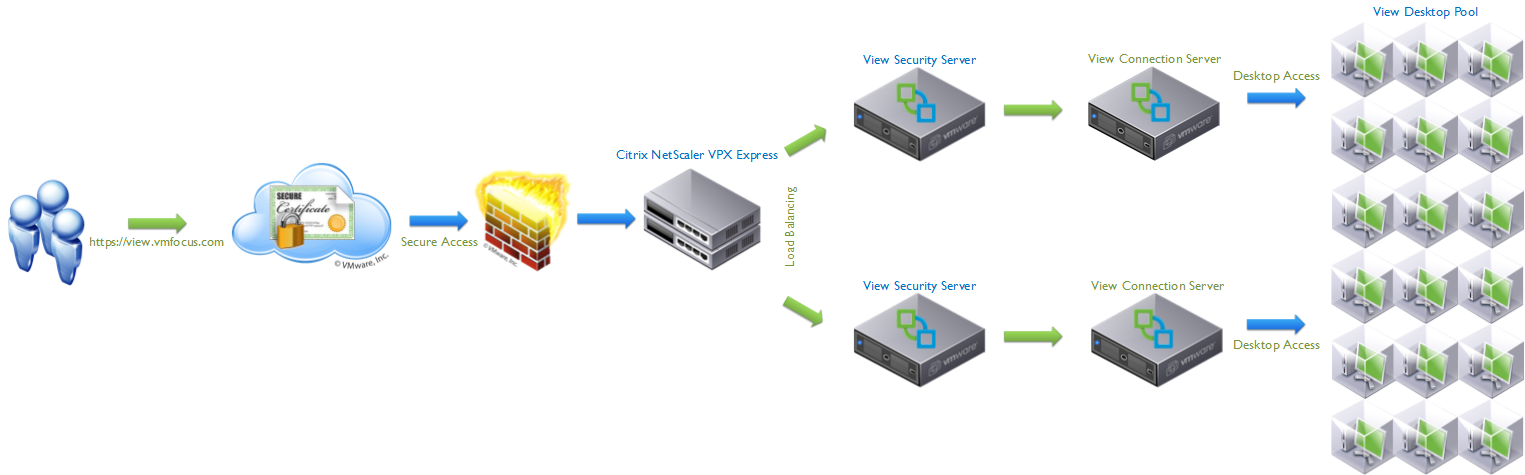
Internal Logical Design
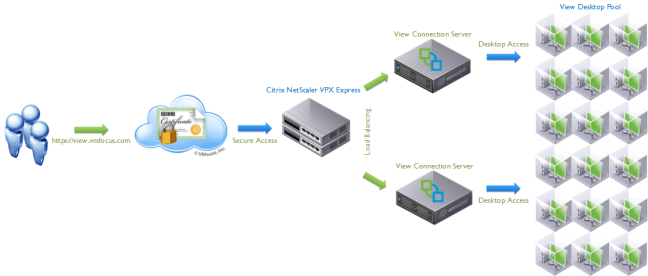
External Logical Design

vSphere Web Client

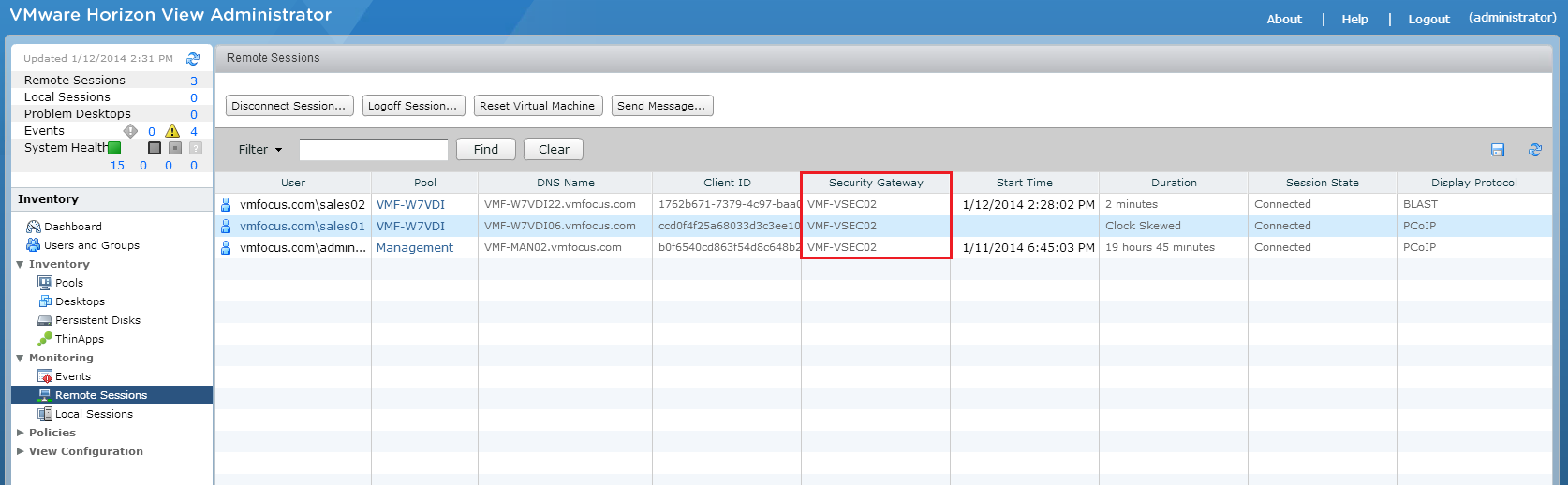
Horizon View Administrator

NetScaler VPX-Express Admin
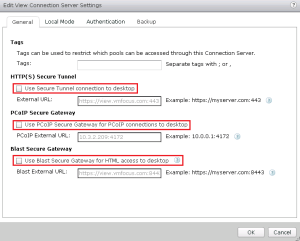
Internal Connection Server Failure Scenario – Secure Gateway/Connection Unticked
I will have a two connections to my Desktop Pool, both via View Client.
Table to Show Expected Results – Internal Connection Server Failure – Secure Gateway/Connection Unticked
| Criteria |
Expected Result |
Recovery Time |
| Connection Server Power Off |
Desktop remains connected |
n/a |
| Connection Server Shut Down |
Desktop remains connected |
n/a |
| NetScaler VPX-Express Power Off |
Desktop remains connected |
n/a |
| NetScaler VPX-Express Shut Down |
Desktop remains connected |
n/a |
Table to Show Actual Results – Internal Connection Server Failure – Secure Gateway/Connection Unticked
| Criteria |
Actual Result |
Recovery Time |
| Connection Server Power Off |
Desktop remains connected |
n/a |
| Connection Server Shut Down |
Desktop remains connected |
n/a |
| NetScaler VPX-Express Power Off |
Desktop remains connected |
n/a |
| NetScaler VPX-Express Shut Down |
Desktop remains connected |
n/a |
Not much to say really, everything performed as expected.
Internal Connection Server Failure Scenario – Secure Gateway/Connection Ticked

Again, I will have a two connections to my Desktop Pool, both via View Client.
Table to Show Expected Results – Internal Connection Server Failure – Secure Gateway/Connection Ticked
| Criteria |
Expected Result |
Recovery Time |
| Connection Server Power Off |
Desktop session disconnect, then manual reconnect |
20 seconds |
| Connection Server Shut Down |
Desktop session disconnect, then manual reconnect |
25 seconds |
| NetScaler VPX-Express Power Off |
Desktop session disconnect, then manual reconnect |
20 seconds |
| NetScaler VPX-Express Shut Down |
Desktop session disconnect, then manual reconnect |
25 seconds |
Table to Show Actual Results – Internal Connection Server Failure – Secure Gateway/Connection Ticked
| Criteria |
Actual Result |
Recovery Time |
| Connection Server Power Off |
Desktop session disconnected after 2 seconds, manual reconnect |
28 seconds to be logged back into desktop |
| Connection Server Shut Down |
Desktop session disconnected after 4 seconds, manual reconnect |
35 seconds to be logged back into desktop |
| NetScaler VPX-Express Power Off |
Desktop session disconnected after 5 seconds, manual reconnect |
33 seconds to be logged back into desktop |
| NetScaler VPX-Express Shut Down |
Desktop session disconnected after 9 seconds, manual reconnect |
41 seconds to be logged back into desktop |
The Citrix NetScaler VPX offer high availability for the sharing of configuration and virtual IP address. They do not provide no session loss between appliance failure.
External Failure Scenario Expected Results
I will have a three connections to my Desktop Pool, two via View Client, one via Blast (HTML5) and the last via View Client. The Horizon View Administrator will be checked before each test to see which Security Server has the heaviest load and this one will form the test.
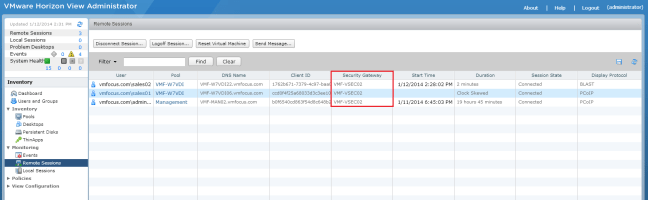
After each test Horizon View Administrator will be checked to find which Security Server has the heaviest load to perform the next test.
| Criteria |
Expected Result |
Recovery Time |
| Security Server Power Off |
Desktop session disconnect, then manual reconnect |
40 seconds |
| Security Server Shut Down |
Desktop session disconnect, then manual reconnect |
40 seconds |
| Connection Server Power Off |
Desktop session disconnect, then manual reconnect |
40 seconds |
| Connection Server Shut Down |
Desktop session disconnect, then manual reconnect |
40 seconds |
| NetScaler VPX-Express Power Off |
Desktop session disconnect, then manual reconnect |
60 seconds |
| NetScaler VPX-Express Shut Down |
Desktop session disconnect, then manual reconnect |
60 seconds |
External Failure Scenario Actual Results
| Criteria |
Actual Result |
Recovery Time |
| Security Server Power Off |
Desktop session disconnected after 14 seconds, manual reconnect |
52 seconds to be logged back into desktop |
| Security Server Shut Down |
Desktop session disconnected after 12 seconds, manual reconnect |
55 seconds to be logged back into desktop |
| Connection Server Power Off |
Desktop session disconnected after 19 seconds, manual reconnect 109 seconds reconnected, black desktop background. Timeout message 134 seconds. Second reconnect, 252 seconds reconnected, black desktop background. Timeout message 283 seconds. |
Loop via View Client. Can connect via Blast (HTML5) to desktop. |
| Connection Server Shut Down |
Desktop session disconnected after 24 seconds, manual reconnect 118 seconds reconnected, black desktop background. Timeout message 141 seconds. Second manual reconnect, 276 seconds reconnected, black desktop background. Timeout message 301 seconds. |
Loop via View Client. Can connect via Blast (HTML5) to desktop. |
| NetScaler VPX-Express Power Off |
Desktop session disconnected after 4 seconds, manual reconnect |
39 seconds to be logged back into desktop. |
| NetScaler VPX-Express Shut Down |
Desktop session disconnected after 19 seconds, manual reconnect |
57 seconds to be logged back into desktop. |
When a View Client connects externally, the NetScaler VPX passes traffic to the least loaded Security Server. Remember a Security Server is bound to a single Connection Server and that ALL traffic is proxied via the Security Server.
When first Security Server fails you are disconnected (as expected). When the View Client is launched again the NetScaler VPX routes traffic via the secondary Security Server and the secondary Connection Server.
- Everything OK NetScaler > Security Server 01 > Connection Server 01 > Desktop
- Failed Security Server NetScaler > Security Server 01 > No Access To Connection Server 01
- Reconnect NetScaler > Security Server 02 > Connection Server 02 > Desktop
What I found most interesting was the Connection Server failures. In this scenario, the Security Servers are up and a Connection Server goes down.
Trying to reconnect to via the View Client, enables you to authenticate successfully, but you receive a ‘black desktop screen’ and then a connection time out.
Looking at the connection status of the NetScaler VPX-Express services, only the HTTPS SSL Bridge to 443 on Security Server 01 is down and the rest of the services are up.
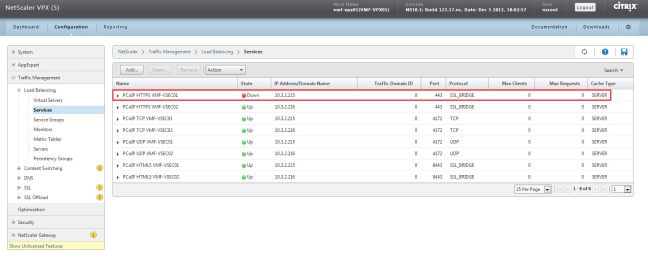
When the NetScaler VPX polls the Security Server on 443 HTTPS, 4172 TCP and 4172 UDP it sees that the PCoIP services on 4172 are up and tries to reconnect back to the original TCP session, due to the fact that our Persistency Group is Source IP and that we are connecting back over the same ports.
Connecting via Blast HTTPS 8443 works, I imagine this is due to a new TCP connection being established to Security Server02, which in turn connects via Connection Server 02 which is up.
Disconnecting from the Blast Desktop, I was able to reconnect to my desktop using View Client.
Final Word
Hopefully this post has gone someway to helping you understand the failure scenarios . Knowing what to expect is key as it allows you to set expectations to both the business and users.









 VMFocus