How To: Replace Horizon View Connection & Security Server Certificates

In this post we are going to walk threw the process of replacing  our Horizon View Connection Server and Security Server Certificates, we are assuming that the prerequisites in How To: Replace vCenter 5 & VUM Certificates are in place.

Step 1 – Certificate Request

Make sure your Horizon View Connection Server has rights to request and enroll a certificate from your Internal CA and that on the Certificate Template the private key is able to be exported.

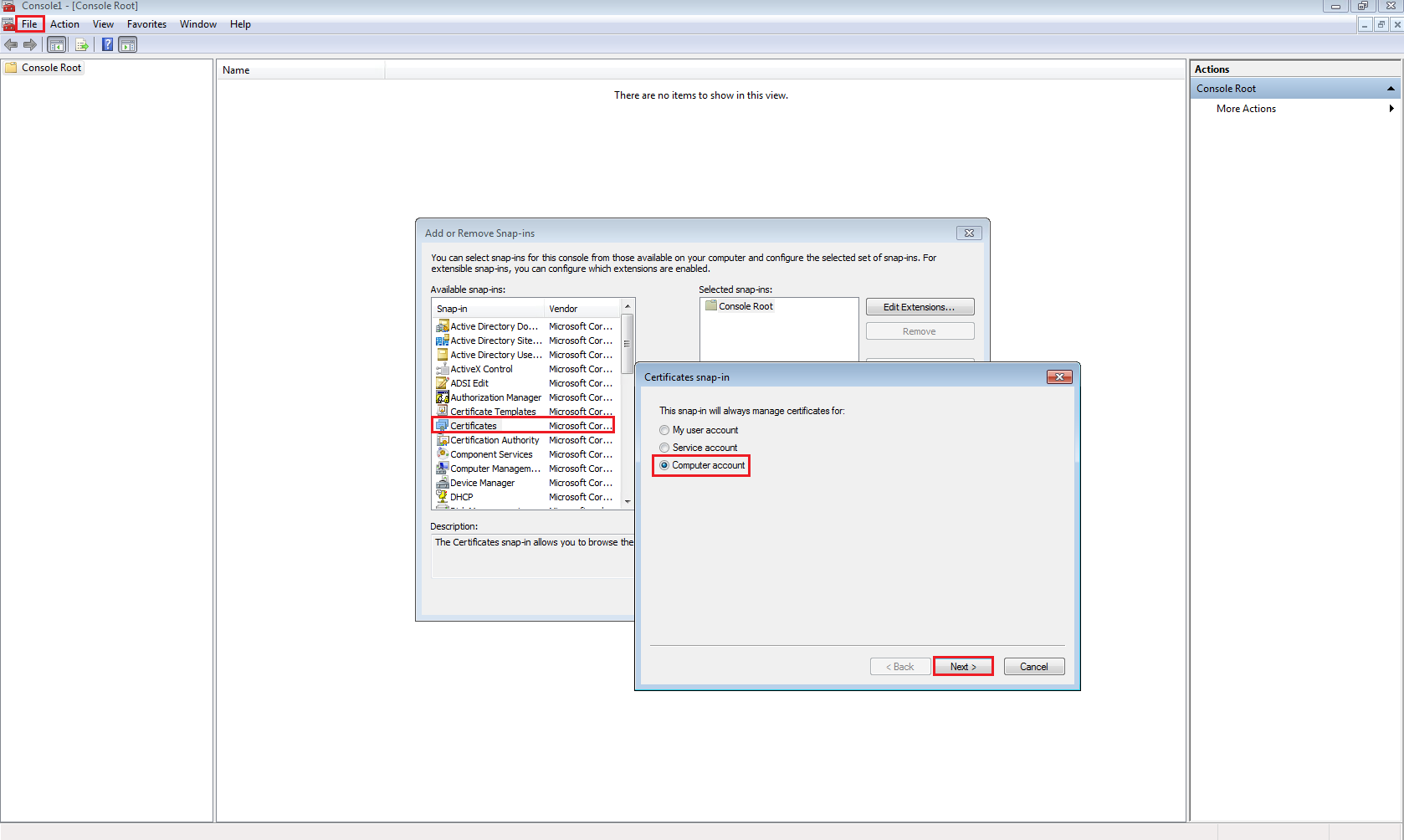
Click Start > Run > MMC > File > Add/Remove Snap-in

Select Certificates > Add > Computer Account > Next
vCOPS01

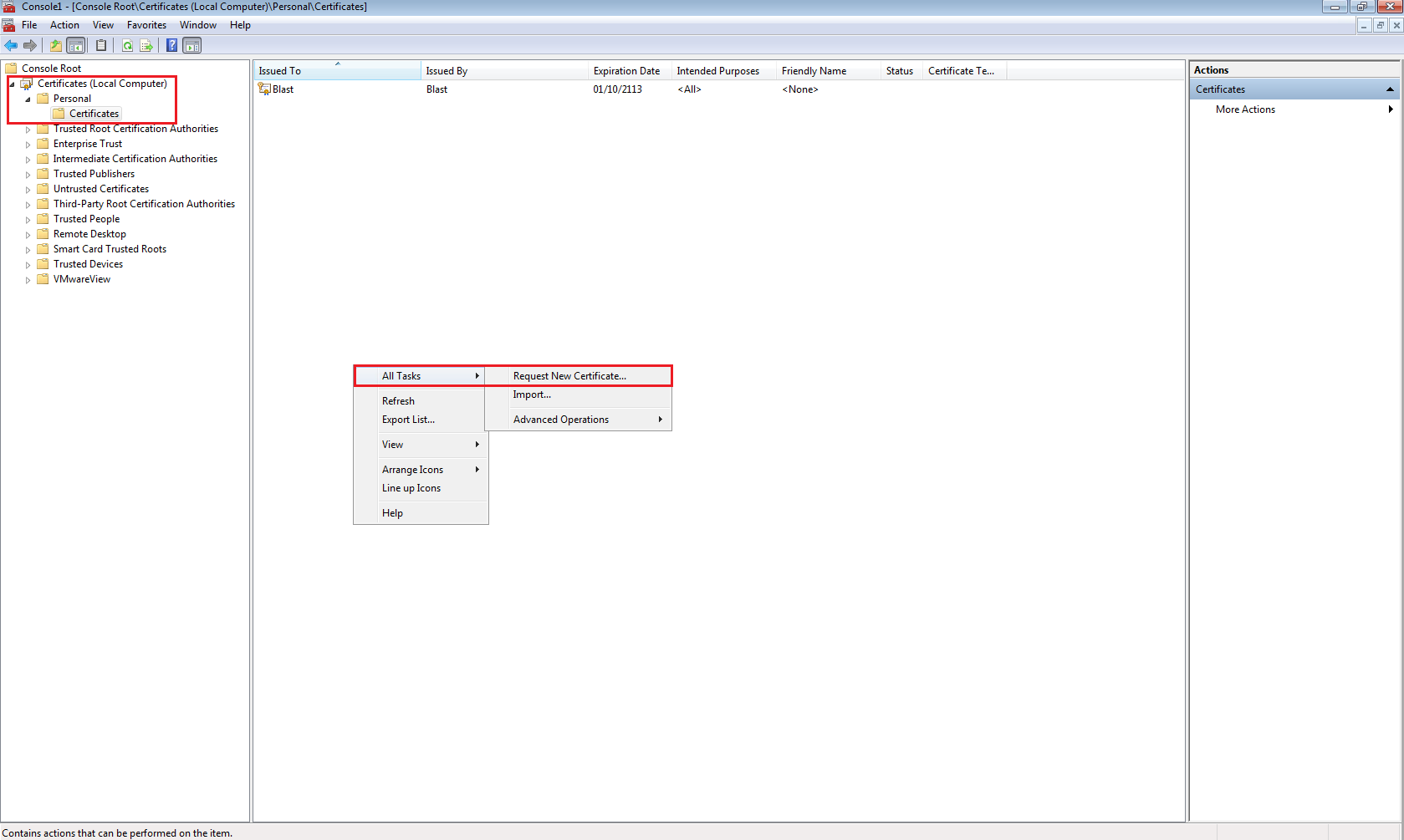
Expand Personal > Certificates > Right Click > All Tasks > Request New Certificate
vCOPS02Click Next > Select Active Directory Enrollment Policy

vCOPS03

Select your Certificate Template (mines called HorizonView) then click on ‘More information is required to enroll for this certificate.  Click here to configure settings’.

vCOPS04

Change Subject Name to Common Value and enter the Fully Qualified Domain Name of your Horizon View Connection Server.  In my case it is VMF-VCON01.vmfocus.com and Add this to the certificate request.

Next change the Alternative Name to DNS and enter the NetBIOS name

NetBIOS VMF-VCON01

Fully Qualified Domain Name VMF-VCON01.vmfocus.com

Next add in the Alternative Name to DNS for your Horizon View Security Server

NetBIOS VMF-VSEC01

Fully Qualified Domain Name VMF-VSEC01.vmfocus.com

Public DNS Record view.vmfocus.com

ViewCert01

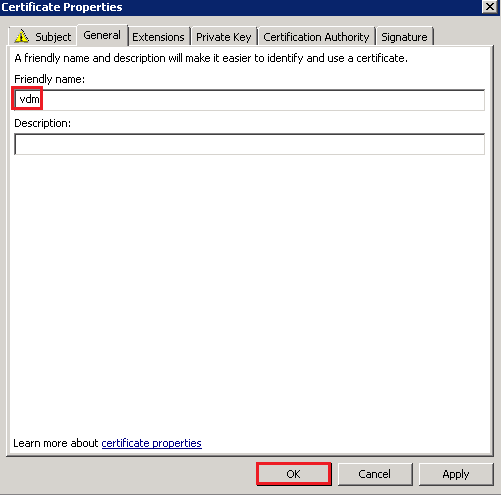
Next Select General Tab and enter ‘vdm’ under the friendly name
ViewCert02

By putting in the DNS names of the Horizon View Security Server we can use one certificate to cover both servers.  Note, in a production environment you may have to request two separate certificates to ensure that internal DNS names are not visible on the internet.

Click OK and Enroll the certificate
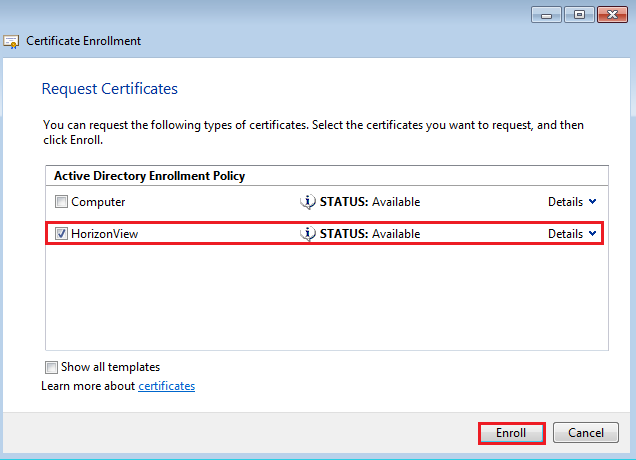
vCOPS21

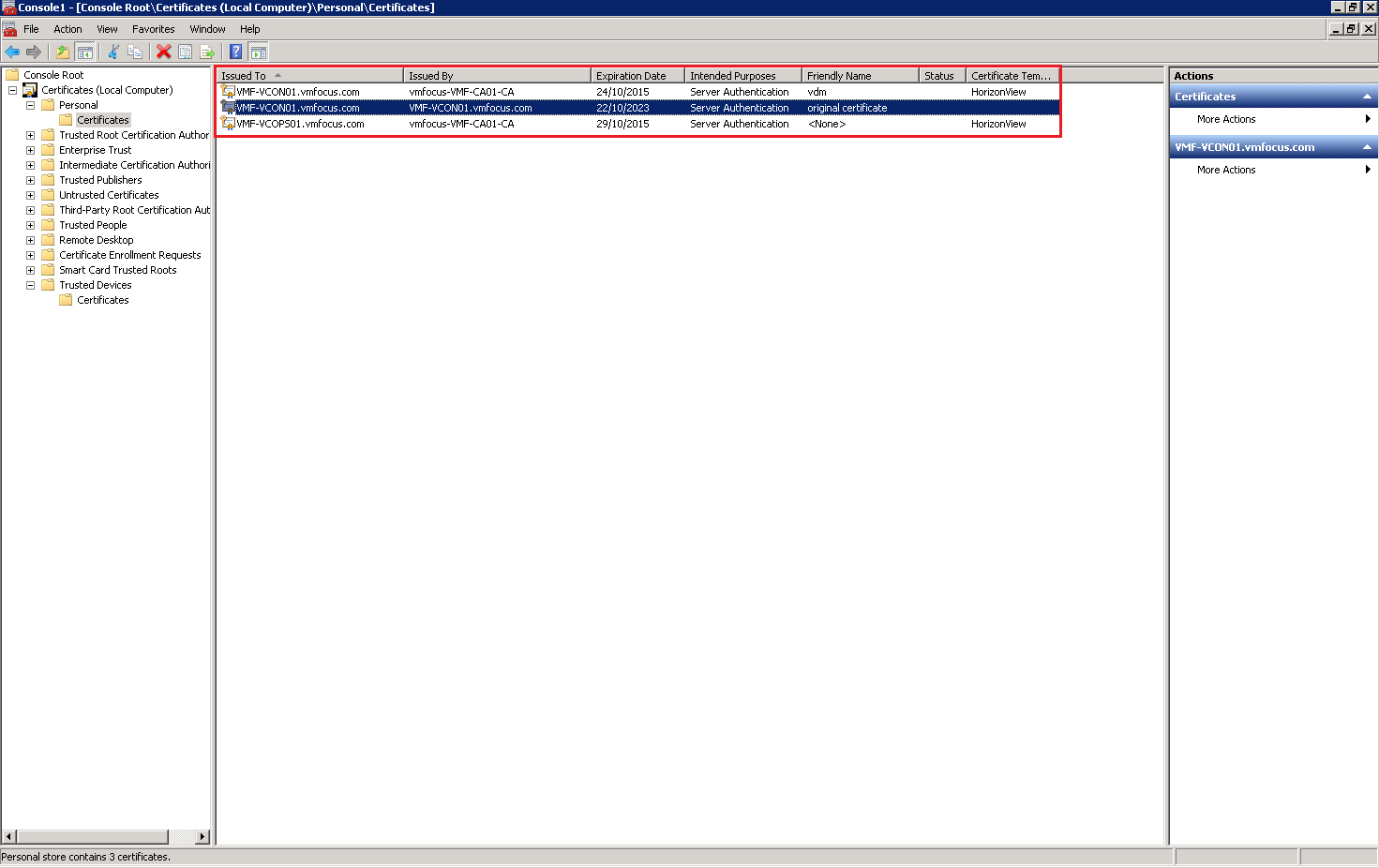
Once enrolled you will see the new certificate is in your Personal folder
ViewCert03

Horizon View uses the vdm tag to identify which certificates it should use.  As you can see I have renamed my original certificate.  To do this, double click the certificate select Details tab > Edit Properties > General Tab

ViewCert04

To start using the new certificate restart the VMware View Security Gateway Component on your Horizon View Security Server

ViewCert05

To test that it’s in situ, browse to your Horizon View Connection Server URL and you should see a Trusted Certificate.

ViewCert06

Step 2 – Security Server Certificate Replacement – Trusted Public CA

In a production environment you would put a request into a Trusted Public CA such as GeoTrust SAN SSL Certificate from your Horizon View Security Server.

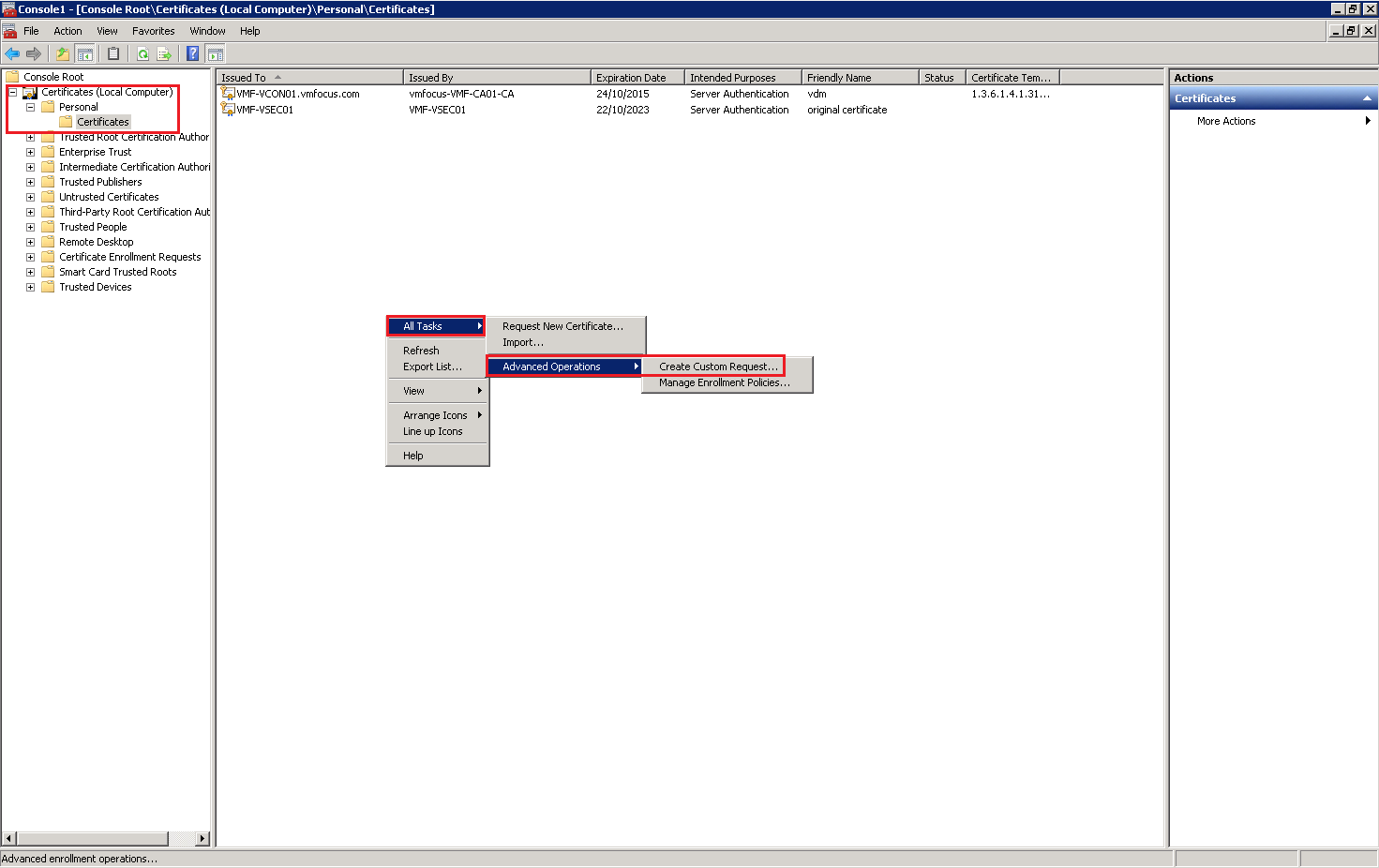
To do this Click Start > Run > MMC > File > Add/Remove Snap-in > Select Certificates > Add > Computer Account > Next > Finish

Expand Personal > Certificates > Right Click > All Tasks > Request New Certificate
ViewCert07

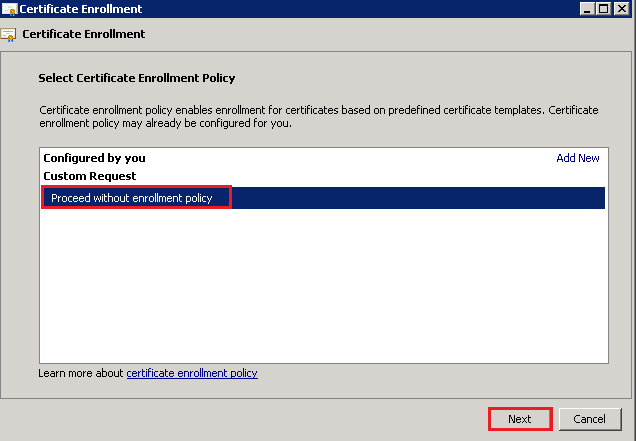
Click Next > Select Proceed without enrollment policy > Next
ViewCert08

Click Next > Details > Properties

ViewCert09

As per our Horizon View Connection Server, enter ‘vdm’ as the friendly name

ViewCert02

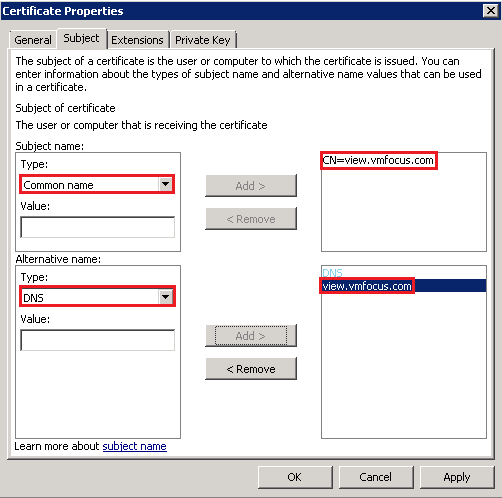
Change Subject Name to Common Value and enter the Fully Qualified Domain Name of your public resolvable DNS record to access your Horizon View Security Server.  In my case it is view.vmfocus.com and Add this to the certificate request.

Next change the Alternative Name to DNS and re-enter the public resolvable Fully Qualified Domain Name
ViewCert10

Onto the Private Key Tab > Key Options > Change the Key size to 2048 and tick ‘Make private key exportable’

ViewCert11

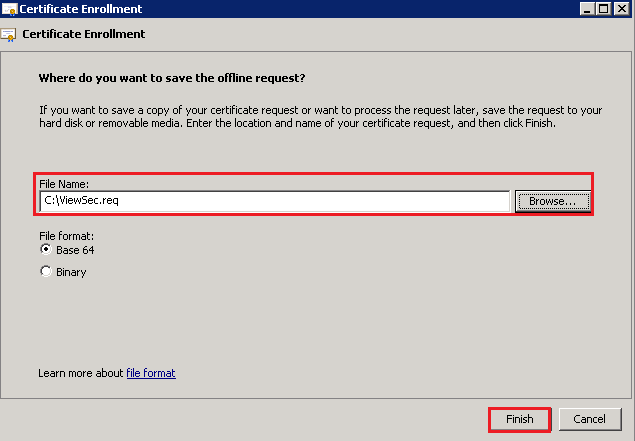
Click OK > Click Next and then select a destination and name for your Certificate Request.
ViewCert12

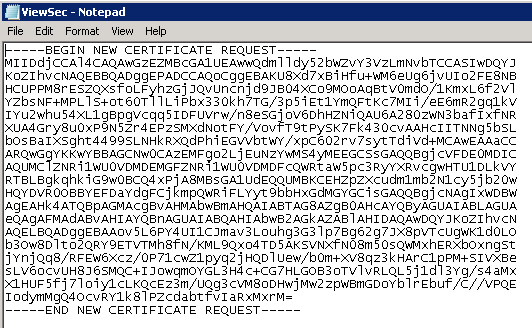
Open the Certificate Request file with Notepad and copy the contents and paste them into the CSR for your Trusted Public CA Provider.
ViewCert13

After passing the validation checks you will receive your SAN SSL Certificate, ready to install into your Horizon View Security Server.  The details on how to do this can be followed below as they are the same as installed certificates from an Internal CA.

Step 3 – Security Server Certificate Replacement – Internal CA

I don’t have this luxury in the VMFocus.com lab, therefore we are going to use our Internal CA.

Our Horizon View Security Server should be in a workgroup in the DMZ, which means that it won’t automatically trust our Internal CA as its not part of the Active Directory domain.

First of all we need to export our Internal CA Root Certificate.  This can be found on your Horizon View Connection Server under Trusted Root > Certification Authority > Certificates

ViewCert14

Right Click the Certificate > All Tasks > Export > Select ‘DER encoded binary X.509 (.CER)

viewcert15

Hit Next and enter a destination and file name, then Next > Finish.

viewcert16

Copy this certificate to your Horizon View Security Server and Import it into the Trusted Root Certification Authorities > Certificates Folder.

This is achieved by Right Clicking > Import and following the wizard.  Once down it should look like this

viewcert17

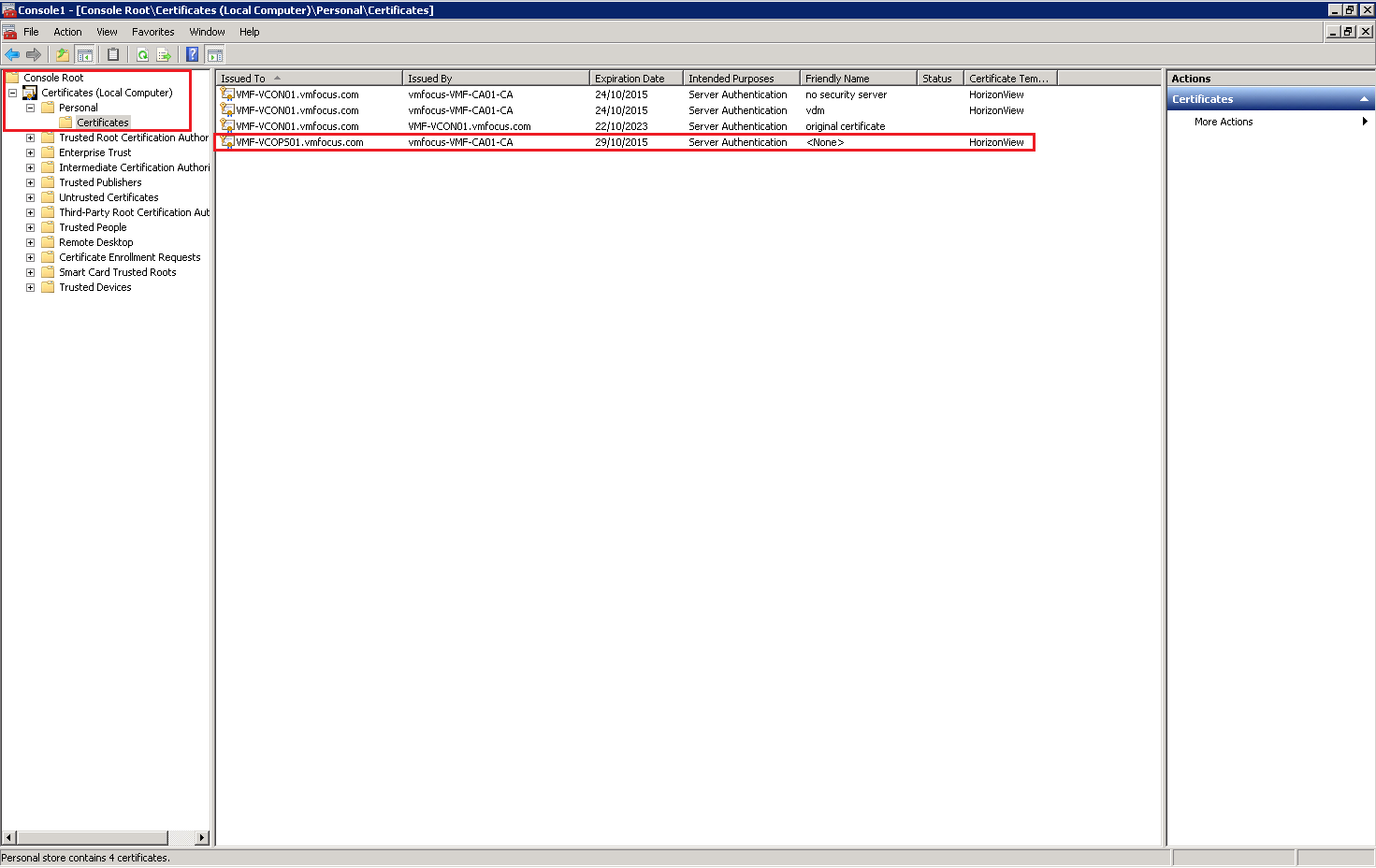
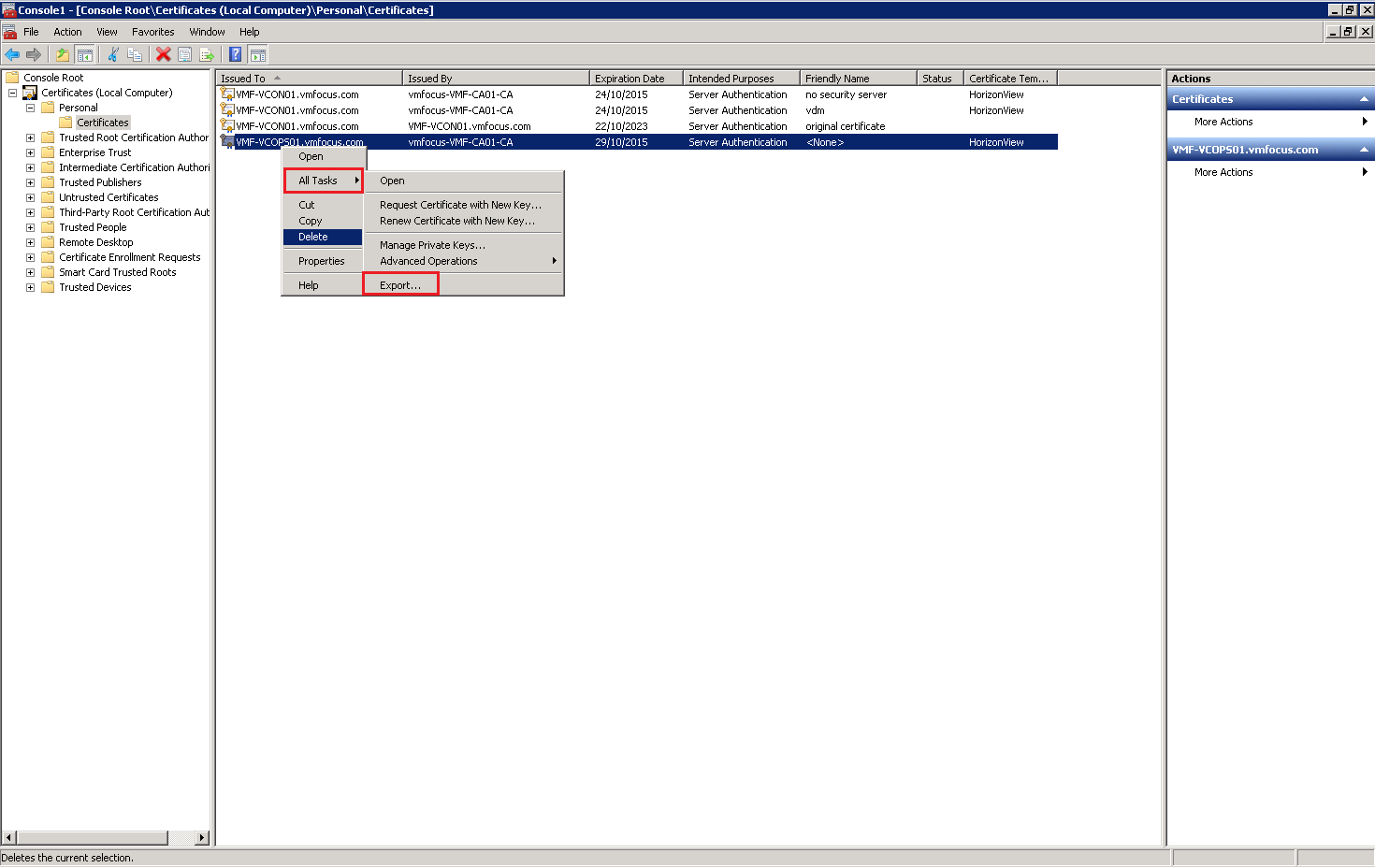
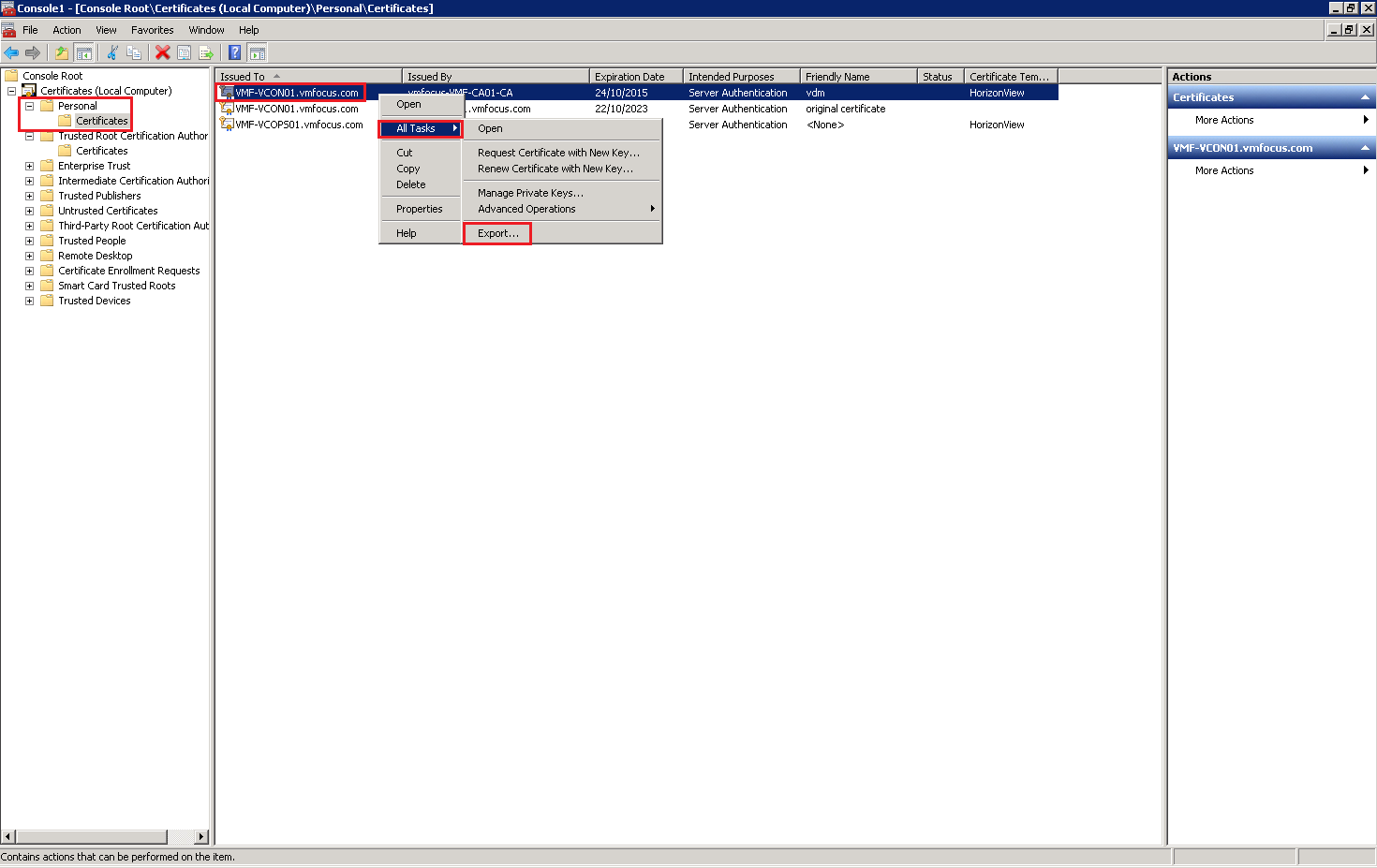
Now we need to export the Horizon View Connection Server Certificate which contained the DNS entries for our Security Server.  Jump back onto your Connection Server and Click Personal > Certificates > Right Click Certificate > All Tasks > Export
viewcert18

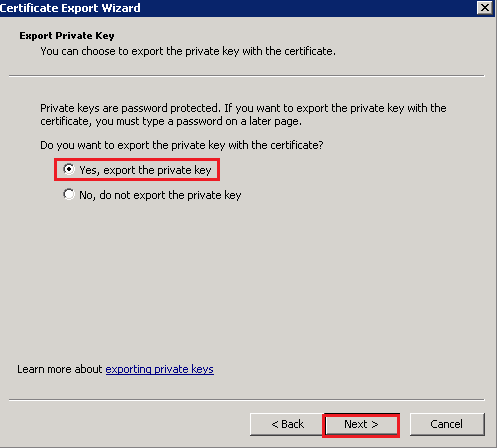
Click Next and ensure that you choose Yes, export the private key

viewcert19

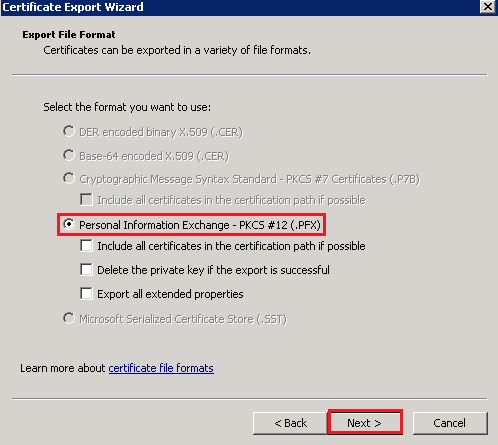
Select Personal Information Exchange – PKCS #12 (.PFX)
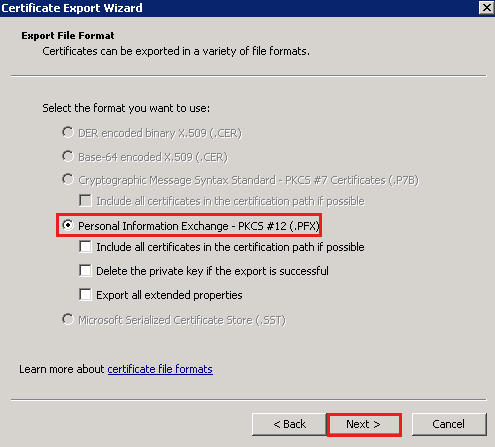
viewcert20

Enter a password and Click Next to Finish.

Copy the Certificate to your Horizon View Security Server and Import it under Personal Certificates and you should see the following
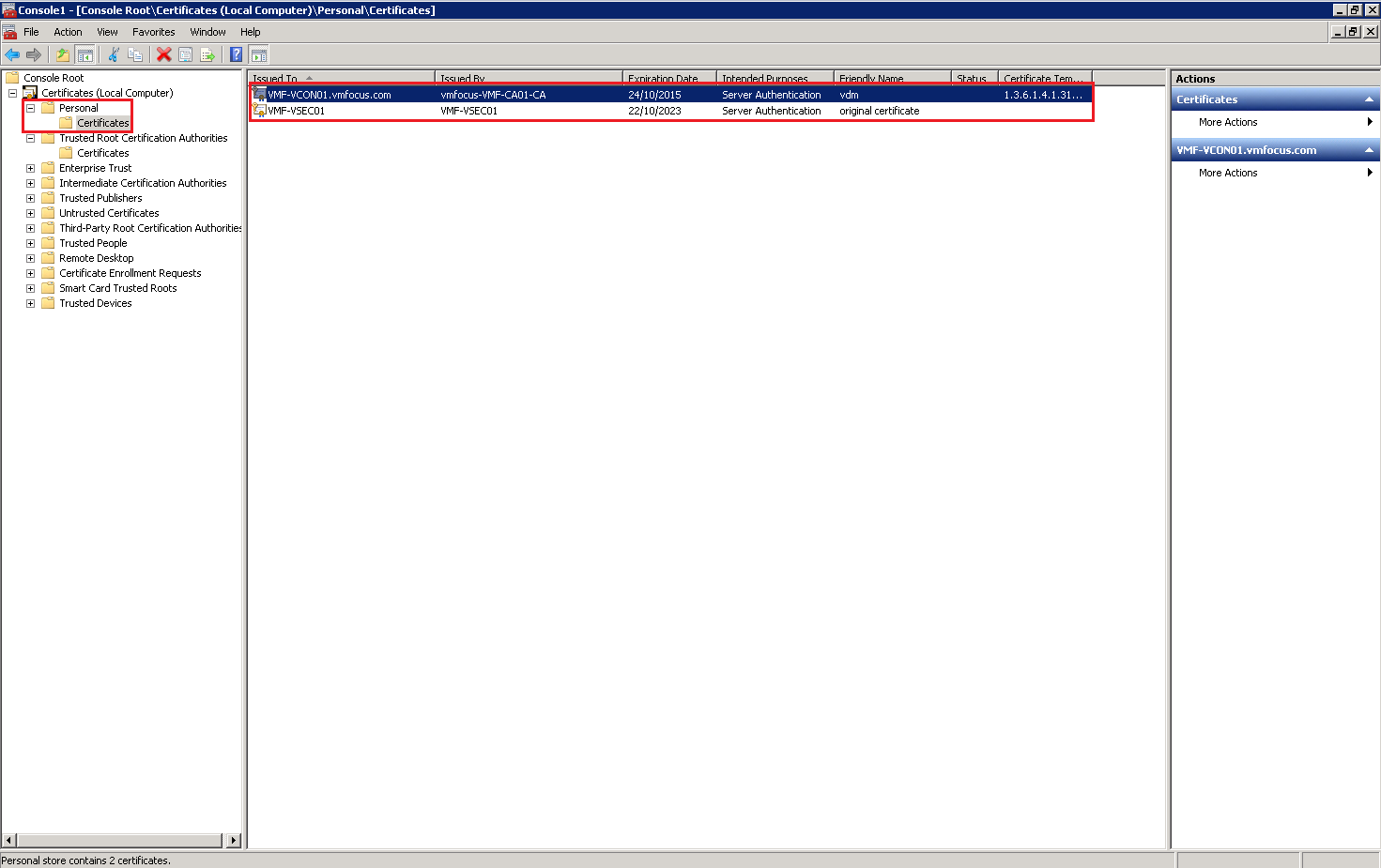
viewcert21

Rename the old Security Server certificate friendly name to something different like we did earlier with the old Connection Server certificate.

Last of all restart the service VMware View Security Gateway Component

viewcert22

Then for the moment of truth, login to your Horizon View Administration Console and bask in your awesomeness!
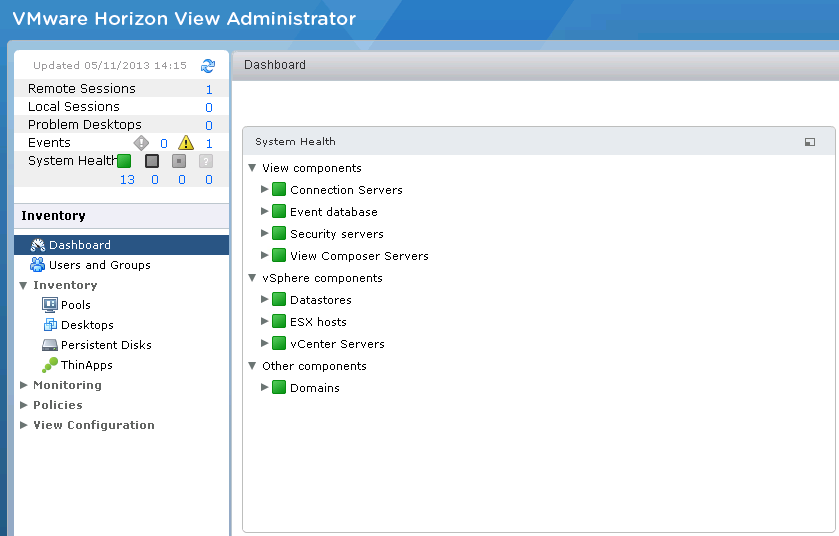
viewcert23

How To: Replace vCenter Operations Manager Certificates

In the previous blog  post entitled How To: Replace vCenter 5 & VUM Certificates we had replaced out certificates for vCenter and VUM but had only refreshed out vCOPS and View administration portals to connect to the trusted vCenter certificate.

In this post we are going to walk threw the process of replacing the vCenter Operations Manager Certificate, we are assuming that the prerequisites in How To: Replace vCenter 5 & VUM Certificates are in place.

Step 1 – Certificate Request

On an Windows Server 2008 based VM that has rights to request and enroll a certificate from your Internal CA

Click Start > Run > MMC > File > Add/Remove Snap-in

Select Certificates > Add > Computer Account > Next

vCOPS01

Expand Personal > Certificates > Right Click > All Tasks > Request New Certificate

vCOPS02Click Next > Select Active Directory Enrollment Policy

vCOPS03

Select your Certificate Template (mines called HorizonView) then click on ‘More information is required to enroll for this certificate.  Click here to configure settings’.

vCOPS04

Change Subject Name to Common Value and enter the Fully Qualified Domain Name of your vCenter Operations Manager UI VM.  In my case it is VMF-VCOPS01.vmfocus.com and Add this to the certificate request.

Next change the Alternative Name to DNS and enter the NetBIOS name e.g. VMF-VCOPS01 and the Fully Qualified Domain Name e.g. VMF-VCOPS01.vmfocus.com and Add this to the certificate request

vCOPS20

Click Next and then Enroll

vCOPS21

Once enrolled you will see the new certificate is in your Personal folder

vCOPS07

Step 2 – Export Certificate

Well, it’s not much good to us here, so we need to export it.  Right Click the Certificate > All Tasks > Export

vCOPS08

Select Yes, export the private key and hit Next

vCOPS09

Select Personal Information Exchange – PKCS #12 (.PFX) and hit Next

vCOPS10

Enter the password for the Private Key (we will need this later so make sure you remember it)

vCOPS11

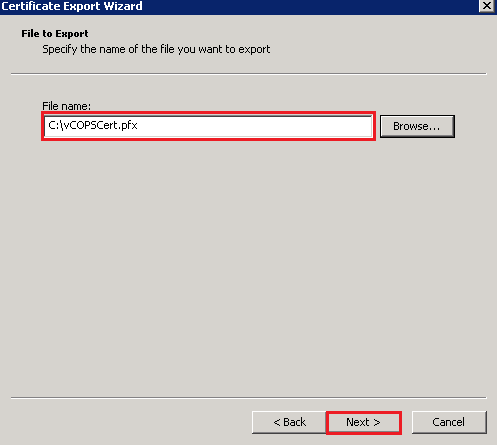
Choose a destination and name for the exported certificate

vCOPS12

If all has gone to plan, hit Finish

vCOPS13

Step 3 – Convert .PFX to .PEM

The kicker is that vCenter Operations Manager doesn’t accept .PFX certificates only .PEM so we need to convert it using OpenSSL

Copy the certificate to the C: on your OpenSSL VM and then drop into the CMD and cd to C:OpenSS-Win32bin

The command we need to run is:

openssl pkcs12 -in C:vCPOSCert.pfx -out C:vCOPSCert.pem -nodes

You will be prompted for your password, enter this and your certificate is now in .PEM format

vCOPS14

Step 4 – Import Certificate into vCenter Operations Manager

Launch the vCOPS Admin URL e.g. https://vcops01/admin and enter your credentials.

Select the SSL tab and then browse to your certificate location and hit Install

vCOPS15

Once done, click o the Status Tab and Restart Application Controls.

vCOPS16

If we have been successful, when you browse to your vCOPS URL you should see a Trusted Certificate

vCOPS17

How To: Replace vCenter 5 & VUM Certificates

We have received a number of requests to replace the Default Certificates on vCenter 5/VUM/vCOPS to prevent ‘man in the middle attacks’.  Due to this I thought it would be a good idea to go through the process myself manually (not using the vCenter SSL Automation Tool) so that I understood the gotchas and caveats.

I wanted to document the process as a number of articles, whitepapers and blog posts helped me to replace the default certificates for vCenter 5, VUM, vCOPS & Horizon View.

Resources Used

I started with the official VMware Guide and quickly found this lacking especially when it comes to OpenSSL, this is when both Julian’s and Michael’s blog posts where invaluable in my road to replacing the default certificates.

Prerequisite

To start on the path of replacing your Default Certificates, you will need the following in place:

Internal Certificate Authority

This should have the Certification Authority and Certificate Authority Web Enrollment services installed, mine is Active Directory integrated so that the my Internal Certificate Authority is automatically trusted by any domain members.

CA01

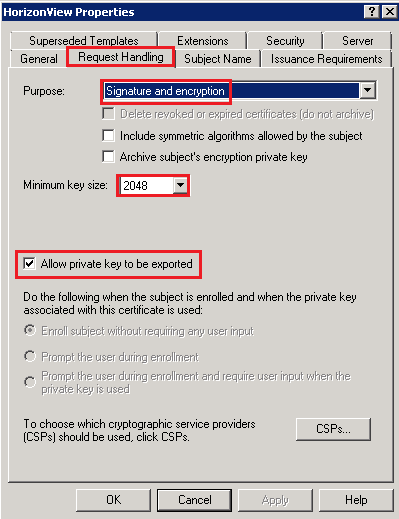
Load your Internal CA and go to Certificate Templates > Manage and create a copy of the Web Server Certificate with the following details:

  • Windows Server 2008 Enterprise Certificate
  • Minimum Key Size 2048
  • Allow Private Key To Be Exported

CA03

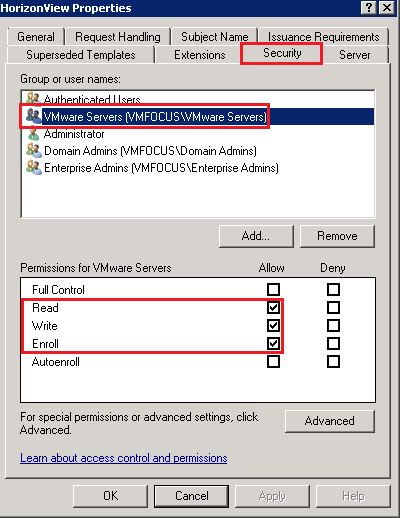
  • Create an Active Directory Security Group for your vCenter Servers and add these to the Security Tab and give them Read, Write and Enroll Permissions

CA02

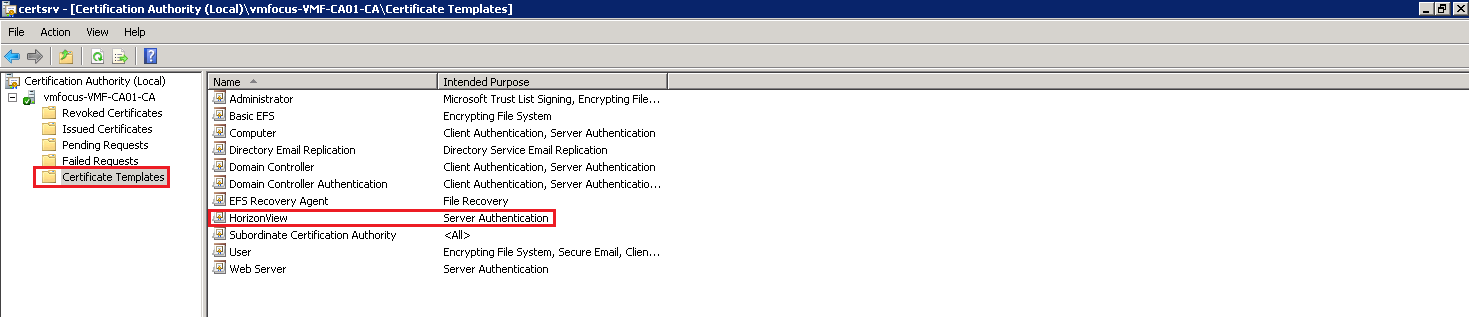
Close the Certificate Template Console and Right Click > Certificate Templates > New > Certificate Template to Issue > Select your Certificate and it should appear in the Certificate Templates.

Mines called Horizon View

CA04

Web Enrollment

From any server which is on your domain, but NOT your Internal Certificate Authority go to http://CANAME/certsrv

Perform a ‘Request A Certificate’ > Advanced Certificate Request > Create and s ubmit a request to this CA if you receive the error message ‘In order to complete the certificate enrollment, the Web site for the CA must be configured to use HTTPS authentication’.

CA05

Then go to Internet Options > Security > Trusted Sites > Sites and add deselect ‘Require server verification (https:) for all sites in this zone) and add your Internal CA

CA06

Next click on Custom Level and Enable ‘Initialize and script ActiveX controls not marked as safe for scripting’

CA07

Double check that your Web Enrollment now works correctly.

OpenSSL

I’m a Windows guy and therefore I needed to use a version of OpenSSL that worked in my Windows environment.

Download and install Win32 OpenSSL v1.0.1.e select the appropriate version if you on a x86 or x64 system.  During the installation select ‘The Windows System Directory’

Drop into CMD and CD into C:OpenSSL-Win32bin and run the following command:

set OPENSSL_CONF=C:OpenSSL-Win32binopenssl.cfg

CA08

Backups

Perhaps the most important thing is to have  a backup of your vCenter server and any related servers before you do any more work.  I can’t state how critical this is, as the chances are something is going to go wrong!

Step 1 – vCenter 5

Use Windows Explorer and navigate to C:OpenSSL-Win32bin and make a backup of openssl.cfg

CA09

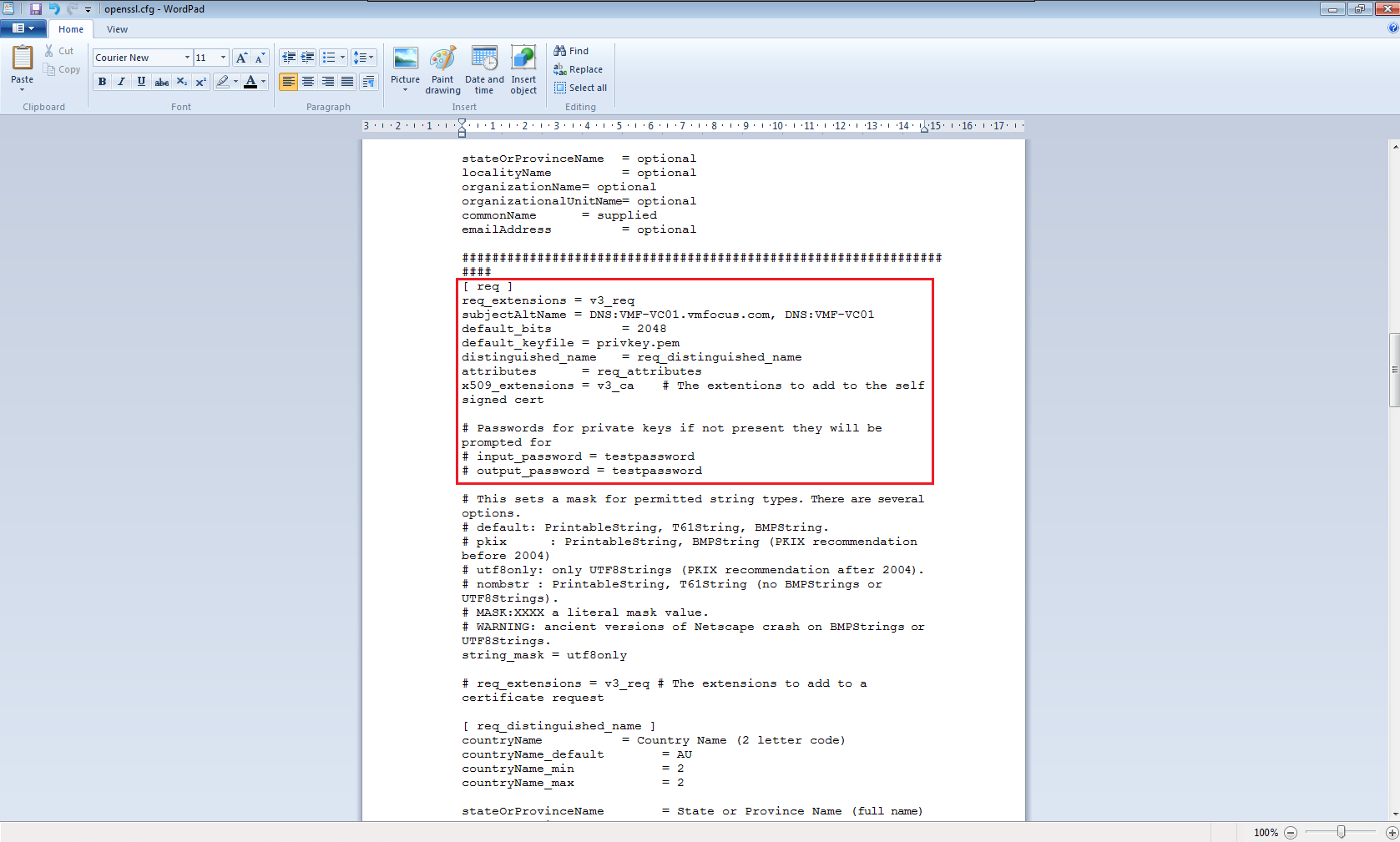
Now openssl.cfg using Wordpad and find [ req ] and insert these two lines directly underneath

req_extensions = v3_req
subjectAltName = DNS:VMF-VC01.vmfocus.com, DNS:VMF-VC01

Next change the default_bits to 2048

default_bits = 2048

After this change the input_password and output_password to ‘testpassword’

# input_password = testpassword
# output_password = testpassword

It should look like this

[ req ]
req_extensions = v3_req
subjectAltName = DNS:VMF-VC01.vmfocus.com, DNS:10.3.2.203
default_bits = 2048
default_keyfile = privkey.pem
distinguished_name = req_distinguished_name
attributes = req_attributes
x509_extensions = v3_ca # The extentions to add to the self signed cert

# Passwords for private keys if not present they will be prompted for
# input_password = testpassword
# output_password = testpassword

CA10

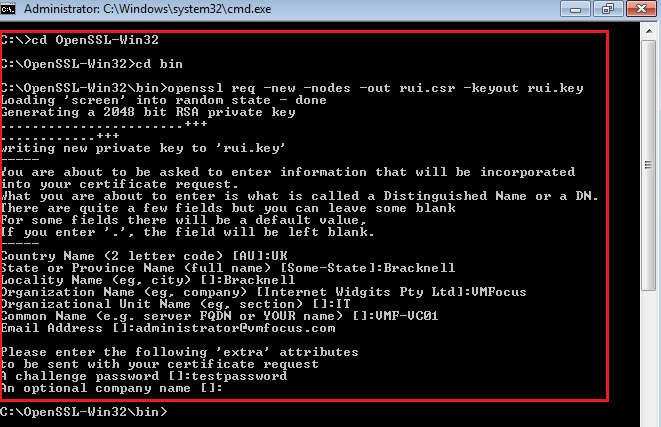
Drop into CMD and CD into C:OpenSSL-Win32bin and run the following command:

openssl req -new -nodes -out rui.csr -keyout rui.key

Complete the details presented

CA11

In the C:OpenSSL-Win32bin folder you will now have a rui.csr file

CA12

Open rui.csr using Notepad > Select All > Copy

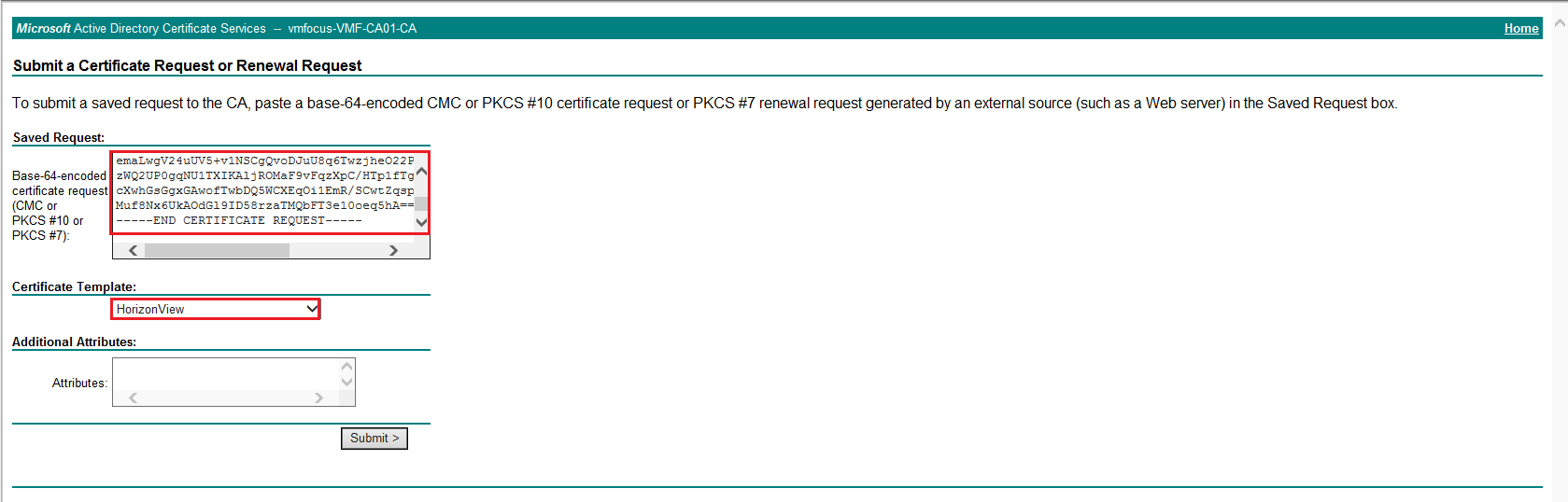
Fire up Internet Explorer and got to http://InternalCA/certsrv and Select > Request Certificate > Advanced Certificate Request > Submit a certificate request by using a base-64-encoded CMC or PKCS #10 file, or submit a renewal request by using a bae-64-encoded PKCS #file

In the space Base-64 encoded paste the contents of the rui.crt then change the Certificate Template to the one you published earlier

CA13

Hit Submit and then Select ‘Base 64 encoded’ and Download certificate

CA14

Rename the certificate to rui.crt and drop it into the C:OpenSSL-Win32bin folder.  You should now have three files called:

  1. rui.crt
  2. rui.csr
  3. rui.key

Before going any further check your certificate by double clicking rui.crt and make sure it has the correct Subject Alternative Names

CA15

Back into CMD and CD into C:OpenSSL-Win32bin and launch the following command:

openssl pkcs12 -export -in rui.crt -inkey rui.key -name rui -passout pass:testpassword -out rui.pfx

CA16

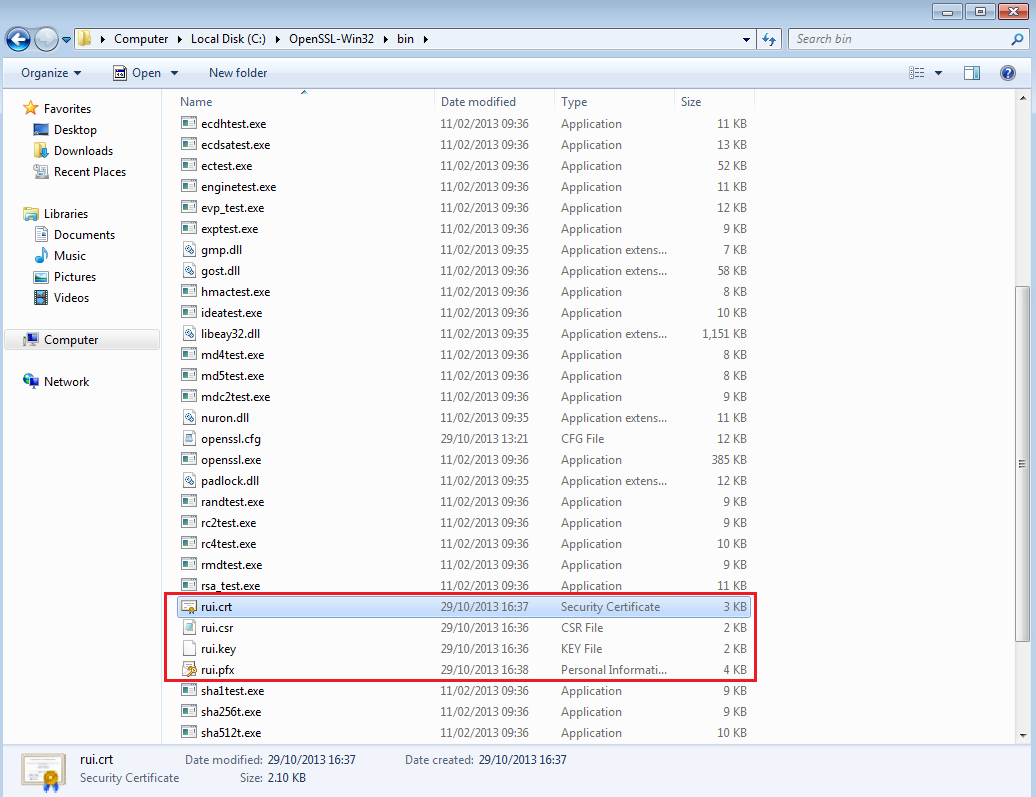
In the C:OpenSSL-Win32bin folder we now have four files:

  1. rui.crt
  2. rui.csr
  3. rui.key
  4. rui.pfx

CA17

Select rui.crt, rui.key and rui.pfx and copy these to your vCenter 5 Server

Jump onto your vCenter 5 Server and go to C:ProgramDataVMwareVMware VirtualCenter make a copy of the SSL folder

CA18

Paste the rui.crt, rui.key and rui.pfx into the SSL folder and overwrite the existing certificates.

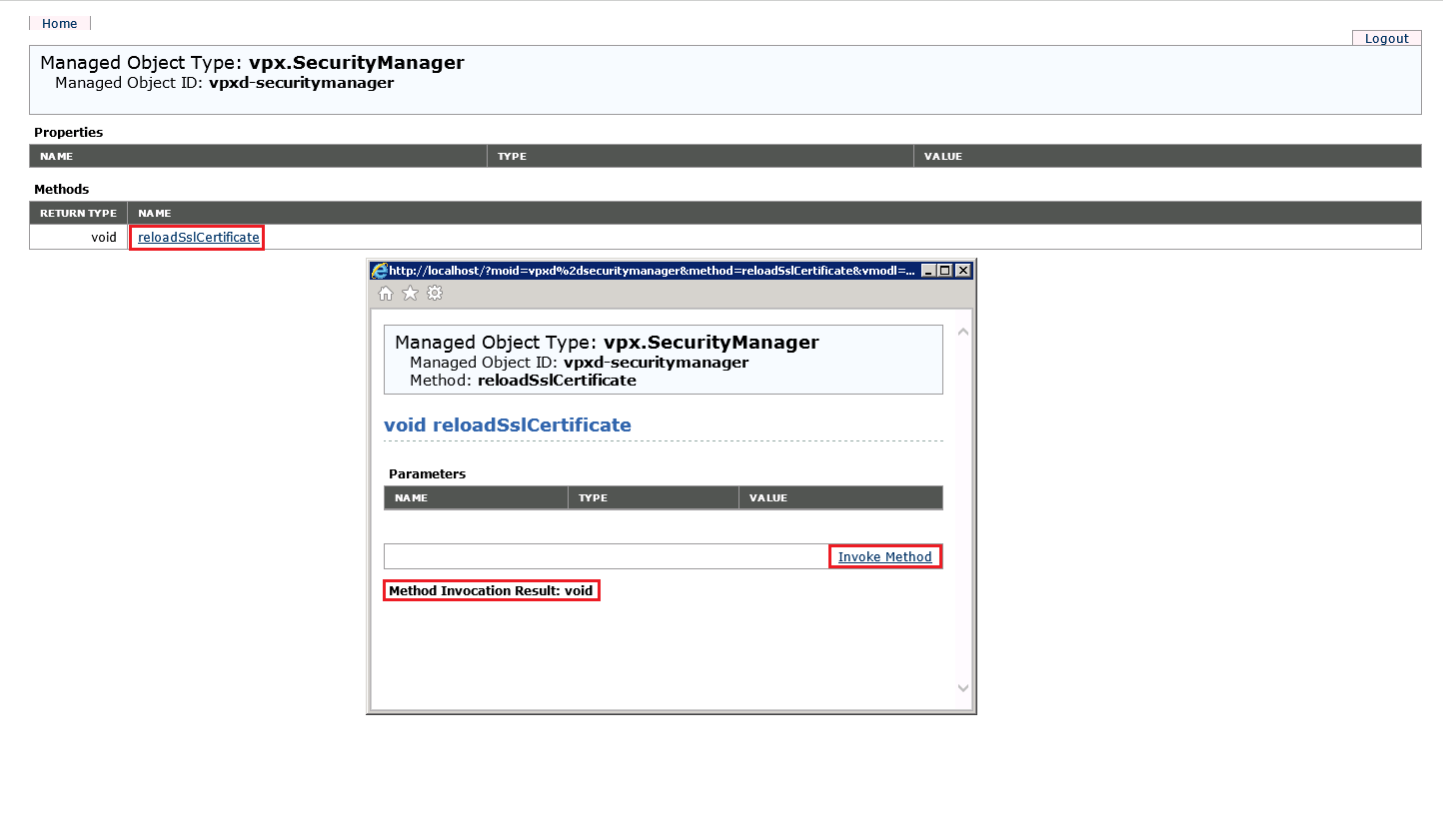
Fire up Internet Explorer and go to http://localhost/mob/?moid=vpxd-securitymanager&vmodl=1 (you might need to enable Compatibility Mode on Internet Explorer)

Enter credentials that have Administrator rights on vCenter

CA19

Select ‘reloadSlCertificate’ then Invoke Method

If all goes well, you should see the item displayed ‘Method Invocation Result: void’

CA20

Restart VMware VirtualCenter Management Webservices and browse to https://vCenter and you should see a trusted Certificate installed!

CA21

Step 2 – vCenter 5 Inventory Service

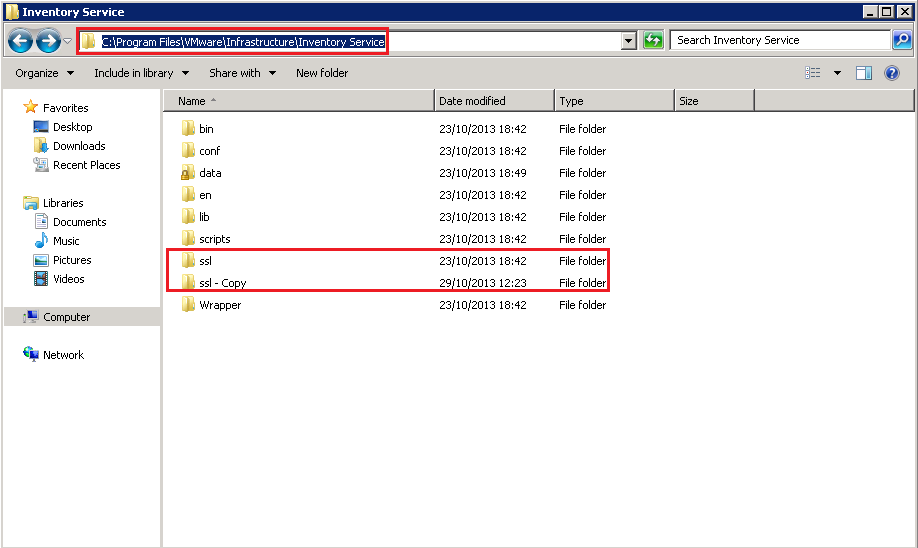
Navigate to C:Program FilesVMwareInfrastructureInventory Service and make a copy of the SSL folder

CA22

Paste the rui.crt, rui.key and rui.pfx into the SSL folder and overwrite the existing certificates.

Restart the vCenter Inventory Service

Step 3 – vSphere Update Manager

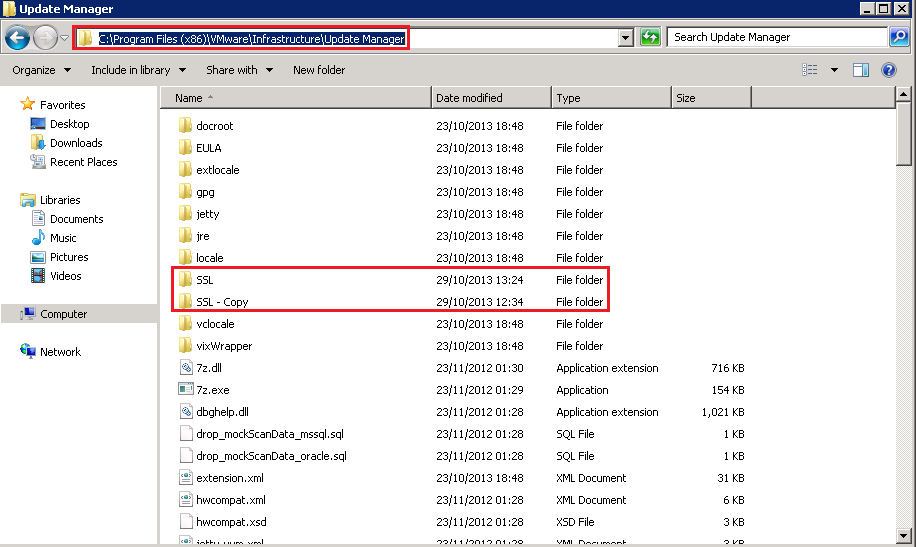
Navigate to C:Program Files (x86)VMwareInfrastructureUpdate Manager and make a copy of the SSL folder

CA23

Paste the rui.crt, rui.key and rui.pfx into the SSL folder and overwrite the existing certificates.

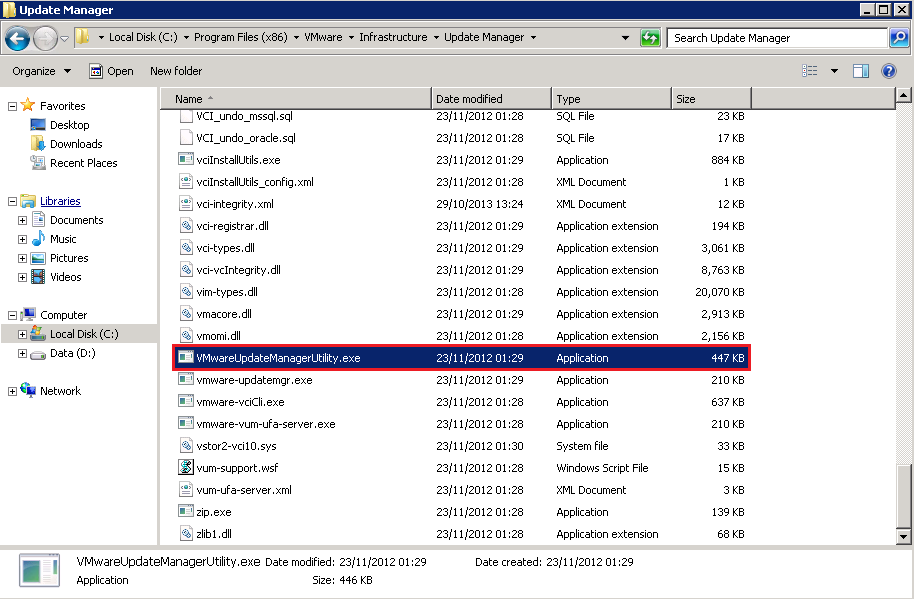
Go to C:Program Files (x86)VMwareInfrastructureUpdate Manager and launch VMwareUpdateManagerUtility.exe

CA24

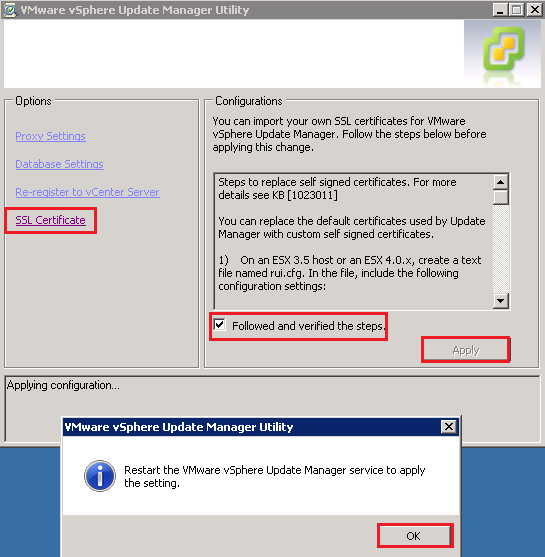
Enter your vCenter Server credentials then Select SSL Certificate > Tick ‘Followed and verified the steps’ > Apply

CA25

Restart the vSphere Update Manager Service

I recommend restarting your vCenter Server now, after this we get to the acid test which is does it work?

I’m sure it does!
Step 4 – Horizon View

Because we replaced the vCenter 5 certificates, we need to restart our Horizon View services.  Once done log into Horizon View Administrator and check your system health, fingers crossed we get Green Boxes.

CA26

Step 5 – vCenter Operations Manager

Because we replaced the vCenter 5 certificates, vCOPS will have lost connectivity.  To address, login to vCenter Operations Manager Administration > Registration > vCenter Server Registration > Update > Enter Credentials & Accept Certificate

Once done you should see the the Connection Status as Connected

vCOPS

vCOPS: Unable To Connect To vCenter Server. Details: Connecting to VC at https://vCenter/sdk failed

When installing and configuring vCenter Operations Manager you receive the error message ‘Unable To Connect To vCenter Server. Details: Connecting to VC at https://vCenter/sdk failed’ when trying to enter the FQDN of you vCenter Server

Error

Resolution

If you enter the IP Address of your vCenter then you are able to continue which means the issue is with DNS.

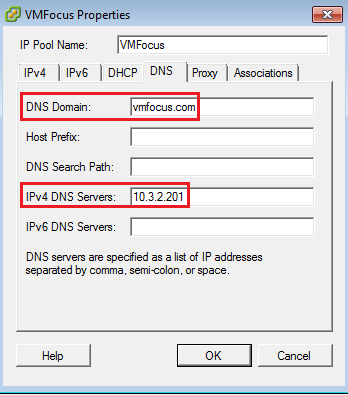
Go to your IP Pool > DNS and then enter the DNS Domain and an IPv4 DNS Server

vCOPS Fix

Unfortunately, we now have to power the vCOPS vAPP off and power it back again for the new IP Pool settings to take effect.  Once done, go back threw the initial configuration and you will be on the Import Data screen.

vCOPS Working

Windows 8 KMS Activation Error: Event ID 1017 0xC004F050

When configuring a Horizon View environment for Windows 8 activation, I was receiving Event ID 1017 Installation of the Proof of Purchase failed. 0xC004F050

KMS01

The KMS Server is a Windows 2008 R2 VM which has HotFix KB2757817 installed to allow activation of Windows Server 2012 or Windows 8 on a Server 2008 R2 VM.

When trying to add the Windows 8 KMS key using

slmgr.vbs /ipk <Windows8KMSKey>

Resulted in the error ‘On a computer running Microsoft Windows non-core edition, run ‘slui.exe 0x2a 0xC004F015 to display the error text.

Error: 0xC004F015

KMS02

This then meant that my Windows 8 VM’s where stuck in the ‘customizing’ state in Horizon View Administrator.

Resolution

The fix is simple you need to use a Windows Server 2012 KMS license rather than a Windows 8 KMS license.

slmgr.vbs /ipk <Windows2012KMSKey>

Which returns ‘Installed product key XXXXX-XXXXX-XXXXX-XXXXX successfully’

KMS03

Then last of all run the command

slmrg.vbs /ato

Which will activate the KMS license.