Veeam – Error: The method is disabled by ‘MVDI’

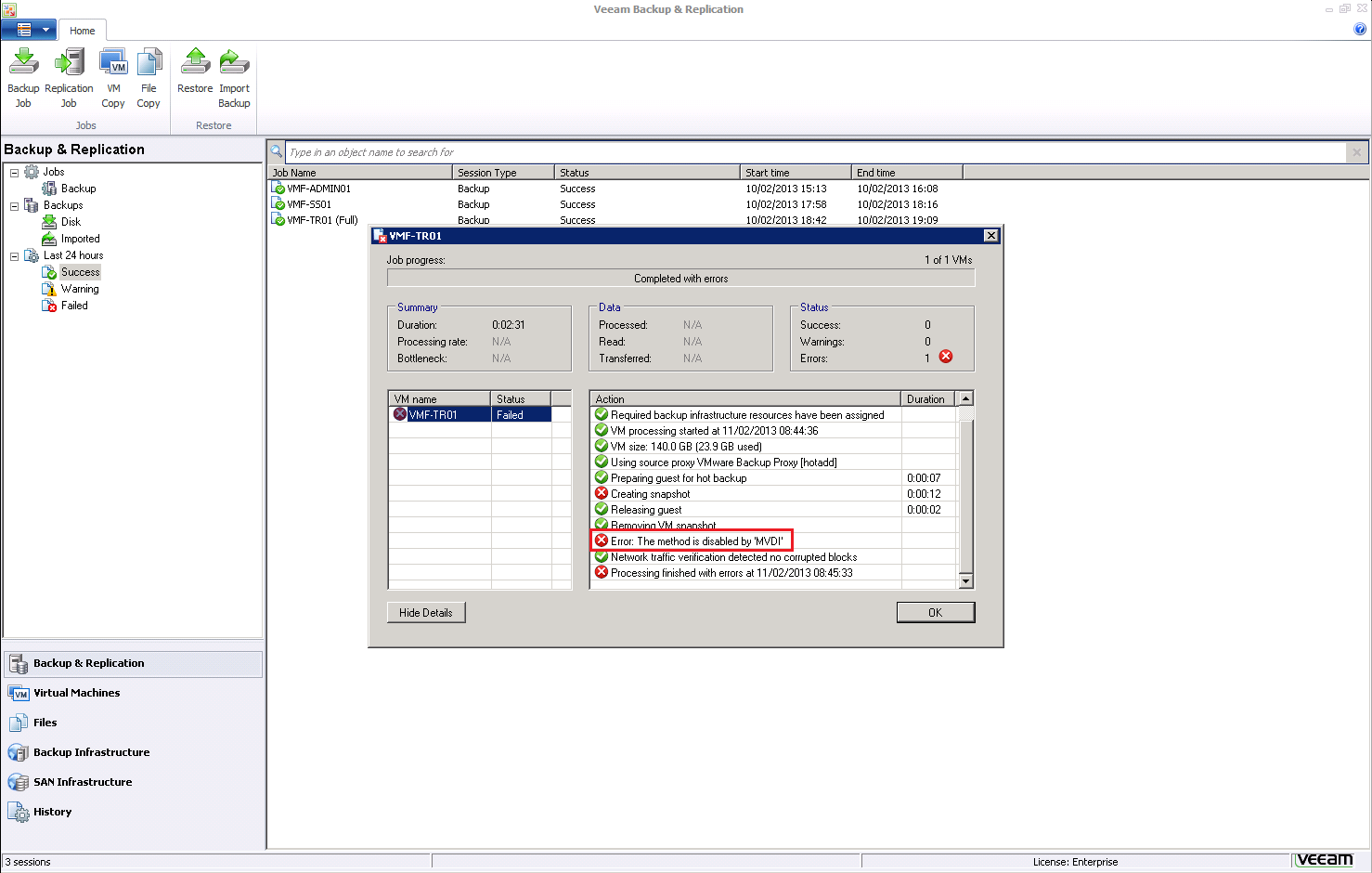
Error: The method is disabled by ‘MVDI’ is caused when you have a View Transfer Server which you are trying to back up.

Veeam 1

The View Transfer Server holds locked copies of Local Mode desktops which if altered would result in data corruption. Due to this normal VM functions such as snapshots, DRS, Storage DRS cannot be performed on the VMDK.

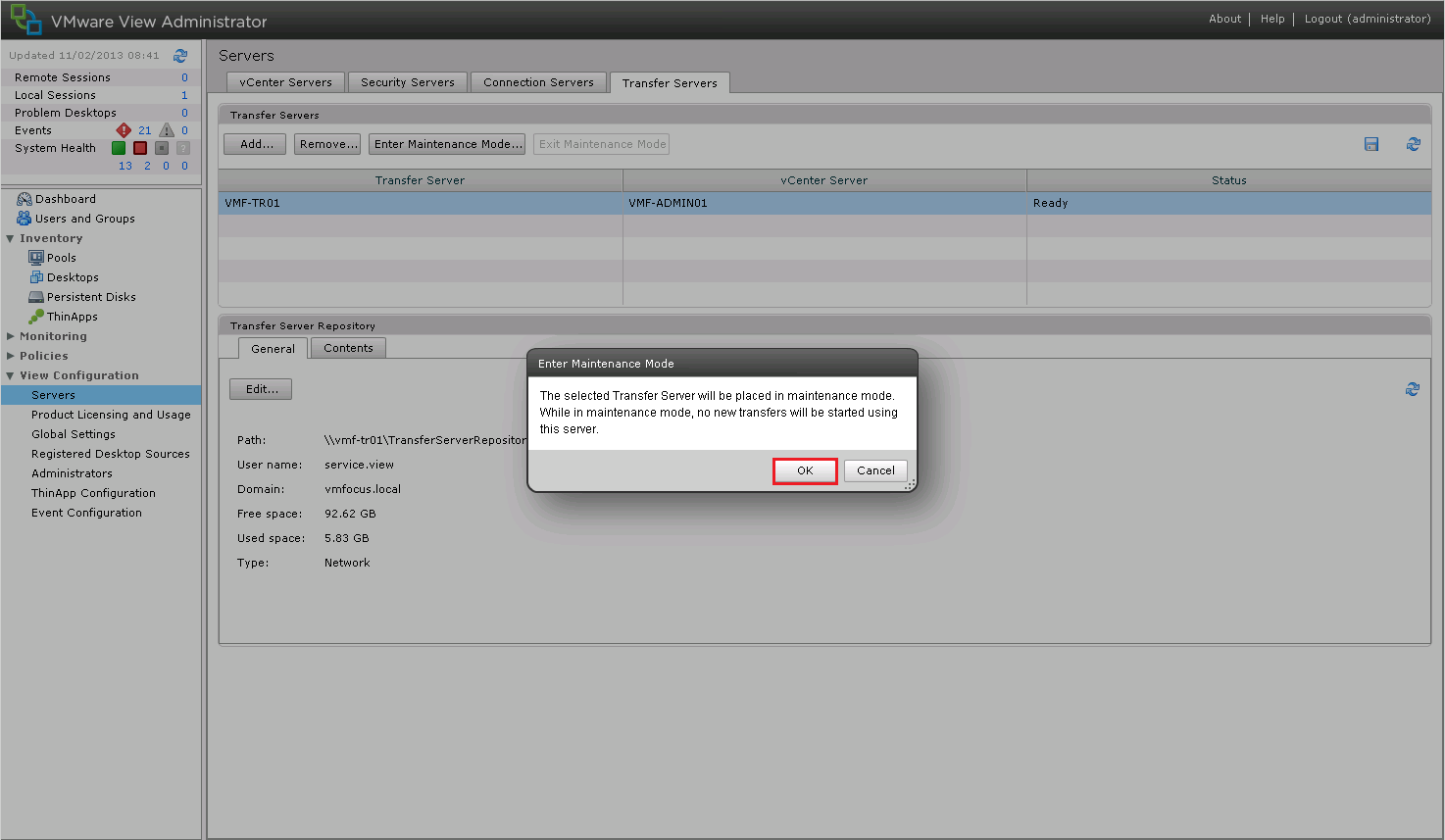
To enable the backup to run successfully, go into View Administrator > View Configuration > Servers > Transfer Servers and Select Enter Maintenance Mode.

Veeam 2

Select OK to enter Maintenance Mode

Veeam 3

Verify you are in Maintenance Mode

Veeam 4

Hop back over to Veeam and restart your backup job and voila this time we have success!

Veeam 5

Don’t forget to Exit Maintenance Mode on your View Transfer Server.

VMware View – Objective 3.4 Configure Local Mode Use

Knowledge

  • Given a customer environment and requirements, apply compatible Local Mode pool settings

Bit of a broad title, but we can run down some of the Local Mode settings to ensure they meet what Mr Customer wants!

Local Mode

Local Mode Virtual Desktop

Bit of an obvious one, but you are going to need to configure either an Automated Full Clone, Linked Clone or Manual Clone.

Whatever your choice, make sure that your that your Virtual Machine Hardware is 7.  I have heard that version 8 now works, but I haven’t tested it yet.

Transfer Server

This has to be configured with a LSI Logic Parallel SCSI Controller, otherwise Local Mode no worky!

View Administrator

Numero uno has to be to enable Local Mode, which is under Policies > Global Policies

Local Mode 2

We have a few other choices in here, they are:

User Initiated Rollback Can the user go back to the View Desktop version and discard any offline changes?

Max Time Without Server Contact How long is the desktop allowed to be offline? If it goes over this period you will get a warning stating you need to be like ET and call home.

Target Replication Frequency How often does the View Agent try and connect back to home

User Deferred Replication Can the user choose to put off replication?

Disks Replicated OS, Persistent or both?

User Initiated  Yay or nah

User Initiated Replication Yay or nah

All of these settings can be applied at Pool level as well for extra diversification.

Interestingly enough, you can actually state on a Pool settings that the desktop can only be used offline. By choosing the following settings:

Local Mode 3

Group Policy

We have a number of Group Policy settings which can be found in the View Client ADM under either

Computer Configuration > Administrative Templates > Classic Administrative Templates > VMware View Client Configuration

User Configuration > Administrative Templates > Classic Administrative Templates > VMware View Client Configuration

Default Exit Behavior For Local Mode Desktops Do we want them to Suspend or Shutdown

Delay The Start of Replications When Starting The View Client With Local Mode How much time in seconds after you login to View Client Local Mode before it tries to replicate

Redirect SmartCard Readers in Local Mode Can we use a Smart Card Reader in Local Mode

Client Device

Hopefully it should go without saying that if you want to bring a View Desktop ‘offline’ then your physical hardware needs to have more RAM than the View Desktop.  Also you need to make sure you have enough free disk space to hold the Local Mode desktop.

Last thing to note that Local Mode doesn’t work with dual monitors in the traditional sense.  Instead it stretched your desktop across two screens.

VMware View – Objective 3.3 Configure Manual Pools

Knowledge

  • Identify pool settings
  • Identify desktop sources

In blog post VMware View – Objective 3.1 Configure Automated Pools Using Linked Clones, we covered identify pool settings.  So in this blog post, we will look explicitly at ‘identify desktop sources’.

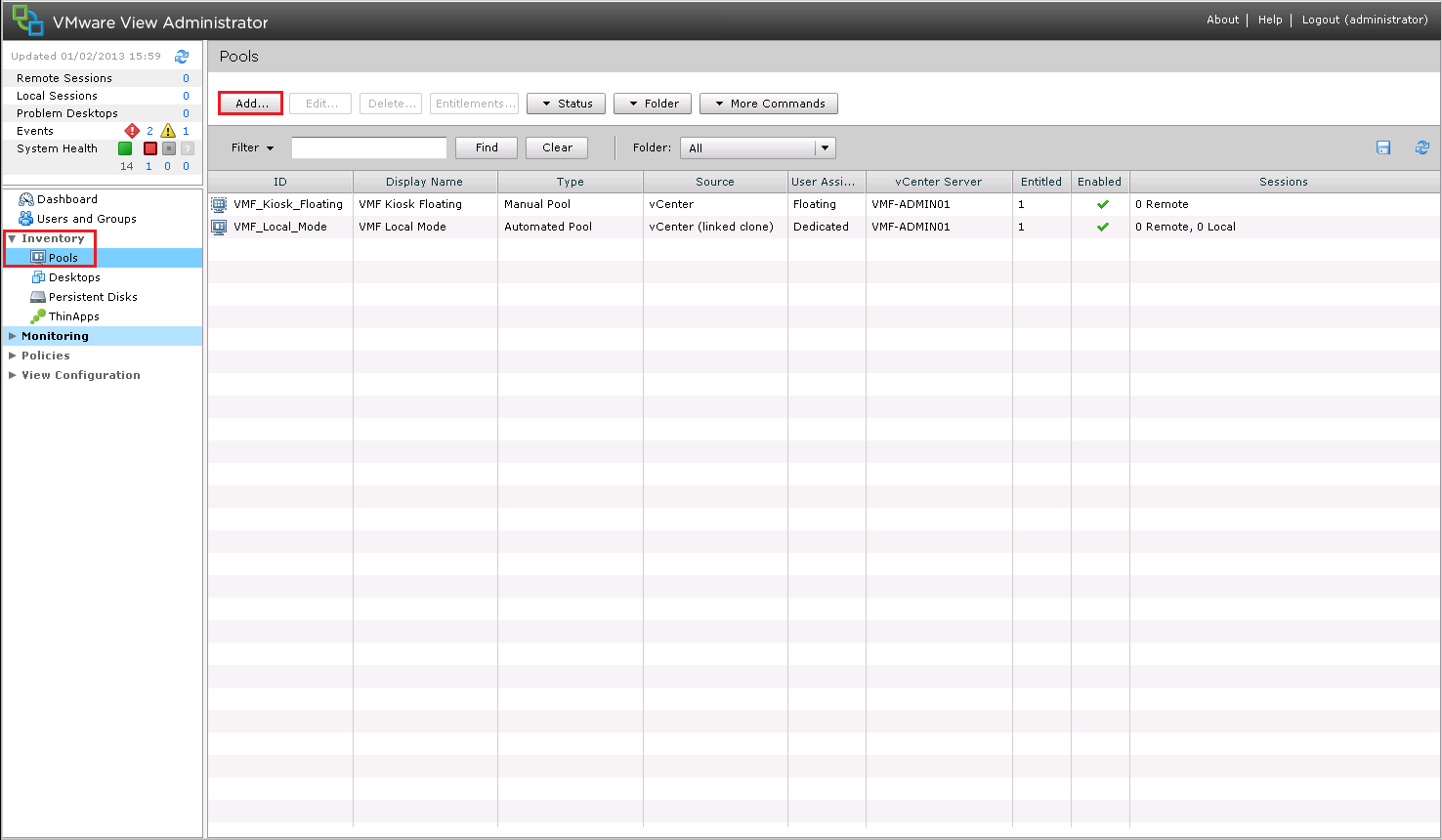
Back into View Administrator > Inventory > Pools > Add

View Manual Pool 1

Select Manual Pool

Manual Pool 1

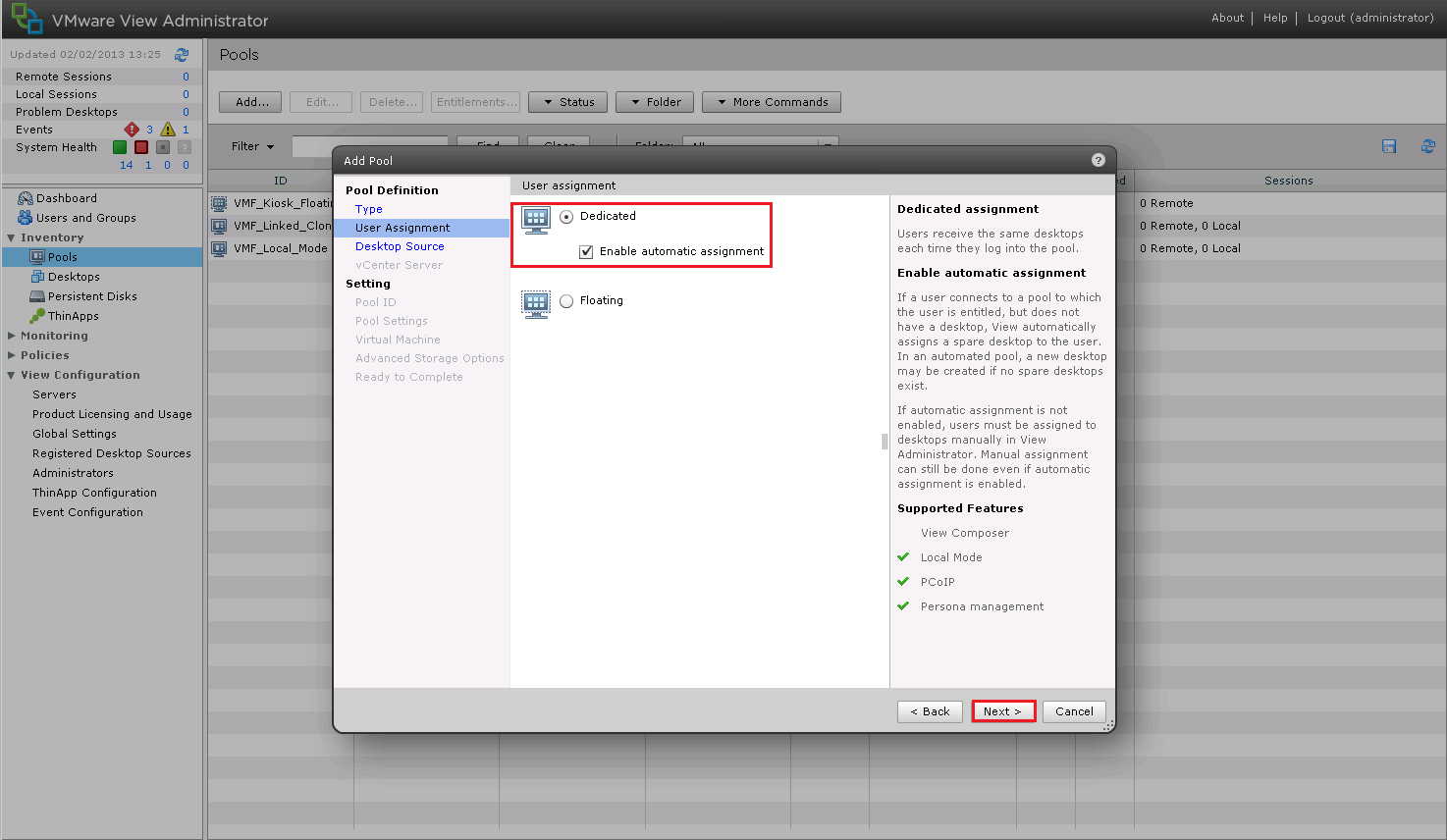
Select Dedicated as the User Assignment

Manual Pool 2

Ah ha, something different, we know how a choice of vCenter Virtual Machines, which is any VM you have created or it can be a Phsyical Computer you want to access remotely and let View Broker the connection to it.

I’m going to roll with vCenter Virtual Machines

Manual Pool 3

From this point forward, all the rest of the choices are exactly the same as with a Linked Clone or Full Automated Pool.  So thanks for reading!

VMware View – Objective 3.2 Configure Automated Pools Using Full Clones

Knowledge

  • Identify floating vs. dedicated assignments
  • Identify pool settings
  • Identify provisioning settings
  • Identify template
  • Identify vCenter Server resource settings
  • Identify guest customization settings

In my previous blog post VMware View – Objective 3.1 Configure Automated Pools Using Linked Clones, we covered pretty much all of the above points.

However, what’s the difference between a Linked Clone and a Full Clone? Well a Full Clone is exactly the same as when we use a virtual machine as template.  vSphere creates a Full Clone of the VM, and then we run Sys Prep against it too change the GUID, join it too the domain etc.

So I think we will run through the process of creating an Automated Full Clone Pool, however, I won’t explain all the knowledge points again, only the differences.

Back into View Administrator > Inventory > Pools > Add

View Manual Pool 1

Select Automated Pool and hit Next

View Linked Clones 2

We get the same question about Dedicated or Floating Assignment, a quick recap below.

Dedicated – This means when a Users logs in, a desktop is assigned to them and this is the desktop they will always continue to use.

Floating – This means the User is not assigned a desktop and is used in environments such as call centers where desktop personalisation is not a requirement.

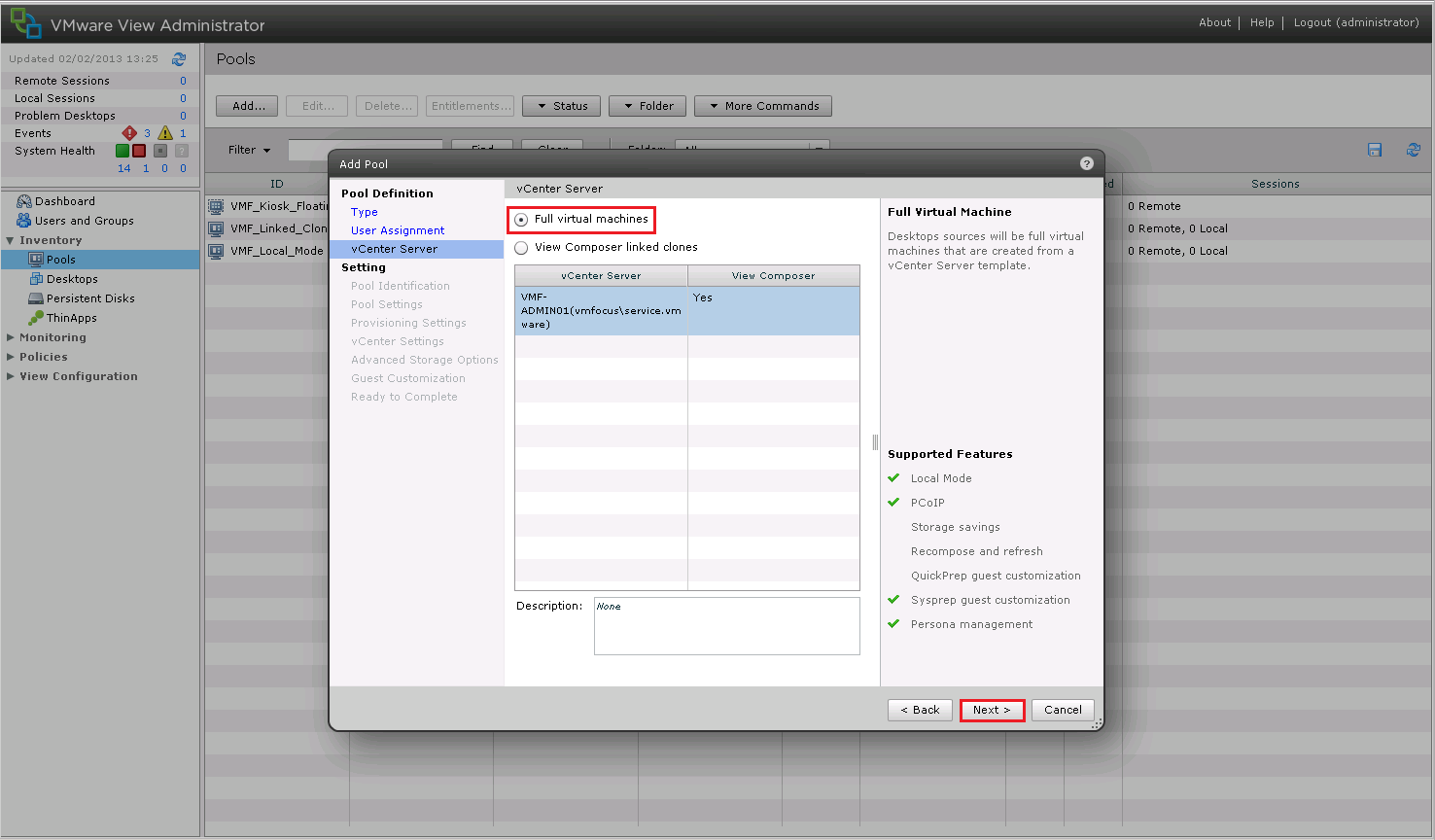
This is the point where we choose ‘Full Virtual Machines’ and hit Next

View Manual Pool 4

Enter in your ID, Display Name and View Folder

View Manual Pool 5

We get the same choices for the Pool Settings

View Manual Pool 6

Again we get the same Provisioning Settings

View Manual Pool 7

This part is slightly different as we need to use a Template for our Automated Full Clones.  The rest however is the same.

View Manual Pool 8

I have enabled Host Caching which is in View Configuration > Servers vCenter Servers > Edit > Host Caching

Host Cachine

Essentially Host Caching gives up some of the memory on the ESXi Hosts to help out with View Desktops during boot storms.

View Manual Pool 9

In Guest Customization select a Sys Prep which you know works correctly e.g. it joins Desktops to the domain.View Manual Pool 10

There we go jobs ‘a good un’ our Automated Manual Pool is done.  All is left to do, is Entitle Users

View Manual Pool 11

VMware View – Objective 3.1 Configure Automated Pools Using Linked Clones

Knowlegde

  • Identify floating vs. dedicated assignments
  • Identify persistent disk settings
  • Identify the disposable disk settings
  • Identify pool settings
  • Identify provisioning settings
  • Identify base image and snapshot
  • Identify vCenter Server resource settings
  • Identify guest customization settings (e.g., QuickPrep, Sysprep)

I’m going to break protocol on this post and go through configuring a Linked Clone Desktop, which will then cover all of these objectives.

In my previous blog post Objective 3.5 – Build desktop sources we covered building the baseline Windows 7 VM.  Before taking a snapshot I would recommend performing an ipconfig /release on your VM, just so nothing in the Windows TCP/IP stack interferes with our deployment.

Windows 7 LM

Power down your Windows 7 base VM and take your snapshot, mine is originally entitled Windows7_Baseline

Windows 7 LM Baseline

Hop into View Administrator and go to Inventory > Pools > Add

View Linked Clones 1

We are going to select Automated Pool. But what is an Automated Pool?

Well it allows View Desktops to be generated on demand.  Let’s say you have 100 users, you may not want to generate 100 desktops straight away.  So with an Automated Pool you can deploy 50 desktops and then say I want to have 10 desktops always available.  This means that 60 desktops will be created and when users 51 logs in the 61 desktop will be created.

View Linked Clones 2

Next we need to choose how the Users will be assigned to the desktop.  We have two choices:

Dedicated – This means when a Users logs in, a desktop is assigned to them and this is the desktop they will always continue to use.

Floating – This means the User is not assigned a desktop and is used in environments such as call centers where desktop personalisation is not a requirement.

I’m going to select Dedicated and I will allow View to manage assigning desktops to users, by ticking ‘Enable automatic assignment’.

View Linked Clones 3

We are going to select View Composer Linked Clones.  Linked Clones, are awesome! They save a large amount of space on your storage as rather than having a full copy of each desktop you have a link to a replica VM taken from the original snapshot.  Then each Linked Clone has a a Delta Disk which references back to the original Replica.  I think a diagram is in order to understand the process.

Linked Clones

We have selected View Composer Linked Clones and hit Next

View Linked Clones 4

Next we need to enter our ID, this is static and once entered cannot be changed, so make sure it’s something relevant.

The Display Name isn’t static and can be changed on the fly, you can also change the folder as well.

View Linked Clones 5

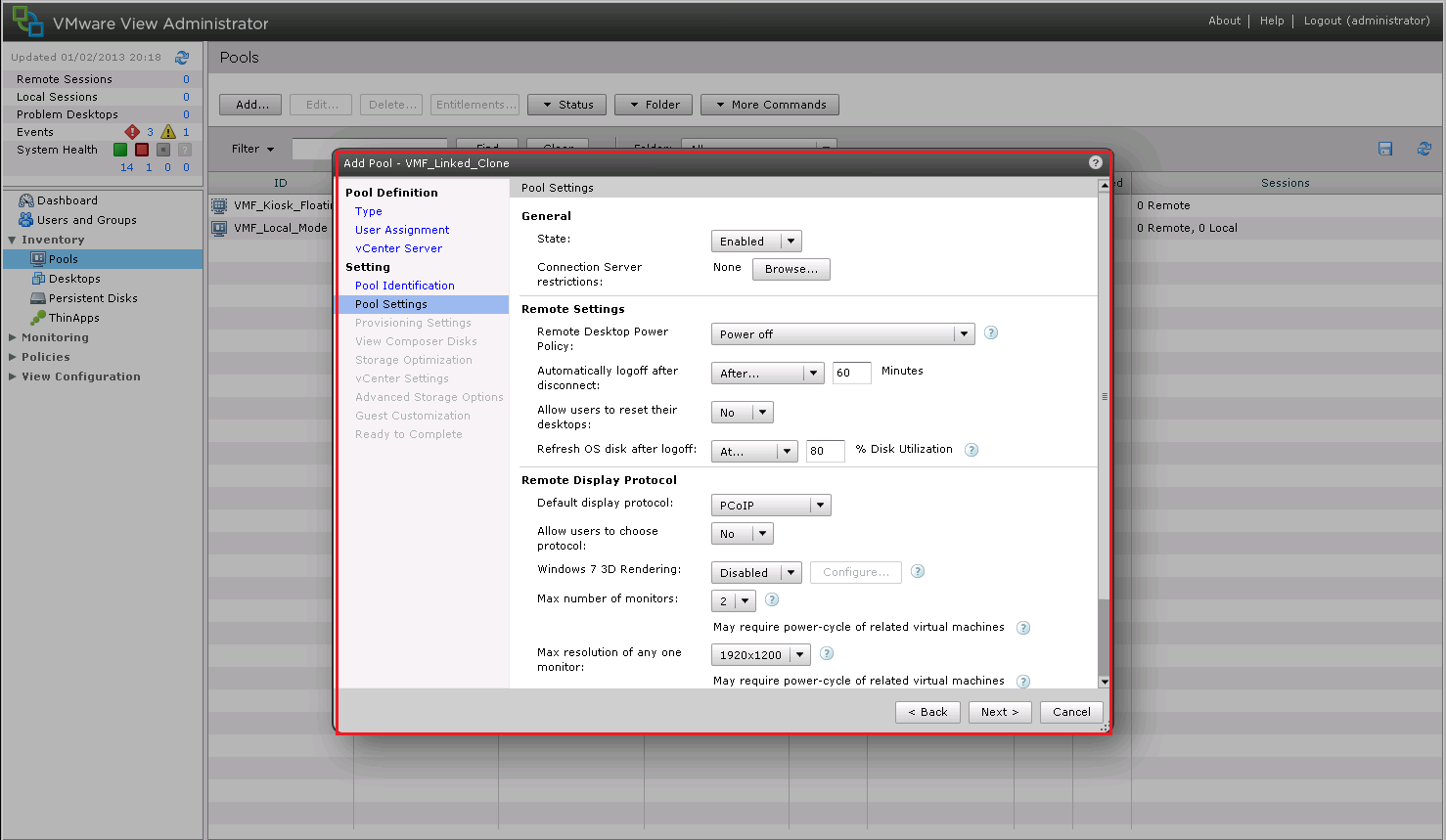
Now we have alot of choices to make, so let’s run through them.

General

State – Either the Pool is enabled or disabled

Connection Server Restrictions We can limit this Pool to use a particular Connection Server

Remote Policy Settings

Remote Desktop Power Policy – We can define what happens with desktops after a users has logged off/disconnected.  Take no action, power it off, suspend or ensure desktop is always powered on

Automatically Logoff After Disconnect – Choice of, Immediate, Never or After ‘x’ minutes.  I normally use 90 minutes as it allows people to go to lunch and come back without loosing any work.

Allow Users To Reset Their Desktop – Err, this is yes or no

Refresh OS Disk After Logoff – This enables the VMDK to go back to it’s original state, which is essentially a recompose.  If you enable this then it does take a little while before users can log back in again.  This can be configured to never happen, every logoff, at % of disk usage or every ‘x’ days

Remote Display Protocol

Default Display Protocol – This is View, we have to choose PCoIP

Allow Users To Choose Protocol – Err, this is yes or no

Windows 7 Rendering – We need some cool Aero Themes going on enable this and choose how much vRAM to pump at it

Max Number Of Monitors – If two isn’t enough you can always increase it too four

Max Resolution Of Any One Monitor – How many pixels do you need?

Adobe Flash Settings For Remote Sessions

Adobe Flash Quality Selecting lower quality will save on bandwidth

Adobe Flash Thottling – Limits the frames per second, giving you some bandwidth saving

View Linked Clones 6

Things start to get serious now, as we head over into the Provisioning Settings.  The naming pattern I will use for this is going to be VMF-LC01, VMF-LC02 wtc.

To achieve this I will enter VMF-LC{n:fixed=2}

The Pool Sizing area is pretty straight forward, I like to provision desktops on demand, as it puts a smile on my face!

View Linked Clones 7

View Composer Disks, this is where my opinion View comes into it’s own.  We can have a  ‘Persistent Disk’ which creates a new VMDK and placed the Users Profile on it (My Documents, Desktop Icons etc) which remains even if the Users Desktop is recomposed.  If you use View Persona Management then I don’t think this has much validity.

The Disposable File Redirection needs to be bigger than the amount of RAM in your Windows 7 Desktop VM.  Essentially, this is where any temporary files are stored which can be destroyed upon a desktop shutting down.

View Linked Clones 8

On Storage Optimization it’s always worth while separating your disks onto different Datastore if possible to get better performance.

Ideally, you want your Replica Disk to be on fairly fast storage e.g. 15K or above
View Linked Clones 9

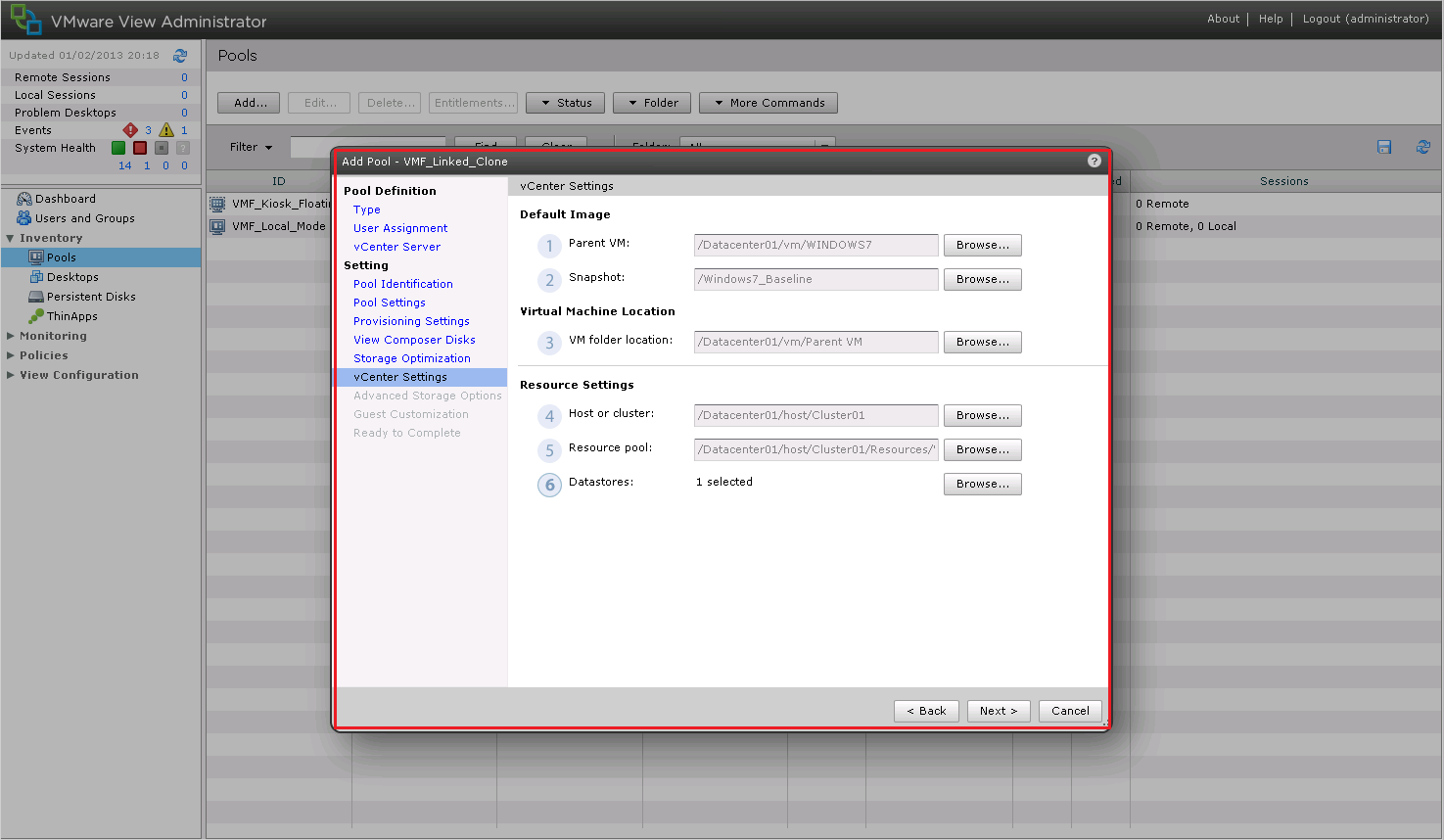
This part is fairly straight forward, we need to select our Parent VM, Snapshot, Folder, Cluster, Resource Pool and Datastore

One thing to note is that we Select Linked Clone Datastore we can choose our Storage Overcommit Policy, which can be None to Aggressive.  This defines how much we can over provision our Datastore with Linked Clones
View Linked Clones 10

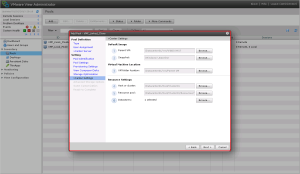
In Guest Customization we can define which Active Directory Organizational Unit the View Linked Clones will be deployed to.  We can also choose to use Quick Prep (which I command as it’s a cut down version of Sys Prep) and run various scripts.

View Linked Clones 11

I suggest you entitle you Users to the Linked Clone desktop and then you can watch the magic happen!

View Linked Clones 12

There we go, Objective 3.1 covered, thanks for reading.