How Do I Get VMware vSphere Licenses For My Home Lab/Test Environment?

I was talking to several colleagues recently who mentioned it was a real pain having to rebuild his home lab vCentre environment every sixty days.

They did not know that VMware offer NFR (not for resale) licenses, which are available if the company you work for is a VMware Partner.

VMware provides partners with access to a number of VMware software products to enable a successful VMware virtualization practice. Not for Resale (NFR) software is available to partners for product demonstration and training purposes only. One year of subscription services is included with NFR software as long as the partner remains in good standing within the parameters of the VMware Partner Program.

How Does My Company Receive NFR?

NFR licenses are automatically delivered by VMware to the headquarter location upon membership progression (such as Registered to Professional or Professional to Enterprise) and release of new products. Licenses that are provided as part of the NFR offering are delivered to the License Administrator via ESD (Electronic Software Distribution) or to the primary contact if a license administrator has not been identified

Before we move on, a little disclaimer, I don’t know what criteria VMware use to accept or validate requests for NFR licenses, nor do I know any hacks or cracks to gain free VMware licenses.

To put forward a case for NFR licenses you have to register for VMware Partner Central by entering the company you work for and having these details validated by a representative from your company.

Once logged into VMware Partner Central, select ‘Partner University’ from the top menu bar

From the left hand side select ‘Contact Us’
On the right hand side select ‘Submit a Case Now’
Under Reason select Question/Inquiry
Under Issue Category select Benefit / Entitlement
Under Issue Type select Not for Resale Licenses (NFR)
You will need to enter a subject and explain the reasons/business case for the request for any extra NFR licenses.

My experience submitting cases via Partner Central has been extremely positive, normally you receive a response within 24 hours and an answer within 48 hours.
Setting Up & Configuring Alarms in vCenter 5 Part 1

vCenter has some great inbuilt alarms which can trigger alerts via email or SNMP to the IT administrator   I have seen quite a few environments, where alarms haven’t been configured!  The obvious question is, is this due to lack of knowledge or do the administrators really check every item manually within vSphere? My guess is the earlier.

With this in mind, I thought I would go over the basic settings and then also what alarms/alerts I generally put in place along with some rational over the triggers.

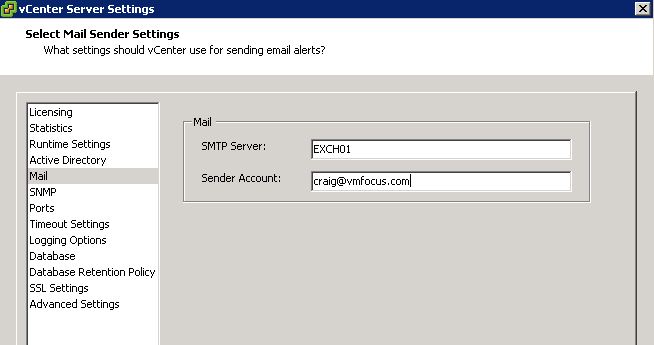
The first thing we have to do is configure vCentre to send out email and SNMP alerts.  Go to Home > vCenter Servers Settings or to Top Menu Bar > Administration > vCenter Server Settings

Select Mail from the left hand side and enter your SMTP Server details.  Note that VMware does not support email authentication, so if you are using an Exchange 2003/2007/2010 I recommend you create a new receive connector called ‘vmware’.

Select SNMP from the left hand side and enter either the IP Address or DNS Name of your SNMP Server along with the community string needed to validate if any different from ‘public’

If you need the MIBS (Management Information Base) these can found at %ProgramFiles%VMwareInfrastructureVirtualCenter ServerMIBS if the default installation path has been used.

Alarms can be configured at a few different levels which are:

Root these alarms will encompass Datacentre, Cluster, ESXi Hosts, Resource Pools and VM’s

Datacentre these alarms will encompass Cluster, ESXi Hosts, Resource Pools and VM’s

Cluster these alarms will encompass ESXi Hosts, Resource Pools and VM’s

ESXi Hosts these alarms will encompass Resource Pools and VM’s

Resouce Pools these alarms will encompass the VM’s that reside within them.

VM these alarms are only specific to the virtual machine

Generally speaking, nearly all the alarms which I create are done at the root level which means that whatever actions are performed by the vCentre administrator, they should be covered.

vCentre allows you to configure actions for alarms based around set criteria.  When the alarm is triggered it can be configured to alert once or repeat

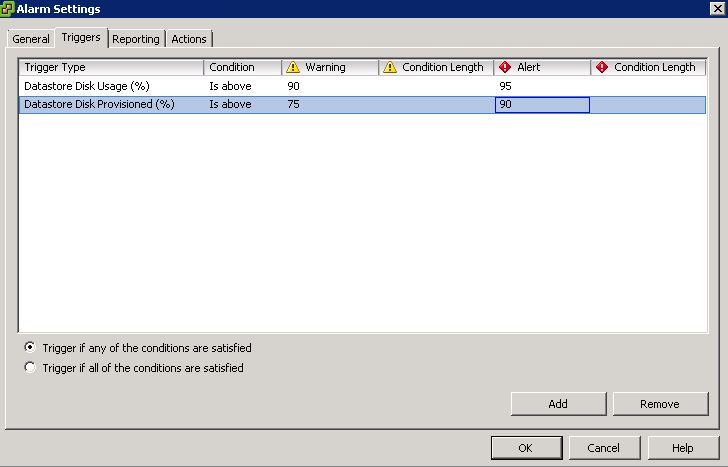
When the alarm triggers, it will do so when it enters a warning state e.g. Datastore Disk Usage Is Above 90% and then again when it hits a critical state e.g. Datastore Disk Usage Is Above 95%

So following this through, alarms can be triggered by the following events:

Normal Condition > Warning Condition
Warning Condition > Critical Condition
Critical Condition > Warning Condition
Warning Condition > Normal Condition

Alarms can be triggered if they meet ‘any’ of the conditions or ‘all’ the conditions you have set.

If you are a savy VMware Administrator you may ask the storage team for a 2TB LUN, but you only really need 1TB. So you provision a datastore at 50% capacity so you want to create a warning alarm when it reaches 75% provisioned and then critical at 90% provisioned, so you know when to ask for some extra space from the storage team.

With this in mind, imagine you had a single alarm which covered both Datastore Disk Usage (%) and Datastore Disk Provisioned (%).  However, I would always recommend using ‘trigger if any of the conditions are satisfied  unless you have a compelling reason not to do so.

So now we have configured vCenter to be able to send alerts, we need to configure some for it too send!  Hold fire until Part 2.

Virtual Machine Restart Priority

We are all guilty of doing this, we design and install a beautifully crafted vSphere 5 environment following best practises for HA, host isolation responses and we setup our admission control to meet the clients requirements.  When then pass the VMware environment back to the client to manage and maintain themselves.

The client has a hardware failure and the VM’s are restarted on an alternative host, excellent we say.  However the client is far from happy as we didn’t mention or configure ‘virtual machine restart priority’ and they encountered complications as the VM’s came up in the wrong order.

In essence virtual machine restart priority enables selected virtual machines to start before other virtual machines over riding the clusters default settings.  To configure virtual machine restart priority:

– Right Click Cluster
– Edit Settings
– Virtual Machine Options
– Virtual Machine Settings > VM Restart Priority

Lets look at the following scenario.

Scenario A

Client has VMware Standard licensing, which means they don’t have DRS.  They have two Exchange 2010 email servers, one running the CAS/Hub role and the other running Mailbox role.  They reside on the same host as someone thought this would a ‘good idea’.

The physical host fails and it’s a free for all for the VM’s to restart, as a result the CAS/Hub server comes up before the Mailbox server.  As a result Outlook Client connectivity, OWA and Active Sync take longer than anticipated to connect resulting in an extended downtime.

Scenario B

Same client has configured virtual machine restart priority with the following settings:

Mailbox server – High
CAS/Hub server – Medium

The VM’s restart in the right order and the client has less downtime.

Best Practices

Naturally every environment is different, but as a general rule of thumb, I recommend using the following guidelines.

Exchange

– CAS/Hub – High Priority
– Mailbox – Medium Priority

Domain Controllers

– If FSMO role holder – High Priority
– If Global Catalogue – High Priority

SQL

– SQL Server – High Priority
– Applications relying on SQL e.g. BES – Medium Priority

Citrix

– Data Collector – High Priority
– Web Server – Medium Priority
– License Server – Medium Priority
– Farm Members – Low Priority (as you want everything else to be up and running before users login).

Debunking the Myths of Virtualizing Your Business Critical Applications

They say fear is good.

Fear can be a healthy thing—it can keep you from getting in over your head, taking unnecessary risks, and it can even save your life. In IT, that fear—maybe better framed as ‘caution’—has its place. It ensures that we consult with others, adhere to processes and standards, and balance risk with reward. Caution in IT ensures that business keeps moving forward—because if it doesn’t, revenue is at risk (and necks are on the line). So, we proceed with caution.

In the world of virtualization, there is fear—but, for the most part, it’s misplaced. Many companies that have fully embraced the benefits of virtualization are still missing the greatest value because they think it’s too risky to virtualize business critical applications (BCAs).

Read more here

VMware vSphere Metro Storage Cluster

Today VMware have annouced the support for ‘stretched storage cluster’ and have produced a white paper to this effect.

The purpose behind a ‘stetched storage cluster’ is to have two different geographical sites which reside on the same subnet (stretched VLAN) to enable routine tasks as high availability, vMotion and Storage vMotion to take place.  It is not intended to replace VMware Site Recovery Manager.

Essentially, you need to have an array which has the ability to perform reads to and writes to both locations at the same time.  The white paper mentions latency values up to 5ms, however, my experience with synchronous SAN based replication is that we encountered performance hits with latency above 2ms.

The white paper can be found at VMware vSphere Metro Stroage Cluster