Virtualisation Field Day 6 – Quick Preview FalconStor

I have been invited to a number of Virtualisation Field Day (sorry have to spell it the correct way) by Stephen Foskett, but for one reason or another things didn’t work out at my end.  The stars have aligned and I’m pleased to say I will attending VFD 6.

Of all the companies that are presenting the only one that isn’t new to me is FalconStor, a good friend of mine used to work for them many years ago as a Pre-Sales Storage Architect, so I’m vaguely familiar with their CDP products.

What Do They Do?

FalconStor have been around for a while, founded in 2000 in New York.  They have offered Network Storage Server NSS and Continuous Data Protector CDP for a number of years, so I’m making an educated guess that they won’t be speaking about these products.

Most likely it will be the product FreeStor that will be presented during Virtualisation Field Day 6.  FreeStor is an abstraction layer that enables you to migrate data seamlessly between arrays, clusters or sites.  Apart from the normal questions around connectivity does this mean it can move VM’s from on-premises vSphere and migrate them to consume Azure resources or is it between like minded file formats?

FreeStor is a hardware solution that provides ‘Software Defined Storage’ (this bit I don’t exactly get) which has a rather interesting topology, that requires Management Server, Storage Servers and a Dedupe Repository, I’m not entirely sure why, but I’m sure this will become clear during the presentation.

Topology from FreeStor Solution Guide

One of the key benefits around ‘Software Defined Storage’ should be the ease of implementation (couple of clicks to enable), however FreeStor requires FalconStor Professional Services to install and configure.  This could be due to the fact that they want to protect the brand for a while whilst the platform matures.


Virtualisation Field Day 6 – Quick Preview Cirba

cirba-logo-160pxI have been invited to a number of Virtualisation Field Day (sorry have to spell it the correct way) by Stephen Foskett, but for one reason or another things didn’t work out at my end.  The stars have aligned and I’m pleased to say I will be attending VFD 6.
All of the companies that are presenting are new to me, which makes things a lot more interesting, as a tech we like shiny new things!  The second one is Cirba.

What Do They Do?

According to the strap line on the website it’s ‘Infrastructure Control for the Software-Defined Era’.

At first glance Cirba seems an hypervisor agnostic answer to vRealize Operations Manager, with capacity planning and resource efficiency analysis.  Where it comes into it’s own is the control of virtual machines based around software licenses to ensure compliance and drive down cost by ensuring VM density and isolating licensed VM’s.   I for one would be interested to see how the meta data is weighted e.g.

‘What is the weighting on license compliance cost savings versus vCPU to pCPU ratios, fault domains, complexity of maintenance using DRS rules’

Cirba also provides intelligent placement for new workloads, this is rather interesting, most application architects don’t really know what their application is gong to consume so they always ask for oodles (technical term) of resources.  Only when the application is deployed do they actually know what it is going to utilise in terms of compute and storage resources.  Again I’m interested in understanding do they believe if a VM requires 2 vCPU at 2 GHz and 4GB of RAM they will be 60% utilised.

Many customers will already be using other pieces of software to make decisions for them around VM placement, whether that is vSphere DRS or vRealize Operations Manager or VMTurbo for capacity planning or resource effiency.  So the question is why would I move away from one of these to Cirba and if I do whats the impact?

I’m sure these questions and more will be asked at Virtualisation Field Day 6

Virtualisation Field Day 6 – Quick Preview AppFormix

AppFormixI have been invited to a number of Virtualisation Field Day (sorry have to spell it the correct way) by Stephen Foskett, but for one reason or another things didn’t work out at my end.  The stars have aligned and I’m pleased to say I will be attending VFD 6.
All of the companies that are presenting are new to me, which makes things a lot more interesting, as a tech we like shiny new things!  The first of these is AppFormix.

What Do They Do?

According to the strap line on the website it’s ‘Analytics and Control for Cloud Infrastructure’.

From what I understand it’s a monitoring solution that has been designed from the ground up to work in either private, public or hybrid cloud environments.  The premise is if you choose their software then they can make your cloud more efficient, I guess they have an algorithm that looks at dynamic thresholds rather than static thresholds that measure compute and storage resources, but I will wait until the presentation to ask that question.

They key areas which are focused on are:

  • Capacity Planning
  • Resource Orchestration
  • Self Service IT

It will be interesting to see how they integrate with existing management and monitoring solutions.  Plus I’m keen to understand how compliance and security fits into the AppFormix model.

Failing Back From Azure Site Recovery: Part 3

In the previous blog post we initiated protection, now we are ready to failback to our on-premises vSphere environment.

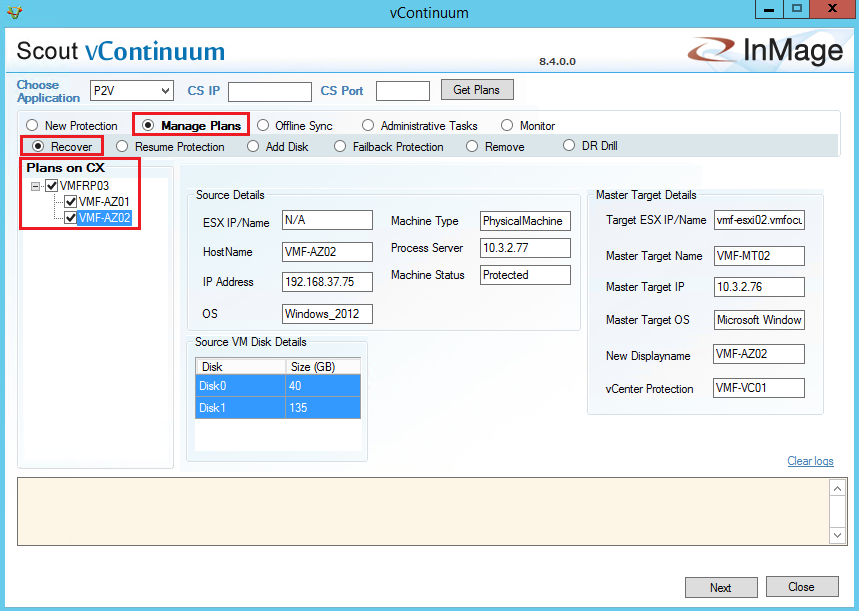
Before we proceed with the failback, lets just to make sure everything is working correctly.  To do this launch vContinuum and select Manage Plans > Recover and then select your Plan (in my case VMFRP03).

Azure 78

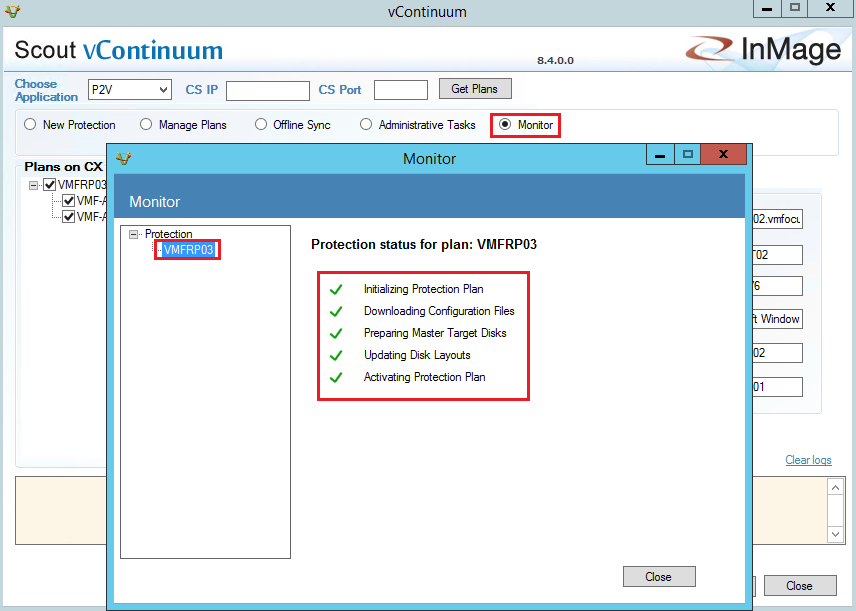
Select Monitor and ensure that all green ticks are displayed in the Protection Plan Status window.

Azure 79

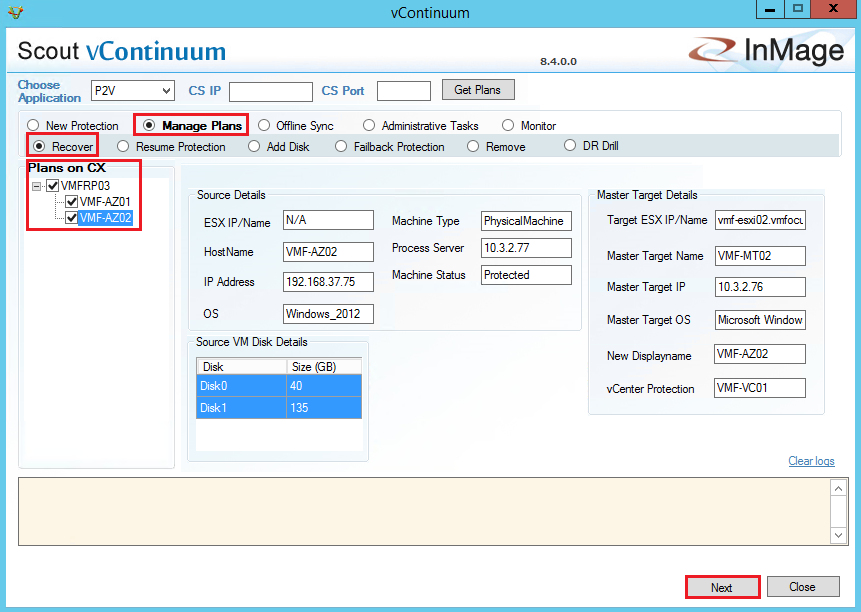
Lets move on! Select Manage Plans followed by Recover and then tick your Recovery Plan and finally hit Next

Azure 80

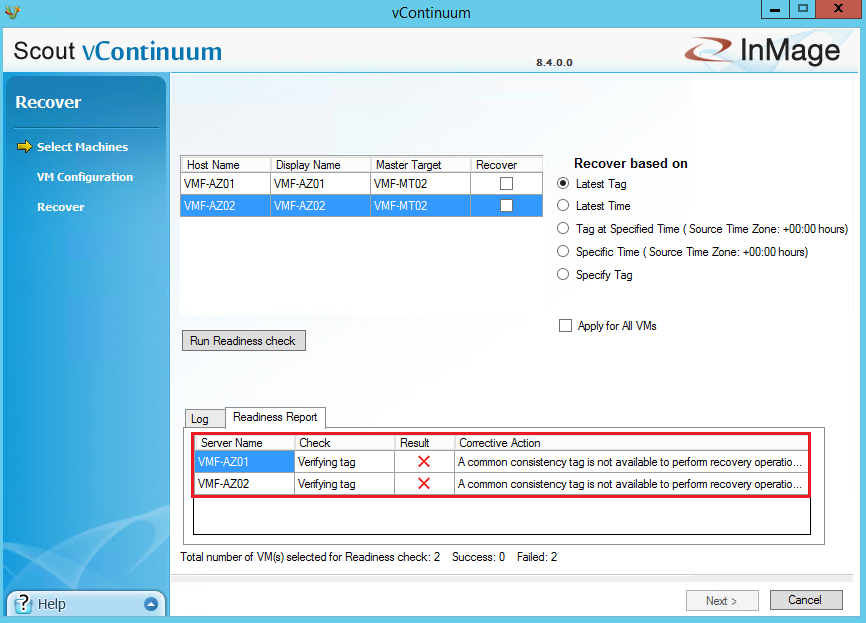
Before you run the recovery plan, I suggest you click Run Readiness Check and verify everything is OK.  In the example screenshot below you can see that my virtual machines haven’t finished replicating back to on-premises yet, so I need to wait a while.

Azure 81

After several cups of tea, we are now in a position where our ‘Run Readiness Check’ has been successful.  Let’s Click Next!Azure 83

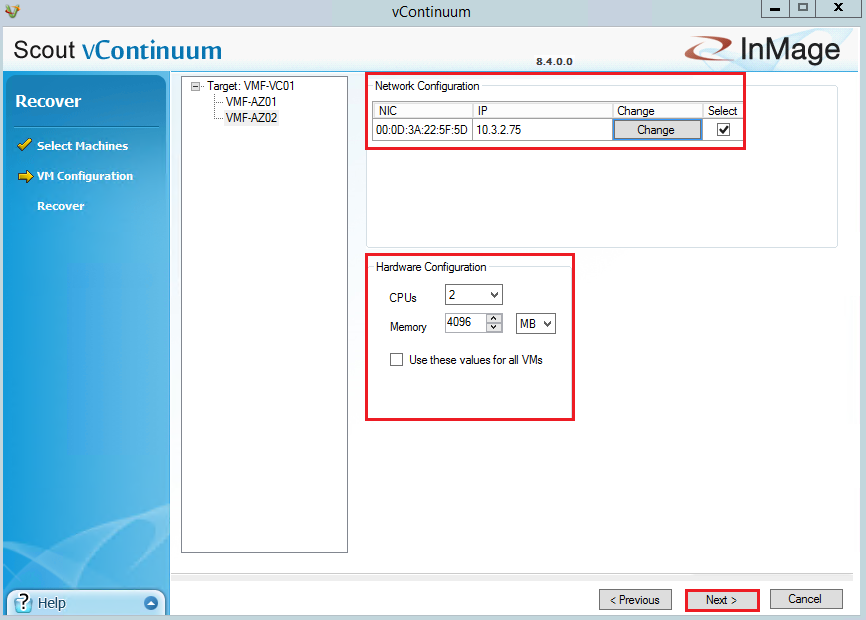
Verify that you are happy with the network and hardware configuration and Click Next.

Azure 85

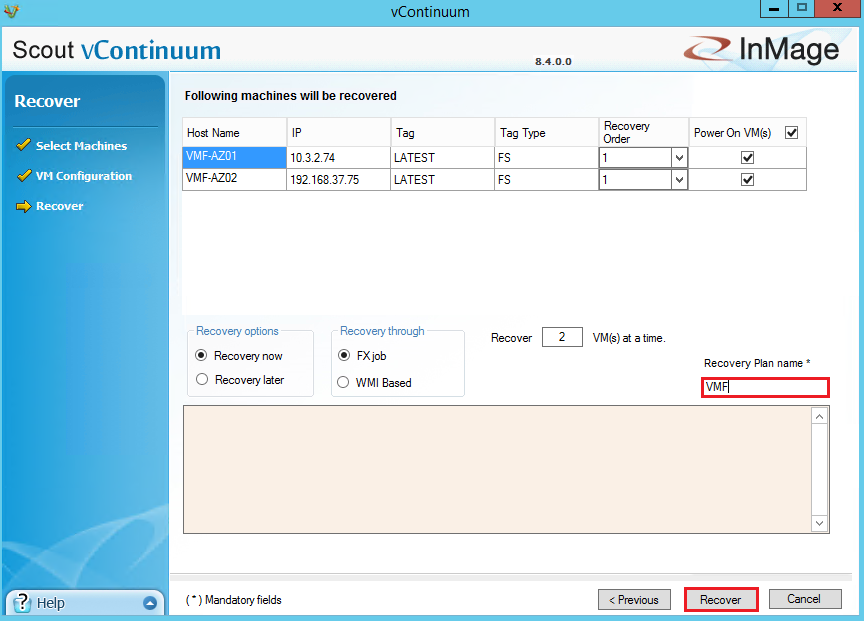
Finally, provide a Recovery Plan name and click Recover

Azure 86

When the Recovery Plan commences, you will see the Recovery Status window showing you the stages of the failback.

Azure 87

The failback process is fairly quick, once all the VM’s have been powered on we can verify the failback process.

Azure 88

vCenter Check

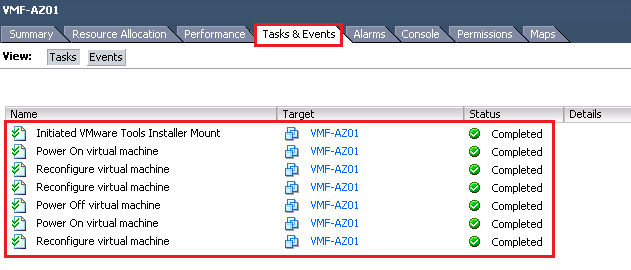
In vCenter we can see that the VM’s VMF-AZ01 and VMF-AZ02 have been powered on and have had VMware Tools Installed by checking the Task’s & Event’s Tab

Azure 89

We can also see that the on-premises Master Target no longer has extra hard drives added.  Note that the extra SCSI Controllers are still attached.

Azure 90

I also confirmed the IP Addresses match up to what was expected and that the credentials to login to the VM’s where maintained.

Azure Check

The original VM’s VMF-AZ01 and VMF-AZ02 are still running, these should be shutdown and deleted to avoid a split brain scenario.  I imagine the reason for keeping this is in case anything goes wrong with the failback to on-premises you have a fall back position.

Azure 91

Once the VM’s have been deleted, I also recommend checking your Recovery Plans and Protection Groups and deleting these to avoid any confusion.

Final Thoughts

Azure Site Recovery is a good product which is fairly straight forward to configure and use.  I’m sure that in future versions that failback will be slightly more elegant.

Failing Back From Azure Site Recovery: Part 2

In the previous blog post we performed the initial installation for failing back to on-premises vSphere.  Now it’s time to configure our on-premises Master Target Server.

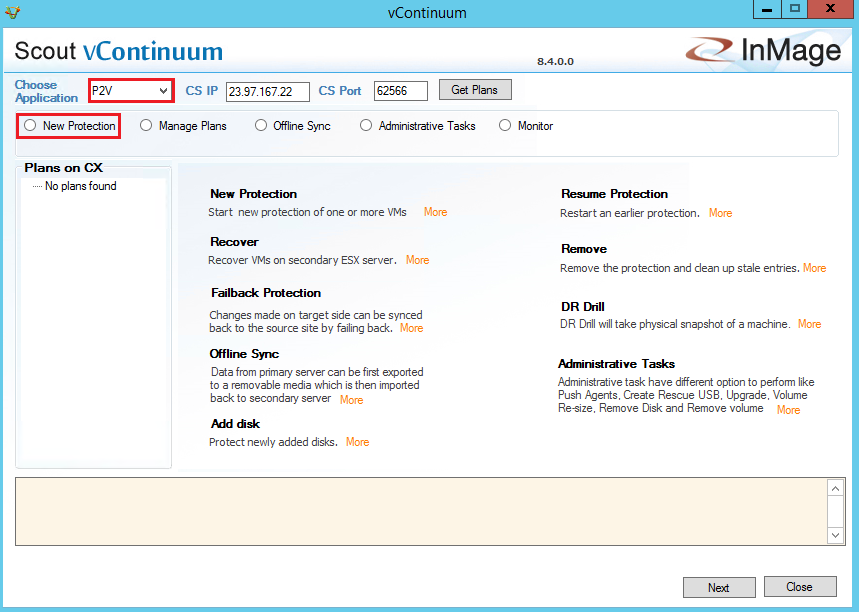
Login to your on-premises Master Target Server and launch vContinuum.  Change the Application Type to P2V (this is how vContinuum sees Azure VM’s) and select new Protection

Azure 66

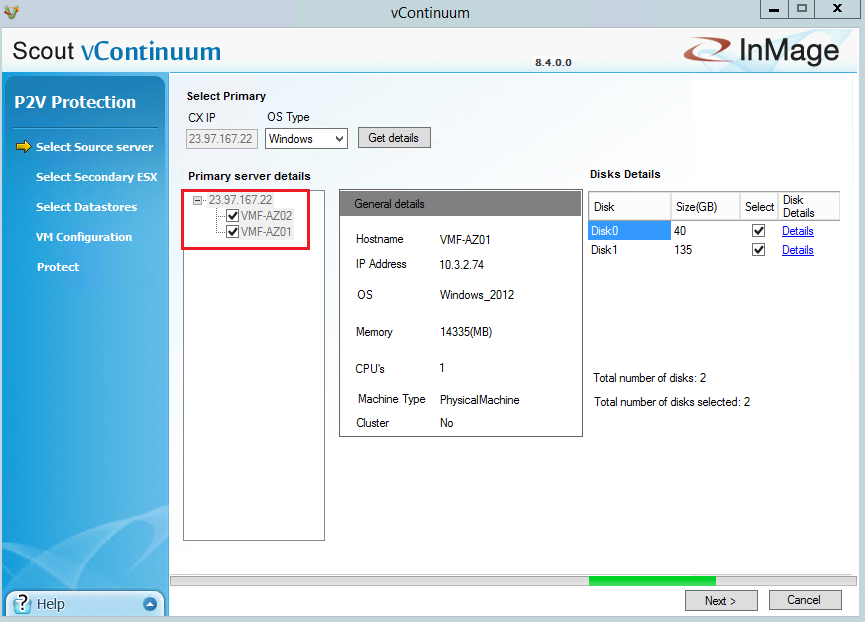
Select your Azure Virtual Machines.

Azure 67

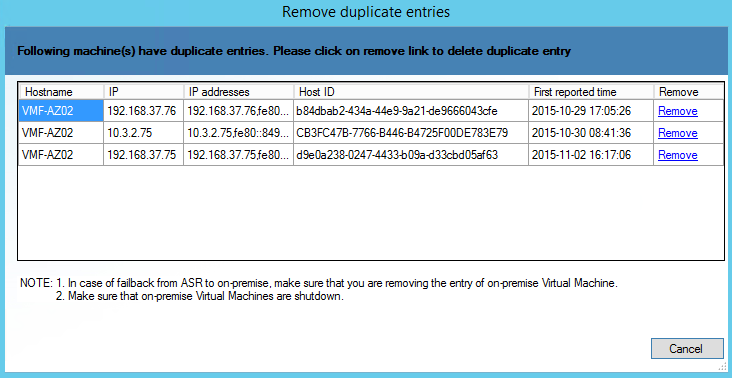
If you have performed several failovers and failbacks (like I have) you will be greeted with a remove duplicate entries dialogue box.Azure 68

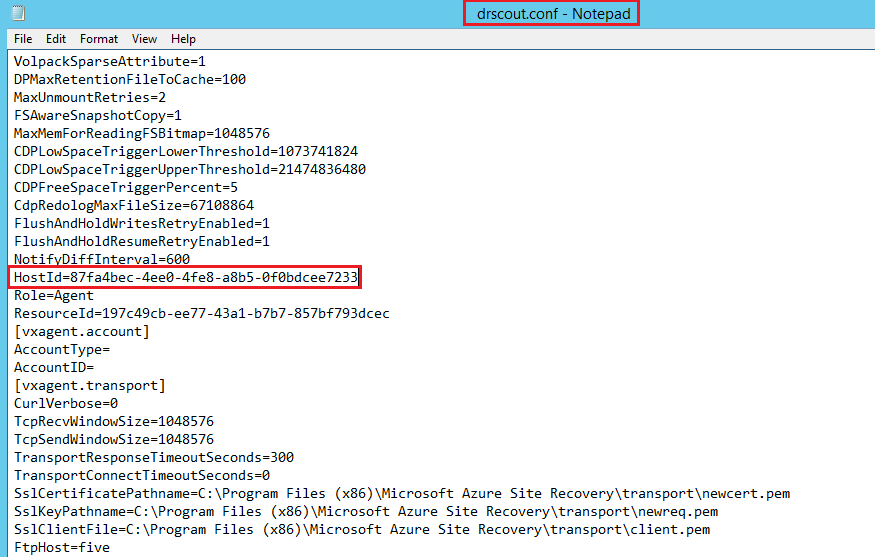
Azure Site Recovery uses the context of ‘Host ID’.  To identify which entry should be kept, login to your protected VM and go to C:Program Files (x86)Microsoft Azure Site RecoveryApplication Dataetc and open the file drscout.conf using notepad.  Locate the Host ID and remove all other entries from the duplicated entries screen.

Azure 69

Click Next and enter the following details:

  • vCenter Name
  • Username
  • Password

Then select Get Details and select the your Master Target Server and Click Next

Azure 70

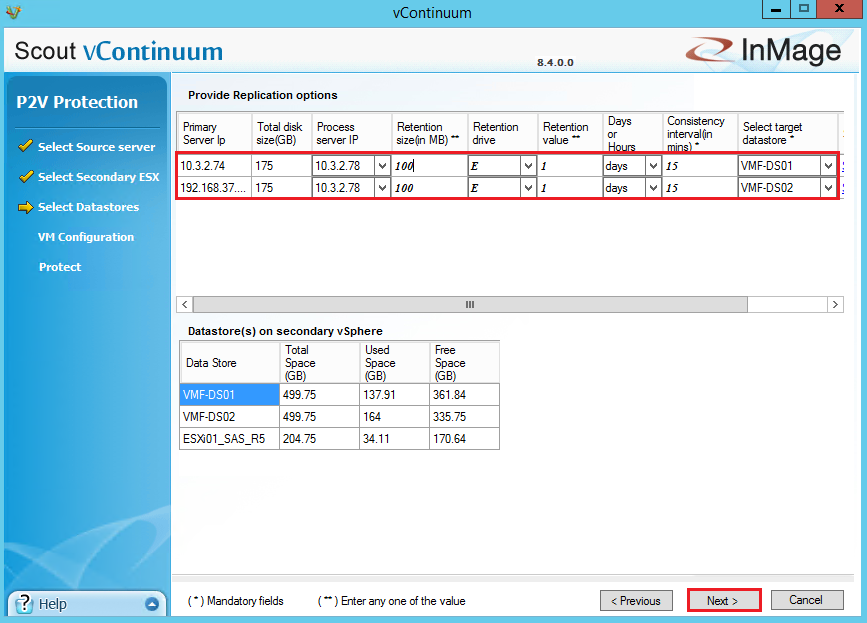
I have chosen the following settings:

  • Retention Size – Size of log disk E Drive.
  • Retention Value – Up to 2 logs of 100MB will be stored
  • Days or Hours – Logs will be stored for up to 2 days
  • Consistency Interval – Replication interval will be checked every 15 minutes to ensure it is in line with this target
  • Datastore – Target datastore

Azure 71

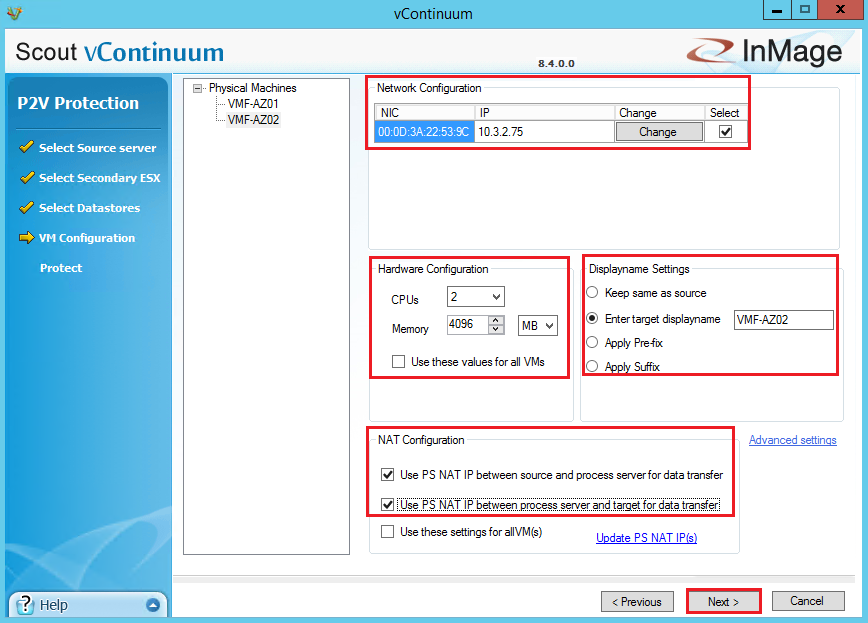
Next onto the network settings, these are pretty straight forward:

  • Network Configuration – Select IP Address and Port Group the VM should be attached to on failback
  • Hardware Configuration – CPU and Memory the VM will have when failed back
  • Display Name – Hope I don’t have to explain this
  • NAT Configuration – This is how each item communicates with each other.  A little more details below.

Use PS NAT IP between source and process server for data transfer – This is between the Azure Protected VM and the Process Server.  If they are on the same Azure subnet then this can be left blank.  If on different subnets then tick the box.

Use PS NAT IP between process server and target for data transfer – This is between the Azure Process Server and our on-premises Master Target.  If they are on the same subnet or using a Site to Site VPN this can be left blank.  If transfering data over the public internet via SSL then tick the box.

Azure 72

Note: If using PS NAT IP between Azure Process Server and target for data transfer you will need to enter the public IP address of the Azure Process Server under ‘Update PS NAT IP(s)’

Azure 73

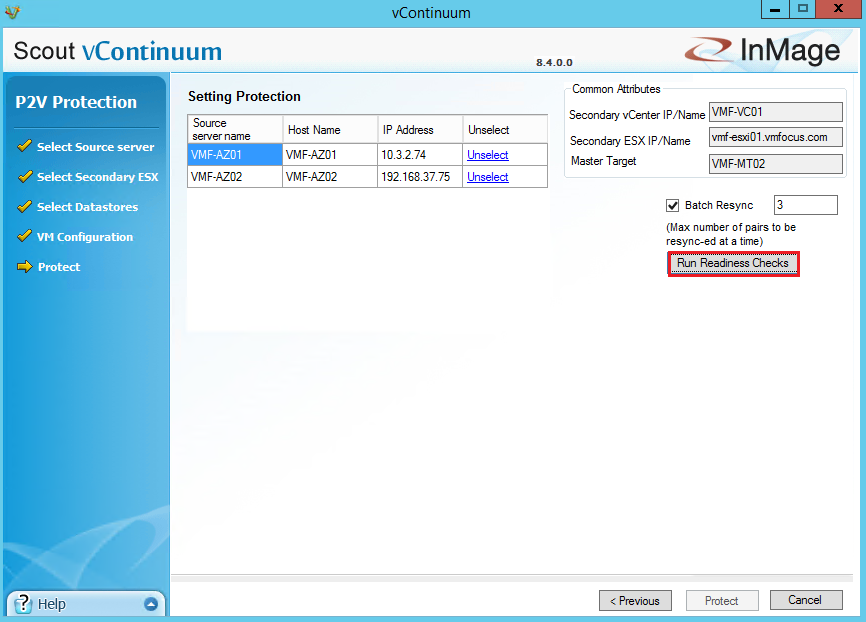
Now we are ready to run the ‘Readiness Check’.  Figures crossed it goes smoothly.  Click ‘Run Readiness Checks’

Azure 74

If you pass correctly you should be in a position to create a New Failback Plan.  Enter a name and Click Protect

Azure 75

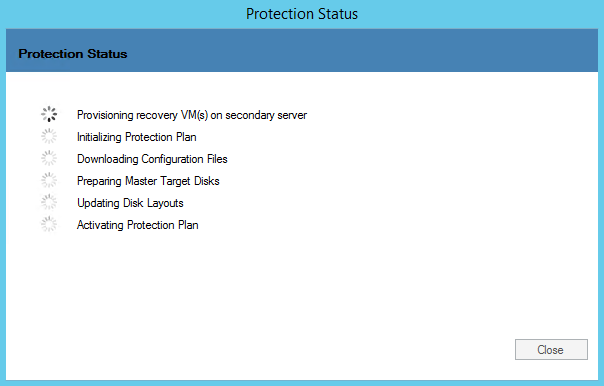
The Protection Status window is displayed which shows the steps which are being performed.

Azure 76

Final Thought

At the moment, it is a manual process to update the IP Address and hardware configuration from Azure to on on-premises.  It would be great if the Azure team could introduce:

  • A bulk subnet change for example every VM on 192.168.3.0/24 in Azure should go to 10.3.1.0/24 on premises with a default gateway of 10.3.2.1254 and DNS Servers 10.3.1.1
  • A bulk hardware change by grouping VM’s for example tick a group of VM’s and they have 2 vCPU and 4GB RAM

In the next blog post we will perform the failback to our on-premises vSphere environment.