First Look: App Volumes

I have been meaning to take a look at App Volumes for a while now, so thought it was about time I understood how it fits together in the Horizon stack.

Q. The first question I always ask is why look at this technology? Well the answer is application packaging is difficult, often cumbersome and timely.  Once the application is packaged you then have to look at lifecycle management, updating the application, testing the application and rolling out updates to users.

Q. This then leads onto the next question, how will App Volumes help?  App Volumes is a layer technology in which you capture an application or applications inside a virtual machine (think ThinApp).  These captured applications are then mounted as a VMDK to a users virtual desktop.

App Volumes is not an application virtualisation technology. Therefore if you need two different flavours of internet explorer, one could be delivered by App Volumes and the other via ThinApp.

The main use case I see for App Volumes is to make achieving the ‘nirvana’ of non-persistent desktops far easier, as it’s as easy as installing an application onto a VM and assigning these out to Active Directory Security Groups.

You still need to deal with the odd applications that have their quirks which need to be delivered by App Remoting or ThinApp.

Components

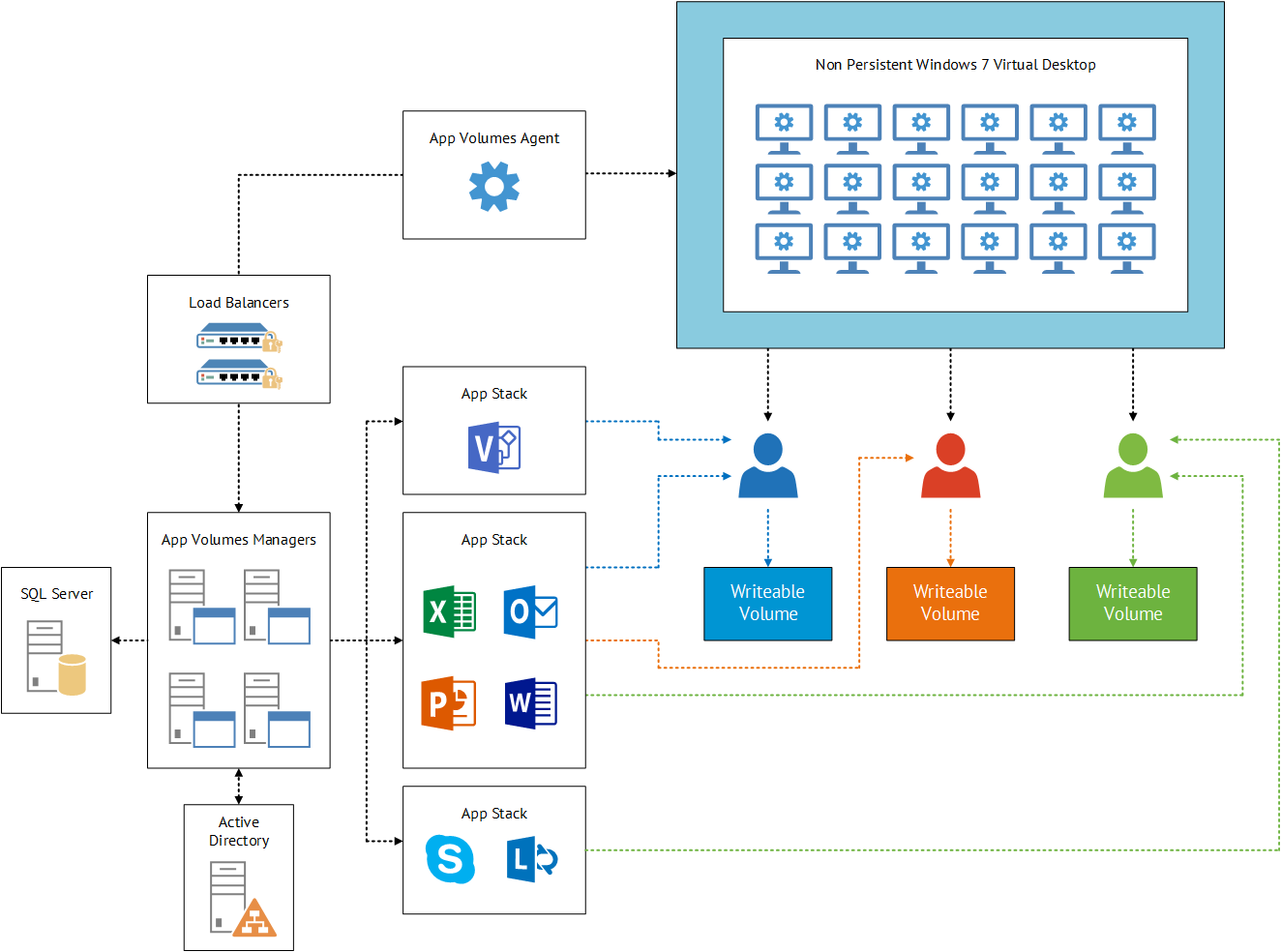
AppStack – Name for the captured applications.

AppStack Volumes – Read only volume that contain one or more applicationsbeing presented to the users as an VMDK.

Writeable Volume – Captures any changes the users makes to an application such as Microsoft Word settings are presented back to the user at next login.

App Volumes Manager – Centralised Management Console used to manage and assign AppStacks.

App Volumes Agent – Installed on the user VDI machines and is responsible for mounting the assigned AppStacks (VMDK’s)

I find that a picture is easier to understand.

App Volumes Diagram

Licensing

App Volumes is available under three licenses schemes:

  1. Horizon 6 Enterprise Edition using 10 or 100 Named or Concurrent User packs
  2. Horizon Application Management Bundle using 10 or 100 Named or Concurrent User packs
  3. VMware App Volumes using 10 or 100 Concurrent User packs

In the next post I will be installing App Volumes.

Review: Mastering VMware Horizon 6 – With 25% Discount Code

Mastering Horizon 6It was around a year ago when Barry Coombs approached me to see if I would like to be a reviewer on his and Peter von Oven upcoming book Mastering VMware Horizon 6.  I agreed to the project as most of the previous books I had read or reviewed from Packt Publishing had been circa 200 hundred pages and skimmed the surface of the chosen subject.  When I opened the first chapter to provide feedback, I knew this was an entirely different book, in a good way!

Peter and Barry have created the go to book on Horizon 6.  It covers every aspect of the Horizon Advanced stack, including the latest release 6.1.  I’m not entirely sure how they managed this considering the book was started twelve months ago.  But from the readers perspective you know that the information is up to date.

I don’t say the words, they have covered every aspect of the Horizon stack lightly:

  • Horizon View Architecture (Connection, Composer & Security Servers)
  • Persona Management
  • Printing, USB Devices
  • PCoIP
  • Hardware Accelerated Graphics
  • Unified Commuications, Real Time Audio Video
  • Design & Deployment Considerations
  • Backup & Disaster Recovery
  • SSL Certificates
  • Optimising Desktop Image
  • Managing Desktop Pools
  • Fine Tuning End User Experience
  • Application Delivery
  • View Clients
  • Upgrading to Horizon 6
  • VMware Mirage
  • VMware Workspace
  • App Volumes
  • Virtual SAN
  • Troubleshooting

VDI is a complicated product that has probably the most ‘touch points’ on end to end infrastructure than any other.  If we take a users connection to virtual desktop, you need to account for Client Device > View Client > Network > SSL Certificates > Security Server > Connection Server > Active Directory > View Composer > Windows Operating System > User Profiles > Application Delivery

Peter and Barry have all of this covered along with compute and storage resources using their unique easy to digest writing style.

If you are deploying, managing or configuring a Horizon View environment, this book needs to be in your toolkit, I cannot speak highly enough of the content.

Discount Code

Peter and Barry have been kind enough to share a 25% discount code that readers of VMFocus.com can use via Packt Publishing before 16th May 2015.

Go to Packt Publishing add the Mastering VMware Horizon 6 book to your cart and apply discount code MVH25 at the checkout.

Discount Code

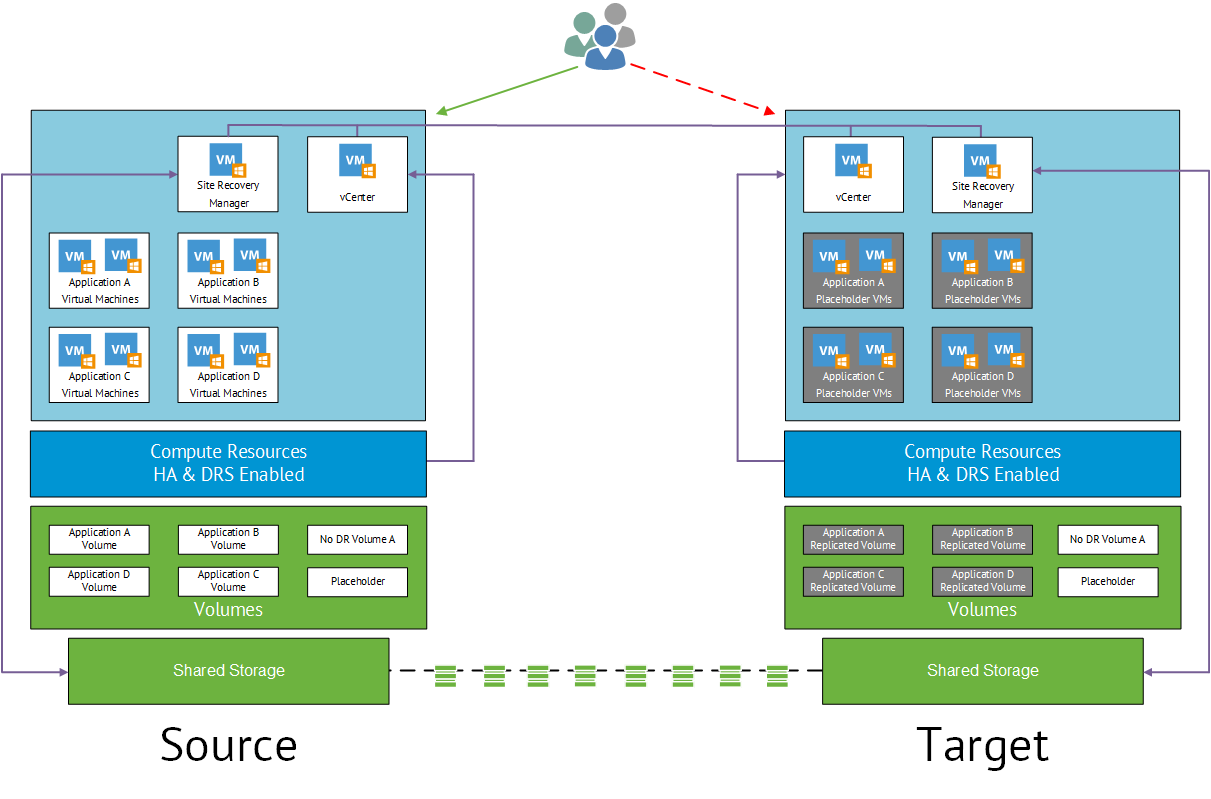
How To: Perform a SRM Unplanned Failover & Maintain ‘Business As Usual’ Operations

SRM LogicalPurpose

The purpose of this blog post is to provide the steps required to perform a Site Recovery Manager unplanned failover and maintain business as usual operations.  I performed these steps twice on a clients live production environment with users accessing production virtual machines at the ‘source’ site.  The users noticed no impact to their daily work activities.

Pre-Requisites

The pre-requisites listed below had been discussed with the client and change control invoked for the following items:

  • vCenter and Site Recovery Manager would not be accessible during the unplanned failover
  • vSphere Client 5.5 U2 is used to enable editing of virtual machines with hardware level 10
  • Source vCenter and Site Recovery Manager ‘pinned’ to an ESXi Host using DRS Groups Manager ‘should’ rules to enable easy location of virtual machines
  • Replication stopped for the production remote copy virtual volumes for the duration of the test
  • Test virtual volume created and presented to ESXi Hosts using an existing Host Set
  • Test virtual machine created using Mike Brown’s Tiny VM to minimise inter site link bandwith consumption.  Note this doesn’t have VMware Tools installed.
  • Remote Copy IP and Management Interfaces for 3PAR StoreServ had been located on upstream switch

Steps One – Isolate Storage

Isolation of the 3PAR StoreServ at the ‘source’ site by issuing ‘shutdown’ command on the Management and Remote copy IP interfaces on the upstream switch.

If RCIP traffic and Management traffic are on the same subnet, RCIP traffic will traverse Management interfaces

Verify that you can no longer ping the RCIP interfaces and that your Remote Copy Group are in a ‘Stopped’ status.

Step Two – vCenter & SRM

Connect to the ESXi Host that runs the vCenter and Site Recovery Manager virtual machines and manually disconnect their virtual NIC’s

Result

Using the above process, we have isolated the 3PAR StoreServ, vCenter and Site Recovery Manager virtual machines.  This simulates having an inter site link failure, but enables users to continue to access virtual machines at the source site.

Perform your unplanned failover on the Test Virtual Volume and then issue the ‘no shutdown’ command against your 3PAR StoreServ Remote Copy and Management interfaces.  Then finally reconnect the virtual NICs on your vCenter and Site Recovery Manager virtual machines.

Architecting Multi-Site HP Storage Solutions (HP0-J67) – Exam Experience

MASEI had been considering taking the ‘Architecting Multi-Site HP Storage Solutions – HP0-J67’ for quite some time after reviewing the exam objectives.

I had cut my teeth on P2000 MSA’s and StoreVirtuals and had spent quite a bit of ‘one to one’ time with StoreServ’s recently, so thought I was in a good position to tackle the exam.

Bart Heungens (HP Certified Instructor) over at bitcon.be had written a blog post entitled ‘Are you ready for being a Master ASE Storage Solution Architect?‘ which had the download link for the resource library for the exam.  This was my go to study material to prepare for Architecting Multi-Site HP Storage Solutions HP–J67.

My initial thoughts when I flicked over the resource library was yikes! How much information was their to digest, I was never going to be able to do that in a timely manner.  The good news was that I had previously read most of the P2000, StoreVirtual and 3PAR whitepapers when creating designs and installing the products.

So I decided to skim read the P2000, StoreVitual and 3PAR whitepapers, noting down information that I had forgotten or thought or could be relevant.  This was fairly difficult as newer versions of LeftHand OS and Inform OS are not covered, so I spent sometime going over their release notes and essentially forgetting that information for the exam.  In total I must have spent four hours brushing up on the P2000, StoreVirtual and 3PAR.

I felt pretty comfortable with the HP StoreEasy range, as I use these for products for most of the Veeam Backup & Replication designs I propose.

The main area which my knowledge lacked was the HP StoreOnce, literally I have never read up on them, used them or tried to position one with a customer.  So I knew this was my ‘achilles heel’.  But I wanted to be sensible as I knew that I wouldn’t be positioning them with customers so any information I learned for the exam, would be leaving my brain shortly after exiting the exam centre!

I took a pragmatic approach to this looking at items that I felt could appear in an exam (if you are an experienced exam veteran you know what I mean by this) items such as block size, StoreOnce deduplication sources and size limits on the models.  I spent around 6 hours on this reading the various whitepapers.

In total I spent around 10 hours preparing for the exam, not what I would recommend, but I was aiming for minimally qualified candidate!  Designing storage solutions is part of my job (not all of it), so I was happy with my approach for this exam.

A new PearsonVue testing centre had recently become available in Milton Keynes, which had car parking (paid) which was a plus.  The exam centre was bright, clean and the receptionist was welcoming.

Not sure why I wasn’t nervous before stepping into the exam centre, I guess this had something to do with the amount of preparation I had done.  I think that if I had invested more time, then I would have been concerned about the outcome.

The exam consisted of 60 questions which had to be completed in two hours.  Usual exam format was used with multiple choice and drag and drop questions.  I thought the questions where a fair reflection of the blueprint.

I finished in an hour and clicked the ‘end exam’ button, and I was pleased to see you have passed the ‘Architecting Multi-Site HP Storage Solutions – HP0-J67’ with a score of 62%.

The pass mark was 58%, so I left the exam centre with a smile on my face thinking ‘I have done the optimal amount of studying’ and am the definition on the ‘minimally qualified candidate’.

One of my goals for 2015 was to achieve the HP Master ASE accreditation, I’m pleased to say that gaining the HP0-J67 has enabled me to do this.

3PAR StoreServ & Site Recovery Manager Expected Behaviour

Purpose

The purpose of this post is to document the expected behaviour of the 3PAR StoreServ 7×00 and VMware Site Recovery Manager in both a ‘planned failover’ and ‘unplanned failover’.

Envrionment

The tests where performed on two different environments each containing the same infrastructure.

  • vCenter 5.5 Update 2 (Build 2001466)
  • Site Recovery Manager 5.8.0 (Build 2056894)
  • HP 3PAR SRA 5.5.2.285
  • HP 3PAR Inform OS 3.1.3 (MU1) P03, P07, P09

3PAR Details

Prominent details about the 3PAR configuration are highlighted below.

  • Single common provisioning group used for virtual volumes and remote copy space
  • Auto LUN ID used
  • Auto Recover enabled
  • A Synchronous replication using 15 minute interval schedule
  • Virtual Volumes are presented to a Host Set at Source Site and are ‘Exported
  • Virtual Volumes are presented to a Host Set at Target Site and are ‘Un-Exported’

During the tests, I was logged into the source and destination 3PAR StoreServ’s and issued the following 3PAR CLI commands to observe behaviour state.

  • showrcopy groups SRMTEST01*
    • Shows state of the remote copy group at each location
  • showrcopy links
    • Shows the status of the remote copy links at each location
  •  showvv
    • Shows the virtual volume information at each location

Planned Failover

Planned Failover is when both the source and target sites are both up.

The table below shows the observed behaviour on the 3PAR StoreServ at both the source and target sites along with the SRM workflow step

SRM Workflow Step Source RG Name Source Role Destination RG Name Destination Role Sync State
Pre Failover SRMTEST01 Primary SRMTEST01.r398979 Secondary Synched/Synching
Planned Failover SRMTEST01 Primary SRMTEST01.r398979 Primary-Rev Stopped
Reprotect SRMTEST01 Secondary-Rev SRMTEST01.r398979 Primary-Rev Synced/Syncing
Planned Failback SRMTEST01 Primary SRMTEST01.r398979 Secondary Stopped
Reprotect SRMTEST01 Primary SRMTEST01.r398979 Secondary Synced/Syncing

Unplanned Failover – Source Site Down

An Unplanned Failover is when the source site is down and the target site is up.

Before the Unplanned Failover workflow is instigated, the 3PAR StoreServ, vCenter and SRM virtual machines are isolated in the source site.

Note: This particular test this was performed during production hours with users accessing the source virtual machines for business as usual activities.  I will create a further blog post on how to achieve this.

The table below shows the observed behaviour on the 3PAR StoreServ behaviour at both source and target sites along with the SRM workflow step when the inter site link is down.

SRM Workflow Step Source RG Name Source Role Destination RG Name Destination Role Sync State
Unplanned Failover SSRMTEST01 Primary (Unconfirmed) SRMTEST01.r398979 Primary-Rev Stopped

The details below describe the behaviour observed and any error messages encountered.

  • 60 seconds is the timeout value for 3PAR remote copy to see the inter site link as down
  • showrcopy grounds SRMTEST01* command ran to verify that SyncStatus field displays ‘stopped’

StoreServ-7200 cli% showrcopy groups SRMTEST01*

Name                                   Target                 Status       Role            Mode       Options

SCC_SRMTEST01.r398979   StoreServ-7200   Stopped   Secondary   Periodic   Period 15m, over_per_alert
LocalVV                               ID                        RemoteVV                    ID          SyncStatus    LastSyncTime
SRMTEST01_DR                   14096                 SRMTEST01_PR           16598   Stopped        2015-04-21 14:22:57 BST

  • showrcopy links command ran on target 3PAR StoreServ to verify partner link is down

StoreServ-7200 cli% showrcopy links

Remote Copy System Information
Status: Started, Normal

Link Information

Target Node Address Status Options
StoreServ-7200 0:3:1 172.16.1.10 Down
StoreServ-7200 1:3:1 172.16.1.11 Down
receive 0:3:1 receive Up
receive 1:3:1 receive Up

  • Target SRM Server Error Message displayed

SRM Error Message

  • Target SRM logs checked which shows this is an expected behaviour as part of the SRM workflow, the target SRA tries to contact the source SRA but fails as the site is down.

Message [2015-04-21 14:35:47.272 ‘arrayMgm.GetRCTargetSysInfo’ 3PAR_3031 verbose (Process id=1652) (Thread id=1)] Complete: Info. Call. –> [2015-04-21 14:35:47.272 ‘discoverDevices.Run’ 3PAR_1013 error (Process id=1652) (Thread id=1)] Error. Peer array id <39897> is not a valid entry in the connected HP 3PAR Storage Server.

Unplanned Failover – Source Site Up

Inter site link re-established and source site checks are performed which entail:

  • Services checked on source  vCenter and SRM Server
    • SRM Service is stopped, expected behaviour as cannot communicate with vCenter. SRM Service started

The next step is CRITICAL in the SRM workflow.   At this point the source and target sites both hold primary read/write copies of data.

SRM at the source site believes that replication is continuing and that nothing has changed!

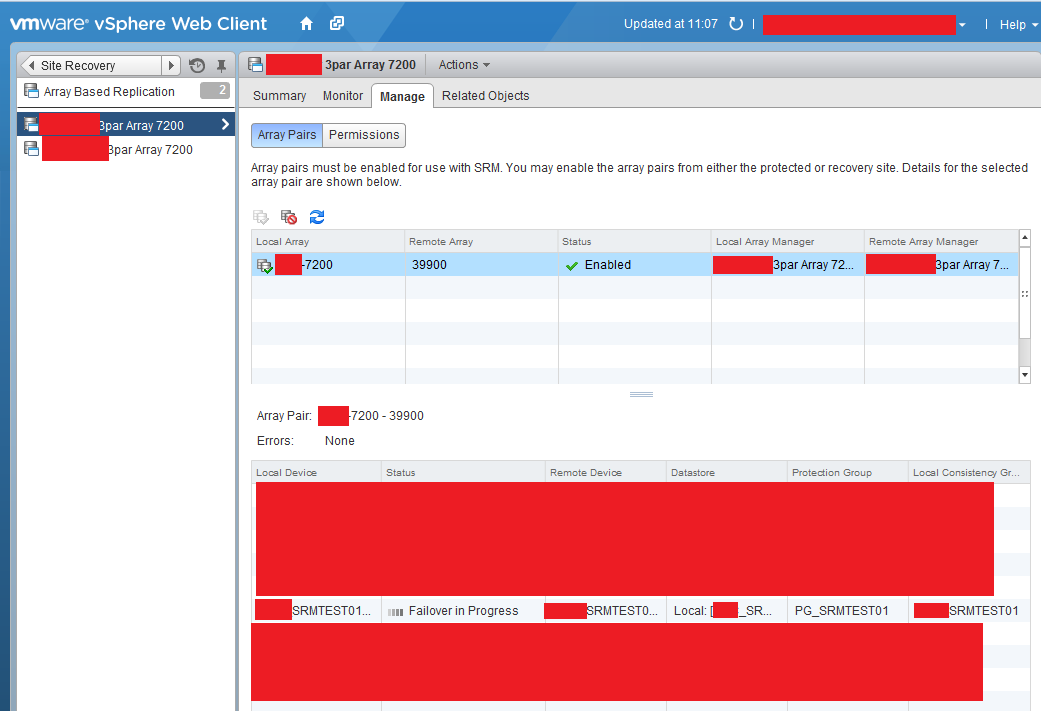
A device refresh is needed to enable to leverage the HP 3PAR SRA to discover the state of the 3PAR StoreServ arrays.  Once done the ‘Failover in Progress’ should be displayed.
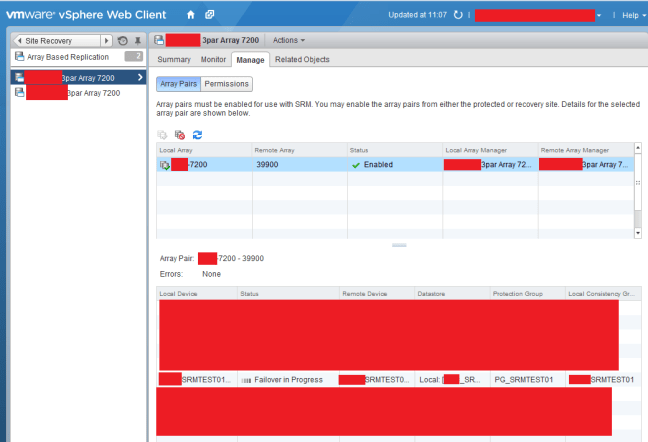
Failover In Progress


The table below shows the observed behaviour on the 3PAR StoreServ behaviour at both source and target sites along with the SRM workflow step when the inter site link is up.

SRM Workflow Step Source RG Name Source Role Destination RG Name Destination Role Sync State
Source Site Up SRMTEST01 Primary SRMTEST01.r398979 Primary-Rev Stopped
Planned Failover SRMTEST01 Primary SRMTEST01.r398979 Primary-Rev Stopped
Reprotect SRMTEST01 Secondary-Rev SRMTEST01.r398979 Primary-Rev Synced/Syncing
Planned Failback SRMTEST01 Primary SRMTEST01.r398979 Secondary Stopped
Reprotect SRMTEST01 Primary SRMTEST01.r398979 Secondary Synced/Syncing

Final Thoughts

Using 3PAR StoreServ with Site Recovery Manager provides an easy to use workflow orchestration.  However it is critical to understand the behaviour of each dependency and identify and remediate any action which is not expected.

The key step in an unplanned failover is to refresh your devices once the inter site link is re-established.  If this is not done, you will asking SRM to perform a workflow which is out of synch with the 3PAR StoreServ which will result in a rebuild of your SRM environment and a call to HP and VMware support.