VMware Hands on Labs Online

A really quick blog post, VMware have announced some exciting news, that they will soon be offering Labs Online.

Previously to use these labs you had to attend a VMware event of some description, but now they will be available online.

The purpose behind this is to give end users the ability to use and explore the latest VMware products.

For more information see VMware Hands on Labs Online – Beta

vSphere 5.1 – My Take On What’s New/Key Features

With the release of vSphere 5.1, it’s been tough keeping up with all the tweets and information from VMworld 2012 San Francisco.

With the plethora of data, I thought it would be handy to blog about what the key features that will have the biggest impact on my every day life.

Licensing

vRAM – It’s gone, licensing is back to per physical processor.

vSphere Essentials Plus – Now includes vSphere Storage Appliance and vSphere Replication.

vSphere Standard  – Now includes vSphere Storage Appliance, vSphere Replication, Fault Tolerance, Storage vMotion and vCentre Operations Manager Advanced.

Beneath The Hood

Monster Virtual Machines

Virtual Machines, can now have the following hardware features:

1TB RAM
64 vCPUs
> 1 Million IOPS per VM

Wonder if I will continue to have those we need a physical SQL server conversation?

This is made possible by Virtual Machine Format 9.

vMotion

vMotion no longer requires shared storage.  This has been achieved by combining vMotion and Storage vMotion into a single operation.  So when a VM is moved, it moves the memory, processing threads and disk over the network to it’s target.

Now what is really, cool it maintains the same performance levels as the older vMotion with shared storage!

Note, I recommend that you use multiple NIC’s for vMotion as per my post High Availability for vMotion

vSphere Replication

Enables virtual machine data to be replicated over LAN and WAN.  Previously to achieve 15 minutes  a-synchronous replication you need sub 2 ms latency.

vSphere Replication integrates with Microsoft’s Volume Shadow Copy (VSS) ensuring that applications such as Exchange and SQL will be in a consistent state if DR was implemented.

vSphere Replication can be used for up to 500 virtual machines.

The initial seed can be done offline and taken to the destination to save bandwidth and time.

VMware Tools

No more downtime to upgrade VMware Tools.

vSphere Web Client

This is going to be the tool for administrating vCentre.  Some pretty cool features like vCenter Inventory Tagging, which means you can apply meta data to items and then such on them e.g. group applications together for a particular department or vendor.

We now have the ability to customise the web client to give it ‘our look and feel’.

Always getting called away when you are half way through adding a vNIC to a VM, well we can now pause this and it appears in ‘work in progress’ so we never forgot to complete an action.

For the pub quiz fans, you can have 300 concurrent Web Client users.

Link Aggregation Control Protocol Support

Used to ‘bind’ several physical connections together for increased bandwidth and link failure (think Cisco Port Channel Groups), this is now a supported feature in vSphere 5.

Memory Overhead Reduction

Every task undertaken by vSphere has an overhead, whether this is a vCPU or a vNIC, it requires some attached memory.  A new feature allows upto 1GB of memory back from a vSphere host which is under pressure.

Latency Sensitivity Setting

vSphere 5.1 makes it easier to support low latency applications (something which I have encountered with Microsoft Dynamics AX).  The ability to ‘tweek’ latency for an individual VM is great.

Storage

We now have 16Gb Fiber Channel support and iSCSI Storage Driver has been upgraded. Some very impressive increases in performance.

Thin provisioning has always been an issue unless your array supported T10 UNMAP.  With vSphere 5.1 a new virtual disk has been introduced the ‘sparse virtual disk’ AKA SE spare disk.  It’s major function is to reclaim previously used space in the guest OS.  This feature alone is worth the upgrade.

Setting Up & Configuring Alarms in vCenter 5 Part 2

In the previous post setting up and configuring alarms in vCenter 5 Part 1 we looked at the initial configuration.  We are now going to run through some of the default alarms, with some suggested thresholds.

Cannot Connect To Storage why would we want to configure this? Well essentially this is a per host setting.  If the host loses connection to the storage then the VM’s will be restarted using HA.  Big deal you say, I can see that in vCentre.  Well it also manages ‘lost storage path redundancy’ and ‘degraded storage path redundancy’ so if you have an if your ESXi host has multiple connections to it’s storage, you will be notified if one of these is lost.

Datastore Usage On Disk quite an important one.  From the presented LUN how much space has been provisioned as a Datastore.  I recommend always asking for slightly more than need e.g. if you need 1TB for a Datastore, ask for an extra 25%.  Then when the Datastore is provisioned only use 1TB so you have room for expansion quickly and easily if needed.  With this in mind, I set the Warning to 90% and Critical to 95% so I have some room to either more VM’s around either by Storage vMotion or Cold Migration.

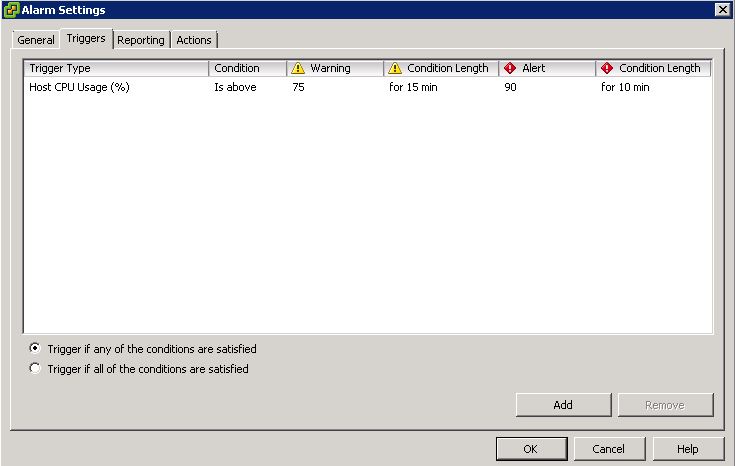
Host CPU Usage with this alarm, I generally alert at Warning 75% for 15 mins and then Critical for 10 mins.  The rational behind this is that I would want to investigate the VM’s CPU utilisation to see if it is a one off event causing the high usage or if we need to look at introducing more processing power into the cluster.

Host Error perhaps the most important one, this is what vCentre relies on to monitor host alarms!

Host Memory Usage similar to CPU usage, I generally set Warning to 90% for 15 mins and Critical for 10 mins.  Again I would want to investigate the host memory usage to ensure that we have sufficient resources for a host failure.

Host Memory Status not be confused with ‘Host Memory Usage’ this monitors the physical DIMMS.

Host Process Status again not to be confused with ‘Hot CPU Usage’ this monitor the physical processor hardware.

License Capacity Monitor I like this alarm, it’s great for items such as Site Recovery Manager or Operations Manager.  It lets you know if you are trying to protect or manage more VM’s than you are licensed for.

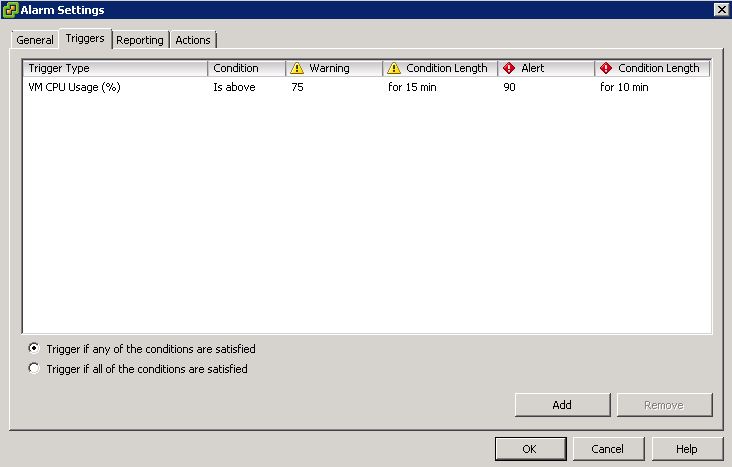
Virtual Machine CPU Usage I use the same alarms settings for ‘Host CPU Usage’ so that if a VM is using more than 75% of it’s CPU capacity for over 15 minutes, I would want to identify if this is a one off or if extra resources are required.

vSphere HA Failover In Progress this resides on the nice to have.  If for some reason none of your other alarms work then at least you know that a VM has been restarted by HA.

vSphere HA Virtual Machine Monitoring Error this alarm works in conjunction with Virtual Machine Monitoring.  I tend to leave VM Monitoring Only and Medium and then change individual VM’s monitoring to High if required.  If you have this set to high for all servers then it can cause alarms when backup software rolls back snapshots depending on how big the VM is.

Hopefully these alarms shouldn’t need any explanation, as they should ALWAYS be enabled.

Host Battery Status
Host Connection And Power State
Host Connection Failure
Host Hardware Fan Status
Host Hardware Power Status
Host Hardware System Board Status
Host Hardware Temperature Status
Insufficient vSphere HA Failover Resources
Network Connectivity Lost
Network Uplink Redundancy Degraded
Network Uplink Redundancy Lost

Naturally, this isn’t a complete list of alarms, however it is the default alarms that I would configure in most, if not all environments.  Every environment is different and you may use more or less alarms than I have mentioned.

Don’t forget that depending on which vSphere licenses you have might see extra default alarms for items such as FT.  Also when you install additional components e.g. SRM you will get even more alarms to have a play around with.

How Do I Get VMware vSphere Licenses For My Home Lab/Test Environment?

I was talking to several colleagues recently who mentioned it was a real pain having to rebuild his home lab vCentre environment every sixty days.

They did not know that VMware offer NFR (not for resale) licenses, which are available if the company you work for is a VMware Partner.

VMware provides partners with access to a number of VMware software products to enable a successful VMware virtualization practice. Not for Resale (NFR) software is available to partners for product demonstration and training purposes only. One year of subscription services is included with NFR software as long as the partner remains in good standing within the parameters of the VMware Partner Program.

How Does My Company Receive NFR?

NFR licenses are automatically delivered by VMware to the headquarter location upon membership progression (such as Registered to Professional or Professional to Enterprise) and release of new products. Licenses that are provided as part of the NFR offering are delivered to the License Administrator via ESD (Electronic Software Distribution) or to the primary contact if a license administrator has not been identified

Before we move on, a little disclaimer, I don’t know what criteria VMware use to accept or validate requests for NFR licenses, nor do I know any hacks or cracks to gain free VMware licenses.

To put forward a case for NFR licenses you have to register for VMware Partner Central by entering the company you work for and having these details validated by a representative from your company.

Once logged into VMware Partner Central, select ‘Partner University’ from the top menu bar

From the left hand side select ‘Contact Us’
On the right hand side select ‘Submit a Case Now’
Under Reason select Question/Inquiry
Under Issue Category select Benefit / Entitlement
Under Issue Type select Not for Resale Licenses (NFR)
You will need to enter a subject and explain the reasons/business case for the request for any extra NFR licenses.

My experience submitting cases via Partner Central has been extremely positive, normally you receive a response within 24 hours and an answer within 48 hours.

Setting Up & Configuring Alarms in vCenter 5 Part 1

vCenter has some great inbuilt alarms which can trigger alerts via email or SNMP to the IT administrator   I have seen quite a few environments, where alarms haven’t been configured!  The obvious question is, is this due to lack of knowledge or do the administrators really check every item manually within vSphere? My guess is the earlier.

With this in mind, I thought I would go over the basic settings and then also what alarms/alerts I generally put in place along with some rational over the triggers.

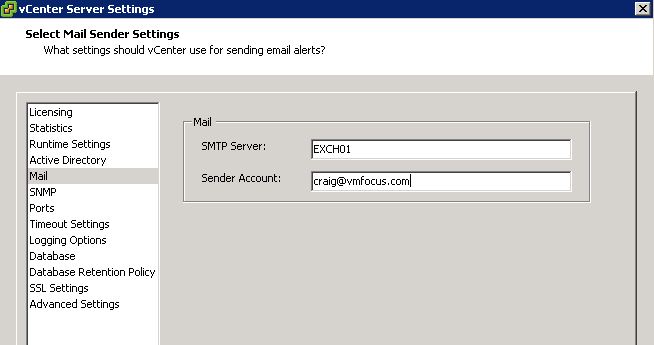
The first thing we have to do is configure vCentre to send out email and SNMP alerts.  Go to Home > vCenter Servers Settings or to Top Menu Bar > Administration > vCenter Server Settings

Select Mail from the left hand side and enter your SMTP Server details.  Note that VMware does not support email authentication, so if you are using an Exchange 2003/2007/2010 I recommend you create a new receive connector called ‘vmware’.

Select SNMP from the left hand side and enter either the IP Address or DNS Name of your SNMP Server along with the community string needed to validate if any different from ‘public’

If you need the MIBS (Management Information Base) these can found at %ProgramFiles%VMwareInfrastructureVirtualCenter ServerMIBS if the default installation path has been used.

Alarms can be configured at a few different levels which are:

Root these alarms will encompass Datacentre, Cluster, ESXi Hosts, Resource Pools and VM’s

Datacentre these alarms will encompass Cluster, ESXi Hosts, Resource Pools and VM’s

Cluster these alarms will encompass ESXi Hosts, Resource Pools and VM’s

ESXi Hosts these alarms will encompass Resource Pools and VM’s

Resouce Pools these alarms will encompass the VM’s that reside within them.

VM these alarms are only specific to the virtual machine

Generally speaking, nearly all the alarms which I create are done at the root level which means that whatever actions are performed by the vCentre administrator, they should be covered.

vCentre allows you to configure actions for alarms based around set criteria.  When the alarm is triggered it can be configured to alert once or repeat

When the alarm triggers, it will do so when it enters a warning state e.g. Datastore Disk Usage Is Above 90% and then again when it hits a critical state e.g. Datastore Disk Usage Is Above 95%

So following this through, alarms can be triggered by the following events:

Normal Condition > Warning Condition
Warning Condition > Critical Condition
Critical Condition > Warning Condition
Warning Condition > Normal Condition

Alarms can be triggered if they meet ‘any’ of the conditions or ‘all’ the conditions you have set.

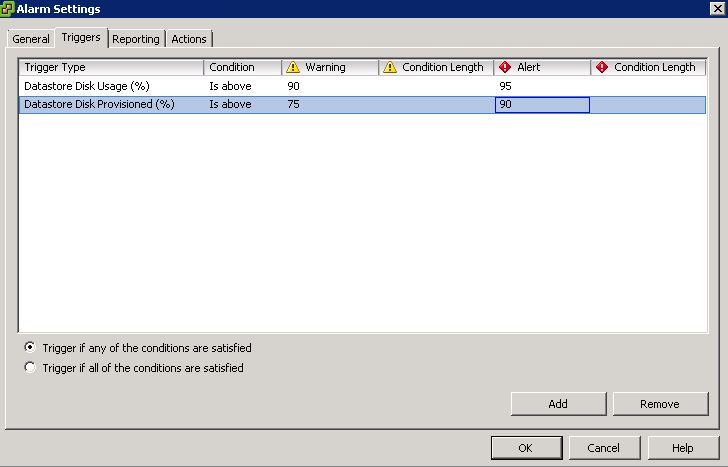
If you are a savy VMware Administrator you may ask the storage team for a 2TB LUN, but you only really need 1TB. So you provision a datastore at 50% capacity so you want to create a warning alarm when it reaches 75% provisioned and then critical at 90% provisioned, so you know when to ask for some extra space from the storage team.

With this in mind, imagine you had a single alarm which covered both Datastore Disk Usage (%) and Datastore Disk Provisioned (%).  However, I would always recommend using ‘trigger if any of the conditions are satisfied  unless you have a compelling reason not to do so.

So now we have configured vCenter to be able to send alerts, we need to configure some for it too send!  Hold fire until Part 2.