ESXi Networking Part 2

VMkernel Ports

I mentioned in ESXi Networking Part 1 that the VMkernel network carries traffic for:

– vMotion
– iSCSI
– NFS
– Fault Tolerance Logging

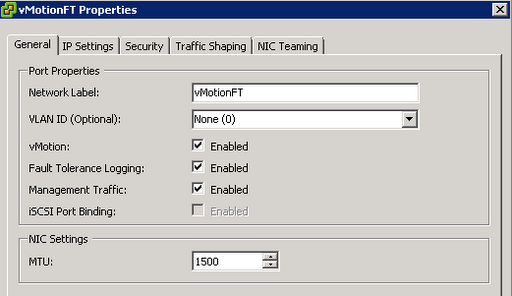
VMkernel ports require an IP address, you can have more than one VMkernel network if you feel this level of redundancy is appropriate in your network.  Or you could have one VMkernel network for Management Traffic, Fault Tolerance Logging and vMotion (however I would recommend against this).
VM Ports

Virtual Machine port groups are quite different to VMKernel Ports as they do not require an IP address or an uplink (physical NIC) to work.  They work in exactly the same was an unmanaged physical switch, you plug it in and off you go!

VLAN

Using VLAN’s within ESXi generally is a must unless you have an abundance of physical NIC’s (the limit is 32 per ESXi Host).  VLAN’s provide secure traffic segmentation and reduce broadcast traffic across networks.

We can have multiple Port Groups per uplink if required.  When configuring VLAN’s these can be performed in one of three ways:

– VM Port Group, when adding a new port group you can specify the VLAN ID in the properties of the port group (most common).

– Physical Switch, you can ‘untag’ the uplink that the VM Port Group resides on which forces it into the VLAN ID specified on the physical switch (common).

– Virtual Guest Tagging, this is when the virtual machine is responsible for VLAN tagging.  From an ESXi perspective you need to use VLAN ID 4095 (uncommon).

The uplink that is connected to the physical switch must be configured as a ‘trunk port’ to enable the switch port to carry traffic from multiple VLAN’s at the same time.

Below is an example Standard vSwitch0, from my home LAB, this has one uplink and has three different VLAN’s in play.

VLAN  1 which is the default VLAN and is used by the VMKernel for Management Network purposes and also my Server2012 RC.

VLAN 2 holds my nested ESXi Hosts and vCentre Virtual Appliance.

VLAN 3 holds my iSCSI Storage Area Networks.

NIC Teaming

NIC teaming is used to connect multiple uplinks to a single vSwitch commonly for redundancy and load balancing purposes.

I have seen many NIC teams created with no thought for redundancy on the network card.

Incorrect NIC Teaming

In this configuration we have no resilience for network card failure.
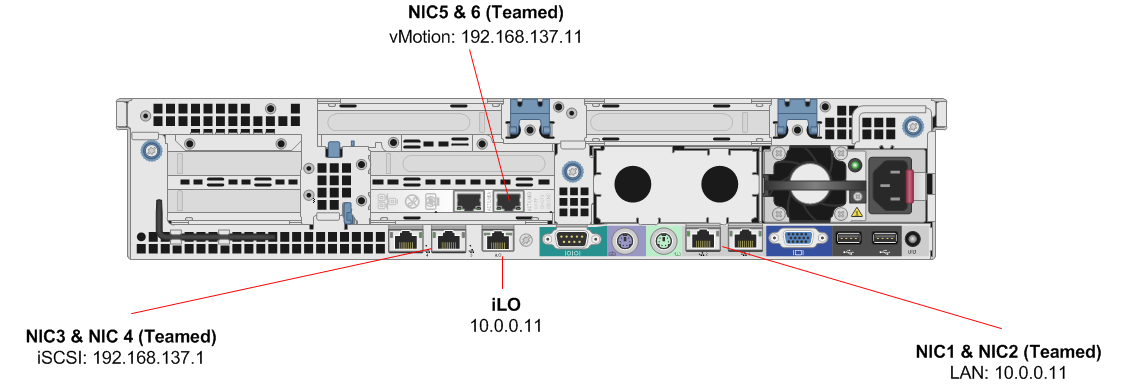
Correct NIC Teaming

In this configuration we have resilience for network card failure.

ESXi Networking Part 1

One of the items that becomes apparent when using VMware is that you need to have a strong understanding of routing and switching.

This blog post is a bit self indulgent as I’m preparing for the VCP 5 exam, I thought it would be good for me to put together a few posts on the achitecture of the switches.

All of the switches within ESXi are software based and operate within the VMkernel.  They are called virtual switches (vSwitches) and are Layer 2 devices, which are capable of trunking and passing VLAN traffic.  A common myth is that vSwitches can trunk ports together using 802.1q. vSwitches do not use Spanning Tree Protocol as one vSwitch cannot be connected to another vSwitch.

Standard Switch (vSwitch)

These are created when we first install ESXi onto our server hardware.  By default this is called vSwitch0 and contains 120 visible Ports (actually holds 128 Ports, 8 are reserverd by the VMkernel), the first virtual machine ‘port group’ called VMNetwork and a Management Network which is used by the VMKernel.

Distributed Switch (dvSwitch)

These are standard switches which are logically grouped across all ESXi hosts who share a common distributed switch configuration. These are only available with Enterprise Plus licenses.

Port Groups

These reside within a vSwitch.  Port groups contain two different configurations:

– VMkernal Ports allow vMotion, Fault Tolerant Logging, iSCSI NAS, NFS traffic between ESXi hosts as well as allowing management of the ESXi host it resides on.

– VM Ports allow a virtual machines to access other virtual machines or network based resources.

The key thing to remember is that with Port Groups they must be named exactly the same across all ESXi hosts to allow traffic to flow.

Note, it is possible to have a vSwitch without any Port Groups, however this would be like having a physical switch without any physical ports!

Uplinks (pNIC)

An uplink if the physical network adapter that the vSwitch is connected too.  Without this the virtual machines that reside on the vSwitch would be isolated and unable to communicate with the rest of the network.

In the picture below we have a Standard Switch called vSwitch1 whose physical uplink (pNIC) is vmnic4.  It contains two different port groups, one for vMotion and Fault Tolerant Logging and the other for VM’s on VLAN29.

Even though we have two different port groups, it is important to remember that each port group is a boundary for communications, broadcasts and security policys.

What NIC is my Virtual Server using?

We had a few network issues with a client site recently which meant that we had to perform some port mirroring to understand what was happening on the VMware side.  We didn’t have the luxury of Enterprise Plus licensing so couldn’t use the inbuilt port mirror features.  So it was manual time on the switch.

Most, if not all vSphere environment have redundancy built into them, with at least two uplinks (physical NIC’s) to the LAN.  They normally have ‘Route based on the originating virtual port ID’ as the load balancing policy. So vSphere uses an algorithm which states if I have 10 VM’s, then I will place 5 on each uplink.

So the question is, if I’m trying to perform some port mirroring on my Cisco/HP switch, which port should I mirror?

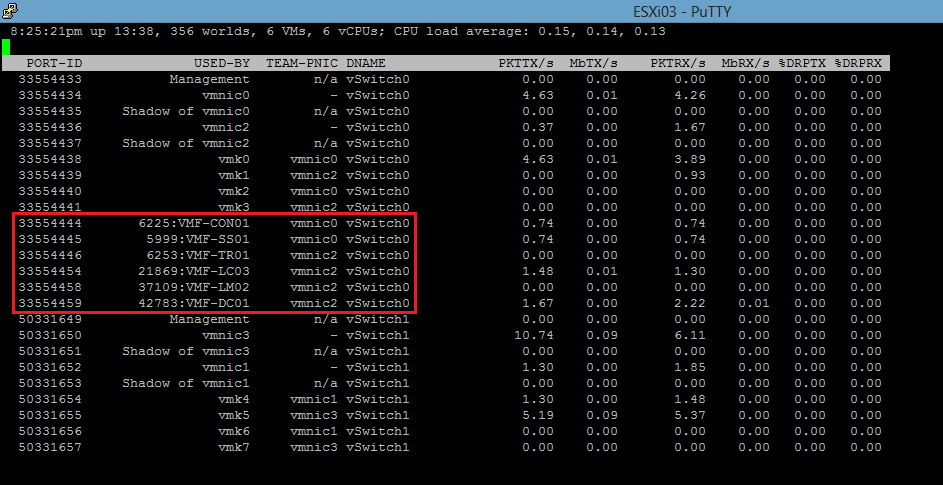
This is when we use esxtop.  First of all we need to login to the ESXi Host which is responsible for the Virtual Server using SSH.

Once in we run the command as follows:

esxtop (press enter)
n (press enter)

We now see which Virtual Servers are on which uplink (physical NIC)

ESXTOP