VMware View – Objective 2.12 Create ThinApp Applications and a ThinApp Repository

Knowledge

  • Create ThinApp applications
  • Create or identify supported file share
  • Assign permissions to the share
  • Verify MSI streaming setting in the package.ini files
  • Identify necessary ThinApp package components to put on the share
  • Assign ThinApp applications to pools

Create ThinApp Applications

As with a few of the other topics, I like to start with what ThinApp is.  ThinApp provides a virtualisation bubble between the Operating System and Application, meaning that they are isolated from each other.  This allows us to recompose a View Desktop without affecting the applications which run on it.

View ThinApp

I mentioned the word ‘bubble’ earlier.  When the application is started a ‘bubble’ is created that contains all of the file system and registry.  These settings can either replace or merge with the Operating System file system or registry.   I like to think of it as the merge or replace using Group Policy for Terminal Servers.

What are ThinApp requirements:

  • 32 Bit run on Windows NT (yeah right) or later 
  • 64 Bit run on Windows XP or later
  • 16 Bit applications can only run on 32 Bit versions of Windows
  • 32 Bit applications can run on 32 Bit or 64 Bit versions of Windows

What are ThinApp Limitations

  • If the Application doesn’t work on the Operating System it won’t work on ThinApp
  • Anti Virus software
  • VPN Clients
  • Printer Drivers
  • 64 Bit applications cannot be virtualised

To create a ThinApp Application we need to start of with a blank/clean Operating System install.  I’m going to use Windows 7 32 Bit for my base OS called VMF-THIN01 with 1GB RAM and a 1 vCPU.  The overall process is:

  • Pre-scan in which all file system and registry are collected
  • Install the application and test, test and err test
  • Post-scan in which all file system and registry are collected
  • Comparison is made between ‘pre-scan’ and ‘post-scan’.
  • Configure the ThinApp package
  • Copy’s the different files to a ‘Project’ directory
  • Build ThinApp package

After applying Windows updates, the first thing I’m going to do is take a Snapshot of VMF-THIN01 as this is our base installation which we can revert back to if required.

View ThinApp 01

After taking the Snapshot we need to download ThinApp 4.7.3 to install on VMF-THIN01.  The latest version at the time of this blog post is VMware-ThinApp-Enterprise-4.7.3-891762.exe 

Launch the .exe and Click Next on Patents List

View ThinApp 02

Accept the EULA and Click Next

View ThinApp 03

Don’t worry at this point, you will think is it installing or not for about five seconds, then you will see the Enter License key Screen. Pop your license key in and then a name that will mean something to you for the ‘License display name’.

View ThinApp 04

Awesome that’s ThinApp installed.

View ThinApp 05

Next, I’m going to take another snapshot, for after the ThinApp installation.

View ThinApp 06

Cool, you will notice a VMware folder on your Start Menu and we want to launch ThinApp Setup Capture (I have created a shortcut on my desktop for easy reference).

View ThinApp 07

We are going to click Next to perform a Prescan of our system.  A Prescan creates a baseline of your clean installation, checking the status of hard drive and registry files.

View ThinApp 08

Click Prescan to launch

View ThinApp 09

This process will take some time, so it might be worthwhile getting a brew.

Cool, so now we need to install the application which we want to be packaged.
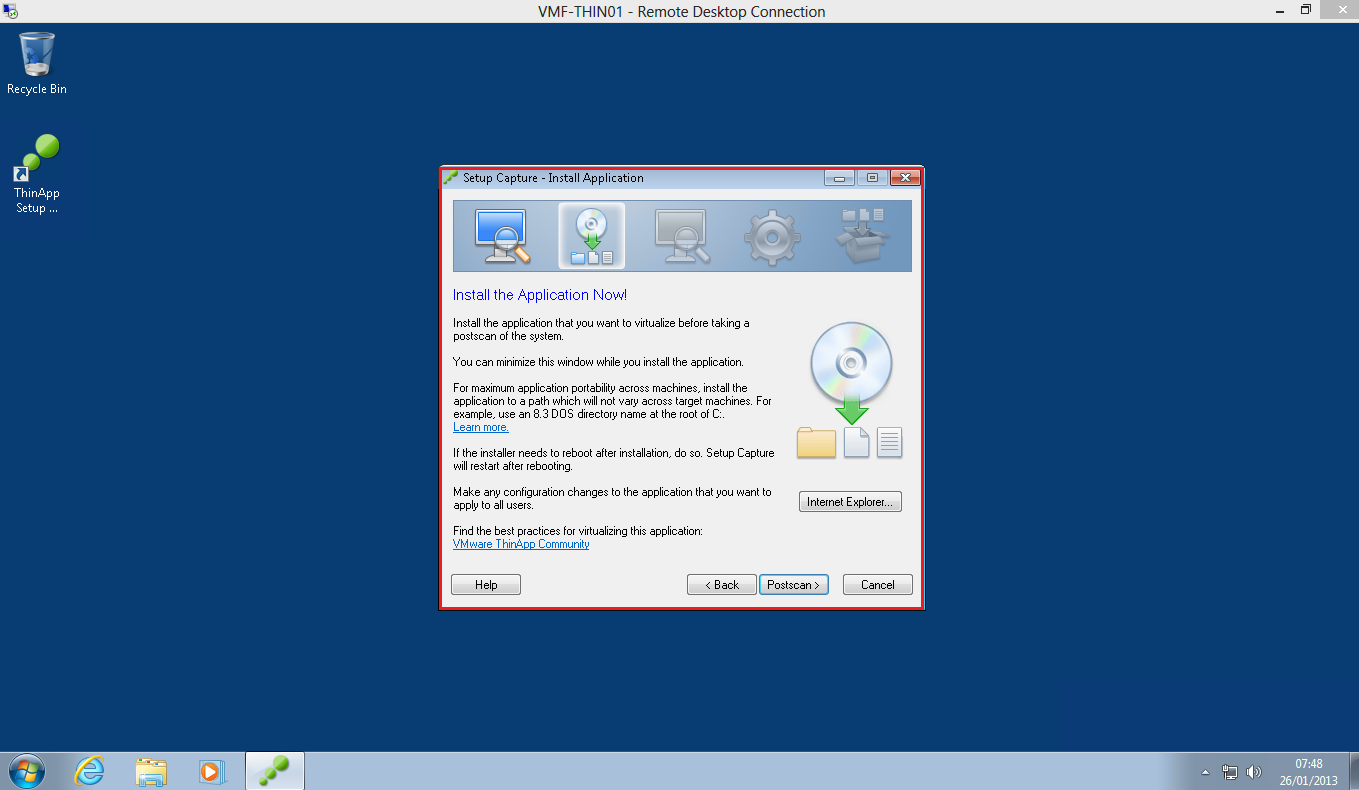
View ThinApp 10

I’m going to install with Firefox which I have downloaded to the C: drive of VMF-THIN01.  Nothing special here, I have just installed Firefox as you would on any computer.

Now that Firefox is installed, I’m going to run a Postscan by clicking the Postscan icon.

View ThinApp 11

You will notice that once the Postscan has finished, ThinApp will compare the Prescan and Postscan.

View ThinApp 12

Now that’s finished we need to select the ‘Entry Point’ this is a fancy word that really just means the shortcut to launch the application.  In my case ThinApp knows I have installed Firefox and that the ‘Entry Point’ is Mozilla Firefox.exe
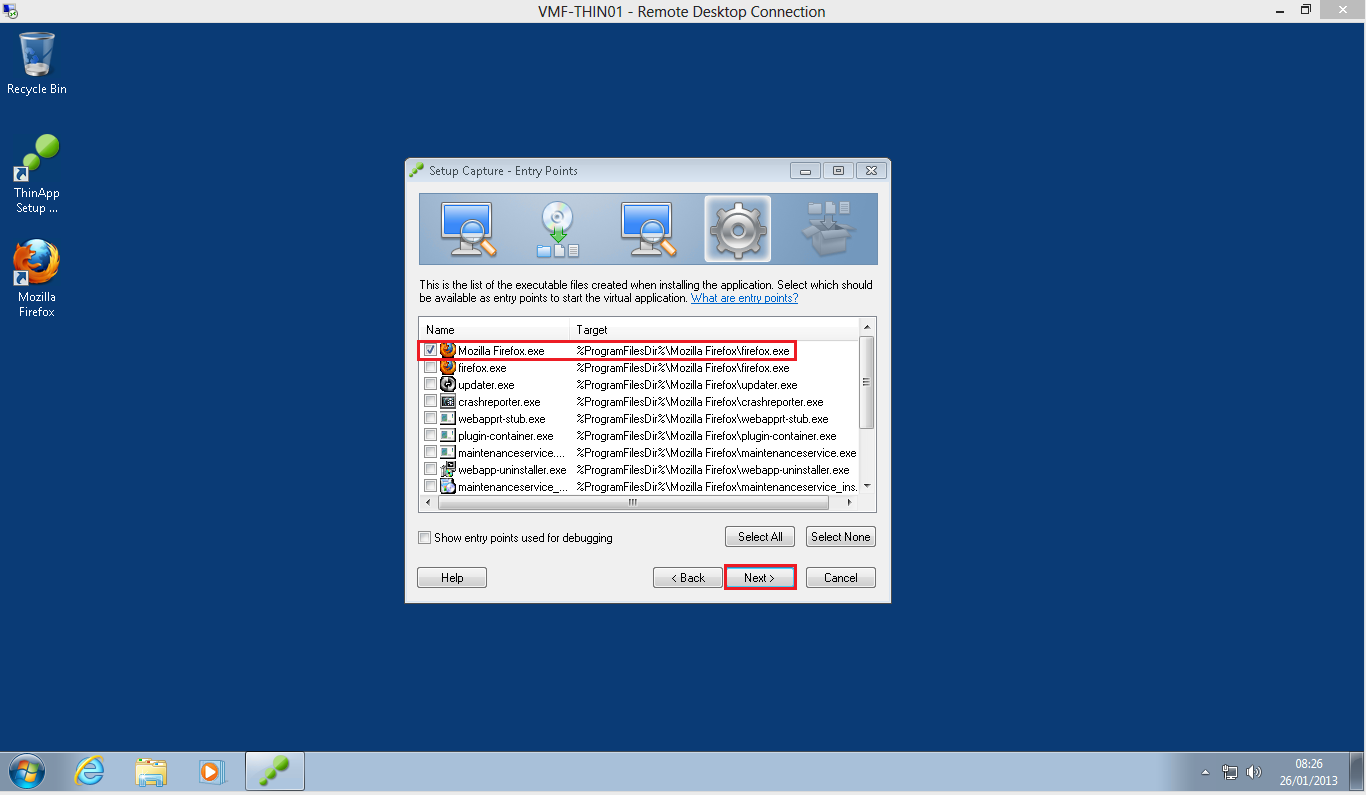
View ThinApp 13

We aren’t going to be using Horizon Application Manager or updating an existing ThinApp Package so click Next

View ThinApp 14

Next you can select the Active Directory Security Groups who can run the application.  I have chose View Sales users and we can also define a ‘Access Denied Message’ for users who don’t have access.

View ThinApp 15

The next choice is about Isolation modes.  What the heck are they? Well the Isolation level made determines the amount of interaction the application can have with the OS.

As Firefox is a well known application which has been written properly, i’m going to select ‘Full write access to non-system directories (Merged Isolation Mode)’
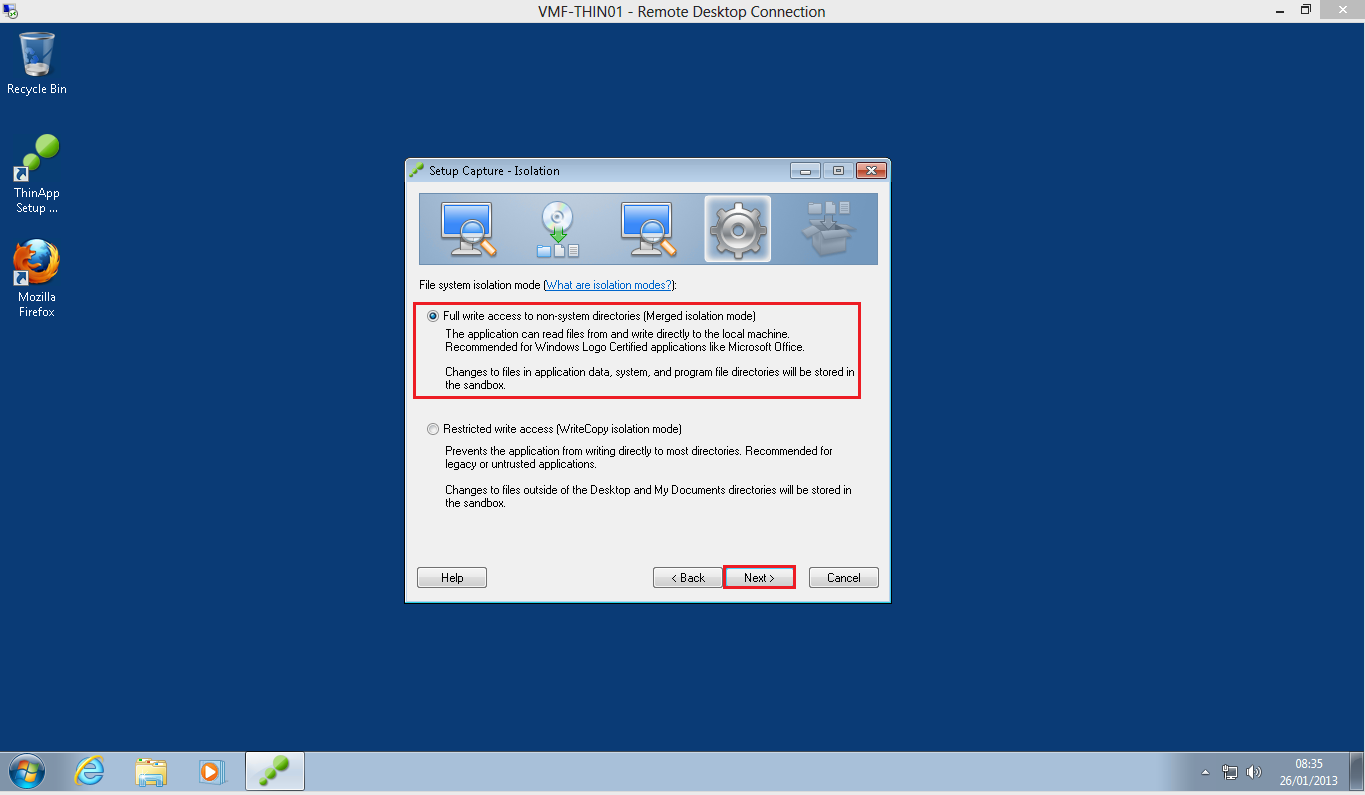
View ThinApp 16

Next we have to decide on our Sandbox location.  The Sandbox captures any changes made to the application such as customization’s   We are going to use the defaults.
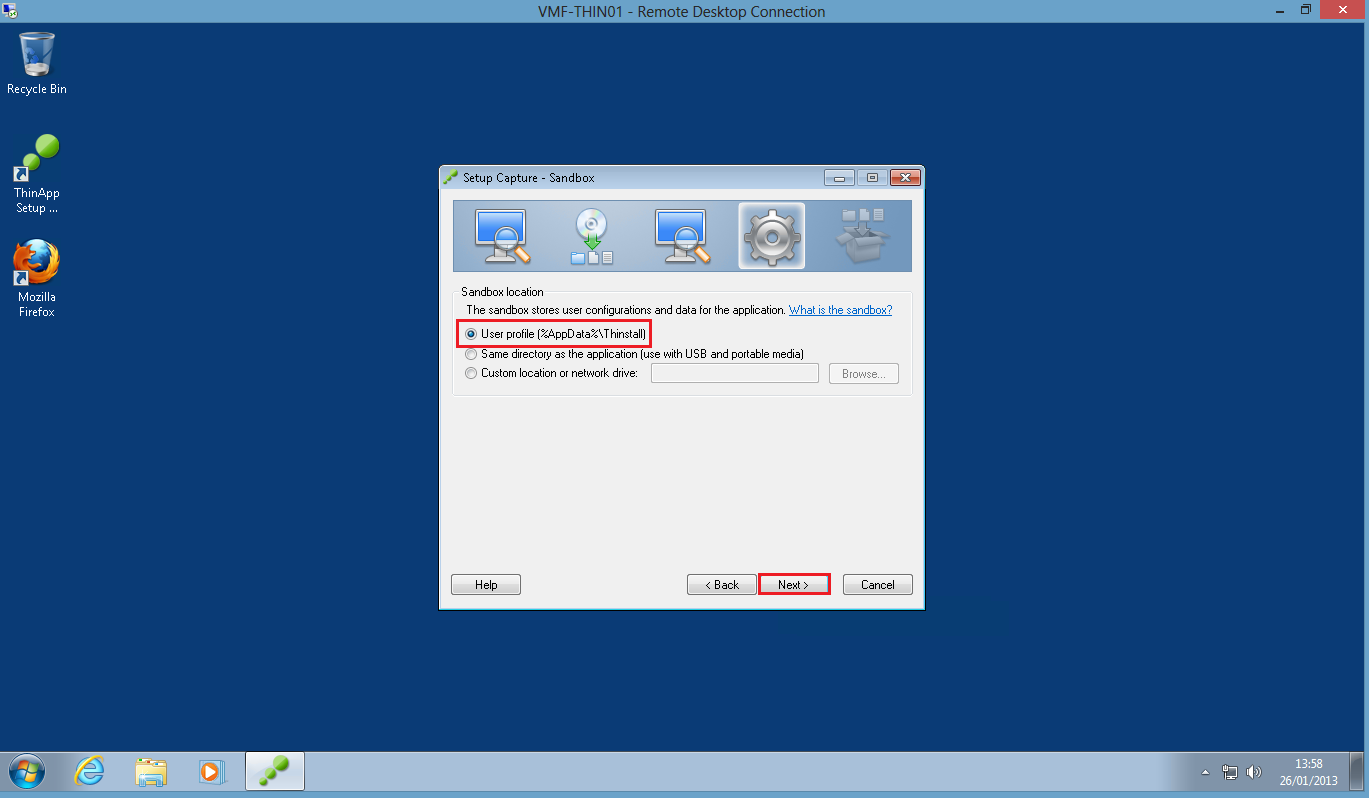
View ThinApp 36

Err, I don’t want to send VMware any information, so hit Next
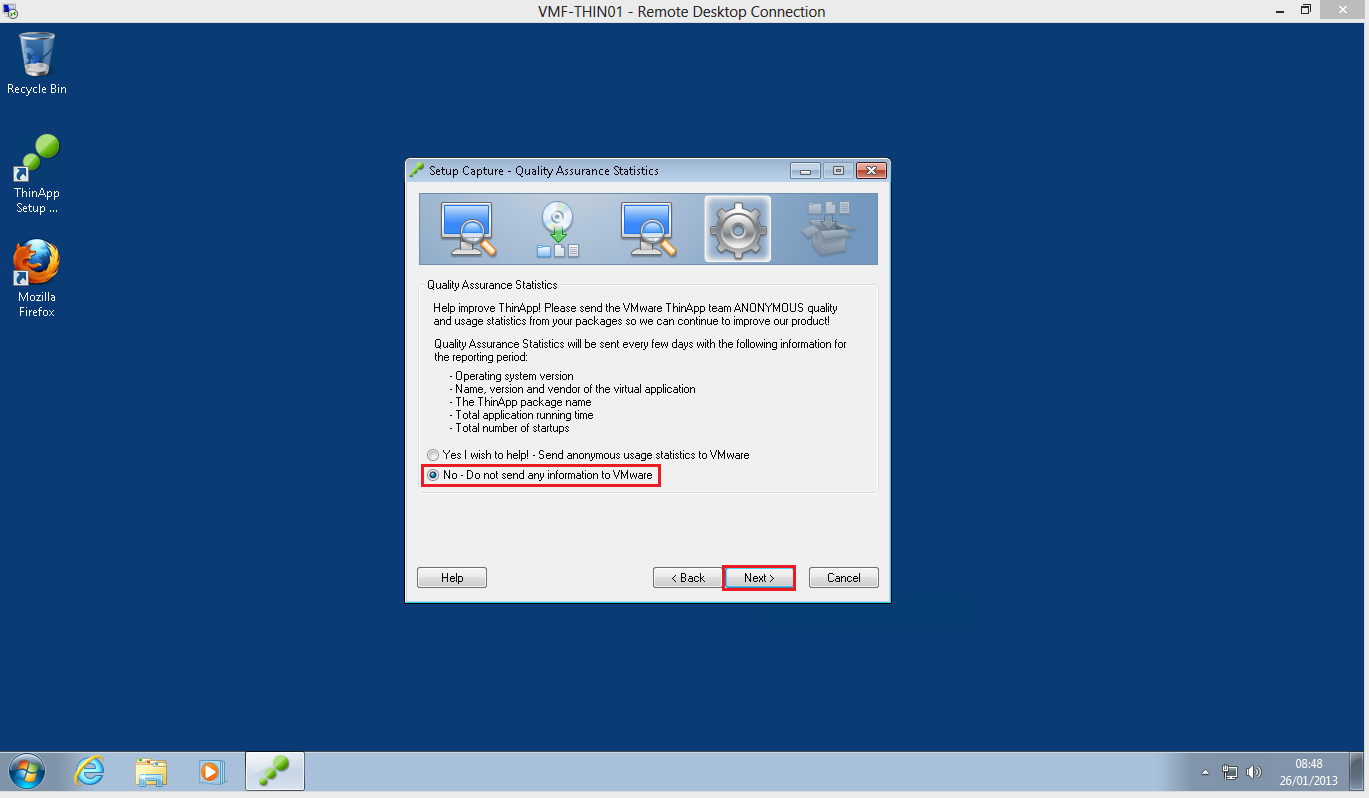
View ThinApp 18

Now this part is really cool, ThinApp allows us to use ThinDirect which plugs in to Internet Explorer so that when a specific website is launched it will open in Firefox.  I’m going to enter http://www.vmfocus.com

View ThinApp 19

Now we need to enter the Inventory Name, shows up in Add/Remove Programs and is shown in the Sandbox Folder. The Project Location is where all the files that make up our Firefox ThinApp package are located.
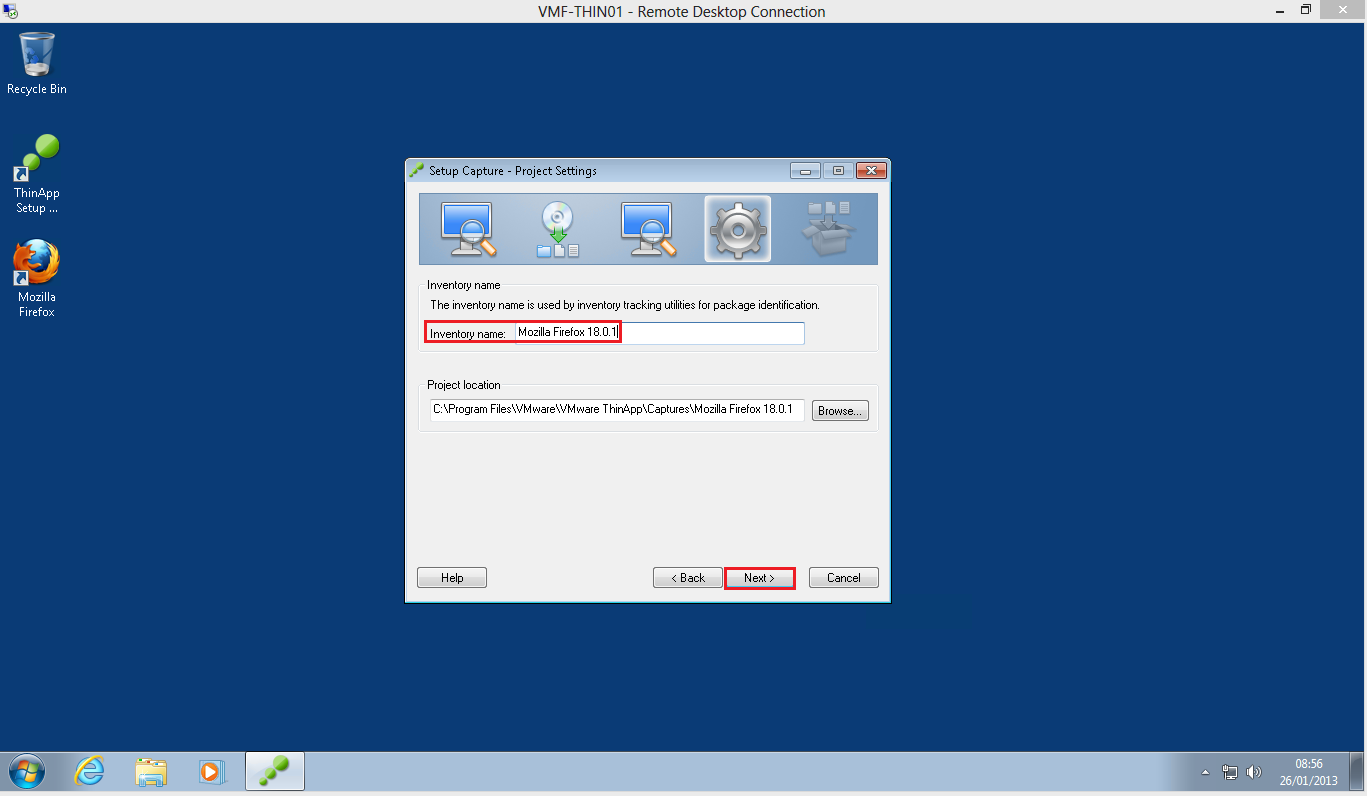
View ThinApp 20

Next we get to choose our Primary Data Container, this holds all the information to run our ThinApp Package.  For me, I’m going to use Entry Point, generally speaking ThinApp makes the right decision, so I will leave mine as Mozilla Firefox.exe

I’m also going to select MSI Package Generation so that ThinApp will create an ‘msi’ version of Firefox for me.  This means I could use Group Policy to deploy the ThinApp package down to regular desktops, now that is pretty wicked.

In this occasion, we aren’t going to compress the virtual package.

View ThinApp 21

Once we hit Save, ThinApp then performs all the tasks we have requested and Packages Firefox.

View ThinApp 22

Verify MSI Streaming Setting in The package.ini Files

Awesome, we are not at the point where we can Verify MSI Package File, to do this we can click on Edit Package.ini
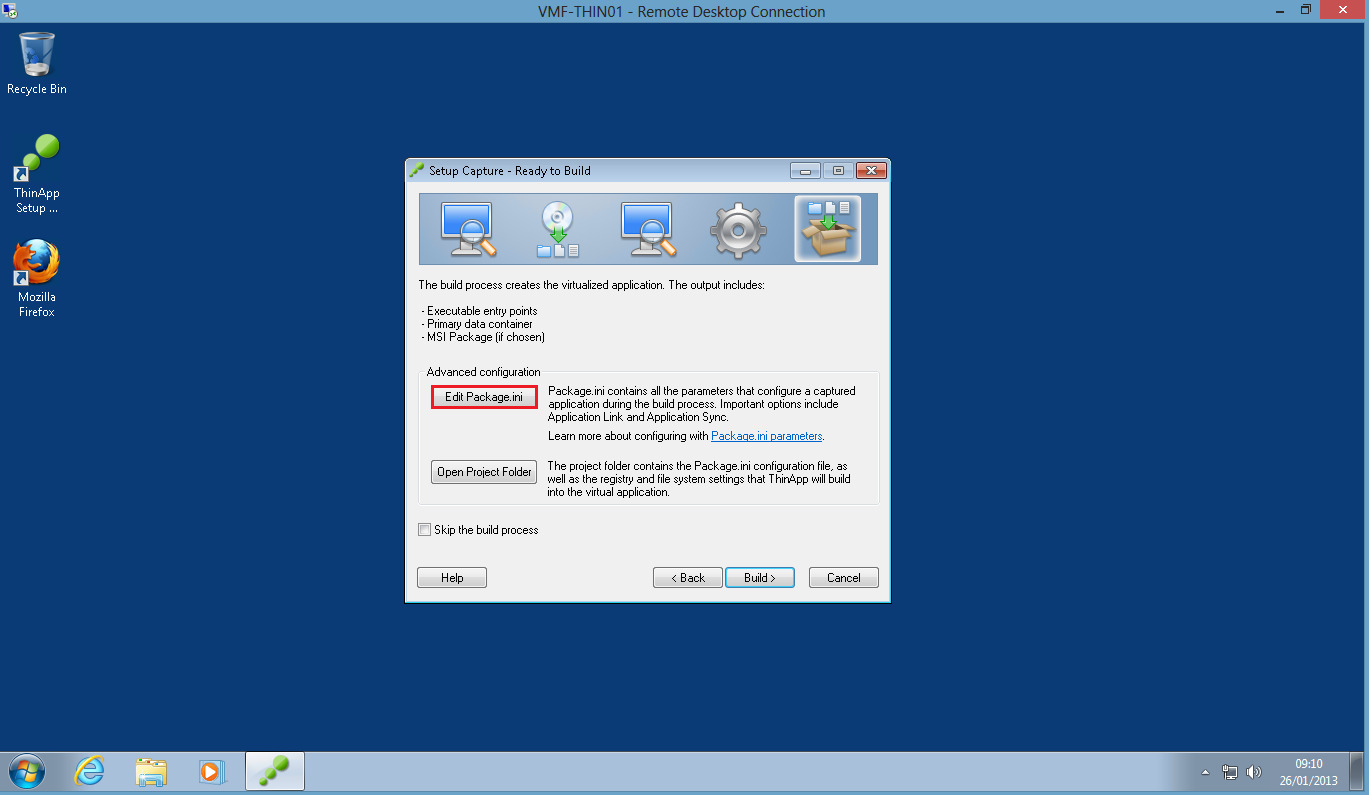
View ThinApp 23

You will see the MSI Parameters and many other settings that can be customised/altered if required.

View ThinApp 24

I’m happy with all of these settings, so I’m going to Build the Firefox Pacakge.

View ThinApp 25

The Build takes a little while, so it might be an idea to grab another cup of tea!

Excellent news, all finished and Firefox is packaged.
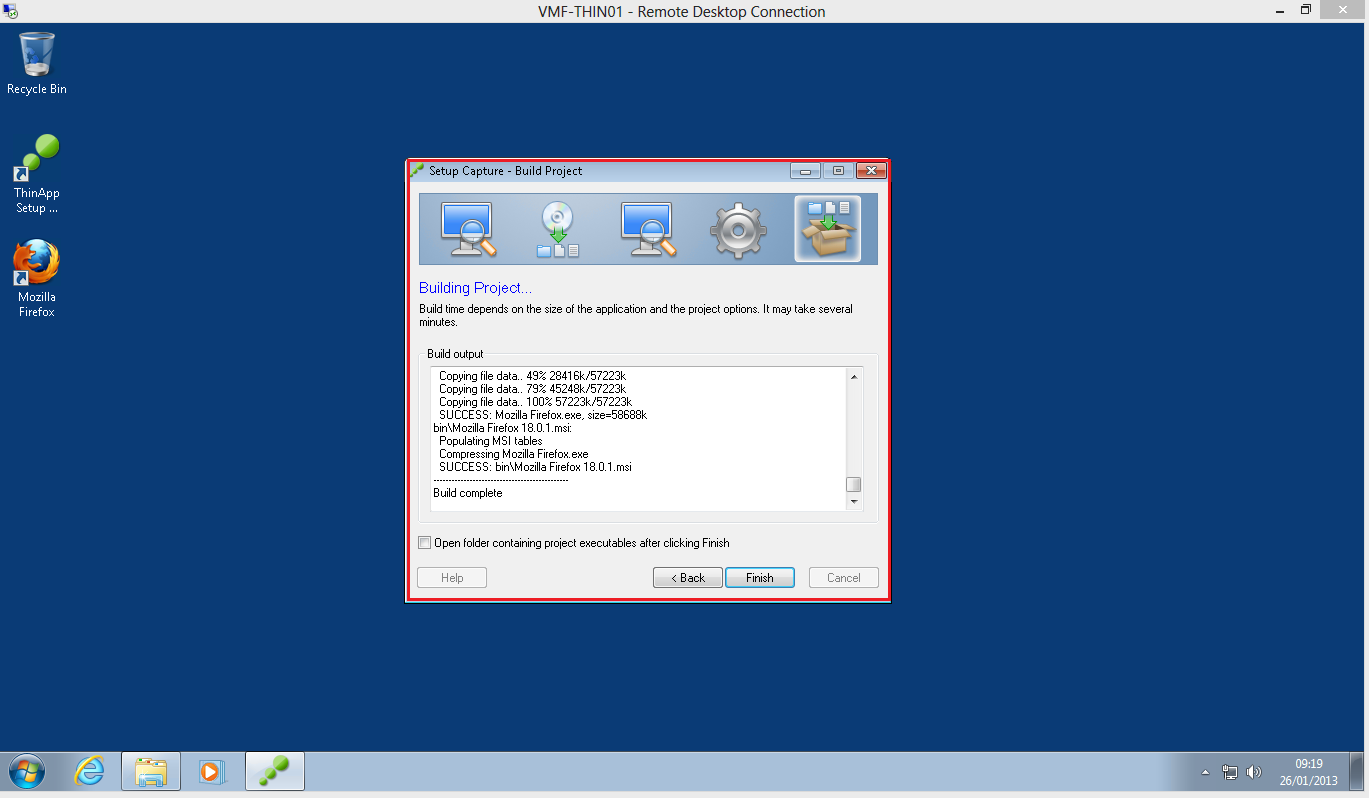
View ThinApp 26

If we access the Project Executable by going to C:Program FilesVMwareVMware ThinAppCapturesMozilla Firefox 18.0.1bin you will see our two files, Firefox Application and the MSI

View ThinApp 27

Create Or Identify Supported File Share & Assign Permissions To The Share

On my Transfer Server VMF-TR01 I have created a Windows File Share called ThinAppPackage with the following permissions:

Domain Computers – Read

Domain Users – Read & Execute

View ThinApp 32

Identify Necessary ThinApp Package Components To Put On The Share

Now we have the packaged Firefox we need to copy all the project files onto VMF-THIN01

Source: C:Program FilesVMwareVMware ThinAppCapturesMozilla Firefox 18.0.1

Destination: \VMF-TR01ThinAppProjectMozilla Firefox 18.0.1

View ThinApp 33

We are also going to copy our package files (Firefox Application and the MSI) onto VMF-TR01

Source: C:Program FilesVMwareVMware ThinAppCapturesMozilla Firefox 18.0.1bin

Destination: \VMF-TR01ThinAppPackageMozilla Firefox 18.0.1

View ThinApp 34

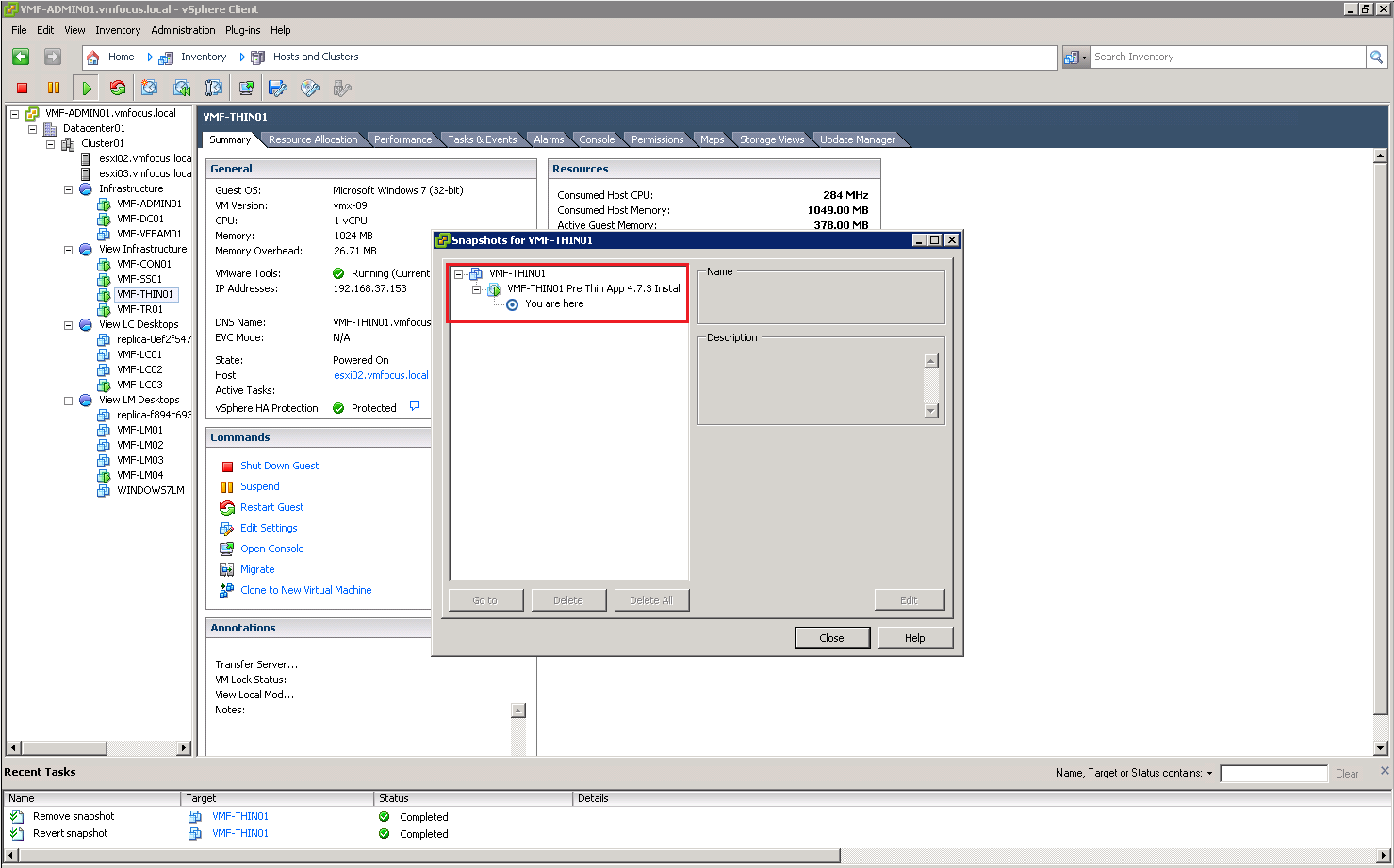
Before we move on, it’s a good idea to test our Firefox installation.  To do this, I have reverted VMF-THIN01 back to a state before we installed ThinApp so that we have a clean Windows 7 desktop again.
View ThinApp 35

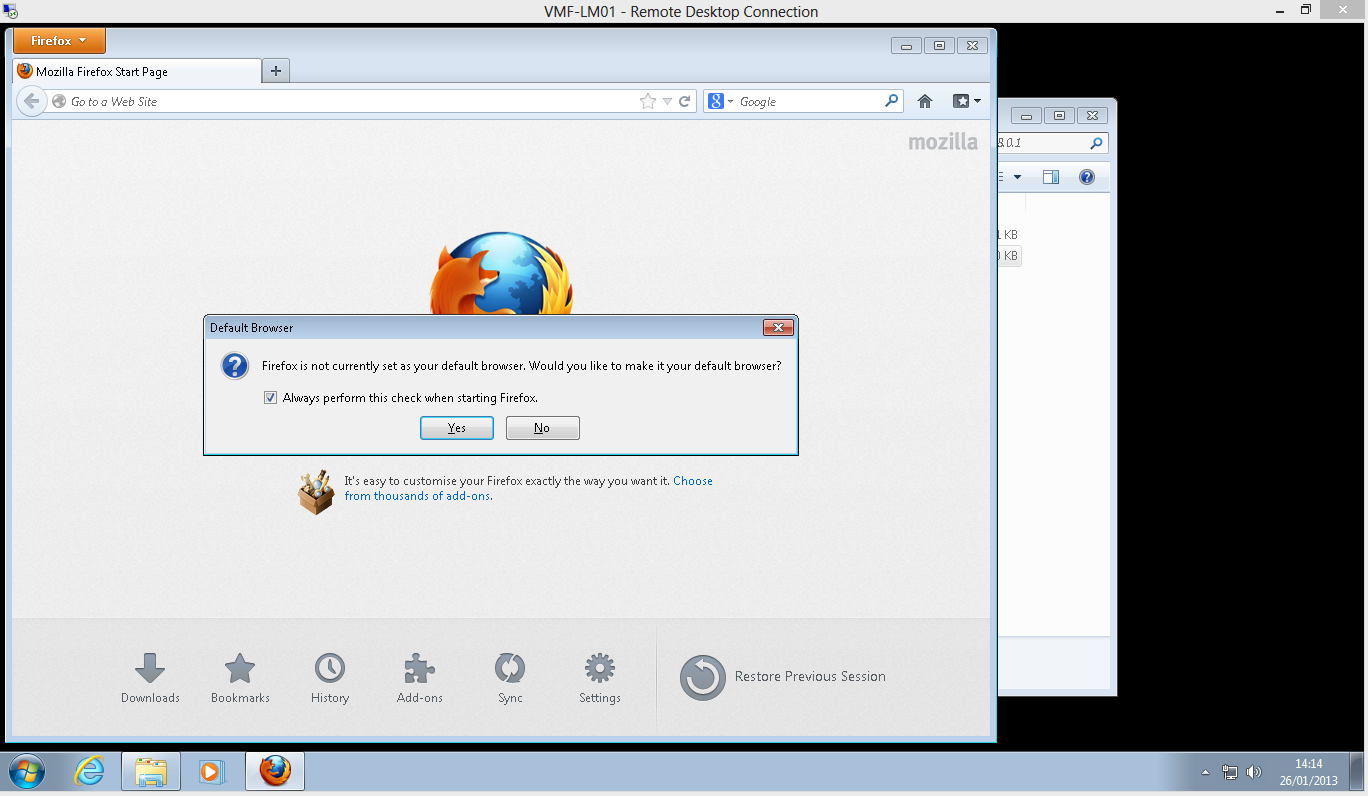
I’m going to login to VMF-LM01 as Sales01 as the View Sales Users has access to Mozilla Firefox.  This user has no special rights and is a normal Domain User.

I have created a shortcut on the desktop to \VMF-TR01ThinAppPackageMozilla Firefox 18.0.1 so that I can launch the application. Let’s see if it works.

Voila we have success!
View ThinApp 37

Assign ThinApp Applications To Pools

This seems like a really long blog post, however we are on the final hurdle, which is assigning ThinApp Applications to pools.  Seems like we haven’t been into View Administrator in a long time.

Let’s jump into View Configuration > ThinApp Configuration > Add Repository

View ThinApp 38

This is where we tell ThinApp to find ‘msi’ packages.  Which for me is under \VMF-TR01ThinAppPackage

View ThinApp 39

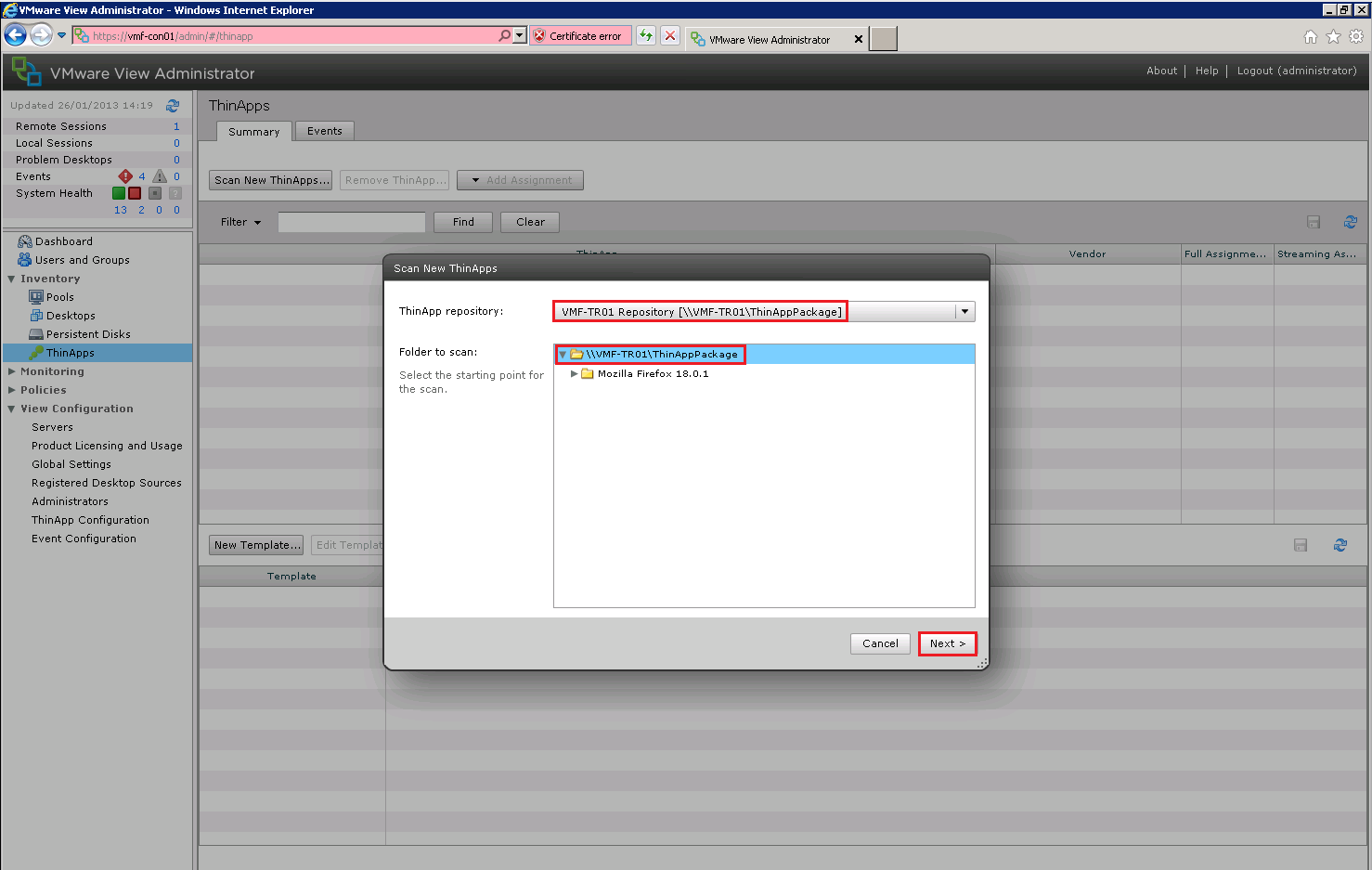
Next we are going to jump up to Inventory > ThinApps > Scan New ThinApps

View ThinApp 40

Select your ThinApp Repository and I recommend using the Top Level Folder so that you scan all sub folders
View ThinApp 41

Choose your MSI file to scan, in my case I only have Mozilla Firefox 18.0.1.msi

View ThinApp 42

If all goes well then your MSI should be ‘added’

View ThinApp 43

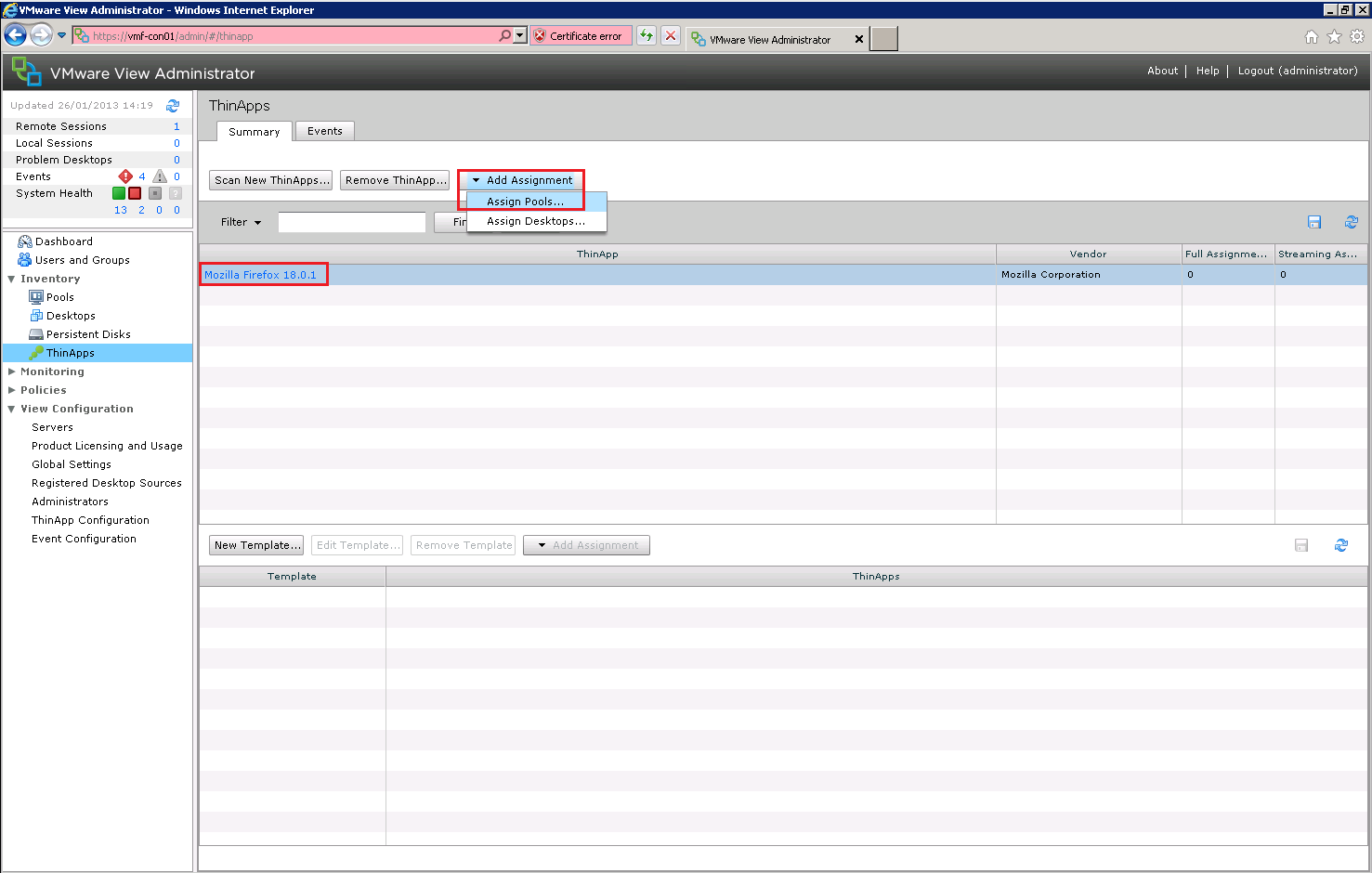
Let’s get this ThinApp assigned to a pool shall we.  Select your ThinApp and choose Add Assignment > Assign Pool
View ThinApp 44

Choose which Pool you want to assign the ThinApp too, I’m rolling with VMF_Local_Mode and hit OK

View ThinApp 45

Excellent our Mozilla Firefox MSI is now ready for use.

View ThinApp 46

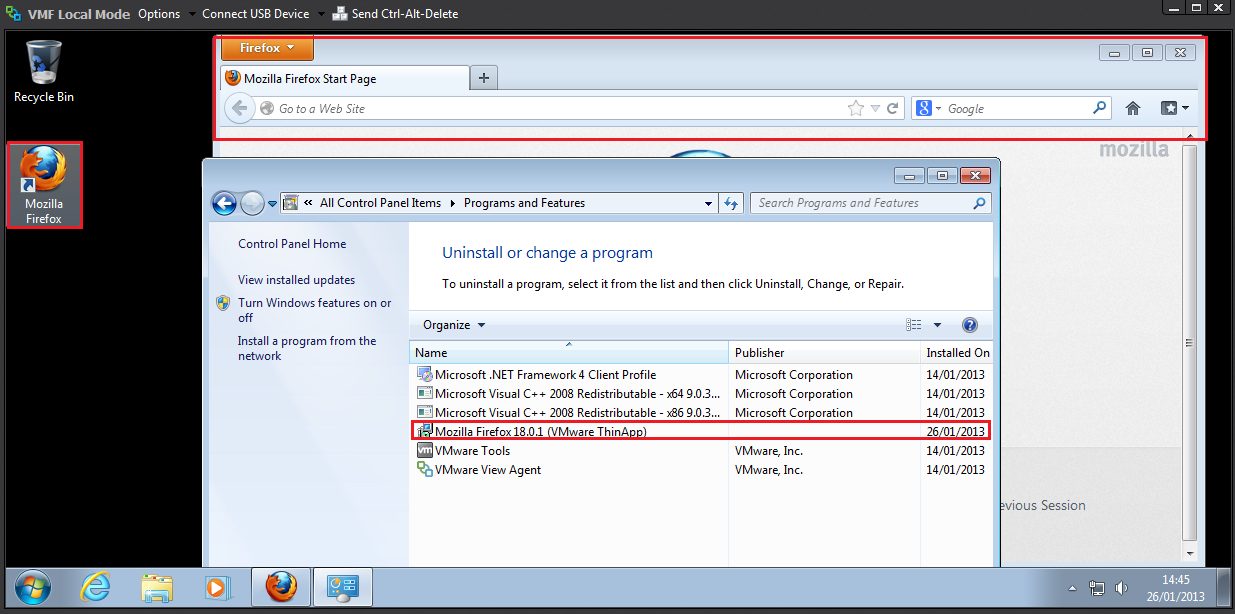
Let’s login to a View Desktop as Sales01 and see what we find.
View ThinApp 47

Awesome, we have a Mozilla Firefox shortcut, the browser works and it’s in Programs/Features.

ThinApp Resources

ThinApp is such a broad part of View, that we can’t really cover all aspects in a blog post.  However, I do recommend you use the following resources for extra study aides:
ThinApp Users Guide 4.7

ThinApp Blog

ThinApp 4.7 Package.ini Parameters Guide

VMware View – Objective 2.11 Configure The Environment for Kiosk Mode

Knowledge

  • Utilize vdmadmin (e.g., enable/disable Kiosk Mode, assign client to desktop, etc.)
  • Identify client device’s identification mechanism (MAC, custom name, etc.)

Before we crack on with Kiosk Mode, what’s the point in it? Well Kiosk Mode is for environments where people don’t login, but need access to some data.  An example of this would be my Doctors Surgery.  You go in and enter some details on a touch screen to verify you are who you say you are.  If you get the details right, you are checked in for your appointment.

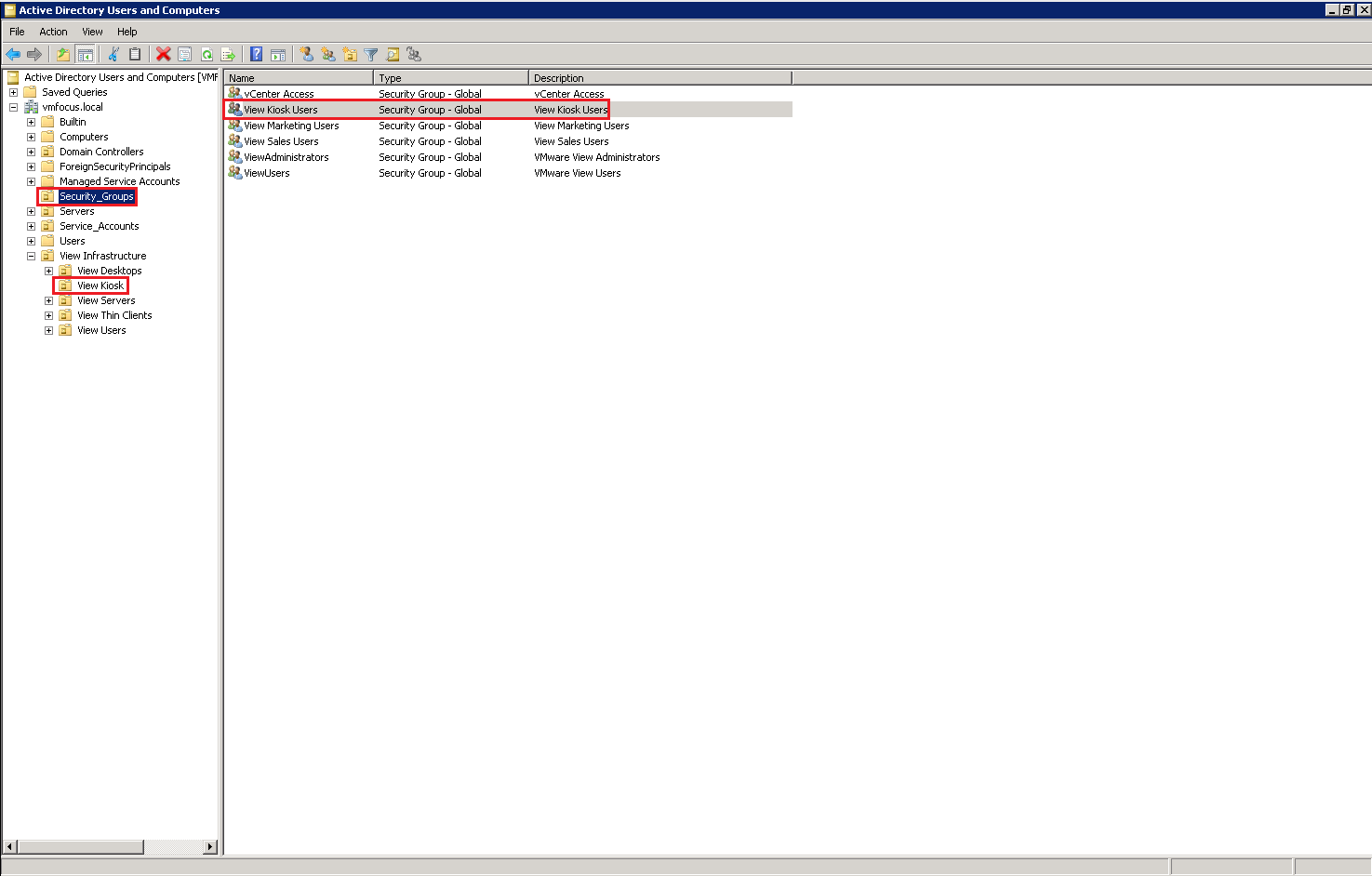
Most likely Kiosk Mode desktops are going to be heavily locked down, so with this in mind, I would recommend creating an specific Organisational Unit and Security Group in Active Directory for them.

View Kiosk 1

I have created a Windows 7 Virtual Machine called VMF-KIOSK01 specifically to perform the View Kiosk function.

Kiosk Pool

I have created a Manual Floating Pool for VMF-KIOSK01 and granted the Security Group View Kiosk Users entitlement.

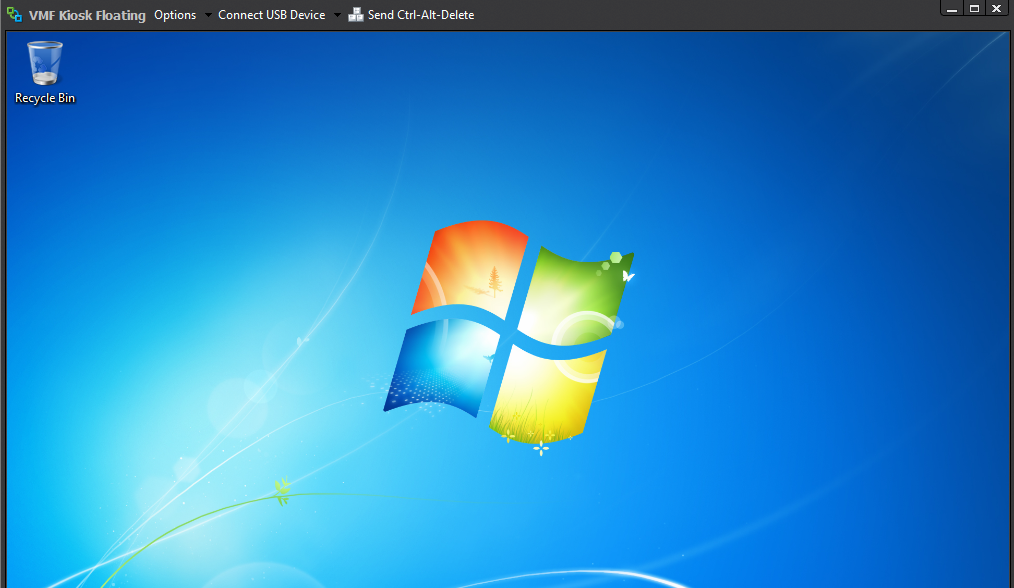
Before we go any further I want to test logging into VMF-KIOSK01 as user Kiosk01 to make sure everything is tickety boo.

View Kiosk 2

Well that’s working fine.  Time to leave the GUI behind and head into CLI.

Utilize vdmadmin & Identify Client Device’s Identification Mechanism

vdmadmin is a tool built into the View Connection Server that allows you to perform administrative tasks in CLI such as scripting.

We need to utilize the vdmadmin tool to get our VMF-KIOSK01 working.  Specially we are going to use the -Q option to create kiosk accounts and set parameters in Active Directory.  The complete syntax is as follows (taken from VMware View Administration – View 5.0)

  • vdmadmin -Q -clientauth -add [-b authentication_arguments] -domain domain_name-clientid client_id [-password “password” | -genpassword] [-ou DN] [-expirepassword | -noexpirepassword] [-group group_name | -nogroup] [-description “description_text”]
  • vdmadmin -Q -disable [-b authentication_arguments] -s connection_server
  • vdmadmin -Q -enable [-b authentication_arguments] -s connection_server [-requirepassword]
  • vdmadmin -Q -clientauth -getdefaults [-b authentication_arguments] [-xml]
  • vdmadmin -Q -clientauth -list [-b authentication_arguments] [-xml]
  • vdmadmin -Q -clientauth -remove [-b authentication_arguments] -domain domain_name-clientid client_id
  • vdmadmin -Q -clientauth -removeall [-b authentication_arguments] [-force]
  • vdmadmin -Q -clientauth -setdefaults [-b authentication_arguments] [-ou DN] [ -expirepassword | -noexpirepassword ] [-group group_name | -nogroup]
  • vdmadmin -Q -clientauth -update [-b authentication_arguments] -domain domain_name-clientid client_id [-password “password” | -genpassword] [-description “description_text”]

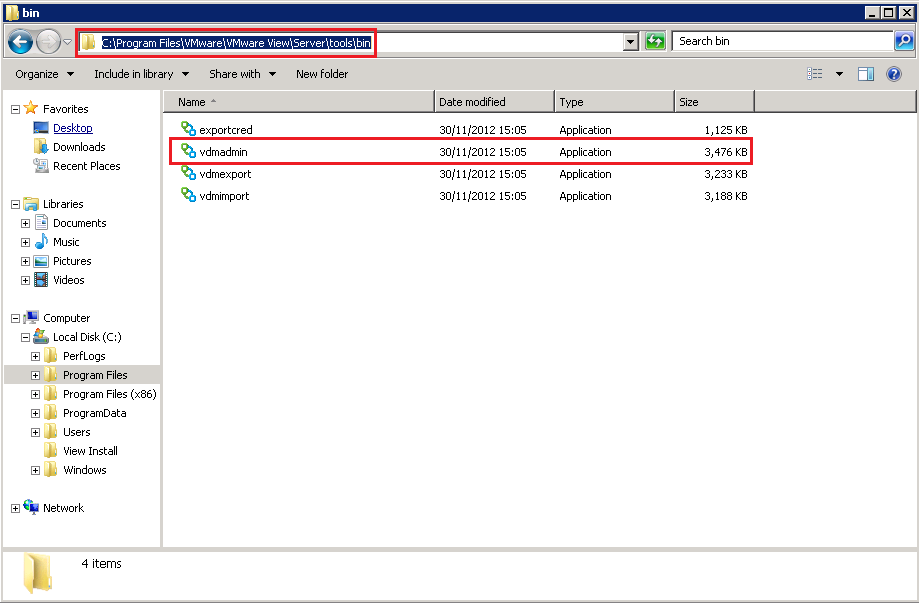
vdmadmin is located in C:Program FilesVMwareVMware ViewServertoolsbin by default

View Kiosk 3

Run Command Prompt as a user with administrator rights and navigate into the folder locating vdmadmin.

The command we are going to run is

vdmadmin -Q -clientauth -setdefaults -ou (Organisational Unit) -group (Security Group) -noexpirepassword

Which equates too

vdmadmin -Q -clientauth -setdefaults -ou “OU=View Kiosk,OU=View Infrastructure,DC=vmfocus,DC=local” -group “View Kiosk Users” -noexpirepassword

View Kiosk 4

This command ensures that the User Accounts that View will create for Kiosk mode won’t expire.

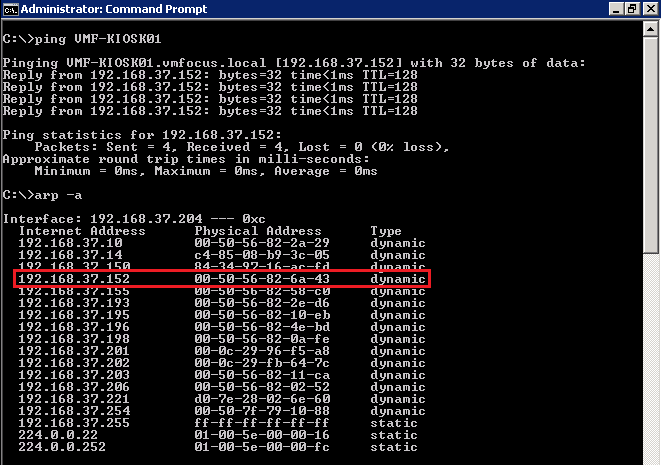
Now we need to get the MAC Address of the View Desktops, in my case VMF-KIOSK01.  The easiest way to do this is too ping VMF-KIOSK01 and run arp -a from the command line

View Kiosk 5

The next command we are going to run is

vdmadmin -Q -clientauth -add -domain vmfocus -clientid 00:50:56:82:6a:43 -group “View Kiosk Users”

View Kiosk 6

If we check Active Directory we have a new user created called cm-00_50_56_82_6a_43 who is a member of View Kiosk Users

View Kiosk 7

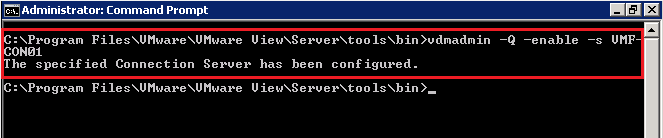
Next we need to enable our View Connection Server to authenticate without needing a password, oh my!

The syntax for this is

vdmadmin -Q -enable -s VMF-CON01

View Kiosk 8

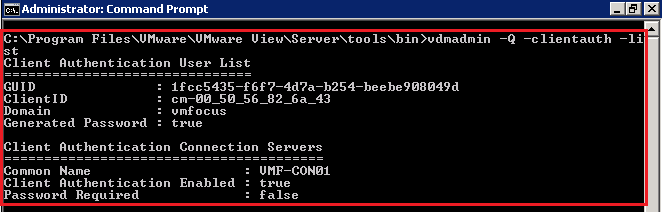
From an administrator perspective, you might want to see which clients are enabled for Kiosk Mode without passwords.  To do this run the following syntax

vdmadmin -Q -clientauth -list

View Kiosk 9

Last of all we need to tell the View Client on the physical hardware to access VMF-KIOSK01 using Kiosk mode.  VMware have included a handy little example batch file which can be found in C:Program FilesVMwareVMware ViewClientbinkiosk_mode.cmd

The easiest thing to do is run this script against the physical machine using a Windows GPO.

For this particular blog post, kudos to Barry Combs & Mike Laverick for the Building End-User Computing Solutions with VMware View

VMware View – Objective 2.10 Configure The Environment For Local Mode

Knowledge

  • Publish linked clone replica to Transfer Server repository
  • Identify Local Mode policies
  • Configure Local Mode policies
  • Ensure client device meets Local Mode requirements (e.g., proper version of View Client, hardware requirements, disk space, end device resource requirements, etc.)
  • Verify transfer server configuration

Local Mode is one of the features of View that I’m most excited about exploring.  In the past I have used XenApp Offline Applications and that was a world of hurt!  I mean how cool is it to be able to take your VDI offline and use it whilst flying or on a train.  Naturally, we do have a few prerequisites, which we will cover off during this port.

View Offline Desktop

Publish Linked Clone Replica To Transfer Server Repository

The good news is we have already covered this over on Objective 2.5 – Configure View Transfer Servers  so we can move straight onto the next item.

Identify Local Mode Policies

By default Local Mode is disabled, it has to be enabled in Global Policies.  These can be found in the View Administrator under Policies.

View Local Mode 1

A quick breakdown of the Local Mode Policies are:

Local Mode: Needs to be enabled to allow Local Mode Desktops

User Initiated Rollback: When a user wants to check there desktop back in, with this feature enabled they can either check the desktop in and all the changes are synced back to View or they can choose to roll there desktop back to the version on View discarding any changes they have made when working offline.

Max Time Without Server Contact: This is the amount of time the user can be offline for.

Target Replication: We can’t always rely on users to ‘check in’ desktops so this feature will try and replciate any changes at a given interval.

User Deferred Replication: Can the user choose not to replicate?

Disk Replicated: By default only the persistent disk is replicated as this contains all of the users information such as desktop icons and my documents.  You can choose to replicate the OS disk as well.

User Initiated Check In: Is the user allowed to check there desktop in?

User Initiated Replication: Is the user allowed to start replicating changes back to View?

View Local Mode 2

Ensure Client Device Meets Local Mode Requirements

We have a few requirements to meet with Local Mode, so let’s rattle through them.

Operating System Requirements

  • Only supported on Windows systems
  • Windows 7 32 or 64 Bit Home, Professional, Enterprise or Ultimate
  • Windows Vista 32 Bit Home, Professional, Enterprise or Ultimate SP1 & Sp2
  • Windows XP Home and Professional SP3

As you can see the physical desktop doesn’t have to be part of the Active Directory domain as ‘home’ version works.

Physical Hardware Requirements

  • CPU needs to be 1.3GHz or faster
  • Disk space required is as much as what the VM can grow to e.g. View Desktop uses 10GB but has 20GB allocated, you need to have 20GB free.
  • 2GB Memory Windows XP and Vista
  • 3GB Memory Windows 7
  • BIOS must support Hardware Virtualisation

Verify Transfer Server Configuration

The only real way to do this is to give the bad boy a whirl!

First thing to do is check your transfer Server is ready to rock and roll under View Configuration > Servers > Transfer Servers make sure that:

  1. Status Ready
  2. Snapshot is Published

View Local Mode 3

At the moment my View Client doesn’t have Local Mode installed, so I’m going to run the View Client Installer with Local Mode, at the time of this blog post, the most upto date version is VMware-viewclientwithlocalmode-x86_64-5.2.1-937772

Hit Next and we want to Modify the installation

View Local Mode 4

Select View Client with Local Mode and hit Next

View Local Mode 5

Click on Install

View Local Mode 6

Click Finish

View Local Mode 7

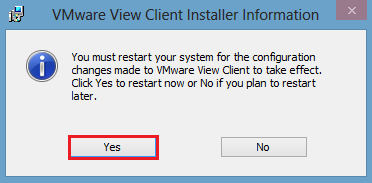
Unfortunately, Local Mode requires a reboot, so I will see you on the other side!

View Local Mode 8

Before we move forward, a couple of things about Local Mode.

  1. The desktop can only be checked out if it’s powered off.
  2. The desktop can only be checked in if it’s powered off.

I have logged in with a user who has rights to use Local Mode on a View Pool.  The desktop is shut down, we want to click the Down Arrow and Select Check Out

View Local Mode 9

Did you spot the VMware Octopus as my desktop background?

We are going to select OK (however you can change the download location of the desktop from the default if you wish).

View Local Mode 10

You will see the percentage start to increase.

View Local Mode 11

What happens is that View takes a snapshot of your Desktop VM and places a Lock on it so no changes can be made (makes sense as it can’t be used).

View Local Mode 12

Time to grab a cup of tea, as this takes a while.

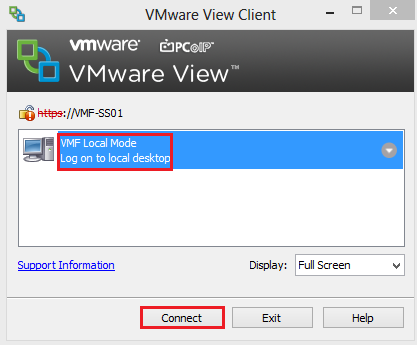
Excellent the check out has completed, click Connect.

View Local Mode 13

When you login, Windows will need to restart to identify the new hardware it is running on.

View Local Mode 14

That’s it for this objective, I think you will agree with me, Local Mode is proper awesome and takes down many of the barriers that CTO may have had with VDI in the past.

VMware View – Objective 2.9 Configure Remote and/or Location Based Printing For View Desktops

Knowledge

  • Describe ThinPrint architecture
  • Identify ThinPrint services
  • Register .dll file
  • Configure GPO
  • Import location printing ADM file

Printing is the nemesis of the VDI world, how do we get that PDF from the View Desktop to the users client and enable everyone else to work?  We are now entering into the promised land.

OK, I have a confession to make, I despise printers, they are the root of all evil and probably the biggest pain for Desktop Support Engineer.  I don’t actually own a printer and to be honest, nor do I want to, so this particular objective is going to be theory based (well at least for me).

Now that I have that off my chest, I think we can carry on with Objective 2.9 Configure Remote and/or Location Based Printing For View Desktops

Describe ThinPrint Architecture

Before we talk this printing malarkey, it’s probably an idea to get an understanding of the steps taking to print inside a VDI environment.

In a traditional physical Desktop environment, the print flow is:

Physical Desktop User Prints > Desktop Print Spooler > Print Traffic Sent Across Network/USB > Print

The VDI environment follow the same principle, however the printer isn’t directly connected by LAN or USB.

View Desktop User Prints > Print Traffic Sent To Physical Windows Desktop > Physical Desktop Spooler > Print Traffic Sent Across Network/USB > Print

Now this isn’t so bad when working on the LAN, as the configuration we aren’t so worried about bandwidth, but when we are printing over a WAN, then we have some dramas!

VMware understood the challenges faced with printing inside the VDI environment and they licensed Thin Print under an OEM Agreement.

When you install the View Agent and the View Client, the ThinPrint drivers are automatically installed.

The print process works in the same way that I described above, however the print job is compressed and encrypted.  The steps are:

  1. User prints inside View Desktop, the print job is captured by the ‘ThinPrint Generic Driver’ which is automatically installed as part of the View Agent into the View Desktop.
  2. The print job is compressed by the ‘ThinPrint Generic Driver’ and then sent over the WAN to the Windows Physical Desktop.
  3. The Physical Windows Desktop (which has View Client installed) then decompresses the print job and sends it too the print spooler.
  4. The Physical Windows Desktop then spools the print job to the printer.

Print Drivers

I wanted to take a slight detour and talk about Printer Drivers.  The Print Driver needs to be available for the print job to happen, this can be achieved in a few ways.

Physical Windows Desktop this option can work if you are reusing old Windows Desktops to be your ‘dumb terminals’ . Just install the Print Drivers on the physical desktop.

Thin Client this causes us an issue as we cannot install any Print Drivers, as we have no host Operating System.  In this case we need to install the Print Drivers into the View Desktop.  If you have a Desktop Pool that is used company wide which has 50 printers, you don’t really want to ‘bloat’ your Linked Clone Image with all the drivers.  Instead you probably want to install Print Drivers on demand, which is something I will refer to later in this blog post.

Identify ThinPrint Services

We have two services which are installed on the View Desktop which are:

  • TP AutoConnect Service
  • TP VC Gateway Service

View Thin Print Services

The TP AutoConnect Service creates the printers in the users View Desktop

The TP VC Gateway Service is the grafter, it grabs the print data from the applications to enable it to be encrypted and compressed.

On the View Client (Physical Windows ) Desktop we don’t have any services installed, as it’s within the View Client, however we do have a registry key that we can alter to enable or disable ThinPrint.

Enabled HKEY_LOCAL_MACHINESOFTWAREWow6432NodeThinPrintClient Default State 0

Disabled HKEY_LOCAL_MACHINESOFTWAREWow6432NodeThinPrintClient Default State 1

View Client ThinPrint Registry

Register .dll File

To allow us to access the Group Policy settings for ThinPrint we need to register a .dll on an Active Directory Domain Controller.

The .dll is called TPVMGPoACmap.dll and is located on your Connection Server under C:Program FilesVMwareVMware ViewServerextrasGroupPolicyFilesThinPrintx64

Register DLL 1

Copy this .dll to the root of your Domain Controller.

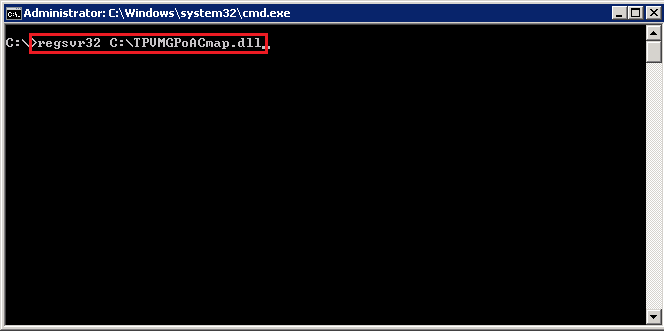
Jump into the CMD and type regsvr 32 C:TPVMGPoACmap.dll

Register DLL 2

Boom, we have success!

Register DLL 3

Configure GPO

This is really straight forward, first of all we need to create a Group Policy, I’m rolling with a GPO called ‘Location Based Printing’ and I have linked it to the Organisational Unit ‘View Desktops’

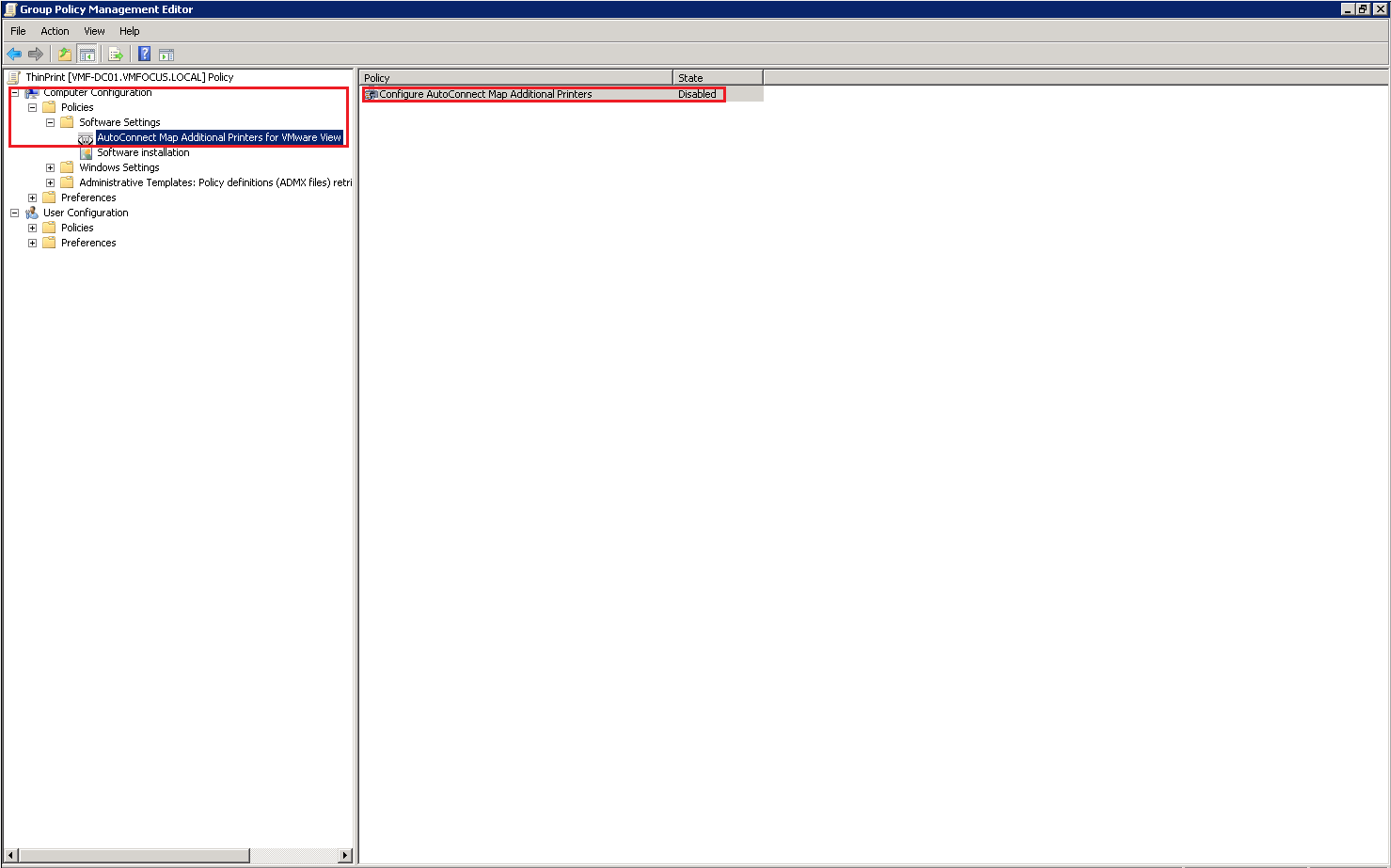
Naturally, the GPO is blank at the moment.  Let’s edit it and go to Computer Configuration > Policies > Software Settings and you will see AutoConnect Map Additional Printers for VMware View

ThinPrint GPO 2

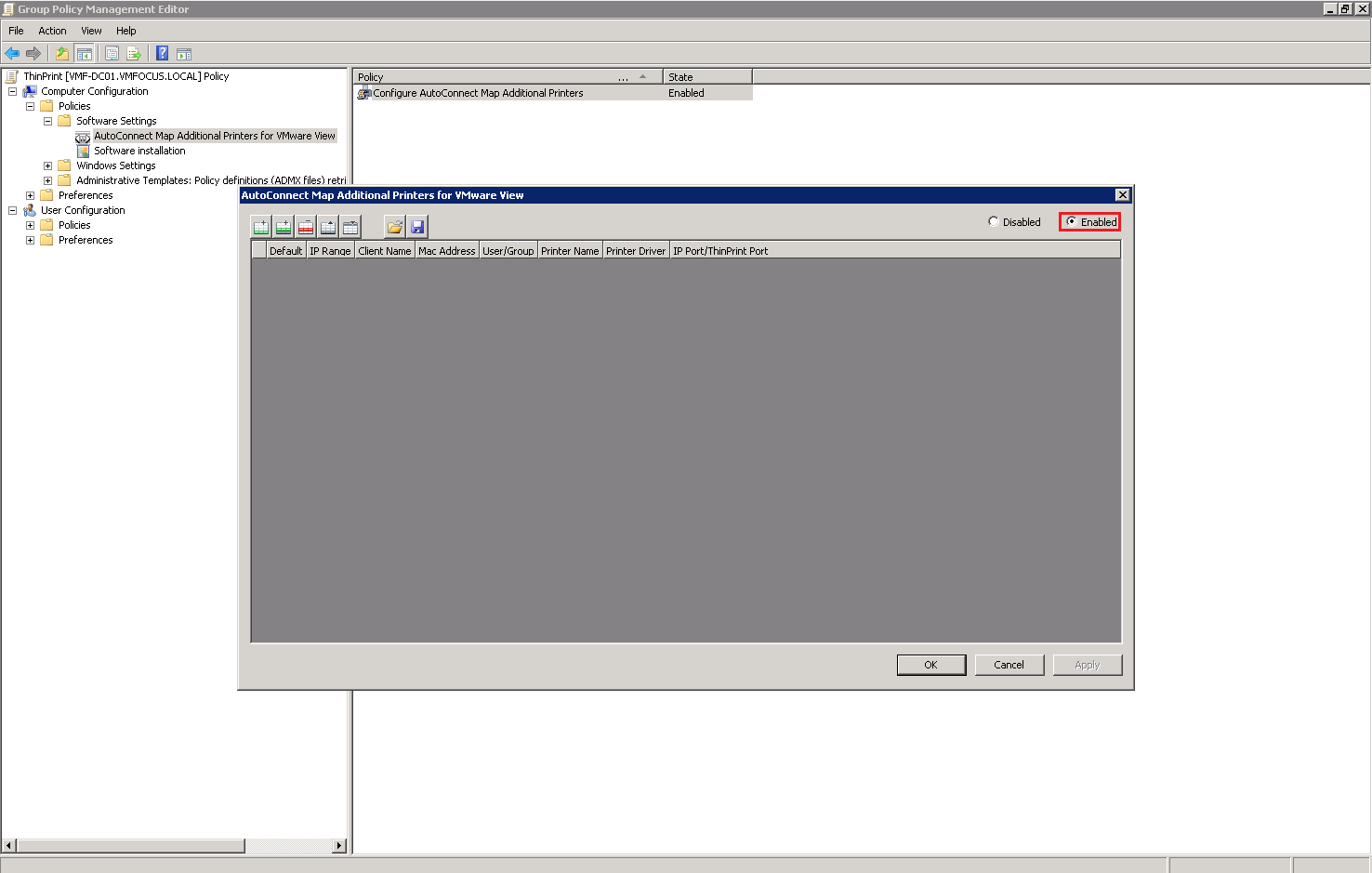
Double Click AutoConnect Map Additional Printers for VMware View and set the Policy to Enabled by Clicking in the Top Right Hand Corner

ThinPrint GPO 3

Import Location Printing ADM File

We have really imported the location ADM file by performing the above, I wanted to give you an overview of the Location Printing settings.

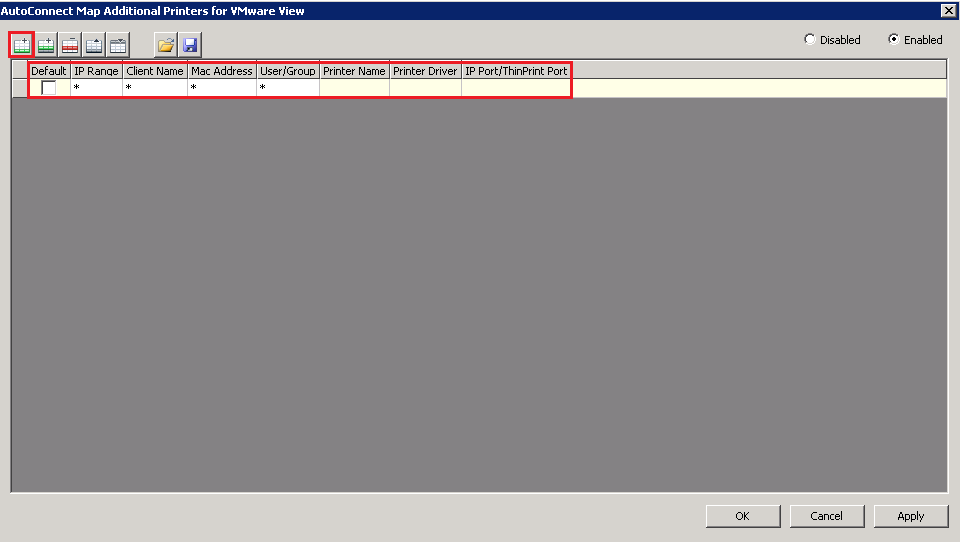
Click Add in the top left and you will see some columns appear ‘as if by printer magic’.

ThinPrint GPO 4

We can define who can access the printer by:

  • IP Range
  • Client Name
  • MAC Address
  • User/Group

In most environments it’s probably going to be via IP Range or User/Group

The Printer Name column, is the name we want the printer to appear as in the View Desktop.

The Printer Driver column, is really important, this is the driver which is installed on the Physical Desktop.  Ensure that you type this in exactly as it appears on the Physical Desktop.

If the printer is locally attached then you don’t need to enter any details in under the IP Port/ThinPrint Port.  If you are using a network printer then you need to enter it in the format IP_x.x.x.x e.g. IP_192.168.1.10

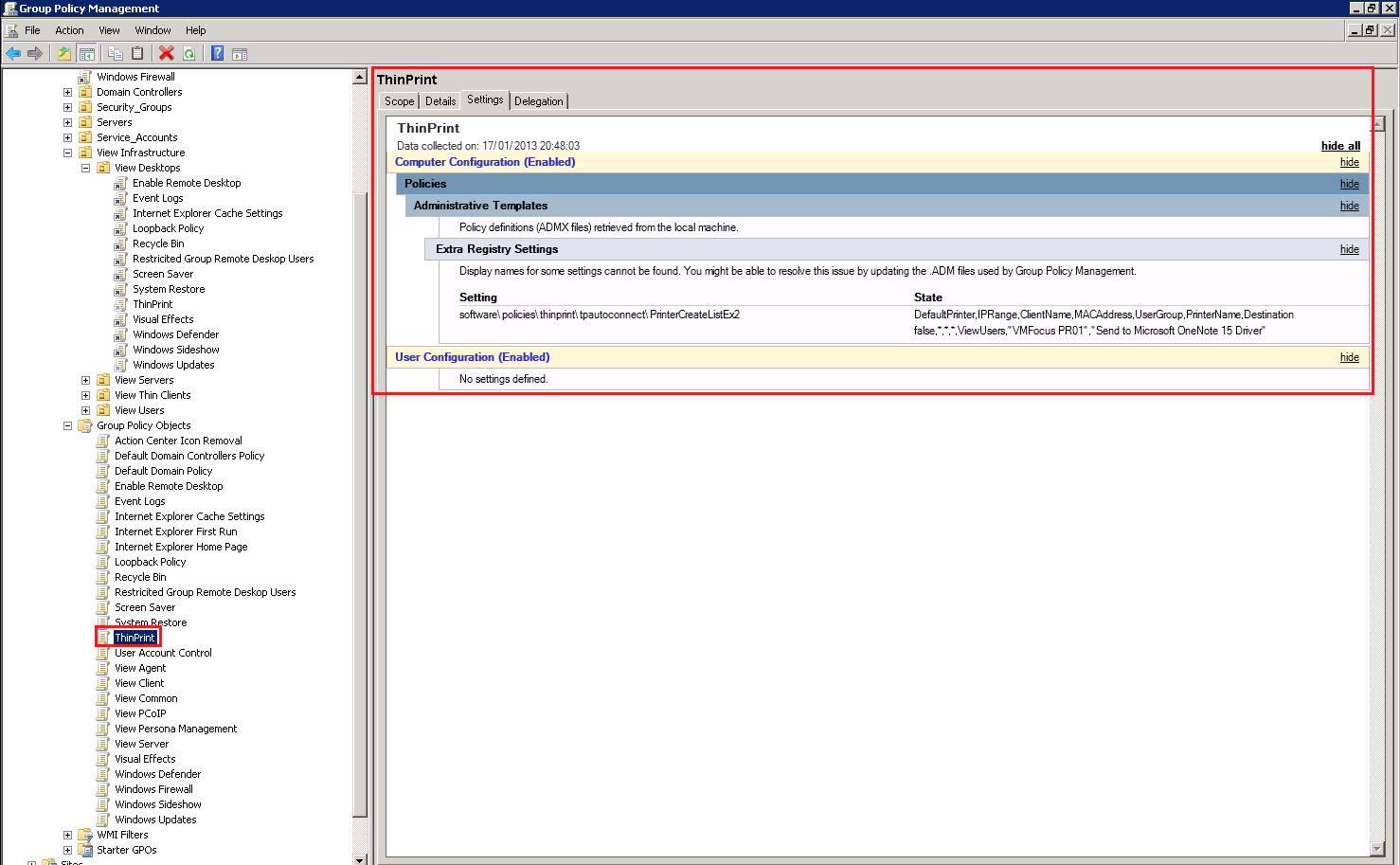
As you can see I have entered the details in for my Microsoft OneNote driver into AutoConnect Map Additional Printers

ThinPrint GPO 5

If we now check the ThinPrint Group Policy out you will see we have Extra Registry Settings Configured.

ThinPrint GPO 6

VMware View – Objective 2.8 Configure Role Based Administrators

Knowledge

  • Identify required folders
  • Create View folders for delegated administration and roles
  • Set permissions on a folder
  • Create the administrator roles
  • Assign folders and roles to user and/or groups

Identify Required Folders

View’s Permissions are based around Folders, and are designed to work with each Desktop Pool, so you can different View Administrators   for different users if you so wish.

The good news is I have covered all of the knowledge except for Creating View Folders already in VMware View – Objective 2.3 Configure View Standard & Replica Connection Servers under Section Identify Default Roles, Custom Roles, and What Permissions Are Available

To create a View Folder go to Inventory > Pools and Select Folder > New Folder

View Folder 1

Enter your Folder Name and Hit OK

View Folder 2