HP ConvergedSystem 200-HC StoreVirtual System – Questions Answered

Background

HP released two offerings of the HP ConvergedSystem 200-HC StoreVirtual System last year.  Essentially they have taken ESXi, HP StoreVirtual VSA, OneView for vCenter and automated the setup process using OneView Instant On.

HP Converged System 200-HC Diagrams v0.1

Two models are available which are:

  • HP CS 240-HC StoreVirtual System, this has 4 nodes each with:
    • 2 x Intel E5-2640v2 2.2GHz 8 Core Processor
    • 128GB RAM
    • 2GB Flash Backed HP Smart Array P430 Controller
    • 2 x 10GbE Network Connectivity
    • 1 x iLO4 Management
    • 6 x SAS 1.2TB 10K SFF Hard Drives
    • Around 11TB of usable capacity
  • HP CS 242-HC StoreVirtual System, this has 4 nodes each with:
    • 2 x Intel E5-2648v2 2.2GHz 10 Core Processor
    • 256GB RAM
    • 2GB Flash Backed HP Smart Array P430 Controller
    • 2 x 10GbE Network Connectivity
    • 1 x iLO4 Management
    • 4 x SAS 1.2TB 10K SFF Hard Drives
    • 2 x 400GB Mainstream Endurance SSD
    • Around 7.5TB of usable capacity

These are marketed with the ability to provision virtual machines within 30 minutes.

What Does Provision Virtual Machines Within 30 Minutes Really Mean?

To answer this question you need to understand what HP have saved you from doing, which is:

  • Installing ESXi across 4 x Hosts
  • Installing vCenter to a basic configuration
  • Installing HP StoreVitrual VSAE to a basic configuraiton across 4 x Hosts
  • Pre-installed Management VM running Windows Server 2012 Standard that has OneView for vCenter and CMC for StoreVirtual Management

So after completing the initial setup, you do have the ability to upload an ISO and start deploying an OS image.

What About The Stuff Which Marketing Don’t Mention? AKA Questions Answered?

Database

  • SQL Express is used as the database (local instance on Management VM).  I have real concerns around the database if logging levels are increased to troubleshoot issues and/or the customer doesn’t perform an kind of database maintenance
    • I’m waiting on confirmation from HP as whether you can migrate the SQL database instance to a full blown version

Host Profiles

  • Grey area, these can be used.  However HP rather you stay with the base configuration of the nodes (much like the networking see below).

Licences

  • The solution is only supported using Enterprise or Enterprise Plus VMware licenses, with the preference being HP OEM.
  • Windows Server 2012 Standard is supplied as the Management VM.  Initially, this runs from a local partition and is then Storage vMotioned onto the HP Converged Cluster.  Windows licensing dictates that when a OS is moved across hosts using Standard Edition you cannot move the OS back for 90 days or you need to license each node for the potential number of VM’s that could be ran.
    • HP have confirmed that you receive 2 x Windows Server 2012 Standard licenses and DRS Groups Manager rules are configured to only allow the Management VM to migrate between these two ESXi Hosts.

Management Server

  • You are able to upgrade the Management Server VM in terms of RAM, CPU and Disk Space and be supported.
  • You cannot add additional components to the Management Server VM and be supported e.g. VUM, vCenter SysLog Service
    • I’m waiting on confirmation from HP around what is and isn’t supported, I would air on caution and not install anything extra

Networking

  • The 1GbE connections are not used apart from the initial configuration of the Management Server.  My understanding is that these are not supported for any other use.
  • HP prefer you to stay with the standard network configuration, this causes me concern.  10GbE Network providing Management, iSCSI, Virtual Machine and vMotion traffic.  How do you control vMotion bandwidth usage on a Standard vSwitch? You can’t a Distributed vSwitch is a much better option, but if you need to reconfigure a node, you will need to perform a vSS to vDS migration

Updates

  • You can upgrade individual components separately, however you must stay within the HP Storage SPOCK for the Converged System 200-HC StoreVirtual (Note a HP Passport login is required)

Versions

At the time of this post, the latest supported versions are as follows:

  • vSphere 5.5 U2 , no vSphere 6
  • vCenter 5.5 U2
  • HP StoreVirtual VSA 11.5 or 12.0
  • HP OneView for vCenter Storage/Server Modules 7.4.2 or 7.4.4
  • HP OneView Instant On 1.0 or 1.0.1
  • PowerCLI 5.8 R1

Final Thoughts

HP have put together a slick product which automates the initial installation of ESXi and gives you a basic configuration of vCenter.  What it doesn’t give you is  design to say that your workloads are going to be suitable on the environment and or a solution that meets a client requirements.

HP 3PAR Streaming Remote Copy Replication

The replication in 3PAR Arrays has always been mediocre.  In the older versions of 3PAR Inform OS if you choose ‘sync replication’ for a single remote copy group, you could not use ‘a sync’ for any other remote copy groups.

This feature was addressed in a newer version of 3PAR Inform OS, however your lowest RPO using ‘a sync’ was bottlenecked at 15 minutes regardless of available bandwidth.

With the release of the HP 3PAR 20000 Series, comes a new feature which is streaming ‘a sync’ replication.

What Is Streaming ‘A Sync’ Replication

Essentially, if you have the bandwidth and cache available the source 3PAR will stream replication across to the target 3PAR reducing your RPO below 15 minutes.  I like to think of it as a best endeavours.

Replication Modes

When designing a replication infrastructure it’s important to know the transport method as well as the thresholds in terms of bandwidth and latency between source and target arrays.  This ensures that you are not only within a supported SLA, but also to ensure that write performance of the source array is not effected.

The table below shows supported thresholds.

Replication Modes

Architecture

The source array uses a local cache to maintain host write transactions in memory.  A concept known as ‘delta sets’ are used.

Source 3PAR Array

  • I/Os are transferred from primary array to secondary array as part of a delta sets
  • I/Os on the primary array that belong to a particular remote copy group are grouped together into delta sets
    • A delta set is made up of sub-set of I/Os, where sub-set represents I/Os owned by a remote copy group on each given node

Target 3PAR Array

  • A delta set is applied on the secondary RC volume group only after:
    • The entire delta set has been received in the secondary array cache
    • And the previous sets that this delta set depends upon have completed.
  • A secondary RC volume group is always in a crash consistent state, before or after the application of a delta set. It is not crash consistent during the application of a delta set.
    • If the delta set fails to apply on the secondary volume then the group stops and a fail back to the last coordinated snapshot is required

Remote Copy Architectuer

What About Write Bursts?

A write burst is when the array receives a significant number of writes which could last for a few minutes.  If the inter site link between source and target array is sufficient this has no impact.

It is when the inter site link cannot cope or the write cache gets filled then the source 3PAR will choose a random remote copy group to stop and a snapshot is taken.

Note: You have no control over which remote copy group

Once stopped these groups will start again at the next sync period.

Final Thoughts

This is a great feature set being added to the 3PAR 20,000 Series.  I’m sure when the next .1 release update is received you will be able to select which remote copy groups you would want to stop either due to a write burst or cache overflow.

With most 3PAR updates, I expect the streaming ‘a sync’ replication to find its way into the 7×00 series within a short period of time.

Installing: App Volumes Agent

In the previous post I covered ‘Installing: App Volumes Manager‘.  Now it’s time to install App Volumes Agent.

The App Volumes Agent has to key roles in life:

  1. It resides on a provisioning virtual machine and is responsible for the capture of an application.
  2. Agent that runs on a users virtual machine as a service.  It is responsible for handling the filter driver which looks after application calls and redirects to the AppStack and writeable volumes VMDK’s

Pre-Requisites – Provisioning Virtual Machine

These are the pre-requisites that I have identified so far for the capture virtual machine:

  • Ensure that the Provisioning VM operating system and ‘bitness’ is the same as the target virtual machines
  • Ensure that the Provisioning VM Server Pack and patch level is the same as the target virtual machines
  • Optimise the Provisioning VM operating system as per your target virtual machines

Installation

Ensure that you have downloaded the installer App Volumes from here

Don’t forget that App Volumes Manager and App Volumes Agent use the same installer, so we just need to launch the the setup file again.

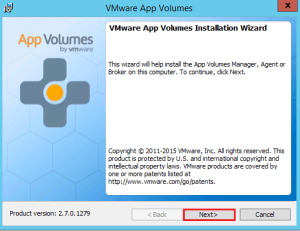
Launch the App Volumes Setup > Click Next

App Volumes 01

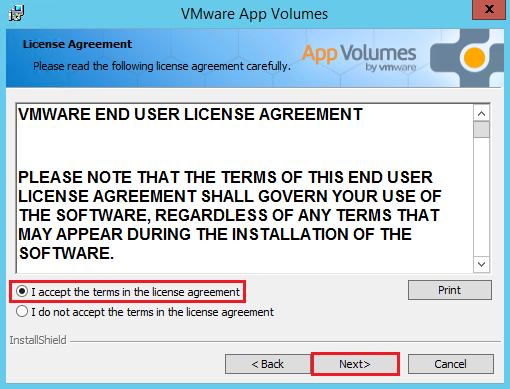
I’m sure you will read the EULA before accepting it then click next

App Volumes 02

Select Install App Volumes Agent

Agent01

Click Next

Agent02

Enter your App Volumes Manager details and the communication port

Agent03

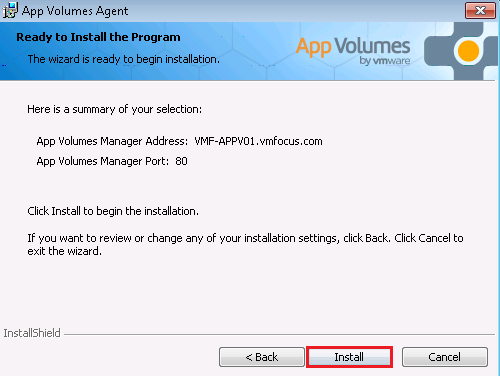
Click Install

Agent04

All done, Click Finish

Agent05


Quick reboot of the your provisioning virtual machine and you are ready to go.

In the next blog post I will be configuring an AppStack ready for deployment.

vCloud Air OnDemand – Road Trip

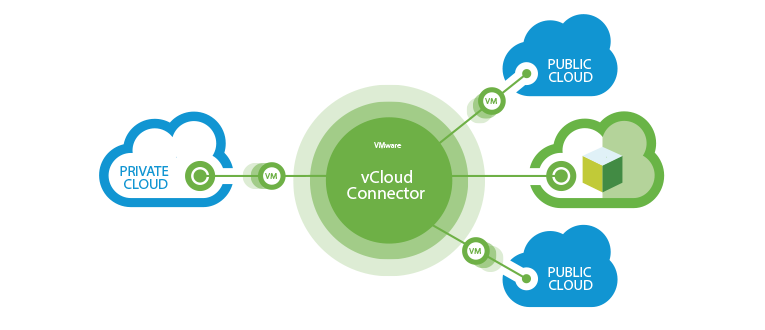
vcloud-connector-us-18I have written a couple of posts on VMware’s vCloud Air DRaaS offering which covered ‘The Good, The Bad & Ugly‘ and ‘Improvements‘ to the service.  The reason for these original posts was based on customer enquiries and I wanted to get under the skin of VMware’s offering.

Since then customers have been asking more questions around using the cloud for application testing and development.

Application Testing

The issue with testing applications on-premises is you may not have the compute or storage resources available, an example is you want to upgrade your ERP solution to the latest version and test it before going into production.

ERP solutions are often complex three tier applications which require a decent amount of horse power to run.  Often businesses are nervous about upgrading the production software, as if someone goes wrong it could effect the entire company.

The solution to this could be to use vCloud Air OnDemand with vCloud Connector to link on-premises vCenter to vCloud Air.  A simple clone of your ERP virtual machines and then copy them to vCloud Air and test the application upgrade.

Development

Many of the clients I deal with, don’t have access to dedicated vSphere Clusters and storage for development.  They are often nervous about giving developers a slice of their production vSphere clusters due to the effects a poorly designed application could have on their network and storage.

You could argue that placing limits on compute resources could mitigate the risk, but this then becomes a management overhead and politically it can cause all kinds of issues.

The solution to this could be again to use vCloud Air OnDemand.

vCloud Air OnDemand – Road Trip

With the above uses cases in mind, I wanted to give vCloud Air OnDemand a whirl.

The first step is to signup for vCloud Air OnDemand using the create a new MyVMware Account.

vCloud Air 1

Use this promotion code ‘Influencer2015’ and get a special offer of $500 in service credits.

After a few seconds you will receive an email to finalize your account settings, this essentially means create a password.  Then you are ready to login to your account.

Virtual Machine Provision

The ability to provision virtual machines quickly and easily is the acid test of an ‘cloud on demand service’.  The recording below shows my first interaction with the service.

Two issues cropped up:

  • Networking was not as straight forward as it could be.  You cannot assign a network to your first VM without it being powered on.  I wasn’t able to locate an add network in the vCloud Air area and used vCloud Director to assign the network.  Not sure how easy this would be for someone new accessing the service.  I believe it would cause some frustration to the user.
  • The password didn’t work that was assigned to my VMF-DC01 VM.  I even typed it in notepad to make sure I wasn’t going crazy.

Creating the second virtual machine I was able to assign a network on at the initial console screen and the password worked as well.

Final Thoughts

Overall the vCloud Air OnDemand experience was good.  However, first impressions count and not many of us spend time reading a manual for an ‘on demand’ service as we expect it to be straight forward.  If VMware can iron out the initial network and password issues, then my opinion would change from good to excellent. 

Installing: App Volumes Manager

Part one of this blog series was a ‘First Look: App Volumes‘  in this post, I’m going to install App Volumes.  As with all things it’s best to start with the pre-requisites.

App Volumes Manager

  • Windows 2008 R2
  • Windows 2008 2012 R2 if using App Volumes 2.7
  • .NET 3.5
  • Internet Explorer 9 or 10
  • 4GB RAM
  • 2vCPU
  • 1GB Disk Space
  • ESXi 5.x and vCenter 5.x (note ESXi and vCenter version must match)

App Volumes Agent

  • Windows 7 32/64 Bit
  • Windows 2008 R2 64 Bit
  • Windows 8.1 32/64 Bit if using App Volumes 2.7
  • Windows Server 2008 R2 and 2012 R2 for RDSH if using App Volumes 2.7
  • Windows Server 2008 R2 and 2012 R2 for VDI if using App Volumes 2.7

SQL Database

Windows 2012 R2 with SQL 2012 if using App Volumes 2.7

Step 1 – App Volumes Manager

Download the installer App Volumes from here

You will notice two files, one is an ISO which contains the application and licence key file.  The license is EULA based, so you need to promise to be good!

App Volumes Manager and App Volumes Agent use the same installer, we need to make sure that we install App Volumes Manager first.

Launch the App Volumes Setup > Click Next

App Volumes 01

I’m sure you will read the EULA before accepting it then click next

App Volumes 02


Select > Install App Volumes Manager > Install

App Volumes 03

Click Next

App Volumes 04

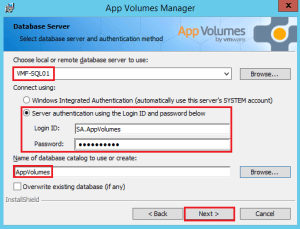
Select whether you wish to use SQL Express or SQL Database Server > Next

App Volumes 05

I’m using a SQL Database Sever so have entered in the relevant details > Click Next

App Volumes 06

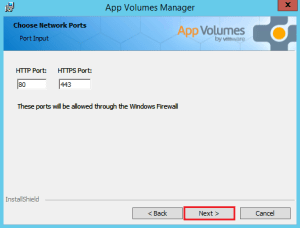
Select your Firewall Ports > Click Next

App Volumes 07

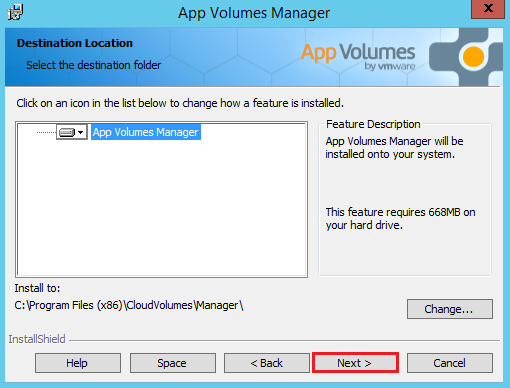
Select you install path > Next

App Volumes 08

We are ready for the install

App Volumes 09Finally Click Finish

App Volumes 10

Step 2 – Initial Config

When you launch App Volumes Manager you should be greeted with the getting started guide.  The first thing we want to do is upload and apply our license key file.  Once done it’s time to configure Active Directory.

App Volumes 12


This was probably one of the easiest Active Directory integrations I have done, other vendors pay attention!

Next select the Active Directory Security Group which will be allowed to access App Volumes Manager.

App Volumes 13

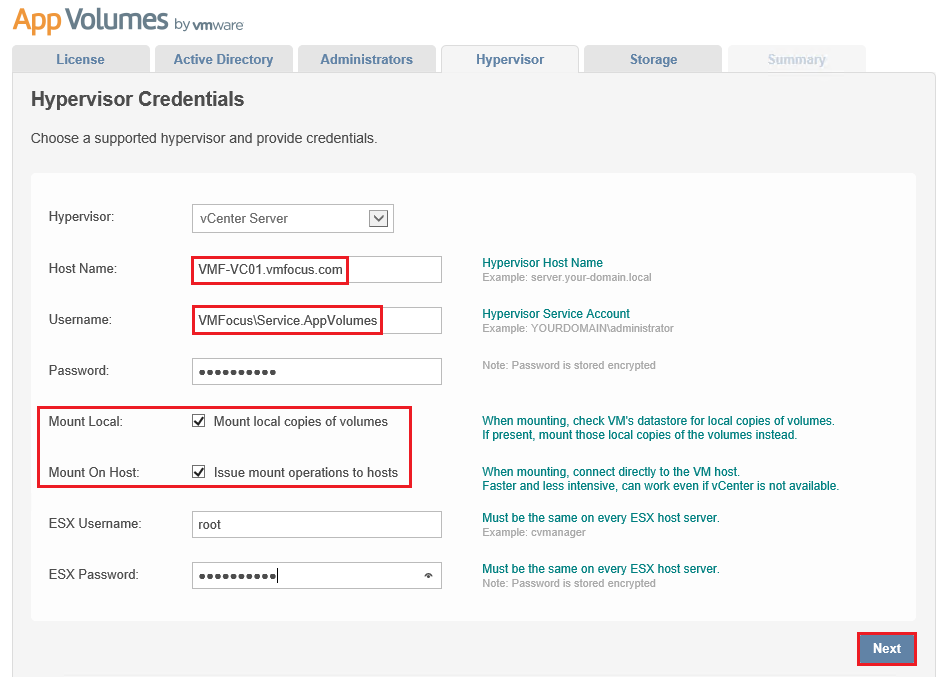
Next we need to plumb in our vCenter details, couple of points to note:

  • Mount Local – can be useful for testing applications on local storage before using production storage
  • Mount On Host – Avoids having vCenter as a SPoF

App Volumes 14

Select your Default Storage Locations for AppStacks and Writeable Volumes.

App Volumes 15

Next choose if you want to upload any pre-packaged volumes.

Finally Select Storage & Upload Prepackaged Volumes from an ESXi Host

AppVolumes21

Final Thoughts

I have to say that I’m seriously impressed with the initial configuration of App Volumes.  It really is a breeze, they even go as far as telling you vCenter permissions during the configuration wizard.  Other vendors should take note!