How To: Install vCenter Operations Manager

vCenter Operations Manager has been missing from the vmfocus.com lab for far to long!

With this in mind let’s walk through how to install vCenter Operations Manager.

IP Pools

VMware require IP Pools to be configured for most of their OVF’s nowadays.  Chris Wahl wrote a great blog post on Managing & Configuring IP Pools which is our first step.

Go into the Datacenter Object in vSphere and Select IP Pools Tab then Add

IP Pools 01

Give the IP Pool a name, Subnet Mask and Gateway

IP Pools 02

Note: We have specifically chosen not to enable the IP Pool

Then jump over to Associations and associate the IP Pool with a Port Group that your vCenter Operations Manager will reside on.

IP Pools 03

Once configured it should look something like this.

IP Pools 04

Install vCenter Operations Manager

The next step is to download vCenter Operations Manager which is located here. As of the time of this blog post the most recent version is VMware vCenter Operations Manager Standard 5.7.2.

I’m not going to talk you threw how to upload an OVF as it’s a simple case of going to File > Deploy OVF Template > Select Location and following the wizard.

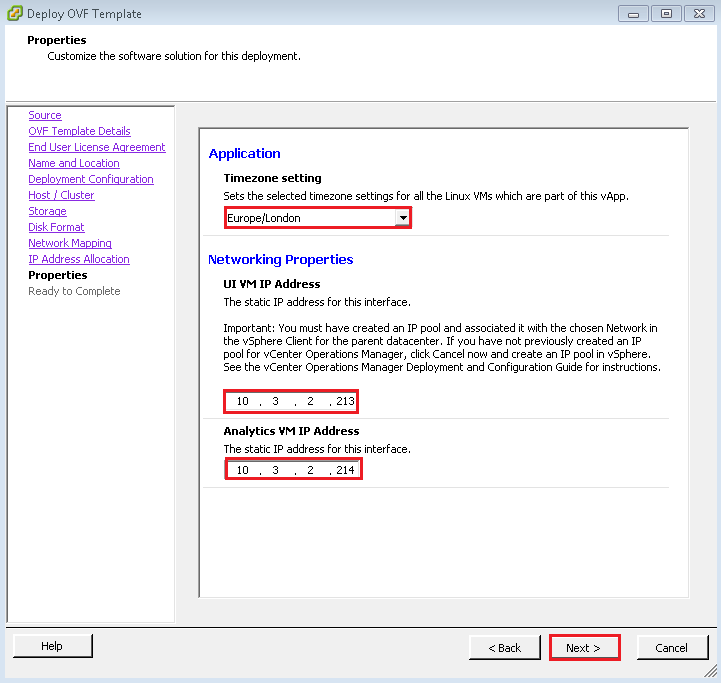
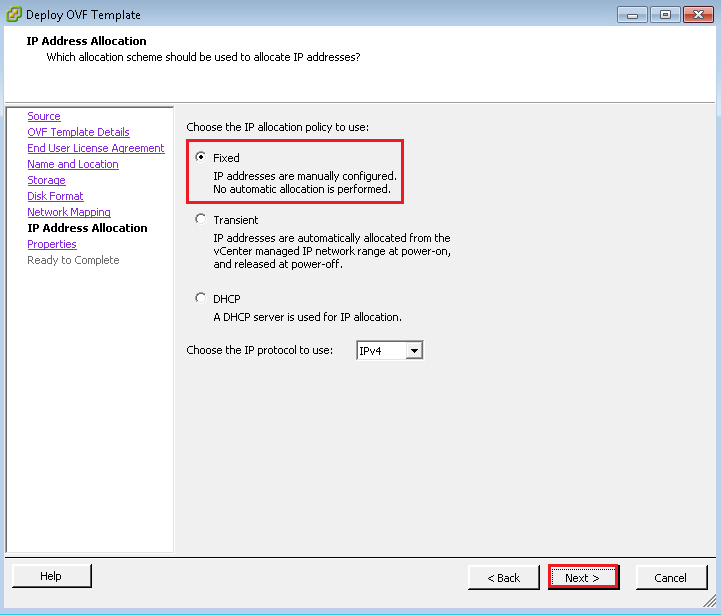
When you get to the IP Address Allocation Policy select ‘Fixed’

VCOPS01

vCOPS is a vAPP which is made up of two VM’s the UI and Analytics VM both of which need an IP Address.

VCOPS02

The vAPP seems to take a large amount of time, so my suggestion is to make a cup of tea!

vCOPS Initial Configuration

Browse to your UI VM IP Address, in my case it is https://VMF-VCOPS01/admin as I thougth I would be clever and enter an A record.

Login with the following credentials:

U: admin

P: admin

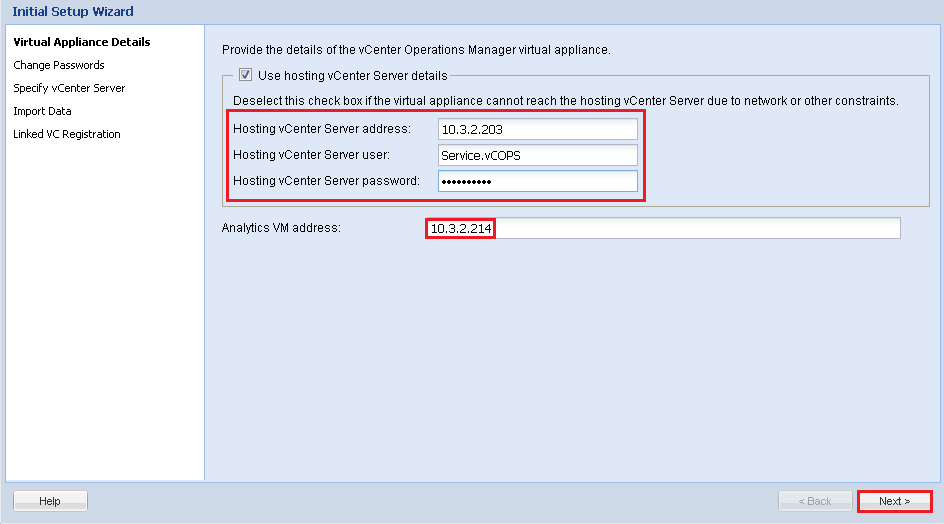
The first task is to enter the Hosting vCenter Server details, in some scenarios for example a management cluster the vCenter the vCOPS resides in is different to the one that it monitors.

vCOPS03

Accept the Security Alert to trust your vCenter.

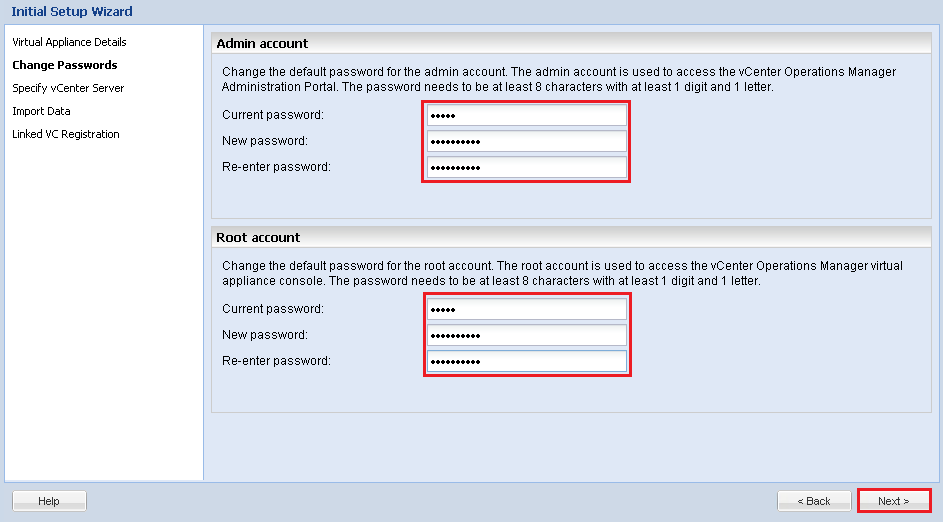
Next change the passwords for your admin account and root accounts, once done hit Next.

vCOPS04

TOP TIP: The root password is vmware

Enter your vCenter details, the collector has access to all the Objects within vCenter, so ideally you want to specify credentials for this as well.

If you receive an error ‘connecting to VC at https://vCenter/sdk failed’ see my blog post on this subject

vCOPS05

Click Next on the Import Data screen and then Finish on the Linked VC Registration page.

You will receive a security Warning on your vCenter Server stating that the vCOPS certificate is untrusted. Install the certificate and click Ignore

vCOPS06

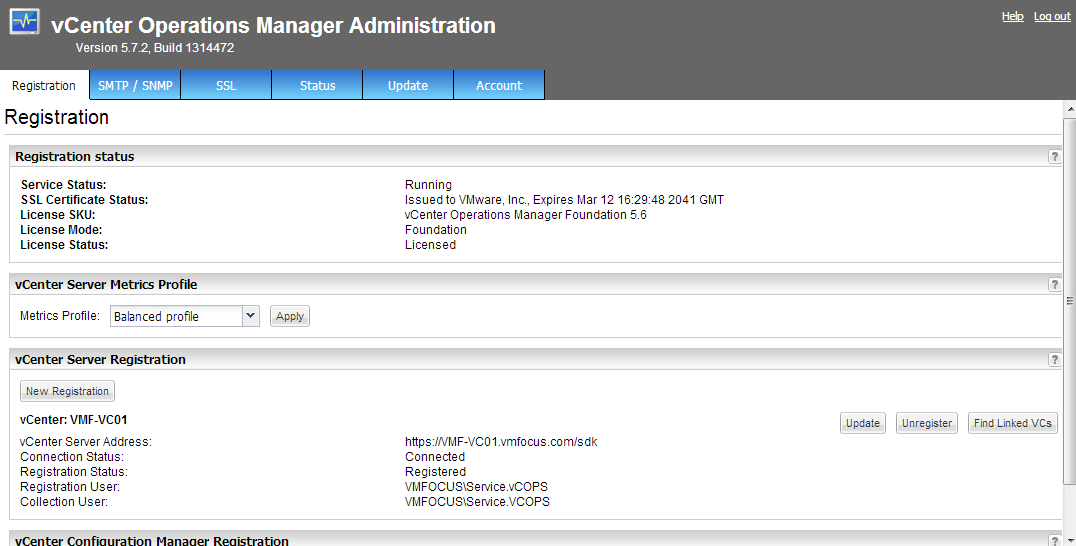
If successful, you should be greeted with the vCenter Operations Manager Administration screen.

vCOPS07

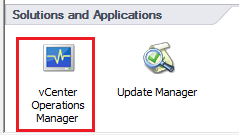
You should be able to verify this by go to the Home Screen of your vSphere Client and you should have vCenter Operations Manager under Solutions and Appliances

vCOPS08

That’t it all you need to do now is assign your license key and you are ready to rock ‘n’ roll.

How To: Install vSphere Management Assistant

I must confess that I don’t use ESXCLI very much unless I’m in a situation which forces me to do so.  This blog post is more for me as I want to be able to run more commands on a regular basis from ESXCLI or VIFP rather than relie on the GUI.

The vSphere Management Assistant is a free OVF provided by VMware to allow you to access all your ESXi Hosts from a central location to run scripts or CLI commands.

We are going to look at the initial installation and configuration.

IP Pools

VMware require IP Pools to be configured for most of their OVF’s nowadays.  Chris Wahl wrote a great blog post on Managing & Configuring IP Pools which is our first step.

Go into the Datacenter Object in vSphere and Select IP Pools Tab then Add

IP Pools 01

Give the IP Pool a name, Subnet Mask and Gateway

IP Pools 02

Note: We have specifically chosen not to enable the IP Pool

Then jump over to Associations and associate the IP Pool with a Port Group that your vSphere Management Assistant will reside on.

IP Pools 03

Once configured it should look something like this.

IP Pools 04

Install vSphere Management Assistant

The next step is to download the vSphere Management Assistant ZIP file which is located here. As of the time of this blog post the msot recent version is vMA-5.5.0.0-1295338.

Extract the ZIP file to a location of your choice and fire up the vSphere Client.  I’m not going to talk you threw how to upload an OVF as it’s a simple case of going to File > Deploy OVF Template > Select Location and following the wizard.

When you get to the IP Address Allocation Policy select ‘Fixed’

VMA 01

On the next page enter the IP Address you are going to assign to your vSphere Management Assistant 5.5

VMA 02

Select ‘Power On After Deployment’ and you are good to go.

Fire up your vSphere Console for the vSphere Management Assistant Console and configure the following items:

  • Default Gateway
  • Hostname
  • DNS
  • Proxy Server (if any)
  • IP Address Allocation (eth0)

Once done it should look like this.

VMA 03

Enter 1 and change the password.  Note your old password will be ‘vmware’.  After this completes you will be able to access the vSphere Management Assistant by going to https://x.x.x.x:5480 to perform maintenance tasks such as appliance updates.

I suggest you login to your vSphere Management Assistant using the URL just to make sure that your password works.

TOP TIP: Your username is vi-admin

vSphere Management Assistant Initial Configuration

Use a client such as Putty to login to your vSphere Management Assistant by SSH

We have two ways to add ESXi Hosts and vCenter to our VMA, either by Domain or Local Authentication.

Join VMA to Active Directory

sudo domainjoin-cli join <domain-name> <domain-admin-user>

VMA 04

Once done reboot the system

Check the domain and OU

sudo domainjoin-cli query

VMA 06

Add ESXi Hosts/vCenter to VMA

vifp addserver VMF-ESXi01 –authpolicy adauth –username VMFocus.com\Service.vCenter

VMA 05

Check ESXi Hosts/vCenter joined to VMA

vifp listserver -l

VMA 07

Target A Specific Host

vifptarget -s VMF-ESXi01

VMA 08

HP iLO2: Firmware Upgrade Via Webpage Failed

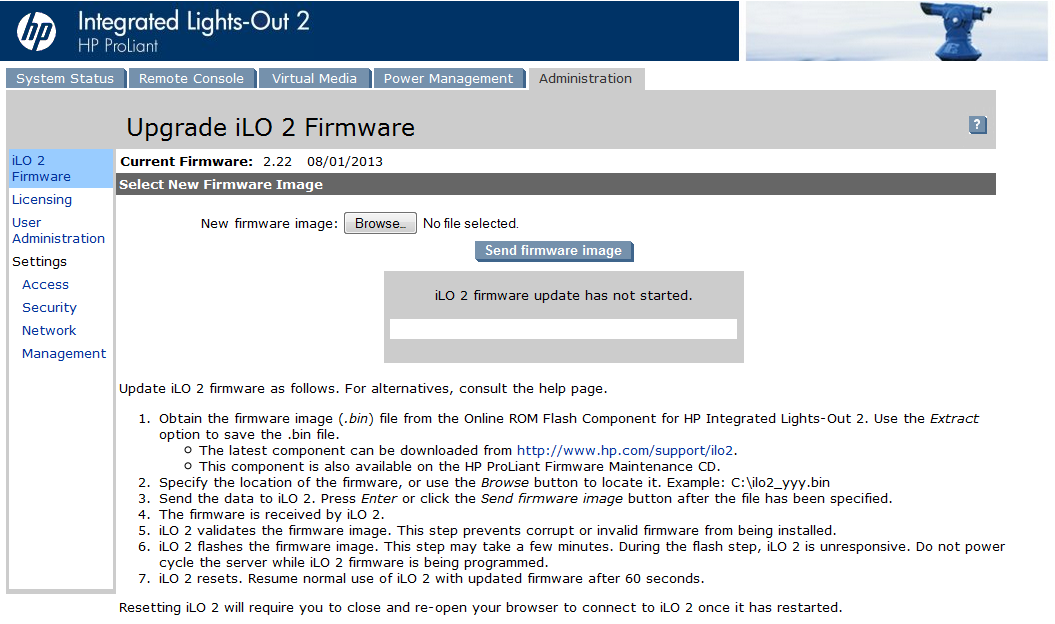
Trying to firmware upgrade HP iLO2 from version 2.07 or 1.81 to 2.22 results in the error message ‘firmware upgrade via webpage failed’  Using a .bin file via a Windows Server.

HPiLO01

Troubleshooting Steps

  • Enabled compatibility mode in IE9, this resulted in Firmware loading to 99% and then timing out
  • Enabled compatibility mode in IE10, again this resulted in Firmware loading to 99% and then timing out
  • Tried using Google Chrome, again this resulted in Firmware loading to 99% and then timing out

Resolution

It seems strange but the firmware upgrade will work using Mozilla Firefox.  Using this browser results in success, I’m now on iLO2 firmware 2.22.

HPiLO02

PowerCLI Fails To Launch

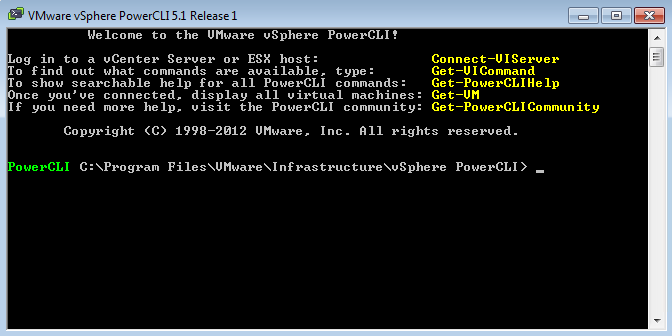
I encountered a strange issue the other day after installing PowerCLI 5.0, as soon as I launched it, it closed.

Troubleshooting

Windows Event Logs for Windows PowerShell, Application and System, revealed erm nothing

Checking the properties of the PowerCLI Shortcut its is launched using the target from C:WindowsSystem32WindowsPowerShellv1.0powershell.exe -psc “C:Program FilesVMwareInfrastructurevSphere PowerCLIvim.psc1” -noe -c “. “C:Program FilesVMwareInfrastructurevSphere PowerCLIScriptsInitialize-PowerCLIEnvironment.ps1″”

and Starts in “C:Program FilesVMwareInfrastructurevSphere PowerCLI”

PowerCLI01

Trying to run the .ps1 from Powershell resulted in ‘the term’Initialize-PowerCLIEnvironment.ps1’ is not recognized as the term of a cmdlet.

PowerCLI02

Next, was to go into the Windows Folder C:Program FilesVMwareInfrastructurevSphere PowerCLI and right click Initialize-PowerCLIEnvironment.ps1 and Run with PowerShell

PowerCLI03

This time, I received the error message:

‘internal Windows PowerShell error com initialization failed while reading windows PowerShell console file with error 80010106’

Resolution

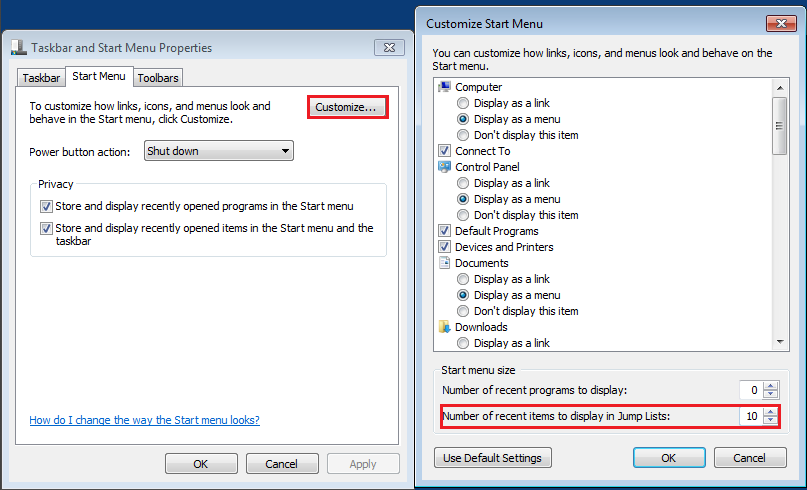
Googling the issue, I came across this PowerShell forum post which suggested changing the ‘Number of recent items to display in Jump Lists to 10’

PowerCLI04

After making this change, I was able to launch PowerCLI!

PowerCLI05

How To: Replace Horizon View Connection & Security Server Certificates

In this post we are going to walk threw the process of replacing  our Horizon View Connection Server and Security Server Certificates, we are assuming that the prerequisites in How To: Replace vCenter 5 & VUM Certificates are in place.

Step 1 – Certificate Request

Make sure your Horizon View Connection Server has rights to request and enroll a certificate from your Internal CA and that on the Certificate Template the private key is able to be exported.

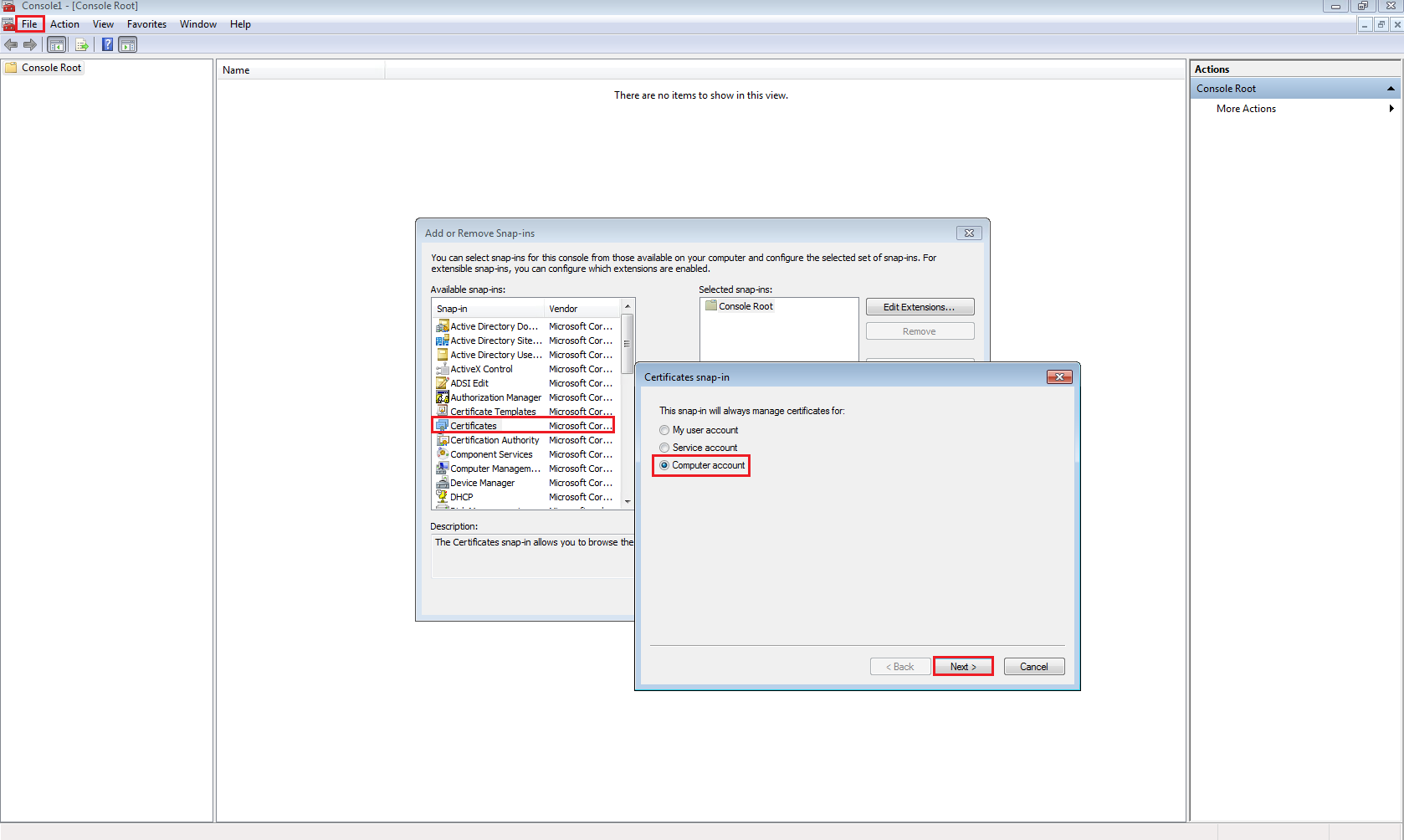
Click Start > Run > MMC > File > Add/Remove Snap-in

Select Certificates > Add > Computer Account > Next
vCOPS01

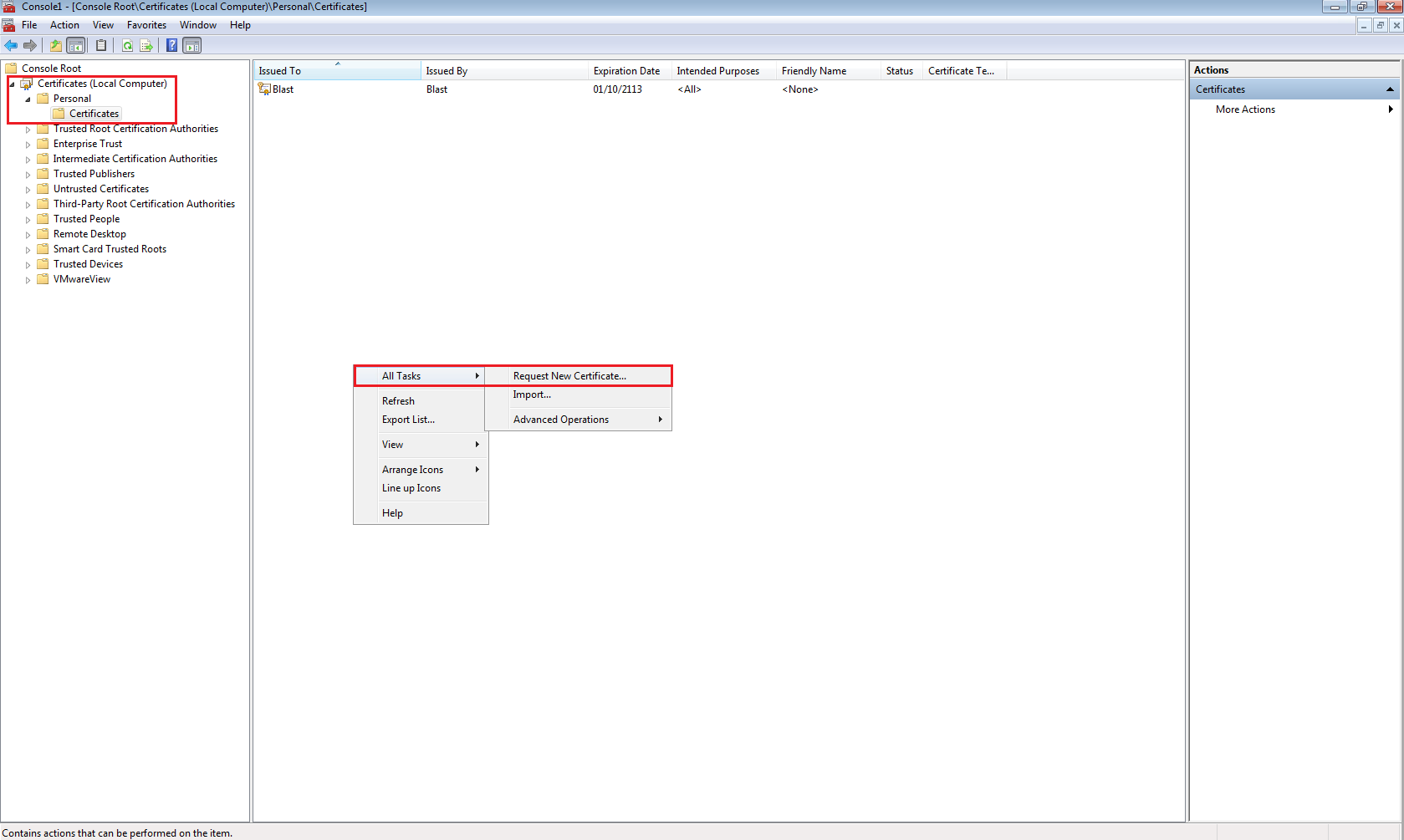
Expand Personal > Certificates > Right Click > All Tasks > Request New Certificate

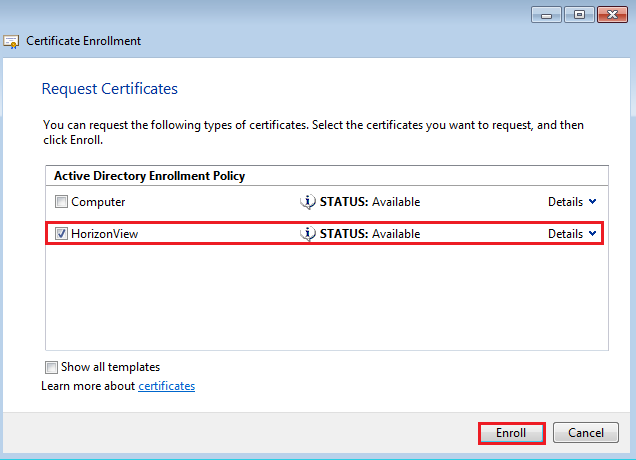
vCOPS02Click Next > Select Active Directory Enrollment Policy
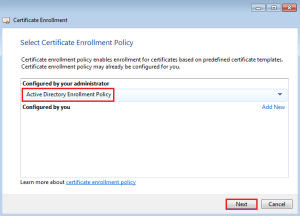
vCOPS03

Select your Certificate Template (mines called HorizonView) then click on ‘More information is required to enroll for this certificate.  Click here to configure settings’.

vCOPS04

Change Subject Name to Common Value and enter the Fully Qualified Domain Name of your Horizon View Connection Server.  In my case it is VMF-VCON01.vmfocus.com and Add this to the certificate request.

Next change the Alternative Name to DNS and enter the NetBIOS name

NetBIOS VMF-VCON01

Fully Qualified Domain Name VMF-VCON01.vmfocus.com

Next add in the Alternative Name to DNS for your Horizon View Security Server

NetBIOS VMF-VSEC01

Fully Qualified Domain Name VMF-VSEC01.vmfocus.com

Public DNS Record view.vmfocus.com

ViewCert01

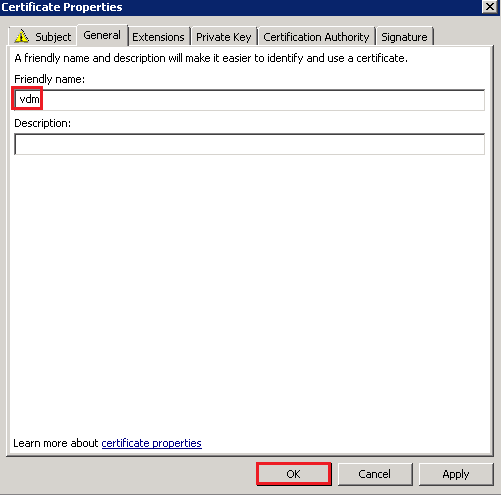
Next Select General Tab and enter ‘vdm’ under the friendly name
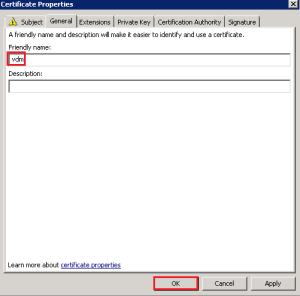
ViewCert02

By putting in the DNS names of the Horizon View Security Server we can use one certificate to cover both servers.  Note, in a production environment you may have to request two separate certificates to ensure that internal DNS names are not visible on the internet.

Click OK and Enroll the certificate
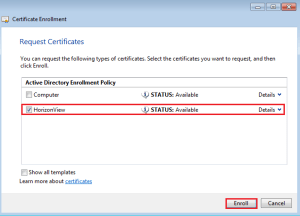
vCOPS21

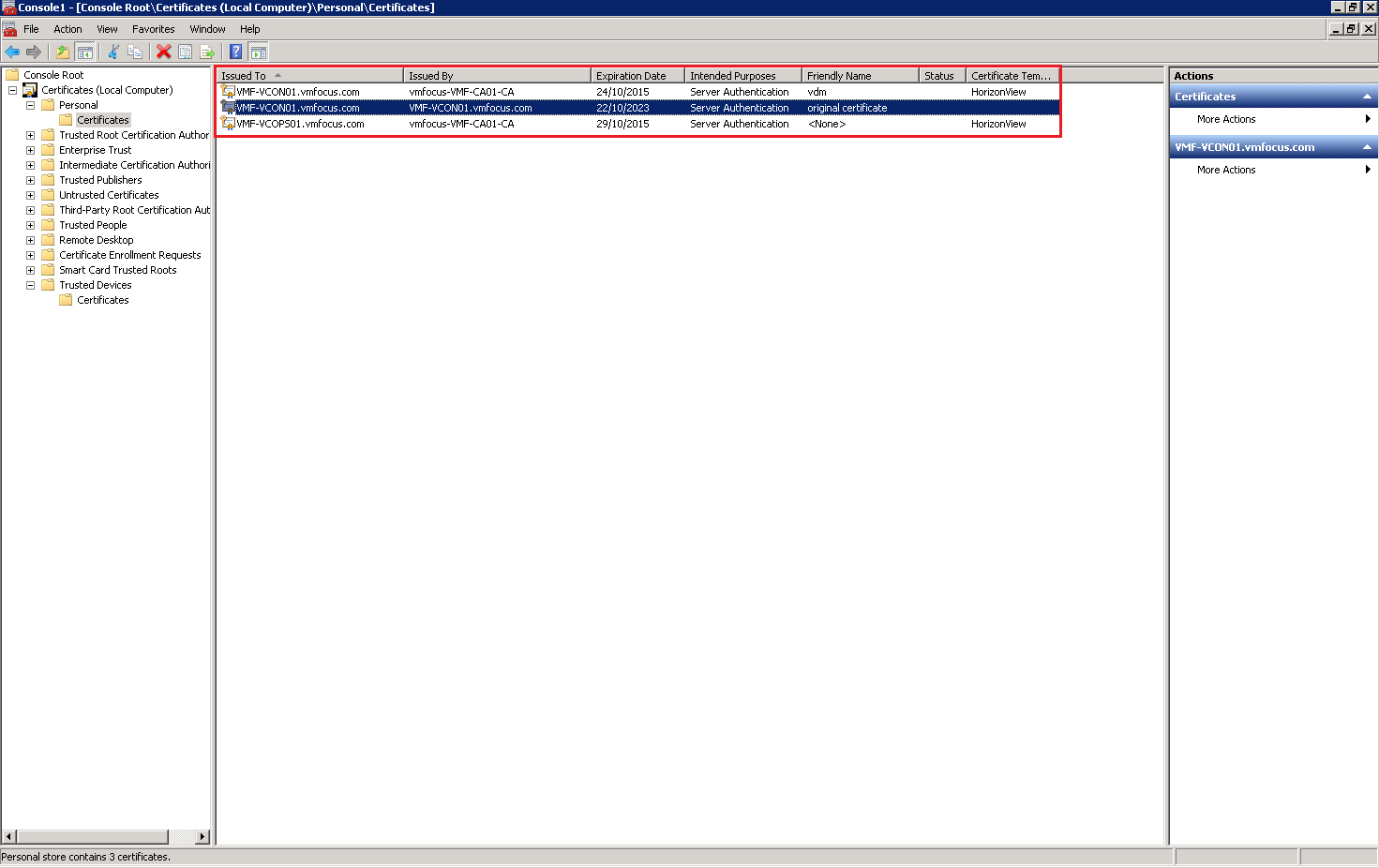
Once enrolled you will see the new certificate is in your Personal folder
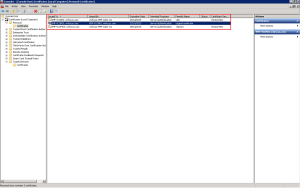
ViewCert03

Horizon View uses the vdm tag to identify which certificates it should use.  As you can see I have renamed my original certificate.  To do this, double click the certificate select Details tab > Edit Properties > General Tab
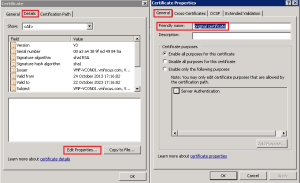
ViewCert04

To start using the new certificate restart the VMware View Security Gateway Component on your Horizon View Security Server

ViewCert05

To test that it’s in situ, browse to your Horizon View Connection Server URL and you should see a Trusted Certificate.
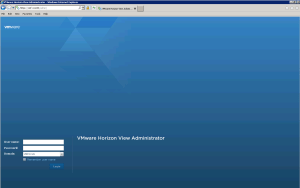
ViewCert06

Step 2 – Security Server Certificate Replacement – Trusted Public CA

In a production environment you would put a request into a Trusted Public CA such as GeoTrust SAN SSL Certificate from your Horizon View Security Server.

To do this Click Start > Run > MMC > File > Add/Remove Snap-in > Select Certificates > Add > Computer Account > Next > Finish

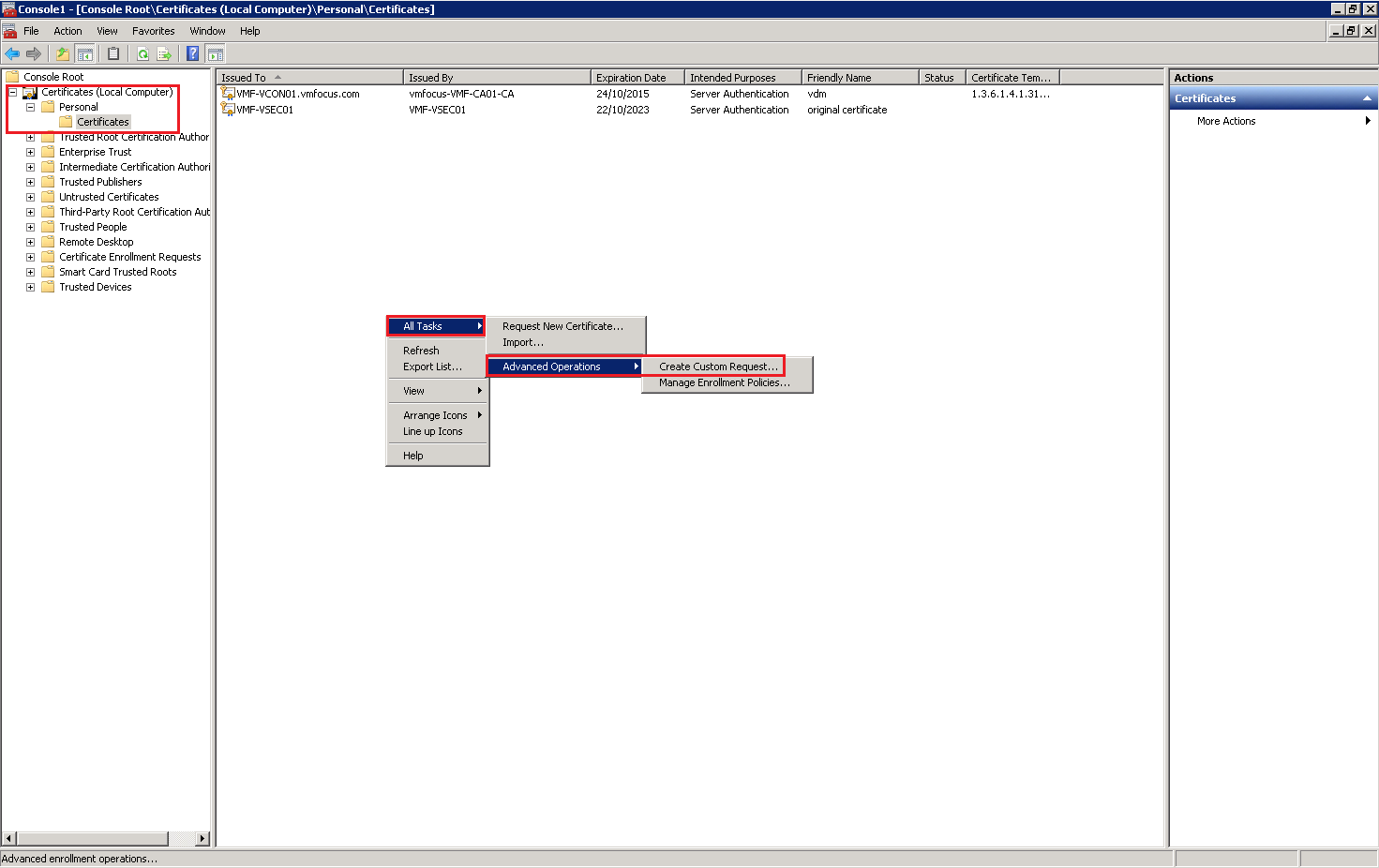
Expand Personal > Certificates > Right Click > All Tasks > Request New Certificate

ViewCert07

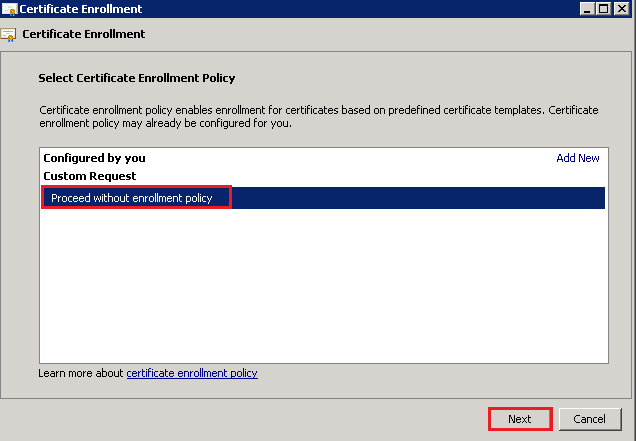
Click Next > Select Proceed without enrollment policy > Next
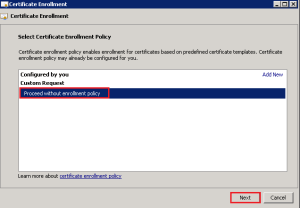
ViewCert08

Click Next > Details > Properties

ViewCert09

As per our Horizon View Connection Server, enter ‘vdm’ as the friendly name

ViewCert02

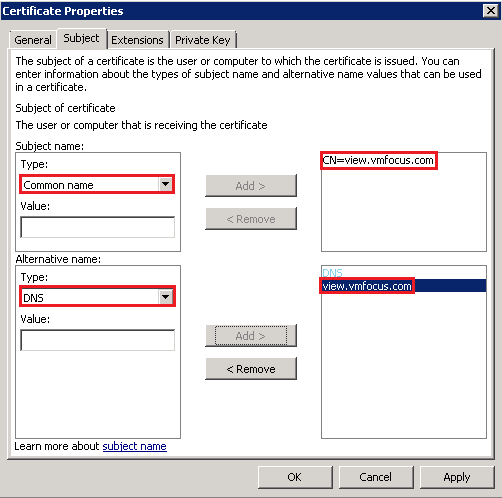
Change Subject Name to Common Value and enter the Fully Qualified Domain Name of your public resolvable DNS record to access your Horizon View Security Server.  In my case it is view.vmfocus.com and Add this to the certificate request.

Next change the Alternative Name to DNS and re-enter the public resolvable Fully Qualified Domain Name

ViewCert10

Onto the Private Key Tab > Key Options > Change the Key size to 2048 and tick ‘Make private key exportable’

ViewCert11

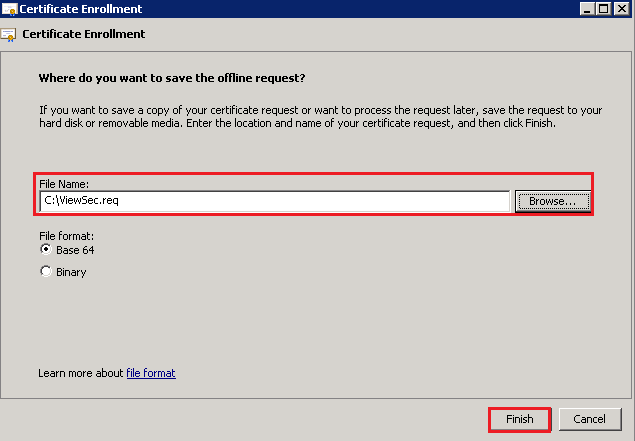
Click OK > Click Next and then select a destination and name for your Certificate Request.

ViewCert12

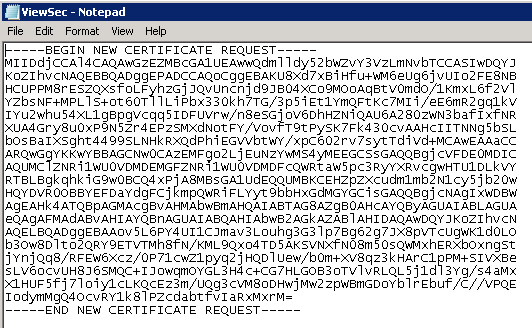
Open the Certificate Request file with Notepad and copy the contents and paste them into the CSR for your Trusted Public CA Provider.
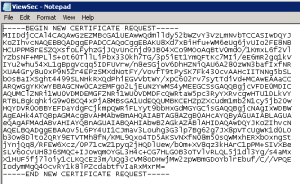
ViewCert13

After passing the validation checks you will receive your SAN SSL Certificate, ready to install into your Horizon View Security Server.  The details on how to do this can be followed below as they are the same as installed certificates from an Internal CA.

Step 3 – Security Server Certificate Replacement – Internal CA

I don’t have this luxury in the VMFocus.com lab, therefore we are going to use our Internal CA.

Our Horizon View Security Server should be in a workgroup in the DMZ, which means that it won’t automatically trust our Internal CA as its not part of the Active Directory domain.

First of all we need to export our Internal CA Root Certificate.  This can be found on your Horizon View Connection Server under Trusted Root > Certification Authority > Certificates

ViewCert14

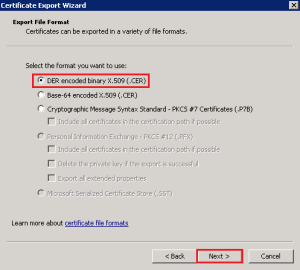
Right Click the Certificate > All Tasks > Export > Select ‘DER encoded binary X.509 (.CER)
viewcert15

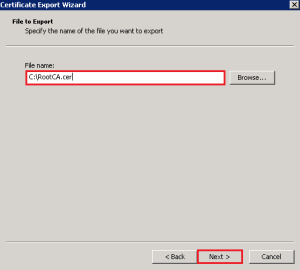
Hit Next and enter a destination and file name, then Next > Finish.
viewcert16

Copy this certificate to your Horizon View Security Server and Import it into the Trusted Root Certification Authorities > Certificates Folder.

This is achieved by Right Clicking > Import and following the wizard.  Once down it should look like this

viewcert17

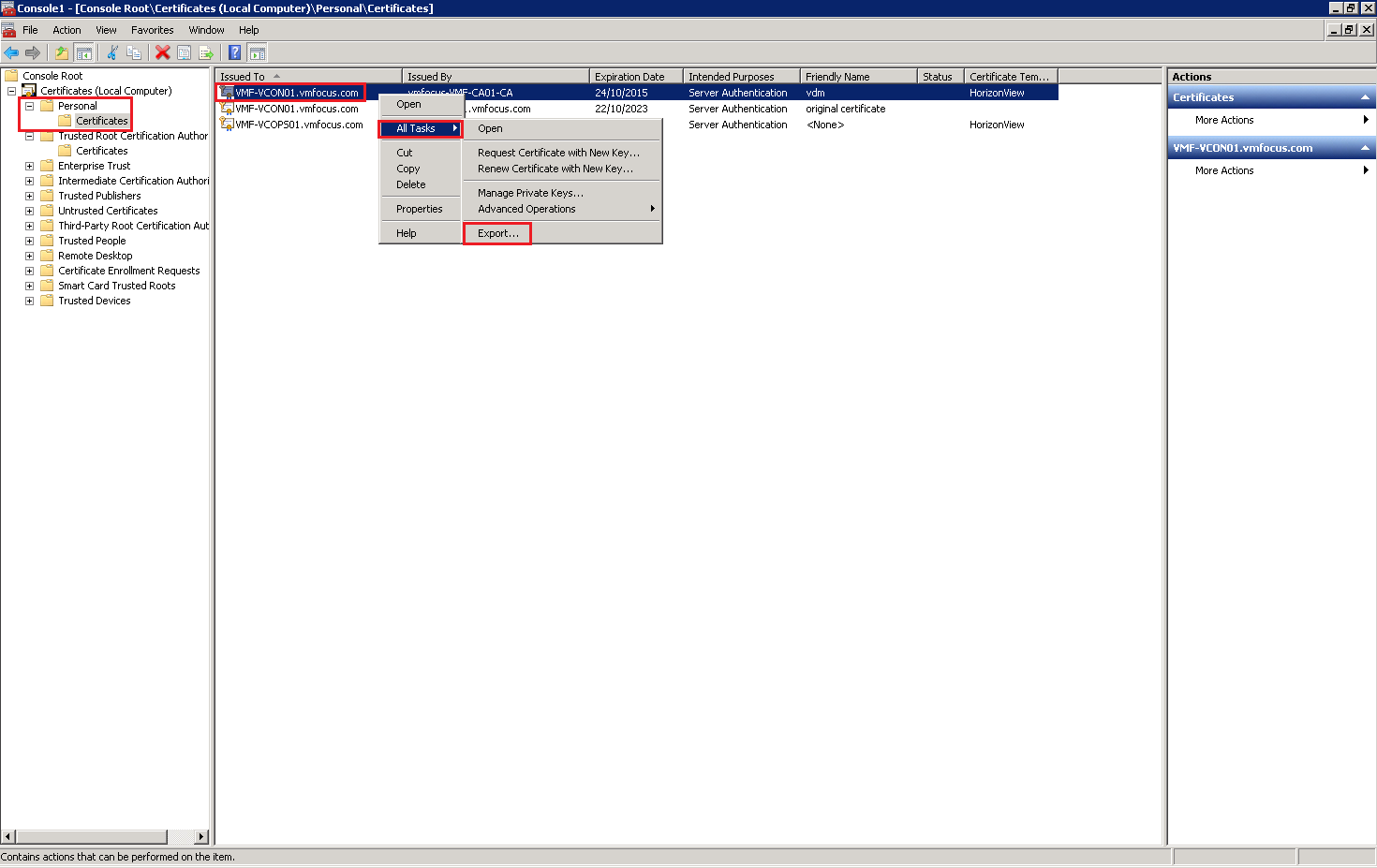
Now we need to export the Horizon View Connection Server Certificate which contained the DNS entries for our Security Server.  Jump back onto your Connection Server and Click Personal > Certificates > Right Click Certificate > All Tasks > Export

viewcert18

Click Next and ensure that you choose Yes, export the private key

viewcert19

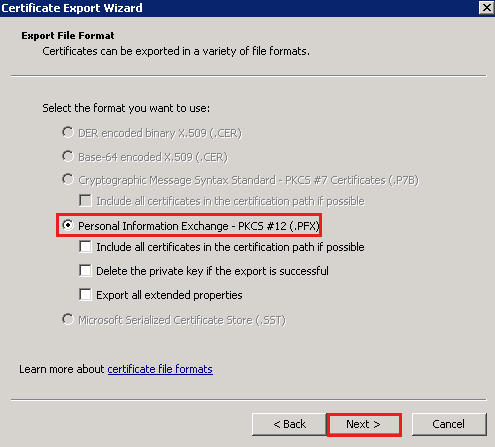
Select Personal Information Exchange – PKCS #12 (.PFX)

viewcert20

Enter a password and Click Next to Finish.

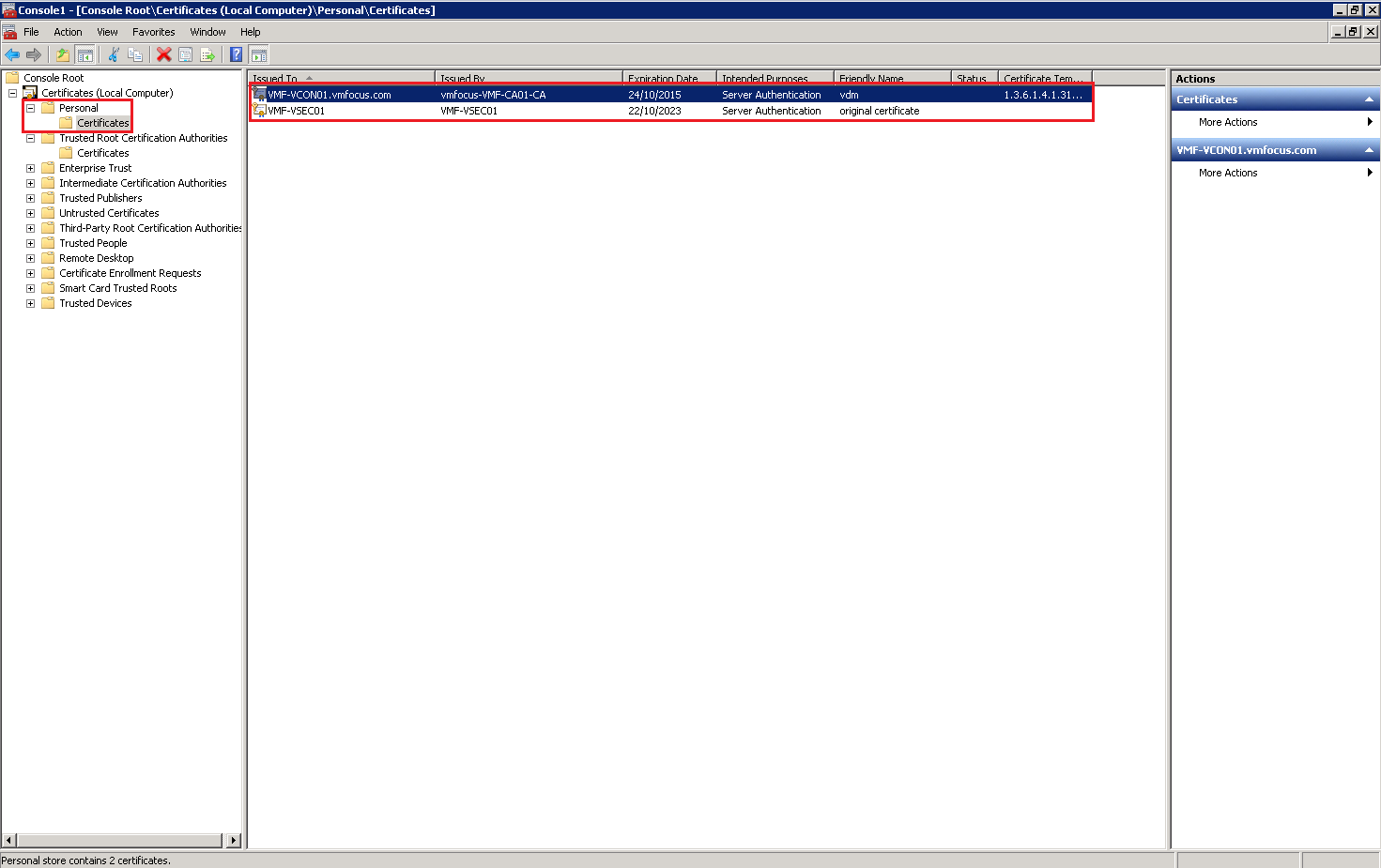
Copy the Certificate to your Horizon View Security Server and Import it under Personal Certificates and you should see the following

viewcert21

Rename the old Security Server certificate friendly name to something different like we did earlier with the old Connection Server certificate.

Last of all restart the service VMware View Security Gateway Component

viewcert22

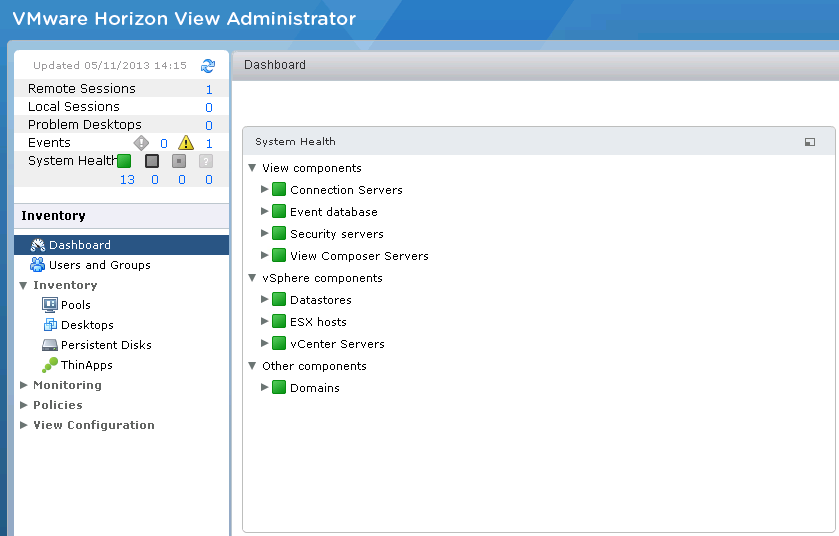
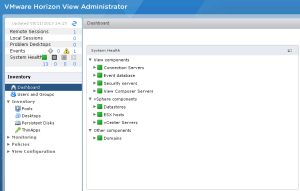
Then for the moment of truth, login to your Horizon View Administration Console and bask in your awesomeness!
viewcert23