VMware VCP 4.1 Study Guide & Lab Part 3

ESXi Installation

Launch VMware Workstation and choose New Virtual Machine
Click Next on Typical
Choose Installer Disk Image File and locate your ESXi 4.1 ISO
Click Next
Virtual Machine Name is ESXi01
Location V:ESXi01
Hard Disk Size is 10GB leave the rest as defaults
Next choose Customize Hardware
Change Memory to 4096MB
Change Network Adapter to Bridged
Then add a Network Adapter Custom: Specified Virtual Network VMnet1 (Host Only)
Next add another Network Adapter Custom: Specified Virtual Network VMnet1 (Host Only)
Finally add another Network Adapter Custom: Specified Virtual Network VMnet9 (Host Only)

Then click finish, it should look like this

A quick rundown of the network adapters:

Bridged will connect ESXi01 to the LAN network 10.0.0.0/24
The first VMnet1 will connect ESXi01 to the iSCSI network 192.168.1.0/24
The second VMnet1 will connect ESXi01 to the iSCSI network 192.168.1.0/24, this is for redundancy
VMnet9 will connect ESXi01 to ESXi02 for vMotion traffic

Next start up ESXi01 and then run through the install, it’s just next, next etc.

After you have finished the installation you will be greeted with the following screen:

Press F2 to Customize System
Press Enter and Enter as you currently do not have a password
Press Return on Configure Password and enter a password, then press Enter
Go down to Configure Management Network and press Enter
Choose IP Configuration and ensure it replicates this:

Next go down to DNS Configurations and enter the following:

VMware VCP 4.1 Study Guide & Lab-esxi01-dns-configuration.png
Enter to OK this and then ESC to exit
Choose yes to Restart Network Management Card
Then ESC until you are at the login screen

Repeat the installation for esxi02, making sure the IP Address is 10.0.0.12

vSphere Client Installation

There are two main ways to interact with your ESXi clients either using SSH or using the vSphere Client. To use SSH you would need to log into the ESXi01 and ESXi02 via the VMware Workstation console and then go into Troubleshooting Options and Enable Remote Tech Support (SSH)

VMware VCP 4.1 Study Guide & Lab-enable-ssh.png

The preferred method for managing ESXi is using vSphere Client, this can be installed either by going to https://esxi01 or https://10.0.0.11 however be warned you are not downloading this from the ESXi01 but are re directed to a download from VMwares website. My preferred method is to install it from the vCentre installation which we will go through now:

Extract your VMware vCentre ISO
Double Click on Auto Run
Click on vSphere Client
Then follow the prompts clicking Next all the way

Once it is installed we can launch VMware vSphere Client and login into ESXi01. To do this type in ESXi01 in the IP Address/Name, then root as the username and then your password. Click Login and ignore the SSL Certificate issue.
VMware VCP 4.1 Study Guide & Lab-vsphere-client-login.png
Once logged in, Click OK to ignore the 60 Day Evaluation, this is now where the fun starts!

Managing ESXi With vSphere

Now that we have logged into the vSphere Client we need to configure two main areas:

1. Networking
2. Storage

Networking is perhaps the most fundamental part of VMware as this is what allows the vKernel to establish communication with the Virtual Machines it hosts, the iSCSI storage it is attached to and to perform tasks such as vMotion.

In this Lab we are going to configure the networking as follows:

1 x NIC for LAN which is bridged to our physical network
2 x NIC for iSCSI
1 x NIC for vMotion

Click ESXi01 at the top left and then onto Configuration
On the left had side choose Networking

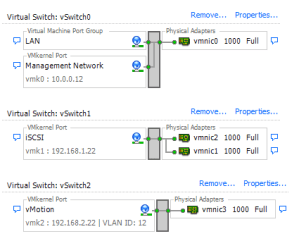
You will see Virtual Switch: vSwitch0 this is the default switch that VMware creates on installation of ESXi.

Click on Properties, then click onto Virtual Machine Port Group, and change the name to LAN. We do this so we can easily identify what the Port Group is being used for.

Underneath this is the VMKernel Port, this is our access to ESXi01 and ESXi02 and as you can see the IP Address is 10.0.0.11 I change this to Management Network, so again it is easily identifiable. Once configured it should look like this.

Next we are going to add the networking for our iSCSI traffic. At the top right hand side click Add Networking and choose VMKernel and Click Next
Select Create A Virtual Switch
The name is iSCSI
Choose vmnic1
Choose vmnic2
Click Next
Enter 192.168.1.21 for the IP Address
Click Finish

It should resemble this:
VMware VCP 4.1 Study Guide & Lab-vswitch1.png

Now we are going to add in another Virtual Switch for the vMotion traffic.

Add Networking and choose VMKernel and Click Next
Select Create A Virtual Switch
The name is vMotion
VLAN ID is 12
Choose vmnic3
Click Next
Enter 192.168.2.21 for the IP Address
Click Finish

The way I perceive Virtual Switch’s is the left hand side are devices such as PC’s plugging into the switch (rectangle grey box) and then he physical adapter is the default gateway (router).

We now need to replicate these changes onto ESXi02, the only difference are the IP Address’s which should be:

iSCSI 192.168.1.22
vMotion 192.168.2.22

One of the most important things is that you HAVE to type in the names of your virtual switches in exactly the same way e.g. vMotion and vMotion.

VMware VCP 4.1 Study Guide & Lab-virtual-switch.png
That our networking sorted, the next stage is to configure storage. On the configuration tab you will see Storage, click this. You will see one Datastore, these are the Hard Drives that ESXi is installed on. Again for reference, I recommend you rename these to ESXi01HD and ESXi02HD so that you know they are the local disks.

This is achieved by right clicking and selecting rename.

We need to tell VMware that it is going to be using iSCSI storage, to do this click on Storage Adapters and then locate the one which is called iSCSI Software Adapter on mine is vmbha33
VMware VCP 4.1 Study Guide & Lab-iscsi-hba.png

Click on Properties (right hand side in the middle) and then Configure which is located on the General Tab.
Select Enabled.
Choose the Dynamic Discovery Tab
Add
Enter 192.168.1.10 (this is our OpenFiler iSCSI SAN IP Address)
Click OK, you will be prompted to Rescan your Host Bus Adapter, Click OK

If we have been successful we will see our iSCSI LUN’s appear

Go back to Storage

Click Add Storage (top right)
Choose Disk LUN
Expand the Columns until you see VMISO in the iSCSI FQN
Select this and Click Next
Enter VMOS for the name
Click Next to format
Click Finish

Repeat this process for VMDATA, VMISO and VMTEMPLATE

Once done it should look like this

VMware VCP 4.1 Study Guide & Lab-iscsi-lun.jpg

Now for ESXi02 you will only need to turn on the iSCSI Adapter and enter the OpenFiler IP Address. The LUN’s will appear automatically after the Host Bus Adapter scan.

So that’s out Networking and Storage sorted, next part will be adding the ESXi01 nodes into vCentre.

VMware VCP 4.1 Study Guide & Lab Part 2

OpenFiler SAN Setup

We need to open VMware Workstation and we are going to configure a virtual SAN to be the shared storage for our ESXi hosts to use.

Go into VMware Workstation and create a New Virtual Machine
Select Custom Advanced
Select Hardware Compatibility Workstation 6.5-7.x
Install from ISO and browse to your OpenFiler ISO
Guest Operating System choose Other and Other 64-bit
Virtual Machine Name type OFSAN01 Location V:OFSAN01
Number Of Processors choose 1, Number Of Cores Per Processor choose 1
Memory For This Virtual Machine choose 256MB
Network Type choose Use Host Only Networking
I/O Controllers Type choose LSI Logic
Disk choose Create New Virtual Disk
Virtual Disk Type choose IDE
Maximum Disk Size choose 10GB
Disk File choose Next
Deselect Power On This Virtual Machine
Click Finish

Next we need to Edit Virtual Machine Settings then Add Hardware
Select Network Adapter
Select Custom and choose VMnet1

It should now look like this

Now Power on OFSAN01 and choose Enter to install in ‘graphical mode’
Click Next
Click United Kingdom
Click Yes to the warning
Click Next
Click Yes to both warnings

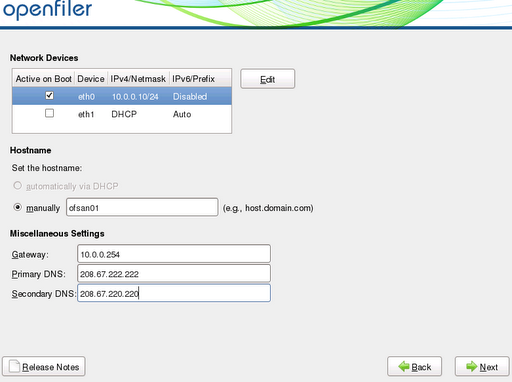
On the network devices screen change this to the following for eth0:

For eth1, the settings should be:
Click next and select Europe/London UK time

Enter a root password
Click Next
Click Next
Click Reboot

Once installed we should be greeted with a screen like this:

We now need to add three Hard Drives to add OpenFiler we do this by editing OFSAN01 virtual machines settings.

Edit OFSAN01 Settings
Click Add
Select Hard Disk
Create New Virtual Disk
Next
100GB in size

O:Disk01vDisk01.vmdk

Repeat this twice more for vDisk02 and vDisk03
Browse to https://10.0.0.10:446 and login with the following credentials:

openfiler
password

Once inside OpenFiler, click on ‘System’ and then add in Network Access Configuration the following:

LAN 10.0.0.0 255.255.255.0 Share
iSCSI 192.168.1.0 255.255.255.0 Share

Your screen should resemble the following:

VMware VCP 4.1 Study Guide & Lab-san-network.jpg
We have configured access to our SAN from the LAN 10.0.0.0/24 and also to allow iSCSI paths to connect to it from 192.168.1.0/24.

Next we need to add some drives so that OpenFiler can convert them into a usable disk format. We do this by going onto Volumes and then selecting Block Devices.

The first disk you will see is labelled /dev/sda this is the disk that OpenFiler is installed on, leave this alone!

Click on /dev/sdb which is on the ‘Edit Disk’ column, scroll down and click create. Repeat this for /dev/sdc and /dev/sdc.

The next step is to create our Disk Groups, to do this go to Volume Groups and select /dev/sdb and type in vdisk01 then Add Volume Group, repeat this for vdisk02 and vdisk03.

We now need to add a LUN to our Disk Groups, these are what we will present to our ESXi hosts as there iSCSI targets.

Go into Add Volumes and select vdisk01 and create volumes as follows:

Next onto Add Volumes and select vdisk02 and create volumes as follows:

We will leave vDisk03 alone as you can use this to create some LUNs in your own lab.

The next step is to turn on the iSCSI service on OpenFiler, to do this go to Services and then turn on iSCSI target so it resembles this.

Now we need to present the LUN’s as iSCSI targets, to do this we need to go to Volumes then iSCSI Targets.

In Target IQN, change where is states openfiler to vmos as this will make it easier to map the LUN’s in vCentre, see below.

Click Add then go to LUN Mapping and Map VMOS to LUN vmos by clicking on Map on the right hand side

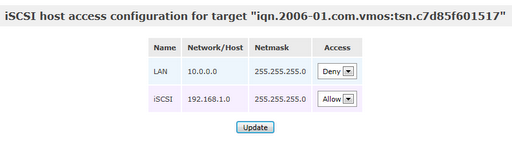
Next go onto Network ACL and we will Deny LAN traffic and allow iSCSI traffic

Repeat this for VMDATA, VMISO and VMTEMPLATE

VMware VCP 4.1 Study Guide & Lab-vdisk01.png

VMware VCP 4.1 Study Guide & Lab Part 1

Lab Setup Hardware

1 x HP ML 115
2 x 500GB 7.2K SATA Drives in RAID1
8GB RAM
1 x NIC

Lab Setup Software

1 x Windows Server 2003 32 Bit Standard (Used as a Virtual Machine for testing)
1 x Windows XP (Used as a Virtual Machine for testing)
1 x OpenFiler 2.99 (Storage Area Network)
1 x VMware Workstation 7.1
1 x VMware ESXi 4.1
1 x VMware v Centre Server 4.1

To download the software we required for the lab, you will need to register with VMware this can be done by following any VMware link below as it will ask you to register first.

OpenFiler 2.99 Download Link

VMware Workstatation 7.1 Download Link

VMware ESXi 4.1 Download Link

VMware vCentre Server 4.1 Download Link

Physical Machine Operating System

We will install Windows Server 2003 64 Bit as the base Operating System on our HP ML115 as this has a fairly small memory footprint.

On the install I give the Operating System a 50GB C: Drive Partition, and the computer name is VM01

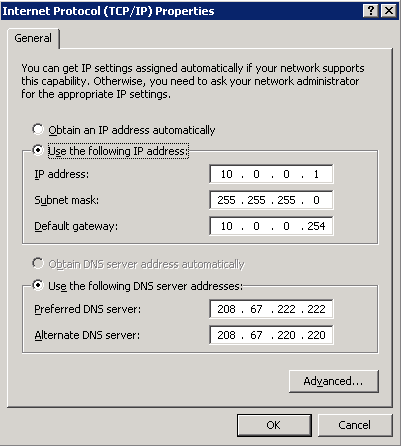
Once Windows Server 2003 64 Bit has installed, we then configure the machine with the following IP Address

VMware VCP 4.1 Study Guide & Lab-nic-settings.png
We then create three more partitions as follows:

OFSAN (O) 300GB, this will be used for our SAN
VM (V) 50GB, this will be used for our VMware Workstation VM’s
DATA (Z) 50GB, this will be used for software ISO’s

Inside of the OFSAN partition, we need to create three folders called:

vDisk01
vDisk02
vDisk03

These will form the LUN’s that we present to the VM’s

Inside of the VM partition, we need to create three folders called:

ESXi01
ESXi02
OFSAN01

These will hold the VMware Workstation information that will form our VCP Lab.

Inside of the DATA partition we need to save our ISO’s for the following:

1 x Windows Server 2003 32 Bit Standard
1 x Windows XP
1 x OpenFiler 2.99
1 x VMware ESXi 4.1
1 x VMware v Centre Server 4.1

Next we need to edit the HOST File on VM01 by going to c:windowssystem32driversetc and opening the hosts file with notepad. Enter the following lines:

192.168.1.10 ofsan01
10.0.0.11 esxi01
10.0.0.12 esxi02

VMware Workstation Installation
We are now going to install VMware Workstation 7.1. This only needs to be installed using the defaults so just click next with the onscreen instructions.

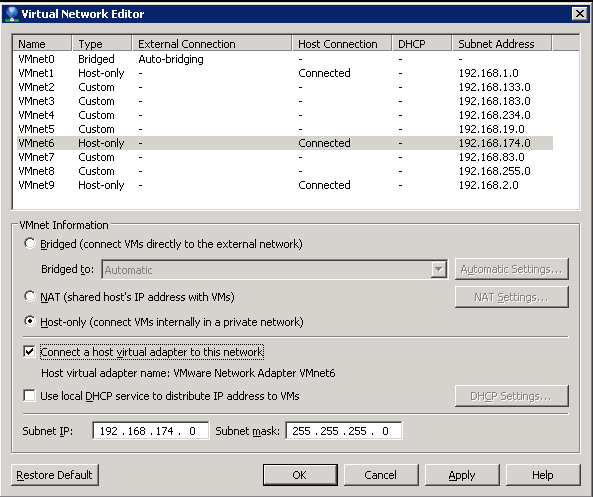
Once VMware Workstation has been installed go to Virtual Network Editor and configure this as follows:

VMnet1 Host Only Subnet 192.168.1.0/24 (this will be our Management Network)
VMnet9 Host Only Subnet 192.168.2.0/24 (this will be our vMotion Network)

Remove DHCP from VMnet1
Remove VMnet8 and turn the DHCP off

Once configured it should look like this:

Next go into your Network Connections on VM01 and rename them to:

Local Area Connection > LAN
VMnet1 > Management Network
VMnet9 > vMotion Network

VMware VCP 4.1 Study Guide & Lab-nic.png

We now need to change the IP address settings on the Management Network to:
Next we need to change our vMotion IP address settings to: