Gotcha: vSphere Metro Storage Cluster (VMSC) & HP StoreVirtual

So you have put together an epic vSphere Metro Storage Cluster using your HP StoreVirtual SAN (formerly Lefthand) using the following rules:

  • Creating volumes for each site to access it’s datastore locally rather than going across the inter site link
  • Creating DRS ‘host should’ rules so that VM run on the ESXi Hosts local to the volumes and datastores they are accessing.

The gotcha occurs when you have a either a StoreVirtual Node failure or a StoreVirtual Node is rebooted for maintenance, let me explain why.

In this example we have a Management Group called SSDMG01 which contains:

  • SSDVSA01 which is in Site 1
  • SSDVSA02 which is in Site 2
  • SSDFOM which is in a Site 3

We have a single volume called SSDVOL01 which is located at Site 1

StoreVirtual uses a ‘Virtual IP’ Address to ensure fault tolerance for iSCSI access, you can view this under your Cluster then iSCSI within the Centralized Management Console.  In my case it’s 10.37.10.2

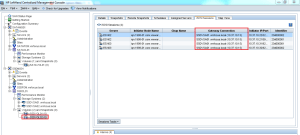
Even though iSCSI connections are made via the Virtual IP Address, each Volume goes via a ‘Gateway Connection’ which is essentially just one of the StoreVirtual Nodes.  To check which gateway your ESXi Hosts are using to access the volumes, select your volume and then choose iSCSI Sessions.
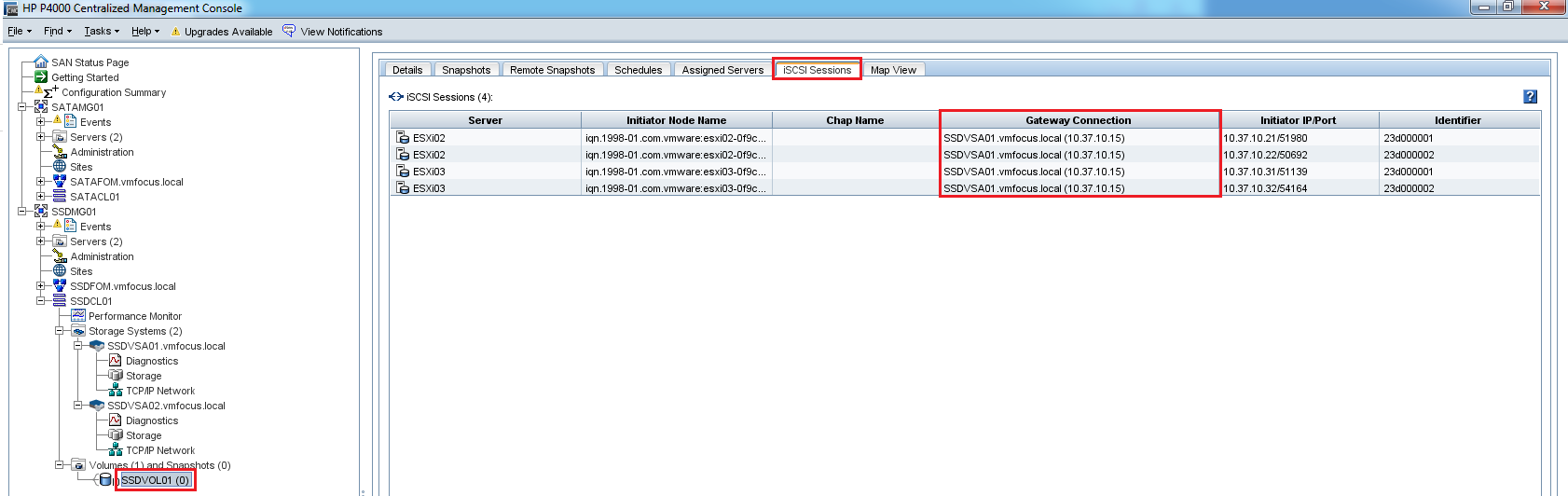
In my case the ESXi Hosts are using SSDVSA01 to access the volume SSDVOL01 which is correct as they are at Site 1.

Let’s quickly introduce a secondary a second Volume called SSDVOL02 and we want this to be in Site 1 as well.  Let’s take a look at the iSCSI sessions for SSDVOL02
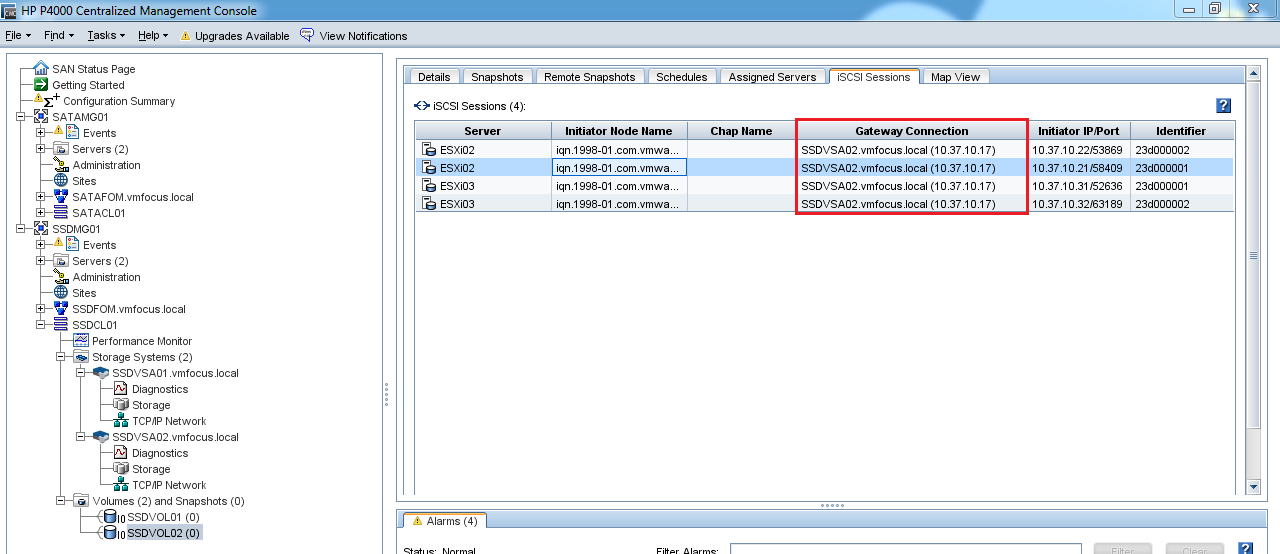
Crap, they are going via SSDVSA02 which is at the other site, causing latency issues.  Can I do anything about this in the CMC? Not that I can find.

HP StoreVirtual is actually very clever, what it has done is load balance the iSCSI connections for the volumes across both nodes in case of a node failure.  In this case SSDVOL01 via SSDVSA01 and SSDVOL02 via SSDVSA02.  If you have ever experienced a StoreVirtual node failure you know that it takes around 5 seconds for the iSCSI sessions to be remapped, leaving your VM’s without access to there HDD for this time.

What can you do about this? Well when creating your volumes make sure you do them in the order for site affinity to the ESXi Hosts, we know that the HP StoreVirtual just round robins the Gateway Connection.

That’s all very well and good, what happens when I have a site failure, let’s go over this now.  I’m going to pull the power from SSDVSA01 which is the Gateway Connection for SSDVOL01.  It actually has a number of VM’s running on it.

Man down! As you can see we have a critical event against SSDVSA01 and the volume SSDVOL01 status is ‘data protection degraded.

Let’s take a quick look at the iSCSI sessions for SSDVOL01, they should be using the Gateway Connection SSDVSA02

Yep all good, it’s what we expected.  Now let’s power SSDVSA01 back up again and see what happens.  You will notice that the HP StoreVirtual re syncs the volume between the Nodes and then it’s shown as Status: Normal.

Here’s the gotcha, the iSCSI sessions will continue to use SSDVSA02 in Site 2 even though SSDVSA01 is back online at Site 1.

After around five minutes StoreVirtual will automatically rebalance the iSCSI Gateway Connections.  Great you say, ah but we have a gotcha.  As SSDVOL02 has now been online the longest, StoreVirtual will use SSDVSA01 as the gateway connection meaning we are going across the intersite link.  So to surmise our current situation:

  • SSDVOL01 using Site2 SSDVSA01 as it’s Gateway Connection
  • SSDVOL02 using Site1 SSDVSA02 as it’s Gateway Connection

Not really the position we want to be in!

Rebalance 2Rebalance

We can get down and dirty using the CLIQ to manually rebalance the SSDVOL01 onto SSDVSA01 perhaps? Let’s give it a whirl shall we.

Login to your VIP address using SSH but with the Port 16022 and enter your credentials.

Then we need to run the command ‘rebalanceVIP volumeName=SSDVOL01’
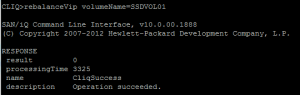
Rebalance 3

If your quick and flick over to the CMC you will see the Gateway Connection status as ‘failed’ this is correct don’t panic.
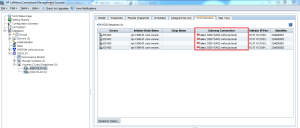
Rebalance 4

Do we have SSDVOL01 using SSDVSA01? Nah!

Rebalance 2

The only way to resolve this is to either Storage vMotion your VM’s onto a volume with enough capacity at the correct site or reboot your StoreVirtual Node in Site 2.

In summary, even though HP StoreVirtual uses a Virtual IP Address this is tied to a Gateway Connection via a StoreVirtual Node, you are unable to change the iSCSI connections manually without rebooting the StoreVirtual Nodes.

Hopefully, HP might fix this with the release of LeftHand OS10.1

LeftHand OS 10.0 – Active Directory Integration

I upgraded the vmFocus lab last night to LeftHand OS 10.0 as with anything new and shiny, I feel an overwhelming urge to try it!

So what’s new? Well according to the HP Storage Blog the following:

  • Increased Windows integration – We now offer Active Directory integration which will allow administrators to manage user authentication to HP StoreVirtual Storage via the Windows AD framework. This simplifies management by bringing SAN management under the AD umbrella. With 10.0 we are also providing support for Windows Server 2012 OS.
  • Improved performance – The engineering team has been working hard with this release and one of the great benefits comes with the performance improvements. LeftHand OS version 10.0 has numerous code enhancements that will improve the performance of HP StoreVirtual systems in terms of application performance as well as storage related functions such as snapshots and replication. The two major areas of code improvements are in multi-threading capabilities and in internal data transmission algorithms.
  • Increased Remote Copy performance – You’ll now experience triple the performance through optimization of the Remote Copy feature that can reduce you backup times by up to 66%.
  • Dual CPU support for VSA – In this release, the VSA software will now ship with 2 vCPUs enabled. This capability, in addition multi-threading advancements in 10.0, enhances performance up to 2x for some workloads. As a result of this enhancement, we will now also support running 2 vCPUs in older versions of VSA. So if you’ve been dying to try it, go ahead. Our lab tests with SAN/iQ 9.5 and 2 vCPUs showed an up to 50% increase in performance.
  • Other performance improvements – 10.0 has been re-engineered to take advantage of today’s more powerful platforms, specifically to take better advantage of multi-core processors, and also improves the performance of volume resynchronization and restriping and merging/deleting snapshot layers.

Active Directory Integration

The first thing I wanted to get up and running was Active Directory integration.  So I went ahead and created a Security Group called CMC_Access

CMC SG

Naturally, we need a user to be in a Security Group, so I created a service account called CMC and popped this into the CMC_Access Security Group

CMC User

Into the CMC, oops I mean the new name which is HP LeftHand Centralized Management Console.  Expand your Management Group and Right Click Administration and Select Configure External Authentication.

CMC External Authentication 1

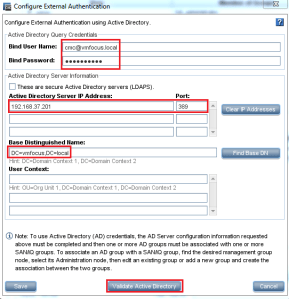
Awesome, we now need to configure the details as follows:

  • Bind User Name the format is username@domain.  So in my case it’s cmc@vmfocus.local
  • Bind Password is your password, so in my case it’s ‘password’
  • Active Directory Server IP Address 192.168.37.201 (which is VMF-DC01), your port is 389
  • Base Distinguished Name this is DC=vmfocus, DC=local

CMC External Authentication 2

Hit ‘Validate Active Directory’ and you should be golden.

CMC External Authentication 3

Hit Save, don’t worry it will take a while.

TOP TIP: If your note sure what your Base Distinguished Names is, launch ADSI Edit and that will soon tell you.

Next we need to Right Click on Administration and choose New Group

CMC External Authentication 4

Give your Group a name and a Description, I’m going to roll with cmc_access (I know original) and they are going to have Full rights.   We then need to click on Find External Group

CMC External Authentication 5

In the ‘Enter AD User Name’ enter the Bind User Name from the External Authentication, so in my case this is cmc@vmfocus.local and hit OK

CMC External Authentication 6

If all has gone to plan, you should see your Active Directory Group, select this and hit OK

CMC External Authentication 7

It should appear in the Associate an External Group dialogue box, hit OK

CMC External Authentication 8

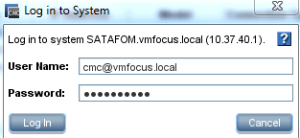
Then logout and log back in again as your Active Directory user, making sure that you use the format name@domain

CMC External Authentication 9

One of the odd things that I have noticed, is that it takes an absolute age to login, not sure why this is, but I’m sure HP will fix it in an upcoming release!

Part 5 – Configuring Site Recovery Manager (SRM) With HP StoreVirtual VSA

This is the final post on my blog series Configuring Site Recovery Manager (SRM) with HP StoreVirtual VSA.

If you have missed any of the previous posts, they are available here:

Part 1 – Configuring Site Recovery Manager (SRM) With HP StoreVirtual VSA

Part 2 – Configuring Site Recovery Manager (SRM) With HP StoreVirtual VSA

Part 3 – Configuring Site Recovery Manager (SRM) With HP StoreVirtual VSA

Part 4 – Configuring Site Recovery Manager (SRM) With HP StoreVirtual VSA

As promised we are going to failover, reprotect and failback. Is it slightly wrong, that I’m excited about this blog post?

Pre Failover

As we are good boy/girl scouts, we wouldn’t just jump straight in and try and failover would we? No, never instead we are going to check everything is ‘tickety boo’ with our environment.  This means going over the following checklist:

  • Check CMC to ensure no degraded volumes
  • Check CMC to ensure that remote copy is working correctly
  • Check vCenter to ensure that you have connectivity between sites
  • Check SRM Array Managers and refersh your Devices
  • Check Protection Groups
  • Check Recovery Plan

Once you have gone over the above list, the last thing to do is test and clean up.

Look’s like we are cooking on gas.

Failover

We have two types of failover, planned and unplanned.

Planned Failover is when you know of impending works which will make your Production site non operable for a period of time, this could be planned  maintenance work or site relocation.  Imagine you are building a new Head Office, you configure all of your network, storage and vSphere infrastructure and then just use SRM to failover over a weekend.

Unplanned Failover this is when, you earn your ‘bacon’ as a vSphere Administrator, as you have a man down situation and no Production site left.

In this instance we are going to do a planned failover, as you can see VMF-TEST01 is running in our Production site.

VMF-TEST01 is in a good place, as it’s being replicated to our DR site

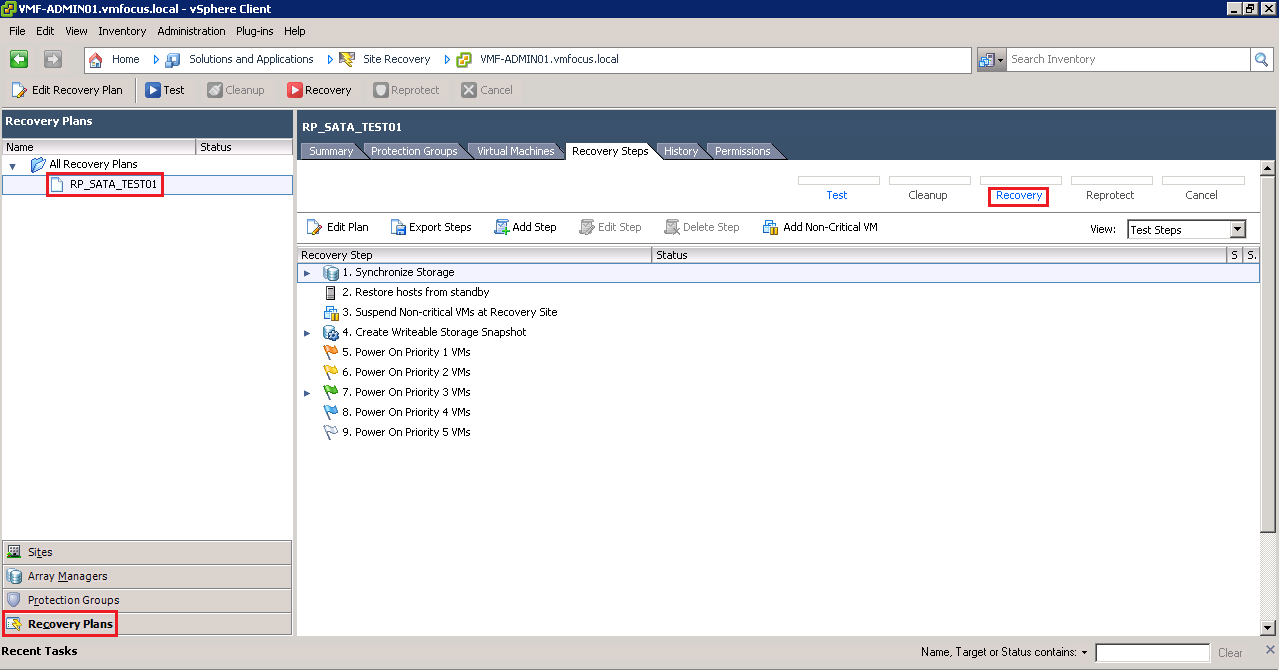
Let’s get it on, into SRM, then click on Recovery Plans, then onto Recovery Steps (so that we can see what’s going on) and then click on Recovery!

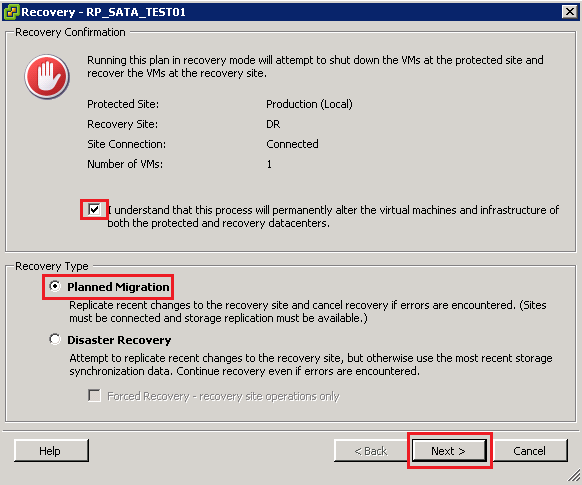
The Red Stop Sign cracks me up, it’s SRM’s way of saying are you really sure you want to do this? We are sure, so we want to put a tick in the ‘I understand that this process will permanently alter the virtual machines and infrastructure of both the protected and recovery datacenters.’

We are going to perform a ‘Planned Migration’ and then click Next

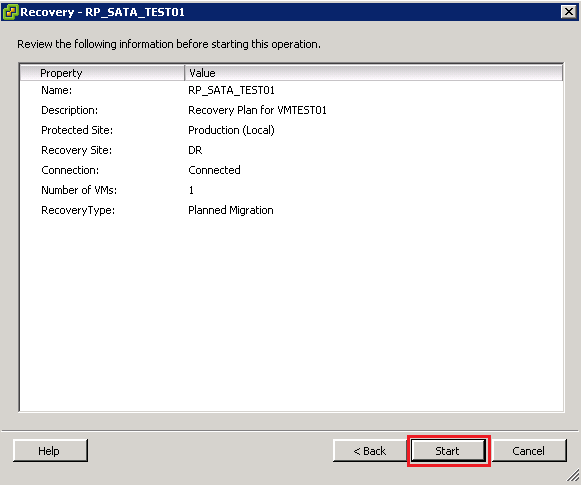
We are now at the point of no return, click Start

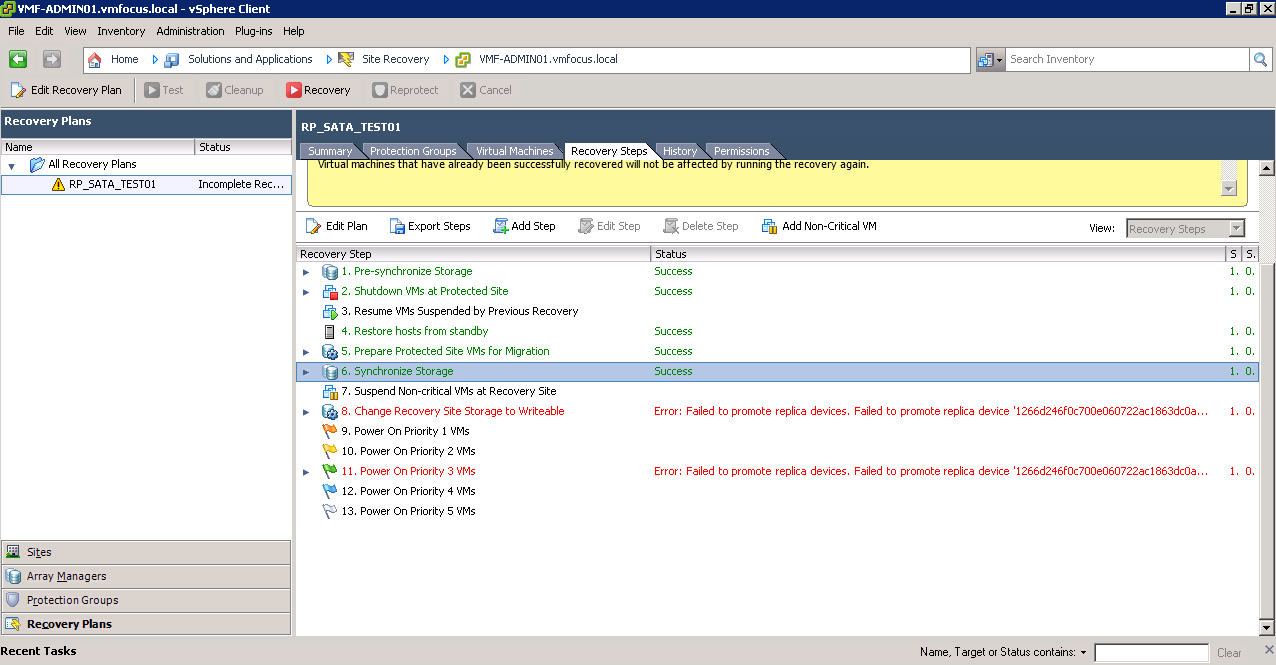
OK, what’s going on? Well the let’s have a closer look.

Step 1 SRM takes a snapshot of the replicated volume PR_SATA_TEST01 before it tries to failover, this is for safety.

Step 2 SRM shuts down the VM’s at Protected Site, in this case VMF-TEST01 to avoid any data loss

Step 3 SRM restores any hosts from standby at the DR Site

Step 4 SRM takes another snapshot and syncronizes the storage

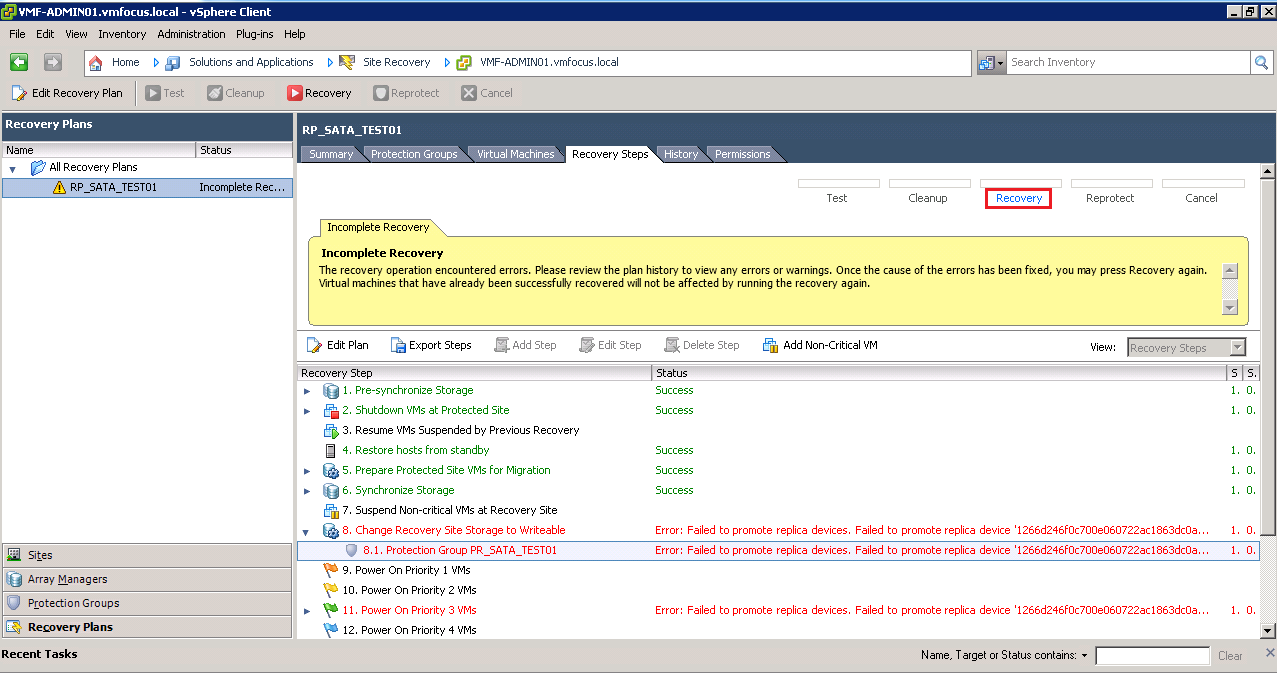
Step 5 Epic Fail!

OK what happened? Well we have the error message ‘Error: Failed to promote replica devices. Failed to promote replica device ‘1266d2456f’ This means that for some reason SRM wasn’t able to promote the DR volume DR_SATA_TEST01 to Read/Write from Read. To be perfectly honest, I have tried many times to get this to work and for some reason it always fails on this step.  Strange really as when we before a test it takes a snapshot of the volume DR_SATA_TEST01 and promotes this to Read/Write without any issues. So in this situation we are going to need to give SRM a hand.

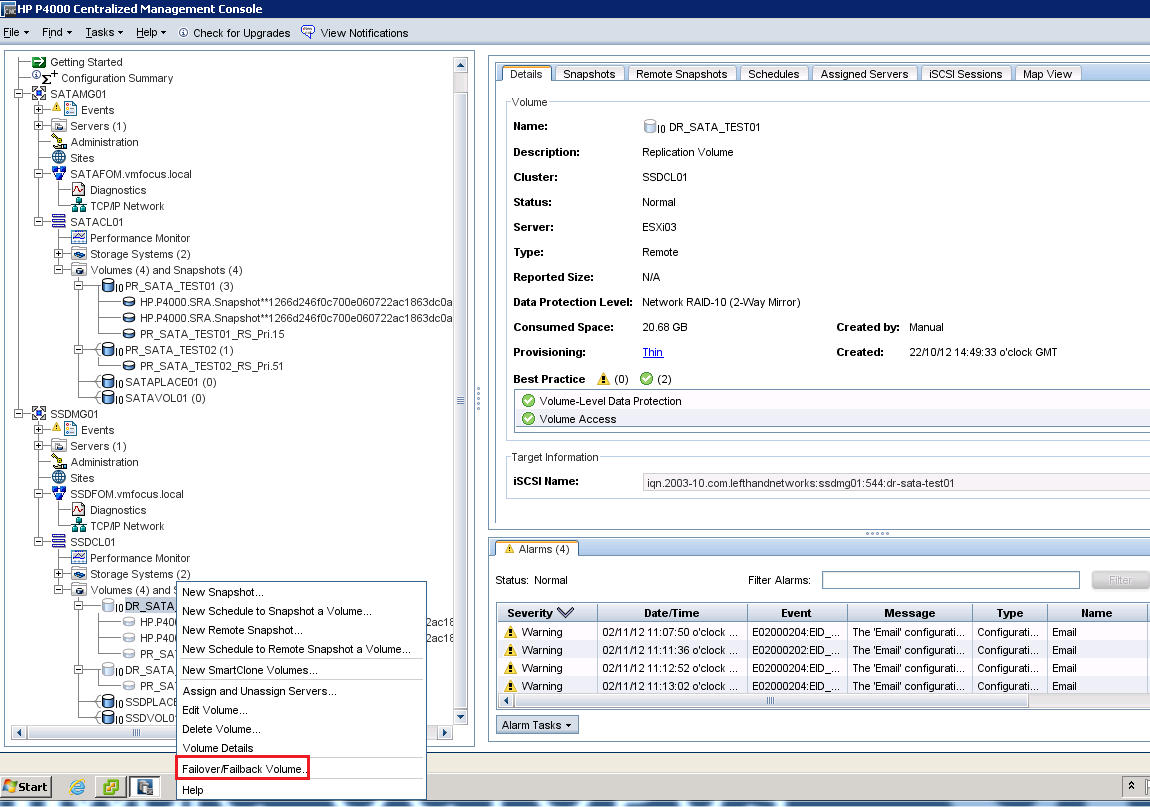
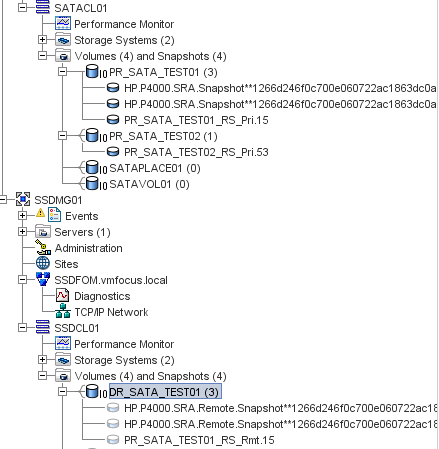
Go into the CMC and expand your Management Groups and Clusters until you get this view.

We are going to Right Click DR_SATA_TEST01 and Select Failover/Failback Volume

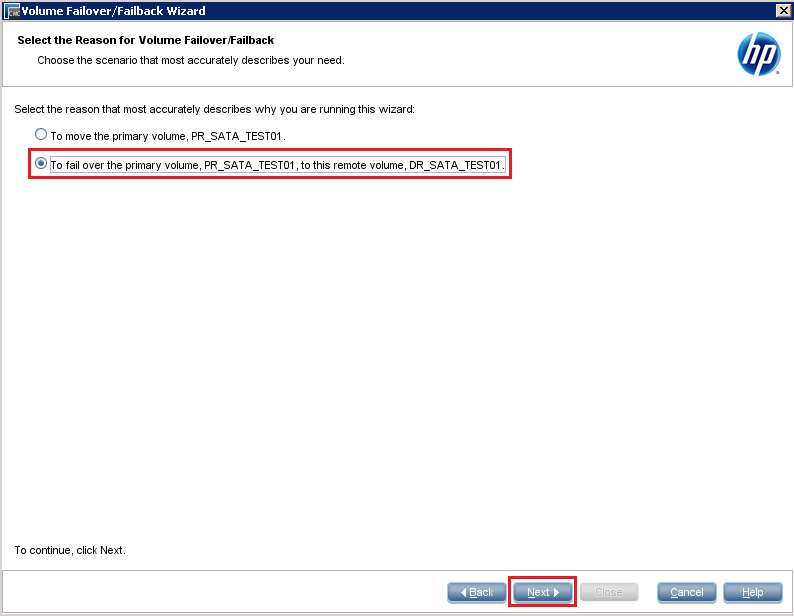
Click Next and then Select ‘to fail over the primary volume, PR_SATA_TEST01, to this remote volume, DR_SATA_TEST01 and click Next

Good news that we haven’t got any iSCSI sessions in place, so we can click Next

Double check your provisioning is correct, and then click Finish

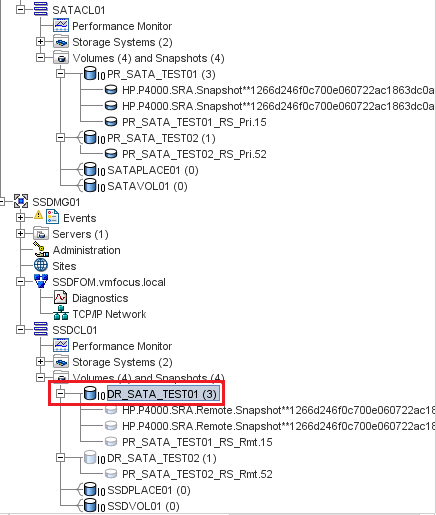
Awesome, we should now have the volume DR_SATA_TEST01 acting as a Primary Read/Write Volume, you can tell this as it should be in dark blue

I think we should try the Recovery again now, let’s hop back into SRM and click on Recovery.

Select the ‘I understand that this process will permanently alter the virtual machines and infrastructure of both the protected and recovery datacenters.’ tick box again and click Next and Start.

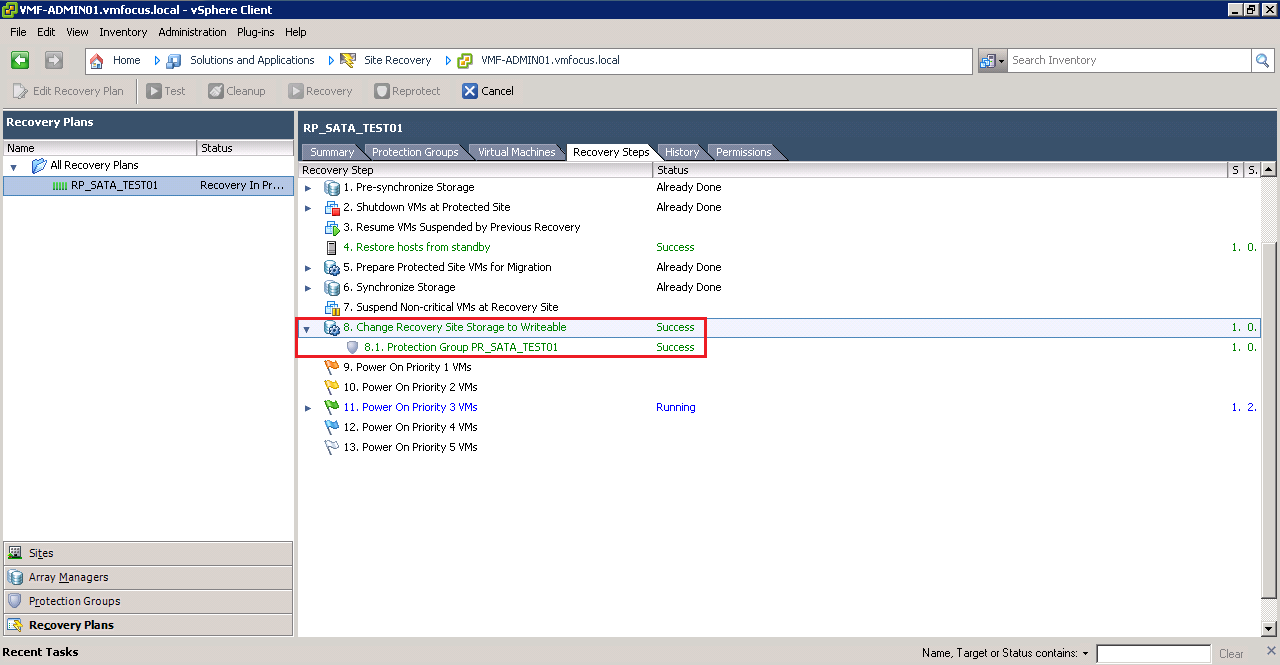
Hopefully you should see that SRM jumps straight to Step 8, Change Recovery Site Storage to Writeable and this time it has been a Success!

Time for a quick brew, whilst SRM finishes off bringing VMF-TEST01 up at our DR site.

Boom, the man from Delmonte he say yes!

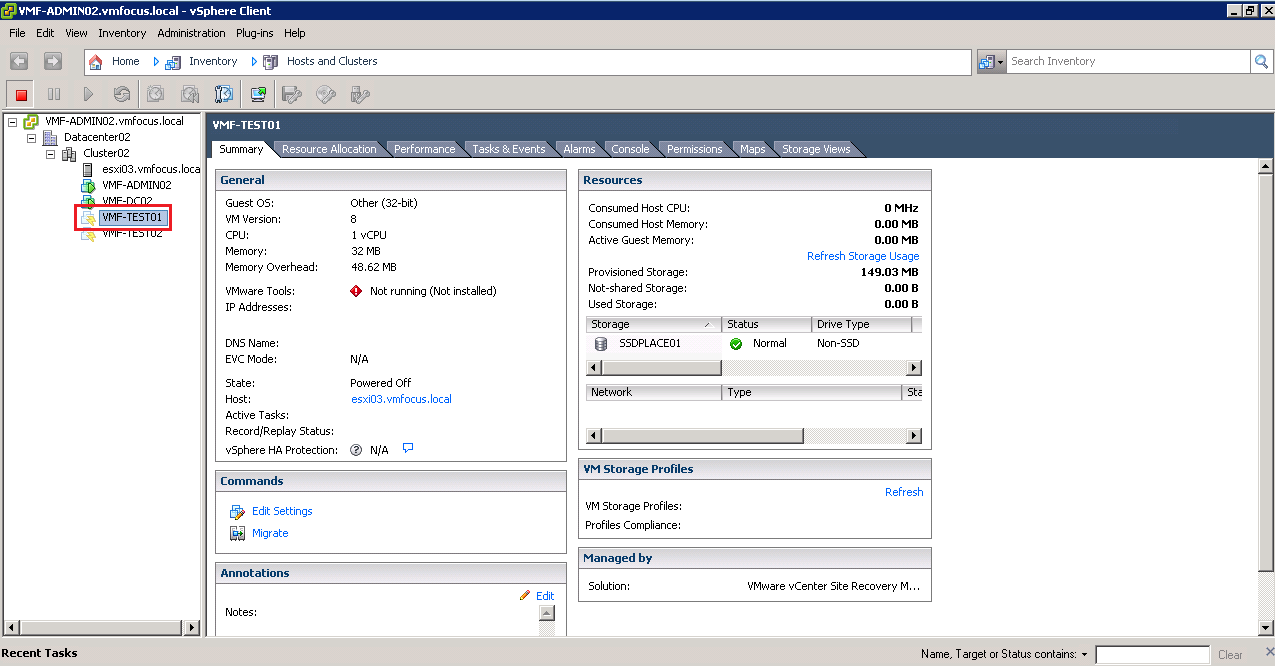
So let’s see what’s going on shall we.  First of all at our Production site.  As you can see SRM now knows that the VMF-TEST01 is not live.

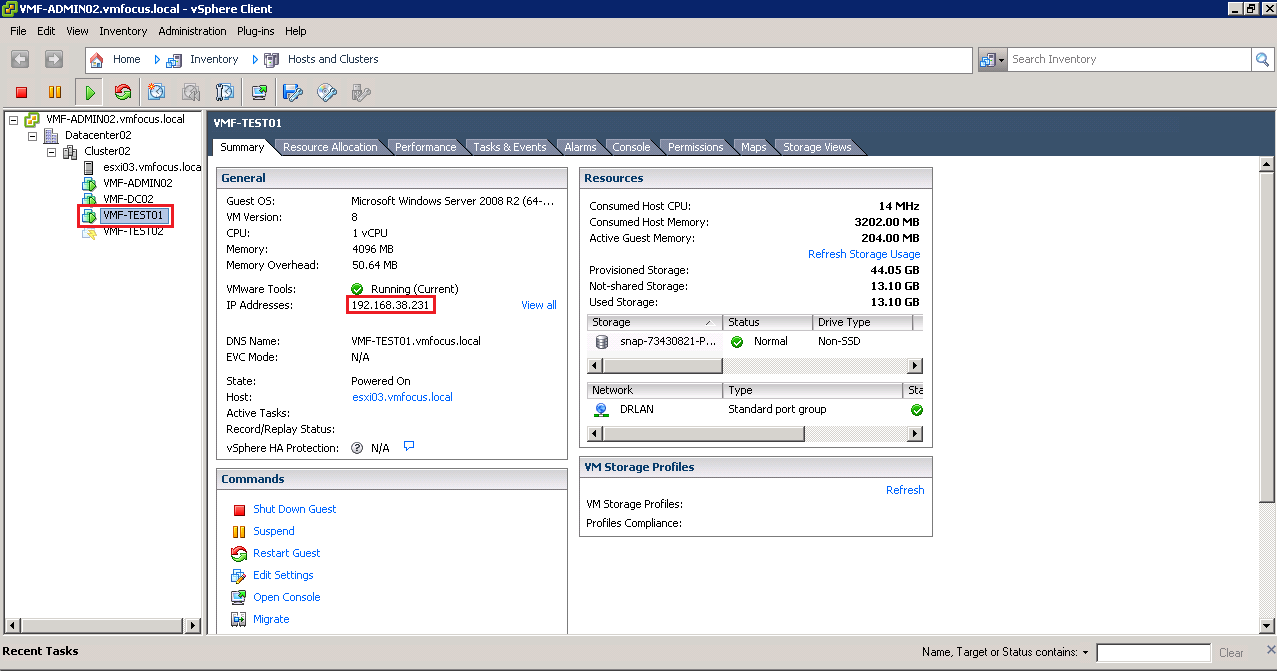
At DR, VMF-TEST01 is up and running and it’s IP Address has been successfully changed.

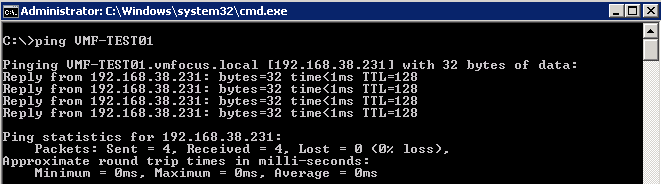
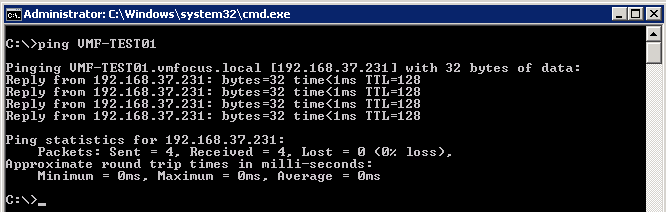
The question is can we ping it by DNS, as this should have been updated.

Boom, all working as expected.

Last of all, let’s check CMC to see what’s going on with our HP StoreVirtual VSA.

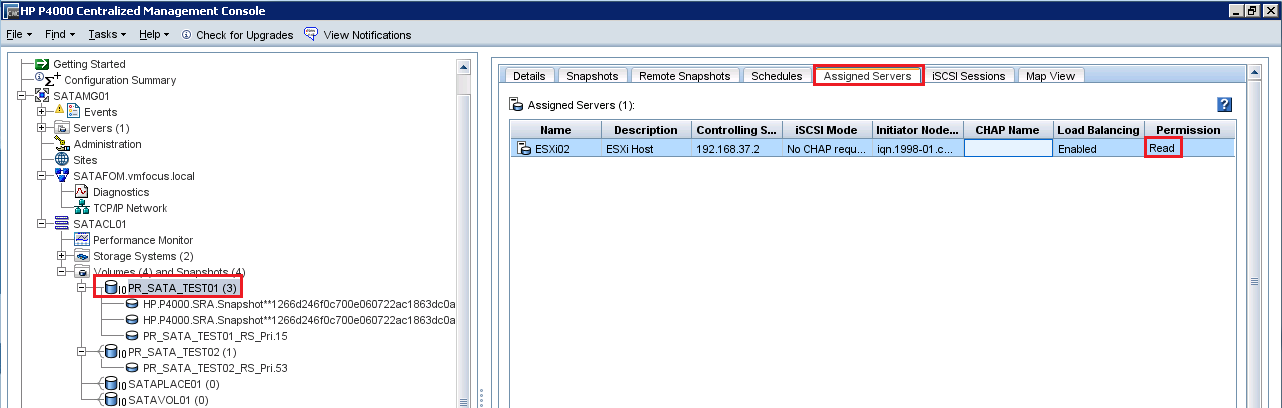
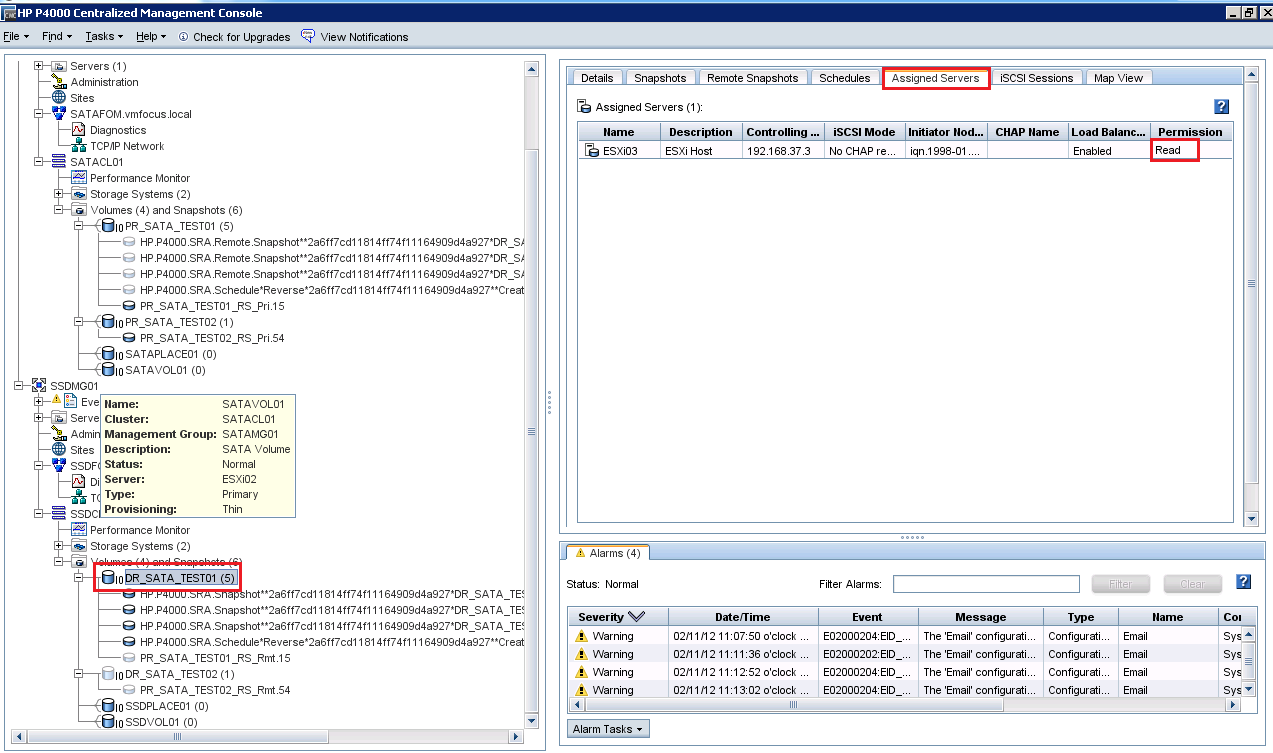
Now you may be thinking, it’s not really the best situation to be in as we have two Primary Volumes which are PR_SATA_TEST01 and DR_SATA_TEST01.  But don’t fear SRM has changed PR_SATA_TEST01 to ‘read’ only access for ESXi02

Also, if we check the Datastores on ESXi02, we see that PR_SATA_TEST01 has disappeared.

Cool, I think we are now in a position to Reprotect.

Reprotect

Reprotection reverses the process, so that the DR site becomes the protected site and Production becomes the DR site, simples.

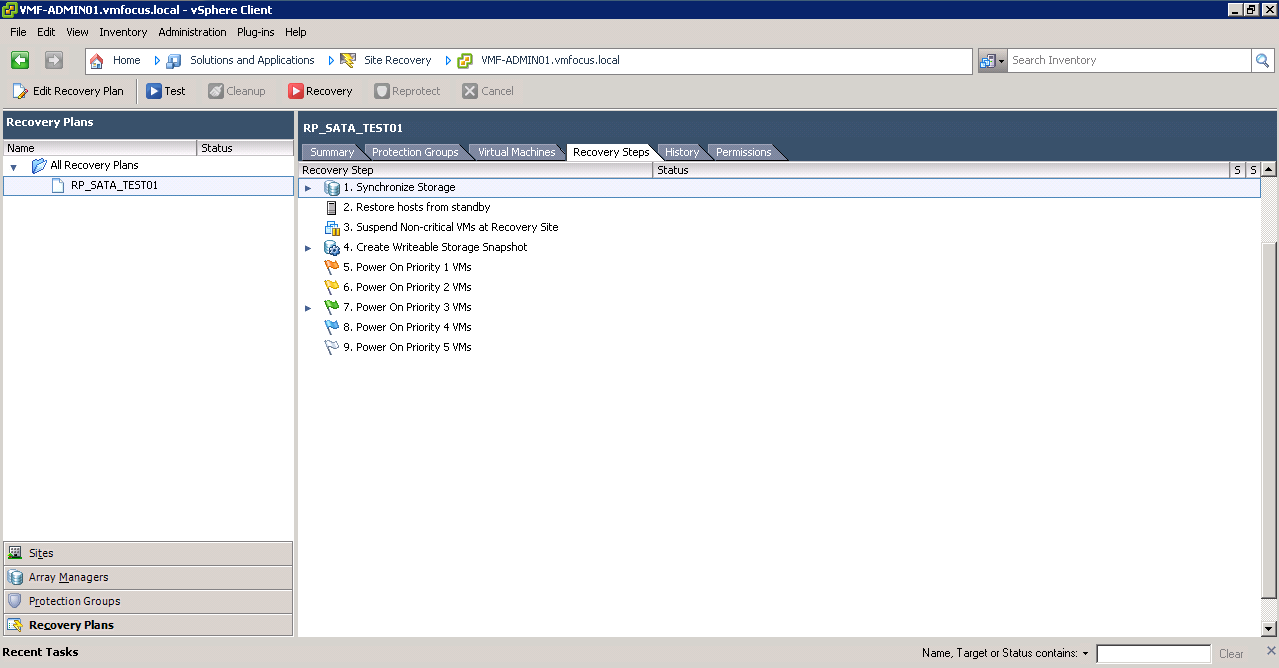
So let’s jump back into SRM and click Reprotect

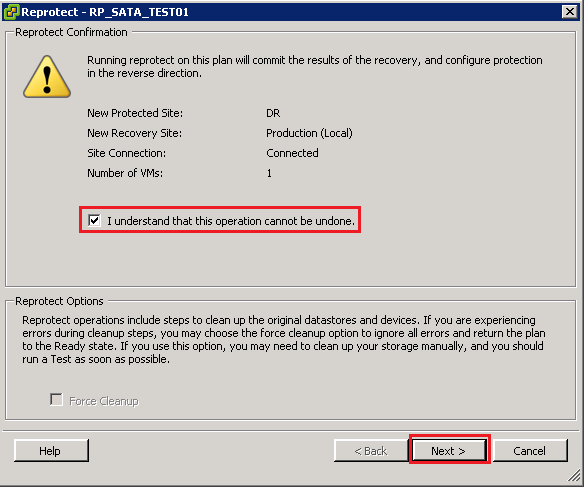
Select ‘I understand that this operation cannot be undone.’ and click Next

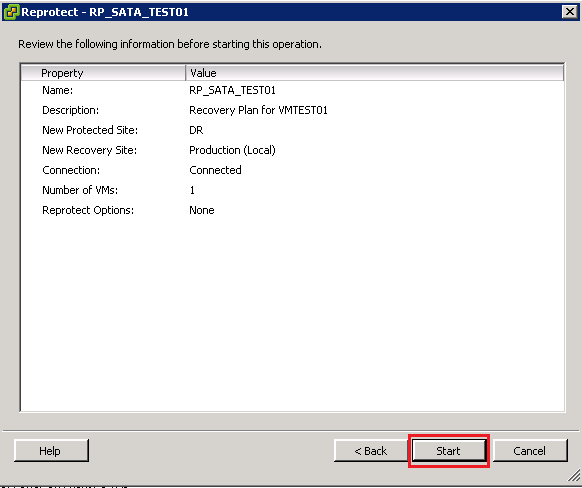
Let’s click Start and watch the process in action.

OK, what’s going on then Craig?

Step 1 SRM realises it can’t have two Primary Volumes and demotes PR_SATA_TEST01 to a Remote Volume and then deletes it

Step 2 SRM takes a snapshot of DR_SATA_TEST01 and before it starts the reverse protection as a safety measure

Step 3 SRM takes a further snapshot and invokes the replication schedule

Step 4 SRM cleans up the storage to make sure everything is ‘tickety boo’

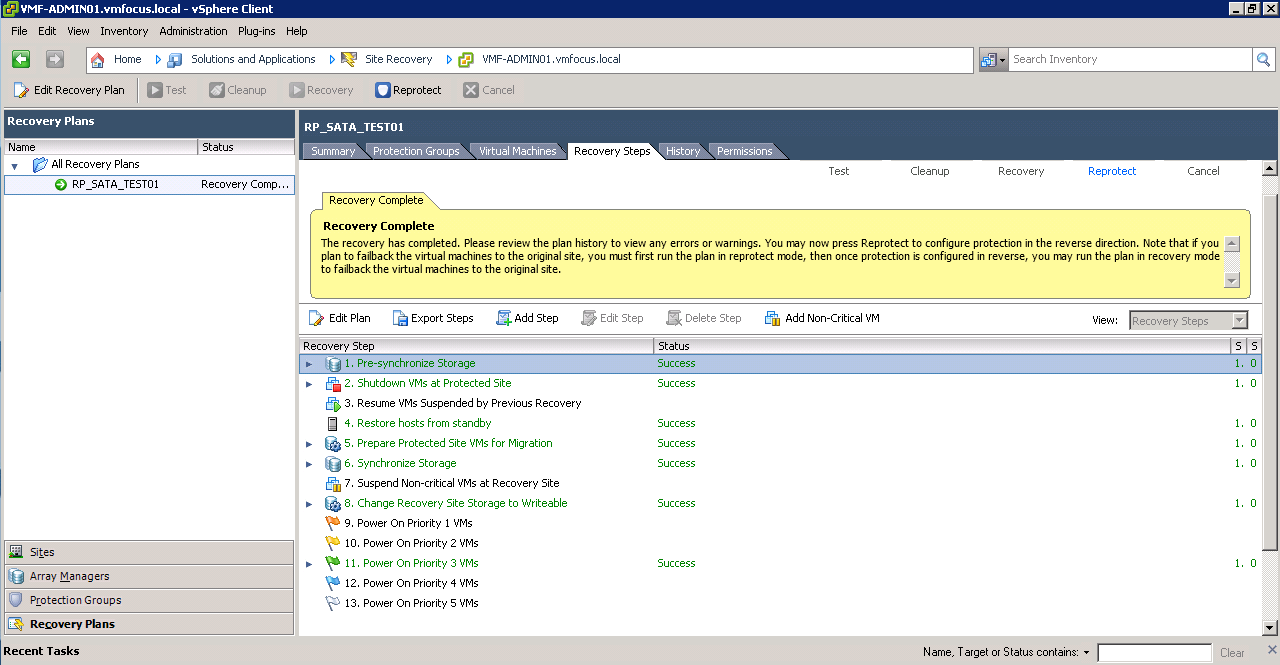
If everything was a success you should see that your Recovery Plan has gone back to normal.

From HP StoreVirtual VSA perspective everything looks good, DR is the Primary Volume and Production is the Remote Volume

Right then, I think we should think about failing back then.  Before we do so, we need to run over that checklist again.

  • Check CMC to ensure no degraded volumes
  • Check CMC to ensure that remote copy is working correctly
  • Check vCenter to ensure that you have connectivity between sites
  • Check SRM Array Managers and refersh your Devices
  • Check Protection Groups
  • Check Recovery Plan

Once you have gone over the above list, the last thing to do is test and clean up.

Good times, everything was a success, I think we are ready to failback.

Failback

Failback is actually just a Recovery as far as SRM is concerned.  So I won’t bother waffling on about it again, so let’s hit Recovery

I wanted to show you that this time round, SRM was able to promote the Remote Volume to Primary Read/Write without any issues.

Nice one, we have another success and VMF-TEST01 is running back at Production.

Let’s do the obligatory ping test via DNS, again success.

Quick look at our DR site and you can see SRM now sees VMF-TEST01 as being protected

Lastly, a look at CMC to check on our HP StoreVirtual VSA, as you can see we still have two Primary copies, but again DR_SATA_TEST01 is now read only

A couple of final thoughts for you.

  1. It’s quite normal to see a ‘ghost’ datastores at either your Production or DR site after you have failed over or back. Just perform a ‘Rescan’ and it will disappear
  2. Check your path policies for the Datastore, as these don’t always go back to your preferred choice.

Thank’s for reading what probably feels like war and peace to you on SRM, I hope you agree it’s an amazing product that makes our life as the IT administrator that much easier!

SRM & P4000 – Error: Failed To Promote Replica Devices

‘Error: Failed to promote replica devices. Failed to promote replica device ‘1266d2456f’ This means that for some reason SRM wasn’t able to promote your replica volume from Read to Read/Write which in P4000 terms is Remote to Primary volume. To be perfectly honest, I have tried many times to get this to work and for some reason it always fails on this step.  Strange really as when you perform a test failover on the same volume, it takes a snapshot of the Read (Remote) volume and promotes this to a Read/Write (Primary) without any issues.

So in this situation we are going to need to give SRM a hand.

Go into the CMC and expand your Management Groups and Clusters until you get this view.

We are going to Right Click DR_SATA_TEST01 and Select Failover/Failback Volume

Click Next and then Select ‘to fail over the primary volume, PR_SATA_TEST01, to this remote volume, DR_SATA_TEST01 and click Next

Good news that we haven’t got any iSCSI sessions in place, so we can click Next

Double check your provisioning is correct, and then click Finish

Awesome, we should now have the volume DR_SATA_TEST01 acting as a Primary Read/Write Volume, you can tell this as it should be in dark blue

I think we should try the Recovery again now, let’s hop back into SRM and click on Recovery.

Select the ‘I understand that this process will permanently alter the virtual machines and infrastructure of both the protected and recovery datacenters.’ tick box again and click Next and Start.

Hopefully you should see that SRM jumps straight to Step 8, Change Recovery Site Storage to Writeable and this time it has been a Success!

Boom, the man from Delmonte he say yes!

Part 4 – Configuring Site Recovery Manager (SRM) With HP StoreVirtual VSA

We are now ready for Recovery Plans!  So the question is what are they? Well a Recovery Plan is what we would like to happen in the event of a DR situation, let me explain what I mean.

Let’s imagine you have two Exchange 2010 servers, one providing the CAS/Hub Transport Role and the other providing the Mailbox role,you would want these to come up in a specific order, the Mailbox first then the CAS/Hub server.  That’s all great but I can hear you saying, but what about IP address? That’s going to cause me some proper dramas, in fact what DNS all of the records are going to be wrong!

Well the panic is over with SRM we can address all of these issues! We can:

  • Bring virtual machines up in a certain order.
  • Change virtual machines IP address
  • Run a script or batch file

Pretty cool eh? Right let’s crack on with the configuration.

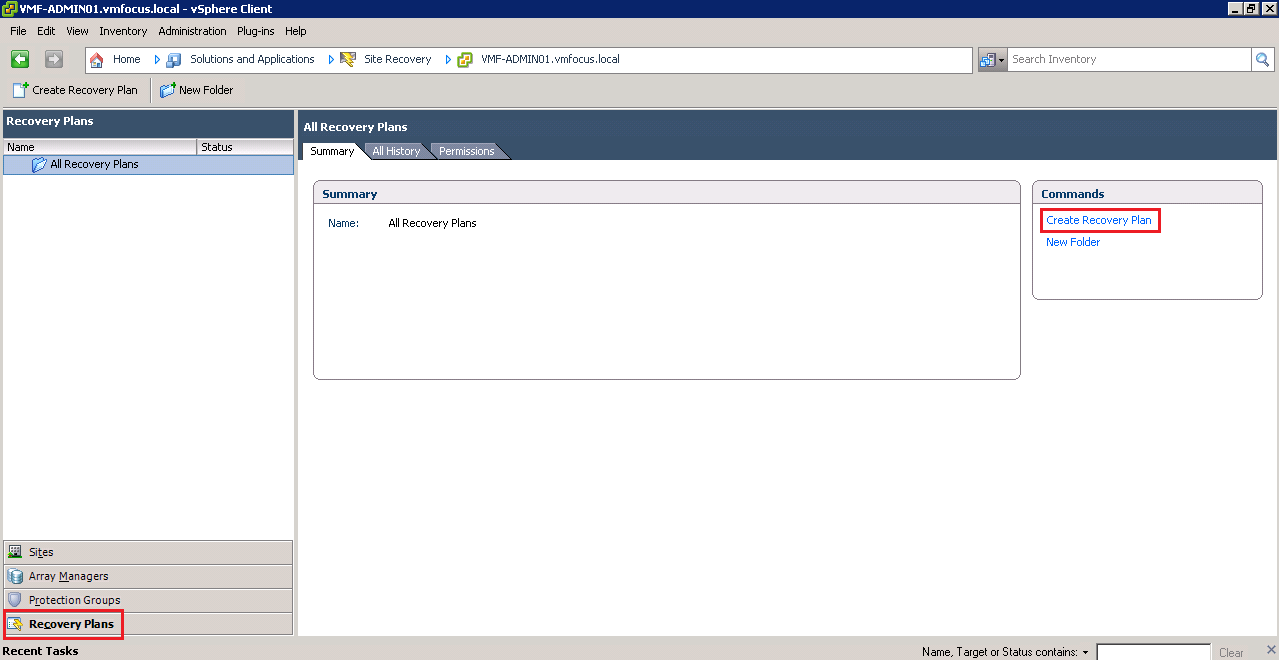
Let’s select Recovery Plans from the bottom left hand menu and then Create Recovery Plan from the top right Commands box

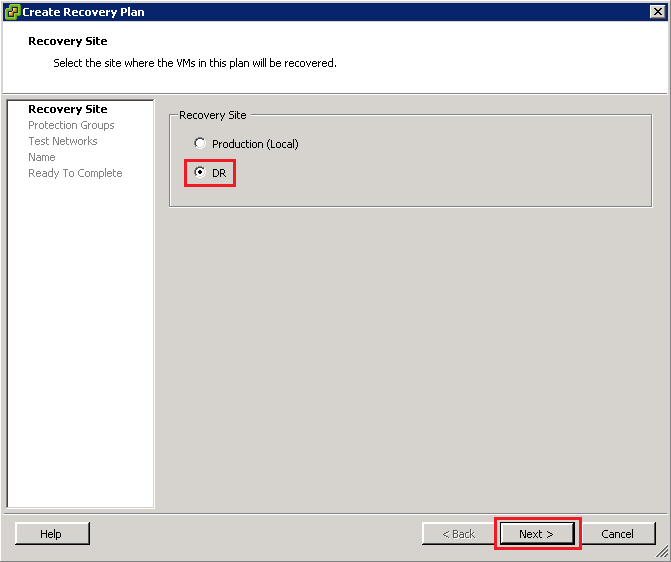
Select your Recovery Site, in my case DR and click Next

From a design perspective, I would always recommend that you have a Recovery Plan per Protection Group as this gives you a higher level of control to fail over only particular virtual machines.  In this case we are going to select PG_SATA_TEST01 and click Next

The next screen, is quite interesting, we can have a ‘test network’ in our DR site which is preconfigured so that rather than SRM creating a network for us, we can have the virtual machines come up in a predefined network when we ‘test DR’. Why would I want to do this? Well it would give you access to the virtual machines in the DR location and you can test connectivity between them.

In this scenario we are going to leave the ‘test network’ setting to Auto and click Next

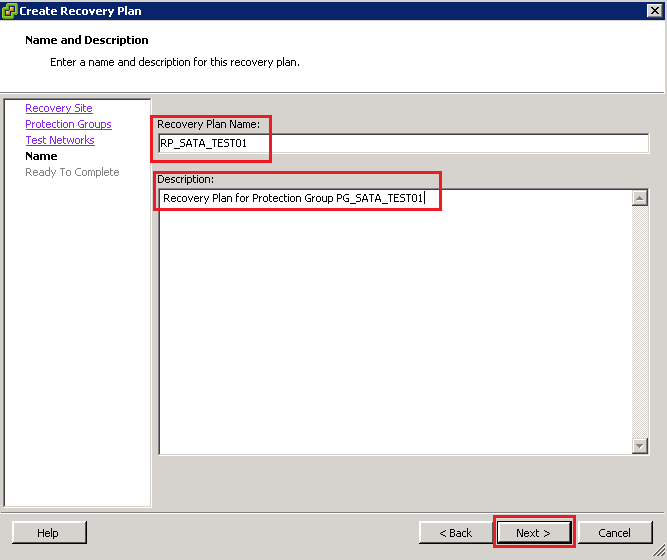
Next we need to give the Recovery Plan a name, I’m going to be imaginative and call mine RP_SATA_TEST01 in the description I always reference the Protection Group that we are going to perform the recovery on.  Then click Next

We then get a summary screen, click Finish to complete.

Awesome we should now have a Recovery Plan we can test, I’m itching to give it a whirl!

Before we do this, let’s take a quick swing by our HP StoreVirtual VSA’s to make sure everything is ‘tickety boo’

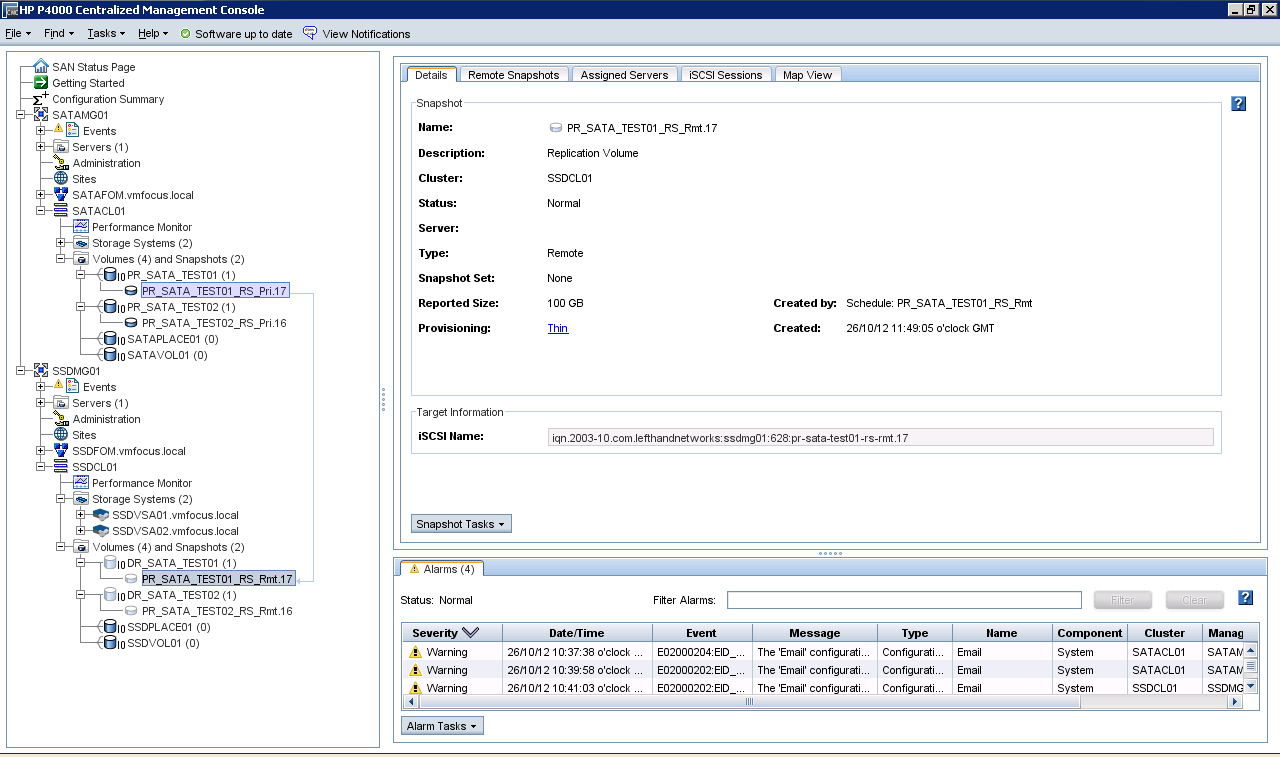
Let’s login to the CMC and open both SATAMG01 and SSDMG01 and expand both clusters.  Select PR_SATA_TEST01_RS and make sure the Status (on the right hand side) is ‘normal’

Awesome, let’s give do a Test Recovery!

Select RP_SATA_TEST01 and then the Summary Tab and then click Test

We now get a pop up asking if we want to replicate recent changes or not for the test.  If you select yes, SRM will use the SRA to send the commands to the HP StoreVirtual VSA to replicate the Volume PR_SATA_TEST01.  I’m going to choose no, as I haven’t actually changed any data (we will do this later). Click Next

We now need to click Start and let the SRM magic happen.

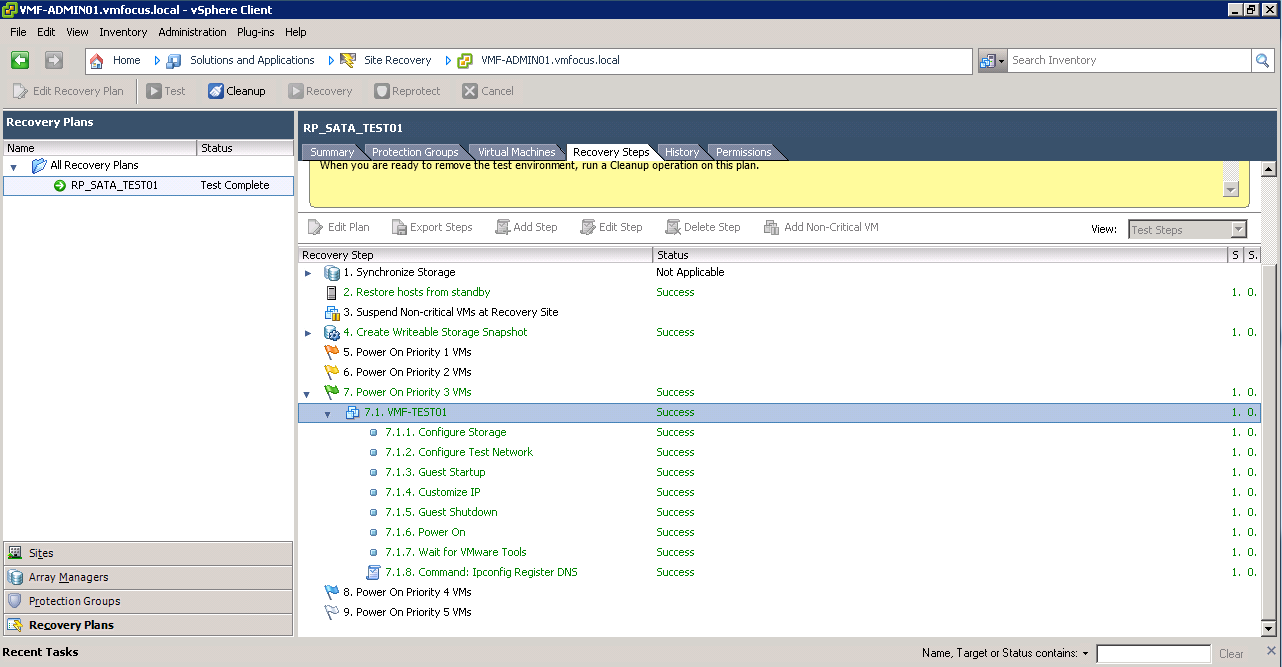
At this point, we want to see what’s going on so let’s jump onto the Recovery Steps Tab and expand all of the stages.

So what’s going on here? Well let’s go threw this step by step

Step 1 SRM will replicate the storage if you have selected this option, we chose not to hence why the status is ‘not applicable’

Step 2 SRM will bring any hosts out of Standby if you are using Distributed Power Management at the DR site

Step 3 SRM will suspend non-critical VM’s at DR site so that the resources are available to be used by the virtual machines we are testing

Step 4 This is probably the most important step to understand.  SRM doesn’t want to interfere with the replication process, if it did then it would have to make the replicated LUN in this case PR_SATA_TEST01_RS_Rmt.16 Read/Write and we don’t want to do that.  So instead SRM uses the SRA to invoke a point in time snapshot of the read only PR_SATA_TEST01_RS_Rmt.16 which it turns into a Read/Write copy so that the virtual machine can be accessed.

I want to show you this from HP StoreVirtual VSA perspective, if you look below our replicated volumes haven’t been touched but we do have a Read/Write copy of PR_SATA_TEST01_RS.Rmt.16 (see it’s dark blue)

Step 5-9 SRM powers on the virtual servers in priority order.

Boom we have test complete!

Let’s nip over to VMF-ADMIN02 which is my DR vCenter and see what’s going down.

Cool, VMF-TEST02 is up and running it’s go the same IP Address and it’s been presented with the snapshot of the read only DR volume PR_SATA_TEST01 and that SRM has put VMF-TEST01 into a srm-recovery-portgroup

Good skills, let’s roll back the Test Back to VMF-ADMIN01 which is Production vCenter and click Cleanup

Essentially, SRM just reverses the process above, if all went well, you should see this

Let’s double check the CMC to make sure everything is back to they way it should be, voilà it is!

If like me you want to see what’s going on in more detail, run the Test again, but this time make sure you go over to VMF-ADMIN02 and slect Tasks & Events at Root level.  This will show you everything that SRM does to perform a test failover.  Pretty impressive to say the least.

Change IP Address

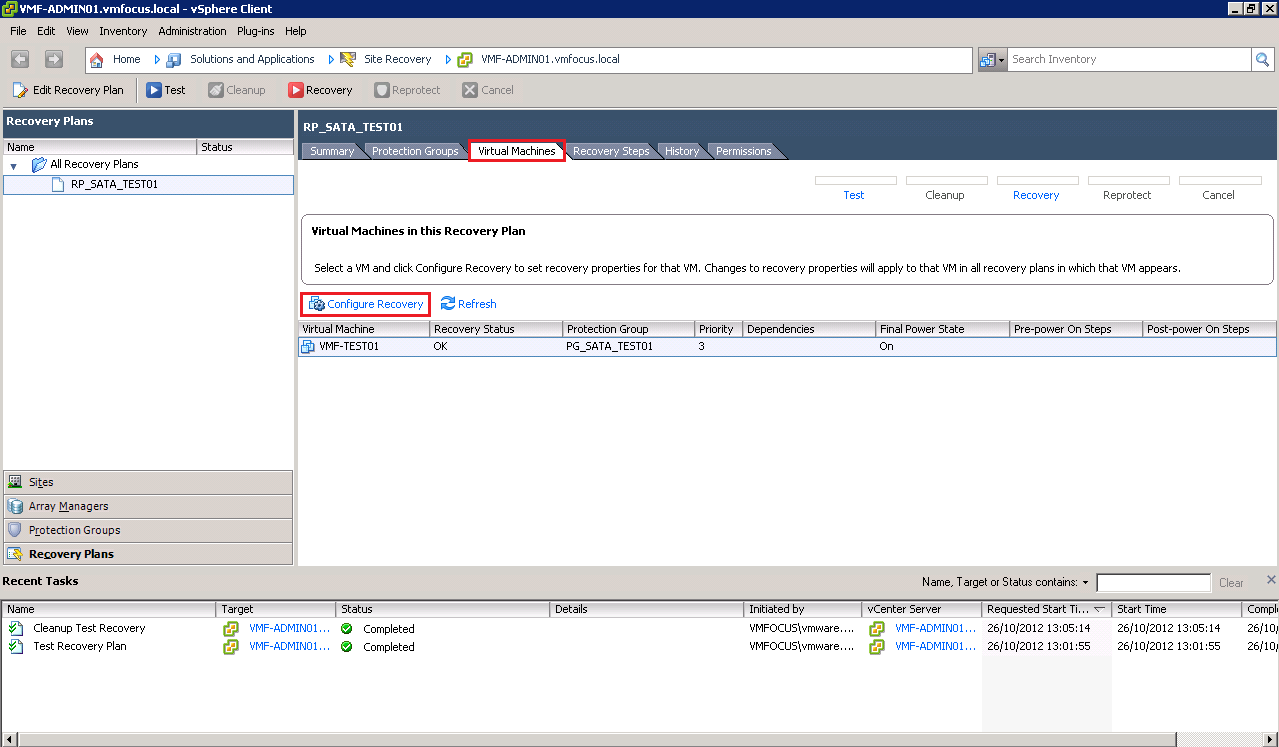
We probably want to change the IP address details of VMF-TEST01 when it fails over so it’s on the right subnet, using the right default gateway and DNS server.  To do this Select the Virtual Machines Tab and Select Configure Recovery

Select IP Settings – NIC 1 and place a Tick in Customize IP settings during recovery and lastly click on Configure Protection and enter your IP details, rinse and repeat this for Configure Recovery

For those of you in the UK, here’s one I made earlier

Hit OK, and perform another Test Recovery, fingers crossed we should see that the IP address changes at the DR site.  Time for a quick brew whilst we run the test.

The results are in and we have success!

Let’s roll back and make some more config changes

Registering DNS

My real world experience using SRM is that we need to do more with DNS than just change the IP address, it’s a good idea to update DNS as well.  Now I’m not a ‘script guy’ so I use gold old fashioned batch files.

On VMF-TEST01 we are going to create the following batch file:

@echo off

ipconfig /registerdns

exit

The batch file will be called ipconfigupdate.bat and saved on root of the C: Drive on VMF-TEST01

Cool, now let’s configure SRM to register the new DNS details.

Back to the Virtual Machines Tab and Configure Recovery for VMF-TEST01

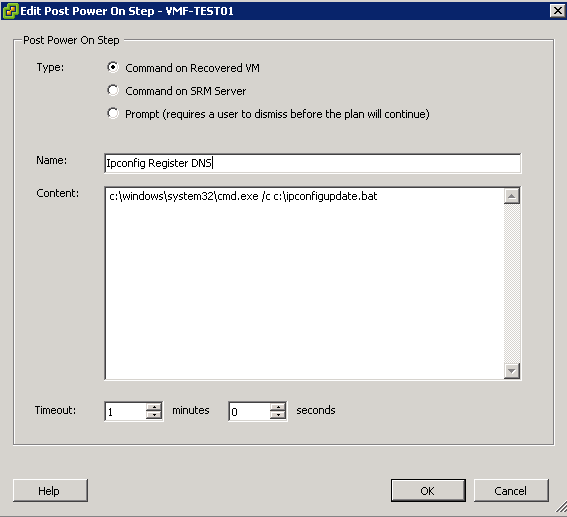
We are going to select a ‘Post Power On Step’ and then Add

We are going to use ‘Command on Recovered VM’ and give the Step the name ‘Ipconfig Register DNS’ and the content is going to be c:windowssystem32.cmd.exe /c c:ipconfigupdate.bat and the Timeout value is 1 minute

The first part c:windowssystem32.cmd.exe tells SRM where to find the application you want to run in this case it’s Windows Command Prompt and then second part /c c:ipconfigupdate.bat tells SRM to run the batch file under Windows Command Prompt.

OK, now we need to think about how we are going to test this, as if VMF-TEST01 fails over into Auto Network Port Group then it won’t be able to communicate with the Domain Controller in the DR site.  So ladies and gentlemen we are going to do what known in the IT world as ‘frig’ to test this.

We are going to shut down VMF-TEST01 at the Production Site and then change the Auto Network to DRLAN, so that when VMF-TEST01 comes up at DR it can communicate with my DC.

If you remember we need to edit the Recovery Plan RP_SATA_TEST01  to change the test Port Group.

Right then let’s run a Test recovery and see if my ‘frig’ works!  It might be time for a brew, as when we customize the IP Address, SRM will bring the guest VM online, change the IP Address’s and then shut it down, wait for VMware Tools and then run our batch file.

Awesome, well the Test recovery was a success.

Let’s check VMF-TEST01, well it’s got the right IP Address and the right Port Group.  I’m going to attempt a ping, success! I feel like the A-Team when a plan comes together.

TOP TIP: Don’t forget to change your DNS back

Virtual Machine Priory Order

The last item I want to cover off is Virtual Machine Priority Order.  We have a range of 1 to 5.  Priority 1 VM’s start first and 5 start last.  The cool thing about this is that it wait’s for VMware Tools to start before the next VM is powered on.

To configure this we need to go back to the Virtual Machines Tab and Right Click VMF-TEST01 Select Priority and then the level you want.

Boom job done!

That’s it for this post, on the next blog entry we are going to failover, reprotect and failback.