HP StoreVirtual & SRM – Case Of The Missing Datastores

Problem Statement

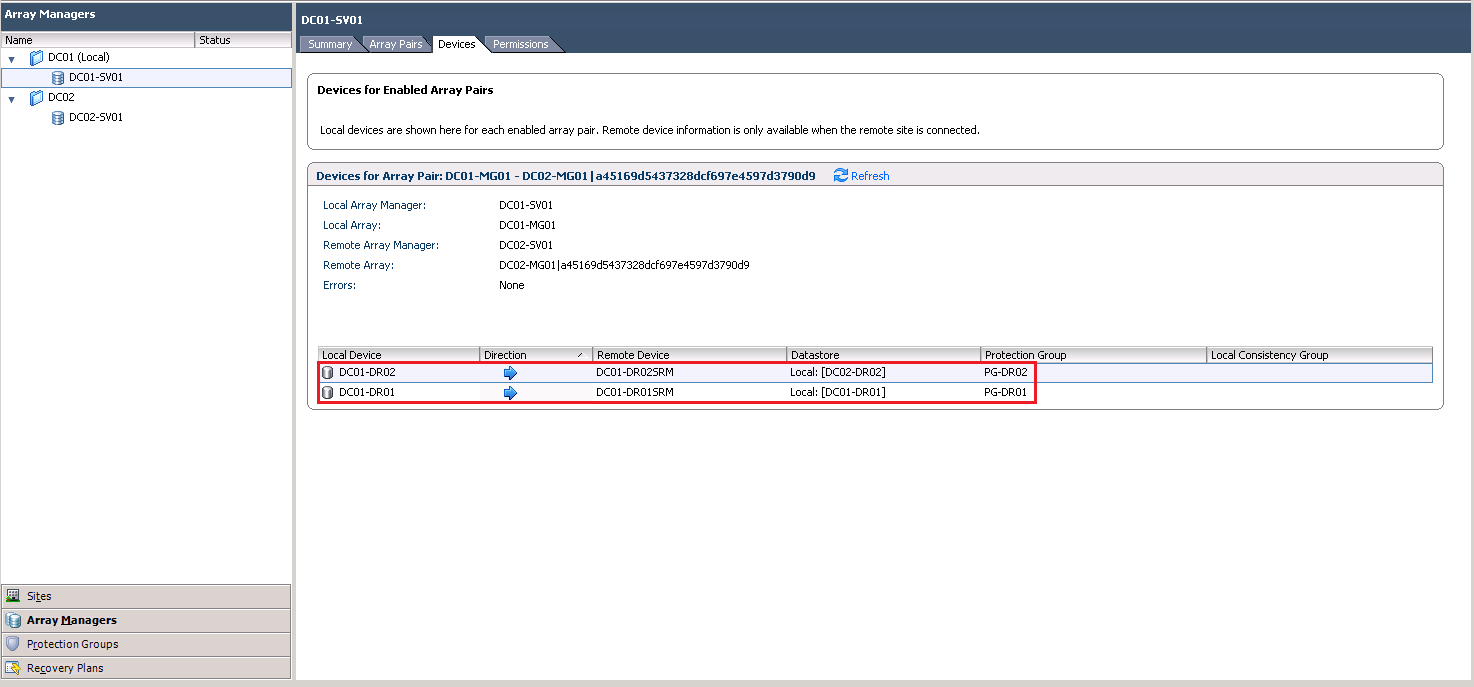
Datastores do not show under Array Managers > Devices and therefore you cannot create Protection Groups.

No Datastores

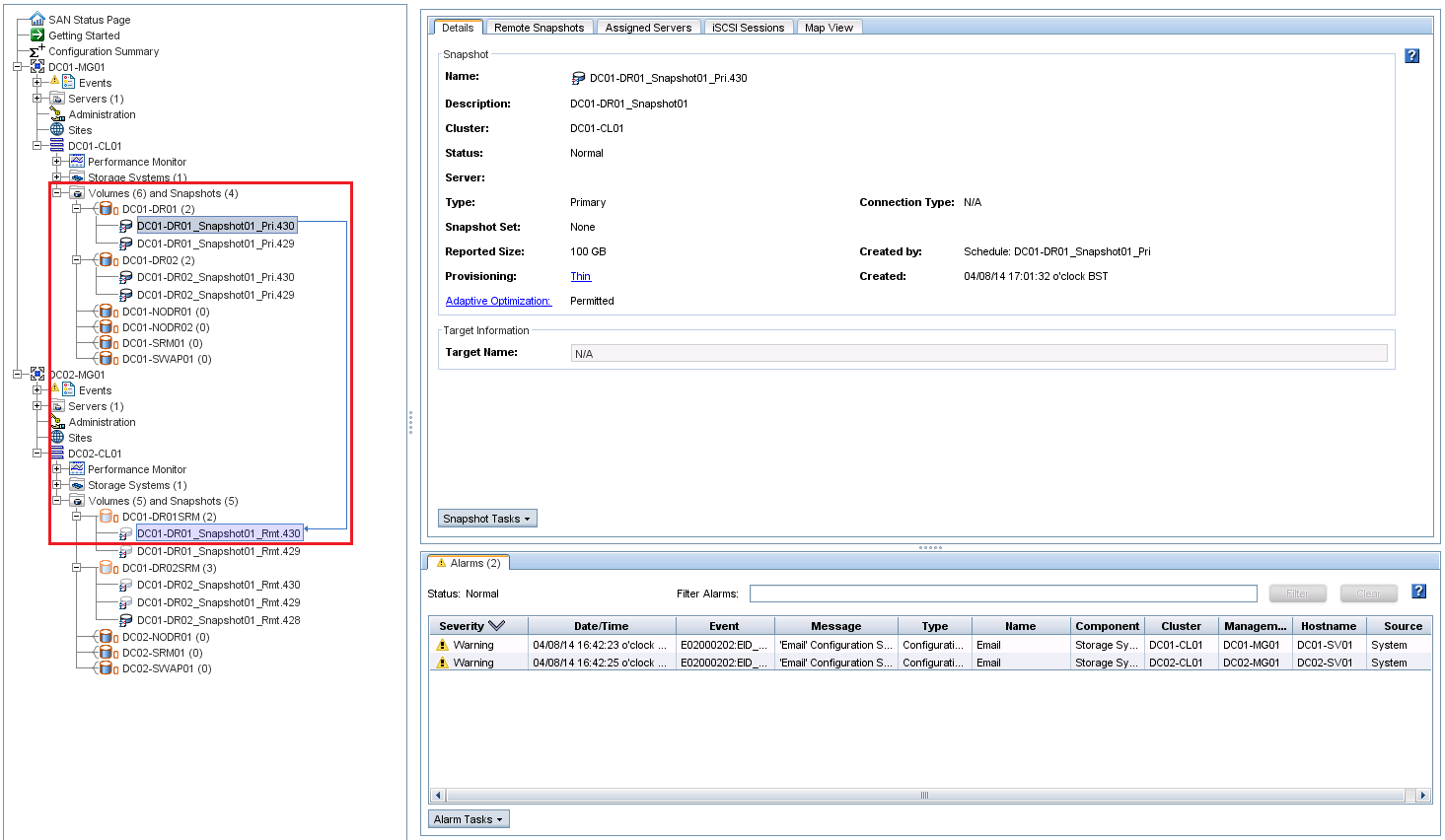
Replicated datastores have virtual machines within them and replication has completed within the Centralized Management Console

CMC Console

vSphere Console

Methodology

  • HP StoreVirtual SRA installed from HP StoreVirtual Storage
  • SRM server has an interface on the iSCSI subnet
  • .NET Framework 3.5.1 installed on SRM Server as without this you won’t be able to discover the Storage Replication Adapter

Solution

Even though your datastores are showing correctly and are replicating, a lower case character match is required between your vSphere iSCSI and the CMC initiator node name.

vSphere IQN

CMC IQN


In my case the vSphere IQN contained DC01-ESXi01 in capitals, whereas the CMC IQN contained dc01-esxi01.

  • If you change the IQN in vSphere to the same name but in lowercase characters, connectivity remains
  • Perform a rescan of Storage Devices and VMFS Volumes
  • Verify that datastores are now showing under Array Managers > Devices
  • Create Protection Groups

Datstores Working

vSphere 4.x Planning For VM Tools & Hardware Upgrade

In most environments the upgrade of VMware Tools and Hardware causes issues, not in terms of actually performing the upgrade, but the time taken to co-ordinate the activity.

In no particular order:

  • Change control for VM downtime
  • Ensuring you have a known good working backup (snapshots aren’t always accepted)
  • Align application team to test services after reboot
  • Knowing the VM dependencies on and the effect it will have on another VMs
  • Potential issues after upgrade E1000 and vSphere 5.x PSOD for example VMware KB 2059053

We are currently in vSphere 4.x upgrade season as it goes end of support life on 21st May 2014, which leads me onto the purpose of this post.

Problem Statement

vSphere 4.1 environment which had been upgraded from ESX 3.5.  VM Tools still running at ESX 3.5 level.

Customer needs to know how many reboots are required to bring them up to the highest vSphere 5.x version, to enable the internal co-ordination of application teams to test services after reboots.

Step 1

Oldest servers are HP BL480c G1 (yes that’s right G1) nothing like sweating an asset!

VMware Compatibility Guide shows that ESXi 5.1 U2 is supported, however this didn’t ring true as I remembered a support statement from HP about DL380 G5.  A quick check on the HP VMware Support Matrix shows that 5.0 U3 is the highest supported.

Step 2

VMware Tools and Hardware Upgrade, was causing concern as I could only find information on upgrading the VM Hardware version from 4 or 7 to 8, see VMware KB1010675

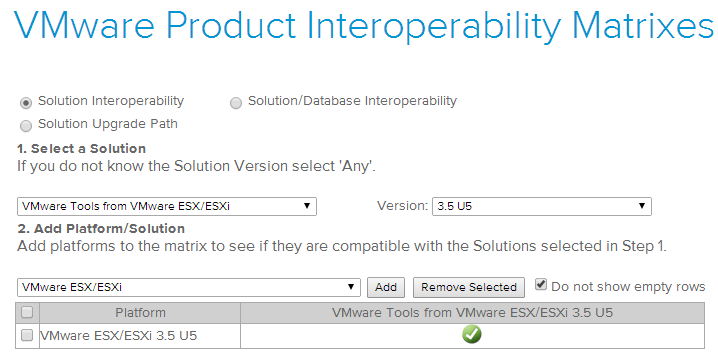
The interoperability  matrix shows that VMware Tools is not supported, but that didn’t answer my question.  Did I need to reboot once or twice to get VMware Tools to the newest version?
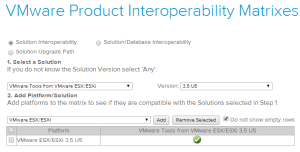
Interoperability

Solution

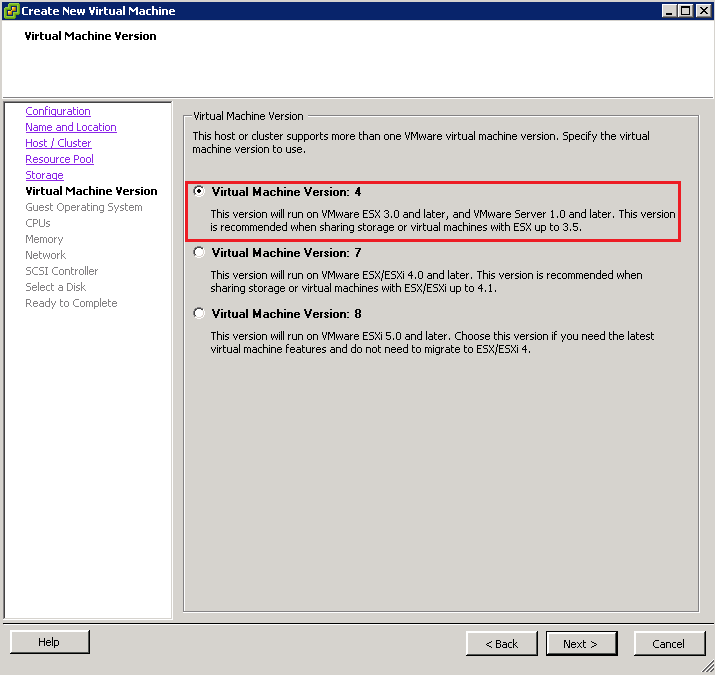
I created a VM using ‘custom’ so I could choose Hardware version 4 and installed Windows Server 2008 R2 from an ISO.
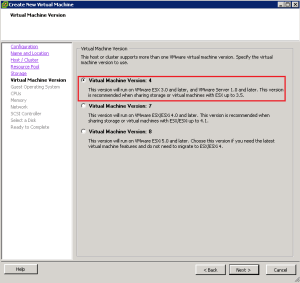
HW 4

VMware have all the old versions of VMware Tools located at over here package.vmware.com/tools a manual download and installation ESX 3.5p27 for Windows, this correlated to version 7304.

Note: VMware tools to ESXi version can be found here

After the usual reboot, I can confirm the following

  1. You can go straight from VMware Tools at version 3.5 to version 8 with a single reboot.
  2. An upgrade of hardware is possible straight from 4 to 8 (but we already knew that from the VMware KB).

Only thing left to do is inform the customer about the potential issue with E1000 vNIC’s and PSOD!

vSphere 5.1 – Unable To Deploy VM From Template

Problem Statement

After upgrading to vSphere 5.1 you experience the following error ‘the public key in specification does not match the vCenter public key.  You have to reenter the password in order to proceed’ when trying to deploy new virtual machines from templates.

Error

Issue

The administrators password used to create the virtual machine was encrypted using a different Certificate Authority to the one installed on vCenter.  This means that the password is no longer trusted.

Resolution

In vCenter go to Home > Customization Specification Manager

Customization Specification 01

Edit Specification > 5 Administrator Password > Re Enter Credentials > Save

Customization Specification 02

If your Customization Specification is domain joined you will need to enter your credentials again under 9 Workgroup or Domain

Customization Specification 03

You will now be able to deploy your VM from the template in question.

Upgrade To vCenter 5.1: Unable To Authenticate Directly To ESXi Host Using Active Directory

Problem Statement

After upgrading to vCenter 5.1 and ESXi 5.1 U1, Active Directory authentication to an ESXi Host no longer works.  Using the vSphere Client error message ‘cannot complete login due to incorrect user name or password’ is received.

Authenticate 01

Quick Checks

1. Single Sign On checked, LDAP Active Directory authentication source working for vCenter and another ESXi Host.

2. Permissions checked, ‘Administrators’ Active Directory Security Group applied to vCenter and permissions propagated to child objects.

3. Authentication Services Services, Active Directory being used and Computer Object is valid.

Troubleshooting Steps

I tried to remove the host from Active Directory and re-authenticate.  Hosts and Clusters > Host > Settings > Manage > Authentication Services

Authenticate 02

An error message appeared stating that ‘the user or group named VMFOCUSdomain^admins does not exist’.

Authenticate 03

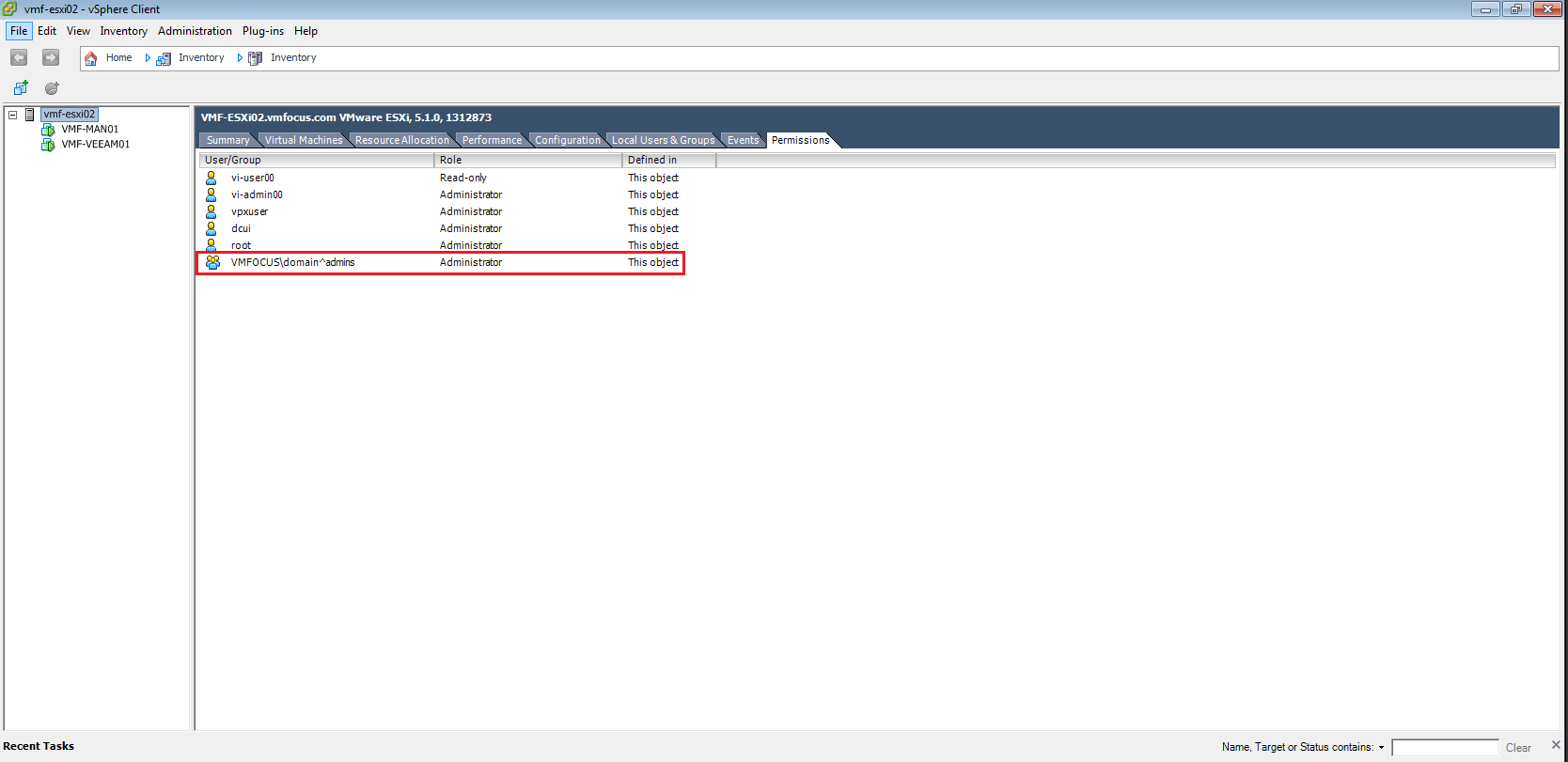
The Permissions tab on the affected ESXi Host didn’t show a VMFOCUSdomain^admins group

Authenticate 04

I added the VMFOCUSDomain Admins group to the top level and inherited permissions.  Another quick try and I wasn’t able to login to the ESXi Host using the vSphere Client.

This time the Leave Domain setting worked.  Plus I also deleted the Computer Object for my ESXi Host from Active Directory.

Next, I rejoined the Domain and tried to login  directly to the ESXi Host directly using Active Directory credentials, which again failed.

Resolution

I added the Domain Admins group directly to the ESXi Host

Authenticate 05

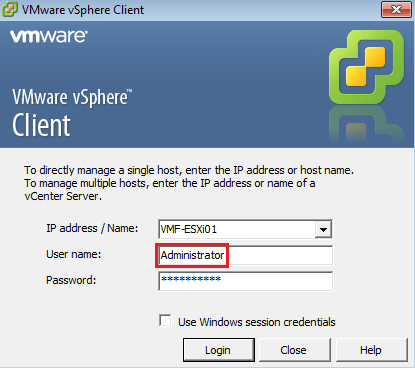
When using the vSphere Client I deselected ‘Use Windows session credentials’ and manually entered Administrator and was able to login successfully!

Authenticate 06

Simple when you know what is causing the issue.

Remove Datastore Call “HostStorageSystem.UnmountVmfsVolume” Error

I was making some changes to the vmfocus.com lab the other day and kept getting a repeated error Call “HostStorageSystem.UnmountVmfsVolume” for object “storageSystem-15” on vCenter Server when I was trying to unmount a VMFS Datastore

Unmount Error 2

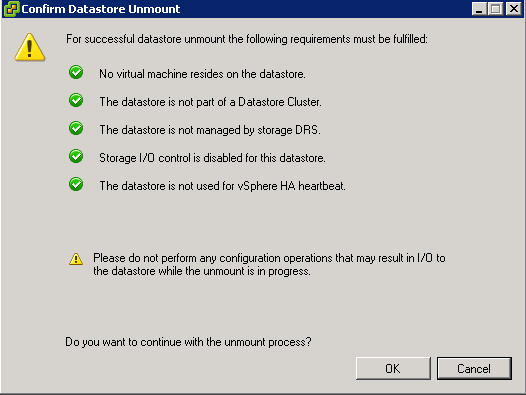
When I went to unmount the VMFS Datastore it met all the relevant criteria.

Unmount Error 1

Resolution

If you are booting from flash device such as a USB or internal SD card, then a VMFS Datastore would have been selected to store your output logs for troubleshooting.

These need to be moved to a VMFS Datastore which you are going to keep.

Note: You will need to make these changes to each ESXi Host

Select ESXi Host > Configuration > Advanced Settings > Syslog > Syslog.global.logDir

Unmount Error 3

Change the paramters to a VMFS Datastore that will remain e.g.

[ESXi01_RAID10_L01_SAS] /scratch/log

Hit OK and then you will have success in unmounting your VMFS Datastore.