vSphere Web Client: No vCenter

Following on from previous blog post vSphere Web Client: Provided Credentials Are Invalid we have logged into the vSphere Web Client but we don’t actually have anything we can manage.  I think the words we are looking for are ‘man down’.

It all boils down to permissions, we need to logout from the vSphere Web Client and fire up our old trust friend the vSphere Client.

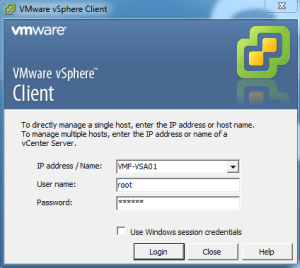
Login with the user credentials you would need to access vCenter Server Appliance, the defaults are U: root P: vmware

vCenter 1

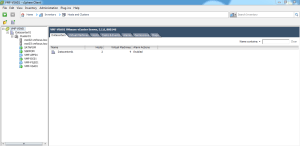
Ah ha, now we see our vCenter (I’m sure you weren’t concerned that all your config had gone)

vCenter 2

Right Click the root level and Add Permission

vCenter 4

Select Assigned Roles and change this to Administrator and then Click Add

vCenter 5

Select your Domain, and change the View to Show Groups First and select Domain Admins and then Add.  Naturally you might not want Domain Admins to have access in the ‘real world’ so select the appropriate Security Group.

vCenter 6

You should see that your DomainDomain Admins appears under ‘Groups’ Hit OK

vCenter 7

Then Hit OK again to confirm

vCenter 8

TOP TIP: Make sure Propagate to Child Objects is ticked

Exit the vSphere Client and login to the vSphere Web Client using https://<IP Address>:9443/vsphere-client/

vCenter 9

Boom, we have a vCenter Server, Hosts and everything!

vSphere Web Client: Provided Credentials Are Invalid

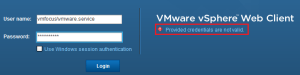
So you have battled your way through installing vSphere 5.1 and you are finally at the point when you are ready to login, but you get the epic fail ‘provided credentials are not valid’.  By now you have probably tried every format under the sun to login.

domainusername

username@domain

username

SSO 1

But nothing is working, what’s going on? The vCenter Server Appliance is showing that Active Directory Authentication is ‘Enabled’

SSO 2

Well to be honest, the vCenter Server Appliance is telling ‘porky pies’ it hasn’t actually done squat with Active Directory and this is the reason you can’t login.  So let’s get that sorted.

Login to the vSphere Web Client using https://<IP Address>:9443/vsphere-client/

Enter the username and password you use to login to the vCenter Server Appliance, the defaults are U: root P: vmware

SSO 3

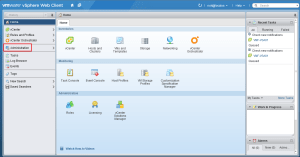
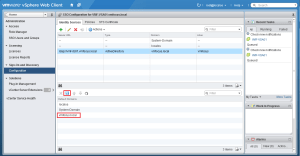
Hooray, you are in the vSphere 5.1 Web Client! We need to select Administration from the left hand menu

SSO 4

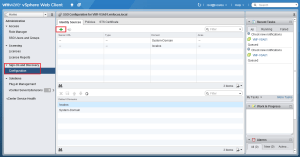
Select Sign-On and Discovery and then Configuration followed by clicking the + in the top left under Identity Sources

SSO 5

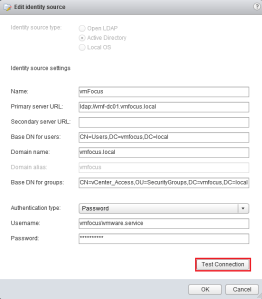
Voila, this is where we need to do the Active Directory Authentication as follows:

Identity Source Type select Active Directory

Name: vmFocus

Primary Server URL: this is your Primary Domain Controller, the format is ldap://vmf-dc01.vmfocus.local

Base DN For Users: this is CN=Users,DC=vmfocus,DC=local

Domain Name: this is vmfocus.local

Domain Alias: this is vmfocus

Base DN For Groups: this is CN=vCenter_Access,rootOU=SecurityGroups,DC=vmfocus,DC=local

Authentication Type: Password

Username: vmfocusvmware.service

Password: password

Once you have entered all this in, hit Test Connection

SSO 11

TOP TIP: If you don’t know your base DSN, fire up ADSI EDIT and it’s easy to see

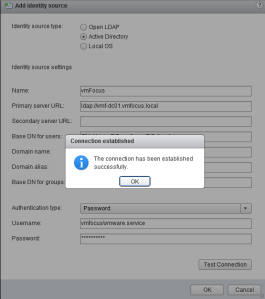
If all is successful, you should see ‘the connection has been established successfully’.

SSO 7

We now need to tell vSphere 5.1 to use the Active Directory to allow users to login.  Select your domain and click Add to Default Domains

SSO 8

You will get the warning ‘having multiple domains in the Default Domain list might result in locked user accounts during authentication’ I think we are willing to take the risk, considering we can’t even login yet.  So hit OK.

SSO 9

Fingers crossed, you should see your domain listed at the bottom under ‘Default Domains’ Don’t forget to hit the save icon.

SSO 10

Right then let’s give it a whirl, logout and try login with an Active Directory User who is in the Group vCenter_Access

SSO 12

Boom it works! But hold on a minute, I don’t see my vCenter or Hosts.  Hold tight, we will cover this in our next blog post.

Gotcha: vSphere Metro Storage Cluster (VMSC) & HP StoreVirtual

So you have put together an epic vSphere Metro Storage Cluster using your HP StoreVirtual SAN (formerly Lefthand) using the following rules:

  • Creating volumes for each site to access it’s datastore locally rather than going across the inter site link
  • Creating DRS ‘host should’ rules so that VM run on the ESXi Hosts local to the volumes and datastores they are accessing.

The gotcha occurs when you have a either a StoreVirtual Node failure or a StoreVirtual Node is rebooted for maintenance, let me explain why.

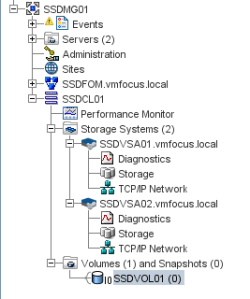
In this example we have a Management Group called SSDMG01 which contains:

  • SSDVSA01 which is in Site 1
  • SSDVSA02 which is in Site 2
  • SSDFOM which is in a Site 3

We have a single volume called SSDVOL01 which is located at Site 1
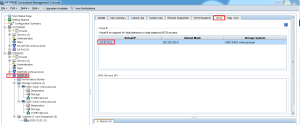
StoreVirtual uses a ‘Virtual IP’ Address to ensure fault tolerance for iSCSI access, you can view this under your Cluster then iSCSI within the Centralized Management Console.  In my case it’s 10.37.10.2
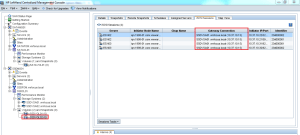
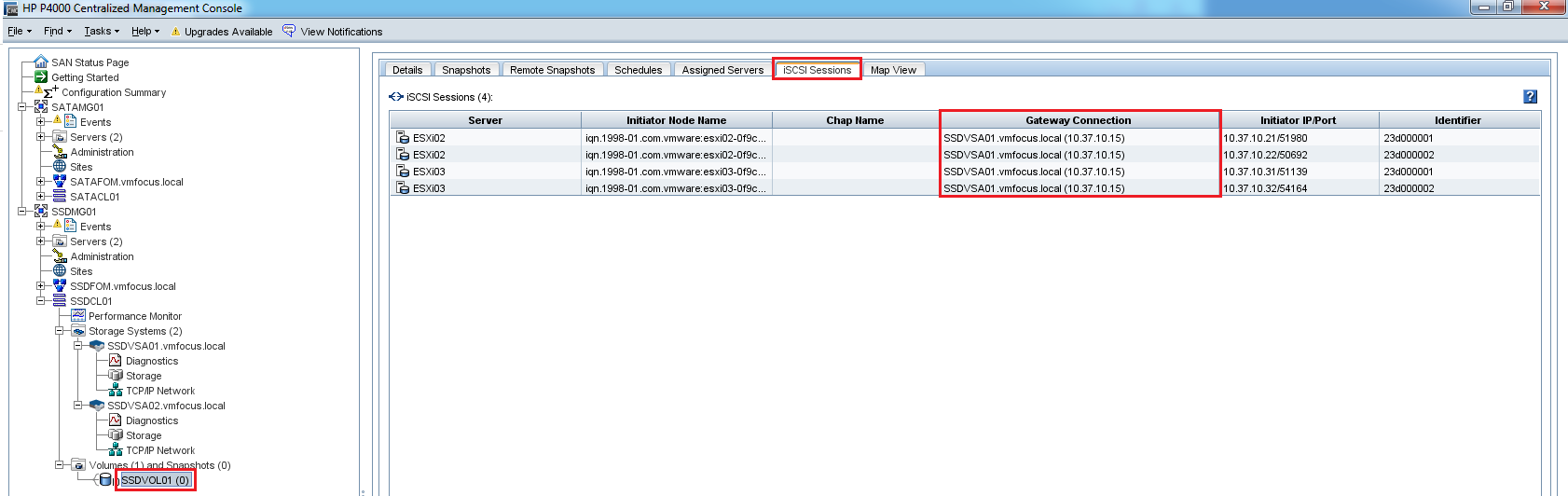
Even though iSCSI connections are made via the Virtual IP Address, each Volume goes via a ‘Gateway Connection’ which is essentially just one of the StoreVirtual Nodes.  To check which gateway your ESXi Hosts are using to access the volumes, select your volume and then choose iSCSI Sessions.
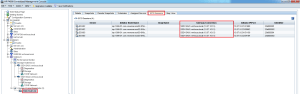
In my case the ESXi Hosts are using SSDVSA01 to access the volume SSDVOL01 which is correct as they are at Site 1.

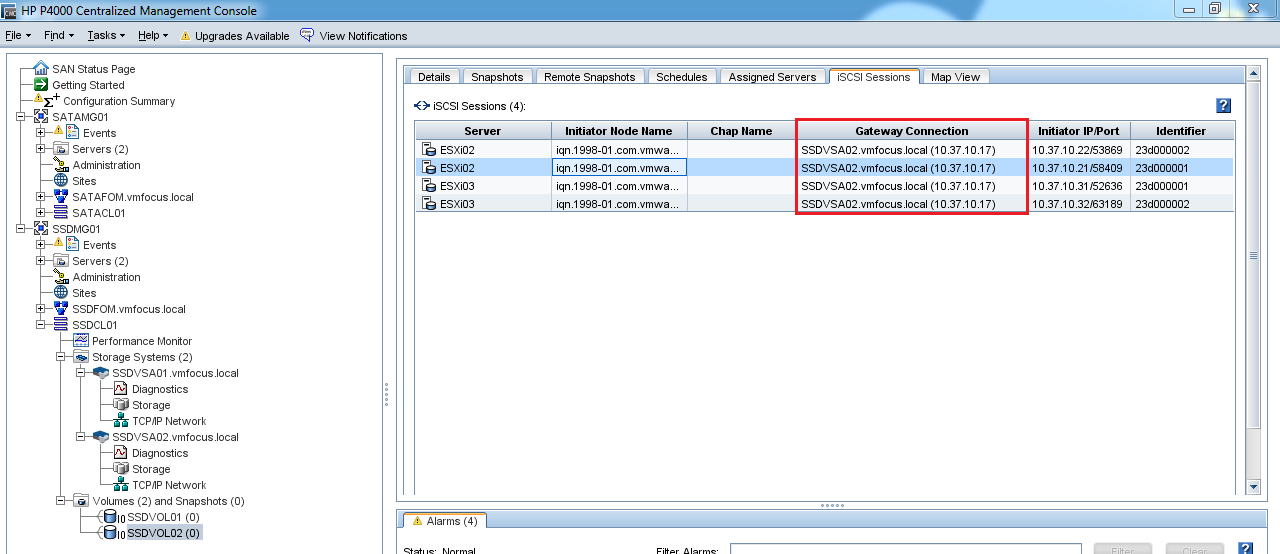
Let’s quickly introduce a secondary a second Volume called SSDVOL02 and we want this to be in Site 1 as well.  Let’s take a look at the iSCSI sessions for SSDVOL02

Crap, they are going via SSDVSA02 which is at the other site, causing latency issues.  Can I do anything about this in the CMC? Not that I can find.

HP StoreVirtual is actually very clever, what it has done is load balance the iSCSI connections for the volumes across both nodes in case of a node failure.  In this case SSDVOL01 via SSDVSA01 and SSDVOL02 via SSDVSA02.  If you have ever experienced a StoreVirtual node failure you know that it takes around 5 seconds for the iSCSI sessions to be remapped, leaving your VM’s without access to there HDD for this time.

What can you do about this? Well when creating your volumes make sure you do them in the order for site affinity to the ESXi Hosts, we know that the HP StoreVirtual just round robins the Gateway Connection.

That’s all very well and good, what happens when I have a site failure, let’s go over this now.  I’m going to pull the power from SSDVSA01 which is the Gateway Connection for SSDVOL01.  It actually has a number of VM’s running on it.

Man down! As you can see we have a critical event against SSDVSA01 and the volume SSDVOL01 status is ‘data protection degraded.

Let’s take a quick look at the iSCSI sessions for SSDVOL01, they should be using the Gateway Connection SSDVSA02

Yep all good, it’s what we expected.  Now let’s power SSDVSA01 back up again and see what happens.  You will notice that the HP StoreVirtual re syncs the volume between the Nodes and then it’s shown as Status: Normal.

Here’s the gotcha, the iSCSI sessions will continue to use SSDVSA02 in Site 2 even though SSDVSA01 is back online at Site 1.

After around five minutes StoreVirtual will automatically rebalance the iSCSI Gateway Connections.  Great you say, ah but we have a gotcha.  As SSDVOL02 has now been online the longest, StoreVirtual will use SSDVSA01 as the gateway connection meaning we are going across the intersite link.  So to surmise our current situation:

  • SSDVOL01 using Site2 SSDVSA01 as it’s Gateway Connection
  • SSDVOL02 using Site1 SSDVSA02 as it’s Gateway Connection

Not really the position we want to be in!

Rebalance 2Rebalance

We can get down and dirty using the CLIQ to manually rebalance the SSDVOL01 onto SSDVSA01 perhaps? Let’s give it a whirl shall we.

Login to your VIP address using SSH but with the Port 16022 and enter your credentials.

Then we need to run the command ‘rebalanceVIP volumeName=SSDVOL01’
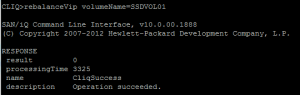
Rebalance 3

If your quick and flick over to the CMC you will see the Gateway Connection status as ‘failed’ this is correct don’t panic.
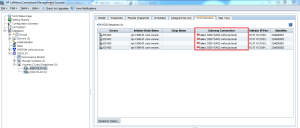
Rebalance 4

Do we have SSDVOL01 using SSDVSA01? Nah!

Rebalance 2

The only way to resolve this is to either Storage vMotion your VM’s onto a volume with enough capacity at the correct site or reboot your StoreVirtual Node in Site 2.

In summary, even though HP StoreVirtual uses a Virtual IP Address this is tied to a Gateway Connection via a StoreVirtual Node, you are unable to change the iSCSI connections manually without rebooting the StoreVirtual Nodes.

Hopefully, HP might fix this with the release of LeftHand OS10.1

Is VMware Site Recovery Manager Really Worth It?

Following on from yesterdays post ‘10 Questions With Craig Kilborn‘ VMware have posted my first article on the Bloggers Bench

It’s not a ‘true’ technical article, more along the lines of why use technology to met your business objects.

From the Bloggers Bench: Is VMware Site Recovery Manager Really Worth It?

Let’s start off with a cheery fact ‘the U.S. Department of Labor estimates over 40% of businesses never reopen following a disaster. Of the remaining companies, at least 25% will close within 2 years. Over 60% of businesses confronted by a major disaster close by two years, according to the Association of Records Managers and Administrators (information source).

A question I’m asked a lot is do I really need DR? Well reading the above statement, I hope the answer is yes, but in all reality the actual answer is, it depends.  OK that is probably the most ‘woolly’ thing anyone in IT can say, we like hard and fast, black and white rules as engineers dammit!

For example, you may work for a company that has no on premise IT, you use a cloud based platform for your accounts, CRM and HR packages and you use hosted Exchange, SharePoint and Lync as your communication pieces, would you need DR, well the answer is probably not.

What about if you work for a company with a vSphere environment which can cater for two host failures and has redundancy on every level.  This is then housed in a Tier 5 Datacenter offering 99.999% uptime, with the usual battery backed generators, diverse internet links, fire suppression systems and environmental monitoring.  Connectivity is provided by diverse links to the datacentre, would you need DR then? Possibly as it depends on how the company views risk, if I was a betting man, I would say in most scenarios DR wouldn’t be necessary.

Read the rest of the article here

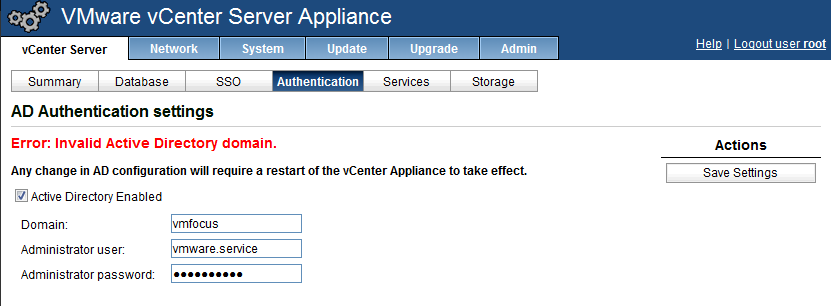
vCenter Server Appliance (VSA) 5.1 – Error: Invalid Active Directory Name/Enabling Active Directory Failed

Today, I decided to change my vCenter from being Windows based to the vCenter Server Appliance (VSA) 5.1.0a and when I tried to enter the LDAP details for Active Directory Authentication, I received various error messages:

  • Error: Invalid Active Directory domain
  • Error: Enabling Active Directory failed
  • Error: Invalid SRV Records

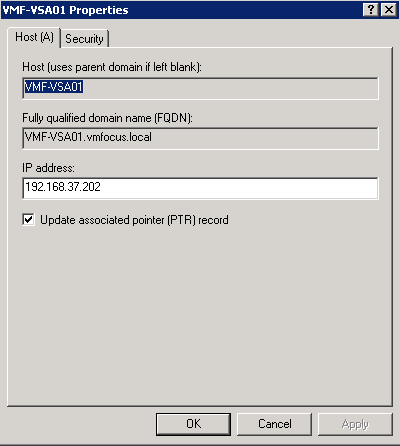
The first thing to always check is your DNS settings to make sure you have forward and reverse look up records set up correctly, check these are all OK.

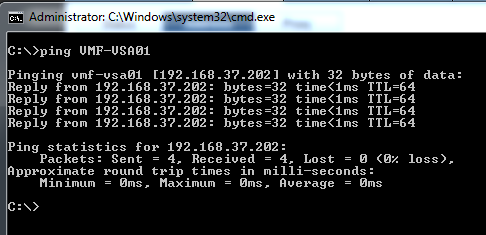
Next, I did a basic ping test to VMF-VSA01 which is the name of my VSA, again all working.

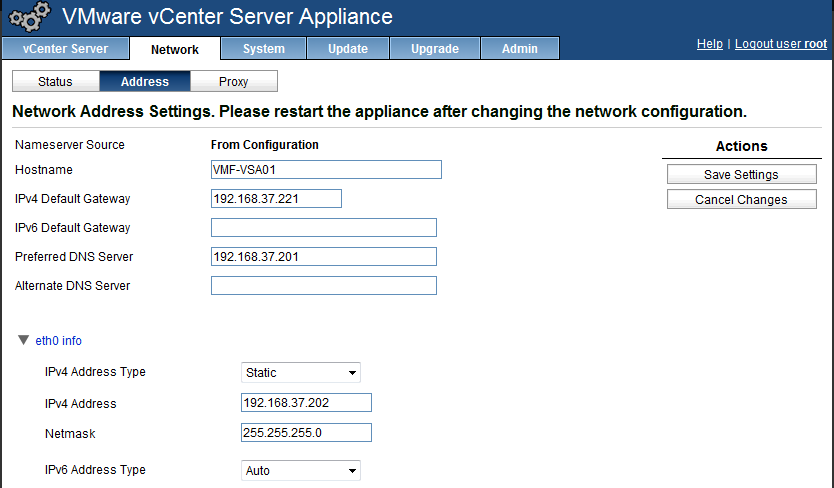
Ah, I thought, perhaps I have entered in something wrong on the VSA network settings, so I double checked these, again all looked good.

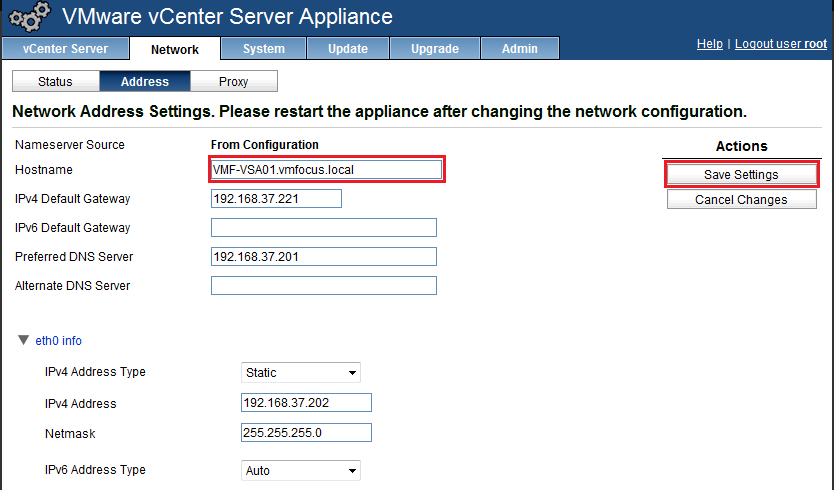
Then I remembered, that I should be using FQDN’s (Fully Qualified Domain Names) for my VSA, so rather than using VMF-VSA01 I should use VMF-VSA01.vmfocus.local

Another try at authenticating, and it still failed with ‘Error: Invalid Active Directory domain’.

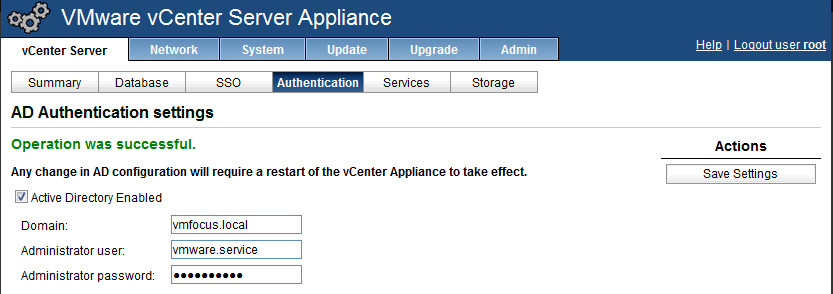
One more try, this time I changed the domain to vmfocus.local and boom, we have success!

So to summarise:

  • Make sure you use a FQDN for your vCenter Server Appliance
  • Make sure you have forward and reverse look up record for your vCenter Server Appliance
  • Make sure your domain is entered as a FQDN