VMworld Barcelona 2013: My Plans

VMworldBlogSeries-2013-HeaderI’m fortunate enough to be going to VMworld Barcelona 2013 (thanks to my employer for footing the bill).  This is my second VMworld and as such my plans are completely different to last years.

If you are going to VMworld for the first time this year, it’s an amazing experience, but really intense.  What do I mean by that? Well first of all you have an array of great sessions, which you will want to be concentrating on to get the most from them, then their are the new products which you will no doubt want to see a demo of, then their are the parties in the evening which you most likely be attending, then you have the hands on labs, you see loads of stuff to do!

Last year, I came back from VMworld feeling like I needed a holiday, it was an overload!

My plan’s for this year are really different, I have a few work things to take care of such as client entertainment and meet various vendors.  However, I haven’t booked any seminars, on purpose.  The reason for this, is I want to try and spend that time networking, it would be great to meet loads of folks from Twitter and also to get to see some of the ‘cool tech’ on the stands, which I missed out on last year.  Plus I want to try and spend some time over at the ‘bloggers area’ with the guys ‘n’ gals who take time out to put together awesome community content.

On a side note, a few tips:

  • Wear some shoes/trainers which are comfortable, you will be doing an awful lot of walking
  • It’s going to be about 22 to 24 degrees so pack accordingly
  • Remember their is a free bus from Barcelona Airport directly to VMworld when you11 arrive
  • Don’t pack to much stuff, think of you luggage allowance with all that SWAG you will accumulate
  • Really important, don’t forget to pack a European travel charger
  • Your phone/tablet are going to get hit hard, make sure you bring your charger with you to the conference each day.

So if you are going, look at for the ‘Brit’ who might be sporting a @vmfcraig top, don’t be shy come over and say hi!

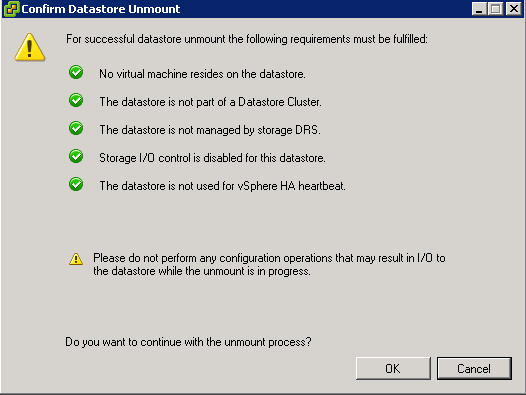
Remove Datastore Call “HostStorageSystem.UnmountVmfsVolume” Error

I was making some changes to the vmfocus.com lab the other day and kept getting a repeated error Call “HostStorageSystem.UnmountVmfsVolume” for object “storageSystem-15” on vCenter Server when I was trying to unmount a VMFS Datastore

Unmount Error 2

When I went to unmount the VMFS Datastore it met all the relevant criteria.

Unmount Error 1

Resolution

If you are booting from flash device such as a USB or internal SD card, then a VMFS Datastore would have been selected to store your output logs for troubleshooting.

These need to be moved to a VMFS Datastore which you are going to keep.

Note: You will need to make these changes to each ESXi Host

Select ESXi Host > Configuration > Advanced Settings > Syslog > Syslog.global.logDir

Unmount Error 3

Change the paramters to a VMFS Datastore that will remain e.g.

[ESXi01_RAID10_L01_SAS] /scratch/log

Hit OK and then you will have success in unmounting your VMFS Datastore.

Adding HP & Dell VIB to VUM

Depending on your vSphere environment, you will have probably installed your ESXi hosts using a custom ISO from your hardware manufacturer.

Then after this, usually the standard vSphere Update Manager sources are used.

VUM Download

VUM will update your ESXi Host with patches from VMware, however it won’t update perform driver updates to your components e.g. NIC

This is where the vSphere Infrastructure Bundles come into play.  A great explanation of VIBs can be found over here by Kyle Gleed

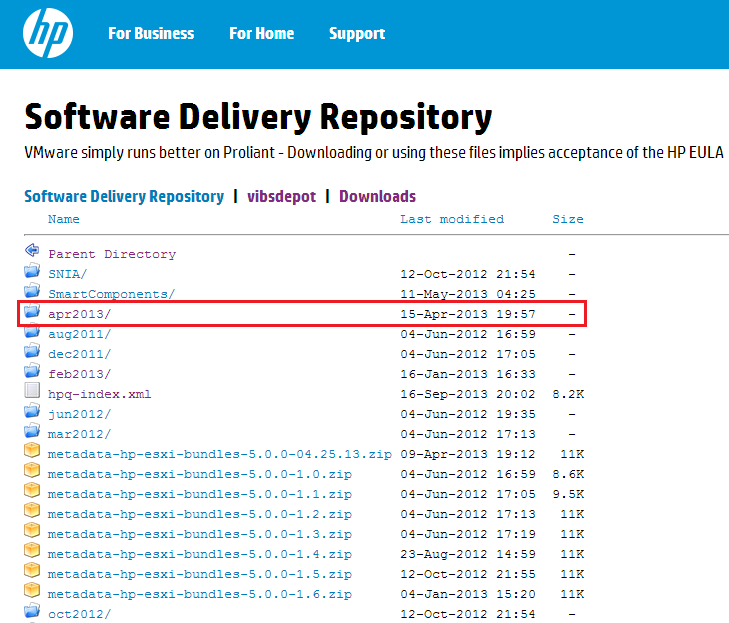
First of all browse to the HP Software Delivery Repository and locate the most recent month (this is a manual check I’m afraid).  In this case it is Apr2013

HP VIB 01

Double click Apr2013 and then locate index.xml and double click on this.   What you want is the URL from your browser, in this case it is

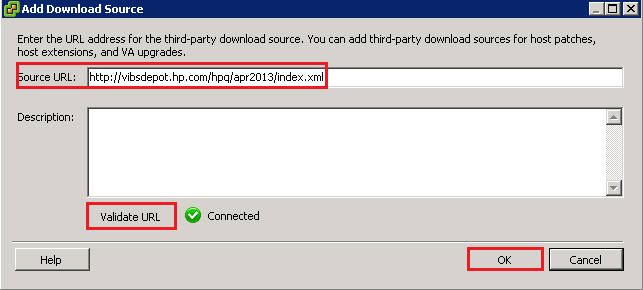
http://vibsdepot.hp.com/hpq/apr2013/index.xml

Go into vSphere Update Manager > Administration View > Configuration > Download Settings and Select Add Download Source

HP VIB 02

Add in http://vibsdepot.hp.com/hpq/apr2013/index.xml and Validate URL. If successful a Green Tick should appear.

HP VIB 03

The VIB won’t be live for use by VUM until you click Apply

HP VIB 04

Then click ‘Download Now’

We now need to make sure that our Baseline Groups are going to use the HP VIBs as a validation source for VUM Scans

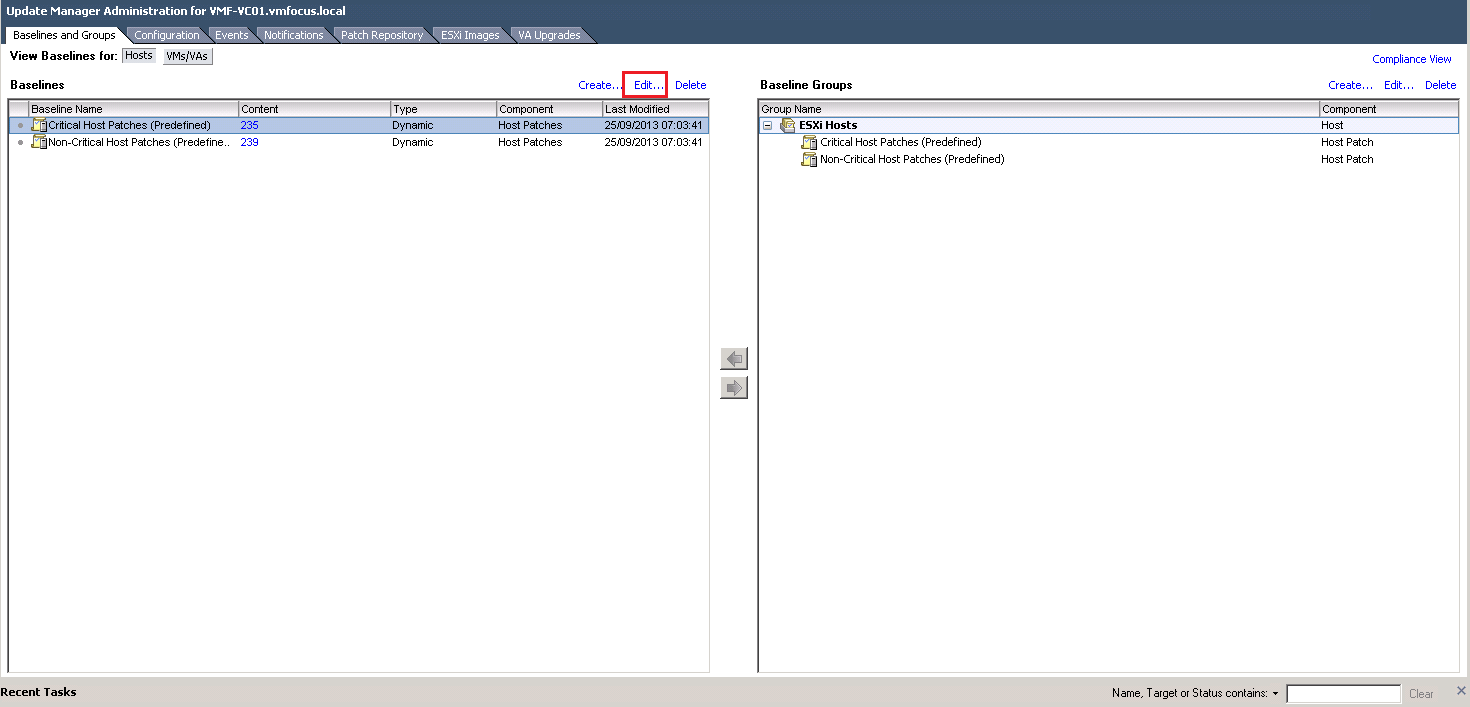
To do this go to Baselines & Groups > Edit

VUM Scans

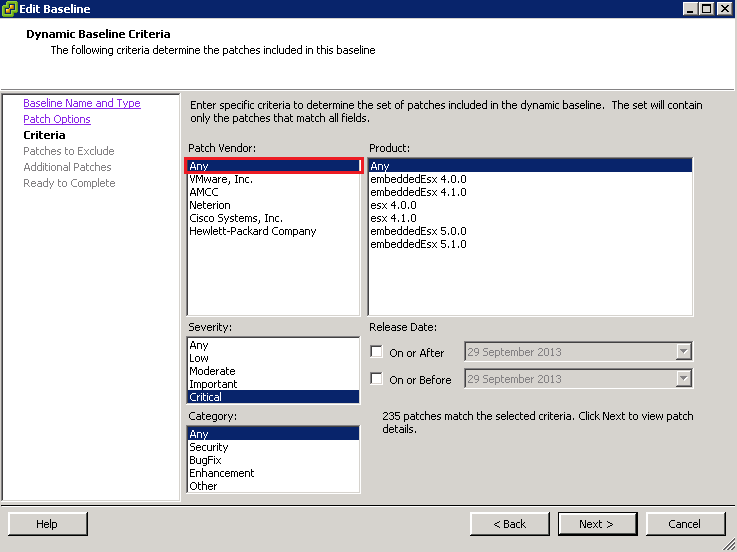
Click Next until you get to Criteria and make sure that Patch Vendor equals Any

VUM Scans 02

Click Next until you get through to Finish.

Hope that helps you manage and maintain your vSphere environment.

##########

Update

Barrie Seed (@vStorage) bought to my attention via Twitter that Dell also have a VIB repository which can be linked to VUM.

The URL is http://vmwaredepot.dell.com/index.xml which validates correctly.

Dell VIB

Changing vCenter IP Address: VUM Error Fix

After changing the vCenter IP Address, I ran into a a couple of issues with VUM.  Which generated the following error messages:

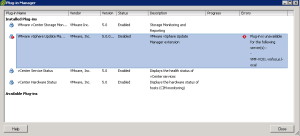
Plug-In Manager Plug-in is unavailable for the following server(s): – VMF-VC01.vmfocus.local

VUM Error 01

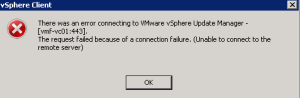
vSphere Client There was an error connecting to VMware vSphere Update Manager – [vmf-vc01:443].  The request failed because of a connection failure. (Unable to connect to the remote server).

VUM Error 02

Steps Taken To Resolve – DNS

The first step was to double check my DNS, I had already performed the tasks below after changing vCenter IP Address.

  • Removed reverse DNS zone for old vCenter subnet and added new reverse DNS zone for correct subnet
  • Updated DNS for ESXi Hosts & vCenter
  • Cleared DNS Cache on vCenter and Domain Controller

Steps Taken To Resolve – VMware KB

The next step was to make any amendments to VUM.  This consisted of the following:

  • Checked DSN to VUM database continued to work
  • Stopped vSphere Update manager Service
  • Followed the instructions under VMwareKB101322

Both of the original errors continued to persist, so the next step was to follow a KB for vSphere 4.1

  • Stopped vSphere Update manager Service
  • Followed the instructions under VMwareKB1014639

Again this did not resolve the issue, however it did mention a vCenter Update Manager Utility.

Resolution

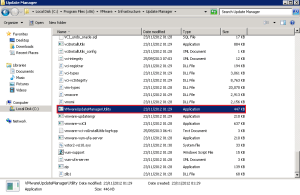
Lunch VMwareUpdateManagerUtility.exe which is located in C:Program Files (x86)VMwareInfrastructureUpdate Manager

VUM Fix 01

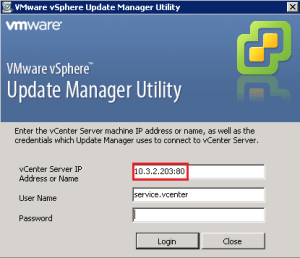
Connect to vCenter using the correct IP Address

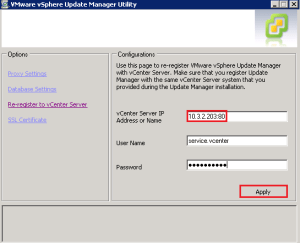
VUM Fix 02

Select Re-register to vCenter Server and enter the new IP Address of vCenter and your credentials.  Click Apply

VUM Fix 03

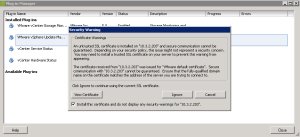
Once complete, re-enable the VMware vSphere Update Manager Plug-In and you should receive the trusted Security Warning dialogue box. Which means vCenter and VUM can talk, everyone’s a winner!

VUM Working

Get Involved: vSphere 5.5 Available

Unless you have been sleeping in the outer herbrides with no access to the internet, then you would have known that vSphere 5.5 was announced at VMworld.

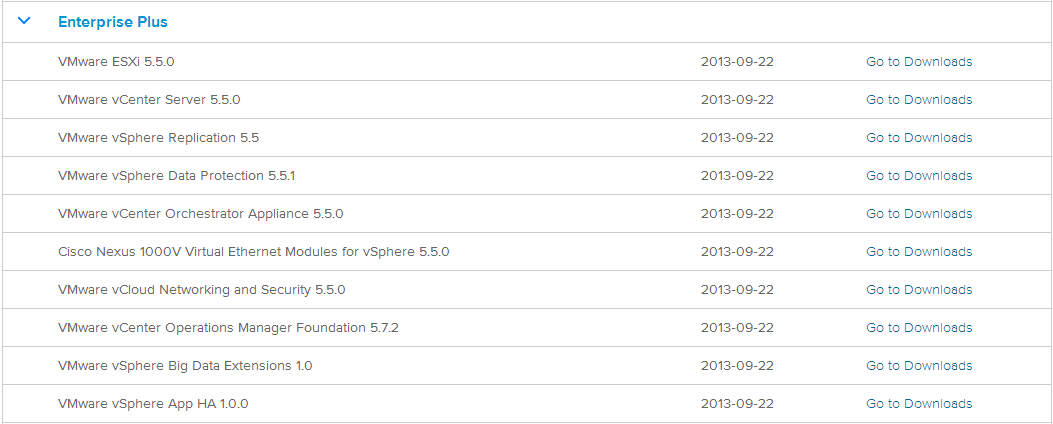
It has been a few weeks since San Francisco and anticipation on the general availability on vSphere 5.5 has been high.  However the good news is the wait is over, it is here.

To obtain vSphere 5.5 login here and enjoy the next release of the worlds most popular hypervisor.

vSphere 5.5