SRM & P4000 – Error: Failed To Promote Replica Devices

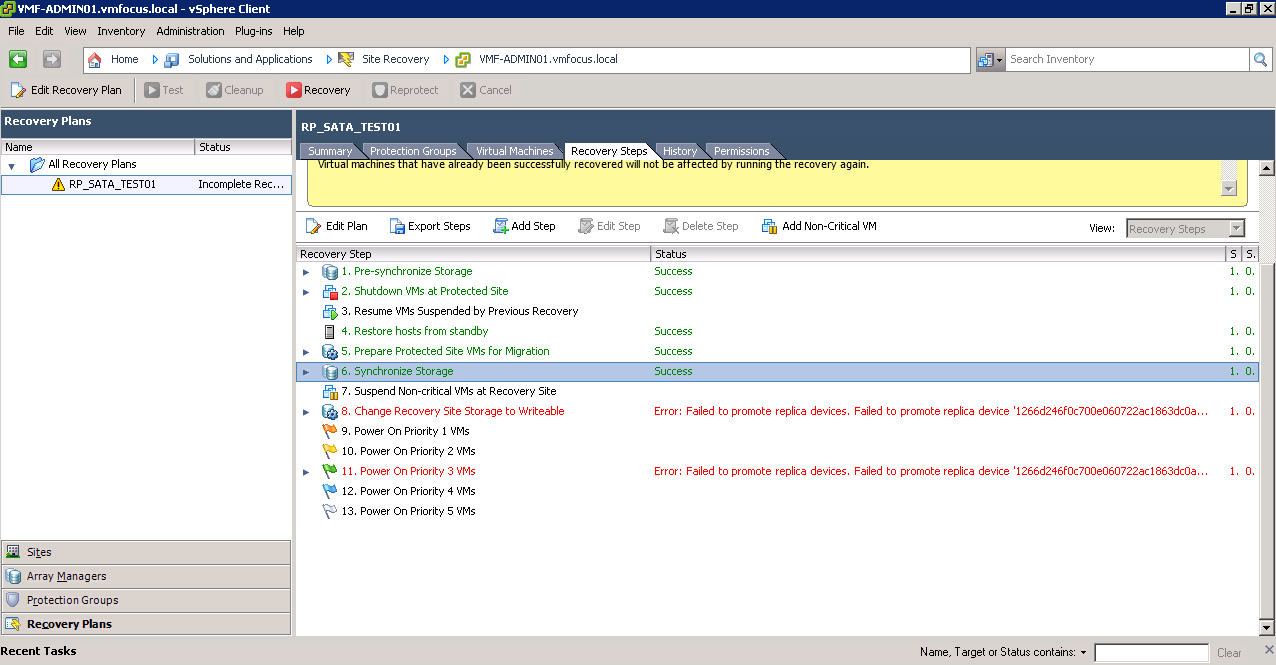
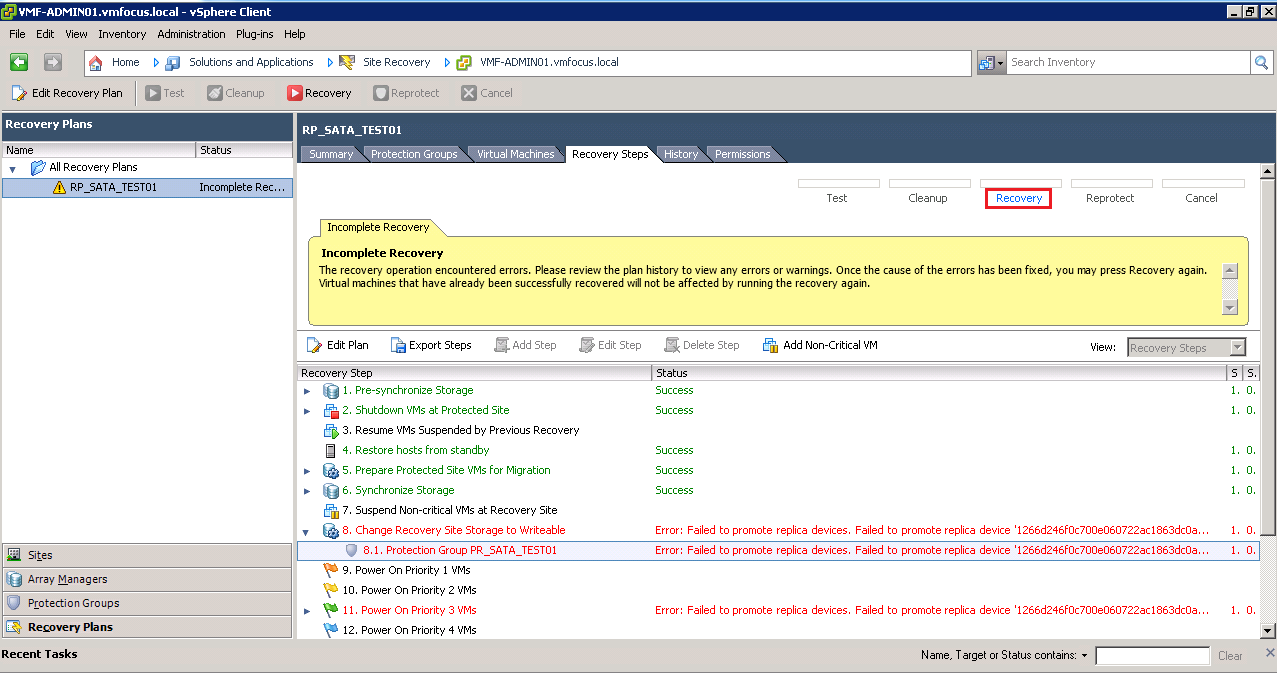
‘Error: Failed to promote replica devices. Failed to promote replica device ‘1266d2456f’ This means that for some reason SRM wasn’t able to promote your replica volume from Read to Read/Write which in P4000 terms is Remote to Primary volume. To be perfectly honest, I have tried many times to get this to work and for some reason it always fails on this step.  Strange really as when you perform a test failover on the same volume, it takes a snapshot of the Read (Remote) volume and promotes this to a Read/Write (Primary) without any issues.

So in this situation we are going to need to give SRM a hand.

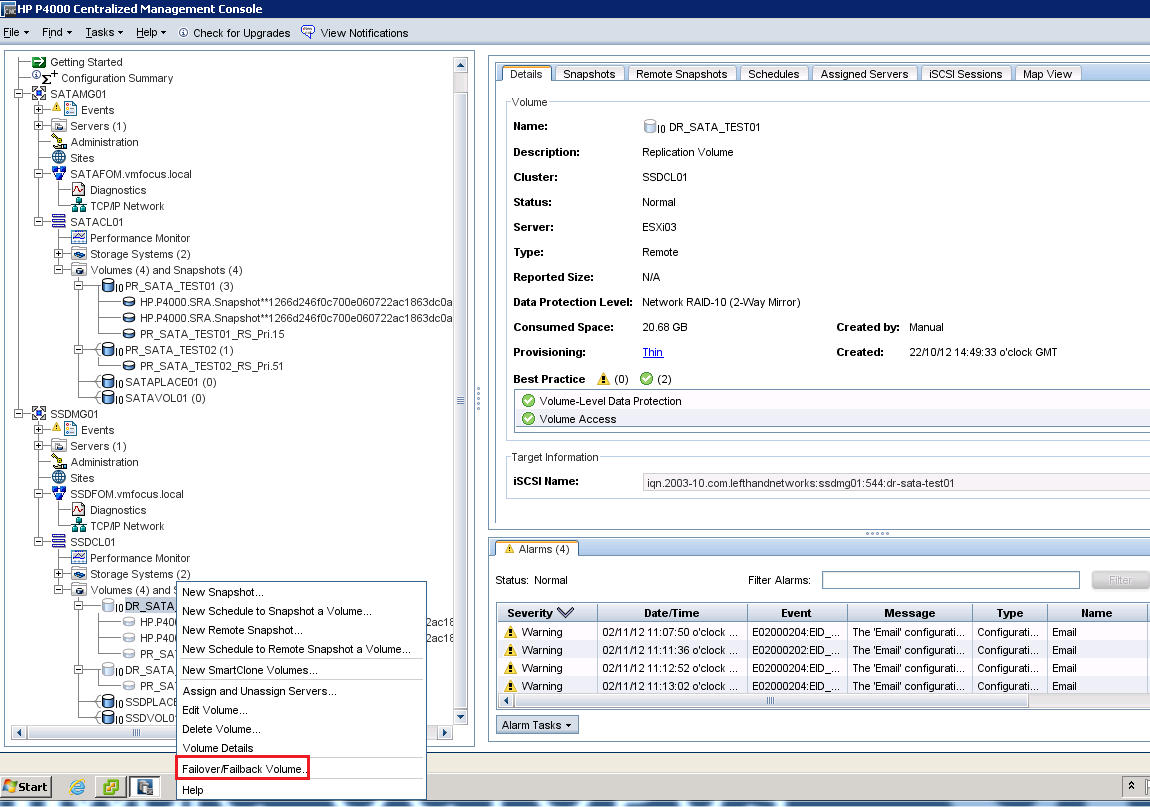
Go into the CMC and expand your Management Groups and Clusters until you get this view.

We are going to Right Click DR_SATA_TEST01 and Select Failover/Failback Volume

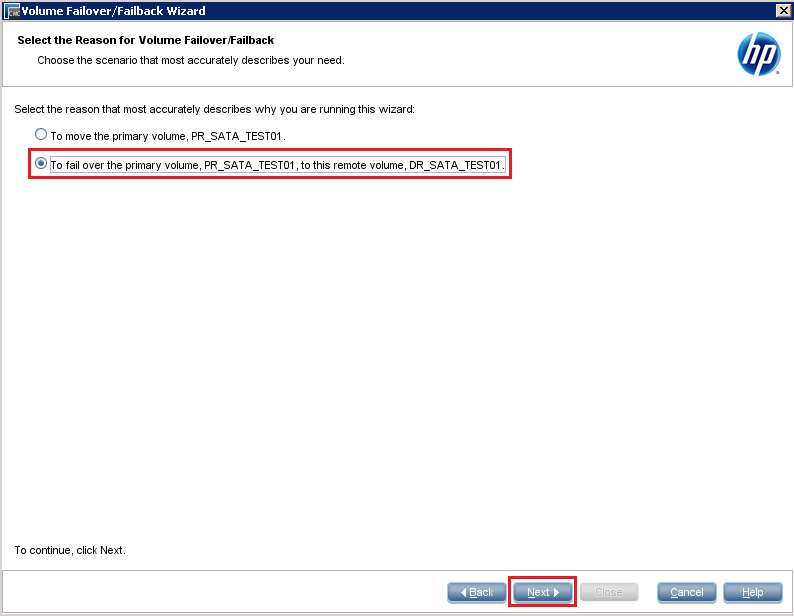
Click Next and then Select ‘to fail over the primary volume, PR_SATA_TEST01, to this remote volume, DR_SATA_TEST01 and click Next

Good news that we haven’t got any iSCSI sessions in place, so we can click Next

Double check your provisioning is correct, and then click Finish

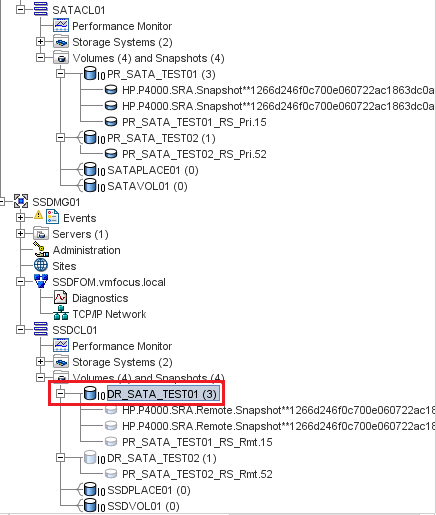
Awesome, we should now have the volume DR_SATA_TEST01 acting as a Primary Read/Write Volume, you can tell this as it should be in dark blue

I think we should try the Recovery again now, let’s hop back into SRM and click on Recovery.

Select the ‘I understand that this process will permanently alter the virtual machines and infrastructure of both the protected and recovery datacenters.’ tick box again and click Next and Start.

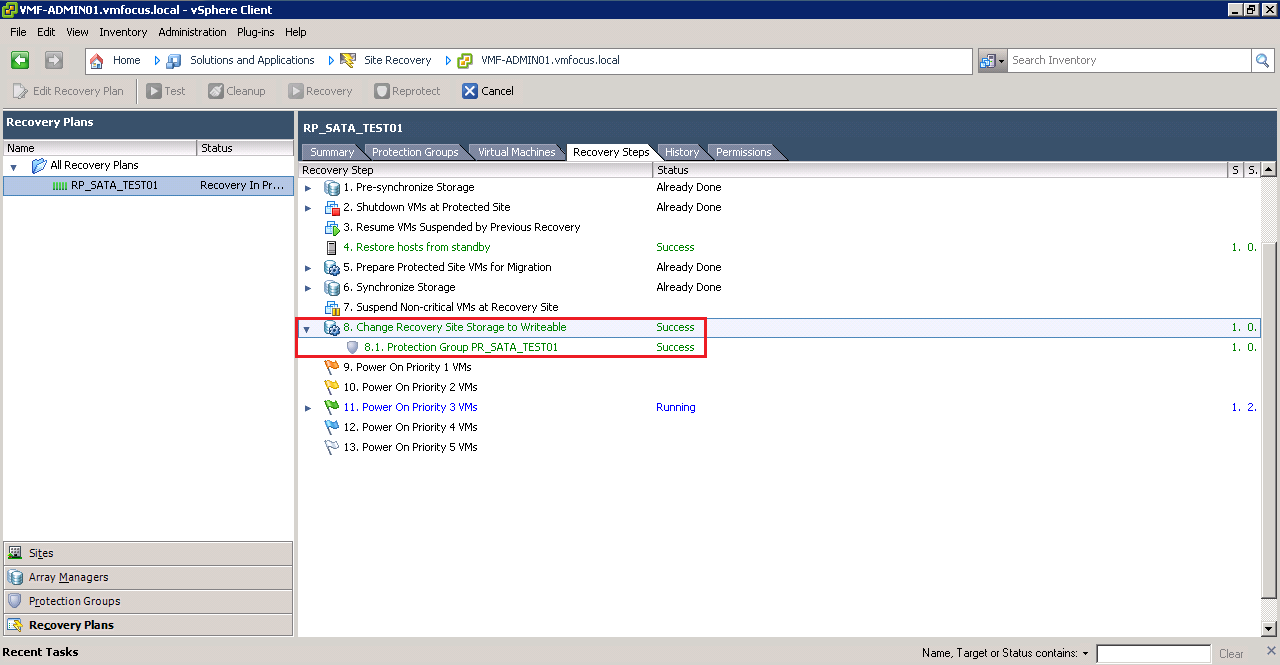
Hopefully you should see that SRM jumps straight to Step 8, Change Recovery Site Storage to Writeable and this time it has been a Success!

Boom, the man from Delmonte he say yes!

UK VMUG Meeting – Thursday 15 November 2012

Registration for the next UK VMUG is still open folks, lot’s of industry heavy weights will be on hand to share there words of wisdom with us.

As you can see it’s a proper impressive line up.  Details below taken from www.vmug.com

So what are you waiting for? Get involved, by registering here

TIME                 TYPE  EVENT LOCATION
8:00 – 8:30 Registration | Breakfast | Mingle with Vendors Trafalgar Foyer
8:30 – 9:00 Keynote VMUG Welcome | Alaric Davies Britannia Suite
9:00 – 9:45 Keynote VMware Keynote | Joe Baguley | Software Defined Data Centre, Weapon or Necessary Evil? Britannia Suite
9:45 – 10:00 Break|Mingle with Vendors Imperial Suite
10:00 – 10:45 Breakout Block #1 | Education Sessions
Sponsor Nimble Storage | Stress-Free Data Protection for VMware and VDI Bracebridge Suite
Sponsor Veeam | 5 Ways Smart VM Backups May Surprise You Ballacraine Suite
Sponsor Teradici | How to Enhance Your VDI Experience Waterloo Suite
Sponsor Trend Micro | Security at Every Stage: Trend Micro, VMware and Your Journey to the Cloud Britannia Suite
Community Ricky El-Qasem | Creating VMware Apps for Novice Programmers Kirkmichael Suite
10:45- 11:15 Break | Mingle with Vendors Imperial Suite
11:15 – 12:00 Breakout Block #2 | Education Sessions
VMware Duncan Epping and Frank Denneman | Deep-Dive Discussion Group Bracebridge Suite
VMware Hugo Phan and Aidan Dalgleish | VCDX Boot Camp Ballacraine Suite
VMware Alan Renouf and William Lam | Practical Automation for Everyone Waterloo Suite
VMware Matthew Steiner | What’s New in vSphere 5.1 Britannia Suite
Community Chris Dearden | A Techie’s Guide to Getting the Most Out of IT Support Kirkmichael Suite
12:00 – 13:00 Lunch | Mingle with Vendors Imperial Suite
13:00 – 13:45 Breakout Block #3 | Education Sessions
Sponsor Fusion-io |  Flash as a Cache – Rethinking Virtualisation Bracebridge Suite
Sponsor Embotics | Lessons Learned in Deploying Private Clouds Ballacraine Suite
Sponsor Coraid | Server Virtualization Demands a New Storage Architecture Waterloo Suite
Sponsor Quantum | The 7 Questions You Must Ask Before Buying a VM Protection Product Britannia Suite
Community Mike Laverick | Building my vCloud Director Home Lab Kirkmichael Suite
13:45 – 14:15 Break | Mingle with Vendors Imperial Suite
14:15 – 15:00 Breakout Block #4 | Education Sessions
VMware Duncan Epping and Frank Denneman | Deep-Dive Discussion Group Bracebridge Suite
VMware Cormac Hogan | VMware Storage Update – 5.1: Storage Features and Storage Futures Ballacraine Suite
VMware Aidan Dalgleish | vCloud Director DR Waterloo Suite
VMware Tom O’Rourke and Kim Raynard | Dynamic Ops – Cloud Automation Britannia Suite
Community Tom Howarth | Deep Dive on Desktop Design for VDI Kirkmichael Suite
15:00 – 15:15 Break | Mingle with Vendors Imperial Suite
15:15 – 16:00 Breakout Block #5 | Education Sessions
Sponsor Whiptail | Flash 101 – The Physics and Stuff Bracebridge Suite
Sponsor Hitachi Data Systems | Storage Systems Basics for Virtualized Environments Ballacraine Suite
Sponsor VMTurbo | Can You Manage Your Virtual Infrastructure so That Optimized Performance and High Resource Utilization are Not Mutually Exclusive? Waterloo Suite
Sponsor iLand | vCloud Services: IT’s Secret Weapon Britannia Suite
Community Julian Wood | vSphere Networking and Converged IO with Blade Servers Kirkmichael Suite
16:00 – 16:15 Break | Mingle with Vendors Imperial Suite
16:15 – 16:45 Keynote Closing Keynote | Scott Lowe | Staying Sharp and Relevant in IT Britannia Suite
16:45 – 17:00 Prize Draws Britannia Suite

Part 4 – Configuring Site Recovery Manager (SRM) With HP StoreVirtual VSA

We are now ready for Recovery Plans!  So the question is what are they? Well a Recovery Plan is what we would like to happen in the event of a DR situation, let me explain what I mean.

Let’s imagine you have two Exchange 2010 servers, one providing the CAS/Hub Transport Role and the other providing the Mailbox role,you would want these to come up in a specific order, the Mailbox first then the CAS/Hub server.  That’s all great but I can hear you saying, but what about IP address? That’s going to cause me some proper dramas, in fact what DNS all of the records are going to be wrong!

Well the panic is over with SRM we can address all of these issues! We can:

  • Bring virtual machines up in a certain order.
  • Change virtual machines IP address
  • Run a script or batch file

Pretty cool eh? Right let’s crack on with the configuration.

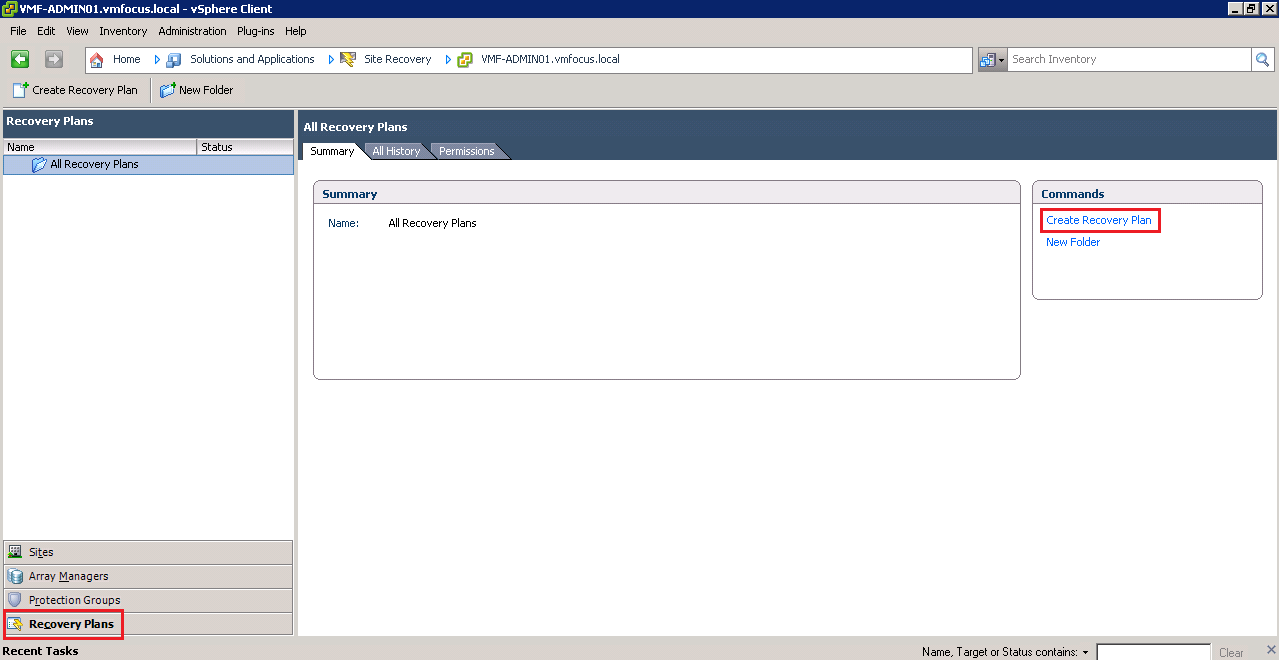
Let’s select Recovery Plans from the bottom left hand menu and then Create Recovery Plan from the top right Commands box

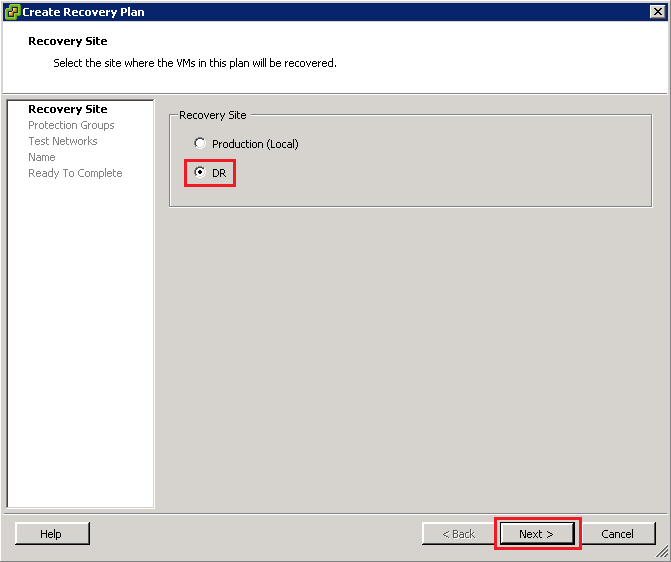
Select your Recovery Site, in my case DR and click Next

From a design perspective, I would always recommend that you have a Recovery Plan per Protection Group as this gives you a higher level of control to fail over only particular virtual machines.  In this case we are going to select PG_SATA_TEST01 and click Next
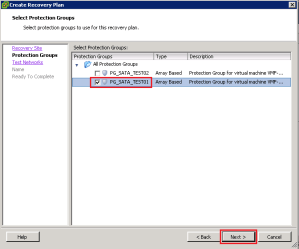
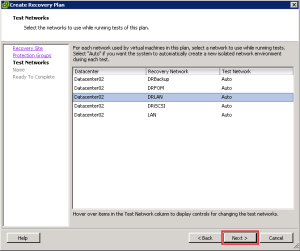
The next screen, is quite interesting, we can have a ‘test network’ in our DR site which is preconfigured so that rather than SRM creating a network for us, we can have the virtual machines come up in a predefined network when we ‘test DR’. Why would I want to do this? Well it would give you access to the virtual machines in the DR location and you can test connectivity between them.

In this scenario we are going to leave the ‘test network’ setting to Auto and click Next
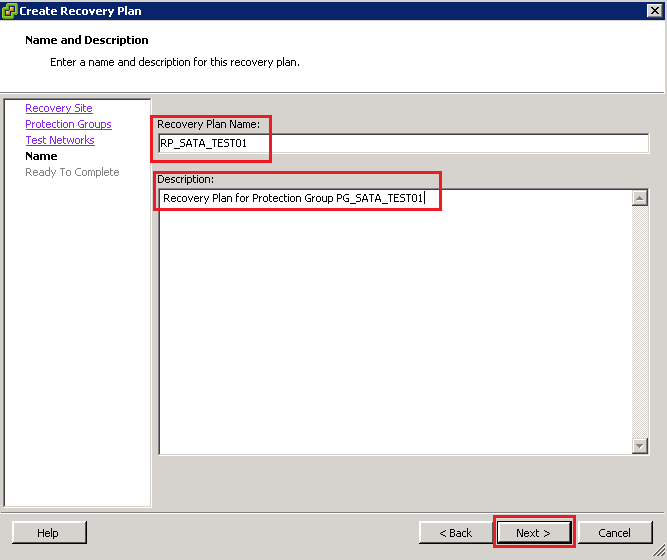
Next we need to give the Recovery Plan a name, I’m going to be imaginative and call mine RP_SATA_TEST01 in the description I always reference the Protection Group that we are going to perform the recovery on.  Then click Next

We then get a summary screen, click Finish to complete.

Awesome we should now have a Recovery Plan we can test, I’m itching to give it a whirl!

Before we do this, let’s take a quick swing by our HP StoreVirtual VSA’s to make sure everything is ‘tickety boo’

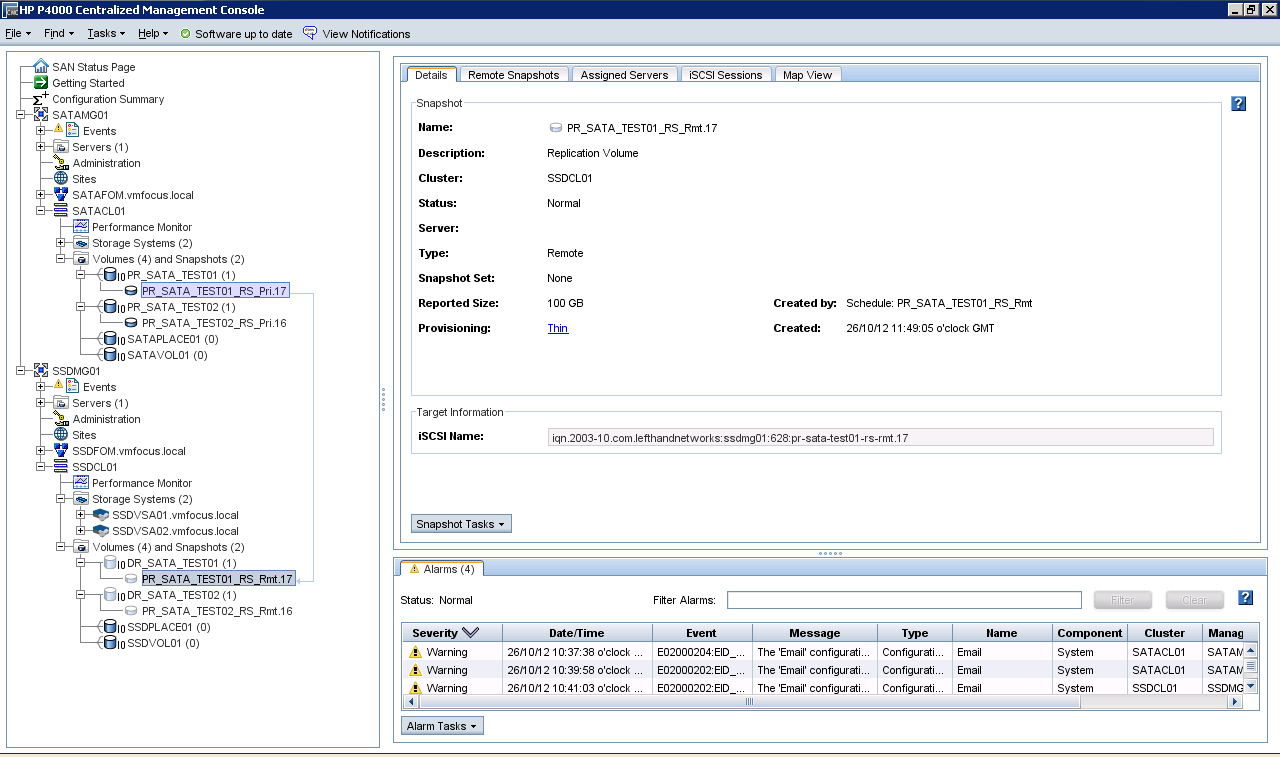
Let’s login to the CMC and open both SATAMG01 and SSDMG01 and expand both clusters.  Select PR_SATA_TEST01_RS and make sure the Status (on the right hand side) is ‘normal’

Awesome, let’s give do a Test Recovery!

Select RP_SATA_TEST01 and then the Summary Tab and then click Test

We now get a pop up asking if we want to replicate recent changes or not for the test.  If you select yes, SRM will use the SRA to send the commands to the HP StoreVirtual VSA to replicate the Volume PR_SATA_TEST01.  I’m going to choose no, as I haven’t actually changed any data (we will do this later). Click Next

We now need to click Start and let the SRM magic happen.

At this point, we want to see what’s going on so let’s jump onto the Recovery Steps Tab and expand all of the stages.

So what’s going on here? Well let’s go threw this step by step

Step 1 SRM will replicate the storage if you have selected this option, we chose not to hence why the status is ‘not applicable’

Step 2 SRM will bring any hosts out of Standby if you are using Distributed Power Management at the DR site

Step 3 SRM will suspend non-critical VM’s at DR site so that the resources are available to be used by the virtual machines we are testing

Step 4 This is probably the most important step to understand.  SRM doesn’t want to interfere with the replication process, if it did then it would have to make the replicated LUN in this case PR_SATA_TEST01_RS_Rmt.16 Read/Write and we don’t want to do that.  So instead SRM uses the SRA to invoke a point in time snapshot of the read only PR_SATA_TEST01_RS_Rmt.16 which it turns into a Read/Write copy so that the virtual machine can be accessed.

I want to show you this from HP StoreVirtual VSA perspective, if you look below our replicated volumes haven’t been touched but we do have a Read/Write copy of PR_SATA_TEST01_RS.Rmt.16 (see it’s dark blue)

Step 5-9 SRM powers on the virtual servers in priority order.
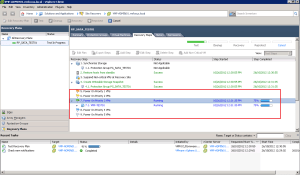
Boom we have test complete!

Let’s nip over to VMF-ADMIN02 which is my DR vCenter and see what’s going down.

Cool, VMF-TEST02 is up and running it’s go the same IP Address and it’s been presented with the snapshot of the read only DR volume PR_SATA_TEST01 and that SRM has put VMF-TEST01 into a srm-recovery-portgroup

Good skills, let’s roll back the Test Back to VMF-ADMIN01 which is Production vCenter and click Cleanup

Essentially, SRM just reverses the process above, if all went well, you should see this

Let’s double check the CMC to make sure everything is back to they way it should be, voilà it is!

If like me you want to see what’s going on in more detail, run the Test again, but this time make sure you go over to VMF-ADMIN02 and slect Tasks & Events at Root level.  This will show you everything that SRM does to perform a test failover.  Pretty impressive to say the least.

Change IP Address

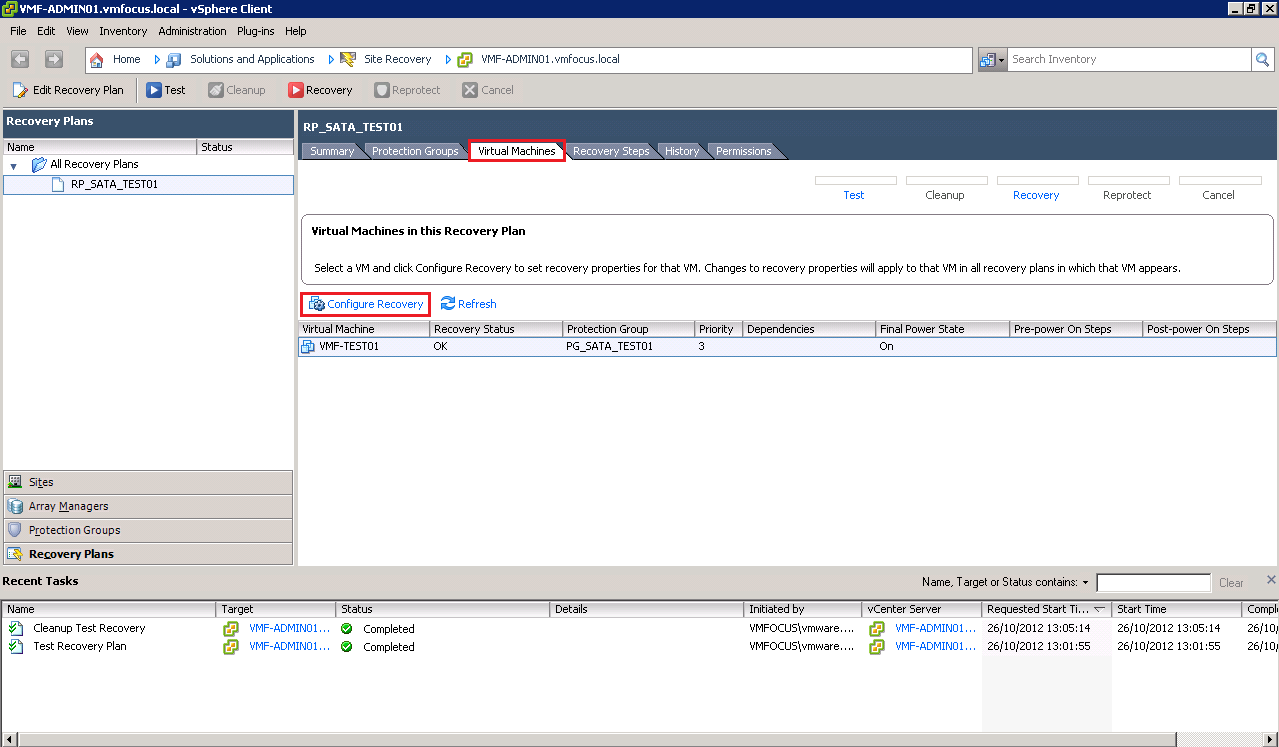
We probably want to change the IP address details of VMF-TEST01 when it fails over so it’s on the right subnet, using the right default gateway and DNS server.  To do this Select the Virtual Machines Tab and Select Configure Recovery

Select IP Settings – NIC 1 and place a Tick in Customize IP settings during recovery and lastly click on Configure Protection and enter your IP details, rinse and repeat this for Configure Recovery

For those of you in the UK, here’s one I made earlier
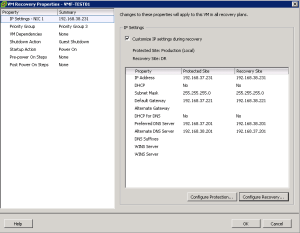
Hit OK, and perform another Test Recovery, fingers crossed we should see that the IP address changes at the DR site.  Time for a quick brew whilst we run the test.

The results are in and we have success!
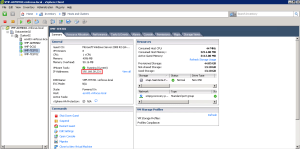
Let’s roll back and make some more config changes

Registering DNS

My real world experience using SRM is that we need to do more with DNS than just change the IP address, it’s a good idea to update DNS as well.  Now I’m not a ‘script guy’ so I use gold old fashioned batch files.

On VMF-TEST01 we are going to create the following batch file:

@echo off

ipconfig /registerdns

exit

The batch file will be called ipconfigupdate.bat and saved on root of the C: Drive on VMF-TEST01

Cool, now let’s configure SRM to register the new DNS details.

Back to the Virtual Machines Tab and Configure Recovery for VMF-TEST01

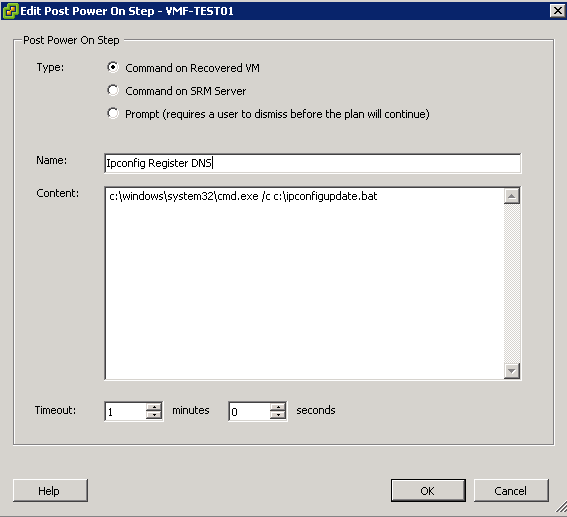
We are going to select a ‘Post Power On Step’ and then Add

We are going to use ‘Command on Recovered VM’ and give the Step the name ‘Ipconfig Register DNS’ and the content is going to be c:windowssystem32.cmd.exe /c c:ipconfigupdate.bat and the Timeout value is 1 minute

The first part c:windowssystem32.cmd.exe tells SRM where to find the application you want to run in this case it’s Windows Command Prompt and then second part /c c:ipconfigupdate.bat tells SRM to run the batch file under Windows Command Prompt.
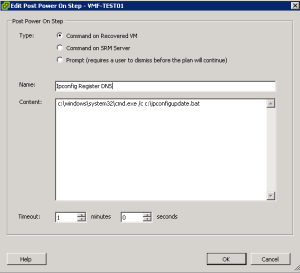
OK, now we need to think about how we are going to test this, as if VMF-TEST01 fails over into Auto Network Port Group then it won’t be able to communicate with the Domain Controller in the DR site.  So ladies and gentlemen we are going to do what known in the IT world as ‘frig’ to test this.

We are going to shut down VMF-TEST01 at the Production Site and then change the Auto Network to DRLAN, so that when VMF-TEST01 comes up at DR it can communicate with my DC.

If you remember we need to edit the Recovery Plan RP_SATA_TEST01  to change the test Port Group.
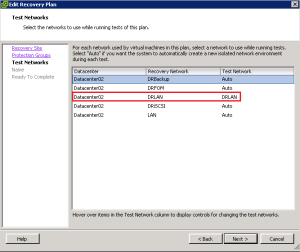
Right then let’s run a Test recovery and see if my ‘frig’ works!  It might be time for a brew, as when we customize the IP Address, SRM will bring the guest VM online, change the IP Address’s and then shut it down, wait for VMware Tools and then run our batch file.

Awesome, well the Test recovery was a success.
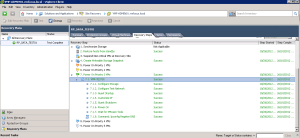
Let’s check VMF-TEST01, well it’s got the right IP Address and the right Port Group.  I’m going to attempt a ping, success! I feel like the A-Team when a plan comes together.
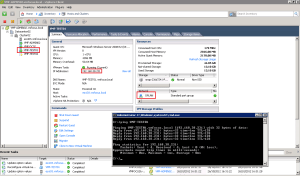
TOP TIP: Don’t forget to change your DNS back

Virtual Machine Priory Order

The last item I want to cover off is Virtual Machine Priority Order.  We have a range of 1 to 5.  Priority 1 VM’s start first and 5 start last.  The cool thing about this is that it wait’s for VMware Tools to start before the next VM is powered on.

To configure this we need to go back to the Virtual Machines Tab and Right Click VMF-TEST01 Select Priority and then the level you want.

Boom job done!

That’s it for this post, on the next blog entry we are going to failover, reprotect and failback.

Part 3 – Configuring Site Recovery Manager (SRM) With HP StoreVirtual VSA

This is where things start to get exciting! We are going to replicate Volumes between Production and DR and then check to ensure that SRM can see the replicated Volumes.

Replication can occur on two different levels, ‘synchronously’ and ‘asynchronously’ naturally it is only used for write’s and not read’s, so what’s the difference?

Synchronous written blocks are sent to the replication SAN, until this is committed by the replication SAN and confirmation received by the replication SAN, no further block’s are allowed to be written by either SAN.  This means that you would have potentially one block of data loss in the event of a SAN failure. This type of replication should only be used in low latency environments, and is the basis for network RAID on the HP StoreVirtual VSA. As a general rule of thumb the latency normal needs to be less than <2ms to achieve this.

Asynchronous written blocks are sent to the replication SAN and no confirmation is required.  The originating SAN just keeps sending more and more blocks on a predefined schedule e.g. 30 minutes.  If you have a SAN failure than your potential data loss is up to last block that the replication SAN had chance to commit.  This is the most commonly used replication type and is supported with the HP StoreVirtual VSA and SRM.

Replicating Volumes

In my lab, I have created two volumes at the Production site called PR_SATA_TEST01 and PR_SATA_TEST02 these are thinly provisioned and contain the VMDK files for VMF-TEST01 AND VMF-TEST02 respectively.

Before we start replicating the volumes, we need to check that we have only assigned the ESXi Hosts at the Production site to the volume.  Look under Assigned Servers to make doubly sure.

Why’s this important Craig, I hear you ask.  Well SRM is responsible for failing over the replicated volume and also presenting it too the ESXi Hosts in the DR site.  If we assign ESXi Hosts to the volume at both sites, we are manually interfering with the SRM process and we also potentially can expose the replicated volume to read/write conditions.

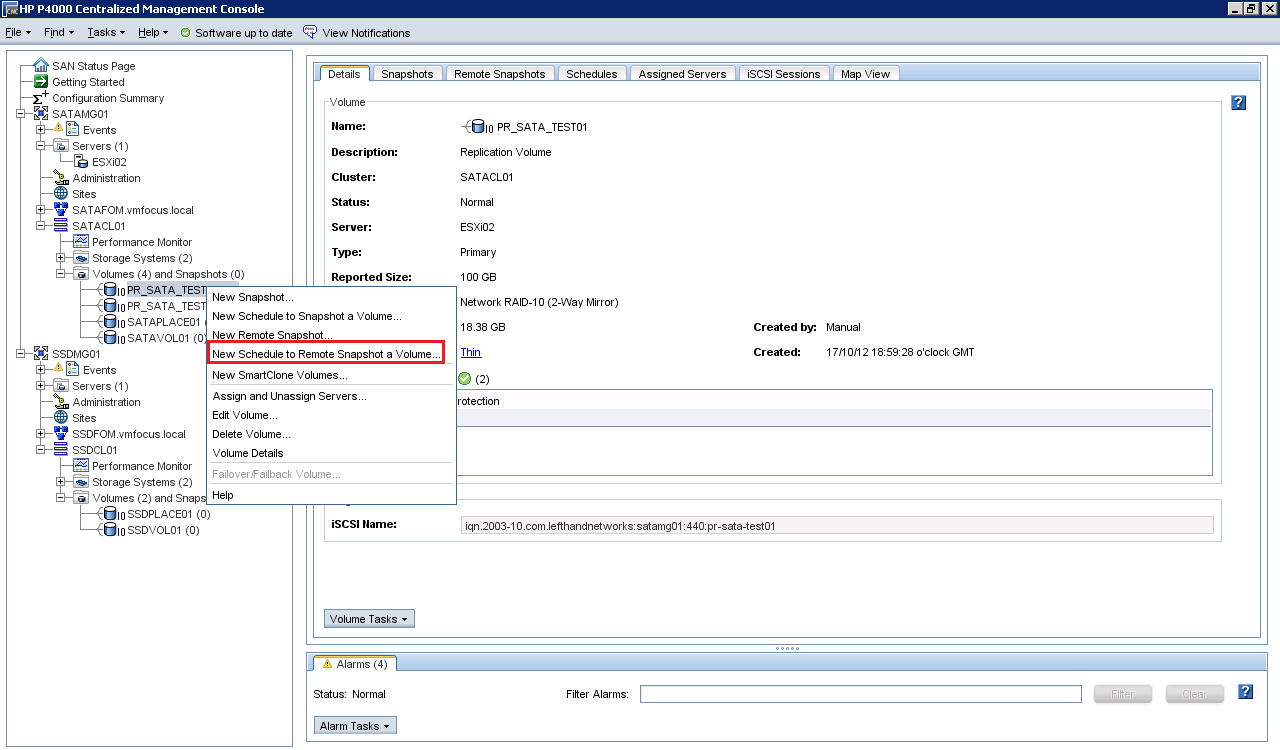
We want to Right Click the Volume we want to replicate, in this case it’s PR_SATA_TEST01 and select ‘New Schedule to Remote Snapshot a Volume’

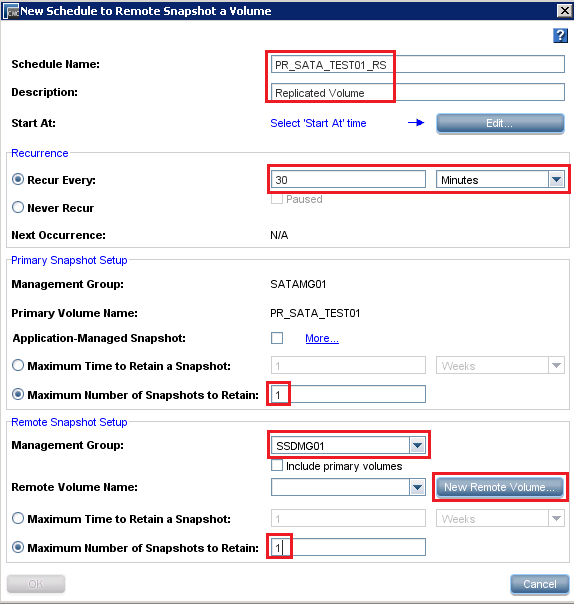
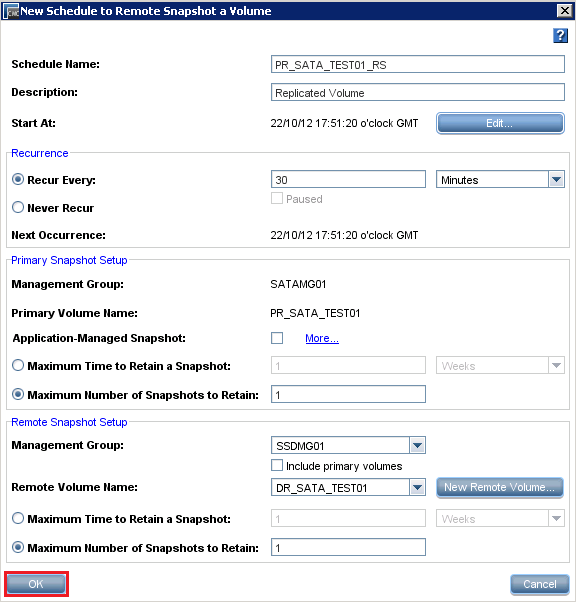
We need to give the schedule a name, mines going to be PR_SATA_TEST01_RS with a description Replicated Volume.  We are going to replicate every 30 minutes which is the fastest period supported by SAN iQ 9.5.  We are going to retain only 1 snapshot at the Primary site.

For the Remote Snapshot Setup, we are going to use SSDMG01 which is the Management Group at the DR site, and we are giong to retain only 1 copy of the snapshot in DR

TOP TIP: Do NOT tick Include Primary Volumes, if you do then fail back will be a manual process.

We are going to create a New Remote Volume at the DR site.  To do this click on New Remote Volume and select Add a Volume to an Existing Cluster

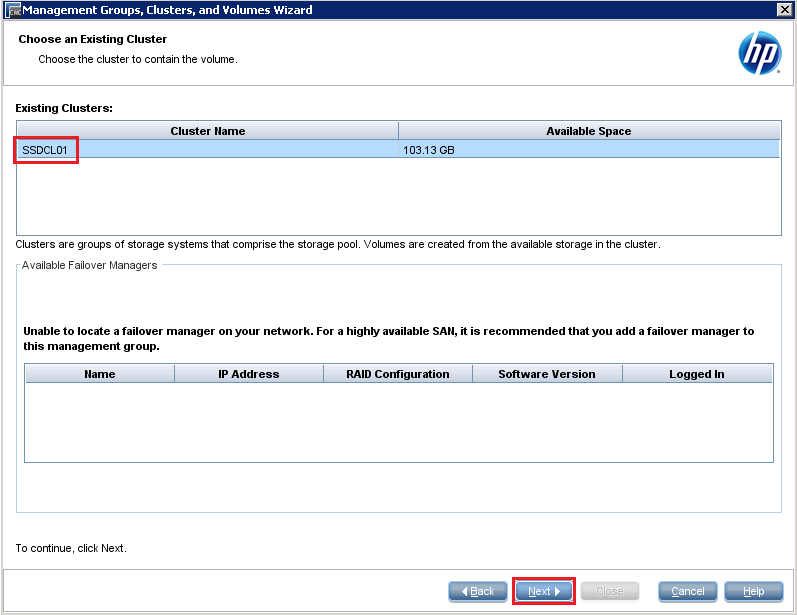
Double check that your Cluster is at the DR site and click Next

Give the Volume a name, is this case we are rolling with DR_SATA_TEST01 and the description is Replication Volume

Click Finish and Close. We should now be back to the Schedule to Remote Snapshot a Volume screen, but OK is greyed out.  That’s because we haven’t chosen a time for replication to start.

To do this click Edit

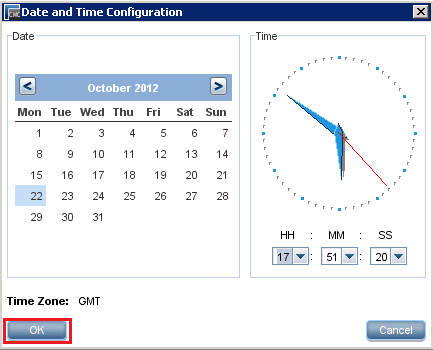
Then either select a date/time you want it to start or click OK for it to start immediately.  It has been known that I’m pretty impatient, so I’m going to click OK to start now!

Excellent news, we now have the OK button available to Click, so let’s do that.

You should now see a DR_SATA_TEST01 appear in your DR Cluster and little icons showing the Volume is being replicated to the DR site.

You may have noticed that original Volume PR_SATA_TEST01_RS has (1) at the end and also the replication is happening between PR_SATA_TEST01_TS_Pri.1 and PR_SATA_TEST01_RS_Rmt.1

Let’s take a moment, to explore this as it’s quite an important concept.  Essentially the original Volume PR_SATA_TEST01 has had snapshot taken of it.  This has been renamed with Pri.1 at the end which stands for Primary Volume Snapshot 1.  At the DR site we have an extension Rmt.1 this means Remote Site Snapshot 1.  Make sense?

If we click PR_SATA_TEST01_RS_Pri.1 and select Remote Snapshots we can see the time it’s taken to replicate the volume and the transfer rate as well.

Side note, did you know that Under Remote Snapshot Tasks (at the bottom of the screen) we can even set the bandwidth to be used, pretty cool eh?

Back on track, we now need to do the same for PR_SATA_TEST02

Cool, that’s the replication now all set up, let’s jump back into SRM and check out the Array Managers

Array Managers

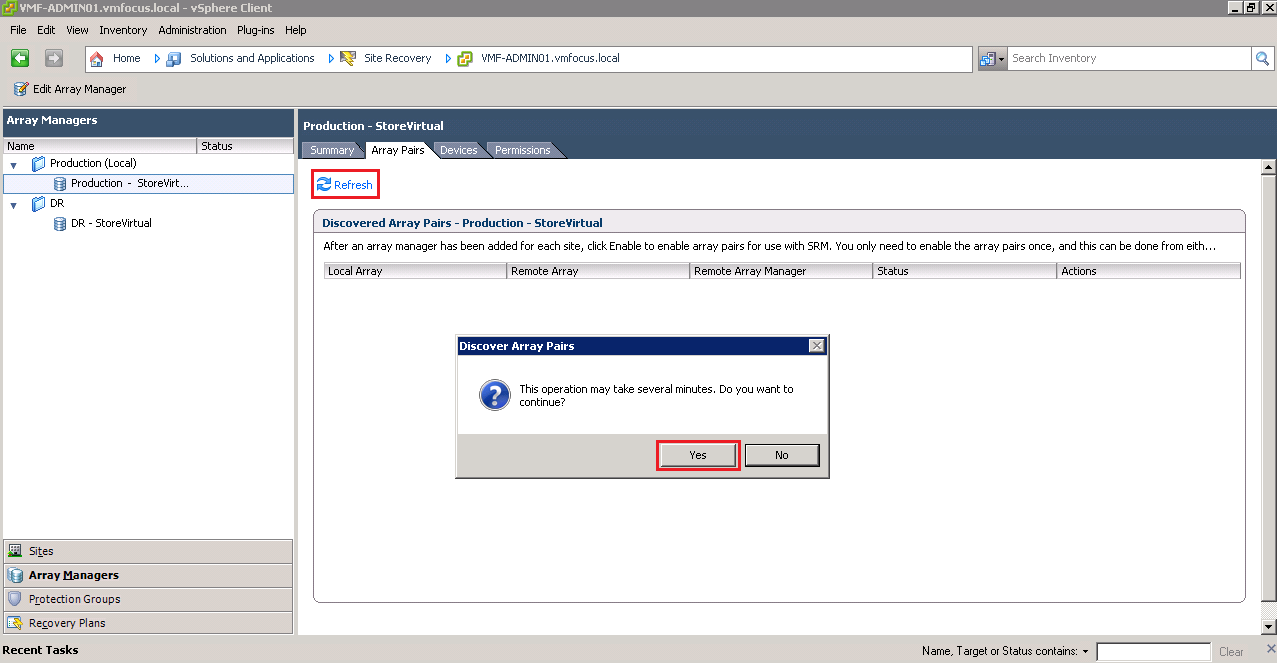
Back in SRM, click on Array Managers and then onto Production – StoreVirtual and finally click on Array Pairs and you see, an awesome amount of nothing.  Err Craig what’s going on, I thought I was meant to see Volumes being replicated?

Never fear, hit the Refresh button and click Yes to the Discover Array Pairs operation

Now we should see the Remote Array which is in this case is SSDMG01.  Click Enable

You might have noticed that we you clicked on Enable, it kicked off a load of tasks.  Essentially, SRM is discovering replicated volumes.   Let’s click on Devices and we should now see PR_SATA_TEST01 and PR_SATA_TEST02 being replicated.

Boom, we are cooking on gas now!

TOP TIP: You need to refresh Array Manager devices manually every time you introduce a replicated Volume

Protection Groups

Protection Groups are based on Volumes being replicated.  SRM will automatically look into the Volume and establish which virtual machines are being replicated.  The way I think about it is that all a Protection Group really is, is a replicated Volume.

So we can configure two Protection Groups as we have two replicated Volumes, that should hopefully make sense.

Click on Protection Groups from the left hand menu and then on Create Protection Group

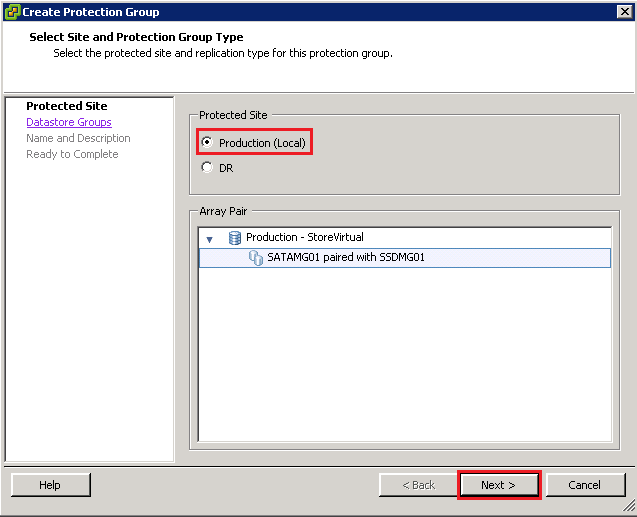
Choose your Protected site, in this case Production (Local) and click Next

Select the Datastore Group which in this case is PR_SATA_TEST01 and you will notice that VMF-TEST01 has automatically been added as a protected VM.

Give the Protection Group a name and description.  Using my creativity I have opted for PG_SATA_TEST01

Click Next and then finally finish.

As always, we now need to repeat the process for PR_SATA_TEST02.  Once done, you will have two Protection Groups like this.

How do we know that what we have done is rock solid? Well if we go onto VMF-ADMIN02 which is our vCenter in DR, we should see VMF-TEST01 and VMF-TEST02 protected by superman, err I mean SRM.

That’s it for this post, in the next one, we are going to get involved with some Recovery Plans!

Implementing & Testing Windows Server 2012: Deduplication

Microsoft have introduced deduplication as a standard feature into Windows Server 2012, I’m pretty excited about this, as it brings an enterprise feature set to SMB.

We are going to test deduplication which is part of the File Server role, before we do this what is deduplication and how will it benefit us?

Well deduplication is the process of  eliminating duplicate copies of data.  In most environments you often find large amounts of data which are repeated, think about documents that you work on and click File Save As after a small change.

Within Windows Server 2012 is a little tool called DDPEval.exe which is located in the  WindowsSystem32 directory.  This tool will go away and calculate expected space savings from using deduplication.  We are going to use this to calculate our estimated space savings and then see how this compares to the actual savings.

With this in mind, what data are we going to pop onto the Windows Server 2012 File Server?

  • General – 2,347 Files consisting of 266 Folders and equating to 9.29GB of data.  This is made up of your everyday Office 2010 documents, some PDF’s and JPEG’s, the usual files you find on most servers.
  • PDF – 562 Files consisting of 48 Folders equating to 660MB of data.  These are all PDF’s
  • Pictures – 360 Files equating to 1.21GB of data.  These are JPEGs

These files are my own, and I think I’m pretty good at not duplicating files, so I’m interested in knowing how much space we will save.

Enabling Deduplication

To enable deduplication we need install the File role onto our server. To do this launch Server Manager and click Add Roles & Features

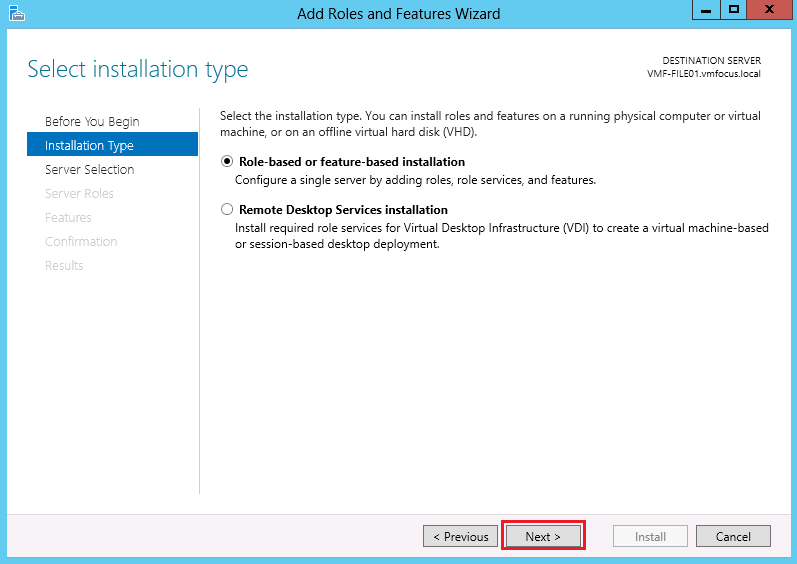
Select Role-based or feature installation and click Next

 Select the server to install the role on, in this case VMF-FILE01 and click Next

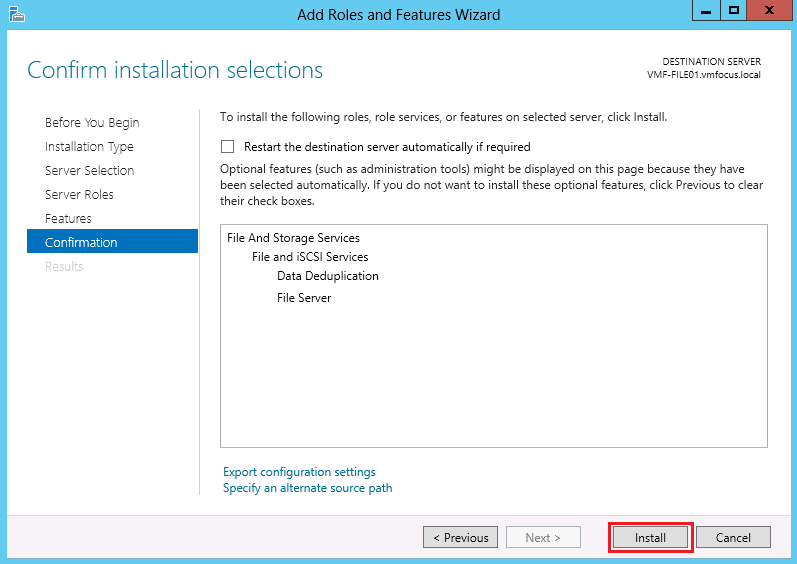
Expand File And Storage Services (Installed) then expand File and iSCSI Services and select File Server and Data Deduplication

Click next on Select features

Click Install

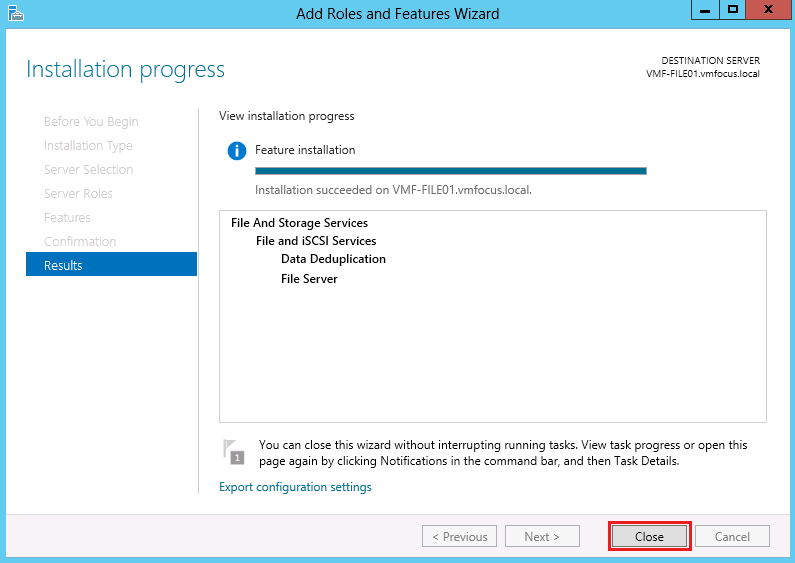
Once completed click Close

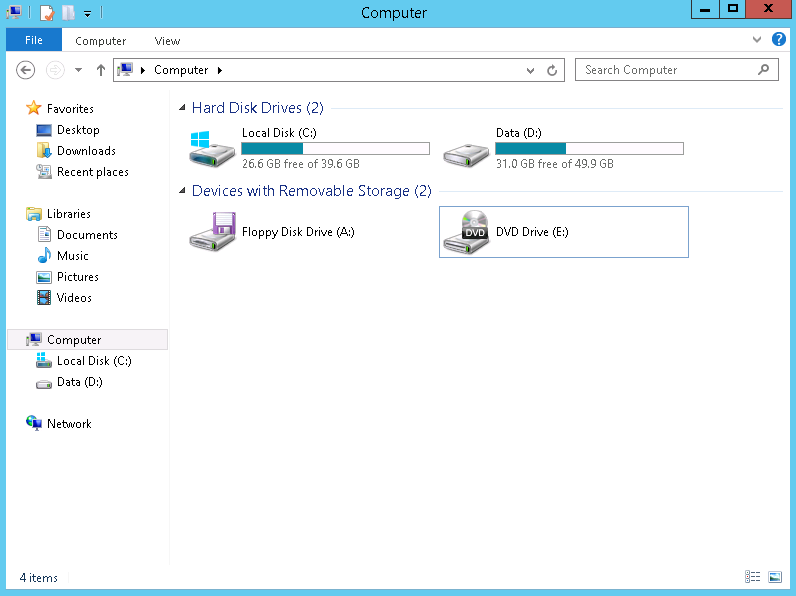
I have a Data Drive (D:) which is 50GB in size, this is going to be the test basis for deduplication.

I’m now going to copy the data I mentioned at the start of this blog onto the Data D: Drive.

To make thing slightly more interesting, I’m going to make a duplicate of each folder, this will leave us with:

  • 2 x General Folders
  • 2 x PDF Folders
  • 2 x Picture Folders

Screenshot of the Folder Properties

Screenshot of the Folder List

Screenshot of D: Drive Space Used

So now we are ready, let’s run DDPEval.

DDPEval

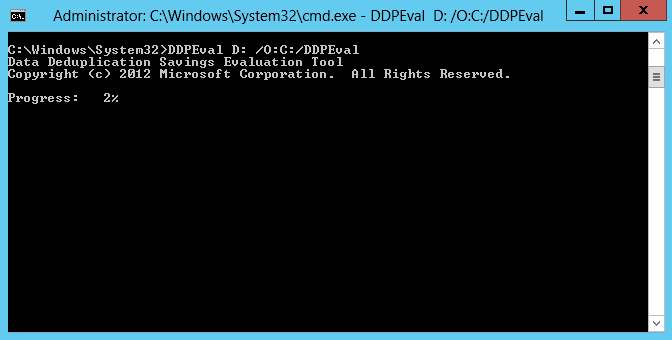
Jump into the CMD line and go into C:WindowsSystem32 and run DDPEval D: /O:C:/DDPEval

This command will run the DDPEval Tool against the D: Drive and create an output file on C: Drive named DDPEval

The results are in, and I’m impressed, Windows believes it can save me 57%.  Let’s see what happens when we enable deduplication.

Configuring Deduplication

By default deduplication happens in the background as a process, however the process is low priority and will be paused if the deduplication process has an impact on system performance.

With this in mind, we are now going to configure and enable deduplication. Go back into Server Manager select File and Storage Service then Volumes and then Disks

Select Disk 1 and then go down to Volumes at the bottom and right click on D: and select Configure Data Deduplication

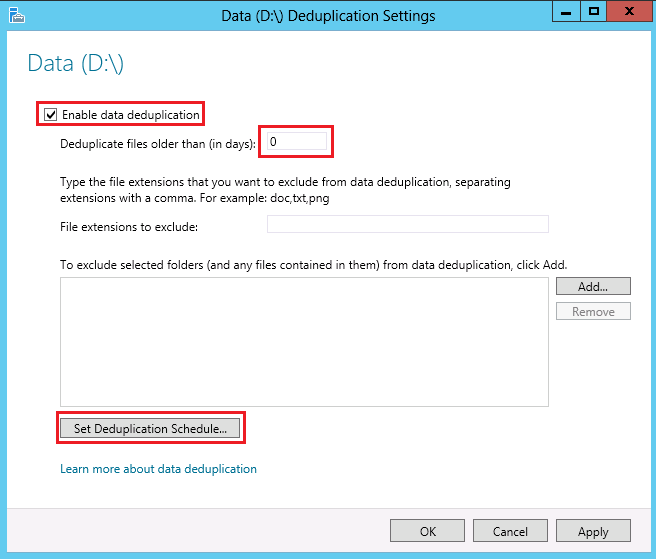
Enable data deduplication and change the de duplicate files older than (in days) to 0  Then click on Set Deduplication Schedule

Next we will Enable throughout optimization and the start time which works best for me is 22:00 and the task can last 6 hours.  Click OK and then OK again.

As I’m really impatient, I’m going to run a Powershell command to start it now!

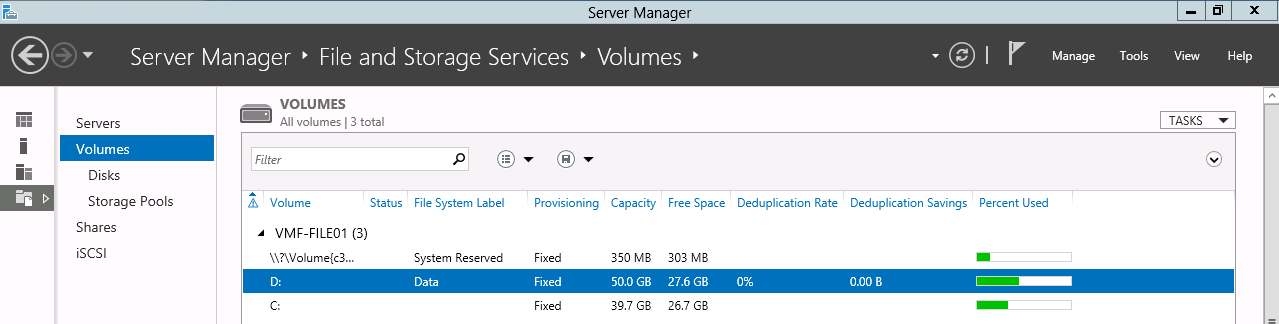
Before we do, a quick check on thins from the Volumes View in Server Manager

As you can see, no deduplication has been run yet and we have 27.6GB disk space free.

Right then, Powershell time.  Let’s run Start-DedupJob -Volume D: -Type Optimization which will kick off the scheduled deduplication job

If you want to check on progress run the command Get-DedupJob

Time for a cup of tea whilst this finishes off.

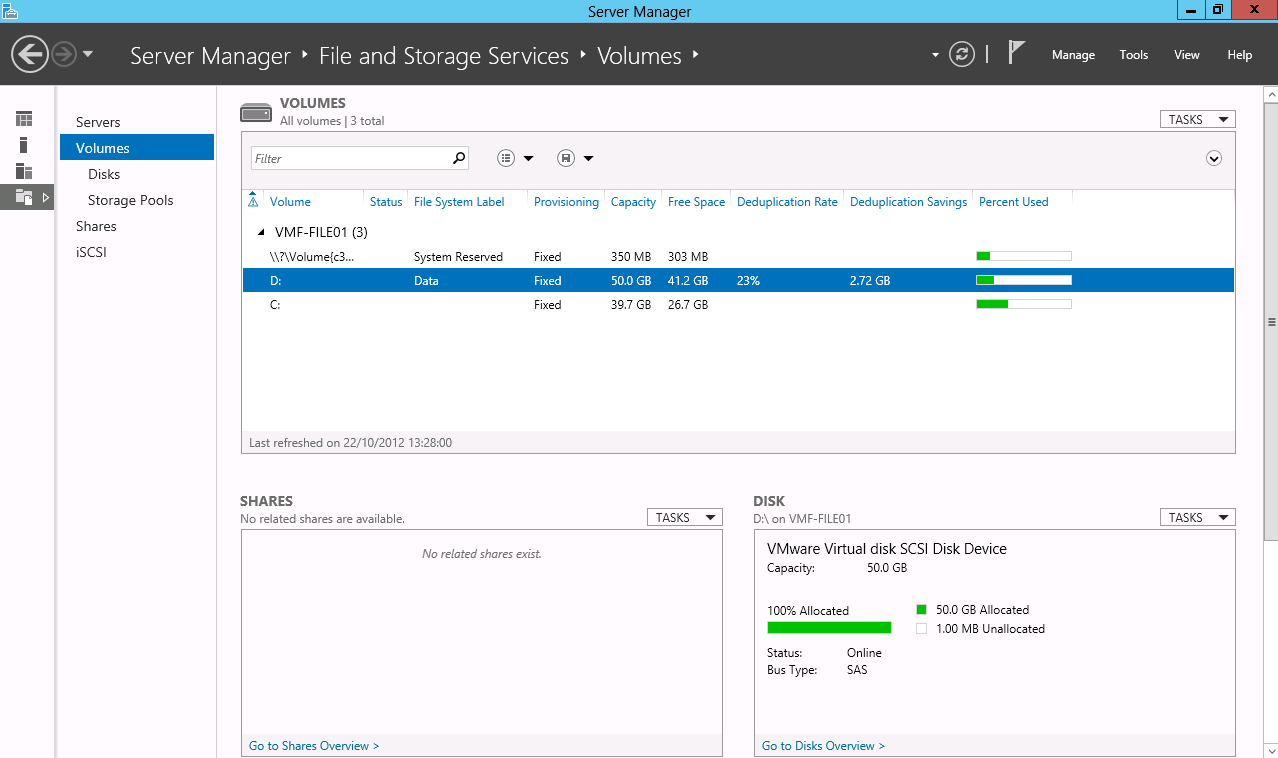
The results are in.

As you can see we have saved a massive 61% Now you might be thinking well that’s not really a fair test as you actually just copied the folders and all the files within General, Pictures and PDF’s.

This time let’s remove the copied folders so we are just left with the three original folders.

Let’s run the Powershell CMD Start0DedupJob -Volume D: -Type Optimization and wait for the results.

I’m impressed again, we have a 23% space saving on, imagine how much this would be within a business!

Deduplication Considerations

When using deduplication, as always you have a number of gotcha’s that I wanted to point out:

  • Cannot be an operating system volume
  • Can only be enabled on a per volume basis.
  • Can be on shared storage, however the partition must be formatted as NTFS
  • Cannot be removable drives
  • Do not use on Exchange or SQL servers
  • Overhead is 1 CPU Core per Deduplication Job/Schedule
  • It can work with DFS R shares with targets having either deduplicated or non deduplicated DFS R shares (note I haven’t tested this, see http://technet.microsoft.com/en-us/library/cc773238.aspx#BKMK_074).

Large Files

I performed some further testing with large files, in fact I actually used the Windows Server 2012 ISO which I copied twice, meaning it was using 6.88GB of space rather than 3.44GB.  I wasn’t able to find any issues with using large files and Server 2012 deduplicated the ISO, with savings going up from 2.72GB (on the last test) to 7.13GB on this test.  I’m not 100% sure how Windows has done this as the ISO is only 3.44GB in size and our space savings have increased by 4.41GB!

Final Thoughts

The deduplication feature within Server 2012 is excellent.  It showed space savings of between 23% to 61% on a small amount of data.  It can and should be enabled on File Servers.