VTSP 5

Bit of a strange one really, I was all prepared to crack on and go over the VMware Technical Sales Professional 5 training in VMware Partner University.

Logged in and added the VTSP 5 to ‘my Plan’.  Much to my surprise it then said I had met all the pre requisites and I’m now a VTSP 5.

Slightly easier than I imagined!

High Availabity for vMotion Across Two NIC’s

When designing your vCentre environment, good practice is to associate two physical network adapters (uplinks) to your vMotion network for redundancy.

The question is does VMware use both uplinks in aggregation to give you 2GBps throughput in an Active/Active configuration? the answer to this is no.

In the above configuration we have two uplinks both Active, using the load balancing policy ‘route based on originating virtual port ID’ this means that the VMkernel will use one of the two uplinks for vMotion traffic.  The secondary active adapter will be used but only if the uplink vmnic4 is no longer available.

You might say this is OK, I’m happy with this configuration, I say how can we make it more efficient?

At the moment you will have a single Port Group in your vSwitch which is providing vMotion functionality (in my case it’s also doing Fault Tolerance Logging)

And the vSWitch has two Active Adapters

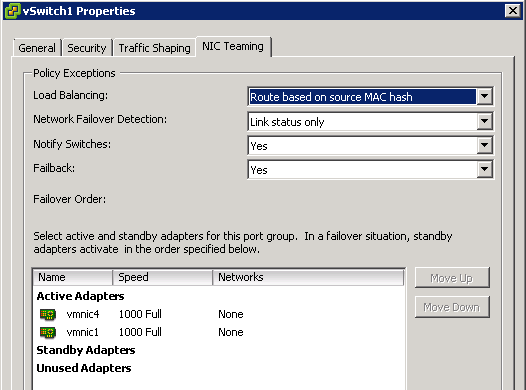
What we are going to do is rename the Port Group vMotionFT to vMotionFT1, go into the Port Groups properties and change the NIC Teaming setting to the following:

So what have we changed and why? First of all we have over ridden the switch failover order, we have specified that vmnic4 is now unused and that we are not going to ‘failback’ in the event of uplink failure.

You may think hold on Craig, why have you done this now we have no HA for our uplinks, well the next step is going to be adding another Port Group as follows:

VMkernel Select
Network Label vMotionFT2
Use this port group for vMotion Select
Use this port group for Fault Tolerance logging Do Not Select
IP Address 192.168.231.8 255.255.255.0

Once completed, we are now going to edit the Port Group vMotionFT2, go back into NIC Teaming and over ride the switch failover order and set vmnic1 to unused and no for failback.

So what have we achieved?

1. vSwitch1 has two active uplinks
2. vMotionFT1 Port Group is active and uses vmnic1 for vMotion & Fault Tolerance Logging
3. vMotionFT2 Port Group is active and uses vmnic4 for vMotion
4. We can perform two vMotions simultaneously using 1GB of bandwidth each
5. If we have an uplink hardware issue vMotion continues to work

ESXi Networking Part 3

NIC Teaming

The load balancing on NIC teams in ESXi is based on number of connections (think Round Robin) on Windows Server 2003/2008.

Load balancing only occurs on outbound connections i.e. traffic from VM > vSwitch > LAN

ESXi has a number of load balancing options which are:

Route Based on the Originating Virtual Port ID

ESXi runs an algorithm to evenly balance the number of connections across multiple uplinks e.g. 10 virtual machines residing on one vSwith which contains two uplinks would means that each uplink has 5 virtual machines using it.

Once a VM is assigned to an uplink by the VMkernel it continues to use this until it is vMotioned to another ESXi Host or a uplink failure occurs.

Route based on the originating virtual port ID is the default setting in ESXi.

Route Based on Source MAC Hash

This is much like ‘route based on originating virtual port ID’ as the MAC address of the VM’s do not change and therefore they will continue to use the same connection path over and over.  The only way around this is to have multiple virtual NICs (vNIC’s) within the VM which will produce multiple MAC addresses.

Route Based on IP Hash

This uses the source IP and destination IP to create an Hash.  So on each new connection a different uplink path would be taken.  Naturally, if you are transferring large amount of data, the same path would be used until the transfer had finished.

When enabling ‘Route Based on IP Hash’ you will get an information bubble:

You need to ensure that all uplinks are connected to the same physical switch and that all port groups on the same vSwitch are configured to use ‘route based on IP hash’.

Use Explicit Failover Order

This isn’t really load balancing as the secondary active (vmnic1) uplink will only come into play if vmnic4 fails.

If you have an active and standby adapter, the same procedure applies.

On all Load Balancing policies it is set by default to notify switches, what does this actually mean? Well it means that the physical switches learn that:

– A vMotion occurs
– A MAC address is changed
– A NIC team failover or failback has occurred
– A VM is powered on

Virtual Switch Security

Virtual switch security has three different elements which are:

– Promiscuous Mode, this is where the vSwitch and/or Port Group can see traffic which is not for itself.
– MAC Address Changes, this is where the vSwitch and/or Port Group is interested if the incoming traffic into the vSwitch/Port Group has been altered.
– Forged Transmits, this is where the vSwitch and/or Port Group is interested if the outgoing traffic into the vSwitch/Port Group has been altered.

In all of the above configurations you have a choice to either Reject or Accept the traffic.

VMware recommends that all of these are set to reject.

However if you are using Network Load Balancing or devices with ‘Virtual IP Address’s’ such as Hardware Load Balancers often use an algorithm that produces a shared MAC Address which is different from the original source or destination MAC address and therefore can cause traffic not to pass.

If in doubt you can always turn all three to reject, however I would recommend letting the Server Team know first!

Why Choose VMware vSphere for VDI?

Today, Virtualization Desktop Infrastructure (VDI) is a key initiative for many organizations looking to reduce their administrative overhead while providing a more secure, flexible and reliable desktop computing environment for end users. A lot of planning and decision-making is required to ensure a successful deployment. Choosing the right virtualization platform to host the virtual desktop implementation is often the first challenge faced and, to a certain degree, may make or break the entire transformation. Important considerations when choosing the best VDI platform are:
  • Does the platform provide the features, reliability and high availability that meet the business requirements?
  • Is the platform reliable and proven?
  • Does the platform provide a secure foundation for all the virtual desktops?
  • Can it be standardized on the same platform as the existing server virtualization?
  • How will the choice I make today impact my future migration to a cloud environment?
  • How does the VDI platform choice impact options for a VDI solution?

Read more here