Part 1 – Configuring Site Recovery Manager (SRM) With HP StoreVirtual VSA

This is going to be a short series on configuring Site Recovery Manager, SRM from here on in and HP StoreVirtual VSA, from here on in VSA.

SRM, like VSA is pure awesomeness, it allows us to facilitate a full site failover and more importantly failback with ease.  In fact we can even go as far as only failing over mission critical services such as Exchange, SQL and File, whilst leaving everything else in the Production site.  Other pretty cool things we can do with SRM are:

  • Perform ‘test’ failovers in a isolated bubble, allowing you to report to management that everything is ready to rock ‘n’ roll if you ever have a DR scenario.
  • Change the IP Address of virtual servers on failover and failback.
  • Start VM’s in priority order, ensuring that subsequent VM’s do not start until the higher priority VM’s VMTools have started.
  • Pause workflows to allow for manual user intervention.
  • Run custom scripts or executable during failover or failback.

So how are we going to facilitate SRM in a lab environment? Well we are going to use the following:

HP StoreVirtual VSA We are going to use four of these, two clustered at Production and two clustered at DR.#

ESXi Hosts We are going to have two of these, one at Production and one at DR.

Domain Controllers Again we are going to have two of these, one at Production and one at DR.

vCenter Servers You guessed it, we are going to have two of these, one at Production and one at DR.

Test Servers We are going to have two of these in Production which will be replicated into DR site and then failed over and back using SRM.

If you are like me, then a picture speaks a thousands words.
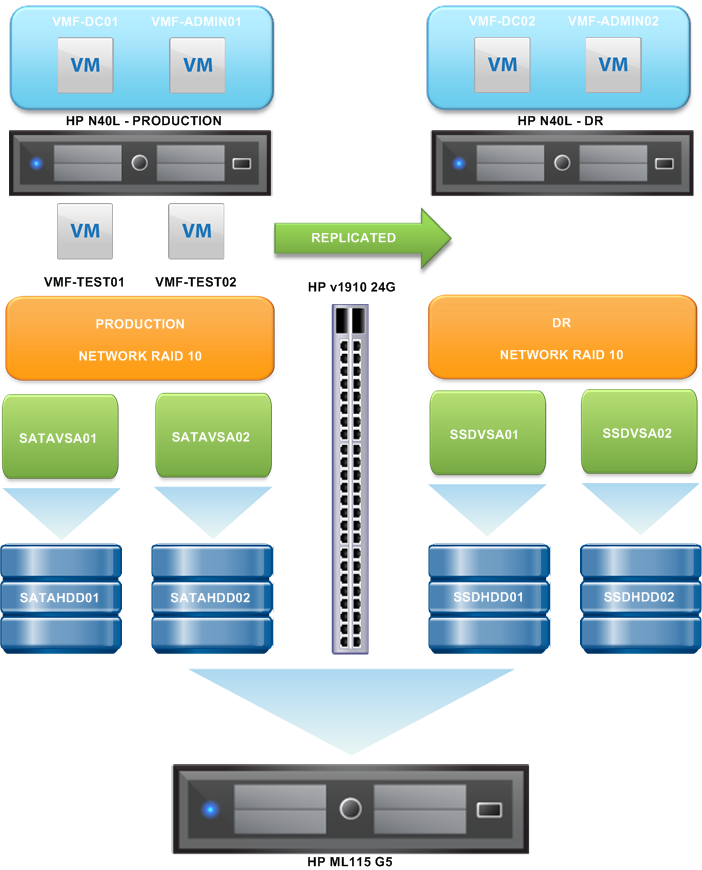
I’m going to assume you have setup and configured your HP StoreVirtual VSA already, if you haven’t I would suggest reading the following blog articles:

I’m also going to assume the same for the VLAN’s and networking, if you need a reminder, they can be found under the following blog articles:

As we are going to be working with alot of VLAN’s, subnets and IP Address’s, I always find it best to put together a table with everything on it.
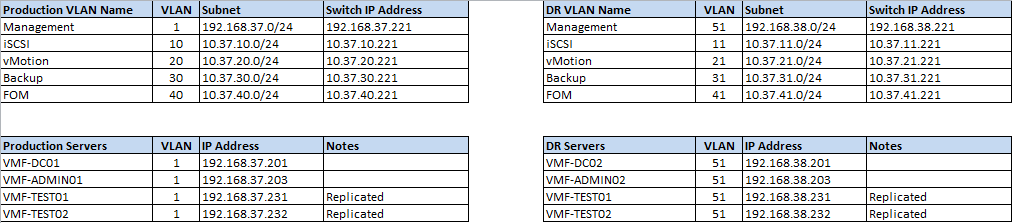
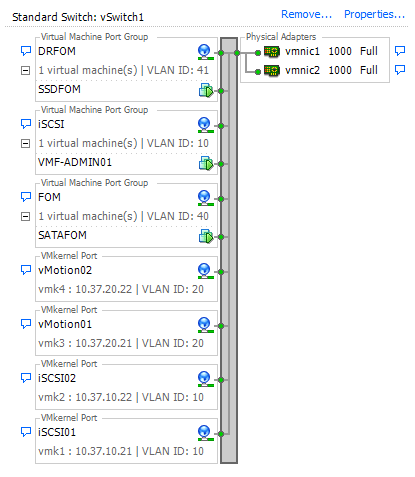
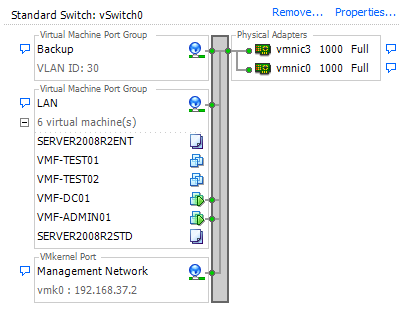
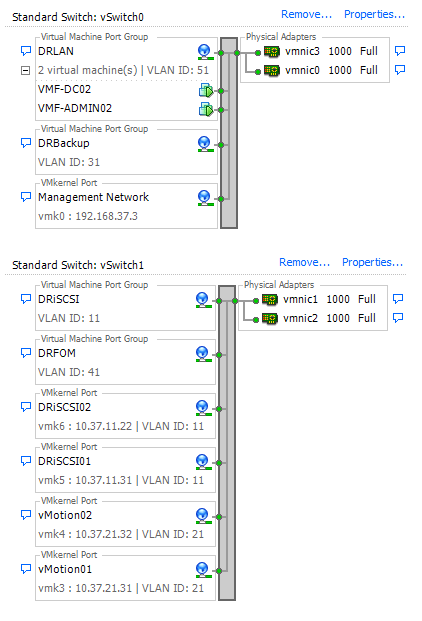
So how is this represented in networking in the Production Site?  Well, I’m glad you asked as below is a couple of screen grabs of the Production Site vSwitches and the DR Site vSwitches.

(ESXi02) Production Site vSwitches
(ESXi03) DR vSwitches
So one last recap, with what’s in each site before we move on.

Production Site

  • ESXi02
  • 2 x HP StoreVirtual VSA’s named SATAVSA01 and SATAVSA02
  • VMF-DC01 (Domain Controller)
  • VMF-ADMIN01 (vCenter and SQL 2008 R2 Express)
  • VMF-TEST01 (server we can failover to DR)
  • VMF-TEST02 (server we can failover to DR)
  • LAN Subnet 192.168.37.0/24

Note that ESXi02 holds the FOM and DRFOM for HP StoreVirtual VSA’s however these are held on the local internal hard drive.

DR Site

  • ESXi03
  • 2 x HP StoreVirtual VSA’s named SSDVSA01 and SSDVSA02
  • VMF-DC02 (Domain Controller)
  • VMF-ADMIN02 (vCenter and SQL 2008 R2 Express)
  • DR LAN Subnet 192.168.38.0/24

Off Topic – Real World

In the real world you have a couple of choices when it comes to SRM, you can either use vSphere Replication or SAN based replication.  vSphere Replication comes with SRM and you can choose to replicate individual VM’s, however if you want synchronous replication it isn’t the product for you as it only works a synchronously.  Most enterprise SAN vendors support SRM, but always check the VMware vCenter Site Recovery Manager Compatibility Matrix.

The licenses are pretty straight forward, it comes in 25 packs and you only have to license the protected site.  The only gotcha is that the Standard Edition will scale to 75 virtual machines being protected, whilst the Enterprise Edition is unlimited.

Ah you say, but with the word Enterprise in the licensing, I must get something more? Nope, you get zip more, just the ability to protect unlimited virtual machines.

Design

When it comes to SRM design, you really need to think about your infrastructure.  Why’s that Craig? Well when you use SRM with a SAN, you fail over on a per volume basis.  So if for example, you have one big volume which you dump all your virtual machines into, you will need to failover every single VM to the DR site.

Most of the designs, require different replication time frames. Commonly, these are often broken down into different service area e.g.

  • Email volume replicating Exchange servers every 15 minutes
  • Database volume replicating SQL servers every 15 minutes
  • VDI volume replicating Citrix servers once per data

You get the idea, think about what Recovery Point Objectives you want for each of your services and design SRM based around this.

Getting Everything Ready

I know you are itching to crack on, but I try and work in a logical order, let’s get everything we are going to need ready and downloaded so that we haven’t got to mess around trying to find it.

  • Site Recovery Manager can be downloaded from here on a 60 day free trial
  • The Storage Replication Adapter for the VSA can be found here it’s the ‘HP P4000 SRA 2.0 for VMware SRM 5.0 (AX696-10540.exe) you need.
  • If you are using SQL Server 2008 R2 Express as your database, then you will need the SQL Server 2008 R2 RTM – Management Studio Express

SQL Configuration

The first thing, I advise you do is get your databases ready to rock and roll.  So let’s fire up SQL Server Management Studio.

TOP TIP: If you are using the SQL 2008 R2 Express, jump into services.msc and check what database was created automatically as you will need this to login.

In my case it’s VIM_SQL

So for me to login it’s LOCALHOSTVIM_SQL then click Connect
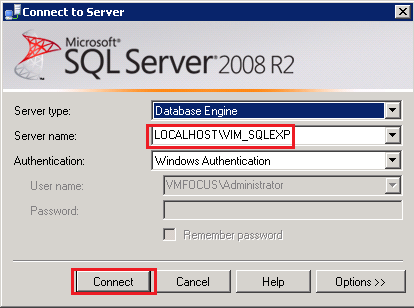
Once in we are going to Right Click > Database and then select New Database

We need to give the Database a name, I’m going to go for PR_SRM and the Database Owner is going to be VMFOCUSVmware.Service (this is a service account that most of my vSphere installs run under).  Then hit OK.
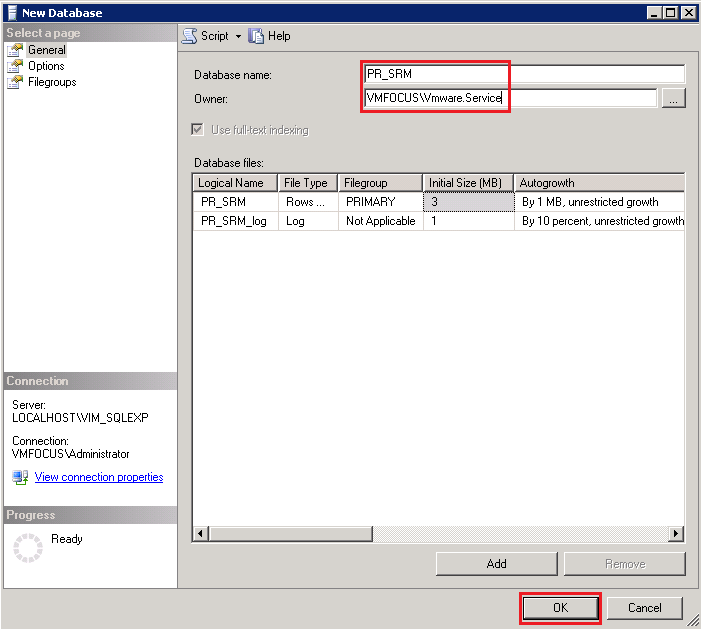
That was pretty straight forward, that’s the SQL database created.  You can check your database is there, if you feel that way inclined.

Let’s close down SQL Management Studio and install SRM.

Installing SRM

Hopefully on your desktop or other random location, you have an icon called SRM-5.1.0-820150

Hit this bad boy to launch the installer, select your language and click OK.

Now this bit takes a while, well on my test lab it does, so I suggest you go make yourself a cup of tea!

Once it finally pops up you will get the Welcome to the installation wizard for VMware vCenter Site Recovery Manager, click Next

I’m not going to insult your intellect, as I’m sure you can Click Next, Accept the License Agreement and Click Next.

The next screen is the installation folder, as with nearly all installs these days you can change the destination folder.  I would recommend accepting the defaults unless you have a specific reason not too.

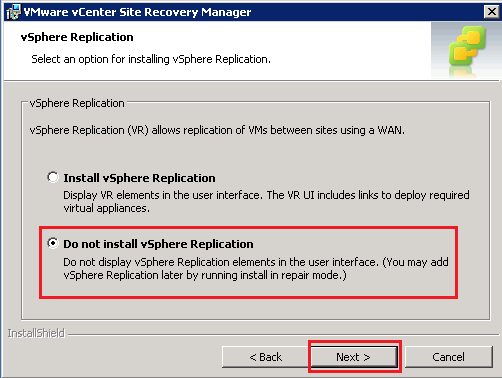
As we are going to use the HP StoreVirtual VSA, we will select ‘Do no install vSphere Replication’
Now we need to enter the vCenter Server Address and a Username and Password with rights to vCenter.  You guessed it I’m going to use VMware.Service
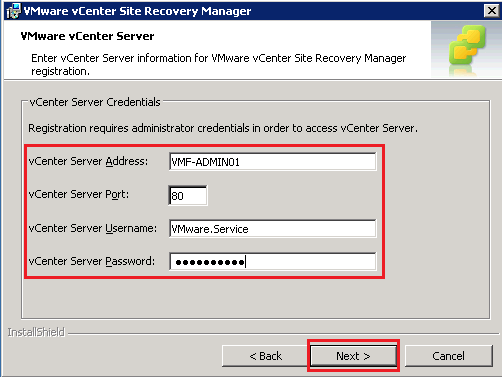
If your credentials are correct then you will see a certificate warning unless you have a PKI infrastructure in place.  We are going to accept the SHA1 thumbprint by clicking Yes

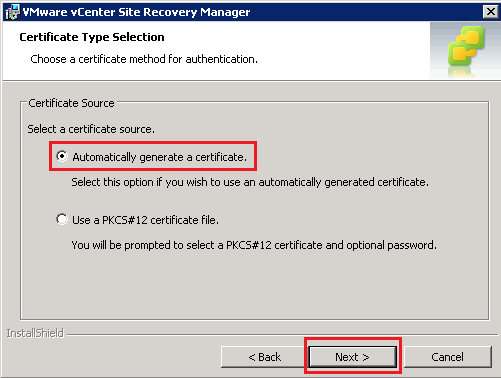
Select Automatically generate a certificate and hit Next
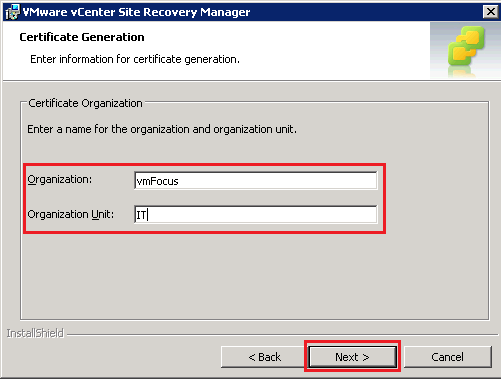
Enter an Origination and an Organization Unit and click Next
Now we are cooking on gas, enter your Local Site Name, in my case this is Production, email address details and select your Local Host.  You can also change default ports if you need to.

Now it’s time to hook into the SQL Database.  To do this we need to select ODBC DSN Setup.  Note I have already populated the Username & Password Fields
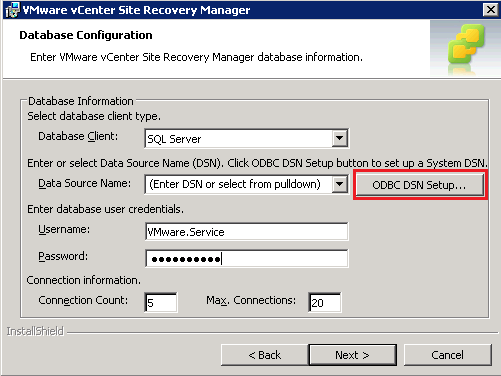
Select the System DSN Tab and Click Add

Select SQL Server Native Client 10.0 and click Finish
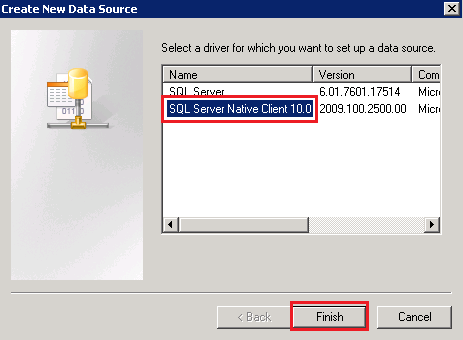
We now need to create the data source, give the data source a Name and Description.  I’m rolling with PR_SRM and Production Site Recovery Manager.  In Server enter the same details you used to login to SQL Server Management Studio and then hit Next.

Click Next again until you come to the ‘Change the default  database to’ screen place a tick in this and select PR_SRM Cick Next then Finish

If all has gone according to the ‘A Team’ plan, when you click ‘Test Data Source, you should get a TESTS COMPLETED SUCCESSFULLY!

Boom! Hit OK three times and we then get a pop up about ‘Newly added Data Source Names’ Hit OK.  In the Data Source Name type PR_SRM and Click Next

If all has gone well we should get the install screen.  Click install and twiddle your thumbs for a while SRM finally cracks on and installs.  Time for another brew will SRM does it’s thing.

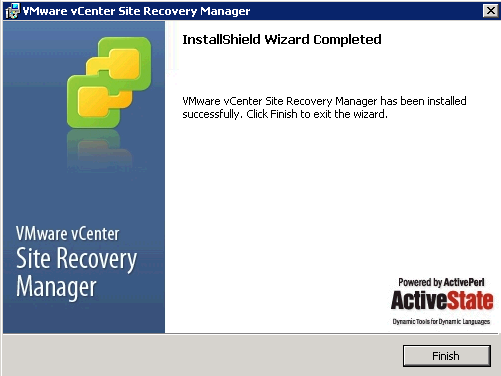
Boom, we have gotten the Finish screen and after clicking it, amazing things happen? Err no, we get nothing.
Installing HP StoreVirtual SRA

Well I’m pleased to say that installing the HP StoreVirtual SRA is pretty easy, it’s just a case of double clicking your HP_P4000_SRA_2.0_for_Vmware_SRM_5.0_AX696-10540 icon.
Pretty much it’s a next, accept the EULA and click next.  Once done, you should see the following screen.
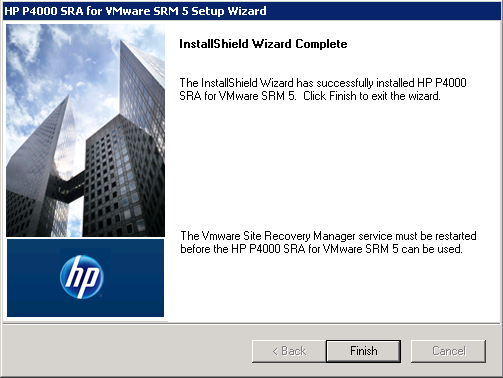
Awesome job.

DR Site

Now that’s the Production Site installed, we need to repeat the process at DR.  It’s exactly the same, just remember to name it DR rather than Production! You may laugh but I have done this before.

Stay tuned for Part 2 when we start configuring.

Part 3 – Automating HP StoreVirtual VSA Failover

In part two we installed and configured HP StoreVirtual VSA on vSphere 5.1 in this blog post we are going to look at automating failover.

I think a quick recap is in order.  If you remember we received a warning when adding SATAVSA01 and SATAVSA02 to the Management Group SATAMG01.  Which was:

‘to continue without installing a FOM, select the checkbox below acknowledging that a FOM is required to provide the highest level of data availability for a 2 storage system management group configuration. Then click next’.

This error message is about quorum, a term that I’m sure alot of you are familiar with when working with Windows clusters.  Each VSA run’s whats known as a ‘manager’ which is really a vote.  When we have two VSA’s we have two votes, which is a tie.  Let’s say that one VSA has an issue and goes down, how does the the remaining VSA know that? Well it doesn’t.  It could be that both VSA’s are up and they have lost’s the network between them.  This then result’s in split brain scenario.

This is where the Failover Manager comes into play.  So what exactly is a Failover Manager? Well it’s specialized version of the SAN/iQ software which runs under ESXi, VMware Player or the elephant in the room (Hyper V).  It’s purpose in life is to be a ‘manager’ and maintain quorum by introducing a third vote ensuring access to volumes in the event of a StoreVirtual VSA failure.  The Failover Manager is downloaded as an OVF and the good news is we already have a copy which we have extracted.

A few things to note about the Failover Manager.

  • Do not install the Failover Manager on a StoreVirtual VSA you want to protect,as if you have a failure the Failover Manager will loose connection.
  • Ideally it should be installed at a third physical site.
  • Bandwidth requirements to the Failover Manager should be 100 Mb/s
  • Round trip time to the Failover Manager should be no more than 50ms

In this environment we will be installing the Failover Manager on the local storage of ESXi02 and placing it into a third logical subnet.  I think a diagram and a reminder of the subnets are in order.

Right then, let’s crack on shall we.

Installing Failover Manager

We are going to deploy SATAFOM onto ESXi02 local hard drive which is called ESXi02HDD (I should get an award for my naming conventions).

The Failover Manager or FOM from now on, is an OVF so we need to deploy it from vSphere Client.  To do this click File > Deploy OVF Template.

Browse to the location of your extracted HP StoreVirtual VSA files ending in FOM_OVF_9.5.00.1215FOM.ovf

Click Next on the OVF Template Details screen and Accept the EULA followed by Next.  Give the OVF a Name in this case SATAFOM and click Next.  When you get to the storage section you need to select the local storage on a ESXi Host which is NOT running your StoreVirtual VSA.  In this case it is ESXi02HDD

Click next and select your Network Mapping and click Finish.

TOP TIP, don’t worry if you cannot select the correct network mapping during deployment. Edit the VM settings and change it manually before powering it on.

If all is going well you should see a ‘Deploying SATAFOM′ pop up box.

Whilst the FOM is deploying let’s talk networking for a minute.

On ESXi02, I have a subnet called FOM which is on VLAN 40.  We are going to pop the vNIC;s of SATAFOM into this.  The HP v1910 24G is the layer three default gateway between all the subnets and is configured with VLAN Access Lists to allow the traffic to pass (I will do a VLAN Access List blog in the future!)

Awesome let’s power the badboy on.

We need to use use the same procedure we used to set the IP address’s on the FOM as we did on the VSA.  Hopefully you should be cool with this, but if you need a helping hand refer back to How To Install & Configure HP StoreVirtual VSA On vSphere 5.1

The IP address’s I’m using are:

  • eth0 – 10.37.40.1
  • eth1 – 10.37.40.2

Failover Manager Configfuration

Time to fire up the HP Centralized Management Console (CMC) and add the IP Address into  Find Systems.

Log into view SATAFOM and it should appear as follows.

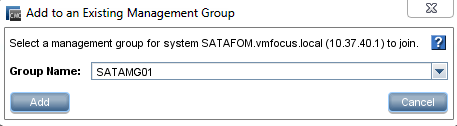
Let’s Rich Click SATAFOM and ‘Add to an Existing Management Group’ SATAMG01

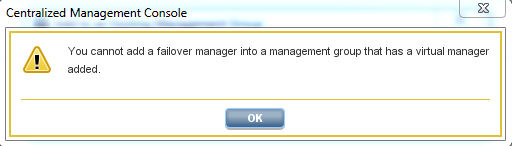
Crap, Craig that didn’t work, I got a popup about a Virtual Manager. What’s that all about?

Nows a good time as any to talk about two other ways to failover the StoreVirtual VSA.

Virtual Manager this is automatically added to a Management Group that contains an even number of StoreVirtual VSA’s.  If in the event you have a VSA failure you can start the Virtual Manager manually on the VSA which is working.  Does it work? Yes like a treat but you will have downtime until the Virtual Manager is started and you nerd to also stop it manually when the failed VSA is returned to action.  Would I use it? If you know your networking ‘onions’ you should be able configure the FOM in a third logical site to avoid this scenario.

Primary Site in a two manager configuration you can designate one manager (StoreVirtual VSA) as the Primary Site.  So if the secondary VSA goes offline you maintain quorum.  The question is why would you do this? Honestly I don’t know, because unless you have some proper ninja skills, how do you know which VSA is going to fail? Also you need to manually recover quorum, which isn’t for the feint heated.  My recommendation, simples, avoid.

OK back on topic.  We need to remove the Virtual Manager from SATAMG01, which is straight forward.  Right Click > Delete Virtual Manager.

Let’s try adding the SATAFOM back into Management Group SATAMG01.  Voila it works!  You might get a registration is required notice, we can ignore that as I’m assuming you have licensed your StoreVirtual VSA.

(I know I have some emails, they are to do with feature registration and Email settings)

Let’s Try & Break It!

Throughout this configuration we have used the following logic:

  • SATAHDD01 runs SATAVSA01
  • SATAHDD02 runs SATAVSA01
  • SATAVSA01 and SATAVSA02 are in Management Group SATAMG01
  • SATAVSA01 and SATAVSA02 have a volumes called SATAVOL01 and SATAVOL02 in Network RAID 10

In my lab I have a VM called VMF-DC01 which you guessed it is my Domain Controller, it resides on SATAVOL02.

Power Off SATAVSA01

We are going to power off SATAVSA01 which will mimic it completely failing, no shutdown guest for us!  Fingers crossed we should still maintain access to VMF-DC01.

Crap we lost connection for about 10 seconds to VMF-DC01 and then it returned whys that Craig you ask?

Well if you remember all the connections go to a Virtual IP Address in this case 10.37.10.1 This is just mask as even though the connections hit the VIP, they are directed to one of the StoreVirtual VSA, in this case SATAVSA01.

So when we powered off SATAVSA01 all the iSCSI connections had to be ceased and then represented back via the VIP to SATAVSA02.

Power Off SATAVSA02

To prove this, let’s power on SATAVSA01 and wait for quorum to be recovered.  OK let’s power off SATAVSA02 this time and see what happens.

I was browsing through folders and received a momentary pause of about one second which to be fair on a home lab environment is pretty fantastic.

So what have we learned? We can have Network RAID  1 with Hardware RAID 0 and make our infrastructure fully resilient.  To sum up, I refer back to my opening statement which was the HP StoreVirtual VSA is sheer awesomeness!

Part 2 – How To Install & Configure HP StoreVirtual VSA On vSphere 5.1

Great news, it’s time to fire the HP StoreVirtual VSA’s up!  Excellent, once they have booted, we need to login and configure the IP address of each SAN.

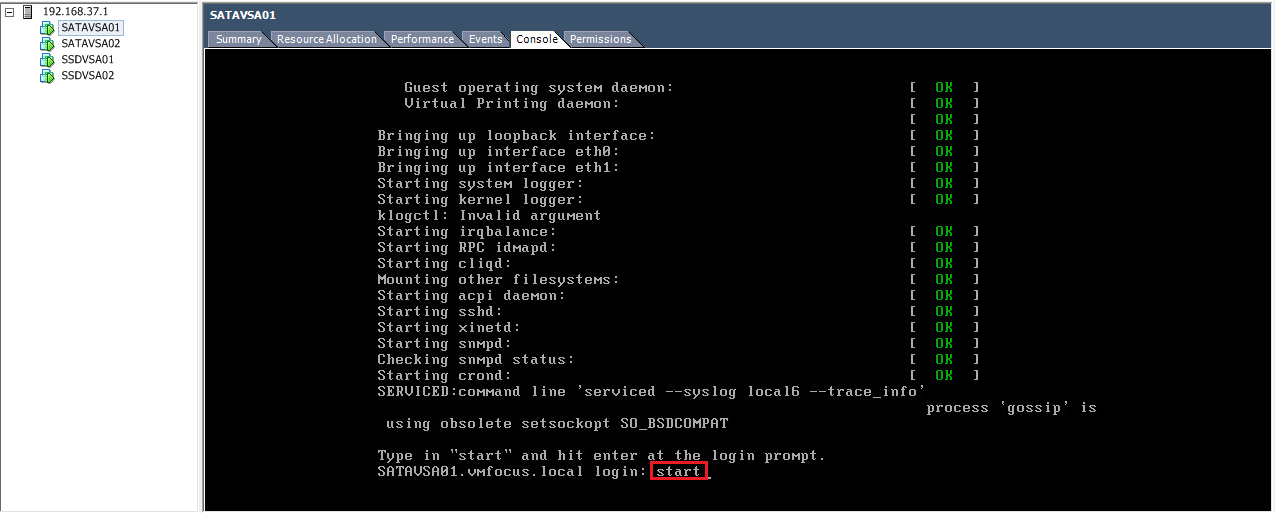
To do this go onto the console screen and type start and press enter

Press enter to login

TOP TIP, to navigate around use tab not the arrow keys

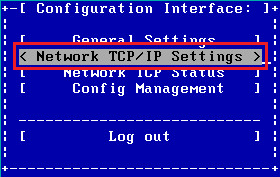
Tab down to Network TCP/IP Settings and press enter

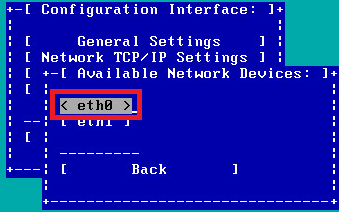
Tab to eth0 and press enter

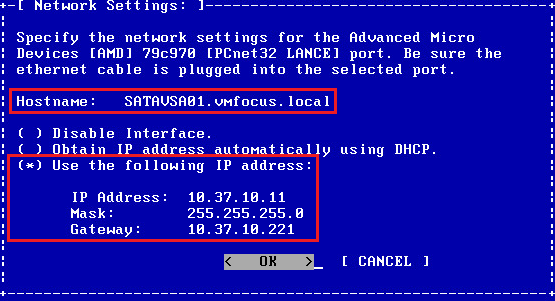
Type in your hostname, in my case it’s SATAVSA01.vmfocus.local then your IP information

 Once done, go over to OK and then log out.

Rinse and repeat for eth1, obviously giving it a different IP Address!

Then continue for anymore HP StoreVirtual VSA’s you have in your environment.

In my lab, I have four in total, which are:

  • SATAVSA01
  • SATAVSA02
  • SSDVSA01
  • SSDVSA02

In fact, let’s show you a picture along with my IP address schema.

Now you are probably thinking that’s great Craig, but I’m not seeing how I do my SAN configuration? Well for that we need to use the HP P4000 Centralized Management Console.

HP P4000 Centralized Management Console

The HP P4000 Centralized Management Console or CMC as it will now be known, is where all the magic happens! OK well not magic, it’s where we configure all the settings for the HP StoreVirtual VSA.

In the previous blog post Part 1 – How To Install & Configure HP StoreVirtual VSA On vSphere 5.1 we downloaded the HP StoreVirtual VSA software.  In the extracted package we also have the CMC which we need to install to be able to manage the VSA’s.

Jump onto the laptop/server you want to install the CMC onto and navigate to the folder which contains CMC_InstallerCMC_9.5.00.1215_Installer and run this.

I tend to install the CMC onto the server running vCenter, just makes life easier having everything in one place.

It takes a short while to initialize, but we should see this screen soon.

Hit OK, then follow the onscreen prompts, you know the usual next, accept EULA next, OK.

Awesome, so hopefully, you should see the CMC installing.

Launch the CMC and voila we have a screen full of err nothing!

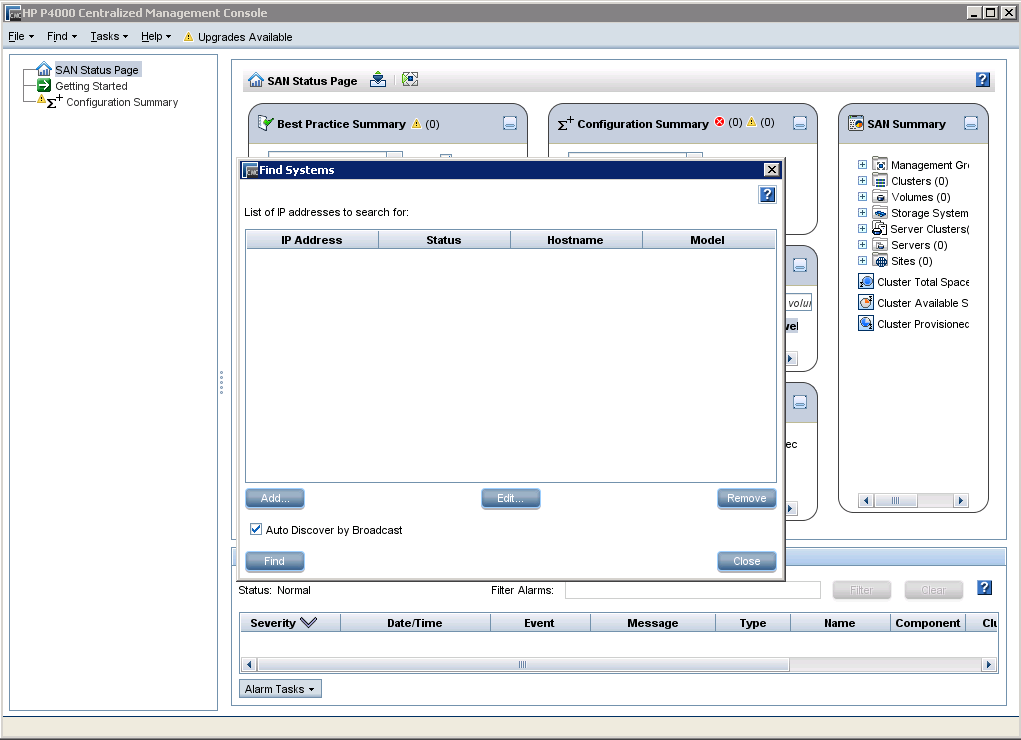
It actually makes sense, as we need to tell the CMC to find the VSA’s we installed via there IP address’s. To do this, click Add and enter your IP Address.  Mine are:

  • 10.37.10.11
  • 10.37.10.13
  • 10.37.10.15
  • 10.37.10.17

If all goes well, you should see your VSA’s being populated.

Click on Add, and hold on a minute, where have they gone? Don’t worry you can see them under Available Systems on the left hand side.

Let’s crack on and start configuring.  Select the Getting Start from the left hand panel and choose 2. Management Groups, Clusters and Volumes Wizard:

Hit next, and we want to create a New Management Group. But what is a ‘management group’ well it’s a logical grouping of VSA’s which are clustered to provide scalability and resilience.  Let’s say we had one SAN with RAID 10 which is a common deployment.  SAN’s are built for resilience e.g. dual PSU’s, dual disk controllers, multiple NIC’s per controller.  If you loose a disk controller, then even though the SAN continues to work you get a massive performance hit as the SAN will go ‘aha’ I don’t have a redundant disk controller and therefore I will turn caching off and every write will be written directly to disk.

If we have  two VSA’s or P4000 within a Management Group that are Clustered running Network RAID 10 we can avoid this situation.  Pretty neat eh?

The first thing we want to do is create a new Management Group and click Next.

Then give the Management Group a name, for me, it’s going to be SATAMG01 as I’m going to have two Management Groups, one for SATA and one for SSD.  Then select the VSA’s which will held by the Management Group.  I have chosen SATAVSA01 and SATAVSA02.  We now get an additional box appear with a warning

‘to continue without installing a FOM, select the checkbox below acknowledging that a FOM is required to provide the highest level of data availability for a 2 storage system management group configuration. Then click next’.

Crikey that’s a bit of warning, what does it mean? Well well essentially it’s about quorum, a term that I’m sure alot of you are familiar with when working with Windows clusters.  Each VSA run’s whats known as a ‘manager’ which is really a vote.  When we have two VSA’s we have two votes, which is a tie.  Let’s say that one VSA has an issue and goes down, how does the the remaining VSA know that? Well it doesn’t, it could be that both VSA’s are up and they have lost’s the network between them.  This then result’s in split brain scenario.  The good news is if this occurs then both VSA’s go into a ‘holding state’ with no LUN access until either the original VSA comes back online or someone from IT performs manual intervention.

Don’t worry we are going to introduce a Failover Manager in a third logical site, I will go over the pre requisites for this in an upcoming blog post.

On the next page we need to enter an ‘Administrative User’ which will propagate down to the VSA’s so that if we try and access them, these are the credentials we need to supply.  Next pop in the details of an NTP server or manually set the time.  My recommendation is always to go for an NTP server preferably one of your DC’s so that your never more than 15 minutes out of sync which can cause dramas!

Onto DNS information now, pop in your DNS Domain Name, DNS Suffix and DNS Server

Onto Email Server settings now, enter in your email Server IP, Sender Address and Recipient Address

We now need to ‘Create a Cluster’ which is two or more VSA’s working in unison providing a highly available and resilient storage infrastructure.  In this case we are going to select Standard Cluster and click next.

Give the Cluster a name, I’m going to roll with SATACL01 and click Next.

This is where things start to get interesting, we now need to ‘Assign a Virtual IP’ to the cluster SATACL01. What does this do? Well all communication for the VSA’s goes via the Virtual IP Address allowing every block of information to be written to both VSA’s simultaneously.  How cool?

Click Add and then Next.

We are now in a position to Create a Volume.  Enter the name,  in my case SATAVOL01 and choose a Data Protection Level.  The choices are Network RAID 0, if we use this then we have no protection, so best to select Network RAID-10 (2-Way-Mirror) and enter your Reported Size.

I have always thought that the Reported Size is quite strange, as why would you want to reported size which is greater than your physical space available? Essentially it’s a poor relation to thin provisioning so the ‘storage team’ can say hey ‘VMware team’ look we have created you a 10TB Volume when in fact they only have 5TB of actual space.

Select either Full or Thin Provisioning and click Finish.  Time to make a cup of tea as this is going to take a while.  Once done you should end up with a screen like this.

Note, you will get a warning about licensing, this is expected.  We are ‘cooking on gas’.  Now it’s time to present the volumes to VMware.

vSphere iSCSI Configuration

For the iSCSI configuration we are going to head into VMware, to grab the initiator FQDN’s.  For completeness, I’m going to cover this as well!

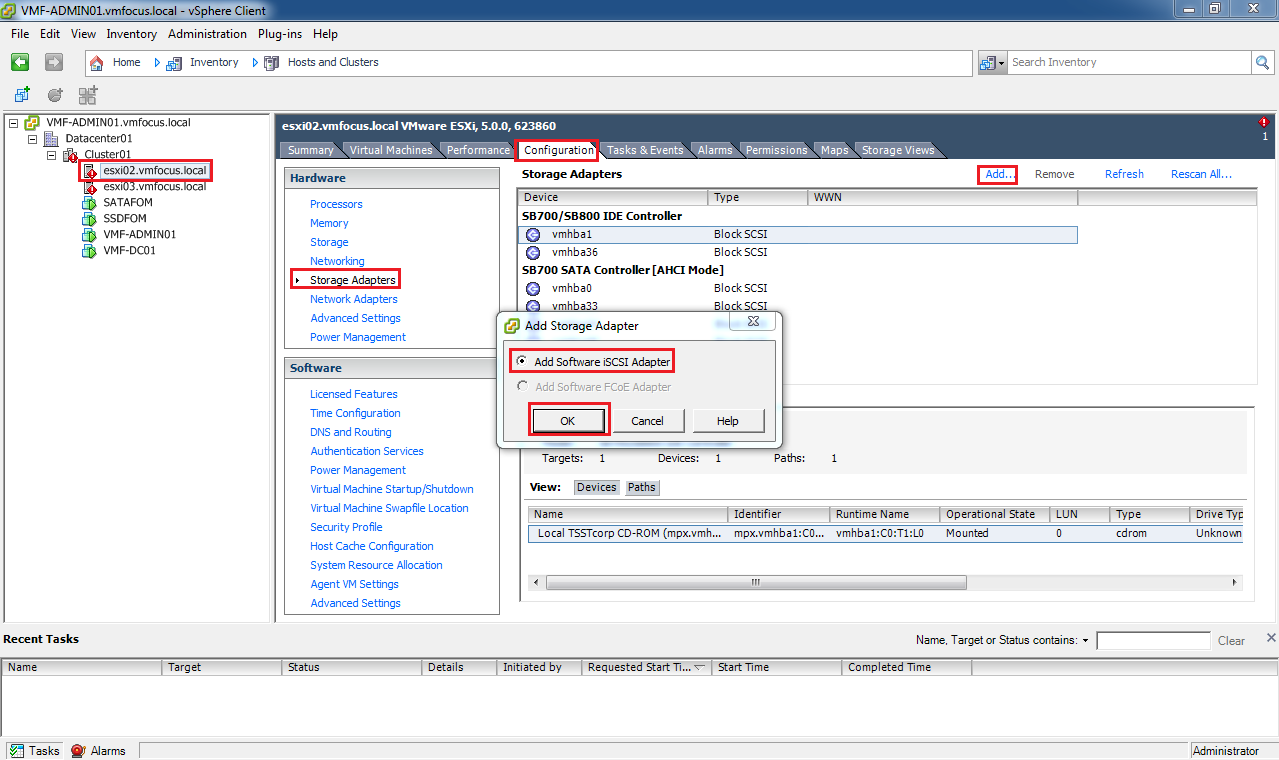
Head into vCenter then onto your ESXi Host, select the Configuration Tab, then select Storage Adapters followed by Add and choose ‘Add Software iSCSI Adapter’

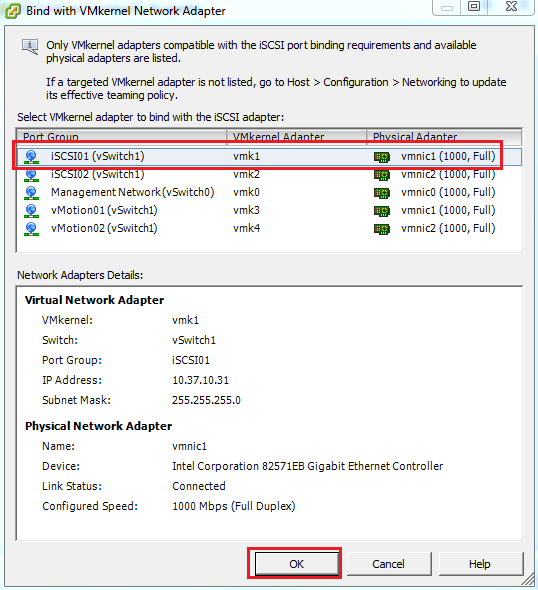
Now that’s done we need to bind out VMKernel Port Group to iSCSI.  To do this click your new iSCSI Software Adapter and click Properties.  This essentially says ‘hey I’m going to use this special VMKernel port for iSCSI traffic’.

Select the Network Configuration tab and click Add

Then select your iSCSI Port Group and click OK

Hopefully, once done it looks a bit like this.

Next we need to enter in the IP Address’s of the VSA Virtual IP Address we want to connect to under the Dynamic Discovery Tab.  Again it should resemble something like this.

Last bit of work before we head back over to the CMC, is that we need to grab the vSphere iSCSI Initiator FQDN.  Good news this is the page we find ourselves at.  So get make a note of what yours are.

Mine are:

  • ESXi02 – iqn.1998-01.com.vmware:ESXi02-0f9ca9cc
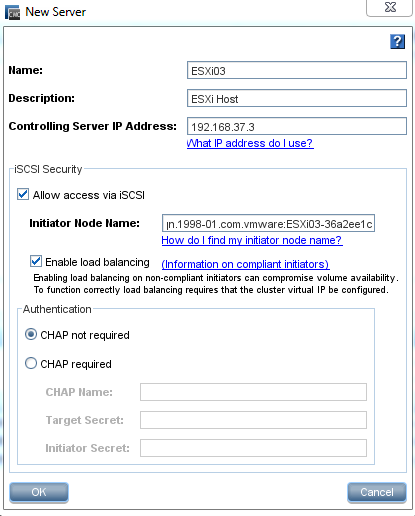
  • ESXi03 – iqn.1998-01.com.vmware:ESXi03-36a2ee1c

CMC iSCSI Configuration


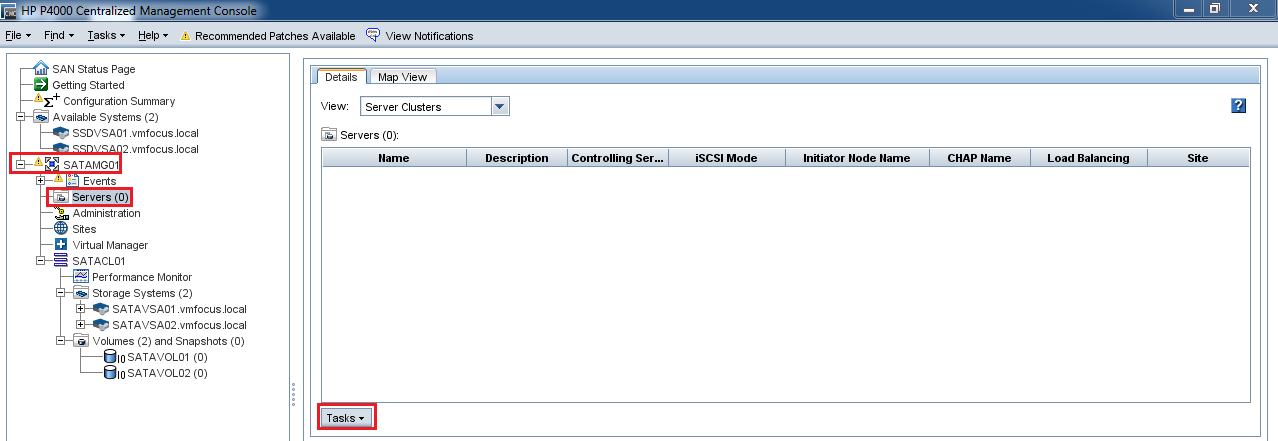
We are on the final hurdle! Expand your Management Group then select Servers, click Tasks > New Server

Complete the details and paste in the Initiator Node Name.  Rinse and repeat for the servers you want to present your volumes too.

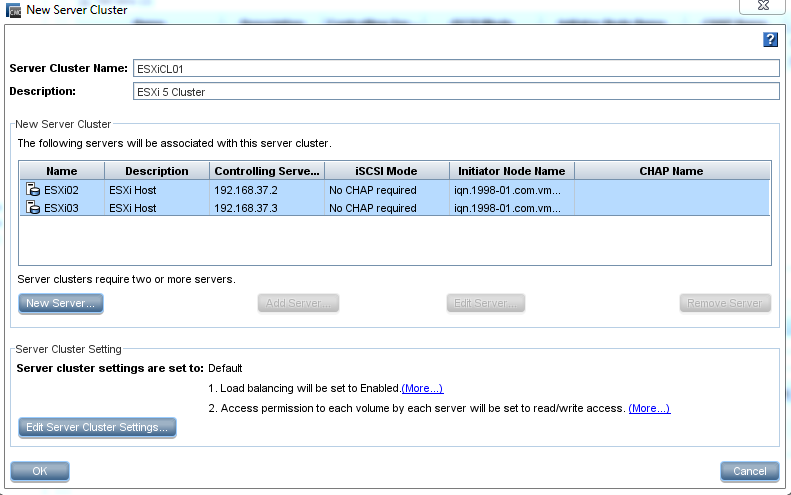
TOP TIP, I recommend you set up a Server Cluster, this is feature of most SAN’s.  It enables you to group common ‘hosts’ together so that rather than having to present a volume to each server/host individually, you present it to the cluster saving you the administrator time (which I’m all for, as we can fit in more cups of tea).

Back to Tasks then Select New Server Cluster and enter the Cluster Name and Description. Once done it should resemble this.  I know great imagination Craig ‘ESXiCL01’

Last of all we need to ‘assign’ the cluster ESXiCL)1 to access the Volumes.  To do this go to Volumes and Snapshots right click the volume you want to present to your server and click ‘Assign and Unassign Server’.  Place a tick in Assigned.

A quick jump over to vCenter and a quick ‘Rescan All’ of our Storage Adapters should reveal.

Boom, there we have it! In the next blog post we can crack on and install the Failover Manager and perform some testing!

Part 1 – How To Install & Configure HP StoreVirtual VSA On vSphere 5.1

The HP StoreVirtual VSA is sheer awesomeness.  It’s going to form the basis of all my storage for my home lab.

Before we move on, let’s examine why it’s so cool.

  • Runs as a VM on either Hyper V, ESXi or VMware Player
  • Use existing HP ProLiant or C Class Blade hardware to create a virtual iSCSI SAN.
  • Thin Provisioning
  • Storage Clustering
  • Wide Strip RAID 5, 6 and 10
  • Network RAID 0, 5, 6, 10, 10+1 and 10+2
  • Automatic SAN Failover using Failover Manager
  • A Synchronous Replication including bandwidth throttling

That’s a large amount of features which is perfect for any lab environment, it will give me the ability to create a vSphere Metro Storage Cluster, deploy Site Recovery Manager as it has a Storage Replication Adapter and is featured on the SRM Hardware Compatibility List

The hardware requirements to run the HP StoreVirtual VSA are:

  • 1 x 2GHz CPU (reserved)
  • 3GB RAM  (reserved)
  • Gigabit Switch

Lab Storage Architecture

So what will be the architecture for my VSA? Well the physical server is a HP ProLiant ML115 G5 with the following specifications:

  • 1 x AMD Quad Core CPU 2.2GHz
  • 5 x 1 GB NIC’s
  • 2 x 120GB SSD
  • 2 x 500FB 7.2K SATA

The HP ProLiant ML115 G5 boots ESXi5 from USB.  Screenshot below from VMware.

You may be questioning, if I’m going to use hardware RAID on the HP ML115 G5? Well the simple answer is no.  I guess you are now thinking you are crazy, why would you do that? Well there is method to my madness.

Step 1 We have four hard drives in total, let’s call them SATAHDD01, SATAHDD02, SSDHDD01 and SSDHDD02.

Step 2 Create a Datastore called SATAiSCSI01 on SATAHDD01 using all the available space and install the SATAVSA01 onto this.

Step 3 Create a Datastore called SSDiSCSI01 on SSDHDD01 using all the available space and install the SSDVSA01 onto this.

Step 4 Create a Datastore called SATAiSCSI02 on SATAHDD02 using all the available space and install the SATAVSA02 onto this.

Step 5 Create a Datastore called SSDiSCSI02 on SSDHDD02 using all the available space and install the SSDVSA02 onto this.

Step 6 We configure SATAVSA01 and SATAVSA02 in Network RAID 10 giving us a highly available SATA clustered solution.

Step 7 We configure SSDVSA01 and SSDVSA02 in Network RAID 10 giving us a highly available SSD clustered solution.

This probably sounds a little complicated, I think in this situation a diagram is in order!

Cool, so without further delay, let’s start installing and configuring.

Installing HP StoreVirtual VSA

We need to download the software from here. You will need to register for a HP Passport Sign in to obtain the software which is a quick and easy process.

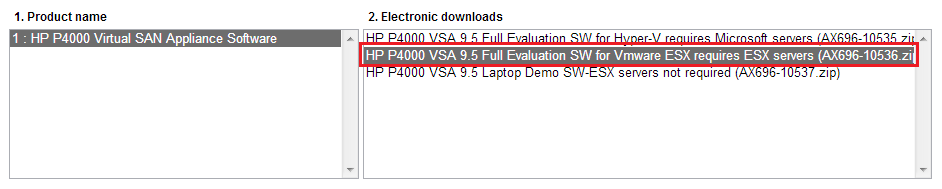
Once we get to the download page you will get three choices, the one we want to select is ‘HP P4000 VSA 9.5 Full Evaluation SW for VMware ESX required ESX servers (AX696-10536.zip)

Time to stick the kettle on for a fresh brew, unless you have a faster broadband connection than me!

Once downloaded, extract the files to a location on your laptop/desktop and fire up vSphere Client and connect to vCenter or your ESXi Host.

You would think that’s it, time to deploy the OVF, nope. We need to browse into the extracted files until we get to HP_P4000_VSA_9.5_Full_Evaluation_SW_for_Vmware_ESX_requires_ESX_servers_AX696-10536Virtual_SAN_Appliance_TrialVirtual_SAN_Appliance and click autorun.exe

This will launch the a further self extractor so that you can either deploy the HP StoreVirtual VSA via an OVF or connect directlty to an ESXi Host or vCenter using HP’s software.

Accept the License Agreement > Select Install VSA for VMware ESX Server and choose a further directory to extract the files too.

Once done, you will get a CMD prompt asking if you want to run the Virtual SAN Appliance installer for ESX?  In this instance we are going to close down this dialog box as if we use the GUI to connect to an ESXi 5.1 host it won’t pass validation.

Instead we are going to deploy it as an OVF.

So first things first, we need to create Datastore called SATAiSCSI01 which will contain the HP StoreVirtual VSA OVF virtual HDD.  I’m assuming you know how to do this so we will move onto deploying the OVF.  To do this click File from the vSphere Client > Deploy OVF Template.

Browse to the location ending in VSA_OVF_9.5.00.1215VSA.ovf and click Next

Click Next on the OVF Template Details screen and Accept the EULA followed by Next.  Give the OVF a Name in this case HPVSA01 and click Next.  I would recommend deploying the Disk Format as Thick Provision Eager Zeroed and clicking Next.  Next up choose a Network Mapping and click Finish.

Top Tip, don’t worry if you cannot select the correct network mapping during deployment. Edit the VM settings and change it manually before powering it on.

If all is going well you should see a ‘Deploying SATAVSA01’ pop up box.

On my physical vSphere 5.1 host, I have five NIC’s.  In this configuration we are going to assign one physical NIC to the management network and four physical NIC’s to the iSCSI network.  Hang on a minute Craig, why aren’t you using two physical NIC’s for the management network? Well first of all this is my home lab and I can easily connect to the HP Central Management Server using the iSCSI Port Group on a VM or if I create an Access Control List on my HP v1910 I can access SATAVSA01, SATAVSA02, SSDVSA01 and SSDVSA02 from the Management network .  Therefore I have chosen to give resiliency and bandwidth to the HP StoreVirtual VSA iSCSI connections.

This actually ties in quite well with the HP StoreVirtual best practice white paper which states you should use two vNIC’s per VSA.  So when we are finished we will have:

  • SATAVSA01 with 2 x vNIC’s
  • SATAVSA02 with 2 x vNICs
  • SSDVSA01 with 2 x vNICs
  • SSDVSA02 with 2 x vNICs

vSphere will automatically load balance the VM’s (SATAVSA01, SATAVSA02, SSDVSA01 and SSDVSA02) onto different physical NIC’s.  If you want to check this you can use ESXTOP which I covered in this blog post.

Cool, so we now have the HP StoreVirtual VSA with some virtual NIC’s, but we have no hard disk capacity.  We are going to edit SATAVSA01 settings and click add Hard Disk > Create A New Virtual Disk > Next .

We now have a choice on the Disk Provisioning, which one do we go for?

Thick Provision Lazy Zeroed Space is allocated by ESXi however the zero’s are not written to the underlying hard disk until that space is required to be used.  Meaning that we have an overhead, do we want this for our iSCSI SAN?

Thick Provision Eager Zeroed Space is allocated by ESXi and all zero’s are written.  The best choice!

Thin Provision Limited space is allocated by ESXi and will automatically inflate when needed,  again zero’s are not written to the underlying hard disk until that space is required to be used.  Meaning that we have an overhead, do we want this for our iSCSI SAN?

In my case I have gone with the following settings.

On the Advanced Options screen we need to change the Virtual Device Node to SCSI (1:0) otherwise the hard drive space won’t be seen by the HP StoreVirtual VSA.

Click finish, this time you will definitely be able to make a brew whilst we wait for vSphere to provision the hard disk.

Lastly, we need to repeat this process for SATAVSA02, SSDVSA01 and SSDVSA02.

In the next blog post I promise we will start to power things on!

How To Configure Layer 3 Static Routes & VLAN’s On HP v1910 24G

In the last how to, we performed the firmware upgrade and initial configuration on the HP v1910 24G.

It’s now time to start  placing some VLAN’s onto our switch.  A good starting point is why do we use VLAN’s?

Well a VLAN enables us to:

  • Logically segment a switch into smaller switches, much same way that ESXi  allows you to run multiple virtual machines on the same physical hardware.
  • Create logical boundaries so that traffic from one VLAN to another VLAN is permitted or not permitted e.g. User VLAN accessing Server VLAN.
  • Reduce the broadcast domains, in the same way that a switch creates a separate collision domain for each device plugged into it.  A VLAN reduces the ARP broadcasts sent out.

Before we move any further, we need to understand what purpose the VLAN’s will serve in our environment and what they will be assigned too.  For me, it’s quite straight forward, the HP v1910 will be used as my main home lab switch and as such I need a VLAN for the following purposes:

  • Management
  • iSCSI
  • vMotion
  • Backup
  • HP Fail Over Manager

With this in mind, I would highly recommend creating a network table containing your VLAN Names, VLAN ID, Subnet and Switch IP Address. You may ask why do you bother? Well I deal with large number of clients infrastructure and I often find that I get confused as what subnet’s are doing what!

You will notice that I have assigned an IP address to the switch on every VLAN.  The reason for this is the HP v1910 can also do layer 3 static routing so in my home environment the switch is the default gateway as well.

Layer 3 Static Routes

OK, lets login to the HP v1910 24G using the IP address and username/password we assigned previously.

Why use layer 3 static routes? Well I want to be able to route between VLAN’s.  This is critical for my HP Failover Manager (FOM VLAN) which needs to be in a logical third site to communicate with the HP Virtual Storage Appliance (iSCSI VLAN).  For each device on each VLAN they will use the switch as there default gateway.  This means that the network traffic will only leave the switch if it has a destination subnet for which it is not responsible e.g. the internet.

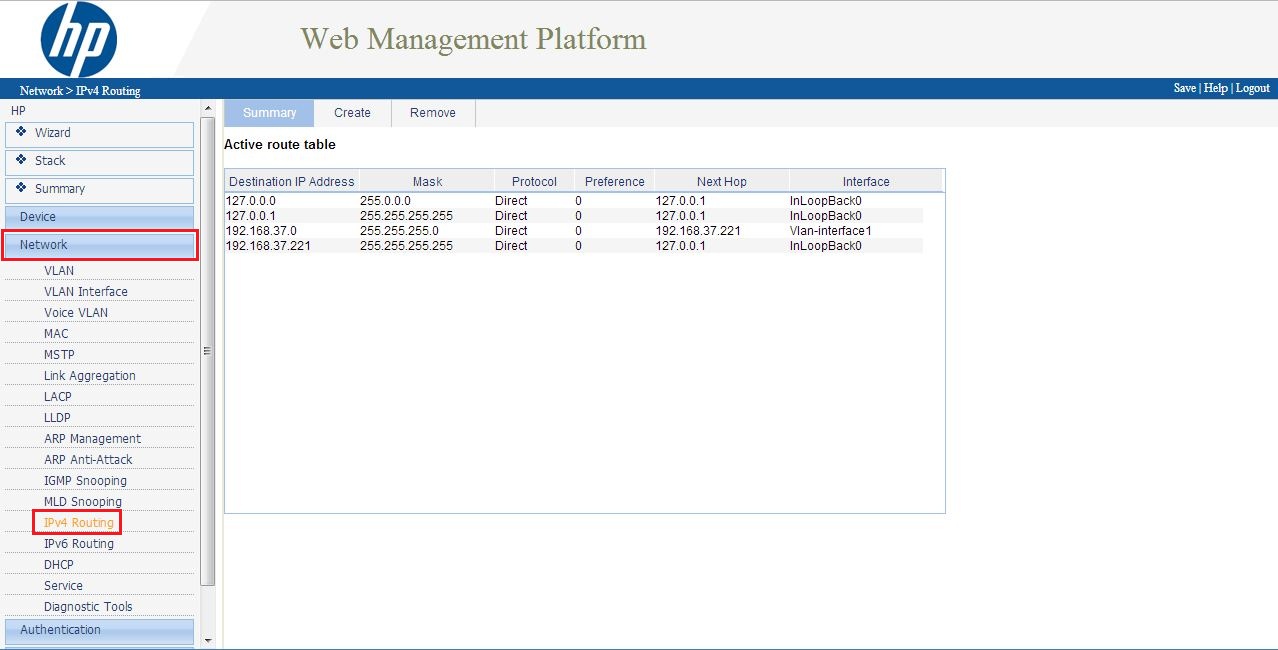
To do this, click on Network from the left hand panel then IPv4 Routing

Click Create in the Destination IP Address enter 0.0.0.0 Mask enter 0.0.0.0 Next Hop enter 192.168.37.254 Select Preference and enter 10

So what are we actually doing? Well we are saying to the switch for ‘any destination IP address’ and ‘any subnet’ send all that traffic to this router/firewall whose IP address is 192.168.37.254 (next hop).

Hopefully it should look something like this.

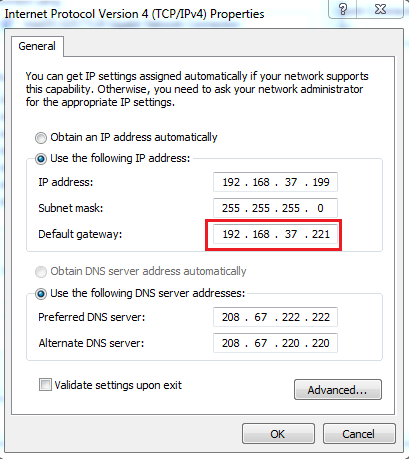
Cool, let’s test it.  Change a computer to use the HP v1910 24G switch as it’s default gateway.

We should now be able to ping the switch, the switches next hop and also something out on the internet.

Boom, it’s all working, let’s move on!

VLAN Configuration

Hopefully, you have already decided on your VLAN configuration and IP address’s for the switch.  So let’s crack on and start configuring.

Select Network from the left hand menu then VLAN and then Create

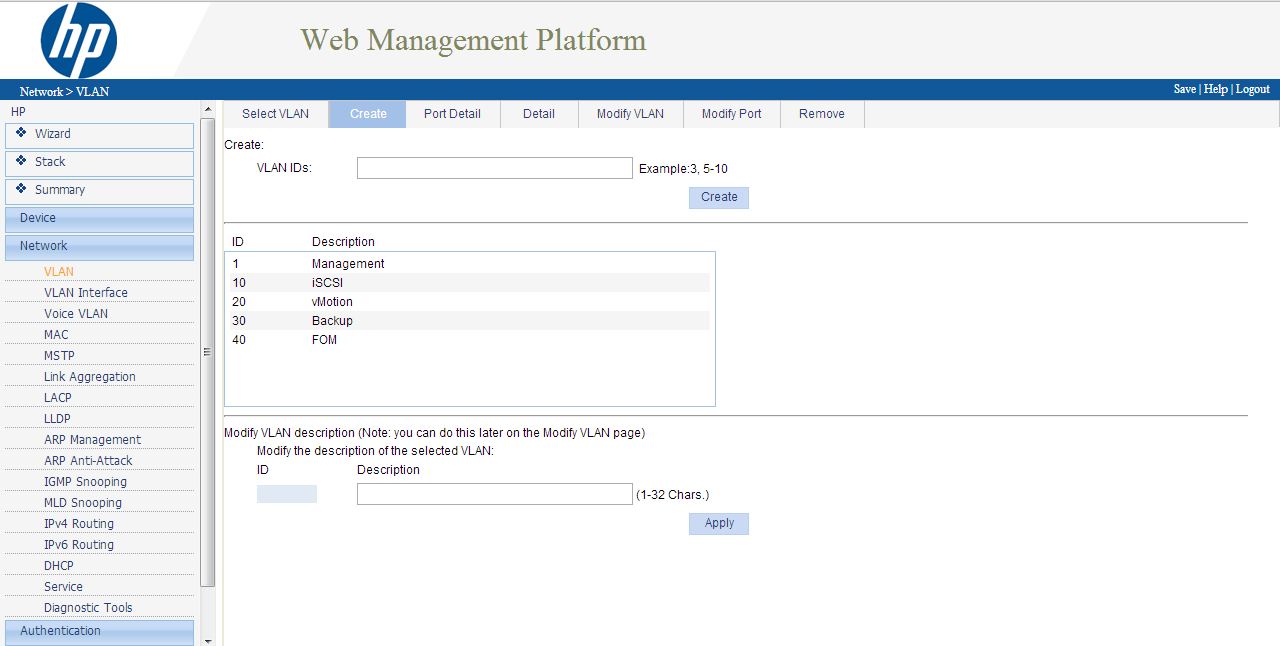
My first VLAN ID is 10, so we enter this and click Create to the left hand side.   Next Modify the VLAN description from VLAN 0010 to iSCSI and then click Apply.

Rinse and repeat until you have entered all of your VLAN’s into the switch.  Here’s one I made earlier.

TOP TIP, don’t forget to click Save in the top right hand corner on a regular basis.

Great, we have created the VLAN’s now we need to assign them to some switch ports.  We need to understand what happens when we change the port characteristics.  The options we have are:

  • Untagged – what ever device we plug into this switch port will automatically be placed into this VLAN.  Commonly used for devices which are not VLAN aware (most desktops/laptops).
  • Tagged – if a device is VLAN aware and it has been assigned to a VLAN, when it is plugged into the switch port it won’t go into the Untagged VLAN, it will go into the Tagged VLAN (think IP phones)

As this switch is for my vSphere 5 environment and vSphere is VLAN aware.  We are going to set every port to be Tagged into every VLAN.  What will this achieve? Well every device which is not VLAN away will go straight into the Management VLAN.  Then on the port group’s within the vSwitches I can assign VLAN’s.

To do this, click Network from the left hand menu, then VLAN and finally Modify Port

By default every port will be ‘untagged’ in VLAN 1 so we don’t need to make any modifications to this. Click Select All then Tagged and last of all Enter the VLAN ID’s in this case 10,20,30,40 and click Apply.

You will receive a pop up letting you know that Access Ports will change to Hybrid Ports, we are cool with this, so Click OK.

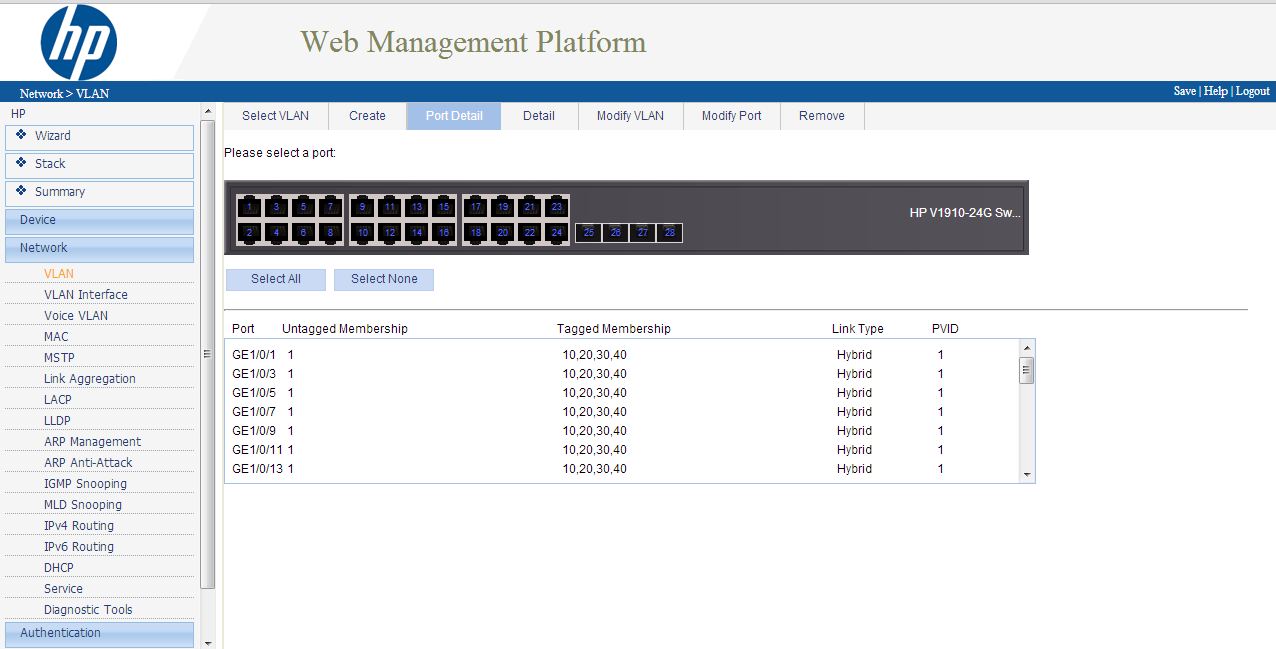
To verify the VLAN’s have been set correctly, go to Port Detail and choose Select All, it should show the following.

Assign An IP Address To Each VLAN

I mentioned earlier on in the post that we wanted to assign an IP address to each VLAN so that the HP v1910 24G becomes the default gateway for all devices.  To do this  select Network from the left hand menu, then VLAN interface and Create.

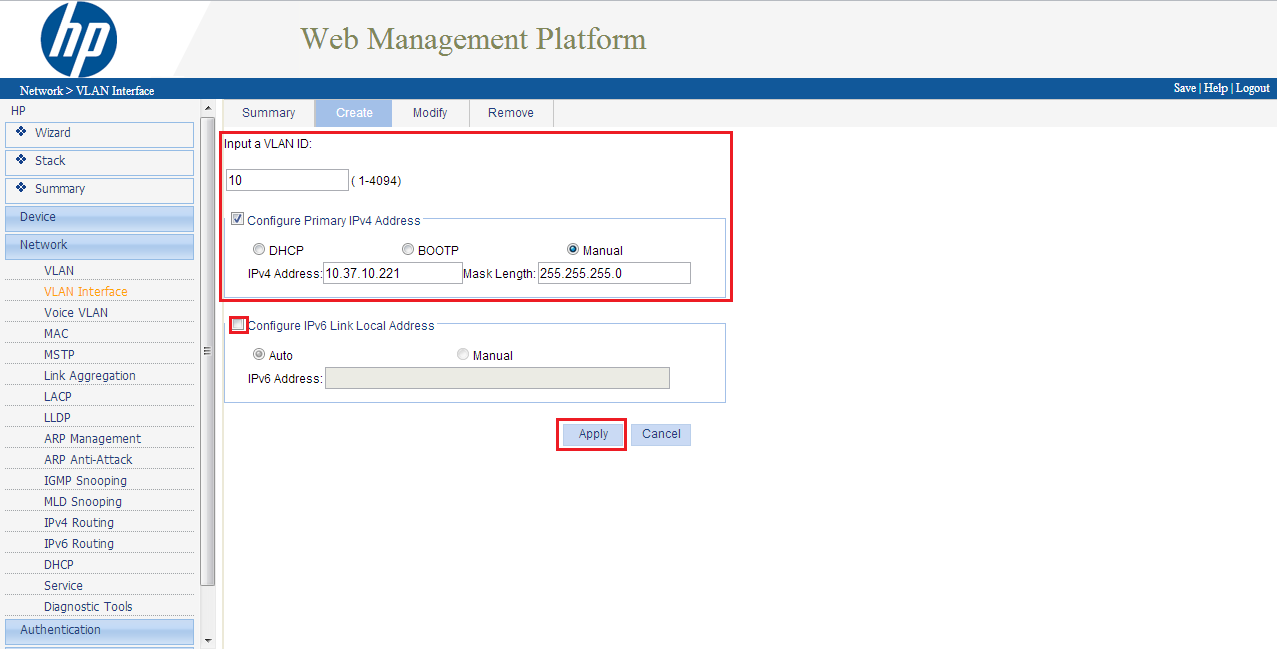
Now this is when I need to refer back to my network table! We input the VLAN ID e.g. 10 and then enter the IP Address e.g. 10.37.10.221 and Mask e.g. 255.255.255.0

I always deselect ‘Configure IPv6 Link Local Address’ then click Apply.

Rinse and repeat for the rest of your VLAN’s.  To make sure everything is ‘tickety boo’ click on Summary and you should be greeted with a page similar to this.

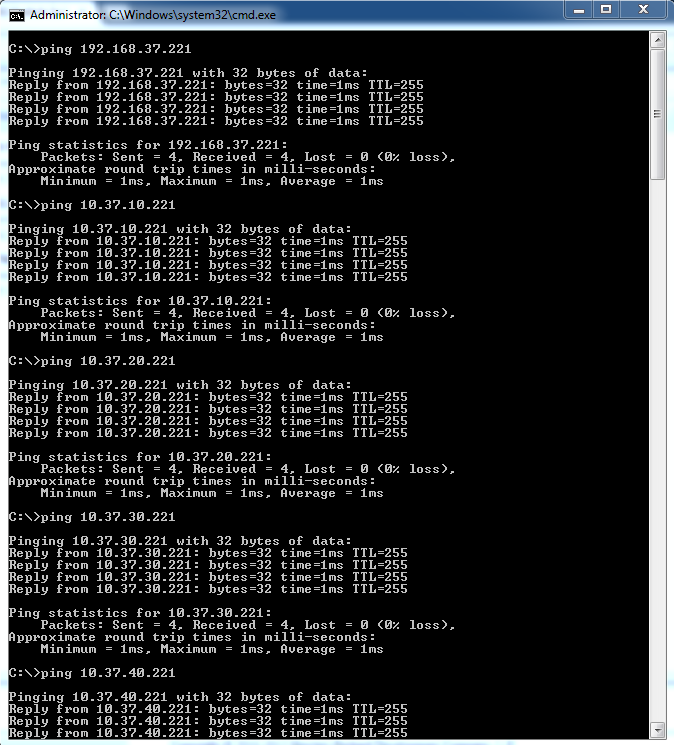
Time to test.  So from your computer you should now be able to ping each VLAN IP address on the switch.

Success, that’s our HP v1910 24G configured with VLAN’s.