Part 2 – Configuring Site Recovery Manager (SRM) With HP StoreVirtual VSA

OK, so I feel like I short changed you a bit on my last blog post Part 1 – Configuring Site Recovery Manager (SRM) With HP StoreVirtual VSA as I did’t mention what the heck the Storage Replication Adapter does.

Think of the Storage Replication Adapter as the ‘link’ between your storage vendor’s hardware and SRM.  Essentially it allows SRM to peer down into the murky depths of your SAN and issue commands which would otherwise need to be done by the administrator.  I think an example is in order, the best one I can think of is when we use SRM to do a test failover (something which we will do later).  SRM uses the SRA to allow you to replicate recent changes to the DR site, then it takes a snapshot of the read only replicated volume, changes it to read/write.  How cool’s that we just ‘click the button test’.

Right now that’s covered off, let’s jump into vCenter.  Launch vCenter and you will see, err nothing different.  Why’s that? well we need to install the plug in for VMware vCenter Site Recovery Manager Extension.

Click Plug-Ins from the top menu bar in vCenter and then Manage Plug Ins
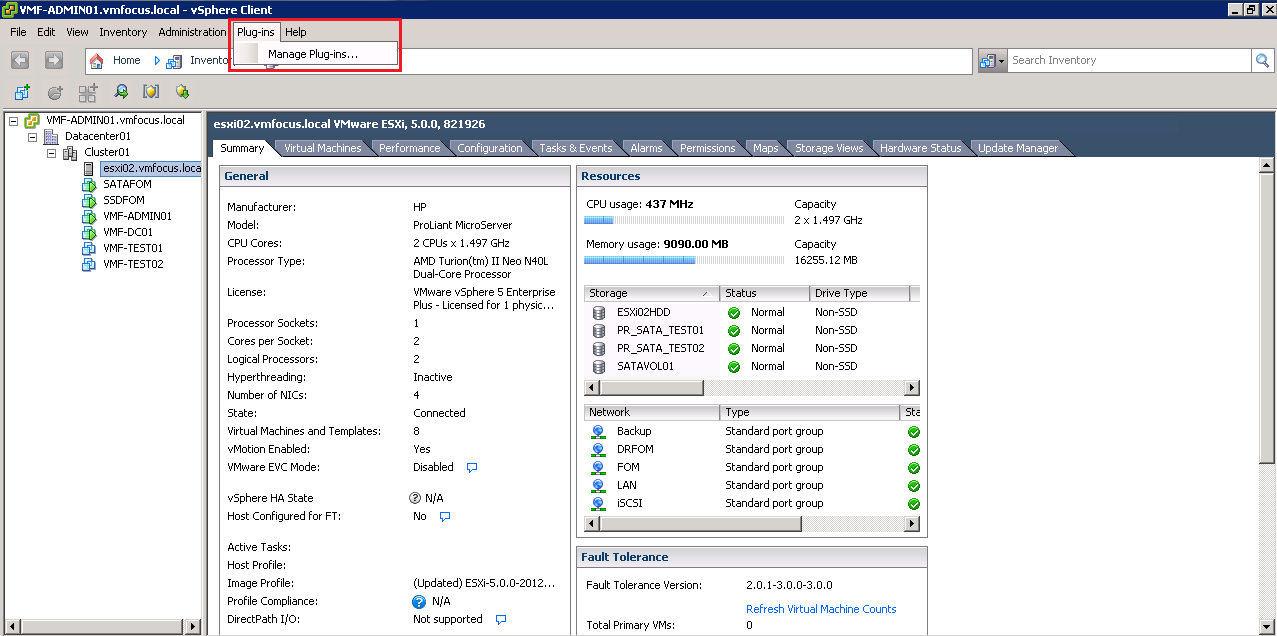
Then click on Download and Install under Available Plug-ins

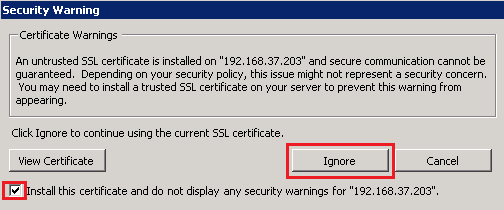
Most likely you will get a Security Warning in relation to your certificates and underlying PKI unless you have a trusted SSL.  In my case I don’t so I will tick the box and ignore
As Windows also likes to give us warnings we have another one in relation to running the installation, click Run.  Then we get to choose the language (it would be nice to get an English (United Kingdom) for us UK folks) anyway, hit OK.

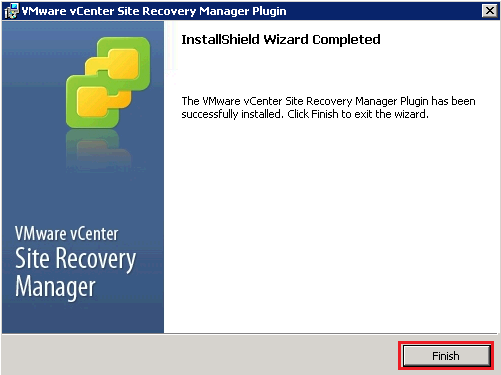
Click, Next, Next and hit Install, and you should end up with a Finish button.
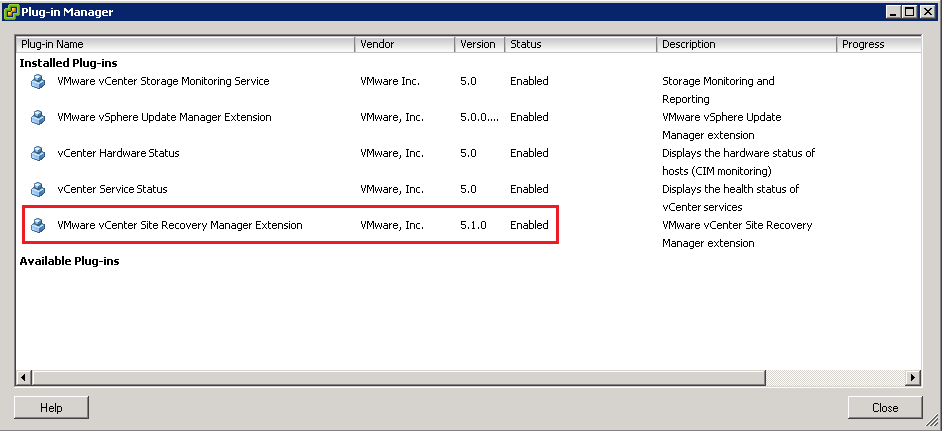
If all has gone to plan, you should see VMware vCenter Site Recovery Manager Extension with an ‘Enabled’ status
I strongly suggest you do the same at the DR site so you keep everything linear.

Next step is configuring the key components of SRM.

SRM Site Connection

Finally we can click some stuff in vCenter and play with SRM.  Click Home and you will see a new Icon under Solutions and Appliances ‘Site Recovery’  I don’t know why but it reminds me of a super hero logo, must be the lightening bolt.

Launch Site Recovery and we are at the landing page, this is where you will spend alot of time.

You will notice that we can only see one site being Production (Local) as we have yet to configure the connection between both vCenters and SRM.

To do this, select Configure Connection from the ‘Commands’ menu on the right hand side

Then enter the address and port of the remote vCenter Server, in this case VMF-ADMIN02 and hit Next

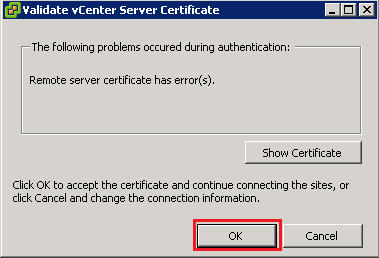
We get another question about certificates, this time we need to validate the vCenter Server Certificate at our DR site, Click OK
We now need to enter the credentials of a user who has rights to access VMF-ADMIN02
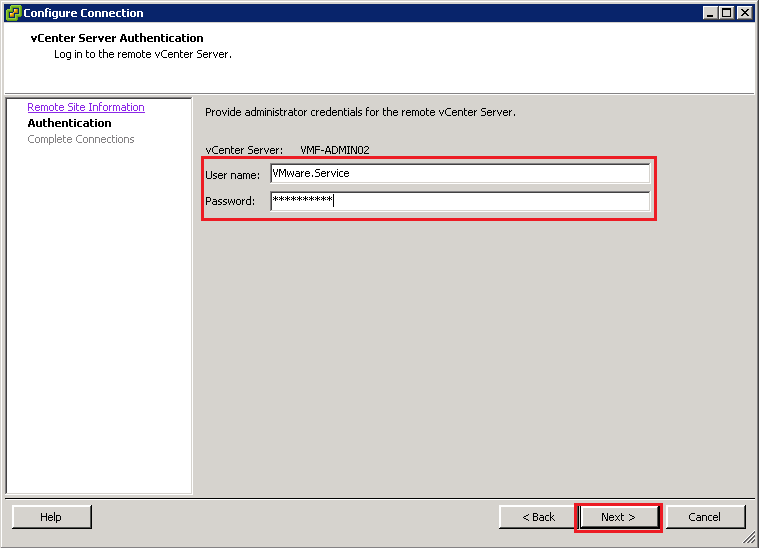
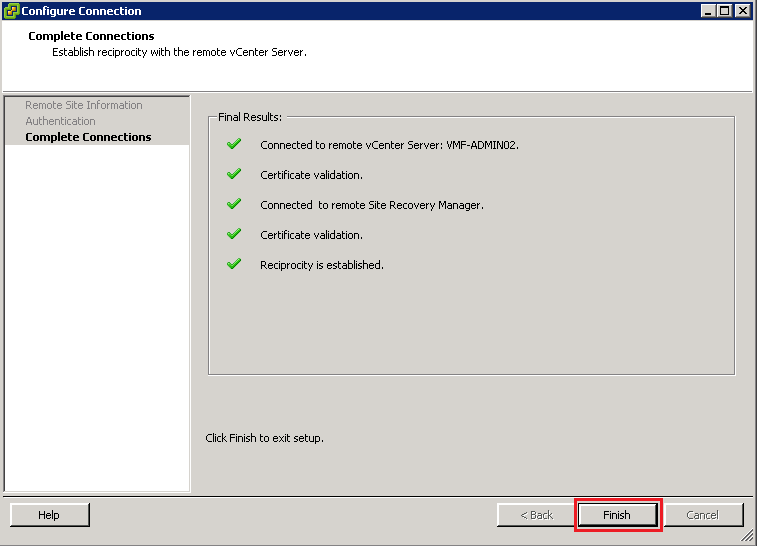
Amazing, we have another certificate warning, click OK again.  Hopefully, if all goes well, you should see all green ticks and then hit Finish.
Time to authenticate into VMF-ADMIN02, oh by the way, get used to entering your credentials a lot!

Click OK, and ignore the next security warning (I swear VMware is now trying to wind us up).  Voila we should now see both site Production (Local) and DR.

SRM Mappings

You have probably started to click around on the tabs at the top called Resource Mappings, Folder Mappings and Network Mappings.  These are logical links between our Production and DR sites, which state if you we use the Port Group LAN in Production when we failover to DR, use Port Group DR LAN in DR.  That make sense?

Let’s configure it, I’m sure the penny will drop, if it hasn’t already.

Resource Mappings

The first tab is Resource Mappings, we are going to configure a mapping between Cluster01 at Production and Cluster02 at DR.  To do this we click Cluster 01 and select Configure Mapping.

Expand, Datacenter02 and then select Cluster02 and hit OK
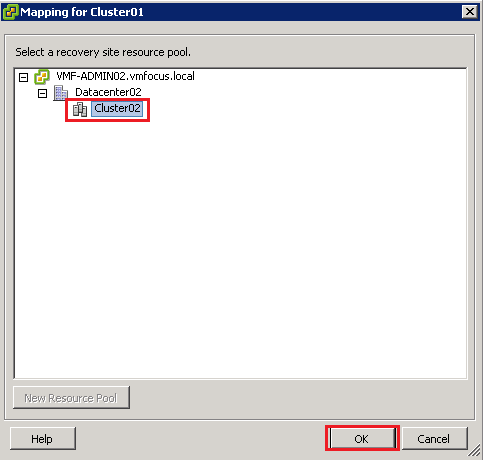
We now have a mapping (logical link) between Cluster01 and Cluster02. Boom!

You can also map Resource Pools between locations, I haven’t created any in this example.  One thing to note is that SRM will not create Resource Pool’s in your DR location, you will need to configure and maintain these on a manual basis.

TOP TIP: Don’t forget to do your reverse mappings, DR to Production for failback

Folder Mappings

Exactly the same principal as Resource Mappings, these create a logical link between our Production and DR sites Folders.  I don’t have any folders below, instead I have linked the Datacenter01 and Datacenter02.
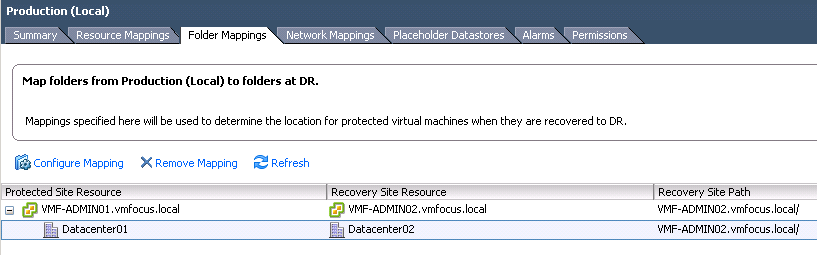
Network Mapping

This is where things start to get interesting.  The network considerations in my opinion are the greatest consideration in your SRM design. Depending on your inter site link, this will have massive implications on what you can or can’t achieve. Let’s discuss these a little further detail below.

Point To Point Link

Let’s say that you have two sites which are connected by Point to Point 100 Mb/s inter site link.  You don’t meet the requirements to use a vSphere Metro Storage Cluster, however why would you want to change all of your virtual servers IP address’s in DR? I certainly wouldn’t want to, the risk of third party applications not working as they have been programmed with a static IP.

In this scenario I would recommend getting your network team to stretch VLAN’s between sites and when you failover to use the same Subnet, VLAN and Port Groups.

MPLS/Site to Site VPN

This is the most common scenario and you really have two choices.  Either RE IP or not to RE IP.  What do you mean Craig, haven’t I got to RE IP as we are on a different site? Well the answer to that is no.

What you can do is get the network team to create the same VLAN at DR as you have in Production, but the key is ensure that the VLAN is shut down! When you failover use the same Subnet, VLAN and Port Groups and then perform a ‘no shut’ on the VLAN and it will work.

TOP TIP: Ensure that you shut down the inter site link port

We are going to make things complicated for ourselves as we are going to RE IP, so that you can see how that works.

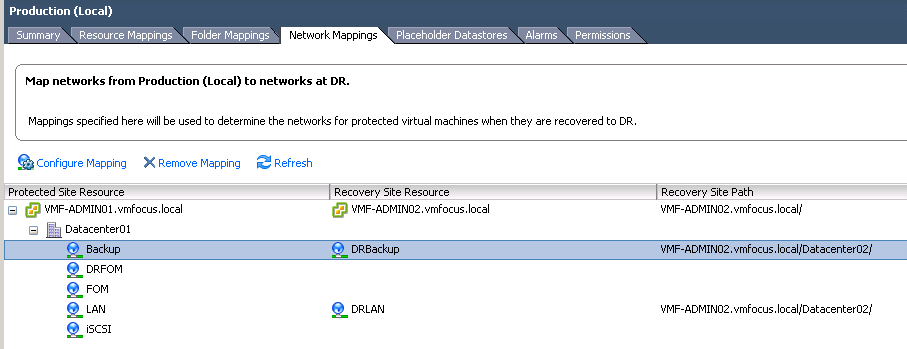
Anyway, back on topic when we failover to our DR site, I want my VM’s in DR to be connected to specific Port Groups.  These will be:

  • LAN > DRLAN
  • Backup > DRBackup

We don’t need to worry about our iSCSI connections as SRM combined with the SRA will work that out for us.

If you remember on the first blog post I showed my subnet’s but, as a quick reminder.

  • LAN 192.168.37.0/24 VLAN 1 will become DRLAN 192.168.38.0/24 VLAN 51
  • Backup 10.37.30.0/24 VLAN 30 will become DRVLAN 10.37.31.0/24 VLAN 31

We follow exactly the same procedure for our Network Mappings as we did for the Resource and Folder Mappings, so I want go over old ground.  You should end up with something like this.
Placeholder Datastores

What’s this thing called a Placeholder Datastore? What does it do? Well first of all the datastore only needs to be small, 10GB should be fine for all but the largest environment   Essentially they contain all of the Virtual Machine configuration files.  We are going to RE IP when we perform test failovers, if we changed the IP address of the Production VM in this scenario it would end in dramas.

I have created two Volumes as follows:

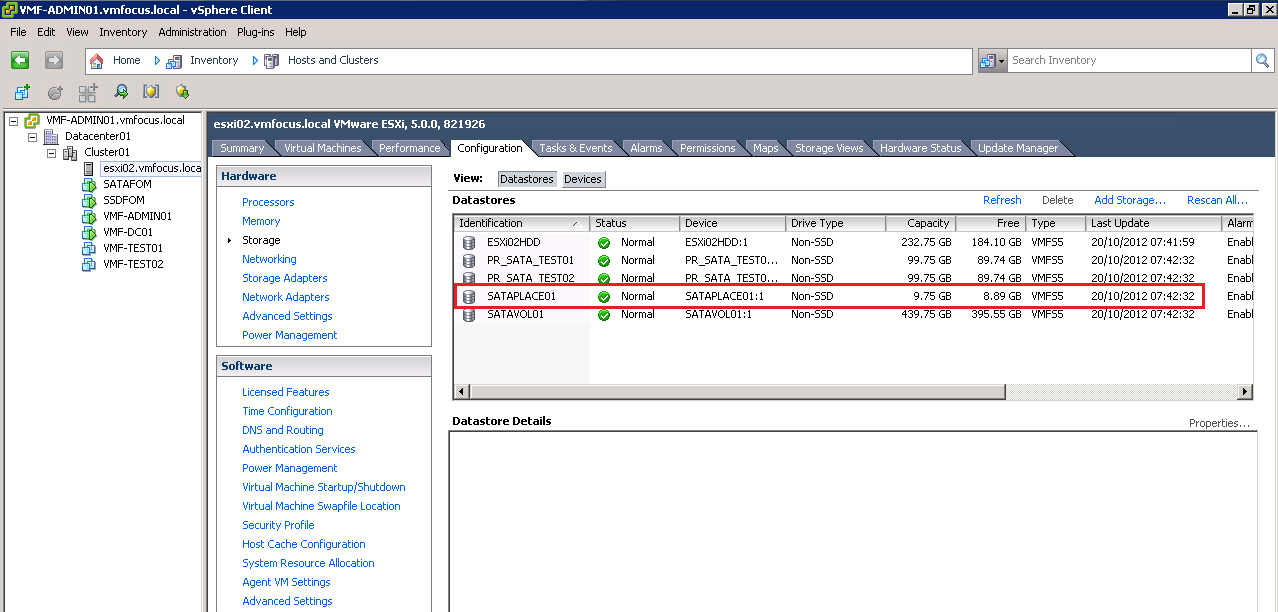
  • SATAPLACE01 which will be the Datastore for our Production Site
  • SSDPLACE01 which will be the Datastore for our DR Site

If you need a hand creating a Volume using HP StoreVirtual VSA, refer to my previous blog series How To Install & Configure HP StoreVirtual VSA on vSpehre 5.1

From these two volumes,I then created two Datastores one at Production called SATAPLACE01 and one at DR called SSDPLACE01.
Back to SRM, let’s click on the Placeholder Datastores Tab and then on Configure Placeholder Datastore

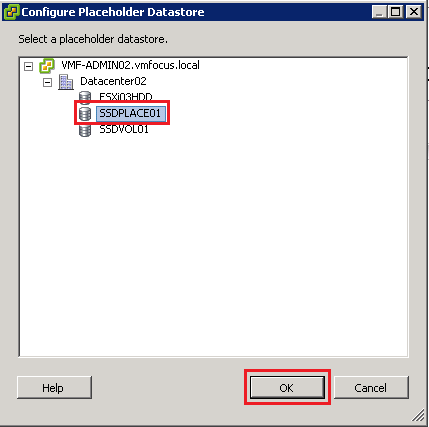
Select SSDPLACE01 (yep SRM uses the opposite sites Datastore to hold VM configuration files, makes sense as when your Production site goes down, SRM knows what VM configuration is needed).
Once done, it should look like this.

Then all we need to do is repeat the process at the DR site.

We are cooking on gas! Time to move onto Array Managers.

Array Managers

Array Manager, what’s that all about? Well it’s exactly what it says it is, SRM uses the Array Manager to guess what, manager the array.

If you remember we installed the HP P4000 Replication Adapter in Part 1 – Configuring Site Recovery Manager (SRM) With HP StoreVirtual VSA so the Array Manager section is where SRM delves into our SAN and discovers which Volumes are being replicated and based around this sees what Volumes are being replicated.

With this in mind, we need to configure SRM to let it know where to find the HP StoreVirtual VSA.

Select Array Managers from the left hand side menu, then ensure you are on Production (Local) and then select Add Array Manager

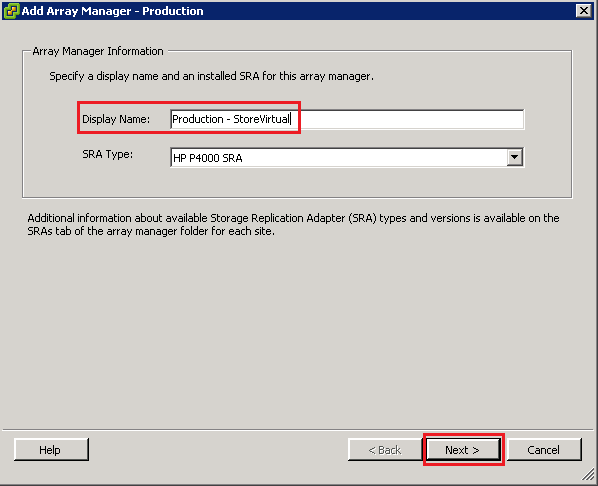
Give the Array Manager a name, I’m going to call mine ‘Production – StoreVirtual’ and Click next
Now we need to enter the IP Address of the HP StoreVirtual VSA and a username and password with credentials to log into the SAN.

TOP TIP: Enter in the VIP Address of the HP StoreVirtual VSA
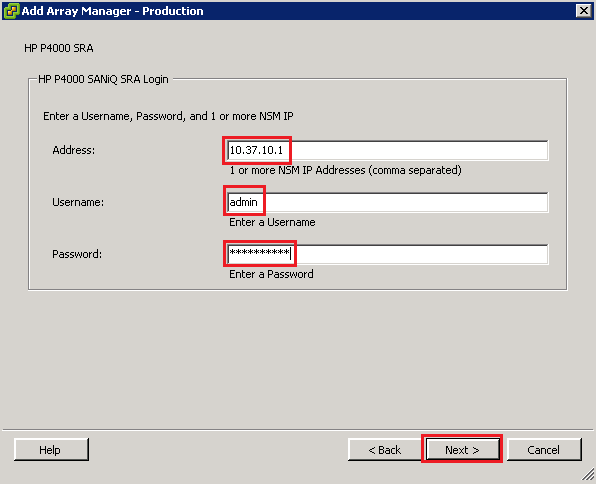
Click Next and then hopefully you will see a ‘green success’ tick
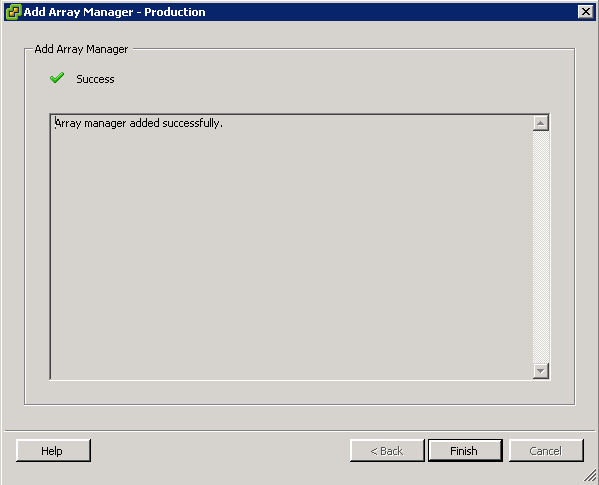
Click Finish and repeat the process for the DR site.

Once, done you should see you SAN’s on the left hand side

You will notice that under Array Pairs we don’t have anything listed, why’s that? Well this is the area where SRM shows us the replicated Volumes, and as we don’t have any, nothing appears.

Watch out for Part 3, when we will be replicating Volumes between our Production and DR sites.
Part 1 – Configuring Site Recovery Manager (SRM) With HP StoreVirtual VSA

This is going to be a short series on configuring Site Recovery Manager, SRM from here on in and HP StoreVirtual VSA, from here on in VSA.

SRM, like VSA is pure awesomeness, it allows us to facilitate a full site failover and more importantly failback with ease.  In fact we can even go as far as only failing over mission critical services such as Exchange, SQL and File, whilst leaving everything else in the Production site.  Other pretty cool things we can do with SRM are:

  • Perform ‘test’ failovers in a isolated bubble, allowing you to report to management that everything is ready to rock ‘n’ roll if you ever have a DR scenario.
  • Change the IP Address of virtual servers on failover and failback.
  • Start VM’s in priority order, ensuring that subsequent VM’s do not start until the higher priority VM’s VMTools have started.
  • Pause workflows to allow for manual user intervention.
  • Run custom scripts or executable during failover or failback.

So how are we going to facilitate SRM in a lab environment? Well we are going to use the following:

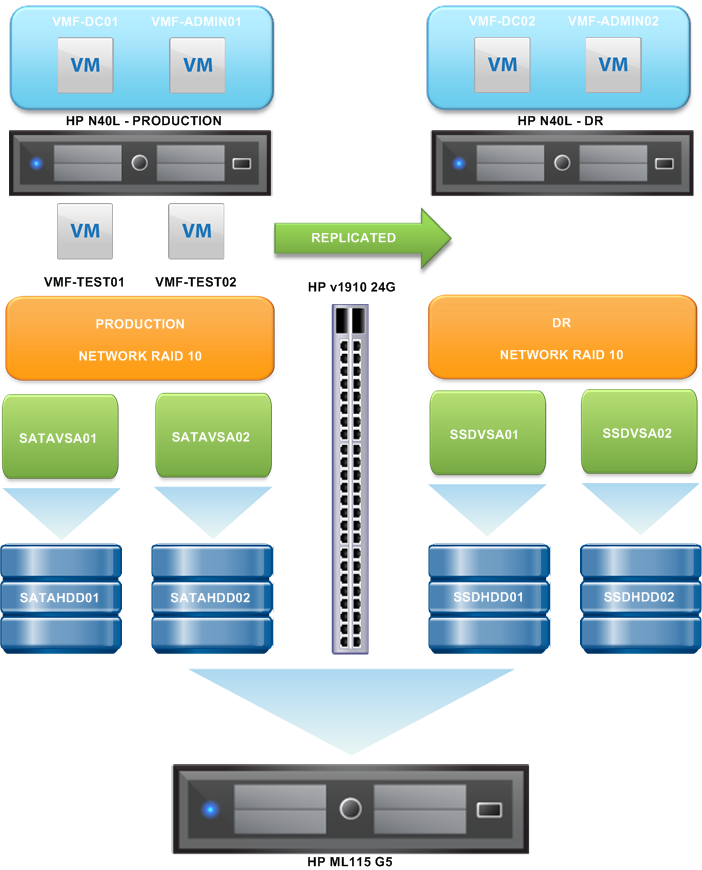
HP StoreVirtual VSA We are going to use four of these, two clustered at Production and two clustered at DR.#

ESXi Hosts We are going to have two of these, one at Production and one at DR.

Domain Controllers Again we are going to have two of these, one at Production and one at DR.

vCenter Servers You guessed it, we are going to have two of these, one at Production and one at DR.

Test Servers We are going to have two of these in Production which will be replicated into DR site and then failed over and back using SRM.

If you are like me, then a picture speaks a thousands words.

I’m going to assume you have setup and configured your HP StoreVirtual VSA already, if you haven’t I would suggest reading the following blog articles:

I’m also going to assume the same for the VLAN’s and networking, if you need a reminder, they can be found under the following blog articles:

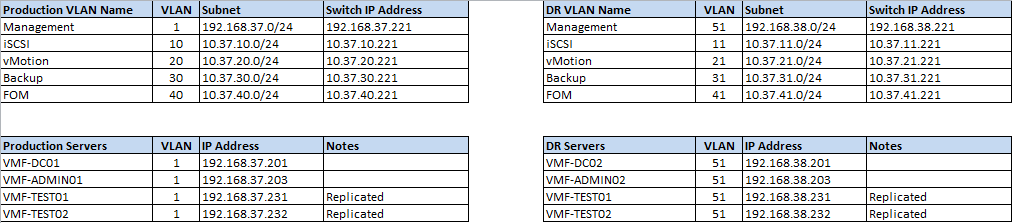
As we are going to be working with alot of VLAN’s, subnets and IP Address’s, I always find it best to put together a table with everything on it.

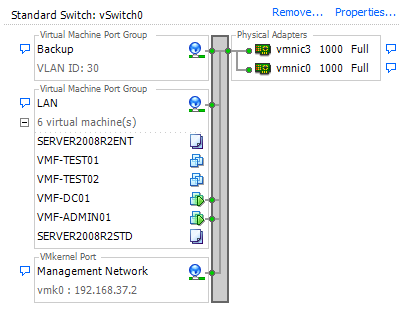
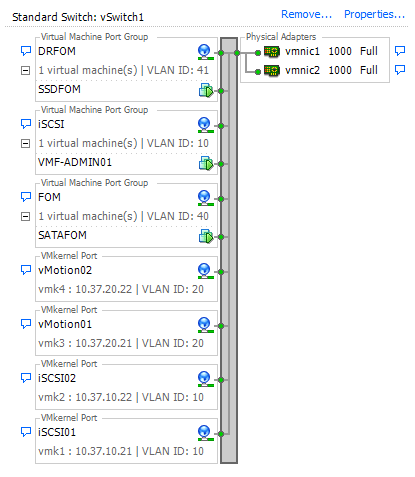
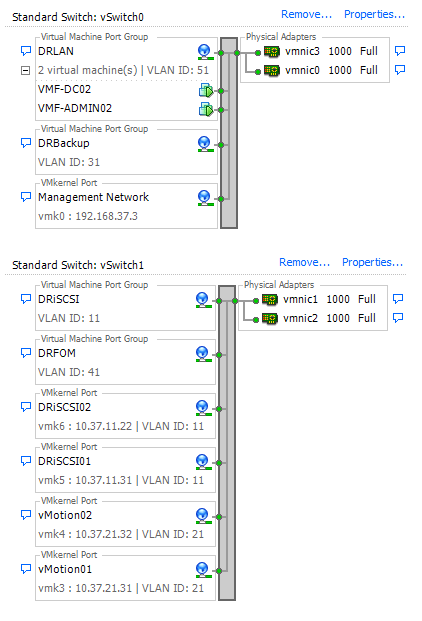
So how is this represented in networking in the Production Site?  Well, I’m glad you asked as below is a couple of screen grabs of the Production Site vSwitches and the DR Site vSwitches.

(ESXi02) Production Site vSwitches

(ESXi03) DR vSwitches

So one last recap, with what’s in each site before we move on.

Production Site

  • ESXi02
  • 2 x HP StoreVirtual VSA’s named SATAVSA01 and SATAVSA02
  • VMF-DC01 (Domain Controller)
  • VMF-ADMIN01 (vCenter and SQL 2008 R2 Express)
  • VMF-TEST01 (server we can failover to DR)
  • VMF-TEST02 (server we can failover to DR)
  • LAN Subnet 192.168.37.0/24

Note that ESXi02 holds the FOM and DRFOM for HP StoreVirtual VSA’s however these are held on the local internal hard drive.

DR Site

  • ESXi03
  • 2 x HP StoreVirtual VSA’s named SSDVSA01 and SSDVSA02
  • VMF-DC02 (Domain Controller)
  • VMF-ADMIN02 (vCenter and SQL 2008 R2 Express)
  • DR LAN Subnet 192.168.38.0/24

Off Topic – Real World

In the real world you have a couple of choices when it comes to SRM, you can either use vSphere Replication or SAN based replication.  vSphere Replication comes with SRM and you can choose to replicate individual VM’s, however if you want synchronous replication it isn’t the product for you as it only works a synchronously.  Most enterprise SAN vendors support SRM, but always check the VMware vCenter Site Recovery Manager Compatibility Matrix.

The licenses are pretty straight forward, it comes in 25 packs and you only have to license the protected site.  The only gotcha is that the Standard Edition will scale to 75 virtual machines being protected, whilst the Enterprise Edition is unlimited.

Ah you say, but with the word Enterprise in the licensing, I must get something more? Nope, you get zip more, just the ability to protect unlimited virtual machines.

Design

When it comes to SRM design, you really need to think about your infrastructure.  Why’s that Craig? Well when you use SRM with a SAN, you fail over on a per volume basis.  So if for example, you have one big volume which you dump all your virtual machines into, you will need to failover every single VM to the DR site.

Most of the designs, require different replication time frames. Commonly, these are often broken down into different service area e.g.

  • Email volume replicating Exchange servers every 15 minutes
  • Database volume replicating SQL servers every 15 minutes
  • VDI volume replicating Citrix servers once per data

You get the idea, think about what Recovery Point Objectives you want for each of your services and design SRM based around this.

Getting Everything Ready

I know you are itching to crack on, but I try and work in a logical order, let’s get everything we are going to need ready and downloaded so that we haven’t got to mess around trying to find it.

  • Site Recovery Manager can be downloaded from here on a 60 day free trial
  • The Storage Replication Adapter for the VSA can be found here it’s the ‘HP P4000 SRA 2.0 for VMware SRM 5.0 (AX696-10540.exe) you need.
  • If you are using SQL Server 2008 R2 Express as your database, then you will need the SQL Server 2008 R2 RTM – Management Studio Express

SQL Configuration

The first thing, I advise you do is get your databases ready to rock and roll.  So let’s fire up SQL Server Management Studio.

TOP TIP: If you are using the SQL 2008 R2 Express, jump into services.msc and check what database was created automatically as you will need this to login.

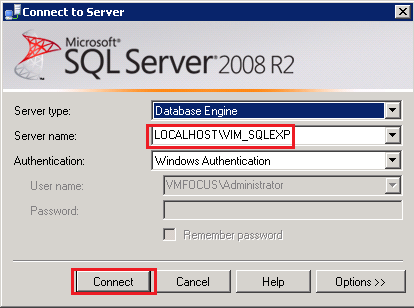
In my case it’s VIM_SQL

So for me to login it’s LOCALHOSTVIM_SQL then click Connect

Once in we are going to Right Click > Database and then select New Database

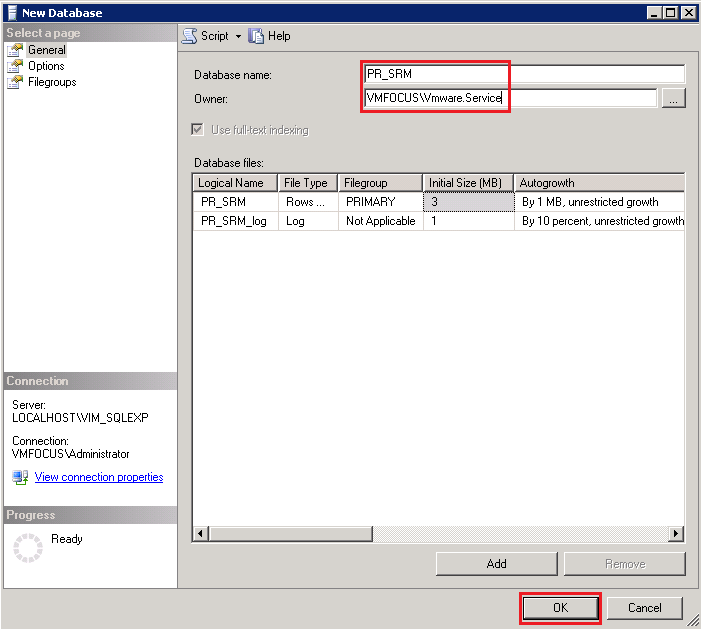
We need to give the Database a name, I’m going to go for PR_SRM and the Database Owner is going to be VMFOCUSVmware.Service (this is a service account that most of my vSphere installs run under).  Then hit OK.

That was pretty straight forward, that’s the SQL database created.  You can check your database is there, if you feel that way inclined.

Let’s close down SQL Management Studio and install SRM.

Installing SRM

Hopefully on your desktop or other random location, you have an icon called SRM-5.1.0-820150

Hit this bad boy to launch the installer, select your language and click OK.

Now this bit takes a while, well on my test lab it does, so I suggest you go make yourself a cup of tea!

Once it finally pops up you will get the Welcome to the installation wizard for VMware vCenter Site Recovery Manager, click Next

I’m not going to insult your intellect, as I’m sure you can Click Next, Accept the License Agreement and Click Next.

The next screen is the installation folder, as with nearly all installs these days you can change the destination folder.  I would recommend accepting the defaults unless you have a specific reason not too.

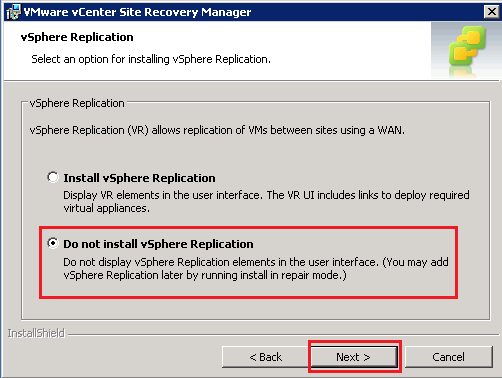
As we are going to use the HP StoreVirtual VSA, we will select ‘Do no install vSphere Replication’

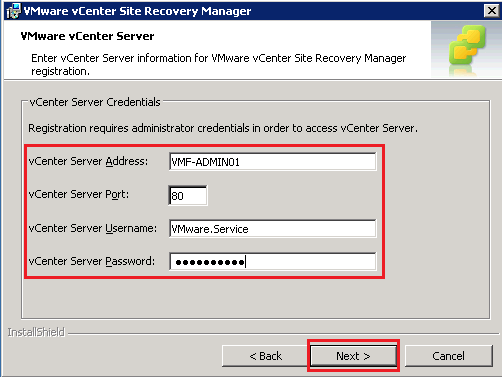
Now we need to enter the vCenter Server Address and a Username and Password with rights to vCenter.  You guessed it I’m going to use VMware.Service

If your credentials are correct then you will see a certificate warning unless you have a PKI infrastructure in place.  We are going to accept the SHA1 thumbprint by clicking Yes

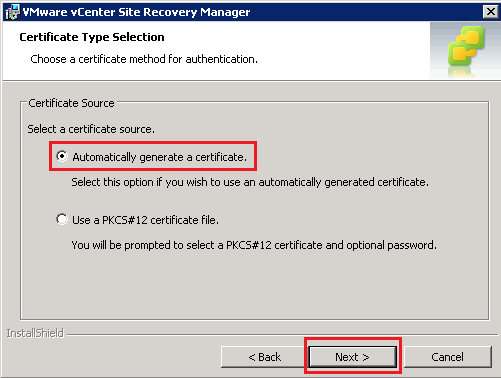
Select Automatically generate a certificate and hit Next

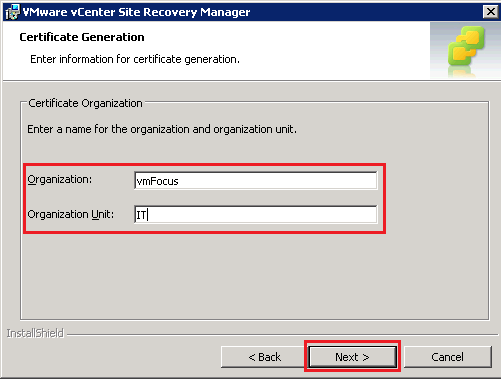
Enter an Origination and an Organization Unit and click Next

Now we are cooking on gas, enter your Local Site Name, in my case this is Production, email address details and select your Local Host.  You can also change default ports if you need to.

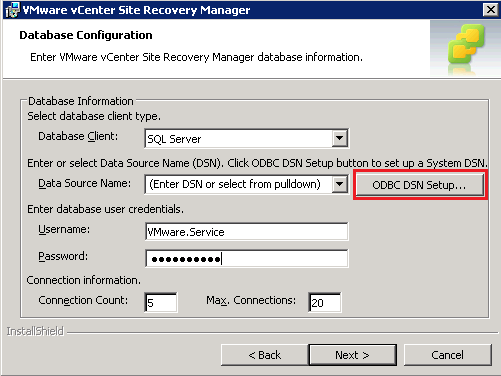
Now it’s time to hook into the SQL Database.  To do this we need to select ODBC DSN Setup.  Note I have already populated the Username & Password Fields

Select the System DSN Tab and Click Add

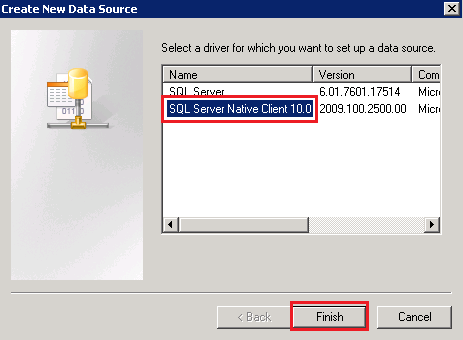
Select SQL Server Native Client 10.0 and click Finish

We now need to create the data source, give the data source a Name and Description.  I’m rolling with PR_SRM and Production Site Recovery Manager.  In Server enter the same details you used to login to SQL Server Management Studio and then hit Next.

Click Next again until you come to the ‘Change the default  database to’ screen place a tick in this and select PR_SRM Cick Next then Finish

If all has gone according to the ‘A Team’ plan, when you click ‘Test Data Source, you should get a TESTS COMPLETED SUCCESSFULLY!

Boom! Hit OK three times and we then get a pop up about ‘Newly added Data Source Names’ Hit OK.  In the Data Source Name type PR_SRM and Click Next

If all has gone well we should get the install screen.  Click install and twiddle your thumbs for a while SRM finally cracks on and installs.  Time for another brew will SRM does it’s thing.

Boom, we have gotten the Finish screen and after clicking it, amazing things happen? Err no, we get nothing.

Installing HP StoreVirtual SRA

Well I’m pleased to say that installing the HP StoreVirtual SRA is pretty easy, it’s just a case of double clicking your HP_P4000_SRA_2.0_for_Vmware_SRM_5.0_AX696-10540 icon.

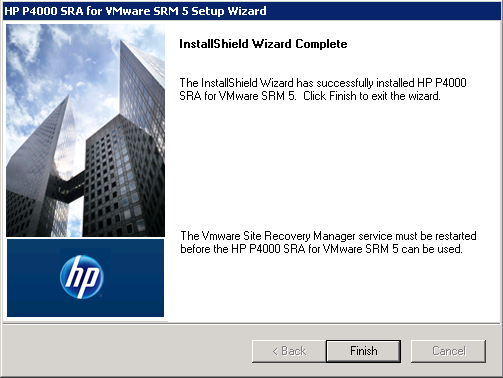
Pretty much it’s a next, accept the EULA and click next.  Once done, you should see the following screen.

Awesome job.

DR Site

Now that’s the Production Site installed, we need to repeat the process at DR.  It’s exactly the same, just remember to name it DR rather than Production! You may laugh but I have done this before.

Stay tuned for Part 2 when we start configuring.

P4000: An Error Occurred While Reading The Upgrade Configuration File

With any device, it is important to keep up to date with the latest firmware the vendor can offer.

I always check the manufactures websites on a monthly basis to see if anything is new,  with this in mind, I was trying to update my P4000 StoreVirtual VSA today and I kept getting the following error message:

‘An error occurred while reading the upgrade configuration file.  If the file was from a web connection, click Try Download Again, otherwise recreate your media image’.

A quick check in Help > Preferences > Upgrades I saw that the Download Directory location didn’t look quite right.

So I entered a at the end of the Download Directory location

Clicked on OK and started the download again, voila this time it worked!