Changing vCenter IP Address: VUM Error Fix

After changing the vCenter IP Address, I ran into a a couple of issues with VUM.  Which generated the following error messages:

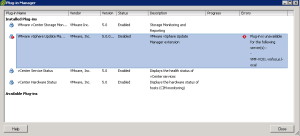
Plug-In Manager Plug-in is unavailable for the following server(s): – VMF-VC01.vmfocus.local

VUM Error 01

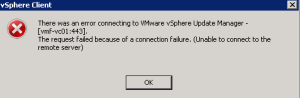
vSphere Client There was an error connecting to VMware vSphere Update Manager – [vmf-vc01:443].  The request failed because of a connection failure. (Unable to connect to the remote server).

VUM Error 02

Steps Taken To Resolve – DNS

The first step was to double check my DNS, I had already performed the tasks below after changing vCenter IP Address.

  • Removed reverse DNS zone for old vCenter subnet and added new reverse DNS zone for correct subnet
  • Updated DNS for ESXi Hosts & vCenter
  • Cleared DNS Cache on vCenter and Domain Controller

Steps Taken To Resolve – VMware KB

The next step was to make any amendments to VUM.  This consisted of the following:

  • Checked DSN to VUM database continued to work
  • Stopped vSphere Update manager Service
  • Followed the instructions under VMwareKB101322

Both of the original errors continued to persist, so the next step was to follow a KB for vSphere 4.1

  • Stopped vSphere Update manager Service
  • Followed the instructions under VMwareKB1014639

Again this did not resolve the issue, however it did mention a vCenter Update Manager Utility.

Resolution

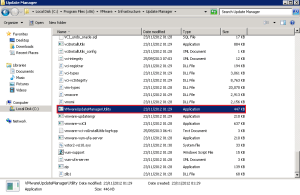
Lunch VMwareUpdateManagerUtility.exe which is located in C:Program Files (x86)VMwareInfrastructureUpdate Manager

VUM Fix 01

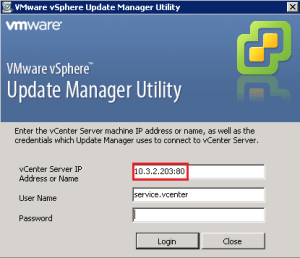
Connect to vCenter using the correct IP Address

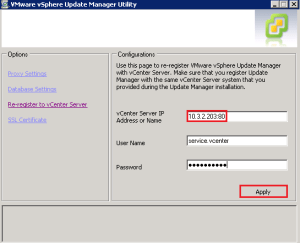
VUM Fix 02

Select Re-register to vCenter Server and enter the new IP Address of vCenter and your credentials.  Click Apply

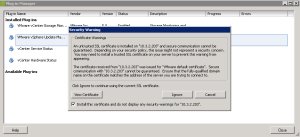
VUM Fix 03

Once complete, re-enable the VMware vSphere Update Manager Plug-In and you should receive the trusted Security Warning dialogue box. Which means vCenter and VUM can talk, everyone’s a winner!

VUM Working

vSphere Login Errors & Resolution – Single Sign On

Issue

I was trying to login to vSphere Client at was hit with Error Connecting ‘A general system error occurred: Authorize Exception’

vSphere Error

Lovely, great description I thought, checked all the VMware services and VMware vCenter Site Recovery Manager Server service wasn’t started, so being a logical chap, I started it and restarted VMware VirtualCenter Server.  Still no joy Error Connecting ‘A general system error occurred: Authorize Exception’

Next, I tried using a different account to login, same issue.  Ah ha, I thought let me jump onto the vSphere Web Client and see if that worked. Nope, this time I got another error

‘The authentication server returned an unxpected error: ns0:RequestFailed: Failed to connect to identify source.  Possible reasons include invalid user name or password, connection refusal, connection timeout, or failure to resolve hostname.  The error may be caused by a malfunctioning identity source’.

Web Client Error

This was a little more descriptive, and it was time to look at SSO.

Resolution

It is important to understand that Single Sign On is ‘the’ identity source’ for everything vCenter related.  Having had a couple of issues in the past I had remembered to use the following credentials to login:

admin@system-domain

password

admin

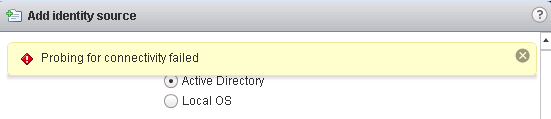
Once logged in go to Sign On & Discovery > Configuration > Identity Sources and you should see the Active Directory Identity Source.  When I tested connection I was getting ‘probing for connectivity failed’

Idenity Sources 3

Bit of digging around checking DNS, Reverse DNS settings I finally found out that original Domain Controllers had been decomissioned with some shiny new ones.

One of the things when you edit the Identity Source configuration, the changes don’t actually amend, I have heard rumours that you can delete the whole line tab out and try again, but for me I had to delete and recreate the Identity Source.  This process entails:

  1. Remove YourDomain.Local from Default Domains
  2. Delete Active Directory Identity Source

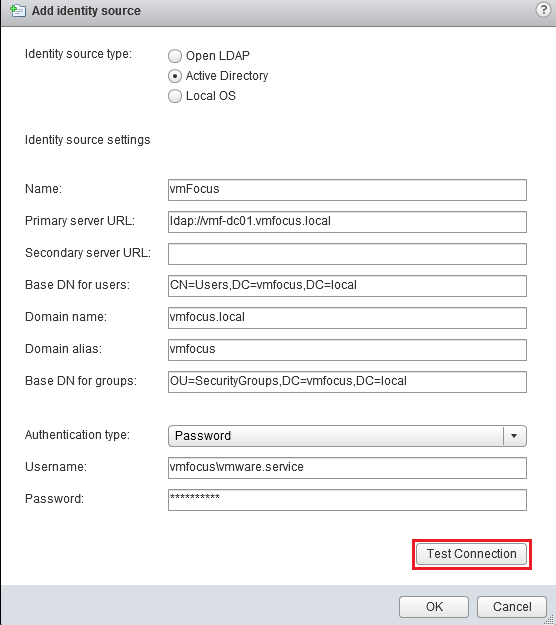
Once done recreate you Active Directory Identity Source, I ran into an issue where Reuse Session just wouldn’t work, in the end I opted for Password instead, once finished it looked like this.

SSO 6

TOP TIP: Make Sure You Save The Changes To Default Domain By Click The Disk Icon

Login to the vSphere Web Client was now working which was awesome, however when I was trying to access the vSphere Client, I received another error ‘Cannot complete login due to an incorrect user name or password’

Web Client Fixed vSphere Client Error

To be fair, this took me a while to resolve until something clicked.  On the Active Directory Identity Source, I had left the Domain Alias blank (didn’t take a screenshot) but the great news is this cannot be edited!

So I created another Active Directory Identity Source this time with a Domain Alias and voila I was able to login with to the vSphere Client again.

Lessons Learnt

  1. Check to make sure that your Domain Controllers haven’t been decommissioned.
  2. Ensure you have your admin@system-domain password
  3. Changes to Identity Source don’t work in the GUI, create a new one.
  4. Make sure you enter a Domain Alias in your Identity Source

vSphere Replication & SRM Issues

Having spent some time working with vSphere Replication I came across a number of issues trying to get my vSphere Replication Appliances to talk to each other and then to get vSphere Replication working.

The moral to this blog post is DNS and Networking!

DNS

Contrary to popular belief the DNS settings in the vSphere Replication Appliance appear to do err nothing.

I was receiving the Error Code ‘vSphere Replication Generic Server Error: No Route To Host’

After confirming my vCenter servers could resolve each other and also my vSphere Replication Appliances (as I had entered in A records for them) and the fact that I could ping everything, I decided to hop straight onto the vSphere Replication Appliances to test they could ping each other directly.

This ended in an epic fail as they didn’t have any DNS names for each other, so to resolve this I edited the host files on both vSphere Replication Appliances by entering the following commands:

vi /etc/hosts

i

172.19.144.149 VCT01.domain.local VCT01

172.19.146.149 VCT02.domain.local VCT02

(Press Escape Key)

:wq

After doing this my vSphere Replication Appliance could ping each other and the connection between the Appliances formed.

Networking

When I came to replicate the VM’s, a folder would be created for the VM and a VMDK file, however the VMDK would always remain at 0.00KB and when I tried to perform a manual synchronisation, I would receive the helpful error:

‘Call “HmsGroup.OnlineSync” for object “GID” on Server “” failed. An unknown error has occurred.’

After much head scratching, I realized we have two different default gateways, so I changed the default gateway on the VM which was being protected to the one being used by vSphere Replication, same issue occurred.

I then went over all of my default gateways for the following items:

  1. vCenter Server
  2. vSphere Replication Appliances
  3. ESXi Hosts

The last one was key, when I changed the default gateway on the ESXi Hosts to match the vSphere Replication Appliances, everything fell into place.

10 Things To Check (Quickly) in vCenter

As part of my day job, I review vSphere infrastructures giving recommendations on areas which could be potential concerns.  Many of the business’s that I see engaged consultants to perform the initial installation and configuration and hand vCenter/vSphere back to the internal IT department.  Overtime, changes are made and settings are updated without consideration to what they mean.

So with this in mind, I decided to put together this blog post ’10 Things To Check Quickly in vCenter’

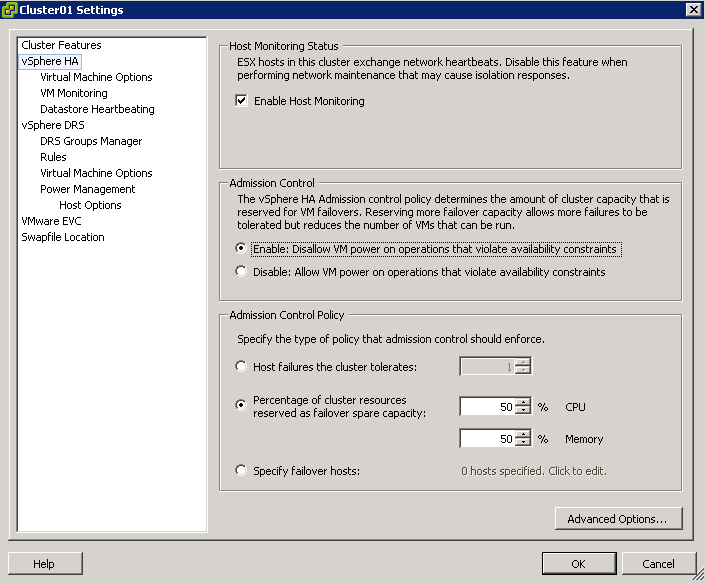
1. Admission Control

The whole point of admission control is to ensure that you have the redundancy within your infrastructure to tolerate a failure of some description, more often than not this is N+1.  So check your admission control is first of all enabled and secondary it is set correctly e.g. 2 x ESXi Hosts should be 50% CPU and 50% Memory

I have seen countless installations where this has been turned off to enable an new VM’s to be ran and the hosts where never upgraded to compensate for this increase in workload.

Admission Control

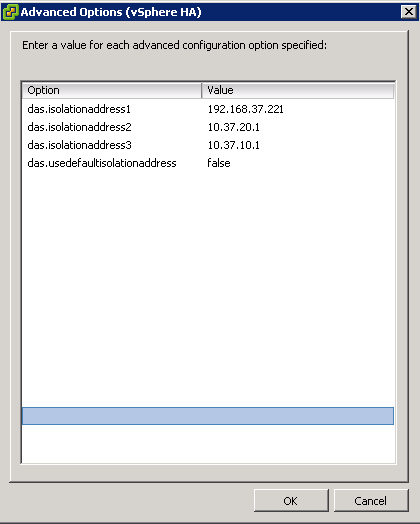
2. DAS Isolation Address

The default setting is a single isolation address which is your default gateway.  What happens if this goes down in a vSphere 4.1 environment? Well man down is the reaction!  Ensure that you specify numerous IP address, I commonly go for:

1. Layer 2 switch IP address used for vMotion/FT

2. SAN management IP address

3. LAN/Management  default gateway IP Address

DAS Isolation

3. VM Monitoring

Turn this on, I know the default is disabled, but that’s not an excuse.  Why wouldn’t you want vSphere to monitor your VM’s and restart them if it has no network or datastore activity?

VM Monitoring

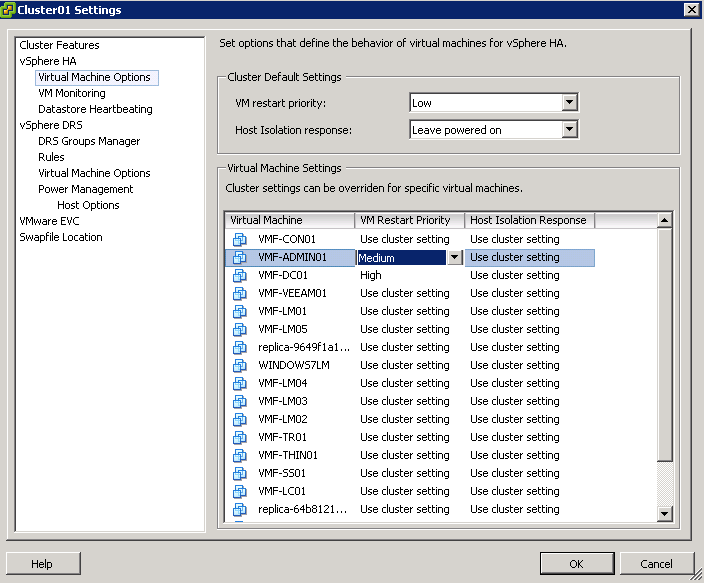
4. VM Restart Priority

Let’s start with the premise that not all virtual machines are equal.  If you have virtualised Domain Controllers you would want these to be high priority restarts, followed by SQL and then application servers that connect to SQL.  I wrote a blog post on this a while back click me.

Take a few minutes and check with your server team to ensure that if you do have a failure then you have done your best to bring applications up in the right order.

VM Restart Priority

4. DRS Rules

Spend some time working with application team creating sensible DRS Anti Affinity and Affinity rules.  Some examples are:

  • Anti Affinity – Domain controllers to be running on the same ESXi host?
  • Anti Affinity – SQL Cluster with RDM
  • Anti Affinity – XenApp/Terminal Server farm members
  • Affinity – BES and SQL

Anti Affinity

5. VMware Update Manager

I quite often see environments where VMware Update Manager hasn’t been installed and if it has you can almost guarantee that the ESXi Hosts/VM/vApp haven’t been patched.

Without being flippant, there is a reason my VMware release patches/updates which is generally for bug fixes or security issues.
VYM

6. Alerting

Check to make sure that you have a valid SNMP/SMTP server setup, as after infrastructure migrations these settings can often be wrong.

Also take some time to configure alerting at ‘root’ level in vCenter to make sure they meet you business needs.  If you aren’t sure what to implement, I wrote a couple of blog posts on this subject to get you started:

Setting Up & Configuring Alarms in vCenter 5 Part 1

Setting Up & Configuring Alarms in vCenter 5 Part 2

Alerts

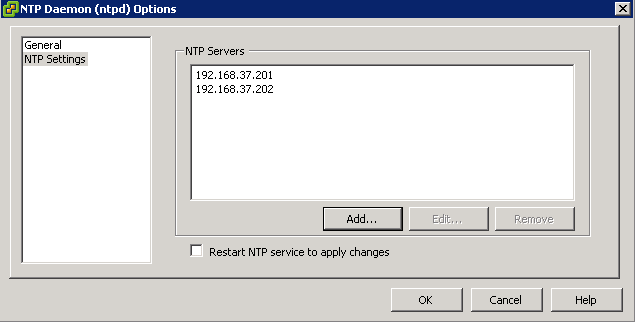
7.  Time Configuration

Virtual Machines take there initial time settings from the ESXi host.  We all know what dramas can happen if your virtual machines are more than 15 minutes out of sync with your domain controllers.  Use your internal domain controllers as your NTP Servers for your ESXi Hosts, it stops unnecessary NTP traffic going traversing firewalls and ensures that you won’t be affected with time skew.

NTP Servers

8. Virtual Machines With ISO’s Attached

We all pop ISO’ onto Local Storage on ESXi Hosts as it’s not taking up valuable space on our SAN.  The worse thing we can do is forget that we have them attached as if HA needs to come into action, these VM’s are going to fail.

Either check your Local Datastores on a regular basis or if you have lots of ESXi Hosts, then use tools such as PowerGUI with the VMware Management pack installed to script it.

HA Failure

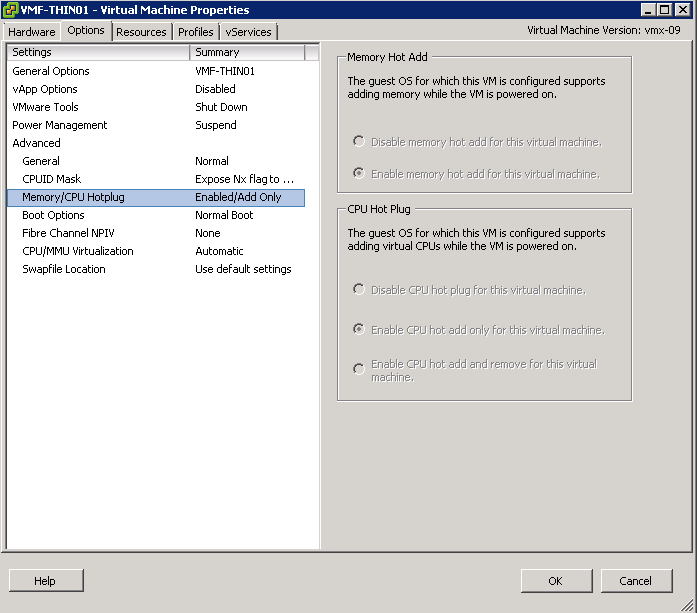
9. Hot Add Memory/CPU

Virtual Machine workloads change over time, why cause unnecessary downtime and potential evening or weekend work for yourself? Make sure that you enable Memory and CPU Hot Add on your templates.
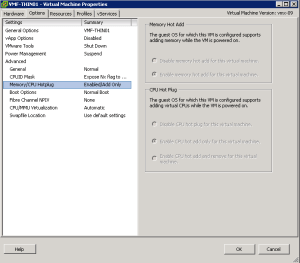
Hot Add

10. Resource Pools

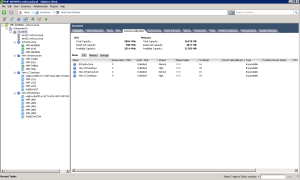
The golden rule is know what you are doing with resource pools as if you go into resource contention they are going to come into play. I have seen resource pools used as containers/folders, resource pools created at cluster level to protect ‘high importance’ VM’s which result in these VM’s having less resources to use! A quick explanation of this can be found over at Eric Sloof’s site NTPRO.NL
Resource Pools

System Logging Is Not Configured On Host ESXi5

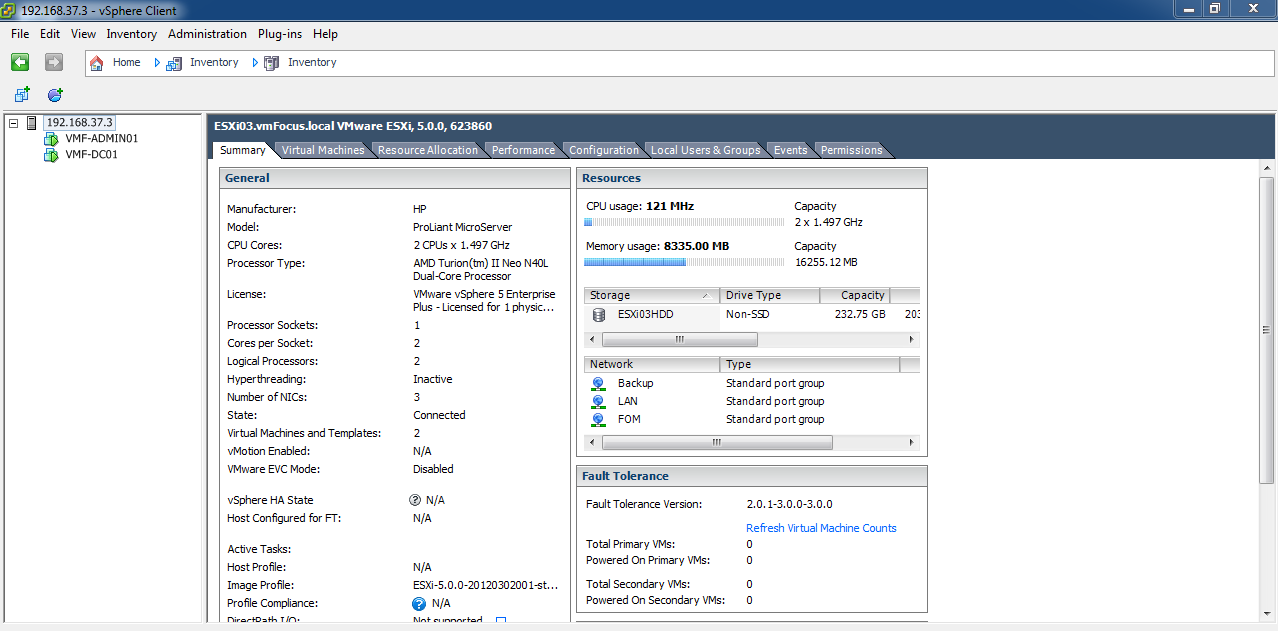
System logging is not configured on host ESXi03, what does this mean?

Well on my ESXi5 hosts, I didn’t have any persistent storage as they where booting from USB, which means that when the host is rebooted all the log files disappear as they are held in RAM. Probably not a good idea then.

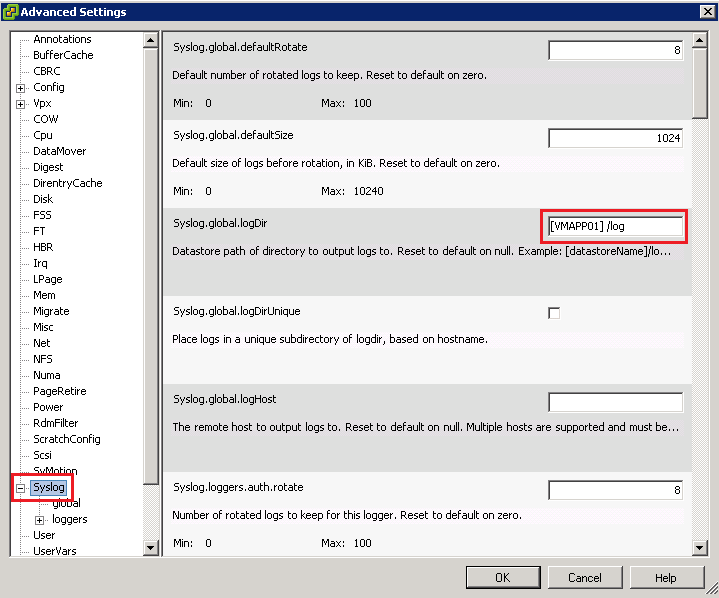
So how do we get around this? A number of ways can be used, however, I prefer to keep things simple.  Connect either to vCenter or ESXi Host and navigate to the Configuration Tab then onto Advanced Settings.

Next select Syslog from the left hand menu and then you want to enter the syntax as follows in Syslog.global.logDir

[DatastoreName]/log

Top Tip, the datastore name is case sensitive

So if your ESXi5 host is connected to a datastore called VMAPP01 then the syntax would be [VMAPP01]/log

Click OK to apply and let’s check the Summary Tab

Boom, the ‘system logging is not configured on host ESXi03’ has gone!