Debunking the Myths of Virtualizing Your Business Critical Applications

They say fear is good.

Fear can be a healthy thing—it can keep you from getting in over your head, taking unnecessary risks, and it can even save your life. In IT, that fear—maybe better framed as ‘caution’—has its place. It ensures that we consult with others, adhere to processes and standards, and balance risk with reward. Caution in IT ensures that business keeps moving forward—because if it doesn’t, revenue is at risk (and necks are on the line). So, we proceed with caution.

In the world of virtualization, there is fear—but, for the most part, it’s misplaced. Many companies that have fully embraced the benefits of virtualization are still missing the greatest value because they think it’s too risky to virtualize business critical applications (BCAs).

Read more here

ESXi 5 Host Isolation

What is a ‘host isolation’?

It’s the term that VMware use to define when an ESXi host is no longer able to communicate with specific IP address’s and therefore it is deemed to be isolated from the rest of the cluster.

By default the ESXi hosts default gateway (the VMkernal gateway) is used.  Depending on your infrastructure this is normally a Layer 3 switch, router or firewall.

Whats the problem with that you ask? Well what happens if you have an outage of your Layer 3 switch, firewall or router? Well vCentre will think that your ESXi hosts are isolated and depending on your ‘host isolation response’ perform one of the following actions:

The recommended action for vCentre 5 is to ‘leave powered on’.

We therefore need to provide more external devices for vCentre to communicate with before it invokes a host isolation response. To do this we go into the Cluster Settings > vSphere HA > Advanced Options.

We then add additional IP address’s that we went vCentre to communicate with in the following format:

das.isolationaddress1 10.0.0.1
das.isolationaddress2 192.168.1.1

We then end the range of IP address’s with ‘das.usedefaultisolationaddress’ ‘false’

What IP address’s would I recommend you use in a production environment?

– vMotion/FT switches
– SAN Controller Management IP address’s
– Layer 2 Switch
– Layer 3 Switch
– Firewall

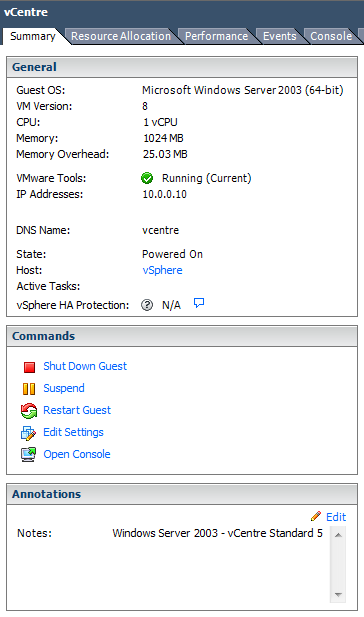
Virtual Machine Notes

It’s happens to the best of us, we go to a client site to check/review the current infrastrucutre and we get greeted with zero documentation apart from it being in ‘Dave the IT guys head’.

‘Dave the IT guy’ is then on annual leave or ill so we start a manual process of trying to discover an account with enough privileges to let us login to servers and eventually find out which server holds the vCentre role.

Great, we then get greeted with the old IT favourite, servers named after items from Star Wars!  The usual suspects are there, R2D2, C3PO, DarthVader, LukeSkywalker, Endor etc.

This leads me onto Virtual Machine notes, something which all of us have been guilty of over looking.  It’s such a simple thing that makes every discovery process or day to day administration so much easier.

Spend a few minutes per server to make a quick note about what roles they perform and it makes everyones life easier.

We only need to click the Virtual Machine and then add a note.

Veeam Backup Free Edition for ESXi

We use Veeam Backup and Replication Enterprise alot when we deploy an vSphere solution for a client.

Normally, it’s for disk to disk backup and on occasions we use it to replicate backups across WAN links so that the client has ‘x’ days backups available in DR.

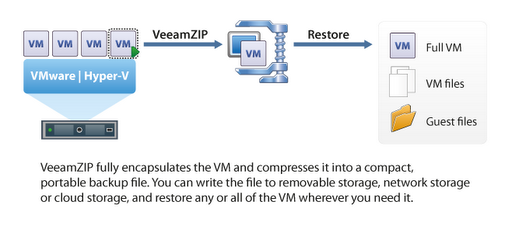
Veeam have a new edition which is worth a look, it’s called VeeamZip and is completely free!

It boasts the following features:

  • Backup on the fly
  • Restore individual guest files
  • Manage VM and Host files
  • Migrate VM’s between Hosts and Datastores

Installing Windows Server 2012 RC on ESXi 5

Today, I need to upgrade my standalone ESXi Host as I wanted to trial Windows Server 2012.  I created a virtual machine using the Guest Operating System ‘Microsoft Windows Server 2008 R2 64 bit’ with the following hardware settings:

When Windows Server 2012 began to install, it would display the following error:

After some research, I established that the following Host Update needed to be installed.

To do this, I downloaded the update and then uploaded it into the root of a Datastore called ‘Data’
I then logged onto my ESXi Host via SSH and issued the following command:
Remember that any files/folders are case sensitive, this always gets me!
Windows Server 2012 RC is now installing.

Windows Sever 2012 RC is now installed and ready to be configured.