We are ready to failover our on-premises vSphere virtual machines to Azure. Before we do it’s important to verify that our Configuration Server and Master Target Server are functioning correctly.
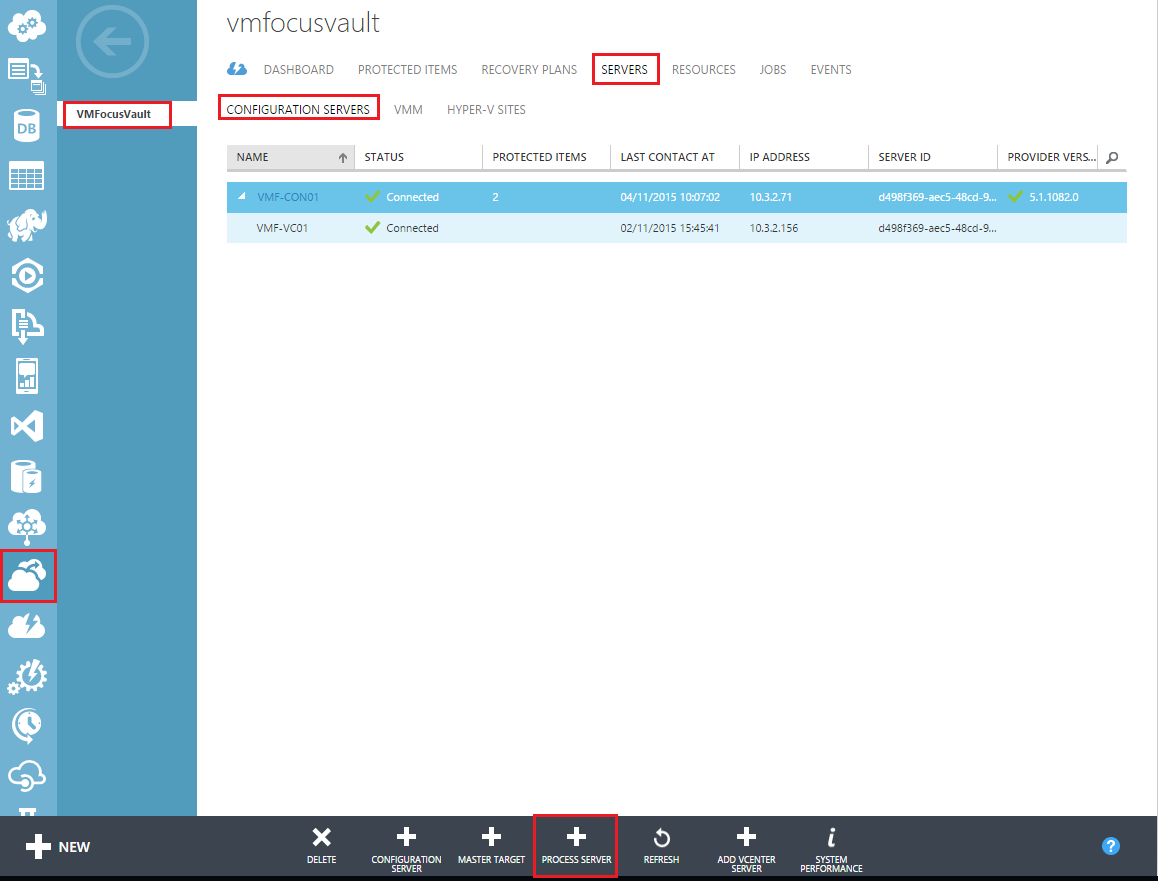
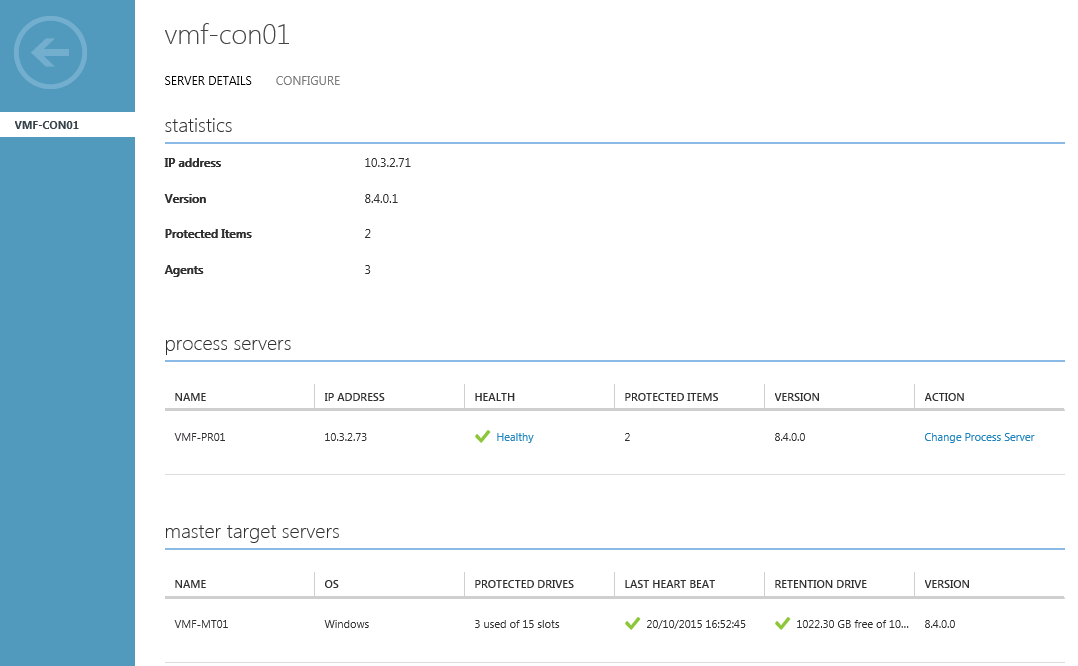
In the Azure Portal, select Recovery Services > VMFocusVault > Servers > Configuration Servers > Select Configuration Server. Verify that displayed details are healthy.

Before we proceed any further, it’s worthwhile noting that Azure Site Recovery is in it’s infancy from an on-premises vSphere to Azure perspective. Therefore it’s worthwhile noting that:
- Only unplanned failover is supported
- If you want your data to be consistent, shutdown your protected VM’s on-premises and wait for the next replication interval to complete
We need to create a Recovery Plan (which I would expect you to have in place already). The purpose of a Recovery Plan is to group together virtual machines which should failover together.
- Virtual Machines across different Protection Groups can be in the same Recovery Plan. The use case for this is perhaps you have a three tier application where VM1 RPO is daily, VM2 PPO is 4 Hourly and VM3 is Hourly.
- Once in a Recovery Plan, virtual machine start up order can be determined
- Before a virtual machine is started a manual action can be inserted e.g. prompt to verify that a service has been checked before moving onto the next step
- Before or after a virtual machines is started a script can be triggered
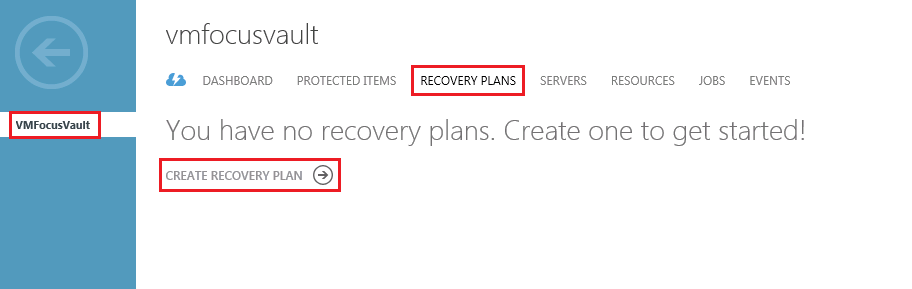
To create a Recovery Plan select Recovery Services > VMFocusVault > Recovery Plans > Create Recovery Plan

I’m going to create a single Recovery Plans called VMF-RP01:
- Virtual machine VMF-AZ01 needs to maintain it’s current IP address, as if I had stretched my on-premises layer 2 network into Azure
- Virtual machine VMF-AZ02 need a new IP address and therefore will be RE-IP’d as part of this process
- VMF-AZ01 needs to start before VMF-AZ02
The screenshot below confirms the name of the Recovery Plan I have created called VMF-RP01.

As described the Protected Entities are VMF-AZ01 and VMF-AZ02.

Once the Recovery Plan is created. Select the it by clicking on it’s name (in my case VMF-RP01) and you will see the following screen.
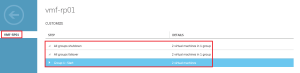
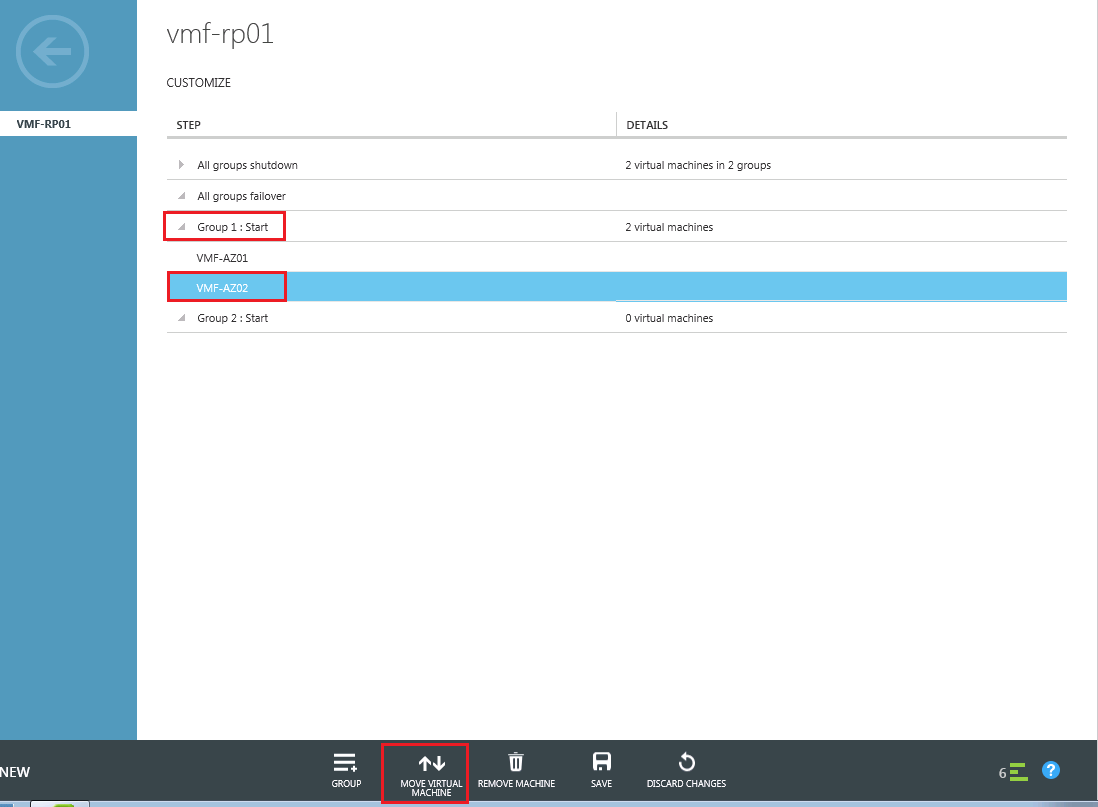
By default all VM’s will be started and stopped at the same time. To change this select the Group+ icon and you will see a Group 2 has been created.
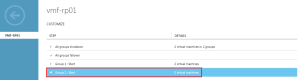
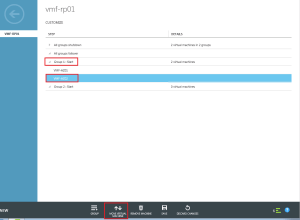
Expand Group 1 and Select VMF-AZ02 and Select Move Virtual Machine > Group 2
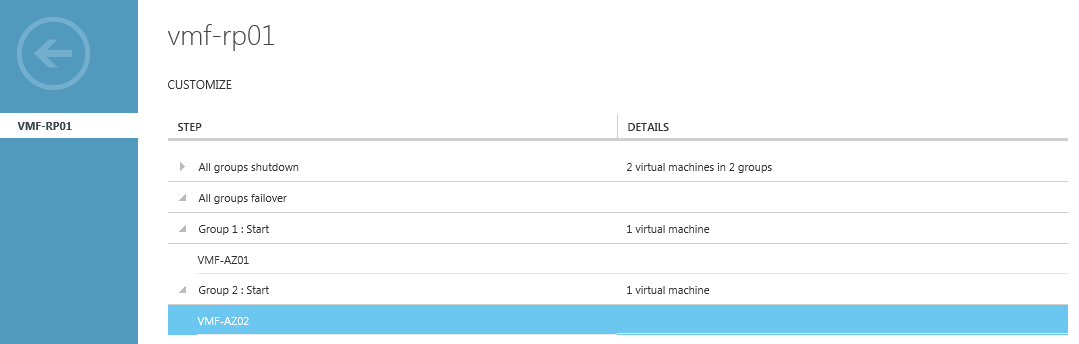
Once done it should look like this
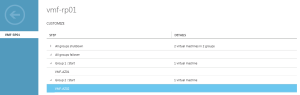
Note: Don’t forget to save your changes to the Recovery Plan
Failover
Time to failover, to test things properly, I’m going to mimic an actual disaster in which our on-premises virtual machines are unable to communicate with Azure Site Recovery. The easiest way for us to do this is to disable the virtual NICs on our on-premises Process Server, VMF-AZ01 and VMF-AZ02 in vCenter.
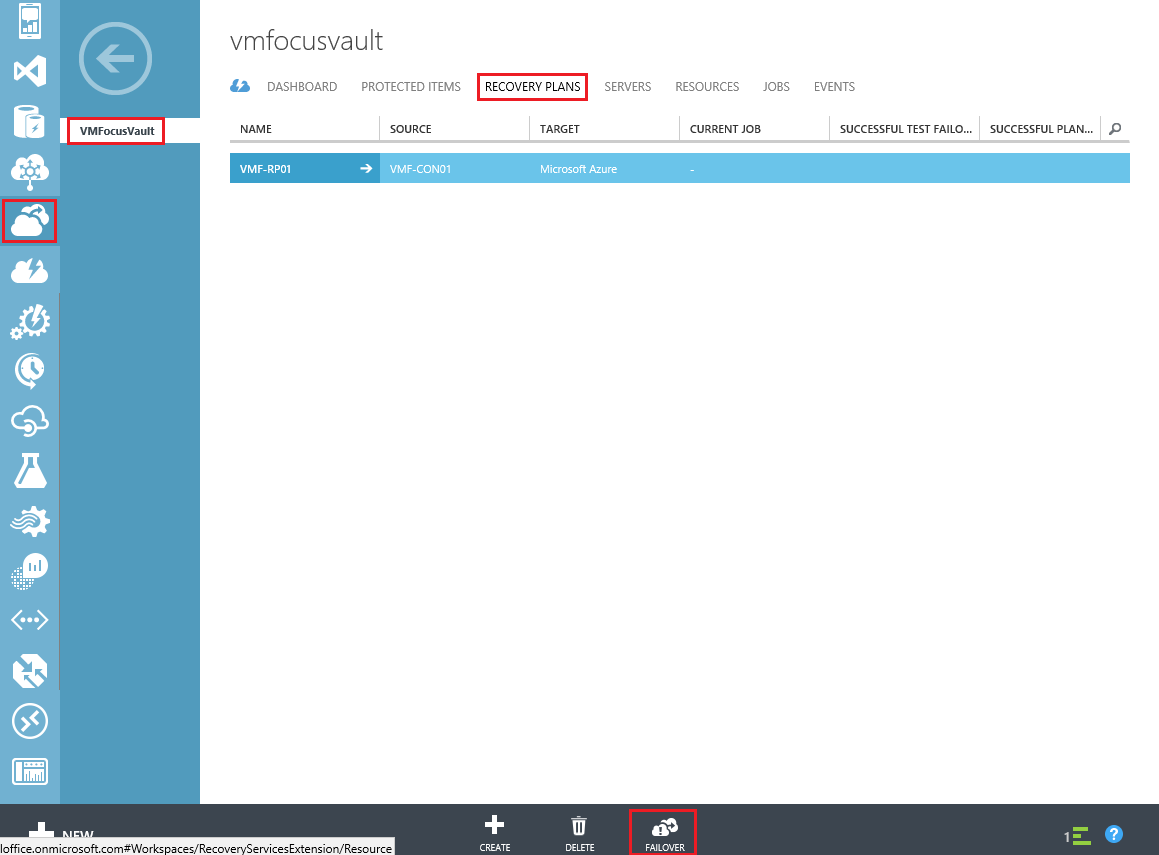
Back to the Azure Portal, Select Recovery Services > VMFocusVault> Recovery Plans > Failover

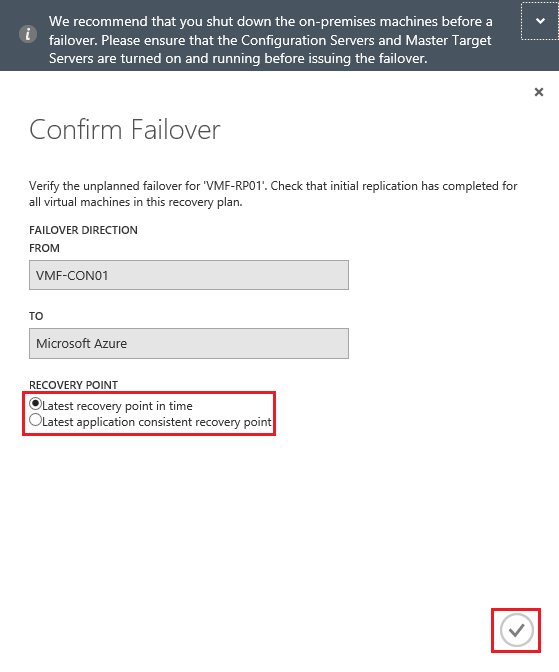
Select either Latest Recovery Point In Time or Latest Application Consistent Recovery Point

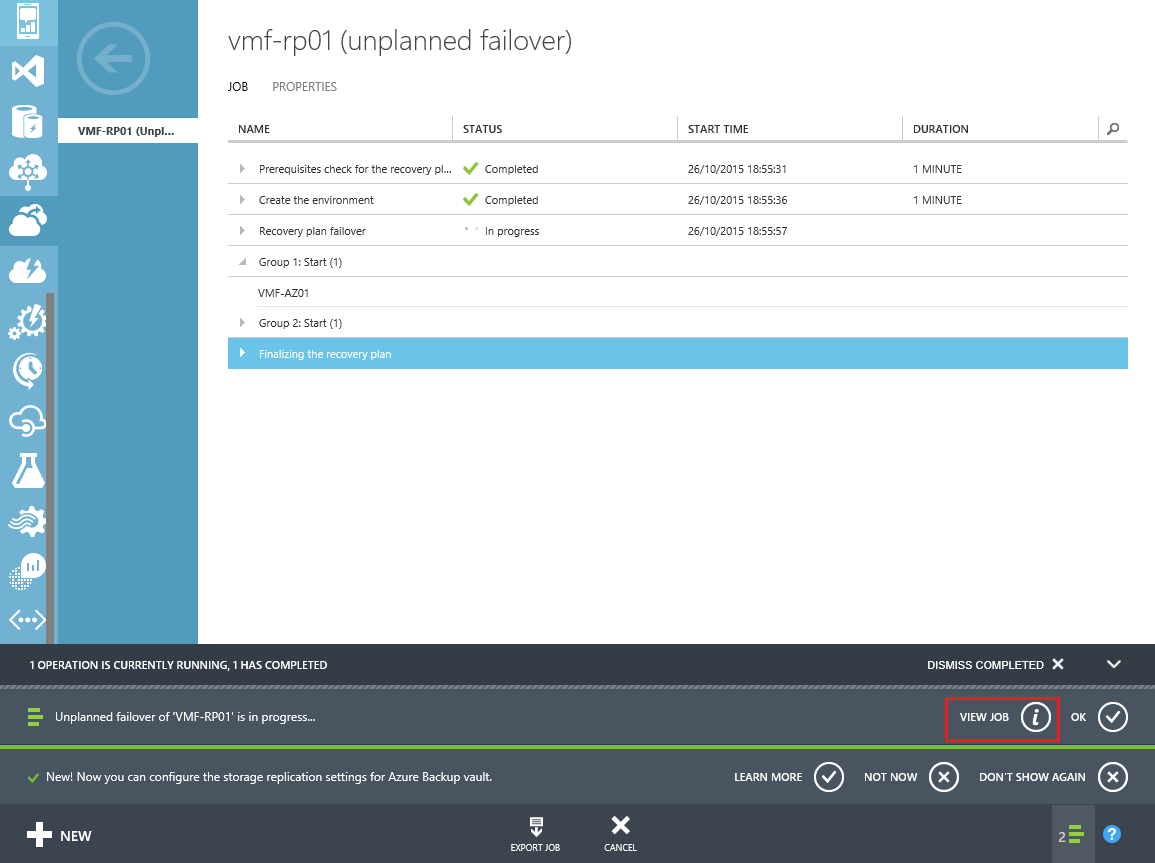
That’s it sit back and make a cup of tea whilst our Recovery Plan goes into full effect. If however, you do want to monitor the Job, select View Job.

In total VMF-RP01 took 24 minutes to complete.
We should now see two more virtual machine instances available.

Checking the virtual machines, I can verify the following:
- VMF-AZ01 is on IP Address 10.3.2.74 which is our extended on-premises Layer 2 network
- VMF-AZ02 is on IP Address 192.168.37.75 which is our routed Layer 3 network
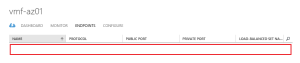
Interestingly, EndPoints aren’t configured for RDP and PowerShell as per a standard virtual machine deployed in Azure. External access if required, will need to be configured manually.
In the next blog post, we are going to reprotect and failback to on-premises.


 I’m sitting at London Heathrow Terminal 3 with a little bit of time on my hands before heading out to Virtualisation Field Day 6. So thought I would share a quick blog post around some news that I may have heard (cough) which are coming up in Azure Site Recovery.















 VMFocus
