HP P2000 G3 Firmware Upgrade

The HP P2000 G3 is HP’s entry level SAN, it’s a robost piece of kit, as long as you keep the firmware updated.

Before we upgrade the SAN firmware, let’s run through a couple of items.

  1. Brick – It might happen, the SAN could become a brick after the firmware upgrade, always get a good backup of your data before you embark on the firmware upgrade.
  2. Downtime – Even though this can be done live, I recommend you arrange downtime, it’s just the sensible thing to do and gives you flexibility.
  3. Internet – This should go without saying, as you need to be able to download the drivers.
  4. Alarms/Monitoring – Turn this off for the SAN, as you will be inundated with emails/tickets.

Right then let’s crack on shall we.

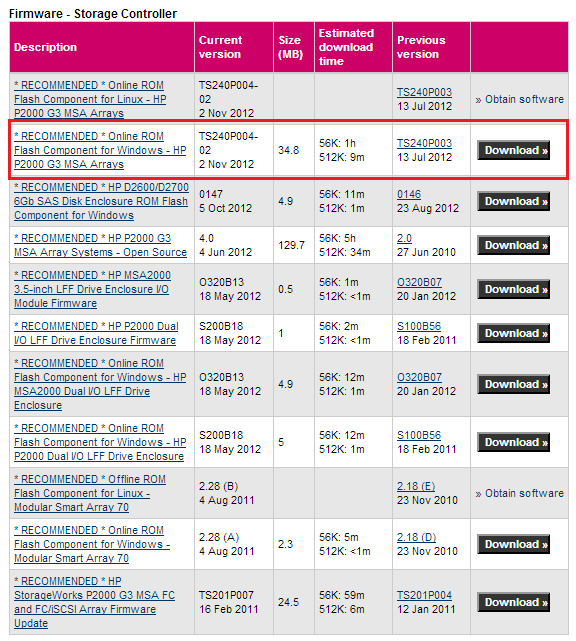
First of all we need to download the right firmware at the time of writing this the TS240P003 has been released, this can be obtained from here

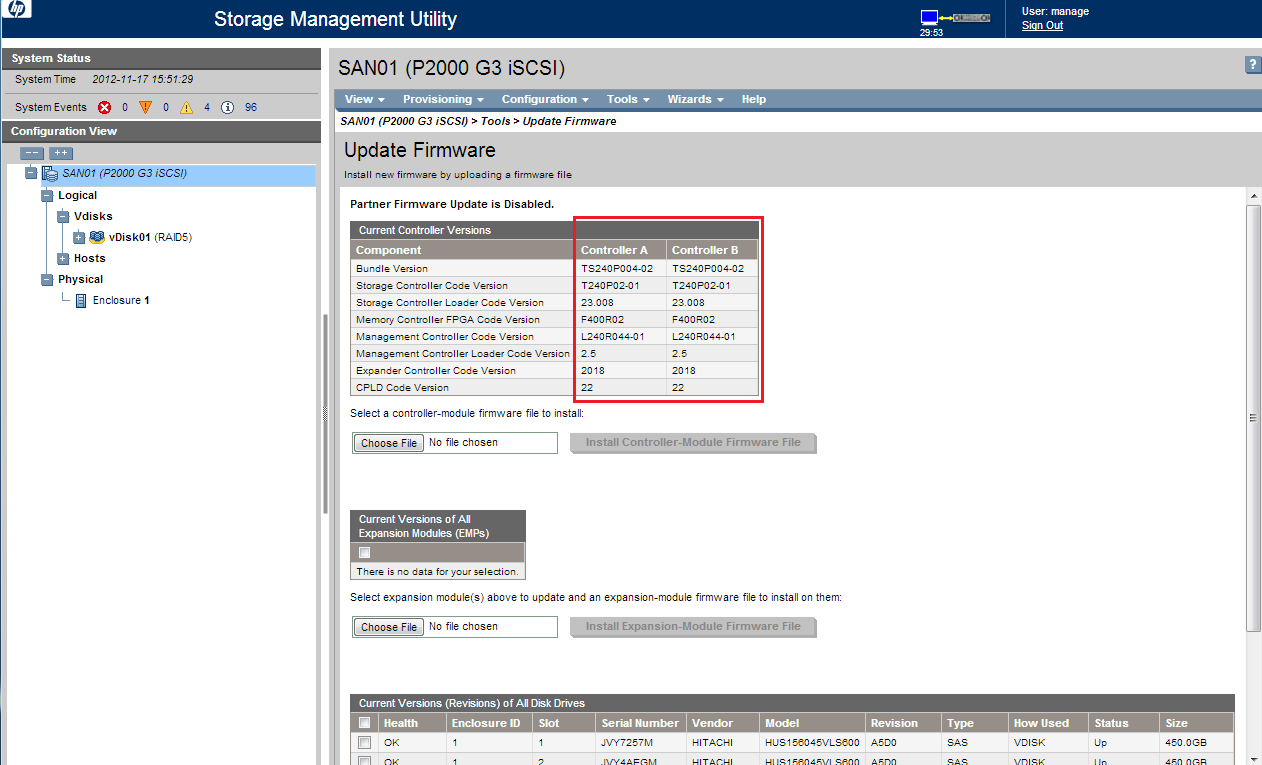
To make things slightly easier the one you want is in the red box below,.

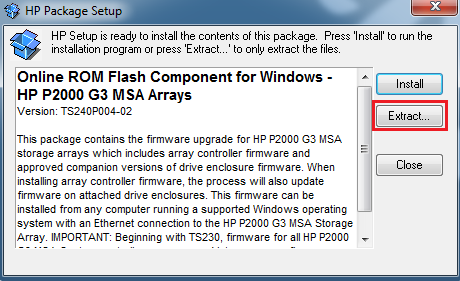
After you have downloaded the firmware, we need to extract it, you can try the online flash, but for me it never works.

The file we care about is TS240P004-02.bin

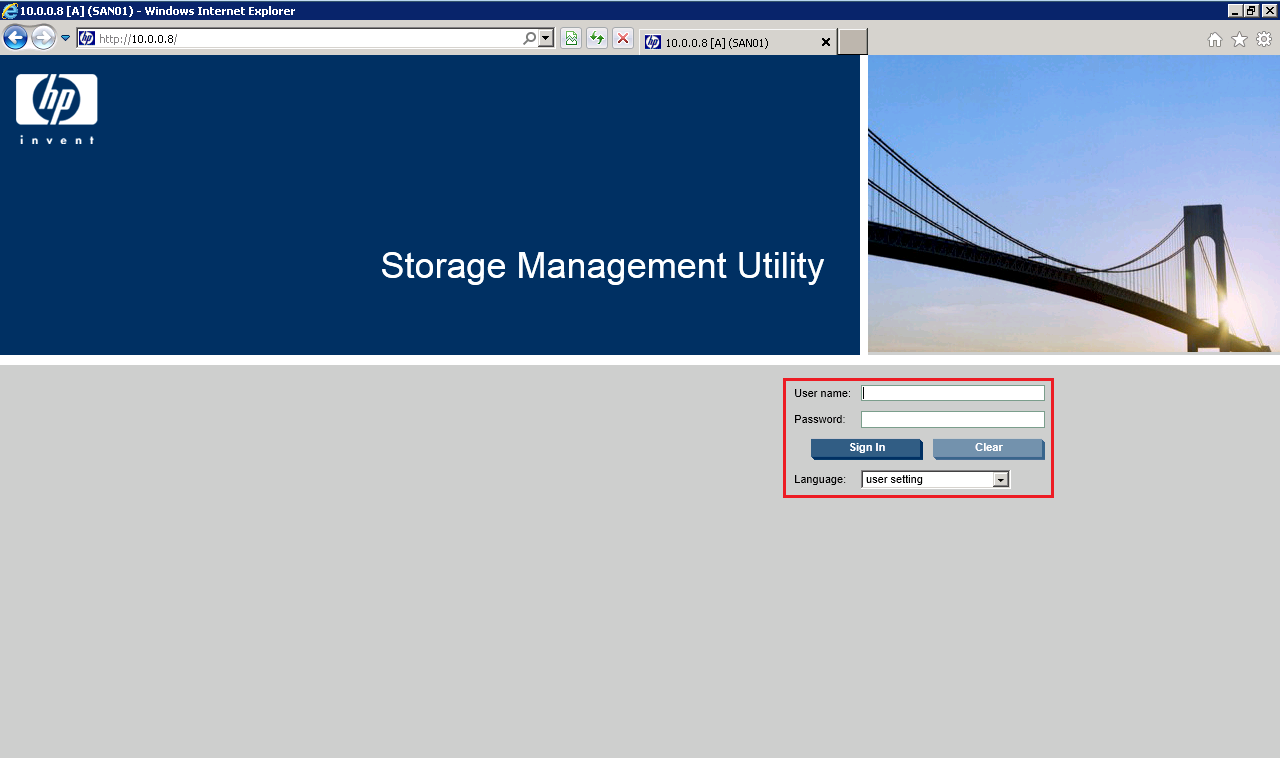
Log into your P2000 G3 by browsing to the IP Address of either Management Controller

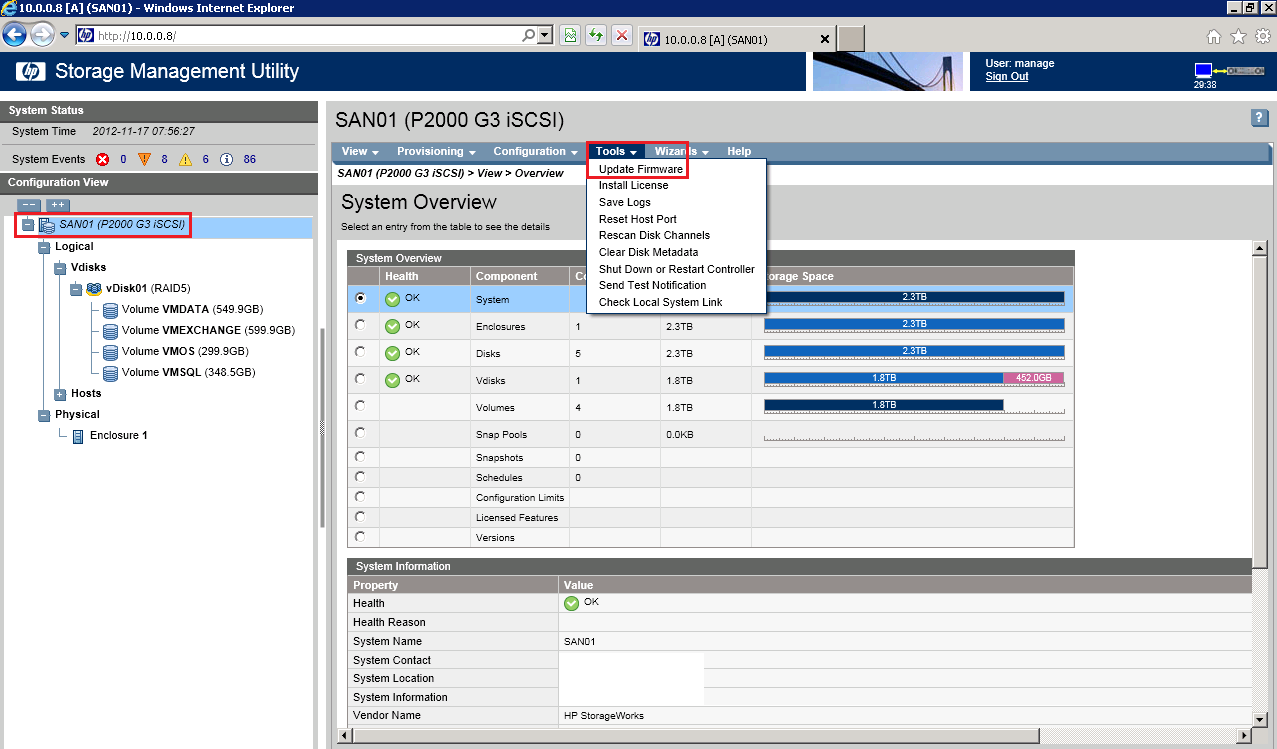
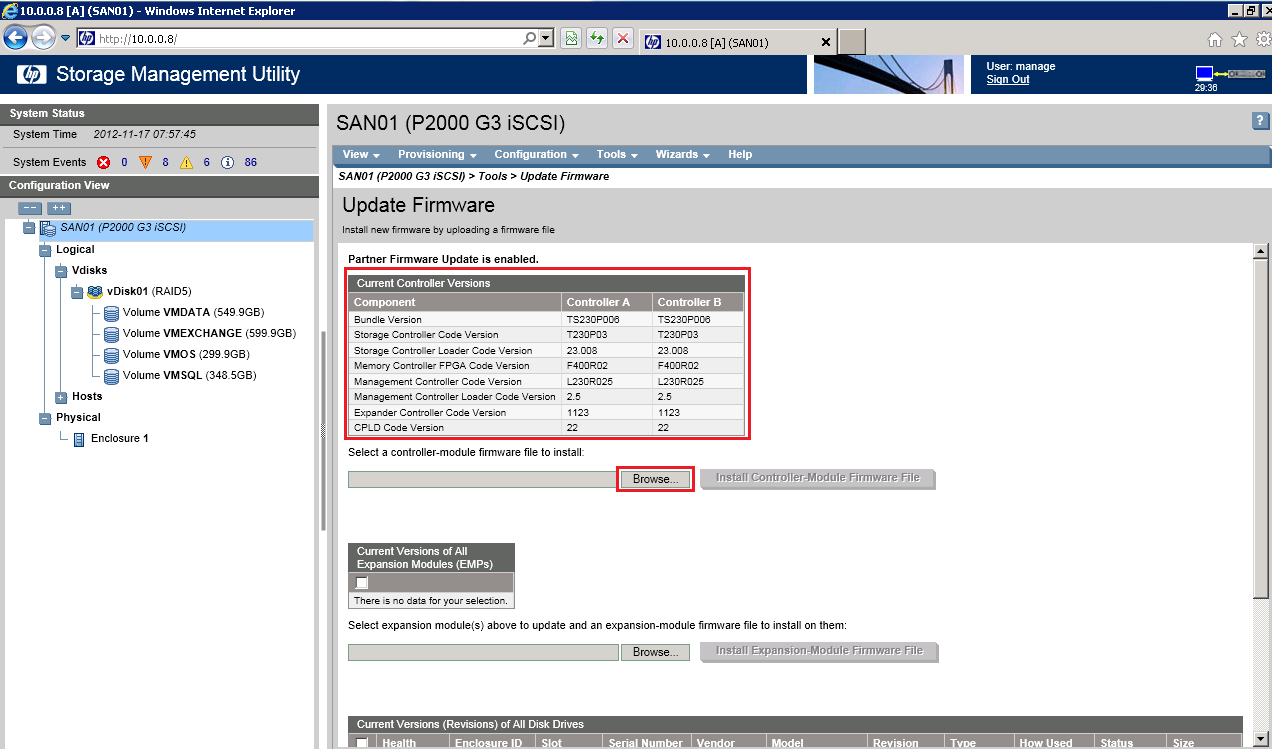
Select the SAN name on the top left level and go to Tools > Update Firmware

At this point, I would double check that you have an straight upgrade path from your current contoller firmware to the one you intend to install.  I have checked mine so we are golden.

Click Browse to locate the TS240P004-02.bin file

TOP TIP: The controller you are logged into is the controller you will be upgrading the firmware on.

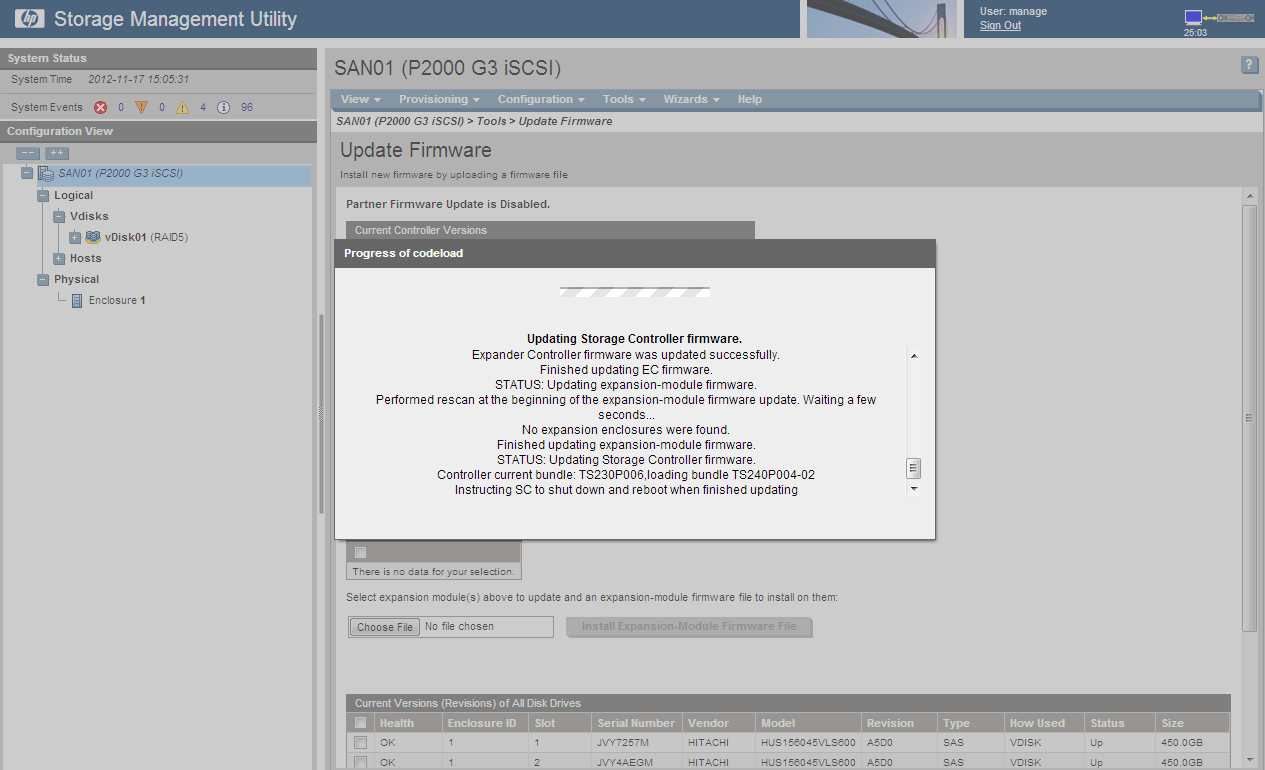
Click on OK and you will see the firmware being uploaded and applied, this can take some time so don’t worry.

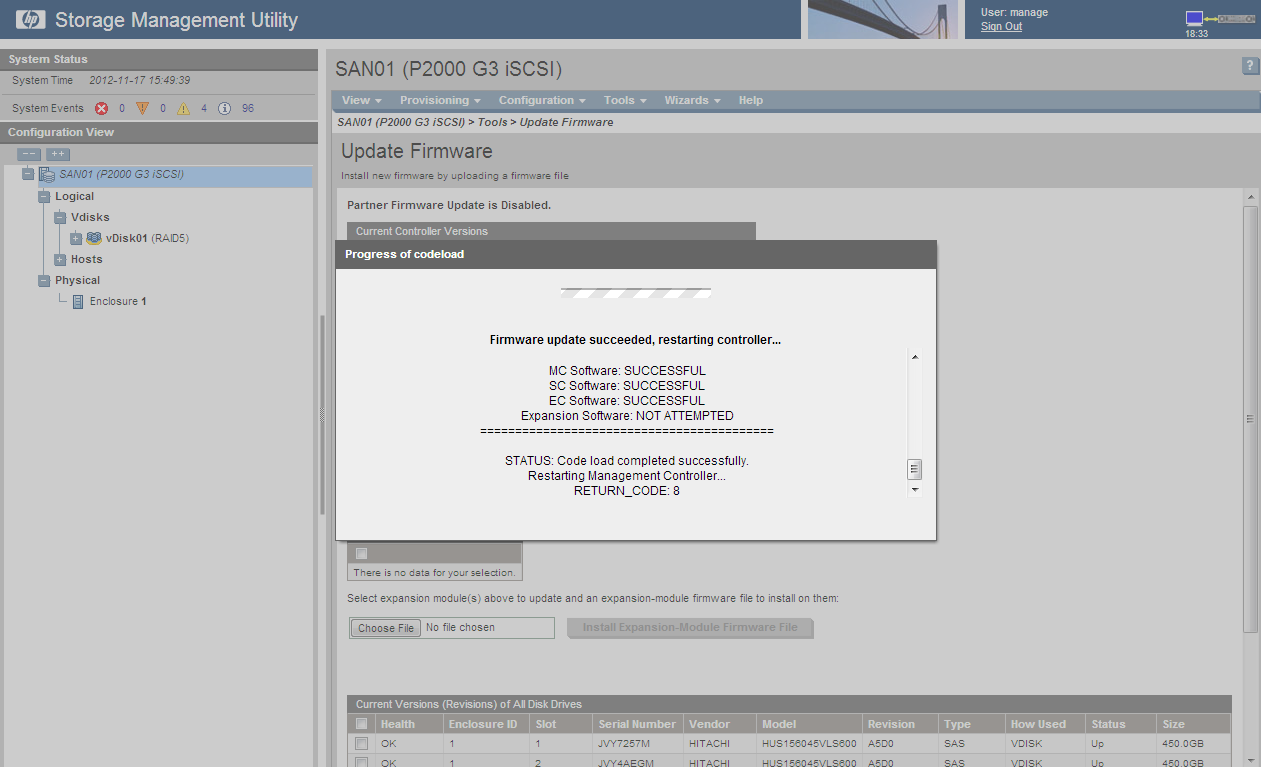
Boom, it’s finished you should receive a ‘firmware update succeeded, restarting controller’

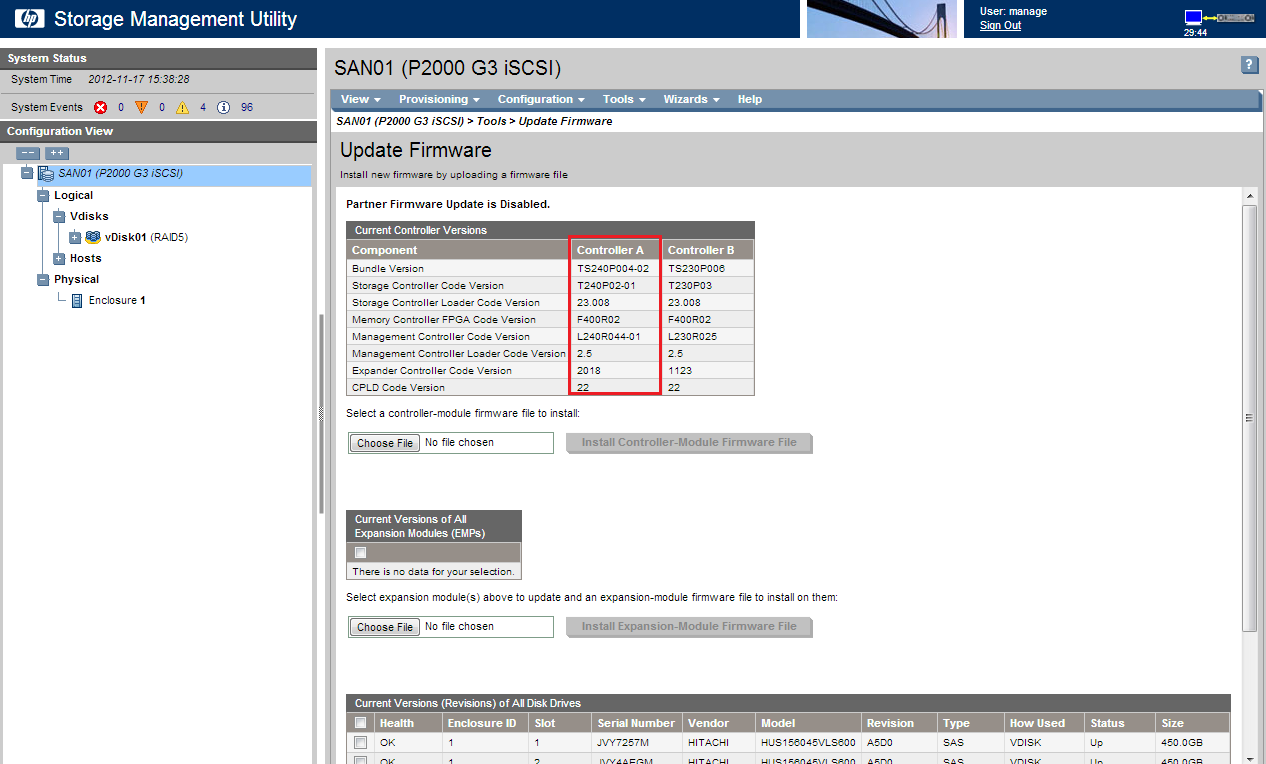
At this point you should have different versions of firmware on your controllers

TOP TIP: Check iSCSI or Fibre Channel access to your Volumes before you move onto the next controller.

Rinse and repeat for the next controller, and you should be golden.

My First UK VMUG

Like many who use VMware products, I had heard about the VMware User Group but had not had the opportunity to attend due to various work commitments.  For those of you who are unaware, they are organised by the community, and people give up there time to orchestrate the event, which I for one applaud.

So, what’s it like? Well the easiest answer is ‘a mini VMworld, but for free’!

On arrival you perform the normal sign in process and then you are greeted by free tea and coffee.  What a great start to the day.

We then got chaperoned to the opening keynote from Joe Baguley who is the Chief Technologist for VMware EMEA.  This guy rocked, very witty and informative about the future roadmap that VMware has.

After this you can either choose to go to the (did I mention free) seminars or you can go the vendor hall.  I decided to go to a Veeam session ‘5 Ways Smart VM Backups May Surprise You’ did I learn something from this? absolutely.

We then had a thirty minute break to give you time to mingle with vendors or other like minded people, and drink some more (free) tea.

The next session I chose to attend was hosted by Frank Denneman and Duncan Epping which was a ‘Deep Dive Group Discussion’ they did an excellent job of translating business issues faced and some of the ways to overcome them.  I mean how often do you get to ask questions you have to industry experts?

Lunch was a great buffet spread which catered for pretty much everything you need (again for free).

In the afternoon, I attended a session hosted by Darren Woollard which was to design an infrastructure for a fictional company.  This lead to a decent debate of what servers, storage, switches and vSphere configuration should be used.  This was of particular interest for me, as it’s great to validate design ideas with your peers.  A worthy mention to Darren for then answering a number of my questions for what I’m sure seemed like an age to him!

I was keen to attend the session by Julian Wood on ‘vSphere Networking and Converged IO with Blade Servers’ as with 10GbE becoming more and more affordable it’s something that I will  be deploying in the not so distant future.  Julian did an outstanding job and he does know his ‘networking onions’.

The closing keynote was from industry heavy weight (not by size) Scott Lowe, again doing an awesome job of trying to educate us on how to ‘Stay Sharp and Relevant in IT’.

So in summary it was an action packed day, which I was overwhelmed with not only by how organised and professional it was but also by the number of industry leaders who the UK VMUG had arranged to attend.  Awesome job UK VMUG.

Social Media

For the social media folks, some twitter handles and websites

Joe Baguley @JoeBaguley

Duncan Epping @DuncanYB http://yellow-bricks.com/

Frank Denneman @FrankDenneman http://frankdenneman.nl/

Jane Rimmer @Rimmergram http://hiviz-marketing.com

Darren Woollard @dawoo http://blog.vmote.net

Scott Lowe @scott_lowe http://blog.scottlowe.org

Julian Wood @julian_wood http://woodITwork.com

Simon Gallagher @vinf_net http://vinf.net

vCenter Server Appliance (VSA) 5.1 – Error: Invalid Active Directory Name/Enabling Active Directory Failed

Today, I decided to change my vCenter from being Windows based to the vCenter Server Appliance (VSA) 5.1.0a and when I tried to enter the LDAP details for Active Directory Authentication, I received various error messages:

  • Error: Invalid Active Directory domain
  • Error: Enabling Active Directory failed
  • Error: Invalid SRV Records

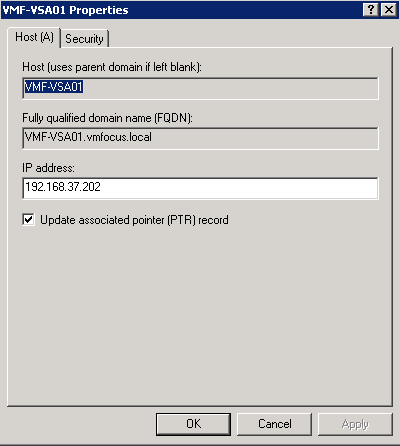
The first thing to always check is your DNS settings to make sure you have forward and reverse look up records set up correctly, check these are all OK.

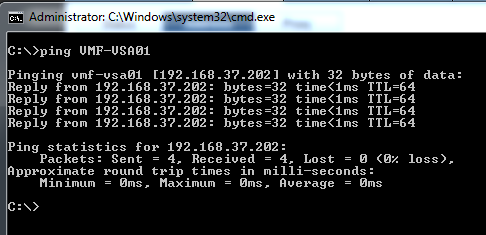
Next, I did a basic ping test to VMF-VSA01 which is the name of my VSA, again all working.

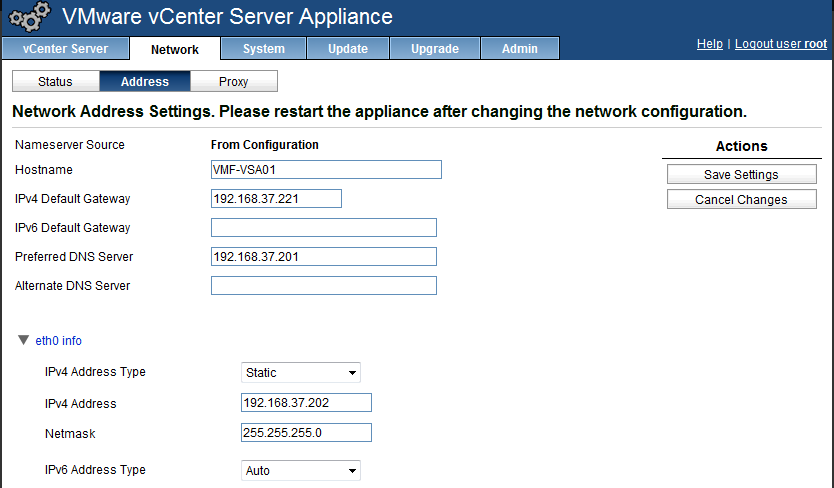
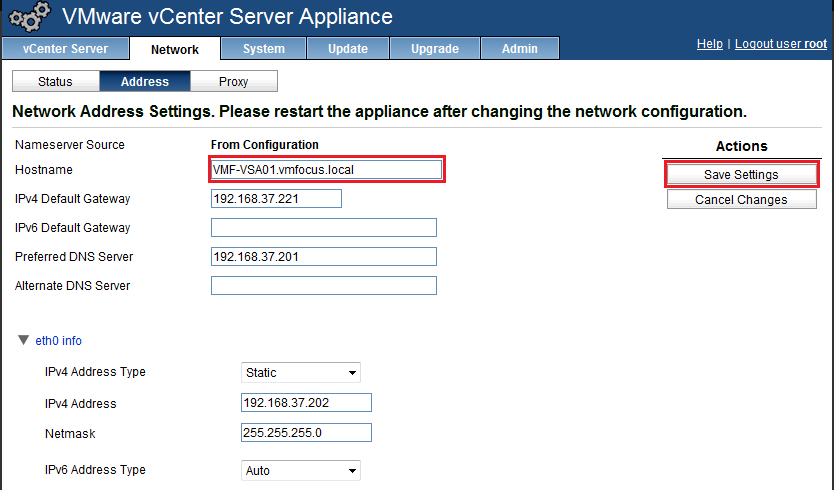
Ah, I thought, perhaps I have entered in something wrong on the VSA network settings, so I double checked these, again all looked good.

Then I remembered, that I should be using FQDN’s (Fully Qualified Domain Names) for my VSA, so rather than using VMF-VSA01 I should use VMF-VSA01.vmfocus.local

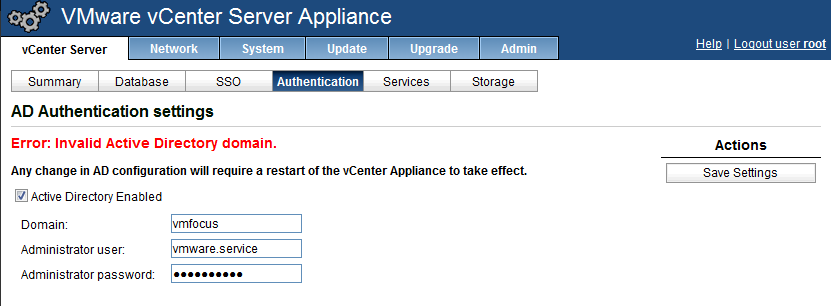
Another try at authenticating, and it still failed with ‘Error: Invalid Active Directory domain’.

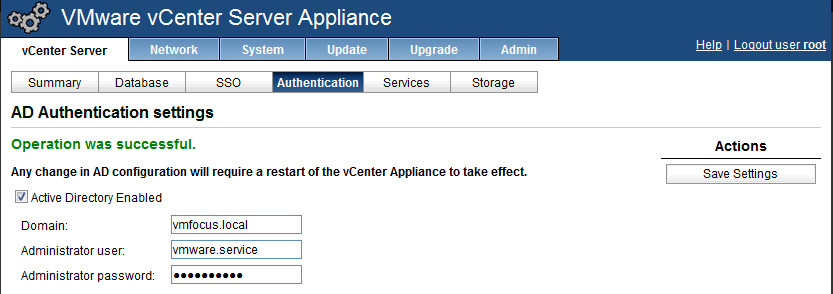
One more try, this time I changed the domain to vmfocus.local and boom, we have success!

So to summarise:

  • Make sure you use a FQDN for your vCenter Server Appliance
  • Make sure you have forward and reverse look up record for your vCenter Server Appliance
  • Make sure your domain is entered as a FQDN

vCenter 5.1 Upgrade

I have been meaning to perform a vCenter 5.1 upgrade for some time now.  The good news is, I have a few space minutes to get the vmFocus lab upgraded.

First of all, you need to decide on how you are going to upgrade, are you going to perform:

In Place Upgrade this is where you install straight over the existing vCenter, this is supported for 64 bit systems on vCenter 4.0 and 5.0

New Install   this is where you install a new vCenter 5.1 server and then add you hosts to it.

I’m going to go for a new install, as my existing vCenter 5.0 server has taken some battering, with SRM being added on and taken off numerous times.

vCenter 5.1 has much higher resource requirements, so it might be worth a quick flirt past the Upgrading to vCenter Server 5.1 Best Practices KB to make sure your environment is up to scratch.

One thing that is worth mentioned is your DNS entries, I suggest you make sure these are spot on.  In my environment I have a Windows Server 2008 Active Directory Integrated Forward Lookup and Reverse Lookup Zone for vmfocus.local

I have DNS records for the following entries, both forward and reverse:

  • ESXi01 192.168.37.1
  • ESXi02 192.168.37.2
  • ESXi03 192.168.37.3
  • VMF-APP01 192.168.37.205

You probably guessed that ESXi01, ESXi02 and ESXi03 are all vSphere Hosts and VMF-APP01 is a Windows 2008 R2 Standard Server.  Before this upgrade all of the vSphere Hosts are attached to another vCenter called VMF-ADMIN01.

What I really like about vCenter is you can install another instance and then just attach the hosts to the new vCenter.  You do loose historical performance data, but if you have a baseline already, that’s not such a big issue.

OK then let’s crack on.

TOP TIP: Don’t forget to install Adobe Flash Player

Installation

Fire up the installation media, if you haven’t downloaded it already, it can be obtained from here

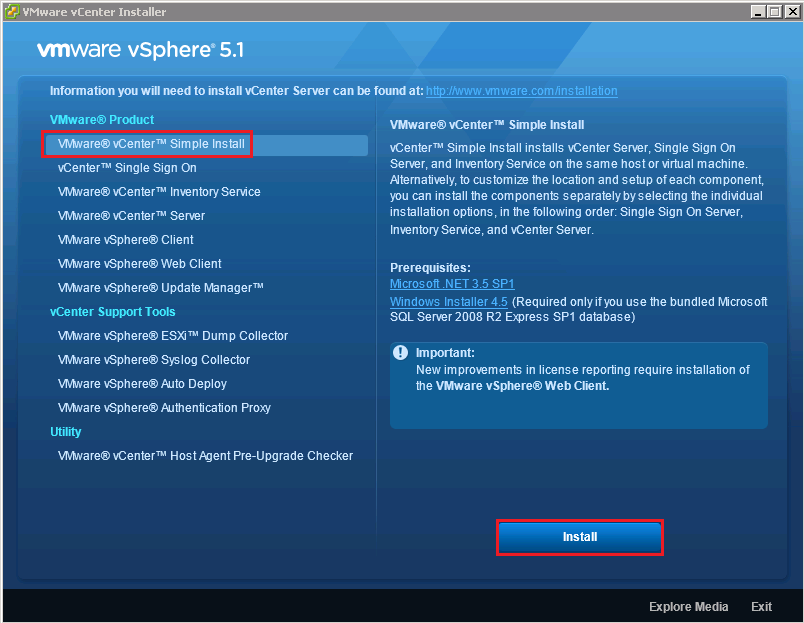
Select VMware vCenter Simple Install and then Click Install

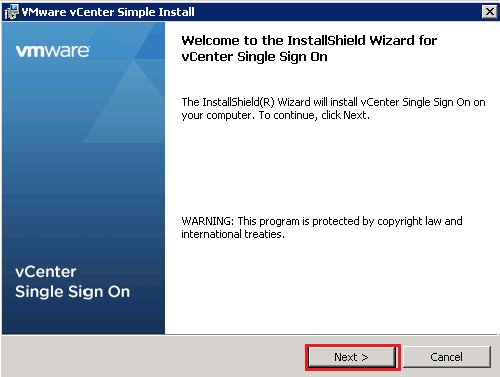
The installation will install vCenter Single Sign On first, so click Next to this

I’m not going to insult your intelligence, Hit Next again, and Accept the terms of the license

This is where things start to get interesting, we need to give a password to the account admin@System-Domain which is used to administer the Single Sign On service.

In this instance, I’m going to opt for a Microsoft SQL Server 2008 R2 Express installation

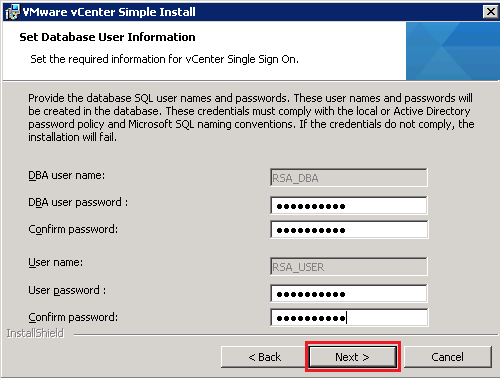
Cool, something new! The vCenter 5.1 installation is going to create two users RSA_DBA and RSA_USER in the SQL database, pop a password in that complies with your policies.

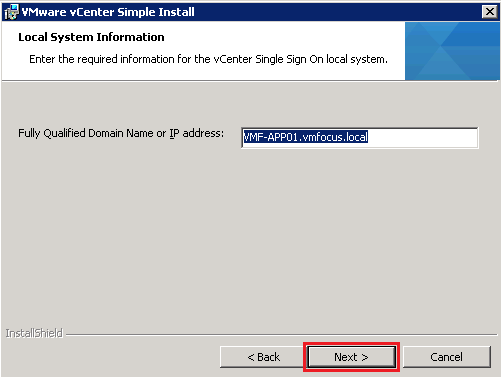
This part is proper important, make sure that you verify your FQDN of your vCenter Server and give it a ping for good measure.

For Security reasons, I always specify an account for vCenter services to run under, you don’t have to do this, but if you want to tick the ‘best practices’ box it’s best too.

We can now change the default install path, I recommend you don’t change this, unless you have a compelling reason to do so.

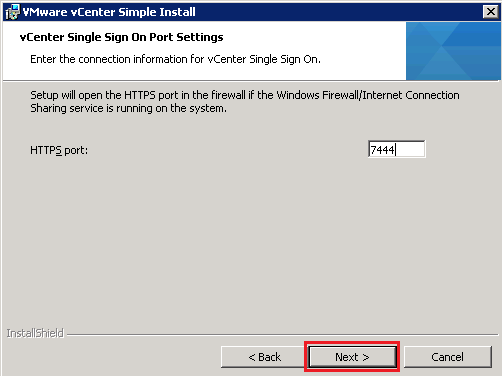
We can also change the port used for the Single Sign, I’m happy with the defaults on mine.

Not sure why, but it does seem like an age since we began the installation.  Finally, we can click Install.

Probably a good idea to make yourself a tea or coffee as this is going to take a while.

Once Single Sign On has installed, you will see the Inventory Service, install and then finally vCenter itself.

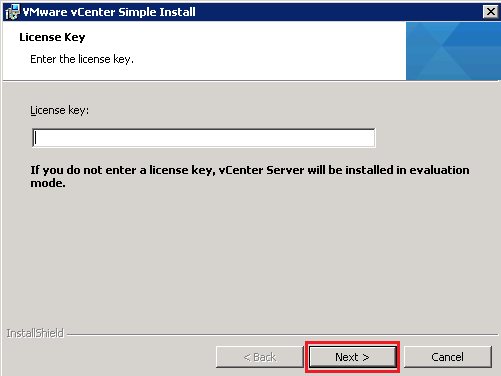
We need to perform a little bit of interaction with the vCenter install, the first question is a License Key, if you don’t have one, click Next and you can use the free trial version.

We now get the choice of using Microsoft SQL Server 2008 Express or another database.  I’m going to roll with SQL Server 2008 Express (partly because I’m cheap)

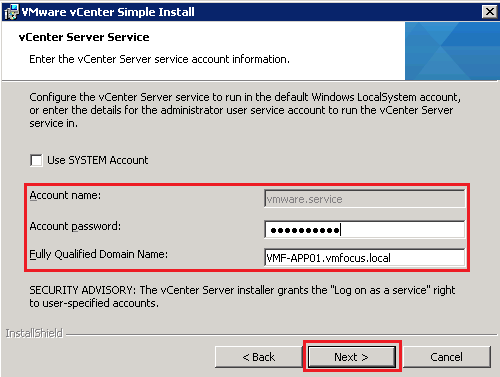
Again, we have another question on the System Account, I’m going to use my VMware.Service account for this

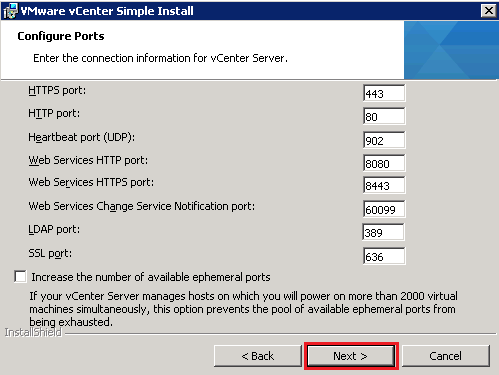
Ports, we can change the default ports used by all of vCenter’s services.  I’m going to leave mine at default.

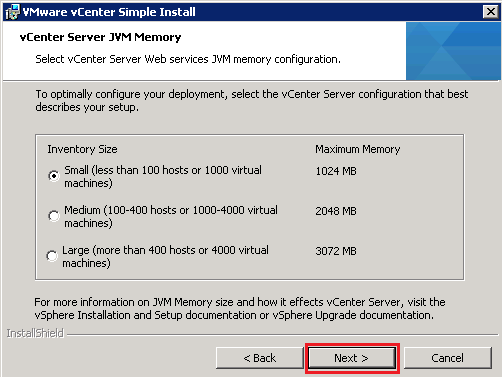
Time to select your deployment size, unless you have a super lab, then I’m sure you and I will be OK with Small

Then finally, click on Install.  Don’t be alarmed if after you click Install, the installer package disappears for a few seconds, this is quite normal (yes it did freak me out).

Boom, job done!

Web Client

Probably be a good idea to install the web client as well, so from our vCenter Installer, select VMware vSphere Client and hit Install

Choose your language, (still no United Kingdom version for English)

Don’t be alarmed everything will disappear for a while.  Once the install is back click on Next

Hit Next, and then agree to the terms of the license and Hit Next again.

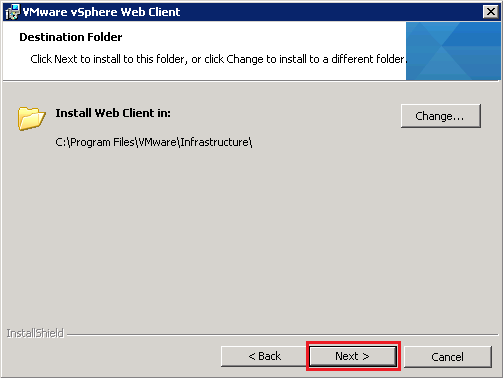
You can change the default install folder if you like, however as always I recommend leaving it as default unless you have a valid reason not too.

We can not change the vSphere Web Client Ports, I’m going to leave mine at the default HTTP 9090 and HTTPS 9443

This is where thing start to get interesting, we need to specify the vCenter Single Sign On administrator password which we entered during the Single Sign On installation.

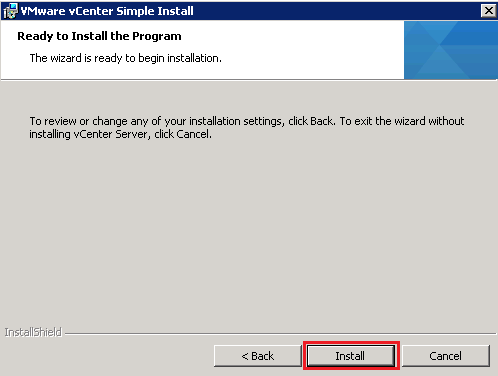
Hopefully, you should now be at the Install screen, hit Install

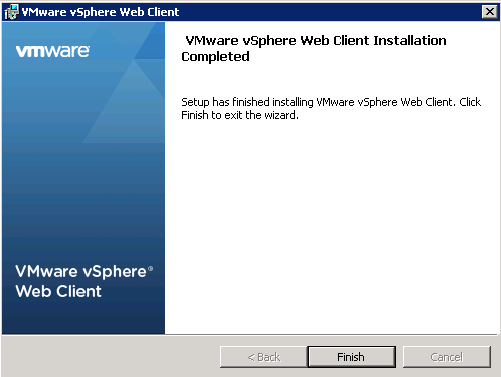
Happy days, we are all done, well nearly!

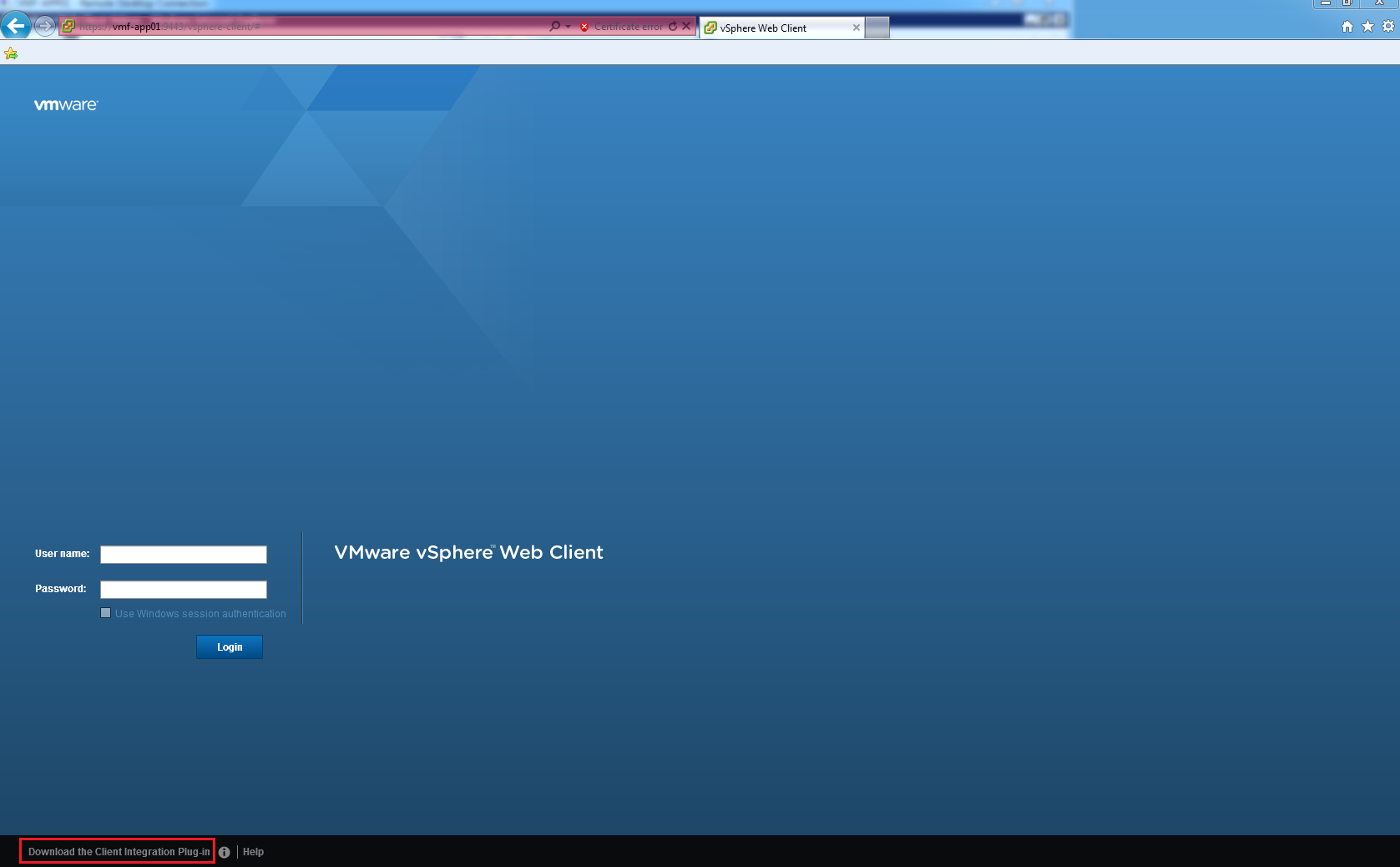
Cool, we can now launch either the vSphere Web Client from Start > Program Files or we can browse to https:\vcentername:9443

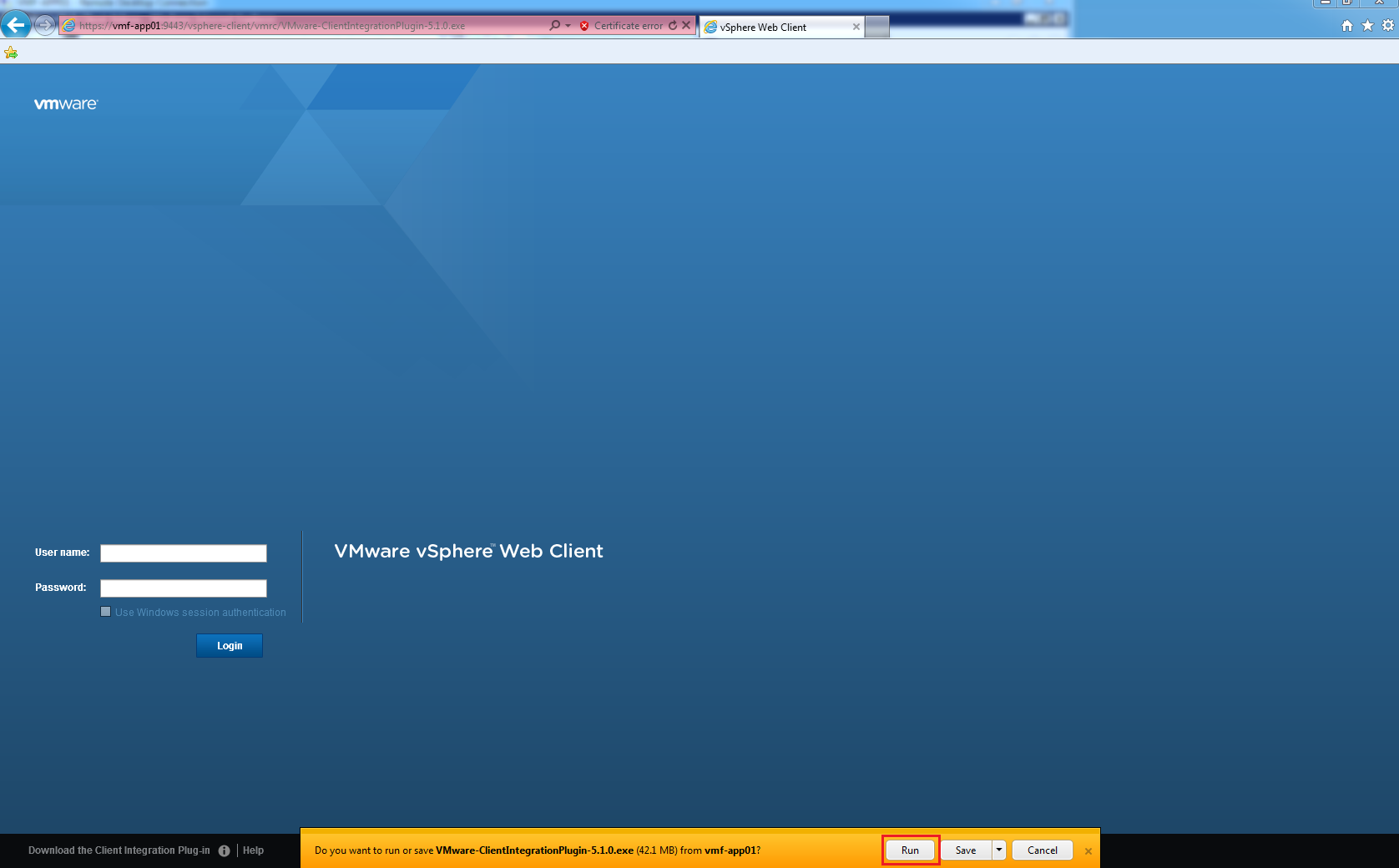
At the login screen, we want to ‘Download the Client Integration Plug-in’

Run the file VMware-ClientIntegrationPlugin-5.1.0.exe

At this point, you will need to close your web browser otherwise you can’t install the plug in!

Cool, click on Next and let the magic happen

All installed click on Finish

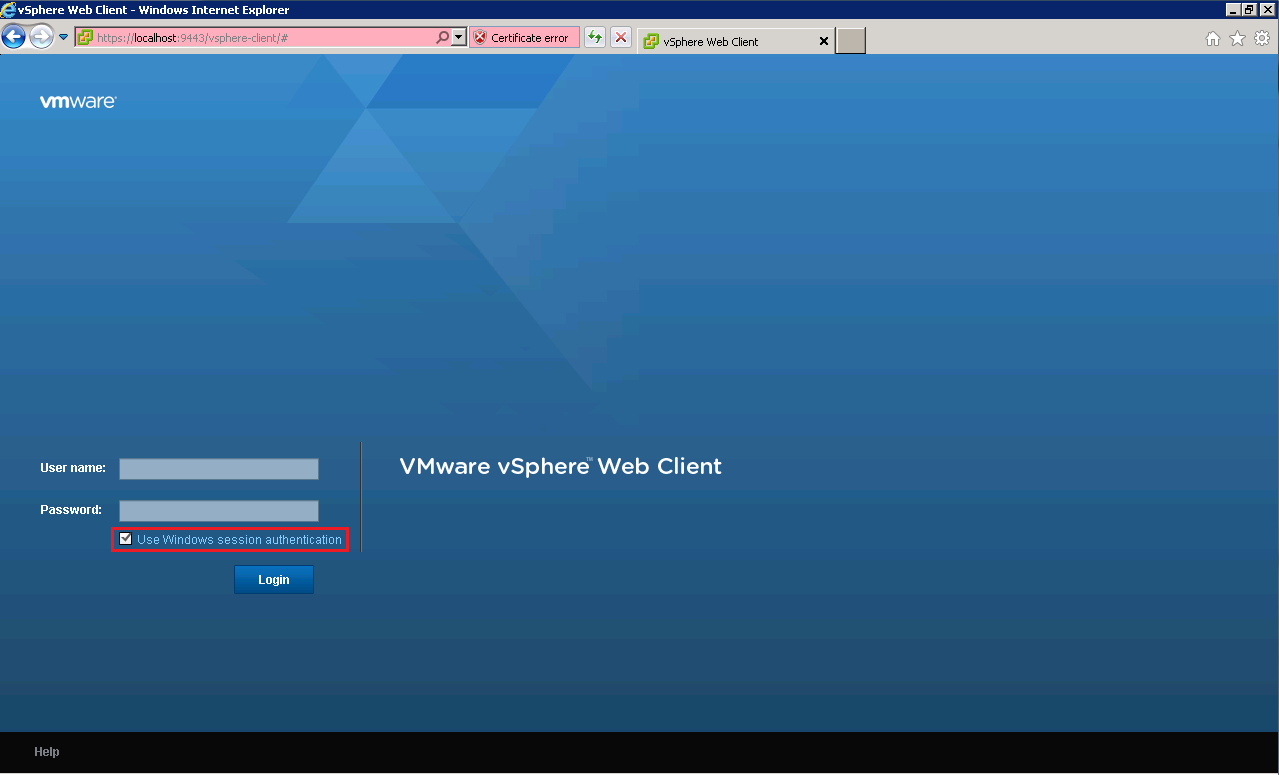
Let’s give it a whirl, browse to https://localhost:9443 and place a tick in ‘Use Windows Session Authentication’

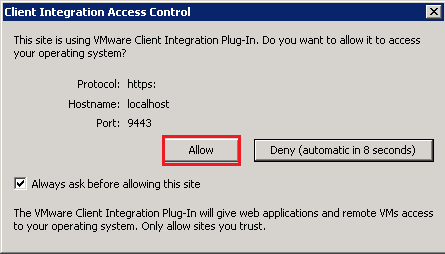
You should get an Client Integration Access Control which is confirming you are allowed access, click Allow

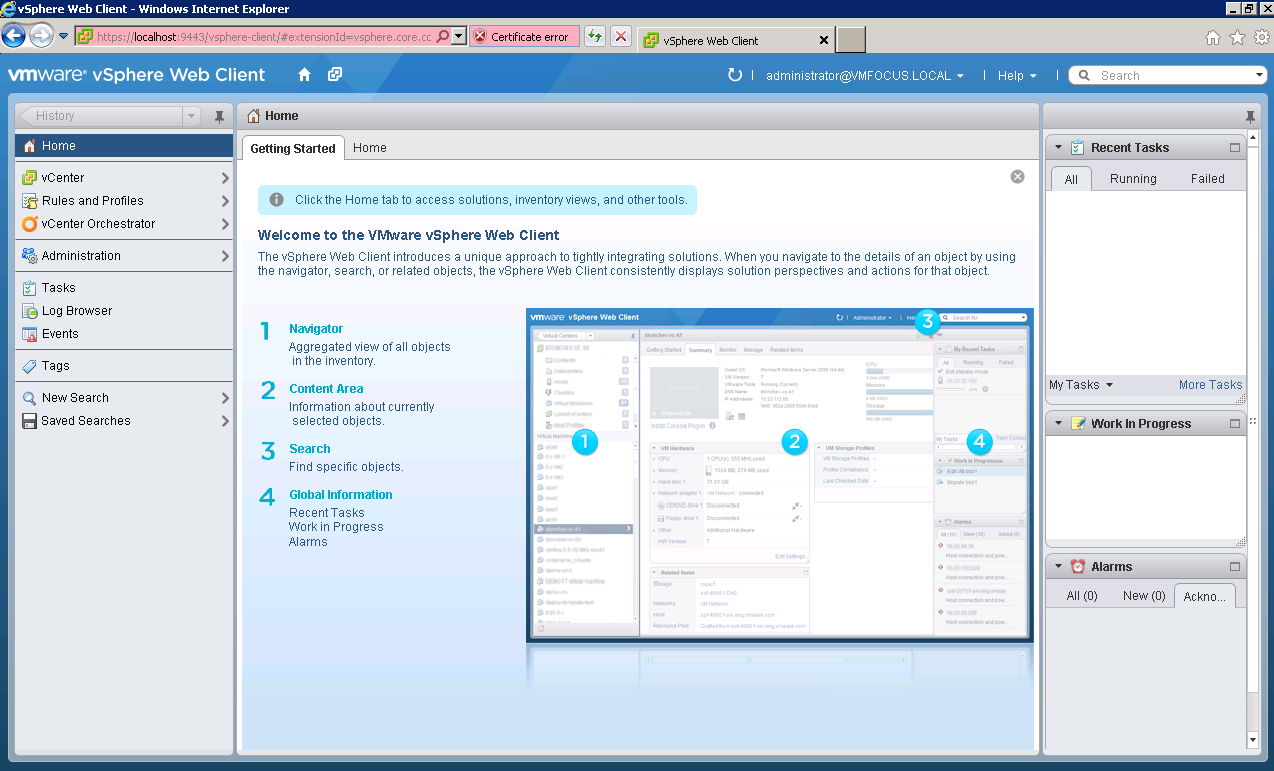
Voila we are in! Now time to familiarise myself with the new GUI

Part 5 – Configuring Site Recovery Manager (SRM) With HP StoreVirtual VSA

This is the final post on my blog series Configuring Site Recovery Manager (SRM) with HP StoreVirtual VSA.

If you have missed any of the previous posts, they are available here:

Part 1 – Configuring Site Recovery Manager (SRM) With HP StoreVirtual VSA

Part 2 – Configuring Site Recovery Manager (SRM) With HP StoreVirtual VSA

Part 3 – Configuring Site Recovery Manager (SRM) With HP StoreVirtual VSA

Part 4 – Configuring Site Recovery Manager (SRM) With HP StoreVirtual VSA

As promised we are going to failover, reprotect and failback. Is it slightly wrong, that I’m excited about this blog post?

Pre Failover

As we are good boy/girl scouts, we wouldn’t just jump straight in and try and failover would we? No, never instead we are going to check everything is ‘tickety boo’ with our environment.  This means going over the following checklist:

  • Check CMC to ensure no degraded volumes
  • Check CMC to ensure that remote copy is working correctly
  • Check vCenter to ensure that you have connectivity between sites
  • Check SRM Array Managers and refersh your Devices
  • Check Protection Groups
  • Check Recovery Plan

Once you have gone over the above list, the last thing to do is test and clean up.
Look’s like we are cooking on gas.

Failover

We have two types of failover, planned and unplanned.

Planned Failover is when you know of impending works which will make your Production site non operable for a period of time, this could be planned  maintenance work or site relocation.  Imagine you are building a new Head Office, you configure all of your network, storage and vSphere infrastructure and then just use SRM to failover over a weekend.

Unplanned Failover this is when, you earn your ‘bacon’ as a vSphere Administrator, as you have a man down situation and no Production site left.

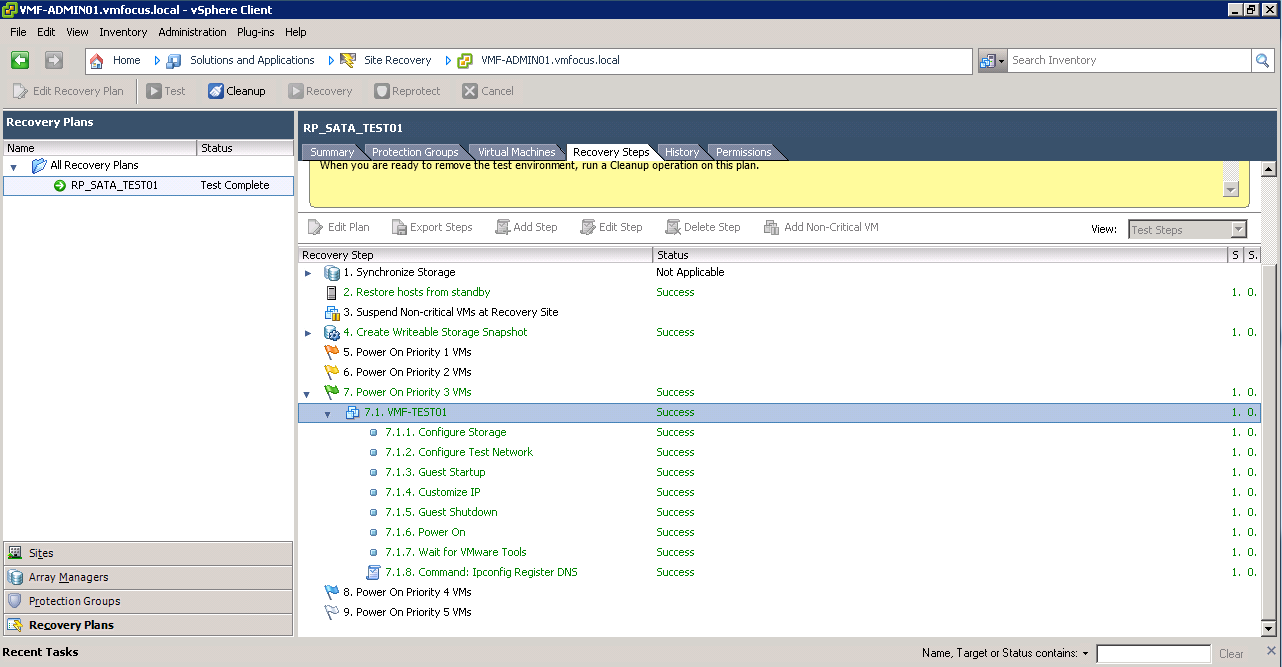
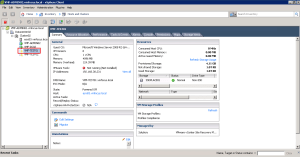
In this instance we are going to do a planned failover, as you can see VMF-TEST01 is running in our Production site.
VMF-TEST01 is in a good place, as it’s being replicated to our DR site
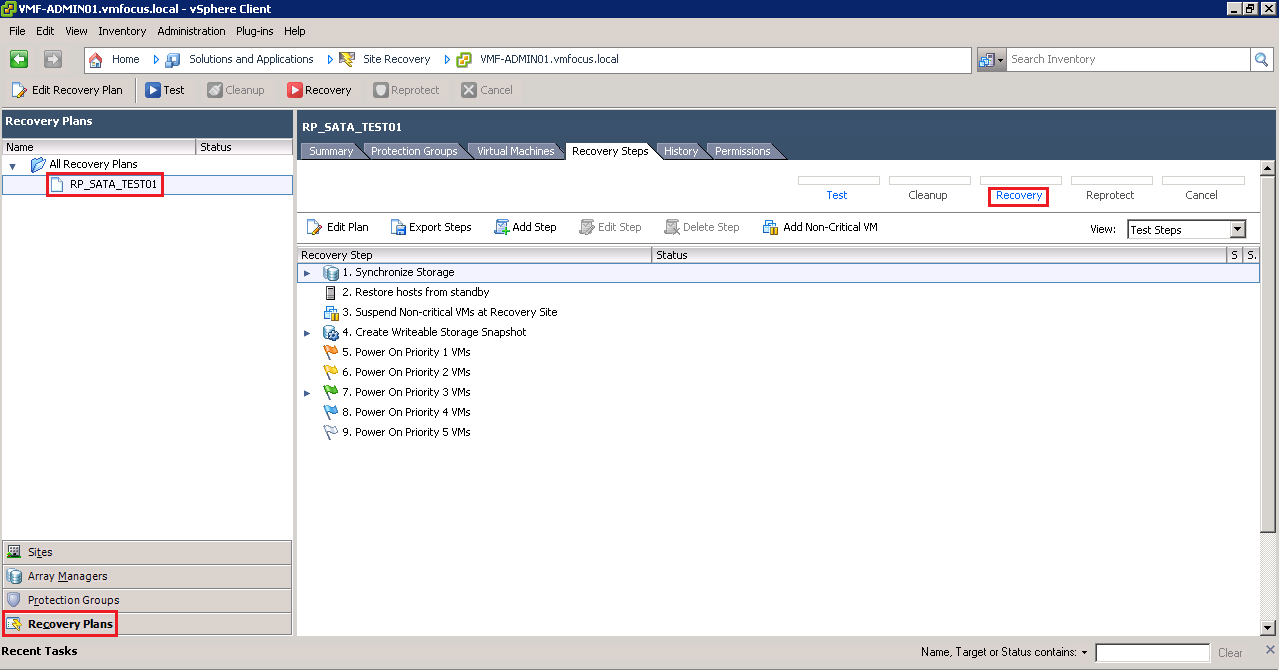
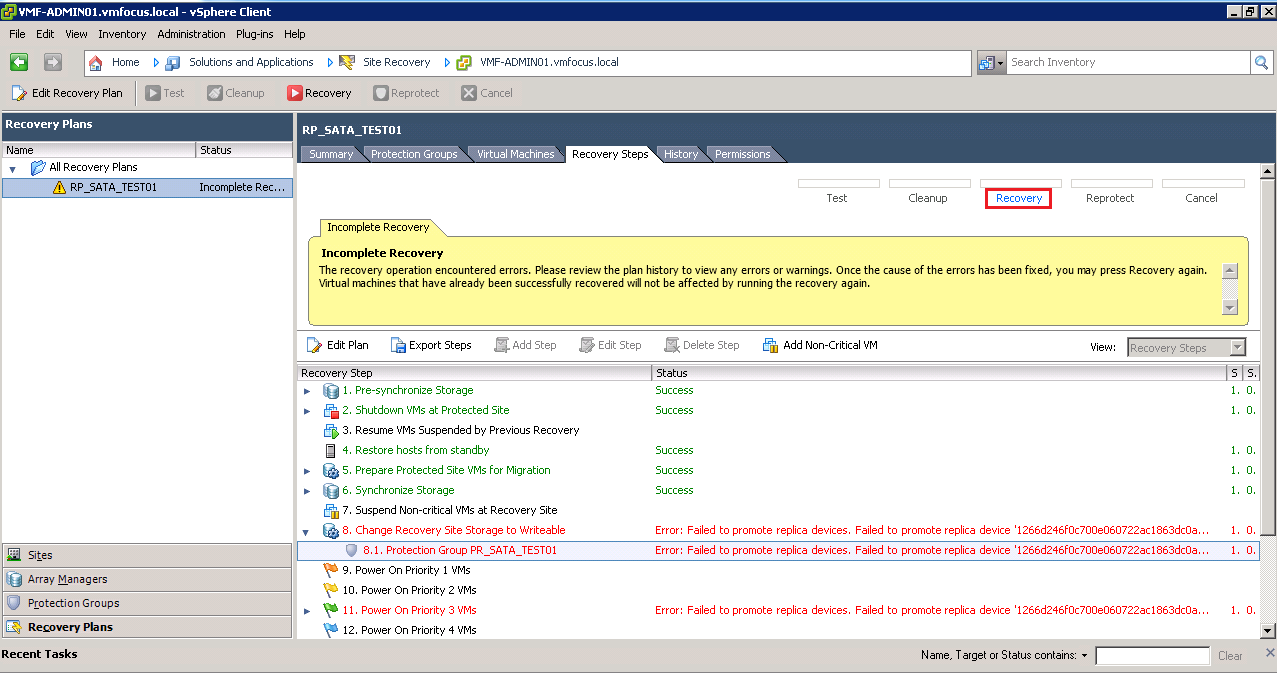
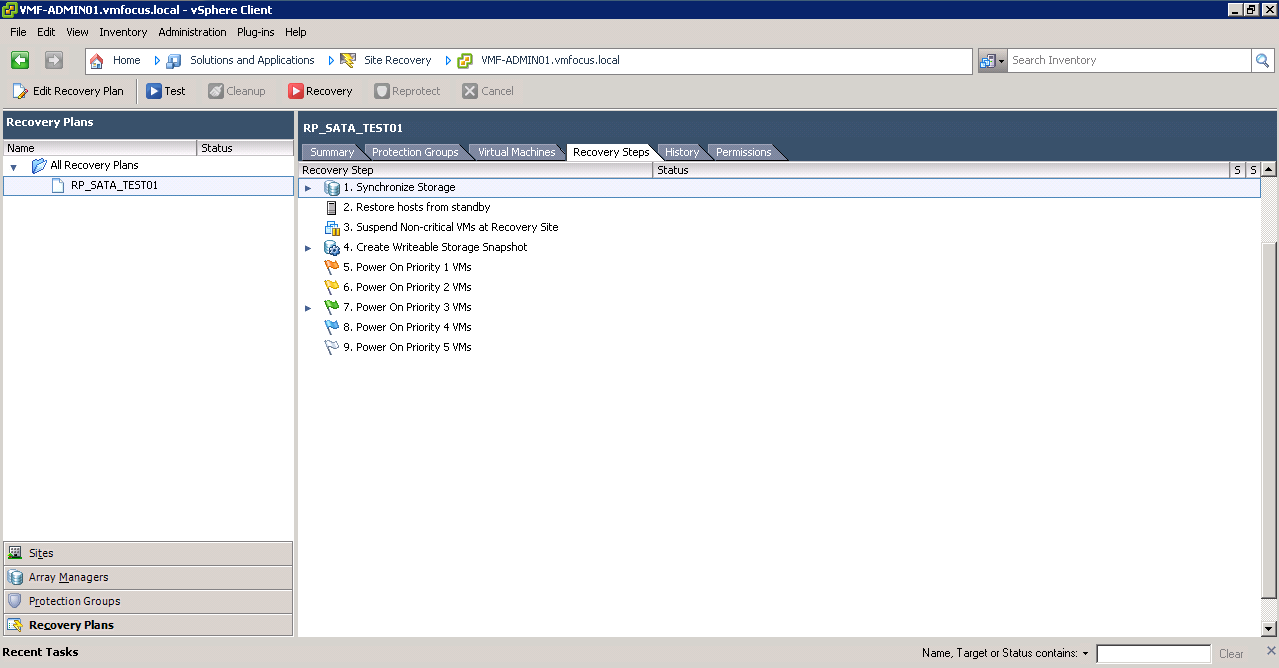
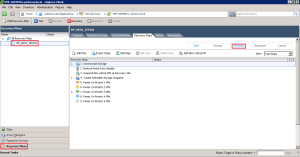
Let’s get it on, into SRM, then click on Recovery Plans, then onto Recovery Steps (so that we can see what’s going on) and then click on Recovery!
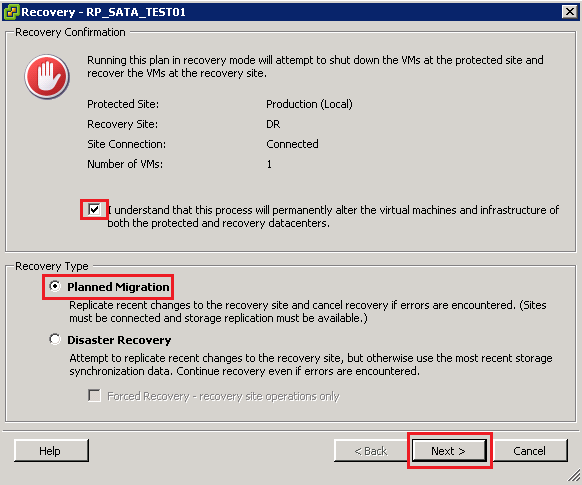
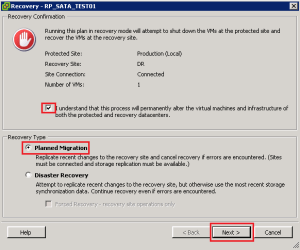
The Red Stop Sign cracks me up, it’s SRM’s way of saying are you really sure you want to do this? We are sure, so we want to put a tick in the ‘I understand that this process will permanently alter the virtual machines and infrastructure of both the protected and recovery datacenters.’

We are going to perform a ‘Planned Migration’ and then click Next
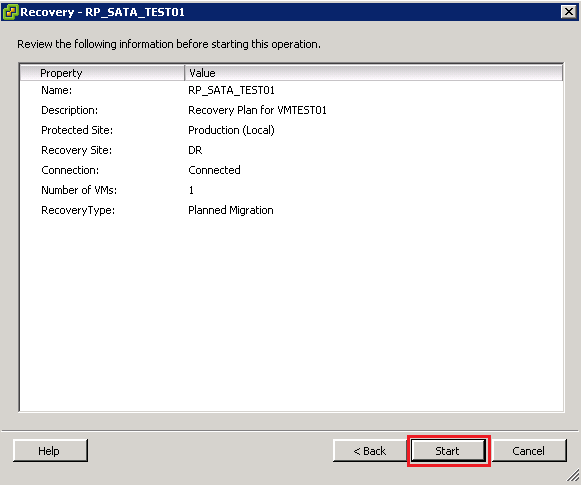
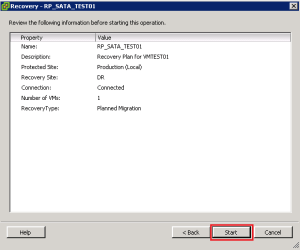
We are now at the point of no return, click Start
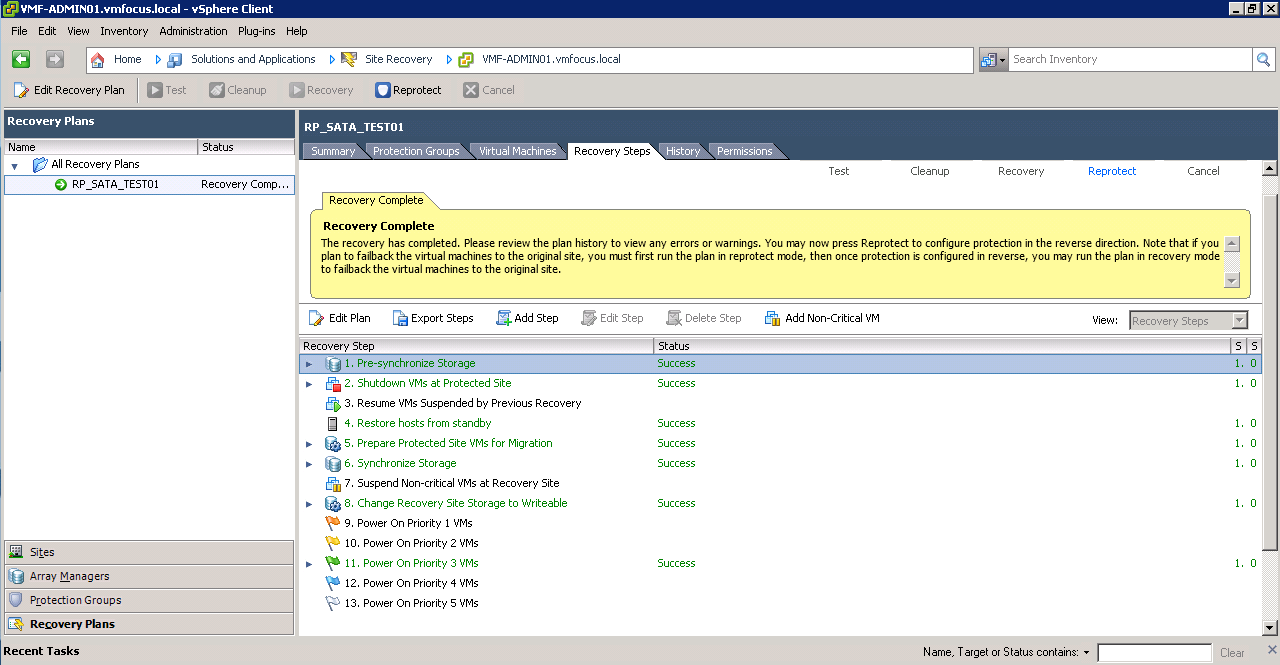
OK, what’s going on? Well the let’s have a closer look.

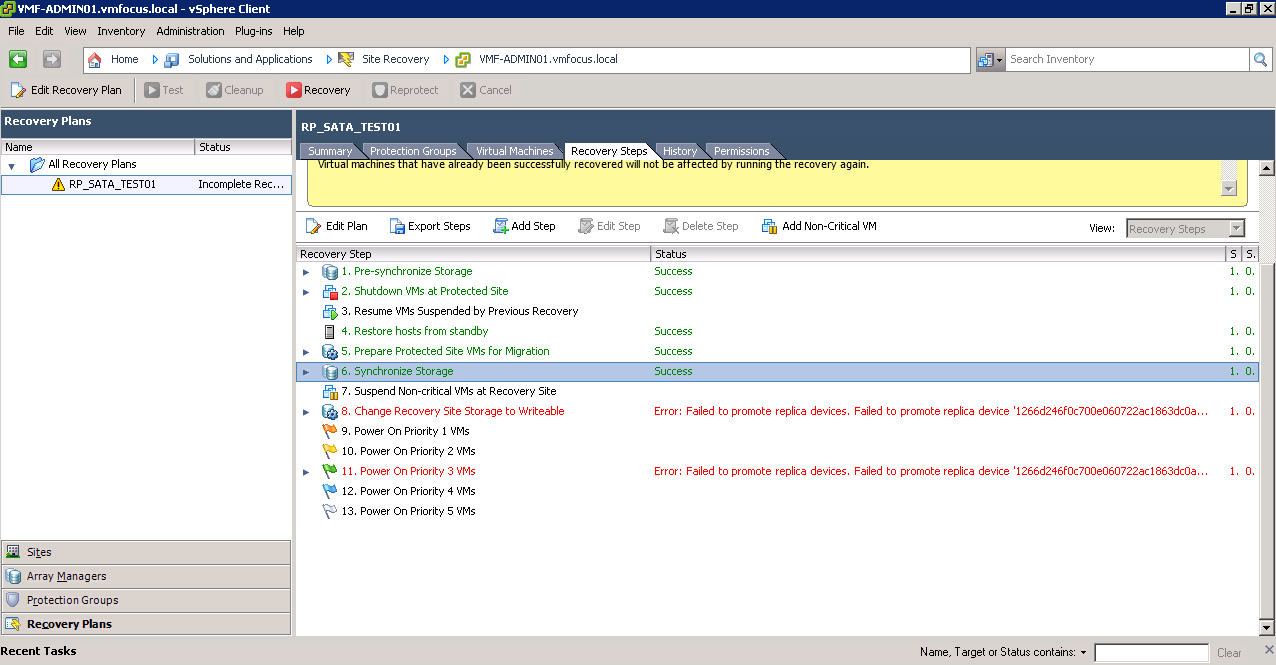
Step 1 SRM takes a snapshot of the replicated volume PR_SATA_TEST01 before it tries to failover, this is for safety.

Step 2 SRM shuts down the VM’s at Protected Site, in this case VMF-TEST01 to avoid any data loss

Step 3 SRM restores any hosts from standby at the DR Site

Step 4 SRM takes another snapshot and syncronizes the storage

Step 5 Epic Fail!
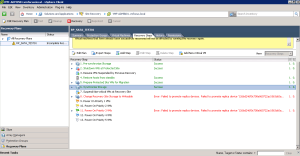
OK what happened? Well we have the error message ‘Error: Failed to promote replica devices. Failed to promote replica device ‘1266d2456f’ This means that for some reason SRM wasn’t able to promote the DR volume DR_SATA_TEST01 to Read/Write from Read. To be perfectly honest, I have tried many times to get this to work and for some reason it always fails on this step.  Strange really as when we before a test it takes a snapshot of the volume DR_SATA_TEST01 and promotes this to Read/Write without any issues. So in this situation we are going to need to give SRM a hand.

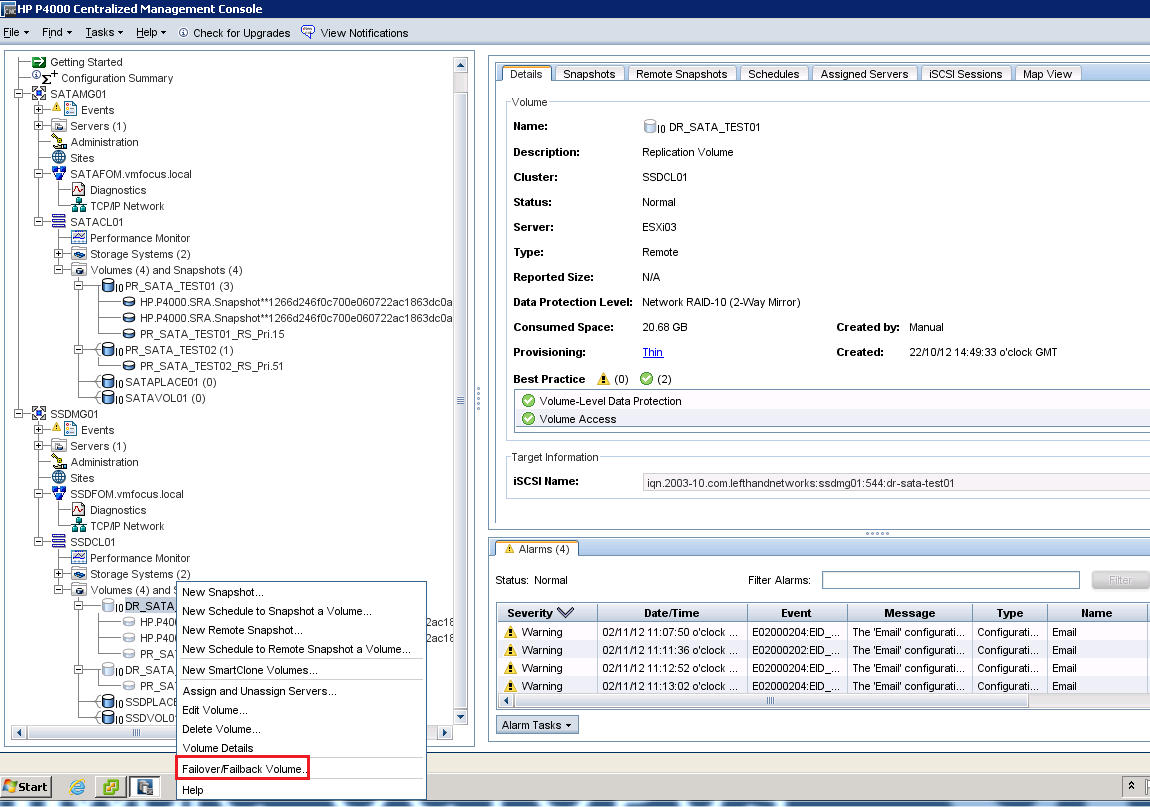
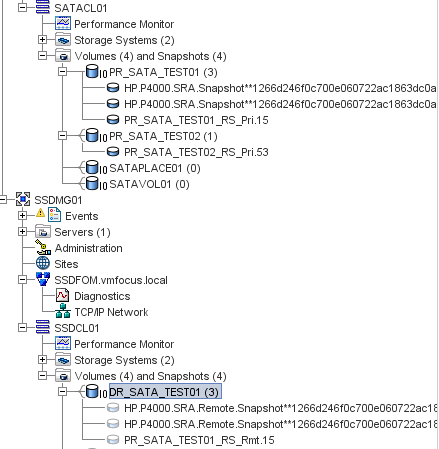
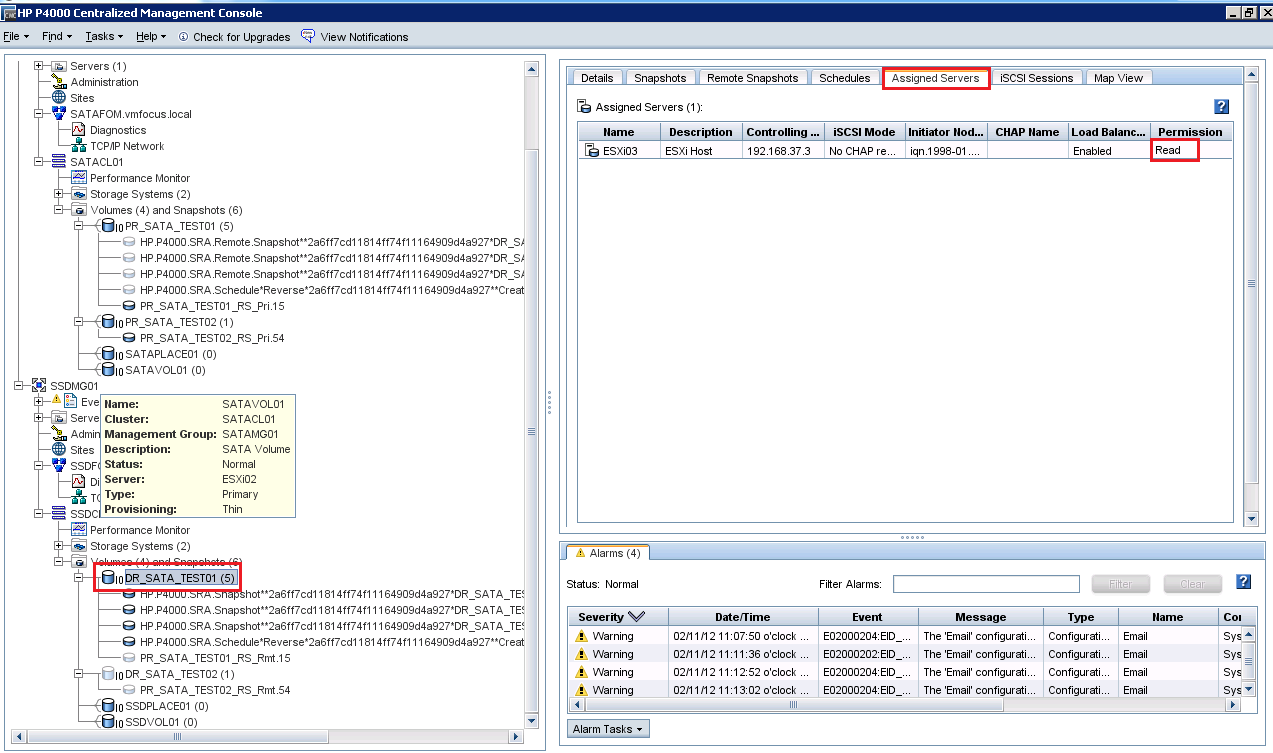
Go into the CMC and expand your Management Groups and Clusters until you get this view.

We are going to Right Click DR_SATA_TEST01 and Select Failover/Failback Volume
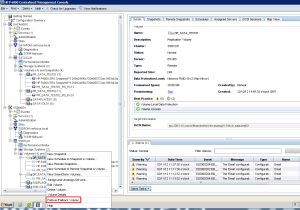
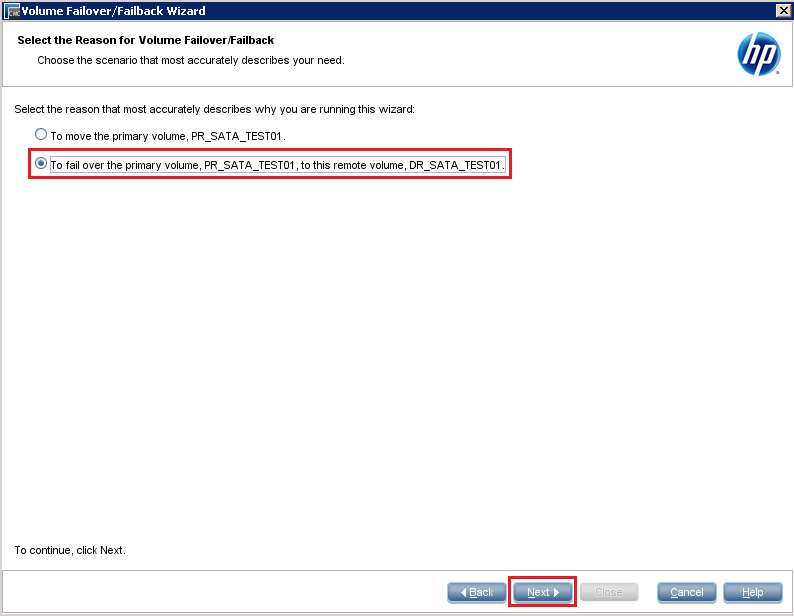
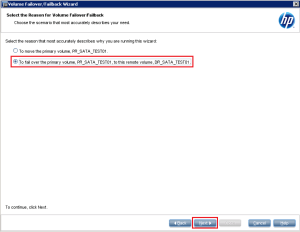
Click Next and then Select ‘to fail over the primary volume, PR_SATA_TEST01, to this remote volume, DR_SATA_TEST01 and click Next
Good news that we haven’t got any iSCSI sessions in place, so we can click Next

Double check your provisioning is correct, and then click Finish
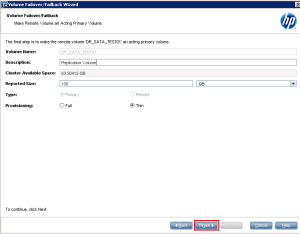
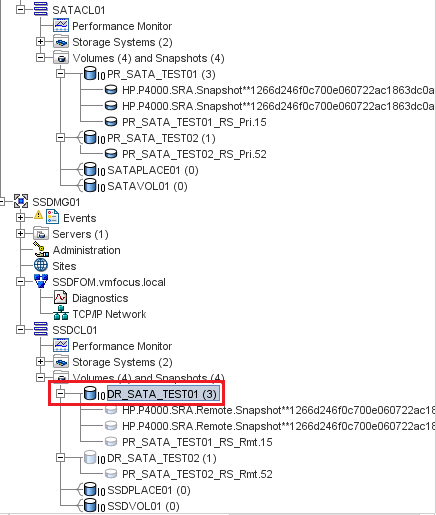
Awesome, we should now have the volume DR_SATA_TEST01 acting as a Primary Read/Write Volume, you can tell this as it should be in dark blue
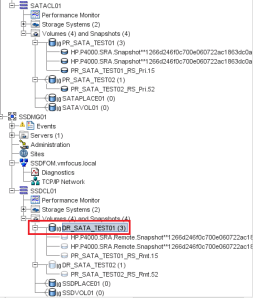
I think we should try the Recovery again now, let’s hop back into SRM and click on Recovery.

Select the ‘I understand that this process will permanently alter the virtual machines and infrastructure of both the protected and recovery datacenters.’ tick box again and click Next and Start.

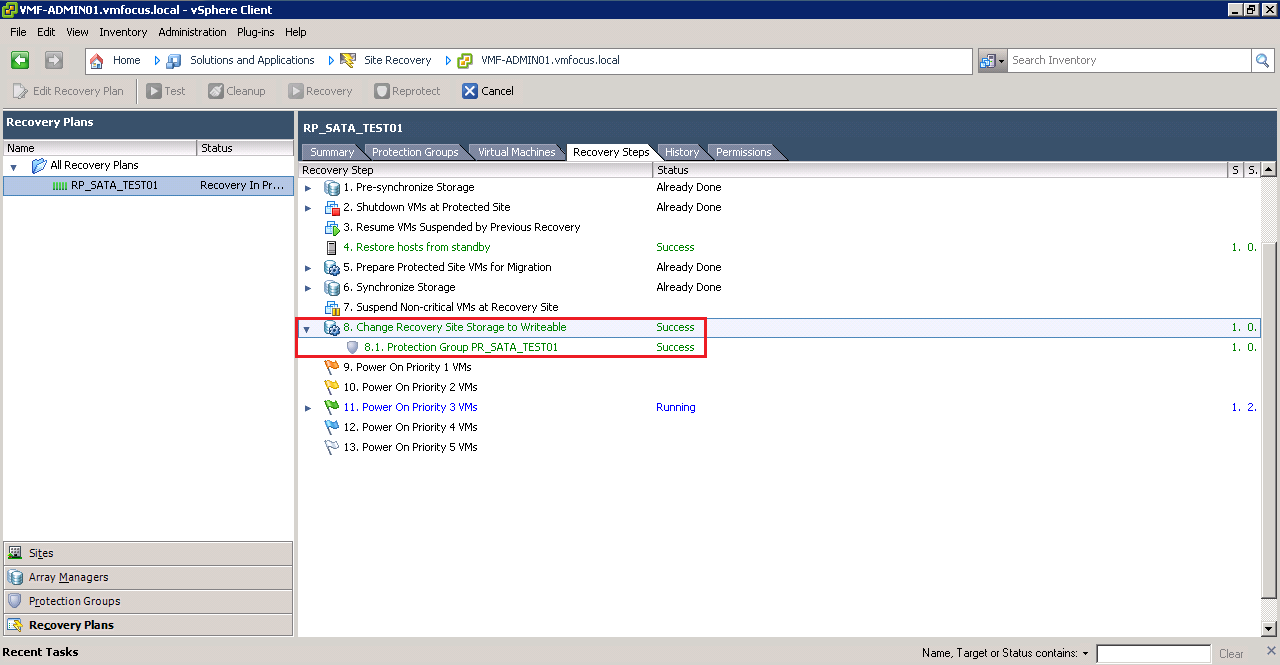
Hopefully you should see that SRM jumps straight to Step 8, Change Recovery Site Storage to Writeable and this time it has been a Success!

Time for a quick brew, whilst SRM finishes off bringing VMF-TEST01 up at our DR site.

Boom, the man from Delmonte he say yes!
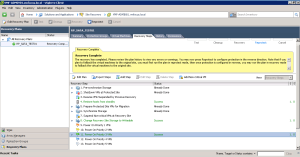
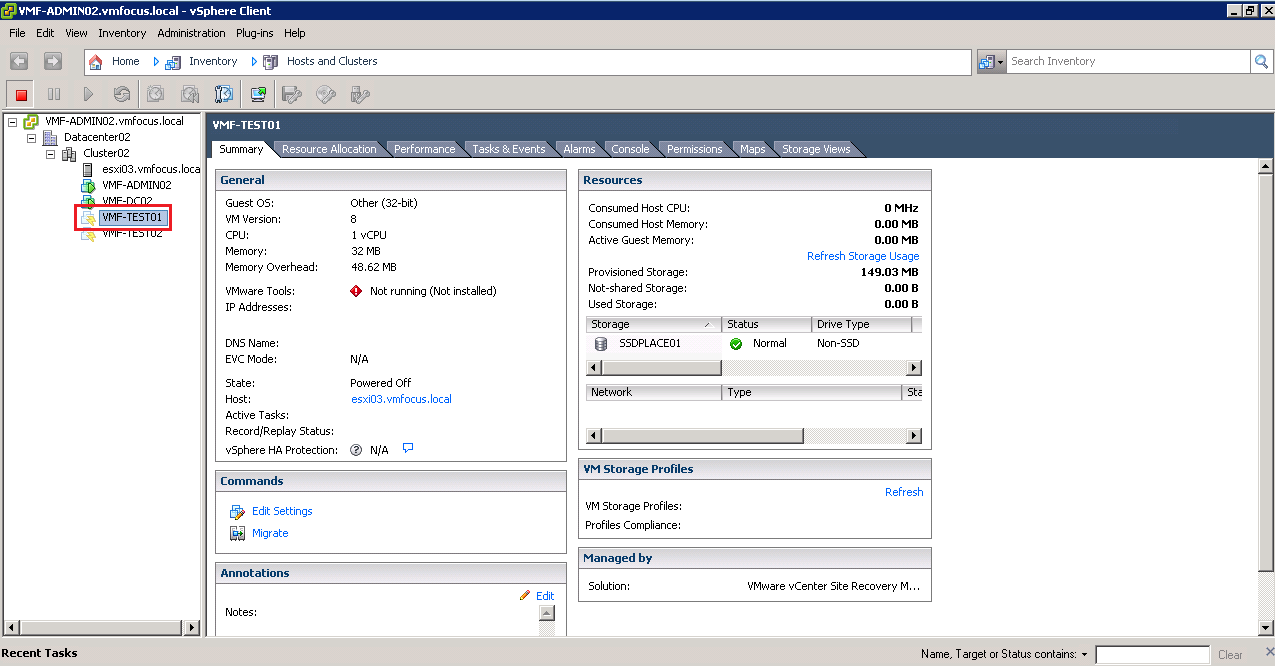
So let’s see what’s going on shall we.  First of all at our Production site.  As you can see SRM now knows that the VMF-TEST01 is not live.

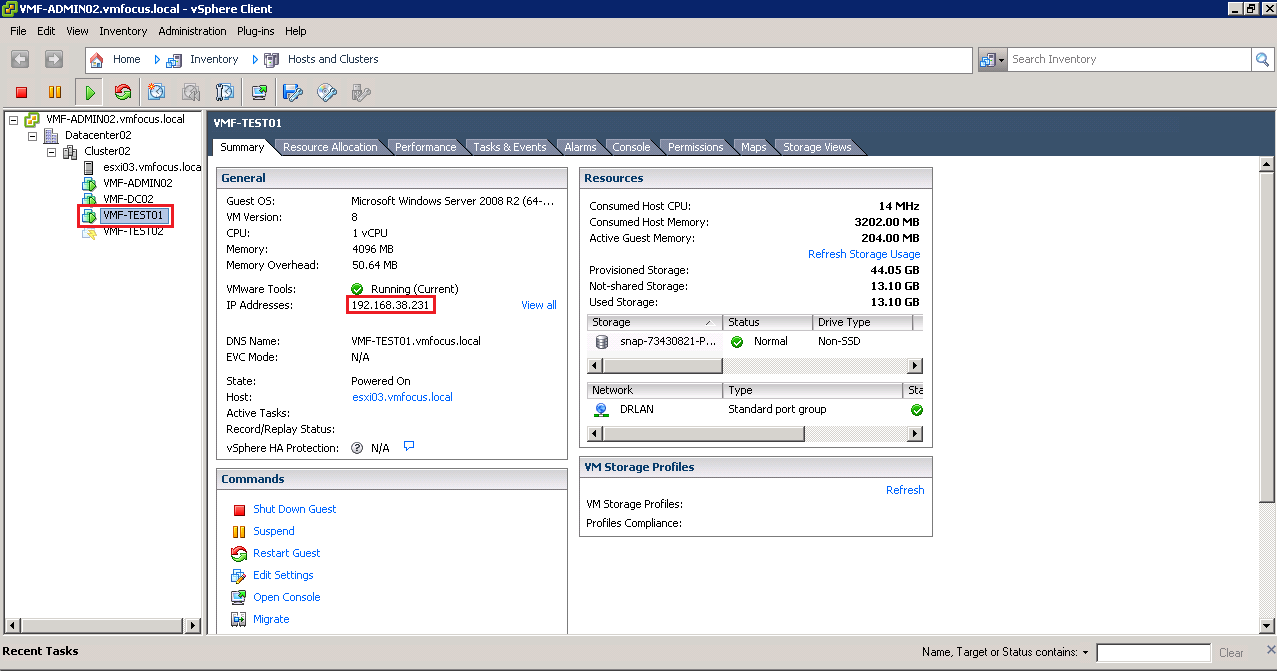
At DR, VMF-TEST01 is up and running and it’s IP Address has been successfully changed.

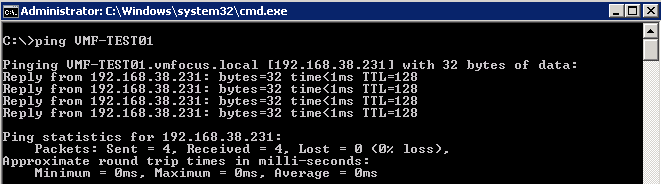
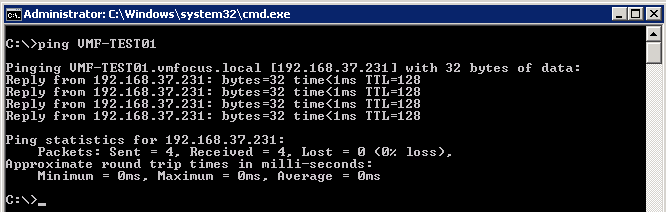
The question is can we ping it by DNS, as this should have been updated.

Boom, all working as expected.

Last of all, let’s check CMC to see what’s going on with our HP StoreVirtual VSA.
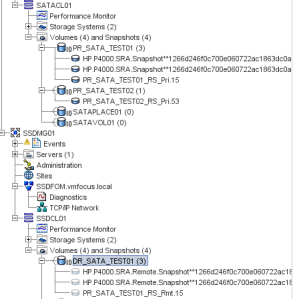
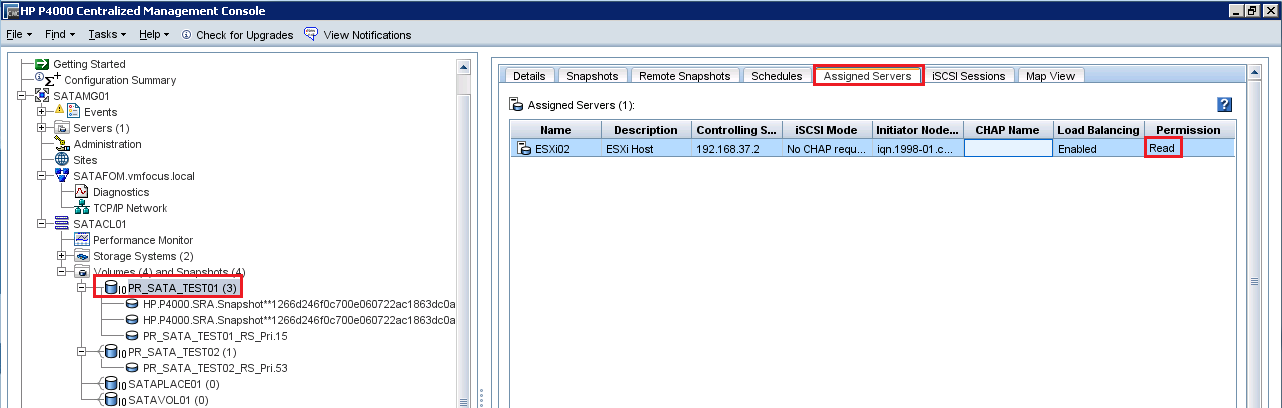
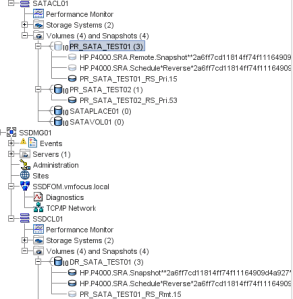
Now you may be thinking, it’s not really the best situation to be in as we have two Primary Volumes which are PR_SATA_TEST01 and DR_SATA_TEST01.  But don’t fear SRM has changed PR_SATA_TEST01 to ‘read’ only access for ESXi02
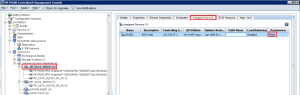
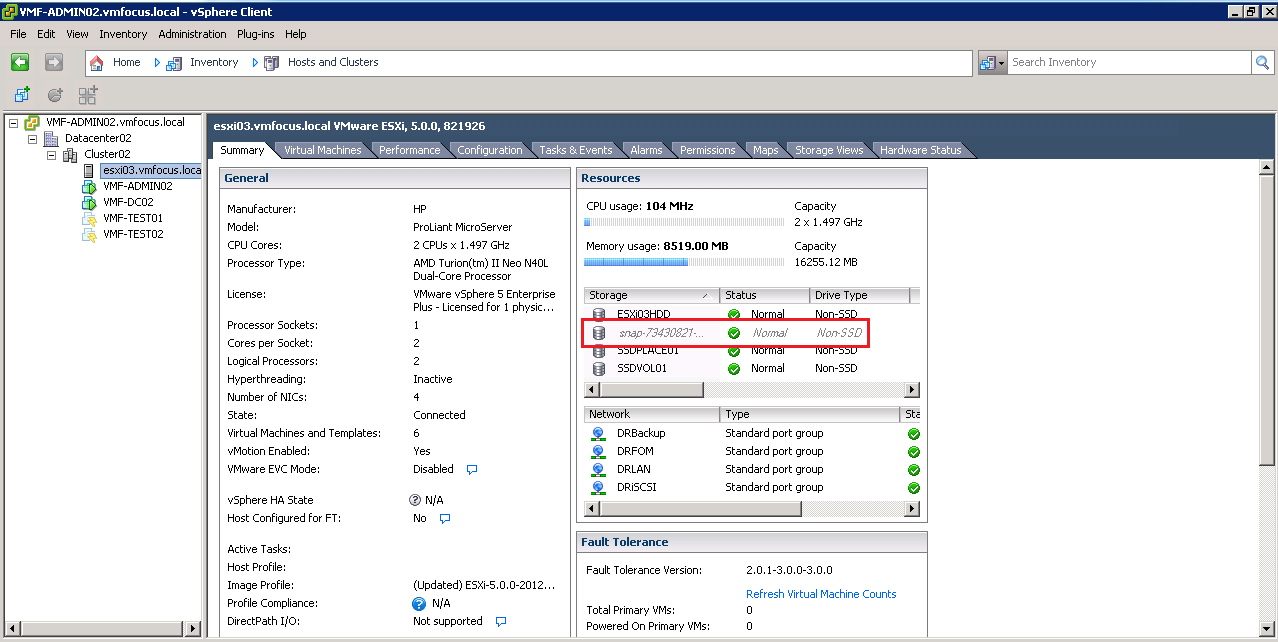
Also, if we check the Datastores on ESXi02, we see that PR_SATA_TEST01 has disappeared.

Cool, I think we are now in a position to Reprotect.

Reprotect

Reprotection reverses the process, so that the DR site becomes the protected site and Production becomes the DR site, simples.

So let’s jump back into SRM and click Reprotect
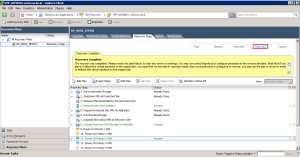
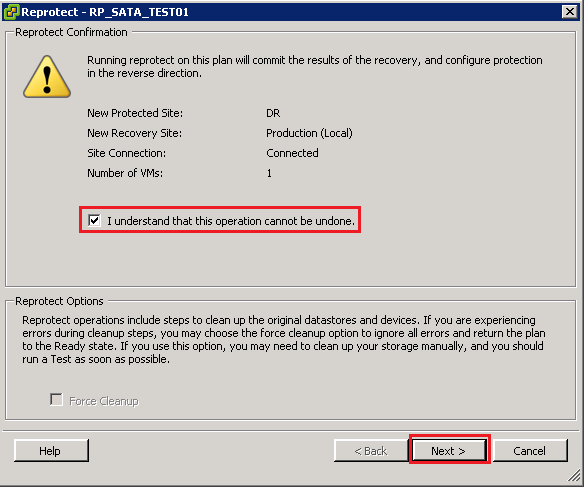
Select ‘I understand that this operation cannot be undone.’ and click Next

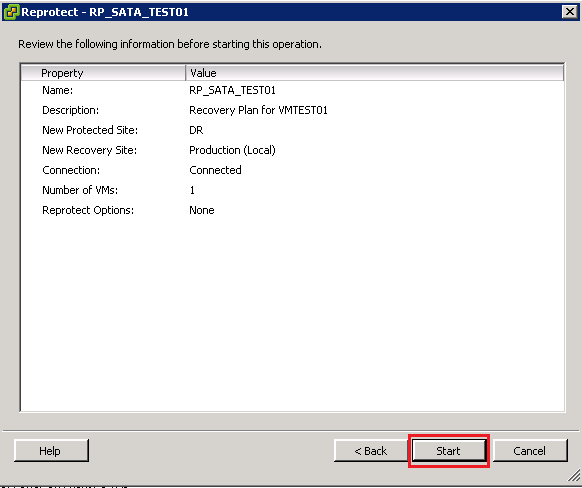
Let’s click Start and watch the process in action.
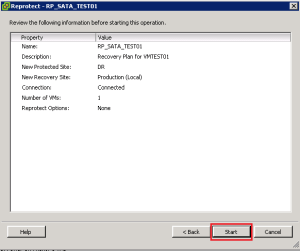
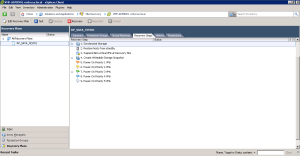
OK, what’s going on then Craig?

Step 1 SRM realises it can’t have two Primary Volumes and demotes PR_SATA_TEST01 to a Remote Volume and then deletes it

Step 2 SRM takes a snapshot of DR_SATA_TEST01 and before it starts the reverse protection as a safety measure

Step 3 SRM takes a further snapshot and invokes the replication schedule

Step 4 SRM cleans up the storage to make sure everything is ‘tickety boo’

If everything was a success you should see that your Recovery Plan has gone back to normal.
From HP StoreVirtual VSA perspective everything looks good, DR is the Primary Volume and Production is the Remote Volume
Right then, I think we should think about failing back then.  Before we do so, we need to run over that checklist again.

  • Check CMC to ensure no degraded volumes
  • Check CMC to ensure that remote copy is working correctly
  • Check vCenter to ensure that you have connectivity between sites
  • Check SRM Array Managers and refersh your Devices
  • Check Protection Groups
  • Check Recovery Plan

Once you have gone over the above list, the last thing to do is test and clean up.

Good times, everything was a success, I think we are ready to failback.

Failback

Failback is actually just a Recovery as far as SRM is concerned.  So I won’t bother waffling on about it again, so let’s hit Recovery
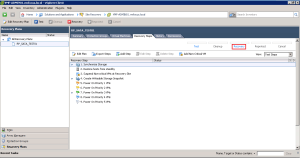
I wanted to show you that this time round, SRM was able to promote the Remote Volume to Primary Read/Write without any issues.
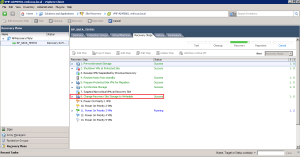
Nice one, we have another success and VMF-TEST01 is running back at Production.

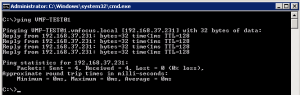
Let’s do the obligatory ping test via DNS, again success.
Quick look at our DR site and you can see SRM now sees VMF-TEST01 as being protected

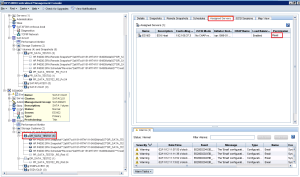
Lastly, a look at CMC to check on our HP StoreVirtual VSA, as you can see we still have two Primary copies, but again DR_SATA_TEST01 is now read only
A couple of final thoughts for you.

  1. It’s quite normal to see a ‘ghost’ datastores at either your Production or DR site after you have failed over or back. Just perform a ‘Rescan’ and it will disappear
  2. Check your path policies for the Datastore, as these don’t always go back to your preferred choice.

Thank’s for reading what probably feels like war and peace to you on SRM, I hope you agree it’s an amazing product that makes our life as the IT administrator that much easier!