Part 1 – How To Install & Configure HP StoreVirtual VSA On vSphere 5.1

The HP StoreVirtual VSA is sheer awesomeness.  It’s going to form the basis of all my storage for my home lab.

Before we move on, let’s examine why it’s so cool.

  • Runs as a VM on either Hyper V, ESXi or VMware Player
  • Use existing HP ProLiant or C Class Blade hardware to create a virtual iSCSI SAN.
  • Thin Provisioning
  • Storage Clustering
  • Wide Strip RAID 5, 6 and 10
  • Network RAID 0, 5, 6, 10, 10+1 and 10+2
  • Automatic SAN Failover using Failover Manager
  • A Synchronous Replication including bandwidth throttling

That’s a large amount of features which is perfect for any lab environment, it will give me the ability to create a vSphere Metro Storage Cluster, deploy Site Recovery Manager as it has a Storage Replication Adapter and is featured on the SRM Hardware Compatibility List

The hardware requirements to run the HP StoreVirtual VSA are:

  • 1 x 2GHz CPU (reserved)
  • 3GB RAM  (reserved)
  • Gigabit Switch

Lab Storage Architecture

So what will be the architecture for my VSA? Well the physical server is a HP ProLiant ML115 G5 with the following specifications:

  • 1 x AMD Quad Core CPU 2.2GHz
  • 5 x 1 GB NIC’s
  • 2 x 120GB SSD
  • 2 x 500FB 7.2K SATA

The HP ProLiant ML115 G5 boots ESXi5 from USB.  Screenshot below from VMware.

You may be questioning, if I’m going to use hardware RAID on the HP ML115 G5? Well the simple answer is no.  I guess you are now thinking you are crazy, why would you do that? Well there is method to my madness.

Step 1 We have four hard drives in total, let’s call them SATAHDD01, SATAHDD02, SSDHDD01 and SSDHDD02.

Step 2 Create a Datastore called SATAiSCSI01 on SATAHDD01 using all the available space and install the SATAVSA01 onto this.

Step 3 Create a Datastore called SSDiSCSI01 on SSDHDD01 using all the available space and install the SSDVSA01 onto this.

Step 4 Create a Datastore called SATAiSCSI02 on SATAHDD02 using all the available space and install the SATAVSA02 onto this.

Step 5 Create a Datastore called SSDiSCSI02 on SSDHDD02 using all the available space and install the SSDVSA02 onto this.

Step 6 We configure SATAVSA01 and SATAVSA02 in Network RAID 10 giving us a highly available SATA clustered solution.

Step 7 We configure SSDVSA01 and SSDVSA02 in Network RAID 10 giving us a highly available SSD clustered solution.

This probably sounds a little complicated, I think in this situation a diagram is in order!

Cool, so without further delay, let’s start installing and configuring.

Installing HP StoreVirtual VSA

We need to download the software from here. You will need to register for a HP Passport Sign in to obtain the software which is a quick and easy process.

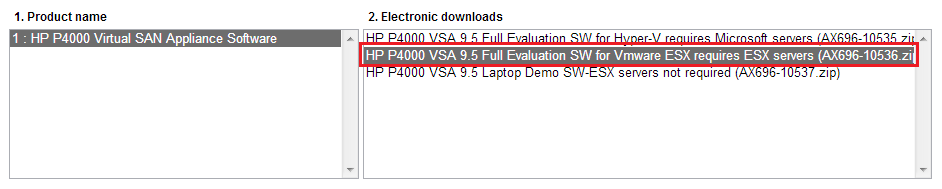
Once we get to the download page you will get three choices, the one we want to select is ‘HP P4000 VSA 9.5 Full Evaluation SW for VMware ESX required ESX servers (AX696-10536.zip)
Time to stick the kettle on for a fresh brew, unless you have a faster broadband connection than me!

Once downloaded, extract the files to a location on your laptop/desktop and fire up vSphere Client and connect to vCenter or your ESXi Host.

You would think that’s it, time to deploy the OVF, nope. We need to browse into the extracted files until we get to HP_P4000_VSA_9.5_Full_Evaluation_SW_for_Vmware_ESX_requires_ESX_servers_AX696-10536Virtual_SAN_Appliance_TrialVirtual_SAN_Appliance and click autorun.exe

This will launch the a further self extractor so that you can either deploy the HP StoreVirtual VSA via an OVF or connect directlty to an ESXi Host or vCenter using HP’s software.

Accept the License Agreement > Select Install VSA for VMware ESX Server and choose a further directory to extract the files too.

Once done, you will get a CMD prompt asking if you want to run the Virtual SAN Appliance installer for ESX?  In this instance we are going to close down this dialog box as if we use the GUI to connect to an ESXi 5.1 host it won’t pass validation.

Instead we are going to deploy it as an OVF.

So first things first, we need to create Datastore called SATAiSCSI01 which will contain the HP StoreVirtual VSA OVF virtual HDD.  I’m assuming you know how to do this so we will move onto deploying the OVF.  To do this click File from the vSphere Client > Deploy OVF Template.

Browse to the location ending in VSA_OVF_9.5.00.1215VSA.ovf and click Next

Click Next on the OVF Template Details screen and Accept the EULA followed by Next.  Give the OVF a Name in this case HPVSA01 and click Next.  I would recommend deploying the Disk Format as Thick Provision Eager Zeroed and clicking Next.  Next up choose a Network Mapping and click Finish.

Top Tip, don’t worry if you cannot select the correct network mapping during deployment. Edit the VM settings and change it manually before powering it on.

If all is going well you should see a ‘Deploying SATAVSA01’ pop up box.

On my physical vSphere 5.1 host, I have five NIC’s.  In this configuration we are going to assign one physical NIC to the management network and four physical NIC’s to the iSCSI network.  Hang on a minute Craig, why aren’t you using two physical NIC’s for the management network? Well first of all this is my home lab and I can easily connect to the HP Central Management Server using the iSCSI Port Group on a VM or if I create an Access Control List on my HP v1910 I can access SATAVSA01, SATAVSA02, SSDVSA01 and SSDVSA02 from the Management network .  Therefore I have chosen to give resiliency and bandwidth to the HP StoreVirtual VSA iSCSI connections.

This actually ties in quite well with the HP StoreVirtual best practice white paper which states you should use two vNIC’s per VSA.  So when we are finished we will have:

  • SATAVSA01 with 2 x vNIC’s
  • SATAVSA02 with 2 x vNICs
  • SSDVSA01 with 2 x vNICs
  • SSDVSA02 with 2 x vNICs

vSphere will automatically load balance the VM’s (SATAVSA01, SATAVSA02, SSDVSA01 and SSDVSA02) onto different physical NIC’s.  If you want to check this you can use ESXTOP which I covered in this blog post.

Cool, so we now have the HP StoreVirtual VSA with some virtual NIC’s, but we have no hard disk capacity.  We are going to edit SATAVSA01 settings and click add Hard Disk > Create A New Virtual Disk > Next .

We now have a choice on the Disk Provisioning, which one do we go for?

Thick Provision Lazy Zeroed Space is allocated by ESXi however the zero’s are not written to the underlying hard disk until that space is required to be used.  Meaning that we have an overhead, do we want this for our iSCSI SAN?

Thick Provision Eager Zeroed Space is allocated by ESXi and all zero’s are written.  The best choice!

Thin Provision Limited space is allocated by ESXi and will automatically inflate when needed,  again zero’s are not written to the underlying hard disk until that space is required to be used.  Meaning that we have an overhead, do we want this for our iSCSI SAN?

In my case I have gone with the following settings.

On the Advanced Options screen we need to change the Virtual Device Node to SCSI (1:0) otherwise the hard drive space won’t be seen by the HP StoreVirtual VSA.

Click finish, this time you will definitely be able to make a brew whilst we wait for vSphere to provision the hard disk.

Lastly, we need to repeat this process for SATAVSA02, SSDVSA01 and SSDVSA02.

In the next blog post I promise we will start to power things on!

How To Configure Layer 3 Static Routes & VLAN’s On HP v1910 24G

In the last how to, we performed the firmware upgrade and initial configuration on the HP v1910 24G.

It’s now time to start  placing some VLAN’s onto our switch.  A good starting point is why do we use VLAN’s?

Well a VLAN enables us to:

  • Logically segment a switch into smaller switches, much same way that ESXi  allows you to run multiple virtual machines on the same physical hardware.
  • Create logical boundaries so that traffic from one VLAN to another VLAN is permitted or not permitted e.g. User VLAN accessing Server VLAN.
  • Reduce the broadcast domains, in the same way that a switch creates a separate collision domain for each device plugged into it.  A VLAN reduces the ARP broadcasts sent out.

Before we move any further, we need to understand what purpose the VLAN’s will serve in our environment and what they will be assigned too.  For me, it’s quite straight forward, the HP v1910 will be used as my main home lab switch and as such I need a VLAN for the following purposes:

  • Management
  • iSCSI
  • vMotion
  • Backup
  • HP Fail Over Manager

With this in mind, I would highly recommend creating a network table containing your VLAN Names, VLAN ID, Subnet and Switch IP Address. You may ask why do you bother? Well I deal with large number of clients infrastructure and I often find that I get confused as what subnet’s are doing what!

You will notice that I have assigned an IP address to the switch on every VLAN.  The reason for this is the HP v1910 can also do layer 3 static routing so in my home environment the switch is the default gateway as well.

Layer 3 Static Routes

OK, lets login to the HP v1910 24G using the IP address and username/password we assigned previously.

Why use layer 3 static routes? Well I want to be able to route between VLAN’s.  This is critical for my HP Failover Manager (FOM VLAN) which needs to be in a logical third site to communicate with the HP Virtual Storage Appliance (iSCSI VLAN).  For each device on each VLAN they will use the switch as there default gateway.  This means that the network traffic will only leave the switch if it has a destination subnet for which it is not responsible e.g. the internet.

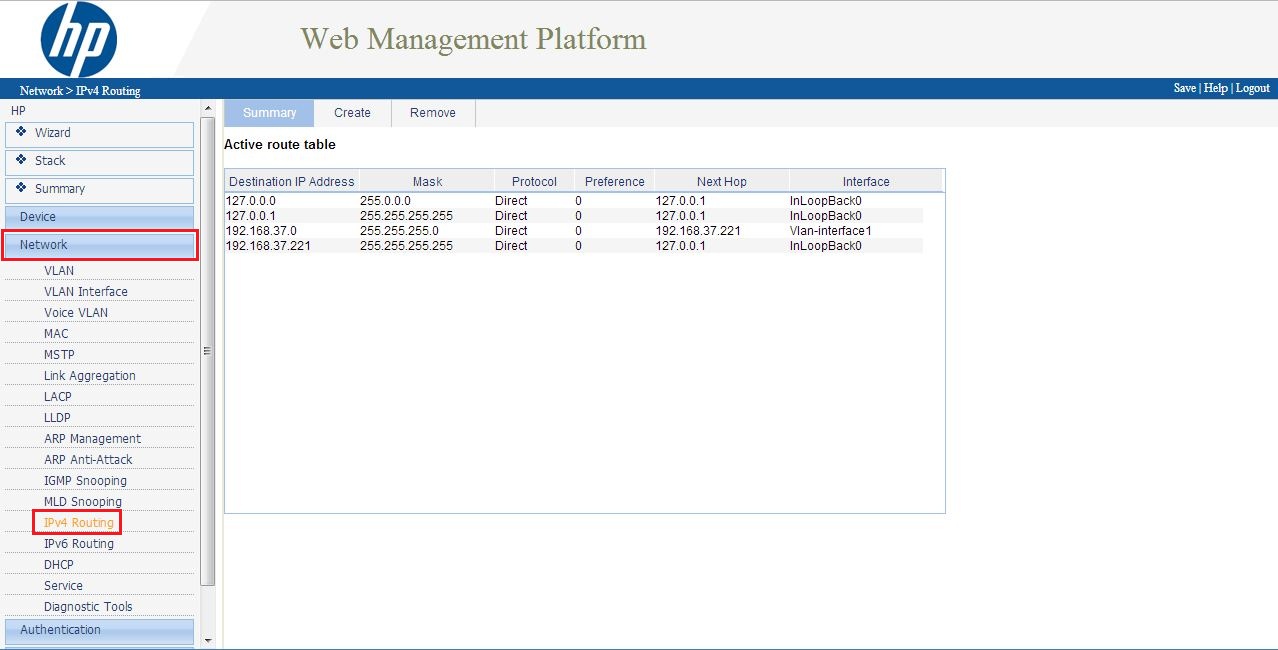
To do this, click on Network from the left hand panel then IPv4 Routing

Click Create in the Destination IP Address enter 0.0.0.0 Mask enter 0.0.0.0 Next Hop enter 192.168.37.254 Select Preference and enter 10

So what are we actually doing? Well we are saying to the switch for ‘any destination IP address’ and ‘any subnet’ send all that traffic to this router/firewall whose IP address is 192.168.37.254 (next hop).

Hopefully it should look something like this.

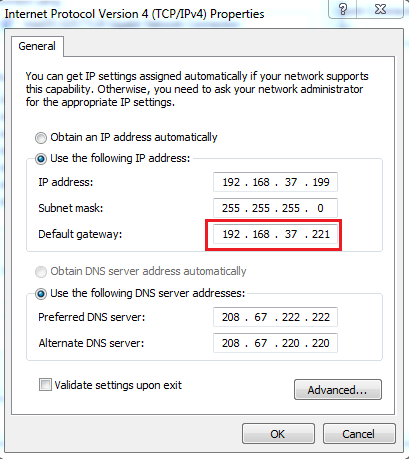
Cool, let’s test it.  Change a computer to use the HP v1910 24G switch as it’s default gateway.

We should now be able to ping the switch, the switches next hop and also something out on the internet.

Boom, it’s all working, let’s move on!

VLAN Configuration

Hopefully, you have already decided on your VLAN configuration and IP address’s for the switch.  So let’s crack on and start configuring.

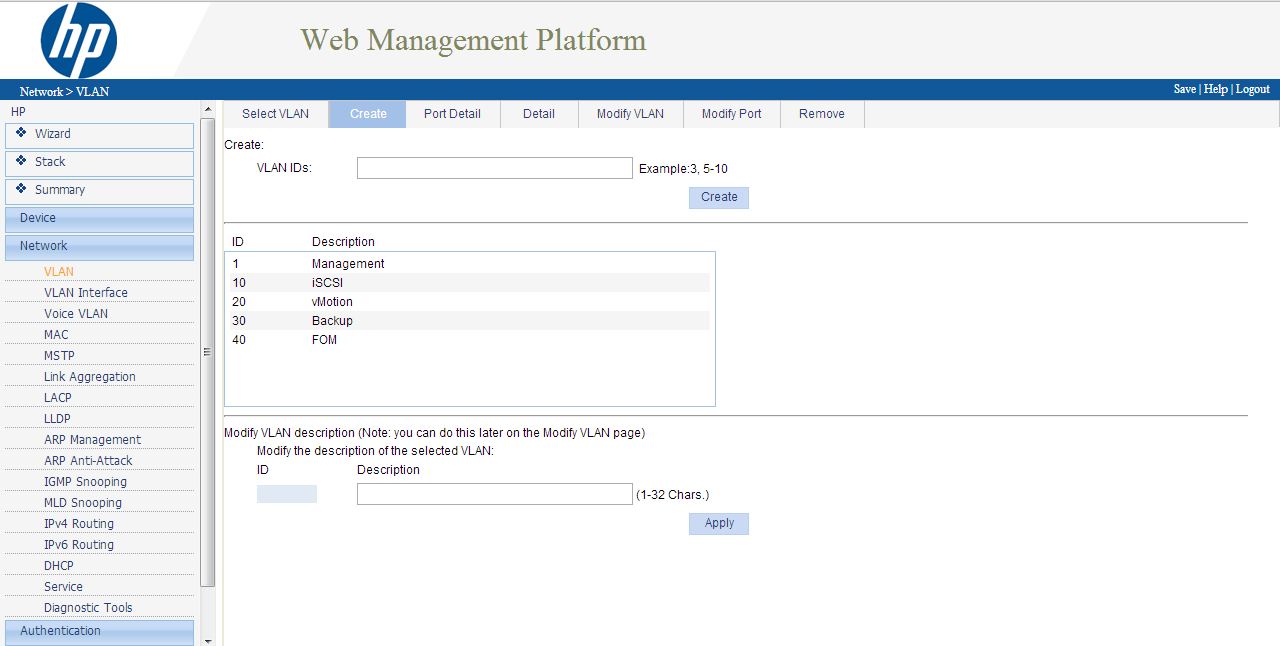
Select Network from the left hand menu then VLAN and then Create

My first VLAN ID is 10, so we enter this and click Create to the left hand side.   Next Modify the VLAN description from VLAN 0010 to iSCSI and then click Apply.

Rinse and repeat until you have entered all of your VLAN’s into the switch.  Here’s one I made earlier.

TOP TIP, don’t forget to click Save in the top right hand corner on a regular basis.

Great, we have created the VLAN’s now we need to assign them to some switch ports.  We need to understand what happens when we change the port characteristics.  The options we have are:

  • Untagged – what ever device we plug into this switch port will automatically be placed into this VLAN.  Commonly used for devices which are not VLAN aware (most desktops/laptops).
  • Tagged – if a device is VLAN aware and it has been assigned to a VLAN, when it is plugged into the switch port it won’t go into the Untagged VLAN, it will go into the Tagged VLAN (think IP phones)

As this switch is for my vSphere 5 environment and vSphere is VLAN aware.  We are going to set every port to be Tagged into every VLAN.  What will this achieve? Well every device which is not VLAN away will go straight into the Management VLAN.  Then on the port group’s within the vSwitches I can assign VLAN’s.

To do this, click Network from the left hand menu, then VLAN and finally Modify Port

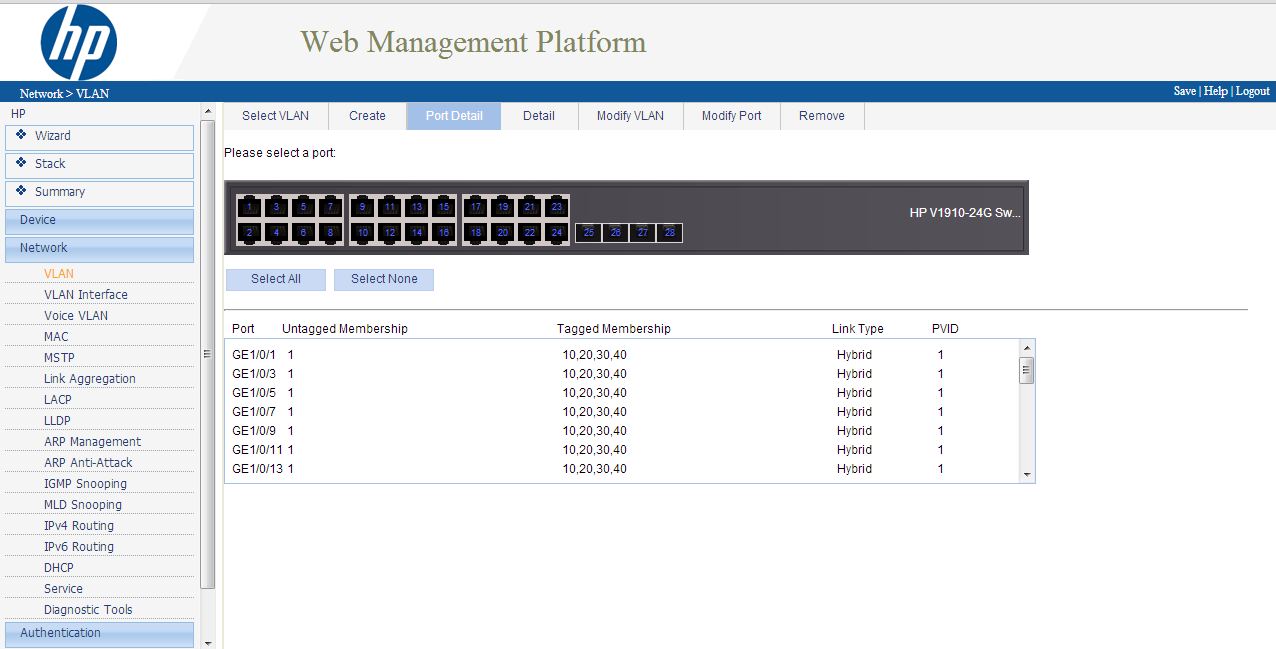
By default every port will be ‘untagged’ in VLAN 1 so we don’t need to make any modifications to this. Click Select All then Tagged and last of all Enter the VLAN ID’s in this case 10,20,30,40 and click Apply.

You will receive a pop up letting you know that Access Ports will change to Hybrid Ports, we are cool with this, so Click OK.

To verify the VLAN’s have been set correctly, go to Port Detail and choose Select All, it should show the following.

Assign An IP Address To Each VLAN

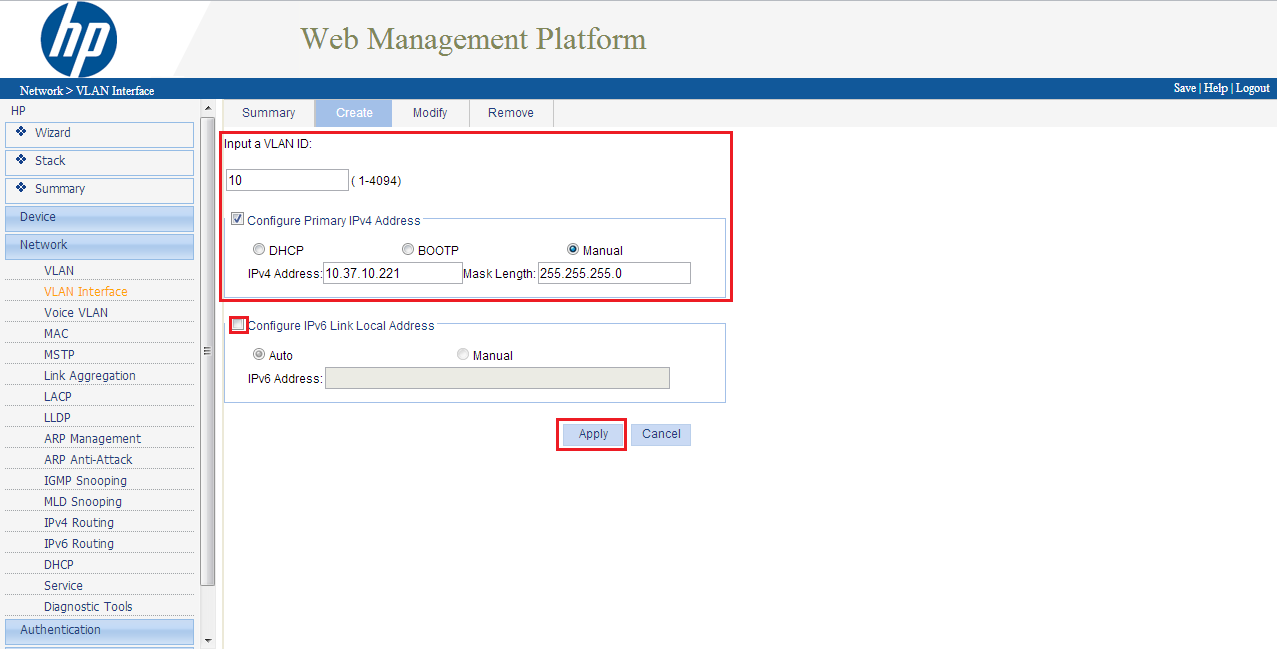
I mentioned earlier on in the post that we wanted to assign an IP address to each VLAN so that the HP v1910 24G becomes the default gateway for all devices.  To do this  select Network from the left hand menu, then VLAN interface and Create.

Now this is when I need to refer back to my network table! We input the VLAN ID e.g. 10 and then enter the IP Address e.g. 10.37.10.221 and Mask e.g. 255.255.255.0

I always deselect ‘Configure IPv6 Link Local Address’ then click Apply.

Rinse and repeat for the rest of your VLAN’s.  To make sure everything is ‘tickety boo’ click on Summary and you should be greeted with a page similar to this.

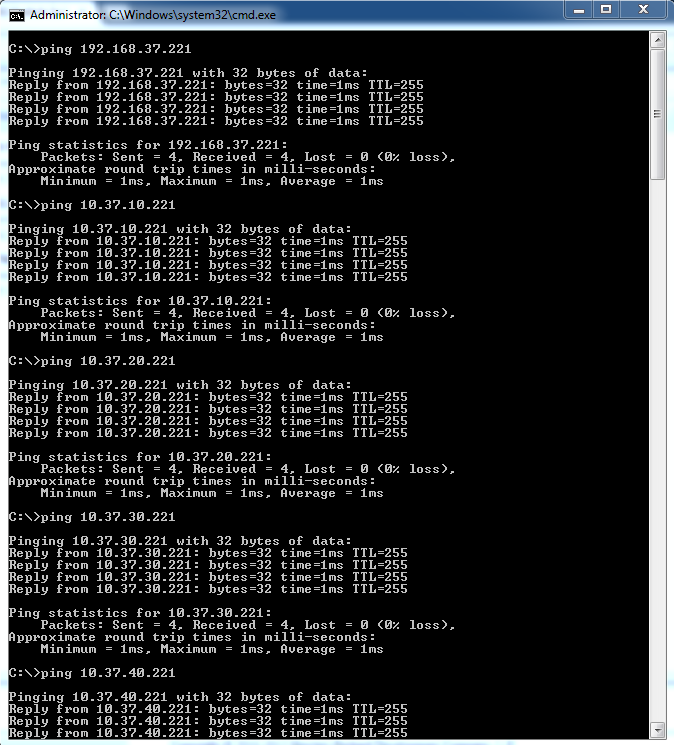
Time to test.  So from your computer you should now be able to ping each VLAN IP address on the switch.

Success, that’s our HP v1910 24G configured with VLAN’s.

How To Firmware Upgrade HP v1910 24G Switch & Initial Configuration

So, I finally have my lab all cabled and I have a few spare minutes to start the initial configuration of the vmFocus lab.

What do we do first? Well I always start with networking and making sure that my switch is running the latest firmware.  OK, I do have one exception to this, when you check the manufacturer’s website, if you have release 8.9.5 and  9.0.0, I tend to stick with 8.9.5 as it should be more proven.

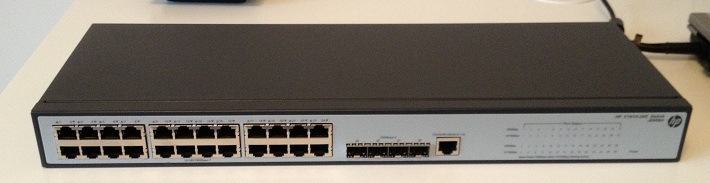
Anyway, back on topic, the HP v1910 24G switch is a beast for the money, some of it’s features are:

– Gigabit
– Layer 2 Managed
– Layer3 Static Routing with 32 routes
– Access Control Lists
– STP, RSTP and MSTP
– 802.3X Flow Control
– VLAN with 256 simultaneous
– Link Aggregation
– Lifetime Warranty

It should be a worthy addition to any home lab.

Firmware Upgrade

When I first opened up the switch, I was surprised by how light it was, but comparing this to Cisco’s which I work with on a daily basis (which cost 20x the amount) doesn’t seem fair.

The HP v1910 will pick up it’s IP address via DHCP, so depending on your environment, either check your DHCP servers newest address lease when you power it on or do a ping sweep of your network using something like IPScan

If you don’t have a DHCP server I would recommend using Antamedia DHCP Server, don’t worry it’s free.

Once you have located the IP address of the HP v1910 open up a web browser and type in the address.  Which in my case is http://192.168.37.104.  You should hopefully be greeted with this login screen:

I was quite surprised to see a ‘random’ text generator at the login screen but kudos to HP/3COM for the addition.  The default username and password is:

Username admin
Password

Once logged in, it should look something like this:

We are going to navigate to Device on the left hand side and then onto Device Management:

Now it’s time to download the latest firmware from HP, at the time of writing this blog the most recent firmware is 1910_5.20.R1512P05 which can be found here. Select this and begin the download

After the download completes select choose file

Select ‘if a file with the same name already exist, overwrite it without any prompt and also ‘reboot after the upgrade is finished’

Click on apply.  It will take approximately five minutes for the switch to come back up again, so go grab a cup of coffee before we move onto the next part.

Initial Setup

The first thing we are going to do is change the name of the switch, from HP, to do this select Device from the left hand column and then Basic.  Then enter a new name in ‘sysname’.  As you can see mine is named SW01 (very imaginative).  Don’t forgot to click ‘apply’

System time is perhaps one of the most overlooked items for networks.  I can’t stress how important this is, if you are trying to troubleshoot an error and the time stamps are 10-04-00 01:12, leaves you thinking when did the issue occur?

To setup select Device from the left hand column and then System Time and then Net Time.

In this example, we are using the Source Interface as VLAN 1, which is the default VLAN.  Our external NTP Servers are:

0.vmware.pool.ntp.org – 31.170.110.148
1.vmware.pool.ntp.org – 46.227.200.71

Select you time zone and click apply, once done you should see Clock Status: synchronized.

Moving down the list we are going to change the password for the admin user, select Device from the left hand column then Users then Modify.  Select admin tick Password Modify and then enter your new password

The last thing we are going to do is set a static IP address for the switch, we wouldn’t want to leave it on DHCP would we? To do this select Network from the left menu, then VLAN Interface, then Modify.  Select Manual and enter the static IP address.

This may sound crazy, but before you click apply, write down the last octet of the static IP.  You wouldn’t believe the amount of times I do this and the moment I click save/apply I get a phone call, colleague asking for help and I forget the damn thing.

Click apply and reconnect to the switch on the new IP address and with the password the admin user we applied earlier.

In the next ‘how to’ we are going to configure some VLAN’s.

CCNA: Security at Commsupport

I nearly forgot that my CCNA was due to expire, but Cisco sent me a few reminders, well I say a few, it ended up bordering on spam.  This meant that my efforts to gain the CCENT and the CCNA would soon be in demise and I would enter the realms of a ‘retired Cisco Certified Network Associate’.

With this in mind, I had a few choices to make:

Do Nothing this was close to being a front runner, however, if I’m being honest with myself, not being a Cisco Certified really bothered me.  It was almost like riding your bike everyday and then one day your dad saying ‘you aren’t allowed on the bike anymore’.  This thought process made we not want to loose the ‘bike’ in the first place.

Stay The Same to be fair this never really entered the equation.  Since starting in IT, one thing that I have always enjoyed is moving forward with skills, projects, vendors and technologies.  I don’t ever want to be a person who says I have 15 years experience in IT, well in fact, what you really meant to say is I gave up learning 12 years ago, so I only really have 3 years experience.

Move Forward this was the front runner, but I didn’t have enough time to self study as I had done before with the CCENT and CCNA (see blog posts CCENT Study Guide and CCNA ICND2 Study Guide) due to family and work commitments.

I spend some time over on CertForums and met a friendly fellow called Cisco Lab Rat who is the Owner/Senior Instructor at Commsupport.  His forum posts impressed me and when my employer was looking for for a new Cisco training provider, I recommended Commsupport’s services.

A few of my colleagues have used Commsupport, and the feedback has always been top notch.  So with this in mind, I decided to head to Commupport for my CCNA: Security training.  I knew that it was going to be a tough week as Joe AKA Cisco Lab Rat performs the course over six days with the average day being 9:00am to 6:00pm.

One thing of note, is that I would highly recommend that you have either the CCNA or have configured Cisco ASA’s and Routers out in the field.  During my time as an engineer I have been lucky enough to configure oodles of ASA 5510 in high availability and more site to site VPN’s than I could shake a stick at.

Anyway, back to the course, before it starts Commsupport provide you with access to there e-learning portal and they ask that you brush up on the basics so you are fully prepared for the course.

The course is held in Central Finchley (London) and this meant a two and half hour trek, door to door.  The first day was a Sunday which I have to say isn’t generally the trend in IT courses, but it was welcomed as I knew we had a lot of information to cram in.

The Commsupport offices are OK, they aren’t the Ritz but they certainly aren’t the ghetto.  You have to bear in mind the course cost, along with the equipment being used and the technical expertise giving the training.

Upon arrival, I was greeted by a slightly over excited Joe!  He instantly made me feel welcome and offered me a seat in front of a stack of Cisco equipment.

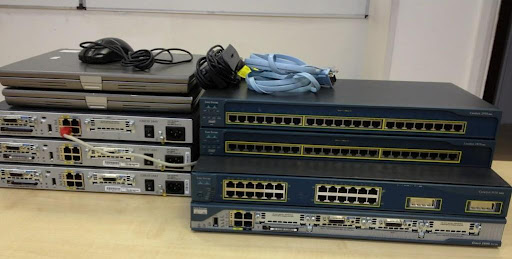
I was surprised by the amount of equipment we had to use:

3 x Cisco 1841 Routers
1 x Cisco 2801 Router
1 x Cisco 3560
2 x Cisco 3550
1 x Cisco ASA 5510
2 x Laptops

Normally, in most courses I attend, you have the initial meet and great, with the ‘Hi I work for x and do y’.  None of this, we cracked straight on with Cisco.

The way that Joe teaches you is excellent, he has a passion for networking, Cisco and ranting about random topics.  The overall work flow for each day is really structured, essentially, you have.

Step 1 – Joe Talks

Joe talks over the days plan giving us an overview of what we are going to achieve e.g. Client less SSL VPN from ASA over two routers with two lots of NAT.

He then draws out the network diagram and talks over the concepts of each area e.g. why you would use an SSL VPN rather than L2TP IPSEC or PPTP.

Step 2 – Joe Does The Lab

This part is cool, Joe then puts together the lab and explains all the IOS commands, ensuring you understanding what he is doing and why.

Step 3 – You Do It

Joe prints you out a set of instructions to configure your lab, this includes parts from the GUI (if you like that sort of thing) and also CLI.  One of the aspects that I really enjoyed was when you couldn’t get something to work Joe would spend the time and help you troubleshoot the issue.

Conclusion

Overall it was an excellent week, I gained a much deeper understanding of what it actually was that I was configuring rather than just making it work.  Joe’s ability to convey very technical information in a humorous fashion is second to none.  The lab you have to use is fantastic and the ability to access Joe before and after the course really helps when you have questions you are unsure off.

Would I recommend the CCNA: Security at Commsupport, yes definately.

Topics Covered

Common Security Threats

Describe common security threats

Security and Cisco Routers

Implement security on Cisco router
Describe securing the control, data, and management plan
Describe Cisco Security Manager
Describe IPv4 to IPv6 transition

AAA on Cisco Devices

Implement AAA (authentication, authorization, and accounting
Describe TACACS+
Describe RADIUS
Describe AAA
Verify AAA functionality

IOS ACLs

Describe standard, extended, and named IP IOS access control lists (ACLs) to filter packets
Describe considerations when building ACLs
Implement IP ACLs to mitigate threats in a network

Secure Network Management and Reporting

Describe secure network management
Implement secure network management

Common Layer 2 Attacks

Describe Layer 2 security using Cisco switches
Describe VLAN security
Implement VLANs and trunking
Implement spanning tree

Cisco Firewall Technologies

Describe operational strengths and weaknesses of the different firewall technologies
Describe stateful firewalls
Describe the types of NAT used in firewall technologies
Implement zone-based policy firewall using CCP
Implement the Cisco Adaptive Security Appliance (ASA)
Implement Network Address Translation (NAT) and Port Address Translation (PAT)

VPN Technologies

Describe the different methods used in cryptography
Describe VPN technologies
Describe the building blocks of IPSec
Implement an IOS IPSec site-to-site VPN with pre-shared key authentication
Verify VPN operations
Implement Secure Sockets Layer (SSL) VPN using ASA device manager